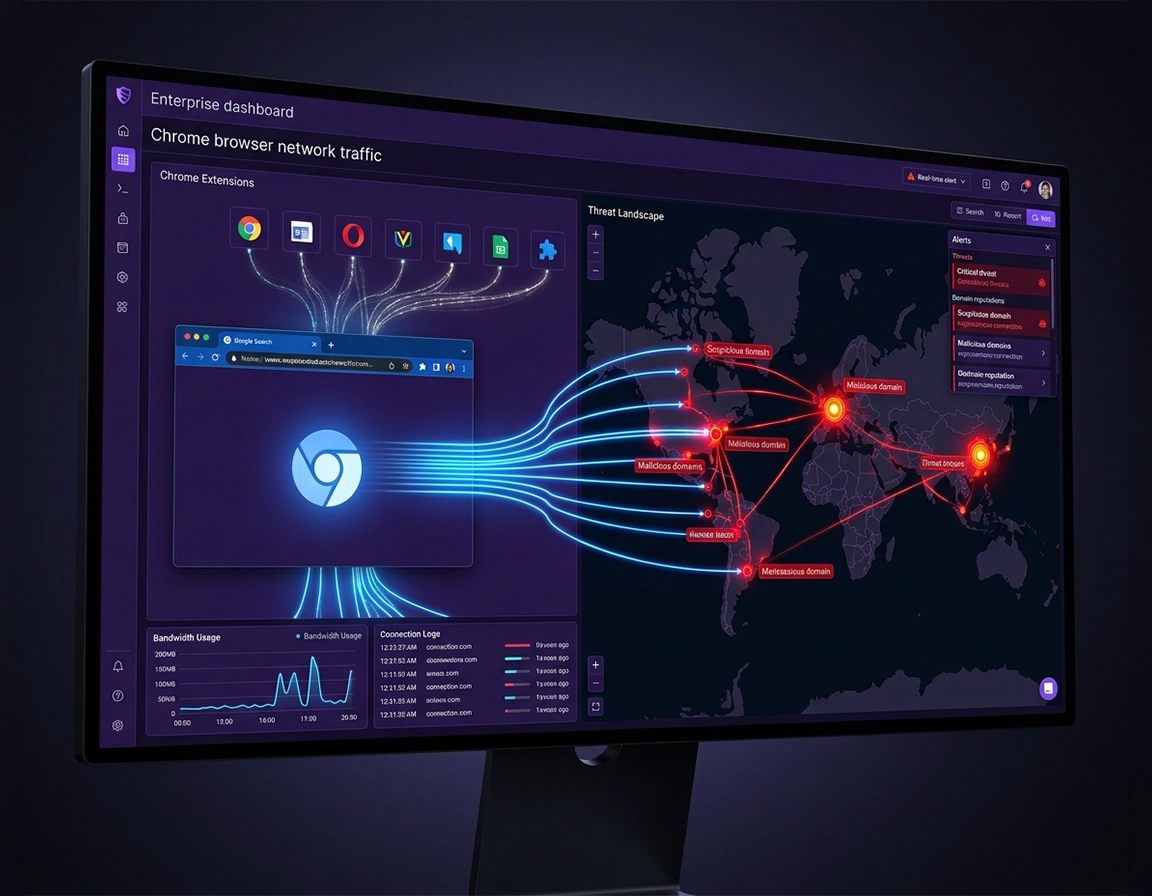
What Chrome network threat monitoring means once you stop treating the browser like a black box .
Chrome is constantly making network decisions on behalf of pages, extensions, service workers, downloads, sync, sign-in flows, certificate validation, Safe Browsing checks, and policy-controlled security features. Monitoring becomes useful when you can tell which of those layers initiated the traffic.
Most weak investigations begin with the wrong assumption: “Chrome contacted a strange domain, so the browser must be hacked.” That skips the hard part. Chrome can open connections because a page pulled third-party JavaScript, because an extension background service worker phoned home, because a push subscription woke a service worker, because a captive portal redirected the request, because a proxy PAC file changed routing, or because Safe Browsing and related security checks evaluated a risky navigation. The job is not to panic at unfamiliar traffic. The job is to sort expected browser plumbing from traffic that has the timing, destination pattern, and user-impact profile of abuse.
In practice, the most reliable starting point is not packet volume. It is sequence. What tab was active? Which profile was signed in? Which extension updated in the last hour? Did the traffic begin after a download prompt, a permission grant, a notification prompt, an SSO handoff, or a restored startup session? A single unfamiliar host is often noise. A burst of POST requests to newly registered lookalike domains seconds after a “PDF helper” extension update is a different class of problem entirely.
Chrome gives you more useful evidence than many people realize. DevTools can show request initiators and redirect chains. chrome://extensions exposes installed extensions and their IDs. chrome://policy shows whether the browser is inheriting enterprise controls that affect behavior. chrome://net-export/ can capture a NetLog when the problem is reproducible, and Google documents Chrome Enterprise reporting connectors for managed environments that need browser events to land in a security platform. Treating those sources as one story is what turns “weird traffic” into an explainable incident.
Related: If you want the broader detection model around suspicious browser behavior, read Chrome Browser Threat Detection Guide.
Terms that matter in a real investigation .
- Initiator: the page, extension, service worker, browser feature, or external component that caused the request.
- Baseline: the normal request pattern for a user, device, profile, or extension set, including startup behavior and routine SaaS traffic.
- Extension-generated traffic: requests started by an extension service worker, content script, options page, or extension backend rather than by the site the user believes they are using.
- NetLog: Chrome’s network event log, designed to capture detailed request and connection behavior for debugging and investigation.
- Triage: the first decision point where you classify the signal as expected browser behavior, a configuration issue, suspicious activity, or a confirmed security event.
Baseline checks that prevent you from chasing the wrong signal .
Start inside Chrome before you jump into external reputation tools. The first question is not whether the destination looks ugly. It is whether the browser behavior changed. Check the browser version, recent extension installs or updates, account/profile changes, restored sessions, proxy or VPN changes, recent permission grants, and whether the user clicked through a warning screen. A large share of “suspicious browser traffic” cases become easier once you identify a fresh extension ID, a newly granted site permission, or a newly introduced profile sync state.
- Confirm scope precisely: one tab, one profile, one Chrome channel, one operating-system user, or a pattern across multiple managed browsers.
- Record exact timing: capture the minute the alert, redirect, warning banner, or traffic spike happened so you can line it up with extension updates and system logs.
- Snapshot the local browser state: installed extensions, enabled profiles, current Safe Browsing level, proxy settings, active downloads, and any visible warning interstitial.
- Decide whether the behavior is reproducible: reproducible cases are ideal for DevTools or NetLog capture; non-reproducible cases need fast preservation of whatever context still exists.
- State the investigation goal up front: are you trying to contain a live risk, identify an extension as the initiator, prove that credentials may have been exposed, or build enough evidence to escalate?
Minimum evidence to collect before making changes .
- Destination details: domain, full URL if safe to record, redirect source, and whether the request appeared over HTTP/2, HTTP/3, or QUIC in your tooling.
- Browser context: tab title, site open at the time, Chrome profile name, extension IDs present, and whether Incognito or a managed profile was involved.
- User action: page load, download click, sign-in flow, extension install, notification allow, or browser startup restore.
- Security context: warning text shown, file name, download verdict, policy state, and whether the same event appeared in endpoint, proxy, DNS, or identity tooling.
Related: If extension activity is part of the problem, pair this page with Chrome Extension Network Traffic Monitoring and Chrome Extension Permission Abuse Detection.
The browser signals that separate normal Chrome traffic from trouble faster .
Good monitoring does not mean hoarding every request. It means prioritizing the browser behaviors that collapse uncertainty quickly: initiator mismatch, redirect abuse, request timing that makes no human sense, download verdict changes, and traffic patterns that map cleanly to extension background activity.
Initiator mismatch
A request attributed to an extension or service worker when the user believes they are only viewing a normal page is one of the fastest ways to narrow the case.
Redirect abuse
Chains that bounce through trackers, shortened URLs, disposable subdomains, or fake SSO landing pages deserve closer review than a simple single-hop navigation.
Dangerous download sequence
Pay attention when the download source, final filename, warning state, or post-download network activity changes midstream.
Idle-time beaconing
Chrome is minimized but still generating scheduled calls, repetitive POSTs, or host rotation patterns that look more like automation than browsing.
Credential-adjacent traffic
Any suspicious request near password fill, sign-in redirects, or account recovery flows deserves higher severity because the exposure window is larger.
Policy-versus-user mismatch
A managed browser may be expected to contact reporting backends, DLP services, or identity services; the risk appears when the activity does not match the assigned policy model.
A practical split is human-paced traffic versus machine-paced traffic. Human-paced traffic follows visible actions: page loads, search results, form submissions, media fetches. Machine-paced traffic keeps going while Chrome is idle, fires on a timer, begins at startup, or cycles through hosts with almost identical paths. That pattern does not prove compromise by itself, but it is often enough to move extension activity, service-worker abuse, or hidden adtech into the center of the investigation.
Signals that deserve immediate priority .
- Sign-in plus redirect plus warning: treat this as a possible phishing event, not a browsing annoyance.
- Extension update followed by burst traffic: often the cleanest way to identify an extension as the initiator.
- New background traffic from a profile that was previously quiet: especially after enabling sync, installing helper software, or restoring a full session.
- Repeated requests to lookalike domains: small spelling changes, disposable subdomains, or domains that only appear after a specific workflow.
Related: If you want to preserve and interpret the evidence after detection, read Chrome Malware Log Analysis Guide.
A practical investigation flow for suspicious Chrome traffic .
This sequence is designed for the moment when you already have a symptom: a strange host in DevTools, a Safe Browsing warning, an endpoint alert, a user report about tabs opening by themselves, or background traffic that does not match what is on screen.
- 1 Anchor the event before you click around. Record the time, current URL, previous URL if known, tab title, Chrome profile, user action, and whether the request happened during navigation, sign-in, download, restore, or idle time.
- 2 Check the obvious browser-layer suspects first. Open
chrome://extensions, note recently updated extensions, and compare the timing of the suspicious activity with extension installs, permission changes, and browser restarts. - 3 Use the right capture tool for the question. DevTools Network is best when you can reproduce the issue in a page context and need initiators, headers, and redirect chains.
chrome://net-export/is better when the issue spans multiple tabs, startup, proxy behavior, or lower-level network events. - 4 Separate page traffic from browser-side traffic. A request fired by a visible page is investigated differently from one initiated by an extension service worker, background page, push wake event, sync process, or enterprise connector.
- 5 Contain without flattening the evidence. Disable the suspect extension, sign out of the affected profile, create a fresh temporary profile for comparison, or isolate the device network path before you wipe data or reset the browser.
- 6 Raise or lower severity based on what was exposed. Traffic around credential entry, file downloads, data uploads, or access to internal apps deserves a much more serious response than a noisy but harmless ad-tech detour.
What a finished case sounds like: “Chrome contacted x because extension y updated at t, began background requests from this profile, and no evidence shows credential submission or malicious file execution.” If you cannot write a sentence with initiator, timing, and risk, you still have an open question.
For a solo user, the highest-value tools are usually the extension inventory, Chrome warning screens, download history, DevTools for reproducible cases, and a local process monitor that can confirm which process owns the connection. For analysts, the same browser evidence becomes stronger when it can be matched to DNS logs, proxy telemetry, identity events, and endpoint detections. A redirect to a fake sign-in page becomes much more actionable when it lines up with password reuse, suspicious OAuth consent, or a token theft signal elsewhere in the environment.
Which Chrome surfaces help with which question .
- DevTools Network: best for reproducible page loads, request initiators, headers, response codes, and redirect chains.
chrome://net-export/: best for broader connection behavior, startup problems, proxy interactions, and cases where page-level capture is too narrow.chrome://extensions: best for identifying recent installs, suspicious permissions, and extension IDs that match the timeline.chrome://policy: best for confirming that unusual traffic is not simply a result of enterprise management or reporting configuration.- Download history and warning interstitials: best for reconstructing whether the browser treated the navigation or file as risky before the user noticed something was wrong.
Related: If the suspicious activity came from a downloaded file or installer chain, continue with Chrome Malware Analysis Basics and Chrome Secure Download Settings.
Common variations by environment .
- Personal Windows or Mac device: you usually have better process visibility, but weaker centralized retention.
- Managed work browser: you often have less local freedom, but much richer event reporting and easier cross-device comparison.
- Shared device: profile contamination and stale extensions are common, so attribution is harder unless profiles are isolated properly.
- Mobile Chrome: investigation depth is more limited, so the emphasis shifts toward suspicious redirects, sign-in prompts, and download behavior rather than full host-level process analysis.
Enterprise and advanced monitoring strategy .
Enterprise monitoring becomes worthwhile once Chrome is treated as a deliberate telemetry source instead of a blind spot between the endpoint and the network. Google documents Chrome Enterprise reporting connectors and notes that managed browsers can report security events such as malware transfer, unsafe site visits, and password reuse. In newer connector guidance, Google also describes event reporting that can include extension telemetry and URL navigation events. That matters because browser risk often shows up before the endpoint looks obviously infected.
The mistake many teams make is ingesting browser events without a question they are trying to answer. Raw browser event volume is noisy. Analysts do better when the browser feed is shaped around decisions: which users are repeatedly landing on unsafe destinations, which extensions are producing out-of-pattern traffic, which browsers are moving files to risky locations, and which sign-in journeys combine redirects, warnings, and possible credential exposure. That design creates detections that an analyst can act on instead of just admire.
Recommended monitoring pillars .
- Unsafe-site visibility: who hit the destination, how often, from which profile or device, and whether the same user kept retrying after warnings.
- Malware and download visibility: suspicious download attempts, file-transfer context, repeated verdict changes, and follow-on activity after the file arrived.
- Extension visibility: allowed versus unapproved extensions, version changes, permission drift, extension telemetry, and suspicious background request patterns.
- Identity-adjacent risk: password reuse events, suspicious URL navigation, sign-in detours, and browser activity close to account compromise indicators.
- Data movement: uploads, file transfers, and policy-sensitive destinations that matter because of content sensitivity or business exposure.
Related: If you want the next layer after browser events, use Chrome Threat Intelligence Integration to enrich detections with domain and campaign context.
Where browser telemetry pays for itself .
- Remote teams where Chrome is the working surface for SaaS, SSO, file transfer, customer portals, and browser-based admin consoles
- Organizations with large extension footprints, uneven extension review discipline, or frequent requests for productivity add-ons
- Environments handling uploads, copy-paste into web apps, external identity providers, or repeated access to regulated data through the browser
- Post-incident cleanup programs where the browser is a likely re-entry path through restored sessions, stale extensions, or unsafe bookmarks
Where browser monitoring disappoints .
- When every unfamiliar domain is treated as malicious because nobody documented what normal SaaS, CDN, identity, and extension traffic looks like
- When browser events arrive without user, device, profile, policy, extension, or file context and analysts cannot tell whether the signal matters
- When the response playbook jumps straight to browser reset and destroys the evidence that would have shown whether the traffic came from a page, extension, or enterprise integration
Monitoring models users commonly compare .
| Model | Strength | Blind spot | Best fit |
|---|---|---|---|
| Chrome-only observation | Fast local checks and browser-specific context | Limited retention and weak fleet visibility | Personal troubleshooting and small-team triage |
| Chrome + endpoint telemetry | Links browser activity to process and file execution | May miss broader domain campaign patterns | Device-centered investigations |
| Chrome + proxy or DNS visibility | Better destination coverage and trend detection | Harder to attribute activity to a specific extension or tab | Network-centric operations teams |
| Chrome + SIEM + threat intelligence | Most useful for repeatable detections and scale | Needs clean event design to avoid alert fatigue | Managed enterprise environments |
Related: For managed cleanup scenarios, use Remove Malware from Managed Chrome Devices and Chrome Security Hardening for Malware.
Privacy, retention, and false-positive tradeoffs .
Browser security data becomes sensitive very quickly because it can expose work habits, internal URLs, sign-in behavior, extension usage, and file movement patterns. Chrome investigations are strongest when they are narrow and intentional. That matters even more with NetLog capture because Google’s own documentation notes that default logging strips private information unless you choose a more detailed mode, while including raw bytes can capture highly sensitive material such as cookies and credentials. That is useful for deep debugging, but dangerous as a casual default.
Primary concern: Overly broad monitoring can expose browsing habits, internal URLs, or user activity patterns that go beyond what is required for security review.
Three operational mistakes show up repeatedly. First, teams keep browser data indefinitely because storage looks cheaper than judgment. Second, they collect categories nobody will ever review. Third, they fail to distinguish real exposure events from low-stakes oddities such as routine CDN churn or legitimate federated sign-in redirects. A short list of high-value event types with strong enrichment beats a huge undifferentiated browser exhaust stream every time.
Plain-English summary: Monitor the browser narrowly enough that you can defend why each event exists. Keep the events that help explain phishing, malicious downloads, suspicious extensions, and unsafe destinations. Be much more cautious with full browsing detail unless there is a clear operational and legal reason.
Recommended baseline by goal .
- Balanced: unsafe site events, suspicious download visibility, extension inventory, and high-risk redirects.
- Maximum security: add transfer visibility, stronger enrichment, and tighter extension oversight, especially on managed devices.
- Privacy-first: limit retention, minimize full URL collection, and focus on event categories that have clear response value.
Recommended settings by operational goal .
| Goal | Recommended monitoring stance | Tradeoff | Best for |
|---|---|---|---|
| Balanced security | Collect warning, unsafe destination, suspicious download, and key extension events | Some medium-fidelity cases still need manual review | Most teams and serious home users |
| Maximum visibility | Pair browser reporting with endpoint and intelligence enrichment | Higher review effort and governance burden | Security operations and regulated environments |
| Data minimization | Collect only events tied to direct user risk and short retention windows | Less historical depth for pattern analysis | Privacy-sensitive organizations |
Related: To reduce the need for reactive monitoring in the first place, harden the browser with Chrome Safe Browsing Settings, Chrome Sandbox Malware Protection, and Chrome Process Isolation Explained.
Incident triage and troubleshooting .
If Chrome talks to domains you do not recognize .
Start with attribution, not fear. Confirm whether the host belongs to a page resource, CDN, identity provider, browser service, extension backend, VPN/proxy component, or managed security product. Then test sequence. If the host only appears after enabling one extension or opening one specific site, you have a strong lead. If it appears with a clean profile and no extensions, widen the scope to the OS, network stack, PAC file, local filtering software, or another process using Chrome-adjacent traffic patterns.
If network spikes happen while the browser looks idle .
Prioritize extension service workers, push-triggered service workers, restored session tabs, background sync, abusive notifications, and sign-in or token refresh loops. Look at whether the spike starts on browser launch, on wake from sleep, on profile sign-in, or after network reconnect. Those timing clues are often more useful than the destination itself.
If warnings appear during sign-in or password entry .
Increase severity immediately. A redirect chain or unsafe-site warning in the middle of credential entry is not just messy browsing. It may indicate phishing, lookalike SSO, session theft setup, or hostile identity interception. Close the tab, verify the legitimate destination independently, determine whether the password or token was submitted, and move into account protection and credential rotation if there is any doubt.
If you need to contain the browser without wrecking the timeline .
Disable the suspect extension before resetting the entire browser. Consider signing out of the affected profile, pausing network access, or reproducing the workflow in a fresh temporary profile. A full reset is sometimes necessary, especially on unstable or obviously compromised systems, but it is a poor first move when you still need to identify the initiator and preserve evidence.
Related: If the investigation confirms compromise, continue with Chrome Browser Hacked: How to Fix, Chrome Browser Data Breach Response, and Chrome Remove Malicious Extensions.
FAQ .
-
helpCan Chrome itself monitor network threats, or do I need other tools?Chrome provides meaningful security signals on its own, especially around unsafe sites, downloads, extensions, and browsing warnings. For single-user troubleshooting that may be enough. For stronger investigations, those signals become much more useful when paired with endpoint, proxy, DNS, or SIEM data.
-
helpWhat is the first sign that browser traffic is suspicious?The earliest strong sign is often a mismatch between user action and network behavior. A page that should load once but keeps calling unfamiliar hosts, an extension that starts generating requests after an update, or a redirect sequence that ends on a fake login page are all more meaningful than volume alone.
-
helpAre Chrome extensions a major source of risky network activity?They can be. Extensions are useful, but they also create a layer of background browser behavior that many users never inspect. Broad host permissions, silent updates, and aggressive monetization models can all produce traffic that looks suspicious and sometimes is suspicious.
-
helpShould I reset Chrome as soon as I see suspicious traffic?Not always. Resetting too early can erase the context that would have identified the cause. If the device is still controllable, capture timing, domain, extension state, and user action first. Then decide whether targeted containment or a full reset is the better move.
Sources & further reading .
- Google Chrome Help: Safe Browsing protection levels
- Google Chrome Help: how Safe Browsing keeps browsing data private
- Google Admin Help: Manage Chrome Enterprise reporting connectors
- Google Admin Help: Configure Chrome Enterprise connectors for threat detection and event reporting
- Chromium: NetLog network logging design overview
- Chromium: how to capture a NetLog dump
- Google Safe Browsing developer overview
- Google Security Operations: collecting Chrome Enterprise data
Disclosure: This page focuses on browser security workflows and may mention enterprise monitoring approaches. Recommendations should be adapted to your own privacy, logging, and incident-response requirements.