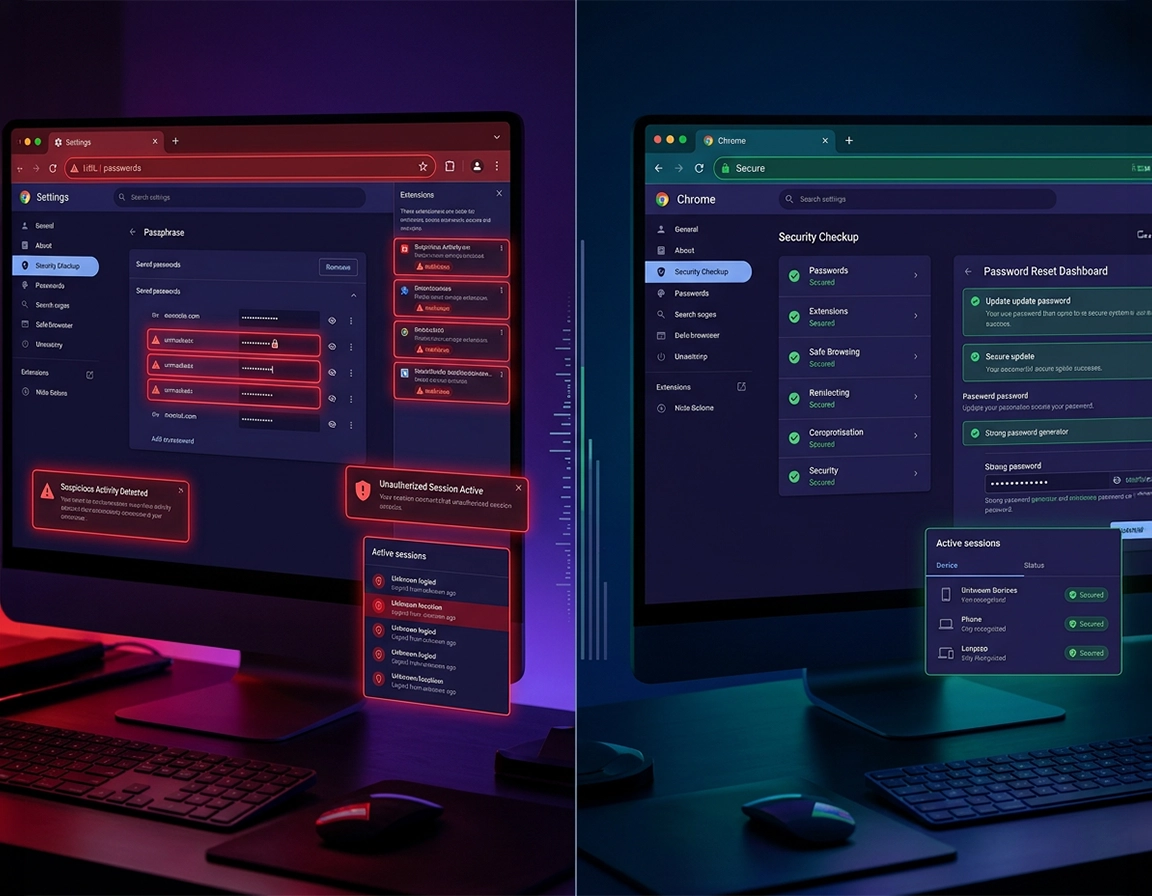
How Chrome-based data exposure actually happens in real incidents .
Most browser incidents are not “Chrome leaked my data” in the literal sense. They are usually one of five failure paths: reused credentials exposed elsewhere, stolen browser sessions, hostile extensions, malware scraping local browser data, or account-level sync abuse that republishes risky state across devices.
That distinction matters because the recovery path changes with the failure mode. If credentials were exposed in a third-party breach, the core job is rotation discipline and session invalidation. If a session cookie was stolen, the attacker may retain access long enough to survive a password change until you revoke active sessions. If an extension had permission to read and change site data, it may have observed logins, inserted scripts into webmail or banking pages, replaced affiliate links, or redirected search traffic without needing full device compromise. If the host briefly ran an infostealer, Chrome may simply be the richest source of loot on the machine: passwords, cookies, autofill addresses, payment hints, and browser history that helps the attacker prioritize targets.
Chrome concentrates trust. A single signed-in profile can hold recovery email access, authenticated SaaS tabs, shopping checkouts, financial dashboards, work tools, stored addresses, card data, passkeys, and extension permissions with access to all sites. That is why breach response cannot be reduced to “clear cache and change passwords.” The browser profile may have acted as a credential wallet, a session broker, a sync endpoint, and an observation layer at the same time.
The practical goal is to break every path the attacker can still use, then decide what state from the affected profile is worthy of trust. That means separating evidence from convenience. Bookmarks and a clean history export may be harmless. Persisted sessions, stored payment data, extension trust, and a heavily mixed-use profile often are not.
Related: If the incident started with a rogue add-on, continue with Chrome extension malware removal and Chrome suspicious extension detection.
Failure modes that change the response order .
- Credential exposure: usernames and passwords were leaked from a breached site, copied from the browser, or captured during sign-in.
- Session cookie theft: an attacker copied authenticated browser tokens and may appear already logged in without knowing the password.
- Extension abuse: a Chrome extension gained permission to inspect pages, inject scripts, read clipboard data, redirect search, or manipulate tabs.
- Sync compromise: the Google account attached to Chrome Sync was accessed, allowing browser state or trust decisions to replicate elsewhere.
- Host-level scraping: the underlying device ran adware, spyware, or an infostealer that treated Chrome as a data source.
Most urgent
Primary email, finance, password manager, cloud admin consoles, payroll systems, and any account that can reset or approve access for other accounts.
Frequently missed
OAuth grants, notification permissions, saved cards, autofill addresses, developer dashboards, extension IDs, and every device that was syncing the same Chrome identity.
Signals that the incident is broader than a simple leaked password .
- Account access continues after password changes because old sessions or reset channels were never revoked.
- Chrome restores a suspect extension, search engine, or startup page after you already removed it once.
- Unfamiliar logins cluster around services that were open in the same browser profile, not just one reused password.
- The affected profile was used for personal mail, shopping, work systems, and sensitive admin access in the same week.
First 10 minutes: what not to do .
Early mistakes usually come from treating a breach like a messy browser bug. Users clear everything, remove tabs, reset Chrome, and then start changing passwords from the same potentially compromised environment. That sequence hides clues while leaving the attacker’s real foothold untouched. The first ten minutes should protect evidence, establish whether the current device is trustworthy enough for response work, and identify the accounts that can be used to regain control of everything else.
Related: If Chrome is also showing broader compromise symptoms, review Chrome security incident response guide and Chrome browser hacked: how to fix.
- Do not reset Chrome first: capture extension names, IDs, installed dates, strange policy screens, and recent account alerts while they still exist.
- Do not rotate everything at once from the same questionable browser: start with the recovery email and your highest-value accounts, preferably from a cleaner device.
- Do not assume the breach alert points to Chrome as the root cause: the exposed credential may have originated in a third-party service while Chrome merely stored it.
- Do not leave sync running blindly: a synced browser can re-import the same risk across other logged-in devices.
- List the accounts with reset authority or financial impact.
- Identify which device and which Chrome profile were active when the first warning or strange behavior appeared.
- Note any extension installs, fake update prompts, cracked software, suspicious downloads, or search hijacks from the same period.
- Decide whether you trust the current machine enough to continue, or whether containment should move to another device.
Incident response sequence .
This sequence is designed to stop active abuse before you start repair work that only changes appearance. Each action either removes a live access path, reduces what the attacker can still reach, or prevents Chrome from reintroducing the same compromise through sync, cached trust, or extension persistence.
- 1 Secure the recovery layer first. From a device you trust more, change the password for the primary email account tied to password resets, review recent sign-ins, remove unknown sessions, and confirm multi-factor authentication still points to numbers and devices you control.
- 2 Collapse active browser-linked access. Review Google account device activity, sign out of Chrome where appropriate, and treat every synced Chrome instance as potentially carrying the same trust if Sync was enabled during the exposure window.
- 3 Interrogate extensions before you reset anything. Open
chrome://extensions/and remove anything unfamiliar, recently added, badly reviewed, or over-privileged. Pay special attention to tools with access to all sites, clipboard access, shopping overlays, PDF utilities, search helpers, “security” tools of unclear origin, and anything installed shortly before the incident. - 4 Rotate the accounts that can do real damage. Change passwords for banking, marketplaces, password managers, admin consoles, work email, cloud storage, and any service holding payment methods or privileged recovery options. Invalidate existing sessions where the service supports it.
- 5 Review what Chrome was trusted to store. Check saved passwords, payment methods, addresses, passkeys, autofill data, and sign-in prompts. Remove anything you would not want present in a profile whose trust is still under review.
- 6 Clean the browser and scan the host. Remove hostile extensions, revoke suspicious notification permissions, reset unwanted content settings, and scan the underlying device for infostealers, adware, or remote-access malware. A browser incident often reflects a host-level problem rather than a browser-only one.
- 7 Choose between a reset and a clean profile boundary. A reset can undo nuisance hijacks. A fresh profile is the stronger move when you suspect broader theft, sync propagation, repeat persistence, or a device that briefly hosted an infostealer.
What success looks like: Unknown sessions are gone, critical passwords are rotated, suspicious extensions are removed, sync behavior is controlled, and the current Chrome profile is no longer treated as a source of trust by default.
Related: Use Chrome password leak detection, Chrome password checkup, and Chrome data breach protection to continue hardening once containment is done.
Menu paths that matter during response .
- Extensions: Chrome menu → Extensions → Manage Extensions
- Passwords and autofill: Settings → Password Manager / Autofill and passwords
- Safety Check: Settings → Privacy and security → Safety Check
- Notifications: Settings → Privacy and security → Site settings → Notifications
- Reset: Settings → Reset settings
Desktop and mobile variations .
- Windows and macOS: Extension risk is typically higher because desktop Chrome supports the full extension model.
- Android: Focus more on Google account sessions, saved passwords, downloaded files, and app-level compromise than on extension abuse.
- iPhone and iPad: Session and password exposure are the main concerns, since the extension model is narrower than desktop Chrome.
Advanced containment and profile rebuild decisions .
The hardest decision in a Chrome breach response is not whether to click Reset settings. It is whether the current profile still deserves trust. A standard reset can disable extensions, restore startup behavior, and reverse common hijack settings. That helps with nuisance-level abuse. It does not create a clean trust boundary. If the profile held synced data, long-lived sessions, stored credentials, passkeys, cards, or access to business systems, a new profile is often the only way to stop carrying forward old assumptions about what is safe.
A rebuild is usually justified when suspicious settings return after cleanup, unauthorized sessions continue after passwords were rotated, Chrome keeps restoring a suspect search engine or extension, the host showed any sign of infostealer activity, or the profile was used for SaaS admin panels, finance, cloud consoles, and personal email all at once. In those conditions, exporting convenience data and continuing as normal is the wrong instinct. Move forward only the minimum material you can justify trusting.
Related: For deeper cleanup decisions, read Chrome profile reset guide, how to reset Chrome after malware, and Chrome secure profile setup.
When a reset is usually enough .
- A single nuisance extension changed search or home page settings and you caught it quickly.
- No critical accounts were accessed and there is no sign of cookie theft or account takeover.
- The device-level malware scan is clean and there is a clear, limited cause.
When a fresh Chrome profile is the better move .
- You suspect an infostealer harvested browser data.
- Multiple sensitive accounts were logged in from the browser during the exposure window.
- You used the same profile for work admin panels, personal email, finance, and shopping.
- Sync propagated suspicious changes across devices.
Why mixed-use profiles create bigger breach cleanup jobs .
One Chrome profile that handles personal browsing, finance, work dashboards, vendor logins, and password-reset email creates a single failure domain. Once that profile is exposed, the recovery workload becomes larger because the same browser state may have authority over personal money, business systems, and recovery workflows at the same time. A clean post-incident setup often means separating daily browsing from privileged admin work instead of returning to one all-purpose profile.
Common alternatives users compare after a breach .
- Chrome saved passwords versus a dedicated password manager after credential theft
- Browser reset versus full profile rebuild
- Endpoint antivirus scan versus extension-focused cleanup
- Manual recovery versus managed enterprise policy hardening
What evidence is worth preserving before cleanup .
Browser incidents are harder to explain after the obvious symptoms are gone. That matters because the quality of your recovery depends on whether you are responding to a noisy hijack, a hostile extension, or actual credential and session theft. You do not need forensic tooling to preserve useful context, but you do need to be deliberate before resetting the profile.
- Capture extension details: name, ID, installed date, requested permissions, and whether the item was side-loaded or came from the Web Store.
- Capture account signals: unfamiliar device sessions, password reset emails, new MFA prompts, unusual login locations, and account alerts with timestamps.
- Capture browser behavior: forced search engine changes, startup-page changes, repeated notification prompts, tab redirects, or restored settings after manual removal.
- Capture host clues: suspicious downloads, fake update installers, cracked software, remote-access tools, or antivirus detections that appeared in the same window.
Exposure types, risk levels, and priority order .
Exposure type determines urgency. Saved-password leakage is serious, but active session theft is often worse because it can bypass the familiar recovery pattern of “change the password and sign in again.” A malicious extension with broad site access can keep acting as a live collection layer. Sync misuse can make a single bad decision propagate to every browser instance tied to the same Google account.
Impact footprint: Login access, stored payment data, session persistence, browsing privacy, work systems, delegated OAuth access, and every device participating in Chrome Sync can sit inside the same incident boundary.
Related: If the breach appears to involve login theft specifically, also read Chrome browser passwords stolen: what to do, Chrome login security best practices, and Chrome account security settings.
Recommended baseline recovery posture .
- Option A (balanced): Rotate critical passwords, remove suspect extensions, run Safety Check, review sync devices, and monitor for 7 to 14 days.
- Option B (maximum security): Use a clean device for account recovery, invalidate sessions, rebuild the Chrome profile, remove stored cards, and move critical passwords into a dedicated password manager.
- Option C (compatibility-first): Keep the existing profile but remove high-risk extensions and revoke sessions. This is faster, but it leaves more room for hidden persistence.
Priority order by exposure type .
| Exposure type | First action | Main tradeoff | Best response style |
|---|---|---|---|
| Email account compromise | Change email password and revoke sessions immediately | May lock out older devices until re-authenticated | Immediate containment |
| Saved password theft | Rotate high-value credentials in priority order | Takes time if many accounts reuse passwords | Credential sweep |
| Session cookie theft | Force session invalidation where possible | Some services make this less obvious than password changes | Session-focused cleanup |
| Malicious extension | Remove the extension and review all granted permissions | Browser behavior may normalize before account risk is fully addressed | Extension plus account review |
| Sync compromise | Review Google account devices and sync scope | Changes can reappear across linked devices | Cross-device response |
How to tell whether you had theft, sync misuse, or a false alarm .
Related: For broader scanning and evidence gathering, use how to scan Chrome for malware, Chrome browser threat detection guide, and Chrome data leak detection.
If accounts keep showing logins after password changes .
That usually means one of three conditions still exists: the attacker retained access to the recovery mailbox, existing sessions were not fully invalidated, or the original device is still capturing the new credentials. Move recovery onto another device, inspect the mailbox for forwarding rules and recovery-method changes, force session invalidation again, and treat the original Chrome profile as evidence until you have ruled out extension abuse or host malware.
If Chrome settings or extensions keep coming back .
Recurring settings usually mean the source is not local and not finished. Common causes include sync replication, enterprise policy, or another program on the device reapplying the same change. Pause sync while you investigate, inspect chrome://policy/ on managed systems, and confirm that you removed the source of the change rather than only the visible symptom.
If a breach checker says your password was found but Chrome seems normal .
A breach checker alert does not, by itself, prove that Chrome or the device was compromised. It may simply mean a third-party service leaked credentials that you also saved in Chrome. In that scenario the right fix is disciplined credential hygiene: rotate the password, stop reusing it anywhere else, enable strong multi-factor authentication, and review whether Chrome should continue storing that credential.
If you need to reset safely .
Reset only after you have documented suspicious changes and revoked critical access. Resetting first can erase the extension name, changed search engine, rogue startup page, or other clues that explain the exposure path. Once account containment is complete, a reset is reasonable for narrow nuisance modification. Use a fresh profile when the incident touched work systems, showed repeat persistence, or involved any credible sign of infostealer behavior.
FAQ .
-
helpCan changing my passwords alone fix a Chrome data breach?Only when the incident was limited to credential exposure. It is not enough when access was preserved through stolen sessions, malicious extensions, sync misuse, or a host-level infection that can capture the replacement passwords.
-
helpShould I stop using Chrome completely after a breach?Not by default. The decision depends on whether Chrome was merely where you noticed the problem, or whether the profile itself became a collection point through extensions, sync abuse, or stored-session theft. Rebuilding Chrome cleanly is often more useful than switching browsers in panic.
-
helpDo I need to remove saved cards and autofill data?Review them at minimum, and remove them when the profile trust boundary is unclear. Cards can be replaced and watched for test charges. The broader objective is to stop an uncertain browser profile from continuing to store high-value data by default.
-
helpWhat is the biggest mistake people make during recovery?They optimize for a browser that looks normal before they verify that live attacker access is gone. That destroys evidence, leaves existing sessions active, and can turn password rotation into a race the user is still losing.
Sources & further reading .
- Official Chrome Help
- Google Account Help
- Chrome Web Store Help and extension support resources
- Chrome security audit guide
Editorial note: This guide prioritizes incident sequence over convenience. The safest path is usually the one that removes attacker access first, preserves enough evidence to explain the exposure path, and only then decides whether the browser profile should be cleaned or replaced.