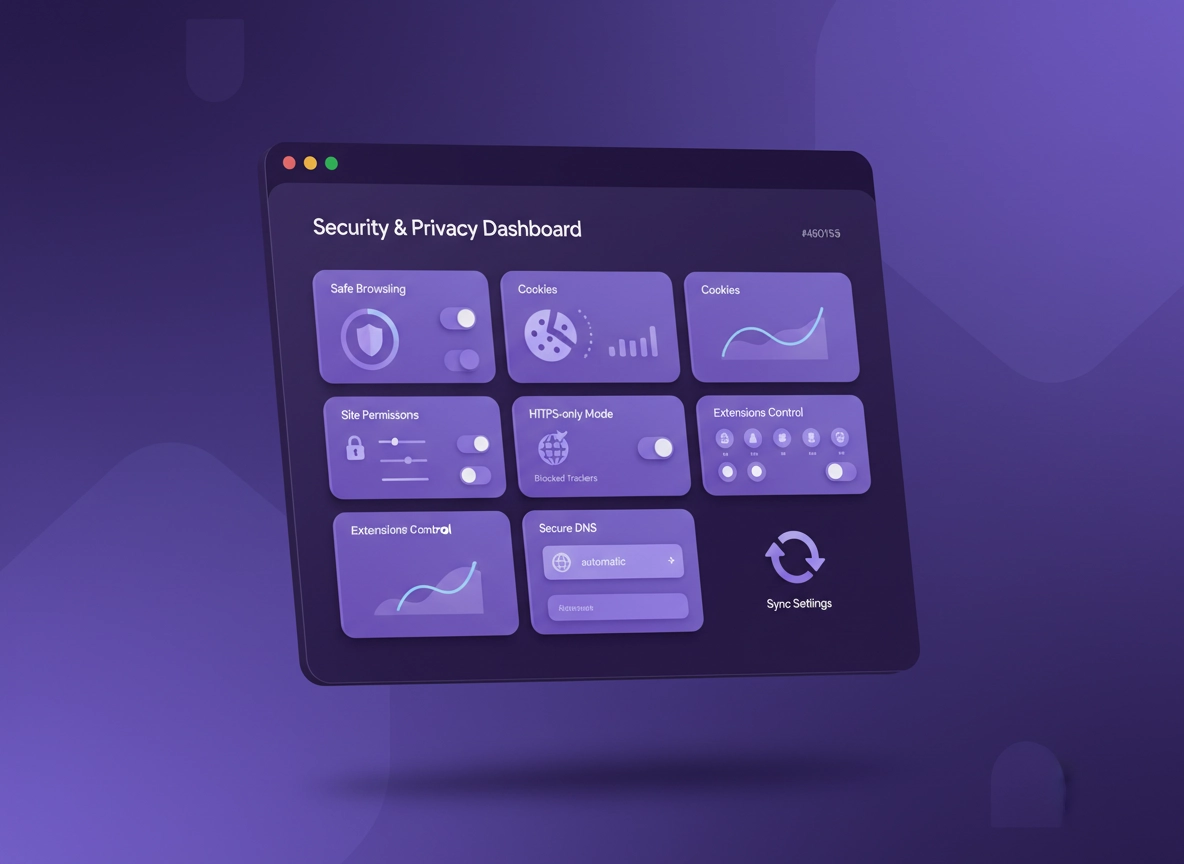
What “browser hardening” means (in plain English) .
This checklist is written for modern Chrome. It focuses on settings that meaningfully reduce real-world risk—not “tweak everything” advice that breaks your day.
Browser hardening is the process of reducing your browser’s attack surface and limiting what websites, extensions, and background services are allowed to do. Chrome is already one of the more security-engineered browsers (sandboxing, site isolation, rapid patching), but your configuration still matters because attackers typically don’t “hack Chrome” directly—they exploit the stuff around it: unsafe extensions, permission abuse, credential reuse, risky downloads, weak network settings, and cross-site tracking that leaks identity signals.
The goal isn’t to turn Chrome into a bunker. The goal is a stable baseline that prevents the common failures: clicking a phishing link, installing a “free” extension that reads your mail, allowing notifications that become spam, letting a random site use your camera, or signing into a work account on an untrusted network with weak protections. Hardening is a risk tradeoff: you want higher security while keeping the browser usable for banking, work portals, school platforms, and everyday sites.
This page is intentionally practical. Each checklist item includes: (1) what it protects you from, (2) where to find it, (3) what might break, and (4) how to revert if needed. If you’re starting from scratch, you can follow the “strong baseline” section as-is and stop there. If you manage devices or need compliance controls, jump to the enterprise section later.
Related: For the bigger picture, start with the hub page Chrome Hardening Guide and then use this checklist as your day-to-day reference.
Key terms (quick definitions) .
- Attack surface: The set of features and integrations an attacker can abuse (extensions, permissions, downloads, weak DNS, etc.).
- Site permissions: Per-site access to camera, mic, location, notifications, pop-ups, background sync, USB devices, and more.
- Enhanced protection: A stronger Safe Browsing mode that can improve detection of dangerous sites/downloads, with additional data sent to improve protection.
- Secure DNS (DoH): DNS over HTTPS—encrypts DNS lookups to reduce network-level snooping or tampering in many scenarios.
- Profile: A separate Chrome environment with its own cookies, extensions, saved passwords, and settings.
Related: Want the “why” behind each privacy control? See Chrome Privacy & Security Settings Overview.
Before you start: 10-minute prep that saves hours .
Hardening goes smoother when you avoid two common problems: (1) you lock down settings and forget how to undo them, and (2) you tighten something (cookies, pop-ups, extensions) and suddenly a work tool breaks. Do these quick checks first.
- Confirm you’re updated: Go to Settings → About Chrome and update fully. Hardening is meaningless if you’re behind on security patches. (More: Get or Update Chrome.)
- Know your “must-work” sites: List the 5–10 sites you cannot break (banking, email, SSO portal, school LMS, payroll). You’ll test these after each “strong baseline” section.
- Decide your profile strategy: If you mix work + personal, create a second profile now and harden it first. (Guide: Chrome Secure Profile Setup.)
- Audit extensions before you harden: Most “browser compromises” are extension problems. Remove anything you don’t actively use. (Guide: Chrome Extension Security Check.)
- Plan for cookies: Tightening cookies improves privacy but breaks logins on some sites. You’ll fix this with “allow” exceptions. (Guide: Third-Party Cookies Settings.)
Fast rollback safety net: If you’re nervous about changes, take a note of your current defaults: open chrome://settings in a new tab and screenshot the key pages: Privacy and security, Site Settings, Extensions, and Sync. It’s the fastest “undo map” you can make.
Related: If you suspect infection, hijacking, or spam notifications, fix that first: Remove Unwanted Extensions and Chrome Pop-up Virus Removal.
Hardening checklist: quick wins → strong baseline → advanced .
This is a layered checklist. If you only do one section, do the “Strong baseline” items. If you manage multiple users or handle sensitive data, add the “Advanced” items and then the enterprise section.
Section A: Quick wins (15 minutes) .
-
Run Chrome Safety Check
Go to Settings → Privacy and security → Safety check.
Fix warnings for updates, passwords, harmful extensions, and permissions. This catches the low-hanging fruit fast.
More: Chrome Security Checkup
- Remove extensions you don’t actively use Keep the minimum set. Every extension is code that can see or alter browsing. If you need one, prefer reputable publishers and minimal permissions.
-
Turn off notification permission spam
Go to Settings → Privacy and security → Site settings → Notifications.
Set to “Don’t allow sites to send notifications” (or at least enable “Use quieter messaging”).
Then remove any suspicious allowed sites.
More: Notification Permissions
-
Block “All sites” permission creep
In Site settings, review: Camera, Microphone, Location, Pop-ups, Background sync.
Remove sites you no longer trust.
More: Site Permissions
- Check password exposure signals Use Chrome’s password leak checks and remove reused passwords. Browser hardening fails if credentials are weak.
What “success” looks like: Safety Check shows no critical warnings, notifications are controlled, unused extensions are gone, and high-risk permissions are reduced to “Ask” or “Blocked.”
Section B: Strong baseline (the sweet spot) .
This baseline is designed for most people: it meaningfully reduces phishing/malware risk, reduces tracking exposure, and prevents permission abuse—without turning Chrome into a constant “something is blocked” experience.
-
Set Safe Browsing to the strongest level you’re comfortable with
Go to Settings → Privacy and security → Security.
Choose the strongest protection available to you (Enhanced where available).
Why: Blocks known dangerous sites/downloads and improves detection of phishing. · More: Safe Browsing Settings · Enhanced Safe Browsing
-
Enable HTTPS-first / HTTPS-only behavior
In the same Security screen, enable HTTPS-first mode (or similar option).
Why: Reduces downgrade attacks and blocks accidental plaintext browsing on sketchy networks. · More: HTTPS-Only Mode
-
Use Secure DNS (DoH) with a reputable provider
Go to Settings → Privacy and security → Security → Use secure DNS.
Choose a trusted provider, or keep “With your current service provider” if you’re in a managed environment.
Why: Reduces DNS tampering and casual network snooping. · More: DNS over HTTPS Settings · Secure DNS Setup
-
Block third-party cookies (then allow exceptions only when required)
Go to Settings → Privacy and security → cookies controls.
Turn on third-party cookie blocking. If a work tool breaks, add a specific “Allowed” exception instead of disabling the block globally.
Why: Limits cross-site tracking and reduces session leakage in some scenarios. · More: Block Third-Party Cookies
-
Review and minimize “Site access” permissions
Go to Privacy and security → Site settings.
Set Camera/Mic/Location to “Ask” or “Don’t allow”, and keep your allow list short.
Why: Many real-world scams are “permission-driven” (notifications, mic/camera prompts, location abuse). · More: Camera · Microphone · Location
-
Disable background sync unless you truly need it
Go to Site settings → Background sync.
Prefer “Block” for a hardened profile.
Why: Reduces background activity and surprise network calls; can also improve battery on laptops. · More: Background Sync Settings
-
Lock down “Pop-ups and redirects”
Go to Site settings → Pop-ups and redirects and keep it blocked.
Allow only the specific sites that require it.
Why: Reduces exploit chain opportunities and scam behavior (forced redirects, download traps).
-
Audit sync: decide what should leave the device
Go to Settings → You and Google → sync options.
For hardened profiles, sync only what you need. If you share devices, consider disabling sync entirely.
Why: Sync can spread risky extensions/settings across devices. Great for convenience, risky if compromised. · More: Account Sync Settings · Disable Chrome Sync · Sync Security Risks
- Enable automatic cleanup habits If you want a “harder to track” browsing setup, automate cookie/data cleanup after sessions where possible, or use separate profiles for different roles.
-
Turn on “Ask where to save each file” if you handle sensitive downloads
Go to Settings → Downloads.
This prevents accidental saving to shared folders and reduces “silent download” confusion.
Why: Helps avoid mishandled sensitive documents and makes suspicious downloads more obvious.
Common variations .
- Windows / ChromeOS: You may see additional OS-integrated protections (SmartScreen equivalents are OS-side). Focus on Safe Browsing, extensions, and permissions first.
- macOS: Certificate and keychain prompts behave differently. If HTTPS-first breaks a captive portal, see Troubleshooting.
- Android / iPhone: Mobile menus differ and some controls are limited. Prioritize Safe Browsing (where available), permissions, and cookie controls; keep extensions minimal.
Section C: Advanced hardening (power users) .
This section is where you reduce the “clever attacker” paths: fingerprinting signals, risky flags, extension privilege creep, and network-level leaks. Apply these when you’re comfortable managing exceptions.
-
Reduce fingerprinting exposure (practical steps)
Fingerprinting is “identity by configuration”—fonts, extensions, device quirks, and behavior. The practical hardening move:
keep extensions minimal, avoid “random tweak” flags, and use a separate profile for sensitive accounts.
More: Fingerprint Protection
- Harden extension permissions (least privilege) In chrome://extensions, prefer extensions that support “On specific sites” or “On click” access. Avoid “Read and change all your data on all websites” unless absolutely necessary.
- Review ad/privacy controls with realism Ad privacy settings can reduce ad personalization, but they don’t replace cookie and permission hardening. Use them as a privacy “nice-to-have,” not the core defense.
- Be cautious with flags: treat them like experimental code paths Chrome flags can improve behavior but can also weaken security or stability. Avoid “security” flags you don’t fully understand. If you must use flags, keep a note of what you changed and why.
- Use encrypted data storage where it matters If you store passwords or sensitive data in Chrome, understand what is protected by your OS account vs your Google account, and consider a dedicated password manager if your threat model includes device compromise.
- For remote/public Wi-Fi: prioritize network privacy controls On untrusted networks, encrypted DNS + HTTPS-first reduces passive network visibility. If you need stronger coverage, a VPN can help, but avoid “free VPN extensions” with unclear business models.
- Consider separate profiles for high-risk workflows Banking/profile, Work/profile, and “Testing” profile (for new extensions and unknown sites). This is an underrated hardening technique because it prevents data cross-contamination and contains damage.
Common alternatives users compare .
- Chrome built-in security vs privacy extensions: built-in controls reduce risk; extensions can help, but each one increases attack surface.
- Chrome Password Manager vs dedicated password managers: dedicated managers often offer stronger enterprise controls, sharing governance, and auditing.
- VPN extensions vs full VPN apps: extensions often protect only browser traffic; full VPN apps cover more of the device.
- Manual hardening vs policy management: policy-based controls prevent drift and enforce baselines at scale.
Enterprise-grade hardening (policies, logging, and controls) .
If you manage Chrome at work, school, or across a team, manual checklists aren’t enough—you want enforced baselines. The enterprise approach is: define the baseline, lock it with policy, control extensions, and get visibility into what’s happening. This section is written to be useful even if you’re not a full-time IT admin; it focuses on the outcomes and the practical “what to do next.”
Related: Start here if you’re setting standards across multiple users: Enterprise Secure Configuration Best Practices. For broader strategy, see Chrome Enterprise Guide.
1) Control extensions like software deployment .
In enterprise incidents, extensions are a recurring theme: permission updates, silent ownership changes, or “helper” tools that become spyware. The enterprise posture is simple: allowlist approved extensions, blocklist known risky categories, and monitor permission changes.
- Minimum: Stop users from installing random extensions.
- Better: Maintain an allowlist for approved tools only.
- Best: Require approval workflow + monitor updates/permission changes.
Practical rule: If an extension needs “Read and change all data on all websites,” it must justify that access in writing. Otherwise it doesn’t get approved.
Helpful internal reading: Enterprise Extension Management · Allowlist Policy · Blocklist Policy
2) Enforce safe browsing and download protections .
Users will click links. Your job is to make the unsafe path harder and the safe path easier. Enforced Safe Browsing policy reduces “why did the browser allow that” moments—especially on new phishing kits that look real.
- Baseline: Require Safe Browsing protections and prevent disabling them.
- Add-on: Consider additional enterprise controls (secure web gateway, isolation, or endpoint controls) when risk is high.
More: Malware Protection Guide · Secure Download Settings
3) Standardize cookies, site permissions, and identity flows .
Many organizations are surprised by how much identity and data exposure happens through the browser layer: persistent cookies, wide permission grants, and account sync that spreads data across devices. Standardize what’s allowed and define exceptions for your required SaaS apps.
- Permissions: Default deny camera/mic/location unless required by role; allow per approved domains.
- Cookies: Block third-party cookies by default; allow exceptions for approved SSO and embedded workflows.
- Identity: Decide whether Chrome sync is allowed and what data types may sync.
More: Enterprise Privacy Controls · Identity Protection Guide · Account Security Settings
4) Use policy + monitoring for drift control .
Even if you create a perfect baseline, users drift. One new extension, one “allow notifications” prompt, one strange PDF tool. Policy enforcement keeps the baseline from decaying over time, and monitoring tells you where exceptions are happening.
- Policy enforcement: push and lock critical security/privacy settings.
- Audit visibility: track extension installs, risky permissions, and unusual browsing behavior signals.
- Incident response: know how to revoke extensions, clear compromised sessions, and rotate credentials quickly.
More: Enterprise Audit Logging · Enterprise Risk Management · Security Incident Response
Privacy & security notes (what each change really does) .
Hardening advice often fails because it mixes “privacy,” “security,” and “preference” into one bucket. This section separates them: security controls reduce malicious outcomes (phishing, malware, account takeover), while privacy controls reduce data exposure (tracking, profiling, leakage). Many settings do both, but the tradeoffs differ.
Impact: Affects cookies, tracking behavior, extension permissions, download trust, and site compatibility.
Related: Want a structured audit worksheet? Use Chrome Privacy Audit Template.
Recommended baseline settings .
- Option A (balanced): Standard/Enhanced Safe Browsing (as available), HTTPS-first, Secure DNS, block third-party cookies, permissions set to Ask, minimal extensions.
- Option B (maximum privacy): Balanced option + stricter cookie cleanup, separate profiles for sensitive accounts, aggressive permission blocking, careful extension allowlist only.
- Option C (compatibility): Balanced option, but use targeted cookie exceptions for SSO/banking embeds and keep pop-ups blocked except for required sites.
Recommended settings by goal .
| Goal | Recommended setting | Tradeoff | Best for |
|---|---|---|---|
| Balanced | Safe Browsing + HTTPS-first + Secure DNS + block 3rd-party cookies + permission “Ask” | Some embedded login flows may require cookie exceptions | Most users |
| Maximum security | Balanced + strict extension allowlist + restricted notifications + separate profiles for sensitive accounts | More maintenance; some convenience loss | Work/banking profiles |
| Enterprise control | Policy enforcement + monitoring + controlled exceptions + approval workflow for extensions | Requires admin effort and governance | Teams, schools, regulated orgs |
If you’re unsure where to start, choose Balanced, then tighten only the areas your threat model demands: extensions (highest leverage), permissions (second highest), then cookies (privacy leverage).
Related: If you want a privacy-focused setup (students/remote work), see Chrome Privacy for Students and Chrome Privacy for Remote Work.
Troubleshooting (when secure settings break sites) .
Good hardening is targeted. When something breaks, don’t undo the whole baseline—identify the exact cause and create a narrow exception. These are the most common “hardening breakages” and how to fix them cleanly.
Related: If the issue smells like malware (redirects, new tabs, search hijacks), don’t troubleshoot—clean it: Browser Hijacker Removal · Redirect Virus Fix.
If a login or SSO embed stops working after blocking third-party cookies .
Many modern logins rely on cross-site flows (SSO providers, embedded identity widgets, payment processors). When third-party cookies are blocked, a login may loop, fail silently, or repeatedly prompt.
- Fix: Keep third-party cookies blocked globally, but add an exception for the specific site(s) involved in the flow.
- Where: Cookie settings → “Sites that can always use cookies” (wording varies) → add the required domains.
- Safer approach: Create a dedicated “Work” profile and allow only the minimum exceptions there.
More: Third-Party Cookie Settings
If a captive portal (hotel/airport Wi-Fi) won’t load with HTTPS-first .
Captive portals sometimes rely on redirecting you to an insecure page first. HTTPS-first can delay or warn before the portal appears.
- Fix: Open a known HTTP-only test page (any non-sensitive site) and allow the portal to redirect, then sign in.
- Temporary workaround: Disable HTTPS-first briefly, complete the portal login, then re-enable it.
- Security note: Never sign into sensitive accounts (banking/work) until you have HTTPS and a stable connection.
More: Secure Wi-Fi Browsing
If downloads are blocked or you can’t save files .
Stronger security settings can block suspicious downloads. That’s usually good—but sometimes it blocks a legitimate file type from a legitimate internal tool.
- Fix: Verify the source site (correct domain), scan the file with your OS security tools, and avoid bypassing warnings for unknown publishers.
- Enterprise: Prefer allowlisting trusted internal domains, not disabling protections.
- If in doubt: Use a separate “Testing” profile to avoid contaminating your main environment.
More: Secure Download Settings
If a site keeps asking for camera/mic permissions .
Video conferencing tools often require explicit permission grants. If you set camera/mic to blocked, the site will keep prompting or fail to join calls.
- Fix: Allow camera/mic only for the specific meeting domain and remove old/unused allowed entries.
- Best practice: Use a dedicated “Work Meetings” profile with only the required meeting extensions/sites.
- Undo: In Site settings → Camera/Microphone, remove the site from allowed list to revoke instantly.
If Chrome feels slower after hardening .
Hardening itself usually doesn’t slow Chrome—extension bloat and background activity do. If you removed extensions and blocked background sync, you may actually improve performance. If you see slowdown, it’s often due to a security tool, a heavy extension, or too many tabs/processes.
- Fix: Test with extensions disabled, then re-enable only the essentials.
- Use: Chrome Task Manager (Shift + Esc on Windows) to identify a runaway tab/extension.
More: Speed Up Google Chrome
If you need to reset safely (without losing everything) .
A reset can remove malicious settings and restore stability, but it can also wipe useful customization. If you suspect compromise, prioritize account security (password change + 2FA) and extension cleanup first.
- Safer approach: Create a fresh profile and migrate only what you trust (bookmarks, essential passwords).
- If you must reset: Use Chrome’s reset option, then re-apply the baseline checklist and re-add extensions one by one.
FAQ .
-
helpWhat’s the single most important Chrome hardening step?For most users, it’s extension control. Remove anything you don’t actively use, and avoid “all sites” permissions unless absolutely necessary. Extensions can access pages, modify content, and sometimes read sensitive data—so minimizing them reduces risk dramatically.
-
helpWill blocking third-party cookies break websites?Sometimes. The correct fix is not to disable the block globally—it’s to add targeted exceptions for the specific sites involved (common with SSO logins, embedded payment widgets, and certain enterprise tools). Your “Work” profile may need a few carefully chosen allow rules.
-
helpIs Enhanced Safe Browsing worth it?It can be worth it if your priority is stronger phishing/malware detection and you’re comfortable with the privacy tradeoff (more security-related data may be sent to improve protection). If you prefer minimal data sharing, use the strongest standard protection available and focus on extensions + permissions.
-
helpHow do I harden Chrome for work without ruining my personal browsing?Use separate profiles. Keep a hardened “Work / Banking” profile with minimal extensions, stricter permissions, and limited cookie exceptions. Keep your personal profile more flexible. This reduces risk while keeping your day pleasant.
Sources & further reading .
- Google Chrome Help: Safety Check
- Google Chrome Help: Change site permissions
- Google Chrome Help: Clear browsing data
- Google Chrome Help: Safe Browsing
- Chrome Enterprise: Policy list
Disclosure: Some pages may mention tools or services. Recommendations are editorial and based on testing and practical security tradeoffs.