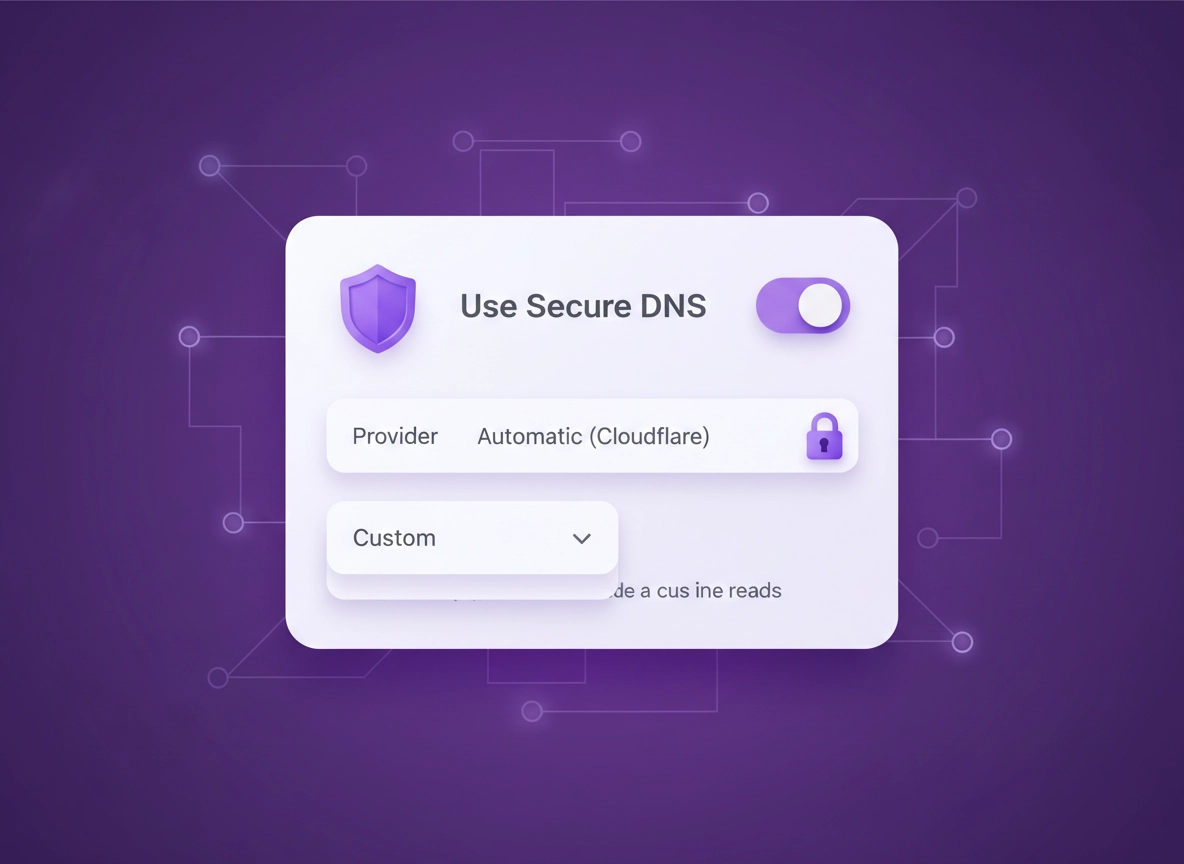
What Secure DNS is (and why it matters) .
This guide focuses on Chrome’s Secure DNS feature, which is Chrome’s user-facing name for DNS over HTTPS (DoH).
Every time you type a website like example.com, your device must translate that name into an IP address. That translation step is called DNS resolution. Historically, DNS lookups were sent unencrypted, which meant your ISP, your Wi-Fi hotspot, or anyone monitoring the network could often see which domains you were requesting and, in some cases, tamper with results.
Secure DNS in Chrome uses DNS over HTTPS (DoH) to encrypt DNS lookups inside normal HTTPS traffic. That makes it harder for on-path observers to read or modify your DNS queries. It can also reduce certain “DNS hijacking” problems where networks redirect you to unwanted pages or inject ads.
But Secure DNS also changes where your DNS requests go. If you pick a custom provider, you’re effectively saying: “I want this resolver (Cloudflare/Google/Quad9/etc.) to handle DNS for Chrome, not my default network resolver.” That can be a win for privacy and consistency, but it can create friction in managed environments (school/work), filtered networks, or when your local resolver is doing something important (internal domains, split DNS, or captive portals).
Related: Want the “how it works” version? Read Chrome DNS over HTTPS settings and the deeper DNS privacy guide.
Key terms (quick definitions) .
- Secure DNS (Chrome): Chrome’s setting that enables encrypted DNS lookups using DoH.
- DNS over HTTPS (DoH): DNS queries sent inside HTTPS traffic to a DoH-capable resolver.
- Resolver / DNS provider: The server/service that answers “what IP is this domain?”
- Fallback: When DoH fails and the browser temporarily uses plaintext DNS (depending on mode/provider choice).
- Private DNS (Android): System-level encrypted DNS (often DNS over TLS, DoT) that applies to apps, not just Chrome.
- DNS leak (practical meaning): When some lookups leave your device unencrypted or via a different resolver than you intended.
Before you start (fast checks) .
Secure DNS is usually a “flip the switch and you’re done” feature — unless your network has filtering, device management, VPN/proxy rules, or captive portals. These fast checks prevent 90% of “I enabled DoH and now nothing loads” scenarios.
- Check if your browser is managed: In Chrome, open Settings and look for a “managed by your organization” banner. If your device is managed, Secure DNS might be locked or enforced.
- Check for parental controls: Family/child safety tools can disable Secure DNS (by design) to keep filtering consistent.
- Check for VPN or proxy: VPN apps and corporate proxies can force DNS behavior. If you’re troubleshooting, test with VPN off.
- Check if you rely on internal domains: Work networks often use internal DNS zones. A public DoH resolver may not know them.
- Check if you use Pi-hole / local DNS filtering: A custom DoH provider can bypass local filtering (which might be unwanted).
Related: If you’re doing this as part of a broader privacy tune-up, start with Chrome privacy settings and the privacy checklist.
Also useful: If your network path is complex (proxy/VPN), see Chrome proxy settings guide.
Step-by-step: enable Secure DNS (recommended) .
There are two “safe” ways to enable Secure DNS: (A) Current service provider (lowest risk) and (B) Custom provider (more control). Start with A if you’re unsure. You can always switch later.
Desktop (Windows / macOS / Linux / ChromeOS) .
- 1 Open Chrome → click the three-dot menu (top-right) → choose Settings.
- 2 In the left sidebar, click Privacy and security → then open Security.
- 3 Find Use Secure DNS and toggle it On. If you see a provider selector, choose Current service provider first (recommended baseline).
- 4 Optional (more control): switch to Custom and pick a provider you trust. Then load 3–5 sites you normally use (banking, work tools, streaming) to confirm nothing breaks.
- 5 If something breaks: switch back to Current service provider (or toggle Secure DNS off), then jump to Troubleshooting.
What “success” looks like: Websites resolve normally (no DNS errors), captive portals still appear when you join public Wi-Fi, and you do not see repeated “server IP address could not be found” failures.
Android (Chrome) .
- 1 Open Chrome → tap ⋮ (top-right) → Settings.
- 2 Tap Privacy and security.
- 3 Under Security, tap Use secure DNS and toggle it On.
- 4 Select Current service provider (baseline) or choose another provider if you specifically want a custom resolver.
Common variations .
- Windows / ChromeOS: Some environments enforce DNS via policy. If Secure DNS is missing or locked, you’re probably managed.
- macOS: Corporate profiles and filtering tools can override DNS behavior. Test with VPN/proxy disabled if possible.
- Android / iPhone: Android exposes “Use secure DNS” in Chrome. iOS handles DNS more at the system layer (profiles/Private Relay/VPNs).
Related: If you’re comparing approaches, read Private DNS vs Secure DNS.
Advanced setup: custom providers, leak prevention, enterprise controls .
This is where Secure DNS becomes “high value” — because the best setup depends on your goal. Some users want maximum privacy from their ISP. Others want malware blocking, family filtering, or compliance. And businesses want policy enforcement, auditability, and predictable behavior across devices.
Related: If you’re in a managed environment, see Chrome Enterprise guide and enterprise security settings.
1) Choosing a Secure DNS provider (what “trust” actually means) .
When you choose a custom DoH provider, you’re moving DNS visibility from your local resolver/ISP to that provider. That is not automatically “more private” — it’s a trade: less local/network visibility in exchange for provider-level visibility. The right question is: Which party do you trust more for DNS logs, abuse handling, and policy transparency?
- Privacy-first resolver: Good for reducing ISP tracking and Wi-Fi snooping. Look for clear log retention policies.
- Security-first resolver: Some providers add threat blocking (malware/phishing domains) at the DNS level.
- Family filtering resolver: Useful on shared devices, but can break “edgy” categories and some CDNs.
- Enterprise resolver: Preferred in business: central policy, incident response, and consistent filtering.
2) Avoiding DNS leaks (the realistic version) .
“DNS leak” is often used like a scary buzzword. Here’s the realistic meaning in Chrome: a leak happens when some lookups do not go through encrypted DoH to the resolver you intended. That can happen for boring reasons — provider outage, network interception, captive portals — and it can be temporary.
Common reasons Secure DNS doesn’t behave the way you expect:
- Captive portals: Airports/hotels intercept DNS to show a login page. DoH can delay or confuse portal detection.
- Network policy: Schools/businesses may block DoH endpoints or enforce internal resolvers.
- Split DNS: Internal corporate domains only resolve via internal DNS, not public resolvers.
- VPN DNS handling: Many VPNs override DNS at the tunnel level. Chrome’s Secure DNS may become irrelevant or partially overridden.
- Provider mode/fallback behavior: Some configurations allow fallback to plaintext to preserve connectivity.
If you want to minimize leaks without breaking everything: prefer “custom provider” only if you’re comfortable reverting quickly, and keep a second browser profile (or Incognito) as a clean test environment.
Related: If you also care about network privacy, consider pairing Secure DNS with HTTPS-Only Mode and review secure connection settings.
3) Secure DNS vs VPN vs “Private DNS” (what each one protects) .
These three are constantly confused — and the confusion causes bad setups. Here’s the simple breakdown:
- Secure DNS (Chrome DoH): Encrypts DNS lookups from Chrome. It does not hide your IP from websites, and it doesn’t encrypt everything else by itself.
- Private DNS (Android system): Encrypts DNS lookups device-wide (often via DNS over TLS). Apps benefit, not just Chrome.
- VPN: Encrypts and tunnels most traffic (including DNS, depending on the VPN) and changes your apparent IP location. More coverage, more complexity.
If your goal is “stop my ISP from seeing every site I look up,” Secure DNS helps. If your goal is “stop Wi-Fi networks from seeing what I’m doing,” Secure DNS helps for DNS, but you still need HTTPS (most sites already use it) and good browser hygiene. If your goal is “change my location / reduce IP-based tracking,” a VPN is the relevant tool.
4) Enterprise / school controls (policy-level) .
In managed environments, Secure DNS is often not a “user choice.” Admins can disable it, force it, or lock it to approved providers. If you’re an IT admin, the key concept is: you’re controlling the mode and templates for DoH, not just a toggle.
- DnsOverHttpsMode: Controls whether DoH is disabled, enabled, or managed (mode varies by platform/policy definitions).
- DnsOverHttpsTemplates: Defines allowed DoH resolver templates/URLs for approved providers.
- Managed devices: Users may not be able to change Secure DNS in Settings when policies apply.
If you’re a user and Secure DNS is missing/greyed out, you’re probably managed. In that case, the correct fix is not “hack around it” — it’s to align with your admin’s policy, because DNS often ties into security controls, monitoring, and safe access.
Admin reading: Start with Chrome enterprise policy templates and the managed browser security guide.
Common alternatives users compare .
- Secure DNS (DoH) vs Private DNS (DoT) vs VPN DNS
- Chrome built-in settings vs DNS filtering services vs security extensions
- Free DNS resolvers vs paid secure DNS / enterprise DNS services
- Manual configuration vs policy-managed configuration (Admin Console / GPO / MDM)
Related: If you’re building a full hardening baseline, see Chrome hardening guide and the hardening checklist.
Privacy & security notes (what changes, what doesn’t) .
Secure DNS is a meaningful privacy upgrade — but only for a specific layer: name resolution. It does not magically make you anonymous, and it does not replace HTTPS, Safe Browsing, or sane extension permissions.
Impact: Changes how Chrome resolves domains; can affect filtering, captive portals, and internal company domains. Usually safe and reversible.
Related: For broader protections, pair this with Safe Browsing settings and Enhanced protection.
Recommended baseline settings .
- Option A (balanced): Secure DNS ON + Current service provider + HTTPS-Only Mode ON (if available).
- Option B (maximum privacy): Secure DNS ON + Custom reputable provider + tighten permissions + review extensions.
- Option C (compatibility): Secure DNS OFF on problematic networks (school/work) and rely on system DNS/VPN policy.
Recommended settings by goal .
| Goal | Recommended setting | Tradeoff | Best for |
|---|---|---|---|
| Balanced | Secure DNS ON + Current provider | Less control over resolver choice | Most users |
| Maximum privacy | Secure DNS ON + Custom provider | May break portals / internal domains | Tracking-sensitive users |
| Compatibility | Secure DNS OFF (or Current provider) | More DNS visible to network/ISP | Banking / enterprise / school networks |
Related: Want to reduce browser-level tracking beyond DNS? Review how to stop Chrome tracking and fingerprint protection.
Troubleshooting (common errors & fixes) .
When Secure DNS causes problems, the symptoms look the same: pages won’t load, DNS errors appear, or sign-in portals don’t show. The fix is almost always: revert to Current provider, test, then decide if you still want custom DoH.
Related: If you suspect a hijack or malware behavior, see Remove malware from Chrome.
If you see “server IP address could not be found” / ERR_NAME_NOT_RESOLVED .
This is the classic DNS failure. It can happen when a custom provider is blocked by your network, temporarily unreachable, or incompatible with split DNS (internal domains). Fix it like this:
- 1 Go to Settings → Privacy and security → Security → Use Secure DNS.
- 2 Switch from Custom to Current service provider and try again.
- 3 If still broken, toggle Use Secure DNS off and retry.
- 4 If turning it off fixes things, your network likely blocks the custom DoH endpoint (or requires internal DNS).
If public Wi-Fi login pages (captive portals) stop appearing .
Captive portals often rely on DNS interception/redirection. Custom DoH can interfere with that flow. If you can’t get the “agree to terms” page:
- Temporarily set Secure DNS to Current provider or turn it off until you finish logging in.
- After login succeeds, you can turn it back on.
- If this happens often, keep Secure DNS on Current provider for travel/public Wi-Fi.
If school/work filtering breaks (or suddenly gets bypassed) .
This is a “you need to decide what you want” situation. Some networks require DNS filtering for policy/compliance; custom DoH can bypass that, which may violate rules. In managed setups, admins typically enforce DNS policies for a reason.
- If you’re managed: accept policy and use the network’s resolver.
- If you’re not managed but rely on filtering: don’t use a custom provider that bypasses it.
- If you need personal privacy on personal devices: use your own network or a VPN you control.
If a VPN is on and DNS results look “weird” .
Many VPNs handle DNS inside the tunnel. Chrome Secure DNS may become secondary or may conflict with VPN DNS settings. If you want predictable behavior:
- Decide who owns DNS: VPN or Chrome. Don’t fight both at once.
- If you trust your VPN provider: keep Secure DNS on Current provider.
- If you trust a DoH provider more than the VPN DNS: choose a VPN that allows custom DNS (advanced) or disable VPN DNS override.
If you need to reset safely .
Don’t “nuke Chrome” first. DNS problems are usually reversible with just the Secure DNS setting. Start by switching to Current provider, then off, before touching anything else. If you are doing a broader cleanup, use Chrome Security Checkup and review clear browsing data only if you suspect corrupted caches.
FAQ .
-
helpIs Chrome Secure DNS the same as DNS over HTTPS (DoH)?Yes. “Secure DNS” is Chrome’s UI label for using DNS over HTTPS for DNS lookups. It encrypts DNS queries inside HTTPS so networks can’t easily read or alter them.
-
helpWill Secure DNS make me anonymous online?No. Secure DNS protects the DNS lookup layer. Websites can still see your IP address, and your DNS provider can still see the domains you request. For IP privacy/location changes, a VPN is the relevant tool.
-
helpWhy does Secure DNS break some networks or “server IP address could not be found” appears?Custom DoH can be blocked by a network, conflict with internal company domains (split DNS), or interfere with captive portal behavior on public Wi-Fi. Switch to “Current service provider” or turn Secure DNS off to restore compatibility.
-
helpWhat’s the best Secure DNS setting for most people?Enable Secure DNS and keep “Current service provider” unless you have a specific reason to pick a custom resolver (privacy consistency, security filtering, or enterprise controls). It’s the best balance of privacy and reliability.
Sources & further reading .
- Google Chrome Help: Manage safety and security (Desktop)
- Google Chrome Help: Manage safety and security (Android)
- Chromium Blog: Secure DNS / DoH overview
- Chromium.org: DNS over HTTPS (DoH)
- Chrome Enterprise: policy list
- Google Admin: Set Chrome policies for users or browsers
Disclosure: Some pages may mention tools or services. Recommendations are editorial and based on testing.