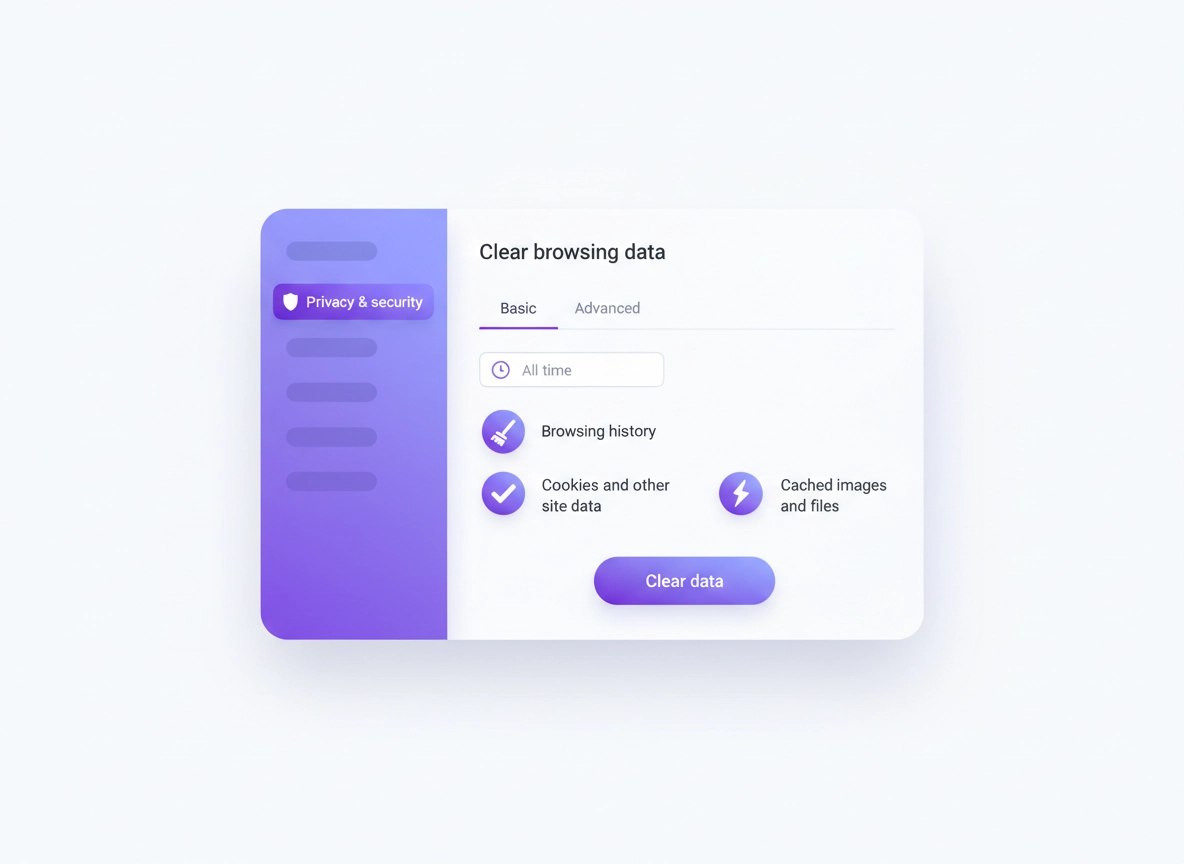
What “browsing data” is (and what clearing it actually does) .
This guide focuses on modern Chrome behavior: the “Delete browsing data” screen, Basic vs Advanced, and what actually changes on your device.
“Browsing data” is a bundle of different storage types Chrome keeps to make the web faster and more convenient: cached files so pages load quickly, cookies and site storage so websites remember who you are, history so your address bar can autocomplete, and sometimes extra data like saved site permissions or media licenses. When something goes wrong—pages half-load, you get stuck in a login loop, a site shows outdated content—clearing the right subset of browsing data is often the cleanest fix.
The important detail: clearing browsing data is not one thing. The checkbox you choose determines the side effects. Clearing cache is usually “safe” (you’ll just re-download some files). Clearing cookies and site data is the one that surprises people: it can sign you out, reset site preferences, and break “remember this device” flows until you sign in again. Google’s help docs explicitly warn that deleting cookies can sign you out and remove preferences. Sources below.
There’s also a privacy angle. Cookies and site storage can be used for cross-site tracking, personalization, and ad targeting. Clearing them periodically reduces what stays on your device, but it’s not the same as blocking tracking going forward. If your goal is ongoing privacy, pair cleanup with settings like third-party cookie controls and safer browsing defaults.
Related: Want the full “privacy spine” first? Start here: Chrome Privacy Settings. If you’re focused on cookies specifically, read Third-party cookies settings and how to block third-party cookies.
Key terms (quick definitions) .
- Cache (cached images and files): temporary copies of site assets (images, scripts, styles) stored locally to speed up load time.
- Cookies & site data: small files + web storage that help sites remember logins, preferences, and sessions (also used for tracking).
- Browsing history: list of pages you visited; also influences address bar suggestions/autocomplete.
- Site storage: larger “local storage” / “indexed DB” data used by modern web apps (think: web mail, project tools, dashboards).
- Profile: a separate Chrome identity with its own history, cookies, extensions, and settings.
Before you start (fast checks to avoid regret) .
Clearing browsing data is easy to do and easy to overdo. These quick checks keep you from deleting things you’ll immediately miss. Take 60 seconds here and you’ll save 30 minutes of “why am I signed out everywhere?”
- Know your goal: Are you fixing a broken site, freeing storage, improving privacy, or cleaning up a shared PC?
- Decide your “sign-out tolerance”: If you can’t re-login right now, avoid clearing Cookies and other site data.
- Check if the issue is an extension: Try Incognito or disable extensions temporarily—some extensions inject scripts that break pages.
- Check time range: “Last hour” / “Last 24 hours” is often enough for bug fixes; “All time” is for deep resets or shared device cleanup.
- Sync vs local: Clearing local browsing data affects this device/profile. Your Google Account may still have activity history elsewhere.
Related: If you’re troubleshooting privacy features as part of a bigger setup, see Privacy & Security settings overview. If Chrome feels sluggish while you test things, visit Speed up Google Chrome.
Step-by-step: clear browsing data (desktop + mobile) .
These are the safest, most consistent paths to the “Delete browsing data” screen. The wording can vary slightly depending on your Chrome version, but the structure stays the same. (Google’s official instructions match this flow: More (⋮) → Delete browsing data → choose time range → choose data types.)
Desktop (Windows, macOS, Linux, ChromeOS) .
- 1 Open Chrome → click the three-dot menu (top-right) → choose Settings.
- 2 In the left sidebar, click Privacy and security → then click Delete browsing data. (Some versions say Clear browsing data.)
- 3 Choose a Time range. Start with Last 24 hours for troubleshooting, or choose All time for a full cleanup.
- 4 On Basic, select what you want to remove (common combo: Cookies and other site data + Cached images and files) → click Delete data.
- 5 If you need deeper cleanup, switch to the Advanced tab and select additional categories (explained below) → click Delete data.
What “success” looks like: After clearing, refresh the affected page (Ctrl+R / Cmd+R). If the issue was caused by corrupted cache or stale site storage, the site should load with fresh assets and prompt you to sign in again (if you cleared cookies).
Android (Chrome app) .
- 1 Open Chrome → tap ⋮ (top-right) → tap Delete browsing data.
- 2 Choose a Time range (for example: Last hour, Last 24 hours, All time).
- 3 Pick what to remove (history, cookies/site data, cached images/files) → tap Delete data.
- 4 If prompted, confirm. Then fully close and reopen Chrome if you’re troubleshooting stubborn site issues.
iPhone & iPad (Chrome app) .
- 1 Open Chrome → tap ⋯ (bottom or top depending on layout) → tap Delete browsing data.
- 2 Select data types (cache, cookies, history) and confirm Delete browsing data.
- 3 Reopen the site and sign in again if cookies/site data were removed.
Common variations (so you don’t get lost) .
- Windows / ChromeOS: “Settings” is usually in the ⋮ menu; Privacy and security is on the left.
- macOS: The menu placement is the same, but some users open Settings via Chrome’s top menu bar.
- Mobile: The menu may say “Delete browsing data” directly—Google’s help docs describe this exact flow.
Related: If you’re trying to reduce tracking beyond cleanup, read How to stop Chrome tracking and Ad privacy settings.
What each checkbox deletes (Basic vs Advanced) .
This section is where most “expert-level” fixes happen. Two people can both “clear browsing data” and get totally different results depending on the boxes they chose. Here’s what each category actually affects, how risky it is, and when you should use it.
Basic tab .
-
Browsing history — removes the list of visited pages on this device/profile and reduces autocomplete suggestions.
When to use: shared device cleanup, privacy cleanup, “my address bar is suggesting stuff I don’t want.” -
Cookies and other site data — deletes cookies and local site storage. This can sign you out of websites and reset preferences.
Google’s Chrome help pages explicitly note that deleting cookies may sign you out and remove preferences.:contentReference[oaicite:0]{index=0}
When to use: login loops, broken sessions, “site keeps redirecting”, privacy resets. -
Cached images and files — removes cached assets so Chrome downloads fresh copies next time. This is a top fix for weird layout,
old CSS/JS, or broken page loads.:contentReference[oaicite:1]{index=1}
When to use: “site looks wrong”, missing styles, old content sticking around, performance troubleshooting.
Advanced tab (the high-impact ones) .
Advanced options vary a bit by platform, but the intent is consistent. Use these carefully: some remove convenience features that users don’t realize are stored in the browser.
-
Download history — removes the list of downloaded files in Chrome’s UI. It does not delete the files from your computer.
Use for: privacy cleanup on shared devices. -
Passwords and other sign-in data — removes saved passwords (and sometimes related sign-in data). This is rarely needed for troubleshooting
and can be painful to recover if you don’t have a password manager.
Use for: you’re migrating away, or you’re doing a controlled security reset. -
Autofill form data — removes saved addresses, emails, phone numbers, and form entries used to fill forms quickly.
Use for: shared device cleanup; fixing “Chrome keeps autofilling the wrong thing.” -
Site settings — resets per-site permissions like camera, microphone, location, notifications, popups, and more.
Use for: “this site can’t use my camera/mic”, “notifications are weird”, “permissions got messed up.” - Hosted app data — legacy category; may appear in some builds. Generally safe unless you rely on older Chrome Apps.
-
Media licenses — clears protected content licenses (DRM). This can affect some streaming sites until you re-authorize.
Use for: DRM playback problems or device changes; otherwise avoid.
Pro sanity-check: If you’re not sure what a checkbox will cost you, don’t select it in a panic. Start with cache, then cookies/site data, and only then move into Advanced items like site settings or autofill.
Advanced cleanup: per-site removal, auto-delete, profiles, enterprise notes .
If you’re aiming for high-quality fixes (and fewer support tickets), these options matter more than “clear everything.” They let you clean precisely, keep productivity intact, and reduce the risk of breaking important sites.
Related: For a full permissions deep-dive, see Site permissions settings, plus these per-permission guides: Camera, Microphone, Location, Notifications.
Option A: Clear cookies/site data for one site only (best for troubleshooting) .
If one site is broken (login loop, stuck on “loading”, wrong account), remove data for that site only. You keep your other sessions intact. The exact labels vary, but the concept is stable: find the site storage list and delete the entry.
- 1 Open Settings → Privacy and security → Site settings.
- 2 Look for View permissions and data stored across sites (or similar wording).
- 3 Search for the site domain (example: example.com) → remove the stored data entry.
- 4 Reload the site and sign in again (you should get a fresh session).
Option B: Auto-delete cookies on exit (privacy-friendly, but compatibility-heavy) .
Some users want Chrome to behave more like “fresh each time.” You can get close by clearing cookies/site data when you close Chrome or by enforcing deletion behaviors for specific sites. This increases privacy, but increases friction: you’ll sign in more often and some sites will lose preferences.
Related: If you want the “set-and-forget” approach, see Auto-delete cookies in Chrome.
Option C: Use separate profiles (clean work vs personal, fewer “cookie collisions”) .
Profiles are an underrated fix. If you frequently switch accounts (work Google account + personal, multiple clients, multiple logins), cookies and site storage can conflict. A second profile keeps everything separate: history, cookies, extensions, and saved passwords. It’s also one of the cleanest “privacy boundaries” you can create without constantly deleting data.
- Best for: consultants, agency work, shared machines, students, and anyone juggling multiple identities.
- Pro tip: keep “finance/banking” in a minimal extension profile with strict permissions.
Enterprise / managed devices: what might be locked .
On managed Chrome (business/school), some options can be enforced by policy—like cookie retention, clearing behavior, or whether users can delete certain categories. If you don’t see options you expect, it may be policy. In those environments, you usually want predictable cleanup workflows rather than manual “clear everything.”
Related: For business/IT context, see Chrome Enterprise guide and enterprise security settings.
Common alternatives users compare .
- Chrome cleanup vs privacy extensions (extensions can block trackers going forward; cleanup removes what’s already stored).
- Chrome saved passwords vs password managers (business controls, auditing, shared vaults).
- Incognito vs regular cleanup (Incognito limits local storage after the session, but doesn’t make you invisible).
- VPN vs cookie cleanup (different layers: network privacy vs on-device storage).
Related comparisons: Password manager vs Chrome passwords · VPN vs private DNS · Private browsing alternatives
Privacy & security notes (risk level + best baselines) .
Clearing browsing data is a reactive tool (cleanup after the fact). It can help privacy by reducing stored identifiers like cookies, but it doesn’t automatically prevent future tracking. For “ongoing privacy,” combine cleanup with controls: third-party cookie settings, safer browsing defaults, careful extension permissions, and (for some users) a separate privacy profile.
Impact: Clearing cache is low risk. Clearing cookies/site data is medium risk (sign-outs, site preferences reset).:contentReference[oaicite:2]{index=2}
Plain-English summary: If you’re fixing a website, clear cache first. If the site still acts weird, clear cookies/site data for that site. Only wipe “All time” if you’re doing a full privacy reset or sharing the device.
Recommended baseline settings .
- Option A (balanced): Clear Cached images and files monthly, and clear cookies/site data only when troubleshooting.
- Option B (maximum privacy): Use a separate profile for sensitive browsing and clear cookies/site data more often (expect sign-ins).
- Option C (compatibility): Prefer cache-only cleanup; keep cookies for banking/enterprise sites to avoid repeated MFA/device prompts.
Recommended settings by goal .
| Goal | Recommended selection | Tradeoff | Best for |
|---|---|---|---|
| Fix a broken site | Cache (Last 24 hours) → if needed, cookies/site data for that site | May require re-login on that site | Most users |
| Maximum privacy reset | Cookies + history + cache (All time) | Sign-outs + preference loss | Tracking-sensitive users |
| Shared computer cleanup | History + cookies/site data (All time) + site settings if needed | Resets permissions and remembered devices | Public/shared devices |
Related: For stronger protection while you browse (not just cleanup), see Safe Browsing settings and Enhanced Safe Browsing.
Troubleshooting .
Related: If you suspect suspicious behavior, redirects, or unwanted popups, use the malware cluster: Remove malware from Chrome. If the issue is privacy-related, start here: Chrome privacy settings.
If you keep getting signed out (even when you don’t want to) .
This almost always happens because cookies are being deleted automatically: you cleared cookies for “All time,” you enabled an auto-delete rule, or an extension is wiping site data. Check your cookie settings and any privacy extensions that claim to “clean automatically.” If you’re testing privacy features, keep a list of changes so you can revert quickly.
Next step: Review your cookie controls: Third-party cookies settings and auto-delete cookies.
If a site is stuck in a login loop .
Login loops are usually corrupted session cookies or stale site storage. The best fix is precise: remove cookies/site data for that site only, then restart the tab and sign in again. If your clock/time is wrong on the device, authentication can also fail—so ensure system time is correct.
If Chrome looks “broken” (missing styles, weird layout, old version of a site) .
That’s classic cache behavior: Chrome is using old CSS/JS files. Clear Cached images and files for Last 24 hours, then hard refresh the page. Cache exists to speed things up, but it can become stale or corrupted.:contentReference[oaicite:3]{index=3}
If you want to reset safely (without losing everything) .
Do a “progressive reset”:
- 1 Clear cache (Last 24 hours).
- 2 Clear cookies/site data for the affected site only.
- 3 Test in Incognito (no extensions by default).
- 4 Disable extensions that interact with pages (ad blockers, script injectors, “privacy cleaners”).
- 5 If you suspect infection/hijacking, follow a malware cleanup checklist.
Related: If you’re seeing suspicious redirects, use: Chrome redirect removal guide and remove unwanted extensions.
FAQ .
-
helpWill clearing cookies log me out of websites?Yes—often. Cookies store session identifiers and “remember this device” tokens. When you delete cookies, sites may sign you out and you might lose saved preferences. Google’s Chrome help documentation warns about this behavior.:contentReference[oaicite:4]{index=4}
-
helpDoes clearing cache delete my passwords or bookmarks?No. Cache is mostly temporary website files (images/scripts/styles). Clearing it can fix loading issues and free space, but it doesn’t remove bookmarks. Passwords are a separate Advanced option—only deleted if you check that box.
-
helpWhat time range should I choose?For troubleshooting, start with Last 24 hours. For privacy cleanup on a shared device, use All time. If you’re trying to fix one site, remove data for that site only instead of deleting everything.
-
helpWhy does a site still “remember me” after I clear data?Two common reasons: you cleared only cache (not cookies/site data), or you’re signed into an account that restores state (for example, a web service that recognizes your device after you log in). If your goal is privacy, pair cleanup with cookie controls and profile separation.
Sources & further reading .
- Google Chrome Help: Delete browsing data (Computer)
- Google Chrome Help: Delete browsing data (Android)
- Google Chrome Help: Manage cookies (Computer)
- Google Account Help: Clear cache & cookies (Desktop)
Disclosure: Some pages may mention tools or services. Recommendations are editorial and based on testing.