What this is (and why it matters) .
This guide focuses on how Chrome behaves today: modern tracking controls, cookie changes, permission models, and security checks—not legacy “clear cache and pray” advice.
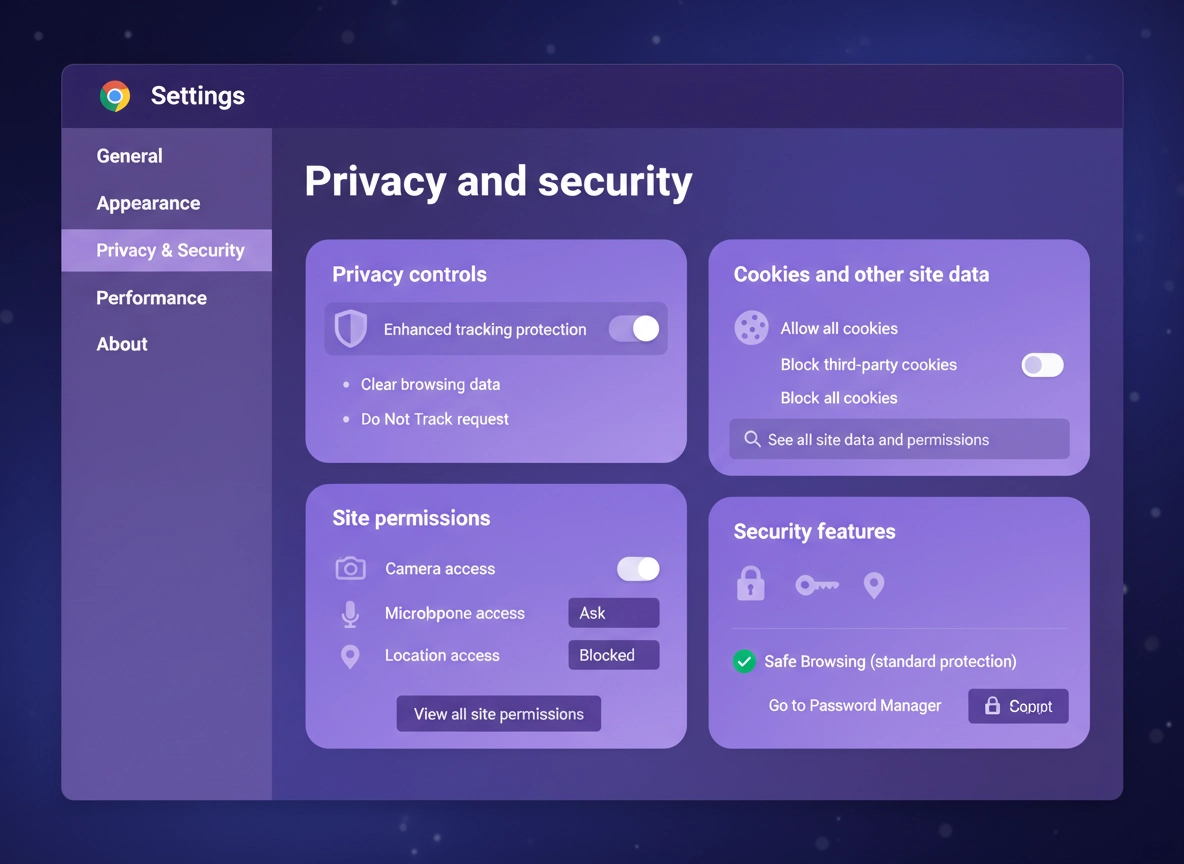
Chrome’s privacy and security settings are not one switch. They’re a collection of controls that operate at different layers: identity (Google account + Sync), storage (cookies/site data), permissions (camera/mic/location), network (DNS, HTTPS, certificates), and threat protection (Safe Browsing, downloads, password leak alerts). The reason people get frustrated is that two settings can sound similar but affect different things. For example, “block third-party cookies” affects embedded trackers and cross-site identifiers, while “site permissions” controls whether a specific site can access hardware sensors. A privacy baseline that ignores either one leaves a huge gap.
This page is an overview that tells you what each setting actually changes, and then gives you a proven baseline you can implement quickly. If you want deeper pages on a specific area (cookies, site permissions, Safe Browsing, DNS, fingerprinting, tracking protection), use the related links throughout the guide. They’re designed to interlock so you can build a full “privacy & security configuration” without conflicting advice.
Why this matters in 2026: the browser is now a primary security boundary for work and personal life. Banking, healthcare portals, admin dashboards, password managers, and remote work tools all assume the browser is trustworthy. If your browser leaks identity signals (cookies, fingerprinting, sync), accepts risky permissions (notifications, clipboard, camera), or weakens network validation (DNS hijack, HTTP downgrade), you can “do everything right” and still get tracked, phished, or tricked into a malicious download.
Related: Start from the hub if you want the full privacy framework: Chrome Privacy Settings. If this issue involves extensions, use Chrome Privacy Extensions Guide and Chrome Extension Security Check.
Key terms (quick definitions) .
- First-party vs third-party cookies: First-party cookies are set by the site you’re visiting; third-party cookies are set by embedded content from other domains (ads, trackers, widgets).
- Site data: Cookies + storage like local storage, IndexedDB, cache storage, and service worker data. “Clear cookies” doesn’t always clear everything that matters.
- Site permissions: Per-site access to sensors and capabilities (camera, microphone, location, notifications, USB, Bluetooth, clipboard, pop-ups, redirects, etc.).
- Safe Browsing: Chrome’s built-in threat detection for malicious sites and downloads, with “Standard” and “Enhanced” levels depending on how much telemetry you allow.
- Secure DNS / DoH: DNS-over-HTTPS. Instead of plain DNS queries that can be observed or altered, Chrome can use HTTPS to a chosen resolver.
- HTTPS-Only mode: Forces Chrome to try HTTPS before loading a site, reducing downgrade attacks and accidental HTTP browsing.
- Sync: Optional Chrome feature that can sync bookmarks, passwords, history, open tabs, and settings across devices. Powerful—but increases data exposure if misconfigured.
- Fingerprinting: Tracking based on device/browser characteristics (fonts, canvas, WebGL, screen size, installed extensions patterns). Cookies are not the only identifier.
Before you start (fast checks) .
Before you change a dozen settings, do three quick checks. They prevent the most common failure mode: you lock down the browser, something breaks, and you don’t know whether the cause is a setting, an extension, a managed policy, or a corrupted profile.
- Check 1: Are you on a managed browser? Go to chrome://policy (desktop) and look for active policies. If policies exist, some settings are controlled by an admin and won’t behave like a personal browser. (See Enterprise Chrome Privacy Settings.)
- Check 2: Is an extension changing the rules? Open chrome://extensions → disable privacy/ad-blocking or “security” extensions temporarily. Extensions can override DNS, block scripts, alter requests, and break logins. (See Extension Permissions Guide.)
- Check 3: Are you changing the right profile? Chrome profiles are separate containers. If you’re signed into multiple profiles, verify you’re editing the one you actually use for work or banking. (See Chrome Profile Privacy Setup.)
Related: If Chrome feels slow while troubleshooting, handle the performance side first: Speed Up Google Chrome and Background Process Control. Performance issues can look like “security problems” (timeouts, infinite loading, failed logins).
Two quick “sanity tests” before you lock things down .
- Test A (clean session): Open an Incognito window and test one “problem” site. If it works in Incognito but not normal mode, the issue is usually extensions, cookies/site data, or profile settings. (See Incognito Mode Guide.)
- Test B (new profile): Create a fresh Chrome profile and test the same site. If it works in a new profile, your current profile likely has conflicting settings or persistent site storage. (See Profile Security Settings.)
Step-by-step baseline (recommended) .
This is a practical baseline that improves privacy and security without turning Chrome into a “site breaks every day” experience. It’s intentionally opinionated: it prioritizes high-impact changes that reduce tracking and phishing risk while keeping common workflows working. After you implement it, you’ll have a stable baseline you can adjust with targeted exceptions.
Desktop Chrome baseline (Windows/macOS/Linux/ChromeOS) .
Open Settings → Privacy and security. Keep this tab open; almost everything in this guide lives here.
Go to Third-party cookies → set to Block third-party cookies.
If you rely on a specific site’s embedded login or payment widget, add an exception later (don’t disable the block globally).
Learn more: Third-Party Cookies Settings · How to Block Third-Party Cookies
Open Privacy Sandbox / Ad privacy (wording can vary) and turn off ad topics / measurement features you don’t want.
Deep dive: Chrome Ad Privacy Settings · Privacy Sandbox Explained
What “success” looks like: You can browse normally, log into major sites, and complete payments, but you’ll notice fewer “follow-you-everywhere” ads. Permission prompts become rare (because you removed default “Allow” states), and Security Checkup shows a clean baseline. If a site breaks, you fix it with a single targeted exception (usually cookies or pop-ups) rather than disabling the whole baseline.
Mobile Chrome (Android/iPhone) baseline notes .
- Android: Settings are similar but reorganized. You’ll find cookies, Safe Browsing, and “Privacy and security” items under Chrome’s Settings menu. Site permissions often overlap with Android OS permissions (camera/mic/location).
- iPhone (iOS): Chrome is constrained by iOS WebKit rules, and some privacy controls are OS-level. Still, you can control Safe Browsing-like protections, default permissions, and Google account settings.
- Best practice: If you use Sync across mobile + desktop, set the privacy baseline on your primary desktop profile first, then review Sync scopes and password security.
Related: Want the “why” behind these steps? Start with Chrome Privacy Best Practices, then go deeper with How to Stop Chrome Tracking.
Advanced settings (power users & enterprise) .
Once the baseline is in place, “advanced” work becomes predictable: you pick a goal (maximum privacy, secure enterprise posture, remote-work safety, or development convenience), and then you tighten or relax specific categories without drifting into random one-off toggles. This section is where privacy and security overlap with high-intent commercial decisions: DNS providers, password managers, VPNs, managed browser platforms, and security monitoring.
Related: For managed environments, use Chrome Enterprise Guide and Secure Configuration Best Practices.
Advanced: tighten your profile boundary .
Profiles are your best “security container” in Chrome. Treat them like separate workspaces: Work, Personal, Banking, Testing. Each profile gets its own cookies, saved logins, extension list, and browsing history. This reduces accidental cross-contamination (a shady extension in one profile reading data in another, or a personal login cookie bleeding into work).
- Banking profile: no optional extensions, strict third-party cookie blocking, notifications off, and limited Sync.
- Work profile: allow only approved extensions, prefer enhanced Safe Browsing, strict site permissions, and secure DNS.
- Testing profile: used for troubleshooting and new extensions; disposable and reset regularly.
If this is your direction, pair this guide with Secure Profile Setup and Profile Privacy Setup.
Advanced: DNS hardening (DoH) without breaking networks .
Secure DNS is one of the most underrated privacy upgrades because plain DNS reveals every domain you request (even if the page loads via HTTPS). DoH hides those queries from casual network observers, but it can conflict with corporate DNS policies, parental controls, or filtering appliances. The safe approach is: enable DoH, test your environment (work VPN, home router, hotel Wi-Fi), then decide whether to keep it.
- Use case: public Wi-Fi, travel, shared networks, ISP-level tracking risk. (See Public Wi-Fi Security Tips.)
- Do not use: strict enterprise networks where DNS is used for split-horizon routing or internal domains. Use the enterprise policy route instead.
- Validation: If internal tools stop resolving, your organization likely relies on internal DNS. Switch DoH to “With your current provider” or disable it in that profile.
Related: DNS Privacy Guide and Private DNS vs Secure DNS.
Advanced: tracking protection vs fingerprinting protection .
Cookie blocking reduces one tracking layer. Fingerprinting uses another layer: device and browser signals. Chrome is improving anti-tracking controls over time, but if you need stronger protection, you usually combine: cookie controls + permissions hygiene + extension discipline + optionally fingerprinting mitigation. Be careful: “privacy” extensions can increase fingerprint uniqueness if they behave unusually or reveal their presence.
- When you should change this: high-risk roles (journalism, activism), repeated retargeting issues, sensitive research, or regulated environments.
- When you should not: if you depend on complex SSO apps and don’t have time for exceptions—start with the baseline first.
Deep dive: Chrome Tracking Protection and Fingerprint Protection.
Advanced: password manager vs Chrome passwords (risk and ROI) .
Chrome’s built-in password tools have improved, but they’re still a tradeoff: convenience and platform integration vs dedicated security workflows (vault separation, sharing controls, auditing, admin reporting). If you manage a team, handle client logins, or need audit trails, a dedicated password manager is usually a better fit.
- Personal use: Chrome passwords can be OK if you enable leak detection, use device security (screen lock), and keep Sync secure.
- Business use: prefer a dedicated password manager with role-based access, shared vaults, and enforced MFA.
Related: Best Password Manager for Chrome and Chrome Password Manager vs Third-Party.
Common alternatives users compare .
- Chrome built-in settings vs privacy extensions: Extensions can help, but they can also create complexity and fingerprint uniqueness. Start with native settings first.
- Chrome passwords vs dedicated password managers: For teams and compliance, dedicated managers win. For solo use, Chrome can be adequate with strict hygiene.
- Free VPN extensions vs premium VPN services: Free extensions often monetize data or offer weak guarantees. Premium VPNs provide better security controls, but VPNs do not replace cookie/permission hygiene.
- Manual configuration vs enterprise policy management: Manual tweaks don’t scale. Enterprises should use policy templates and centralized controls.
Related: If you’re shopping for a security stack, start here: Best Security Tools for Chrome, then compare VPN vs Antivirus for Chrome and Password Manager vs Chrome Passwords.
Privacy & security notes (what each setting really does) .
This is the “truth table” section: what each category protects, what it breaks, and what to do when a site complains. Use it like a reference when you’re deciding whether a prompt is legitimate (“Allow notifications?”) or risky (“Allow this extension to read all sites?”).
Impact: Affects cookies & site storage, tracking behavior, permission prompts, download and phishing protection, DNS privacy, and cross-device Sync exposure.
Related: If you suspect infection, browser hijacking, or aggressive adware, don’t “tune settings” first—clean it: Remove Malware from Chrome and Chrome Malware Cleanup Guide.
1) Cookies & site data .
Cookies still matter because they’re the easiest cross-site identifier when third-party cookies are allowed. But modern “site data” also includes storage types that power app-like websites. That’s why clearing cookies sometimes doesn’t fix a broken login: the site may be storing state in IndexedDB or a service worker cache.
- Best baseline: block third-party cookies; keep first-party cookies enabled.
- What breaks: embedded login widgets (SSO inside iframes), payment providers, some chat widgets, and “log in with …” flows that rely on third-party storage.
- Best fix: add a site exception or allow third-party cookies only for that site. Don’t revert globally.
When you need to reset site state properly, use: Settings → Privacy and security → Clear browsing data (pick time range), or per-site: Site settings → View permissions and data stored across sites (wording varies). See Clear Browsing Data and Auto Delete Cookies.
2) Site permissions (camera, mic, location, notifications) .
Permission prompts are where users accidentally grant long-lived access. The safest model is: default to Ask (or Block for notifications), and then allow only the sites you trust. If you allow camera/microphone broadly, a compromised site or malicious script can abuse it.
- Notifications: If you do one thing, fix this. Scam sites use notifications to bypass ad blockers and deliver fake “virus” warnings.
- Location: Useful for maps and delivery—but unnecessary for most sites. “Ask first” is safer than “Allow.”
- Camera/mic: “Ask” + allow only known meeting sites. Review your allowed list regularly.
- Background sync: Can keep data updated, but it’s also a stealthy “keep working in the background” permission.
Related: Background Sync Settings and Site Permissions Settings.
3) Safe Browsing & download protection .
Safe Browsing is your first-line defense against phishing pages and malicious downloads. Standard mode generally checks visited URLs against threat lists. Enhanced mode increases detection quality by sharing more security signals to Google for analysis. The right choice depends on your risk tolerance and privacy preferences.
- Choose Enhanced if: you handle money, admin access, or sensitive business data; you download files often; you want maximum phishing protection.
- Choose Standard if: you want lower data sharing and you already have strong habits + endpoint protection.
- Do not disable entirely: turning it off increases your exposure to phishing kits and “drive-by download” traps.
If you’re dealing with repeated pop-ups or redirects, pair this with a clean-up: Pop-Up Virus Removal and Browser Hijacker Removal.
4) Secure DNS (DoH) and network privacy .
DNS is the “phonebook” of the internet. Without Secure DNS, your network (Wi-Fi operator, ISP, some VPNs, some security products) can see and sometimes alter requests. Secure DNS reduces that leakage. It’s not a magic invisibility cloak—your IP traffic still goes somewhere—but it closes an easy, often-overlooked leak.
- Best baseline: enable Secure DNS with a reputable provider or “current provider” if you trust it.
- What breaks: internal company domains, filtered networks, devices that depend on custom DNS overrides.
- Best fix: disable DoH on that profile or set it to “current provider” so it aligns with your network’s DNS routing.
Related: Network Privacy Settings and DNS Privacy Guide.
5) HTTPS-Only / secure connections .
HTTPS-Only mode protects you from accidental HTTP browsing and downgrade attacks, especially on public Wi-Fi. Most sites support HTTPS now, so the compatibility impact is usually small. When it breaks something, it’s typically a legacy local device UI (old routers, printers) or niche internal tools.
- Best baseline: enable HTTPS-Only (or “Always use secure connections”).
- What breaks: legacy intranet or device dashboards that only serve HTTP.
- Best fix: create a targeted exception for that local address, or use a separate “local devices” profile.
For more network hardening, see: Secure Connection Settings and TLS Settings Guide.
6) Sync and account privacy .
Sync is powerful and often misunderstood. If you sync history and open tabs, you’re increasing where your browsing data exists. That can be fine on personal devices; it can be risky on shared or managed devices. Think of Sync like a data replication system: every enabled category is copied to other devices and stored in the cloud under your account.
- Balanced: sync bookmarks + passwords; keep “open tabs” and “history” off if you share devices or worry about privacy.
- Maximum privacy: disable Sync entirely; use local profiles and export/import only when needed.
- Enterprise: Sync categories are often controlled by policy; align with data governance.
Related: Chrome Sync Security Risks and Chrome Privacy Policy Guide.
Recommended baseline settings .
- Option A (balanced): block third-party cookies; Standard Safe Browsing; HTTPS-Only on; Secure DNS on; notifications blocked; camera/mic/location set to Ask; Security Checkup monthly; Sync limited to bookmarks/passwords.
- Option B (maximum privacy): block third-party cookies + strict ad privacy off; Enhanced Safe Browsing only if acceptable; HTTPS-Only on; Secure DNS on; Sync off or minimal; very tight site permissions; minimal extensions.
- Option C (compatibility): block third-party cookies but allow exceptions quickly; Standard Safe Browsing; HTTPS-Only optional if you use legacy tools; notifications still blocked; Sync as needed.
Recommended settings by goal .
| Goal | Recommended setting | Tradeoff | Best for |
|---|---|---|---|
| Balanced | Block 3P cookies + Standard Safe Browsing + Secure DNS + HTTPS-Only + strict permissions | Occasional login/widget issues; needs targeted exceptions | Most users |
| Maximum privacy | Block 3P cookies + ad privacy off + tight permissions + minimal extensions + limited/no Sync | More friction on SSO/payment embeds; more manual exceptions | Tracking-sensitive users |
| Compatibility | Block 3P cookies but allow per-site exceptions quickly; keep Standard protections | More tracking surface when exceptions expand | Banking / enterprise sites |
Troubleshooting (compatibility & “this broke my site” fixes) .
Most breakage after privacy hardening comes from one of four causes: (1) third-party cookies, (2) blocked pop-ups/redirects, (3) strict permissions, or (4) extensions modifying requests. The trick is to diagnose quickly and fix with the smallest exception.
Related: For permission-related issues, see Site Permissions Settings. For tracking/cookie conflicts, see Third-Party Cookies Settings.
If logins loop, you get signed out, or SSO fails .
This is classic third-party cookie or cross-site storage breakage—especially with embedded identity providers, “Sign in with …” buttons, and enterprise SSO. Fix it by allowing third-party cookies for the affected site only, or by allowing the identity provider domain for that specific flow. Also check pop-ups/redirects: many SSO flows use a pop-up or redirect chain.
- Fast test: open the same login in Incognito (extensions off). If it works, the issue is cookies or extensions.
- Fix A: add a third-party cookie exception for the site and retry.
- Fix B: temporarily allow pop-ups/redirects for that domain.
- Fix C: clear site data for that domain only (not “all time” unless necessary).
If video calls can’t access camera or microphone .
This is usually a per-site permission denial, or an OS-level block (especially on macOS and mobile). In Chrome: click the padlock icon in the address bar → check camera/mic permissions for that site. Set camera/mic to “Ask” globally, then allow only the meeting domain.
- Fix A: open Site settings for that domain and set Camera/Microphone to Allow.
- Fix B: verify the OS permission for Chrome itself (macOS Privacy & Security, Android app permissions).
- Fix C: disable privacy extensions that block WebRTC or media devices.
If you’re getting spammy notification prompts or fake alerts .
Turn notifications off by default (or enable quiet prompts). Then remove any existing “Allowed” notification sites—those are persistent and often abused. If you’re already receiving notifications, you may have granted permission earlier.
- Fix A: Settings → Site settings → Notifications → remove all suspicious “Allowed” entries.
- Fix B: run Security Checkup and remove shady extensions.
- Fix C: if symptoms persist, follow a cleanup path: Tech Support Scam Removal.
If downloads are blocked or flagged .
If Safe Browsing is enabled, Chrome may warn about uncommon or risky downloads. Don’t disable protection. Instead, verify the file source and consider using a dedicated malware scan for downloads. If you’re in a managed environment, policies may enforce blocking.
- Fix A: confirm the site is legitimate; avoid “download mirrors.”
- Fix B: if a work tool is blocked, check if enterprise policies are controlling downloads.
- Fix C: if you suspect malware, use: Scan with Antivirus.
If you need to reset safely (without losing everything) .
A safe reset is not “nuke all browsing data forever.” Start with the smallest reversible step: clear site data for one domain, disable one extension, or test a new profile. If you must reset the whole browser, back up bookmarks and passwords first (especially if you’re changing Sync behavior).
- Reset sequence: (1) disable extensions, (2) clear site data for problem domain, (3) test new profile, (4) reset settings as last resort.
- Cleanup help: Chrome Security Reset and Reset After Malware.
FAQ .
-
helpWill blocking third-party cookies break logins?Sometimes. Most standard logins still work, but embedded identity providers and SSO flows can fail if they rely on third-party storage in iframes. The best approach is to keep third-party cookies blocked globally and add a targeted exception only for the site (or identity provider) that truly needs it. See the cookie guides linked in the Step-by-step section.
-
helpIs Enhanced Safe Browsing worth it?Enhanced can improve phishing and malicious download detection because Chrome shares more security signals for analysis. If you handle sensitive accounts, download files frequently, or are responsible for business security, it’s often worth the tradeoff. If you prefer minimal telemetry, Standard is still a strong baseline—just don’t disable Safe Browsing completely.
-
helpDoes Secure DNS (DoH) make me anonymous?No. Secure DNS mainly protects DNS queries from casual network observation or manipulation. Your traffic still has destinations, IP routing, and account logins that can identify you. Think of DoH as “closing a leak,” not hiding everything. It’s excellent on public Wi-Fi and shared networks.
-
helpShould I use a VPN, a privacy extension, or just Chrome settings?Start with Chrome settings: cookies, permissions, Safe Browsing, Secure DNS, HTTPS-Only, and Sync scope. That baseline reduces tracking and phishing risk immediately. Then add tools based on your problem: a VPN for network privacy and travel/public Wi-Fi, and carefully chosen extensions for specific needs (ad blocking, tracker blocking), keeping the extension list minimal. For shopping/comparisons, see ChromeThemer’s “Best Security Tools” and VPN/password manager hubs.
Sources & further reading .
- Official Chrome Help Center
- Manage cookies in Chrome (official help)
- Safe Browsing protections in Chrome (official help)
- Clear browsing data (official help)
- Manage permissions for a website (official help)
- Use HTTPS-First / secure connections (official help)
Disclosure: Some pages may mention tools or services. Recommendations are editorial and based on practical testing and real-world compatibility tradeoffs.