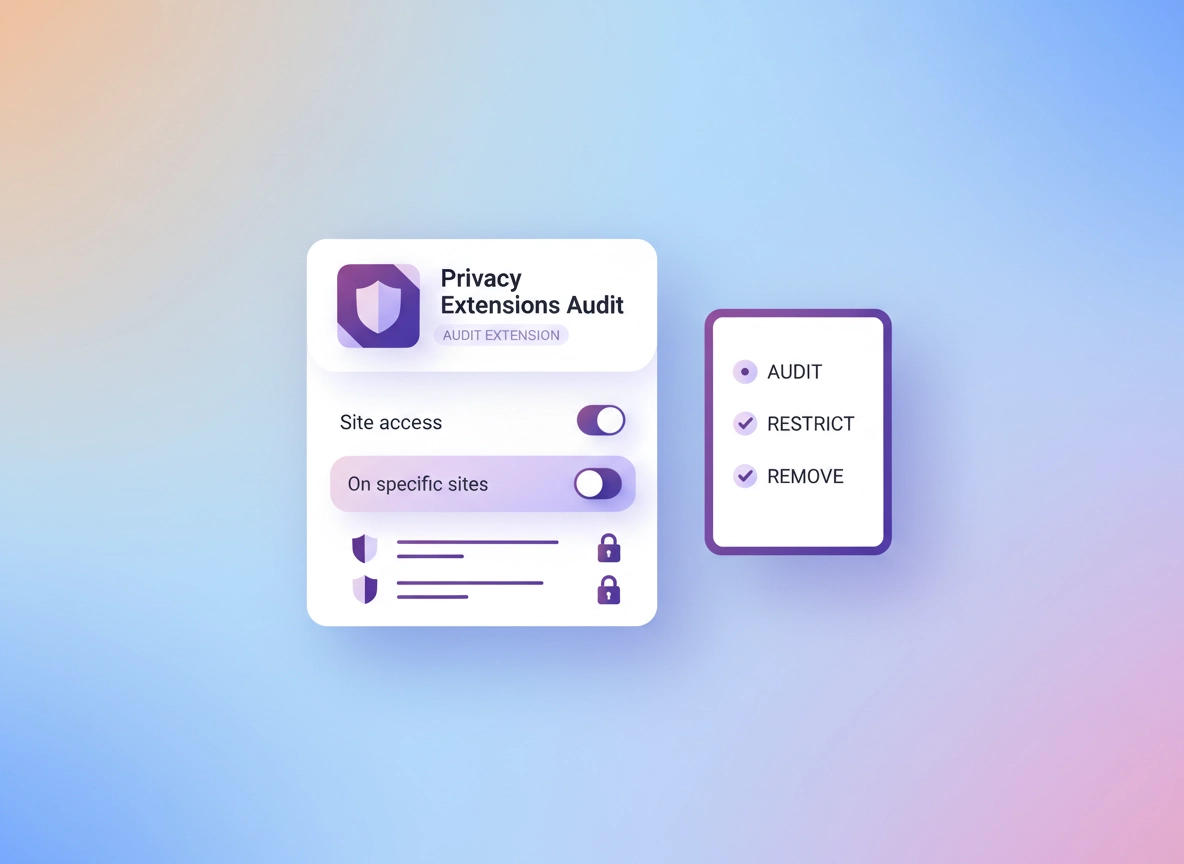
What privacy extensions are (and what they can really do) .
Privacy extensions can help—sometimes a lot—but they also have access paths that can become the privacy problem.
A Chrome privacy extension is any extension that claims to reduce tracking, block ads, prevent fingerprinting, secure your connection, protect passwords, or stop data collection. Some do exactly what they promise. Others quietly do the opposite: they collect browsing data, inject ads, change results, or track you “anonymously” (which often isn’t anonymous in real life).
The key insight: an extension runs inside your browser. That means it can potentially see the same pages you see, read page content, and sometimes modify what gets loaded. In security terms, extensions expand your “attack surface.” In privacy terms, extensions can become a silent data collection layer. That’s why the best strategy is not “install more privacy extensions.” It’s: install fewer, restrict access, and audit regularly.
Also, don’t overlook Chrome’s built-in controls. A lot of privacy goals can be handled with: cookies settings, site permissions, Safe Browsing, DNS-over-HTTPS (Secure DNS), and a clean sync setup. Start with the hub: Chrome Privacy Settings, then add extensions only where built-in settings stop short.
Related: If you want a deeper “extension threat model,” start here: Chrome Extension Security Check. For permissions specifically: Chrome Extension Permissions Guide.
Key terms (quick definitions) .
- Site access: Which sites an extension can run on (all sites, specific sites, or only when you click it).
- Host permissions: The list of website patterns an extension can access (think “where it’s allowed to read/modify pages”).
- “Read and change your data”: The permission that typically alarms people—because it can include page content, form inputs, and the DOM.
- Content blocker: An extension that blocks trackers/ads by filtering requests and/or page scripts.
- Fingerprinting: Tracking based on device/browser characteristics (fonts, canvas, audio, WebGL, etc.).
- Manifest V3: The modern Chrome extension platform model (policy + technical changes that affect how extensions behave and request access).
Before you start: fast checks that prevent mistakes .
Before you touch anything, do these quick checks. They reduce the chance you remove the wrong extension, break your login flow, or chase the wrong “privacy” problem.
- Confirm you’re in the right Chrome profile: If you use multiple profiles (Work/Personal), extensions and settings can differ per profile.
- Check if Chrome is managed: If you see “Managed by your organization,” some extensions are forced-installed and policies control what you can change.
- Update Chrome first: UI labels and privacy controls change. Update Chrome safely: Get or Update Chrome.
- Make a quick list: Write down the extensions you consider “critical” (password manager, work tools, banking authentication helpers).
- Decide your goal: Are you trying to block ads? stop tracking? reduce fingerprinting? secure passwords? Each goal needs a different approach.
Related: If you’re mainly worried about tracking, start here: How to stop Chrome tracking. If you think cookies are the problem, see: Block third-party cookies and Auto-delete cookies.
Step-by-step: audit + restrict extensions (recommended) .
This is the workflow I recommend because it’s fast, repeatable, and it works whether you’re a casual user or managing a team. You’re going to do three things: (1) inventory, (2) restrict site access, (3) remove what you don’t trust.
-
1
Open Chrome → click the three-dot menu (top-right) → Extensions → Manage extensions.
(Or type
chrome://extensionsin the address bar.) - 2 For each extension, click Details and review: Permissions, Site access, Incognito status, and whether it has access to file URLs. If the extension is “privacy” related, treat broad permissions as a red flag unless you understand why they’re required.
- 3 Set Site access to the most restrictive option you can: On click (best default), or On specific sites (best for tools you only need on a few domains). Avoid On all sites unless the extension’s core function requires it (example: a content blocker).
- 4 Remove what you don’t trust: if you don’t recognize the publisher, if it was installed “for a quick test,” or if it requests permissions that don’t match its features, click Remove. Then restart Chrome and confirm your important sites still work.
What “success” looks like: You have fewer extensions, most are set to On click or On specific sites, and your browser feels more predictable: fewer random popups, fewer “mystery redirects,” fewer surprise logouts, less background activity.
Related: For a wider privacy baseline (cookies, permissions, Safe Browsing, Privacy Sandbox), start here: Chrome Privacy Settings. For Privacy Sandbox: Chrome Privacy Sandbox explained.
Common variations .
- Windows / ChromeOS: You’ll usually have the full extension management UI. Enterprise policies may lock options.
- macOS: Same UI as Windows. Be careful with “helper” apps installed outside Chrome (some tools include background processes).
- Android / iPhone: Chrome on mobile has limited/no support for extensions. Your privacy stack is mostly built-in settings + DNS/VPN + app permissions.
How to choose privacy extensions (a safe decision framework) .
Choosing privacy extensions is not about picking the longest “top 10” list. It’s about matching the tool to your threat model and minimizing risk. Use this framework to evaluate any privacy extension—content blockers, anti-tracking tools, VPN/proxy extensions, password managers, cookie managers, etc.
1) Start with your “privacy job to be done” .
- Block ads & trackers: You need a content blocker, but it should be reputable and maintained.
- Stop cross-site tracking: Cookies controls and site permissions do a lot; extensions can help with cleanup or stricter blocking.
- Reduce fingerprinting: Prefer browser settings first; add a targeted tool only if you truly need it.
- Secure logins: A password manager is privacy + security; it reduces reuse and makes phishing harder.
- Hide IP / secure public Wi-Fi: A VPN service (not just a browser proxy) is usually the correct tool.
Rule of thumb: If the job requires trust (VPN, password manager, “privacy proxy”), the vendor must earn that trust. If you can’t confidently explain how they make money, assume your data is part of it.
2) Verify the publisher (not just the name) .
Extension names are cheap. Publisher reputation is harder to fake over time. Look for: a real company site, support channels, documentation, clear privacy policy, and a history of security updates. Be especially cautious with “brand-like” names, copycats, and extensions that feel like “one-click magic.”
3) Compare requested permissions to features .
This is the most important check. If a tool claims to “clean cookies” but requests access to all pages on all sites, ask why. If a “dark mode” extension requests broad web access, that’s a classic mismatch. Permissions aren’t automatically bad—but they must be justified.
Related: For a deep, practical breakdown: Chrome Extension Permissions Guide and Chrome Extension Privacy Risks.
4) Prefer “least privilege” via Site access .
Even if you trust an extension, restrict it. Many privacy tools don’t need access everywhere. Use On click for tools you use occasionally (link checkers, cookie viewers, page inspectors). Use On specific sites for things like a CRM helper, a research tool, or a corporate SSO assistant. Keep On all sites for only the few tools that must operate globally.
5) Don’t stack overlapping tools .
More privacy extensions can mean more conflicts and more background work. For example, running multiple content blockers and tracker blockers often causes duplicate filtering, broken checkout flows, and “random” login loops. A smaller, well-chosen stack usually gives better privacy and better usability.
Permissions & site access explained (plain English) .
Chrome tries to translate technical permissions into human warnings, but the wording can still be confusing. Here’s how to interpret the most common extension permissions—especially the ones used by privacy tools.
“Read and change your data on websites you visit” .
This is the big one. It generally means the extension can read page content and modify it. That can be necessary (content blockers, password managers, translation tools, accessibility overlays), but it’s also exactly what a malicious extension would want (steal data, inject scripts, alter results).
Site access options (what they mean) .
- On click: The extension is dormant until you click it. Great for occasional tools. Best default for minimizing exposure.
- On specific sites: The extension runs only on domains you approve. Best for targeted privacy tools and work helpers.
- On all sites: The extension can run everywhere. Use only when the feature genuinely needs global coverage.
Practical tip: if you must allow “On all sites,” consider using a dedicated Chrome profile for sensitive browsing (banking, health portals, business admin dashboards) where you keep extensions minimal. Profile hygiene matters just as much as extension choice.
Related: If you’re designing a privacy-first Chrome setup, add: Chrome profile privacy setup and Chrome profile security settings to your reading list.
Incognito access (why it matters) .
Allowing an extension in Incognito means it can run in that “private” session. That’s not automatically bad, but it’s a common misunderstanding: Incognito mainly limits local history/storage, not what websites can see, and not what extensions can see. If you use Incognito for sensitive browsing, keep extension access off unless the extension is essential. For a practical overview: Chrome Incognito Mode Guide.
Why Manifest V3 changes the conversation .
Modern Chrome extensions are built around a platform model that pushes developers to declare access up front and follow stricter policies. That’s good. But it also means you should pay attention to: permission prompts, host permissions, and the extension’s update history. A safe extension today can become risky after an update—especially if it suddenly requests broader access.
Recommended privacy stacks by goal (minimal → maximum) .
The best stack is the one you’ll maintain. Most people should start minimal and only add tools if you can explain why they’re needed. Below are practical stacks with the tradeoffs clearly stated.
Stack A: Minimal (best for most users) .
- Chrome built-in privacy: Cookies controls, site permissions, and a sensible Safe Browsing level.
- One reputable content blocker: For ads/trackers. Keep it updated and avoid “random” clones.
- Password manager (optional but recommended): A dedicated password manager extension helps prevent reuse and phishing mistakes.
Get the baseline right: Third-party cookies settings, Site permissions, Safe Browsing, and DNS over HTTPS (Secure DNS).
Stack B: Balanced Privacy (tracking-resistant without breaking sites) .
- Content blocker + browser cookie controls (block/limit third-party cookies where possible).
- Auto-clean routine: scheduled cookie/site data cleanup for non-critical sites (or use Chrome’s built-in “clear on exit” where appropriate).
- Permission hygiene: restrict camera/mic/location/notifications per site.
- Optional: anti-tracking helper (only if you understand what it does and can verify it’s not duplicating your blocker).
Stack C: Maximum Privacy (expect compatibility tradeoffs) .
- Strict content blocking: stronger filter lists + stricter cookie settings.
- Separate “sensitive” profile: banking/work admin in a profile with near-zero extensions.
- Network privacy: Secure DNS + (if needed) a reputable VPN service for travel/public Wi-Fi.
- Disable optional data collection: review Chrome privacy controls, ad privacy, and sync settings.
Recommended settings by goal .
| Goal | Recommended stack | Tradeoff | Best for |
|---|---|---|---|
| Balanced | Chrome privacy settings + 1 content blocker + restricted Site access | Some banner/consent popups may still appear | Most users |
| Maximum privacy | Strict blocker + separate profiles + Secure DNS/VPN (as needed) | Compatibility issues on banking/streaming/checkouts | Tracking-sensitive users |
| Compatibility | Minimal extensions + use Site access “On click” + targeted exceptions | More tracking than strict setups | Enterprise/banking-heavy workflows |
Advanced: enterprise controls, policies, and hardening .
If you manage Chrome for a business, school, or team, “install good extensions” is not enough. You need a control model: allowlist/blocklist, approval workflow, monitoring, and incident response. This is where privacy becomes a compliance and risk management topic—especially if extensions can access customer data, financial systems, or internal tools.
Related: For managed environments: Chrome Enterprise Guide and Chrome Enterprise Extension Management.
When you should change this .
- Regulated environments: finance, healthcare, legal, or anywhere access logs and data handling matter.
- Remote teams: unmanaged home networks + personal devices raise extension risk.
- High-value targets: admins, marketing accounts, ad platforms, cloud dashboards, code repos.
When you should not .
- If you’re not ready to support the fallout (people need certain extensions to work).
- If your organization doesn’t have a clear policy owner (security/IT) and a way to review requests.
Hardening checklist (power users + IT) .
- Reduce the extension count: remove overlap, remove one-off “helpers,” avoid tool duplication.
- Lock down high-risk permissions: prefer “On click” / “On specific sites” by default.
- Separate profiles by risk: “Admin/Finance” profile has minimal extensions; “General browsing” profile can be more flexible.
- Secure DNS: configure and test: Chrome secure DNS setup.
- Tracking protection & fingerprint defenses: see Chrome tracking protection and Chrome fingerprint protection.
- Routine reviews: monthly extension audit (permissions, updates, usage). Remove what isn’t used.
- Incident response: know how to remove malicious extensions and reset Chrome if needed.
Common alternatives users compare .
- Chrome built-in settings vs third-party privacy extensions
- Chrome password manager vs dedicated password managers
- Free VPN extensions vs premium VPN services
- Manual configuration vs enterprise policy management
Privacy & security notes .
Privacy extensions sit at the intersection of convenience, security, and trust. The reason this topic matters is simple: extension ecosystems are regularly abused. That doesn’t mean “never use extensions.” It means use them like you would any software with privileged access: minimize permissions, verify publishers, and audit changes.
Impact: Can affect cookies, tracking behavior, page integrity, credentials, and data visibility across sites.
Related: If you suspect infection, redirects, or unwanted behavior, go here: Remove Malware from Chrome and Chrome Extension Malware Removal.
Extension red flags (practical) .
- Permission mismatch: a simple feature asking for “read and change data on all sites” with no clear reason.
- Unclear business model: “free unlimited VPN/proxy” with no transparent funding.
- Sudden permission expansion: an update adds broad host access or new data-related permissions.
- Too many overlapping claims: “VPN + antivirus + ad blocker + crypto miner protection + speed booster.”
- Random install source: installed from outside the Chrome Web Store, or via a bundled installer.
Recommended baseline settings .
- Option A (balanced): 1 reputable blocker + Site access restrictions + block third-party cookies where possible.
- Option B (maximum privacy): strict blocking + separate profiles + Secure DNS + VPN for risky networks.
- Option C (compatibility): minimal extensions + “On click” for most tools + exceptions only when needed.
Privacy extensions vs Chrome settings (what goes where) .
- Cookies & site data: Prefer Chrome settings first. Use extensions only for targeted cleanup workflows.
- Permissions (camera/mic/location): Chrome settings are best; extensions rarely improve this safely.
- Content blocking: Extensions help here—choose one and configure it carefully.
- Passwords: A password manager is one of the highest ROI security upgrades in the browser.
- Network/IP privacy: A VPN is typically not “just a browser extension” (service matters more than the UI).
Troubleshooting .
Most privacy-extension problems fall into three buckets: (1) broken site behavior, (2) login loops, or (3) performance issues. Here’s how to diagnose without guessing.
Related: If your issue is permission-based, check: Chrome Site Permissions. If Chrome is slow, check: Speed up Google Chrome.
If websites break (missing buttons, blank sections, videos won’t load) .
This is usually caused by a content blocker or an anti-tracking tool blocking a required script or resource. Fix it safely by doing one change at a time:
- Temporarily disable the blocker on that site (site-level exception), then refresh.
- If it works, keep the exception but consider a stricter profile separation (sensitive profile with minimal extensions).
- If the site is critical (banking/work), keep that profile clean and avoid experimental privacy tools there.
If you get login loops (sign-in keeps failing, constant CAPTCHA) .
This is commonly caused by cookie restrictions, aggressive anti-tracking, or a mismatch between your cookie settings and extension behavior. Try:
- Allow cookies for that site (or allow third-party cookies only for that specific site if required).
- Clear site data for just that domain (not your whole browser) and try again.
- Check if an extension is modifying headers or scripts; set it to On click to minimize interference.
Related: Cookie controls: Third-party cookies, Clear browsing data, and Auto-delete cookies.
If Chrome is “managed by your organization” and you can’t remove extensions .
That’s a policy situation. Your organization may be forcing extensions for security, DLP, or compliance. If it’s your personal device and you don’t recognize the management, treat it as a potential unwanted configuration. If it’s a work device, talk to IT and request a review/exception.
If you suspect a malicious extension (popups, redirects, new tabs, search changes) .
Don’t panic—do the clean workflow:
- Disable all extensions, then re-enable one at a time until symptoms return.
- Remove the offending extension and restart Chrome.
- Run Chrome’s safety/security checks and confirm no unwanted settings remain.
Related: Chrome Security Checkup, Chrome Security Audit Guide, and How to check if Chrome has a virus.
If privacy extensions make Chrome slow .
Privacy tools can add overhead: filtering requests, injecting scripts, and scanning pages. Solutions:
- Remove overlapping tools (one blocker is usually enough).
- Restrict Site access to “On click” or “On specific sites” wherever possible.
- Check background activity and reduce heavy extensions that run on every tab.
FAQ .
-
helpDo I need privacy extensions if I already changed Chrome privacy settings?Often, no. Chrome’s built-in controls handle cookies, site permissions, Safe Browsing, and some tracking controls. Extensions are most useful when you need content blocking (ads/trackers), a password manager, or a specialized workflow. The safest approach is: build a strong baseline in settings, then add 1–3 extensions you can trust and restrict.
-
helpWhat’s the safest “Site access” setting for extensions?For most extensions, On click is the safest default because the extension doesn’t run constantly. Use On specific sites for tools you only need on certain domains. Reserve On all sites for extensions that genuinely must operate everywhere (typically a blocker or core security tool).
-
helpCan a privacy extension see my passwords or credit card details?An extension with broad page access can potentially read page content and form fields, depending on how it runs and what permissions it has. That’s why you should minimize permissions, restrict Site access, avoid untrusted publishers, and keep sensitive browsing in a clean profile with few extensions. For best practices, treat your “banking/admin” profile like a protected workspace.
-
helpWhy do some “privacy” extensions get removed or flagged?Extensions can be abused for tracking, ad injection, or data harvesting, and investigations can lead to removals or policy actions. Even “legit” extensions can change after updates or ownership transfers. The practical defense is a monthly audit: remove what you don’t use, and re-check permissions after major updates.
Sources & further reading .
- Google Chrome Help: Install and manage extensions (including per-site access)
- Chrome for Developers: Permissions list (what permissions mean)
- Chrome for Developers: Declare permissions (manifest concepts)
- Kaspersky: suspicious extensions research (why permission mismatch matters)
- The Register: extension data-leak reporting (ecosystem risk awareness)
- SecurityWeek: malicious/leaky extensions reporting (why audits matter)
Disclosure: Some pages may mention tools or services. Recommendations are editorial and based on testing and practical risk reduction.