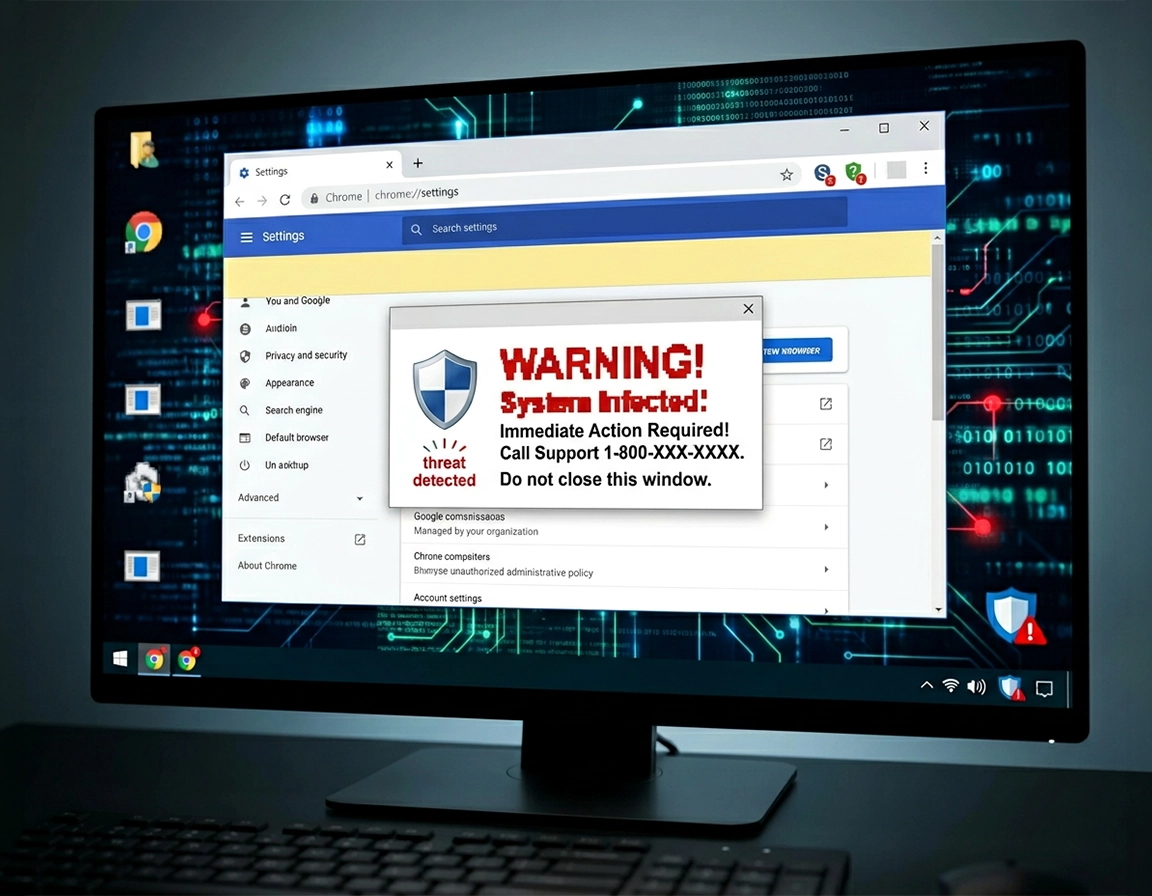
What people mean when they say Chrome has a virus .
The phrase is common; the underlying causes are not all the same.
When somebody says Chrome has a virus, the browser is often only the most visible part of the problem. One machine shows search results going to a strange engine after every restart. Another throws full-screen scare pages claiming “Trojan found” and demanding a phone call. Another opens betting tabs, coupon tabs, or fake McAfee-style renewal notices even though no antivirus scan finds a system infection. Those cases feel identical to the person using the laptop, but the fix changes completely depending on whether the trigger is a site permission, an extension, a Chrome profile preference, or a persistence mechanism outside Chrome.
Chrome itself already blocks a large amount of known malicious activity through Safe Browsing warnings, download checks, and extension risk signals. That matters because the strongest evidence of compromise is often indirect. You may not see a file called virus.exe. You may instead see notification spam from a random domain you do not remember allowing, a search engine that keeps switching back after you correct it, or an extension with a vague name like “Document Viewer Plus” that suddenly wants permission to read and change data on every site. Those are diagnostic clues, not just annoyances.
The most common mistake is treating every scary screen as proof of infection. A web page can imitate a Windows alert, imitate a Chrome warning, play an alarm sound, or lock the page with repeated dialog boxes. That is not the same thing as the browser being infected. If the “warning” disappears when you close the tab, and it does not return after you remove that site’s notifications or data, you were dealing with a deceptive page or abusive notification permission. If Chrome keeps behaving badly across restarts, across different websites, or even before you browse anywhere, the odds shift toward extension abuse, profile tampering, or system-level malware.
Related: If the strange behavior appears only after installing a toolbar, coupon helper, PDF converter, downloader, or “AI assistant” add-on, read Chrome Suspicious Extension Detection and Chrome Extension Permission Abuse Detection.
Key diagnostic terms that matter on this page .
- Browser hijacker: Software or an extension that changes search, new tab, homepage, or redirects without clearly informed consent.
- Abusive notification: A website push permission used to send fake virus alerts, renewal scams, prize lures, or “system infected” messages outside the page itself.
- Potentially unwanted extension: An add-on that is not necessarily a traditional virus but collects data, injects ads, rewrites search behavior, or broadens permissions over time.
- Profile corruption or tampering: Unwanted changes stored in Chrome’s profile data, including startup pages, content permissions, search defaults, and extension state.
Looks like a fake alert
The warning appears in one tab, shouts about “5 viruses,” pushes a phone number, and disappears once the tab or site permission is removed.
Looks like extension abuse
Results redirect, pages gain extra ads, text becomes links, coupons inject themselves, or a strange extension reappears after sync.
Looks bigger than Chrome
Chrome is not the only affected app, search settings keep resetting after uninstalling extensions, or the device is also installing suspicious programs.
Before you start: four fast reality checks .
Do these checks before deleting your profile, signing out of sync, or reinstalling the browser. Each one narrows the cause without creating unnecessary cleanup later.
- Ask whether the warning lives inside a tab or outside Chrome. If the alert is visible as page content and the address bar shows a website, you are likely looking at a deceptive site. If the alerts keep firing as desktop notifications in the bottom corner even after the tab is closed, inspect notification permissions, not antivirus first.
- Test Incognito with extensions disabled. Most malicious extensions do not run in Incognito unless you allowed them. If the bad behavior disappears there, the extension layer deserves immediate attention.
- Open Chrome without visiting any site. If the browser launches straight into a suspicious page, review startup pages and “On startup” settings before assuming file infection.
- Check whether other browsers show the same problem. If Edge, Firefox, or Safari also redirect or show ad spam, the source is likely outside Chrome.
Related: If the browser is also sluggish, hot, or opening dozens of hidden processes, see Chrome Browser Slow After Virus Fix and Chrome Keeps Opening Random Tabs Fix.
- Check the extension list: open
chrome://extensionsand look for recent installs, generic names, or anything you do not deliberately use. - Check site notifications: open Chrome settings, then review notification permissions for domains sending “infection detected” style messages.
- Check search engine and startup pages: if these revert after correction, that persistence clue is stronger than any pop-up headline.
Step-by-step diagnostic workflow .
Work through this sequence in order. It starts with Chrome’s built-in signals because they are faster, safer, and often specific enough to tell you whether you are facing weak passwords, harmful extensions, notification abuse, or a genuine browser reset event.
1) Run Safety Check before touching anything else .
On desktop, go to Settings → Privacy and security → Safety Check. Chrome reviews several items that are directly relevant when people suspect a browser infection: compromised or weak passwords, Safe Browsing status, available browser updates, notification risks, unused permissions, and potentially harmful extensions. This is useful because it surfaces the categories Chrome already thinks deserve attention, instead of forcing you to guess from symptoms alone.
If Safety Check highlights a risky extension or abusive notification permission, do not skip ahead to a full reset. Act on the flagged item first and reopen Chrome. In many real-world cases, that alone clears the problem because the infection never lived in the browser core; it lived in a permission you granted months earlier and forgot about.
2) Inspect extensions like an incident responder, not a casual user .
Open chrome://extensions. Ignore brand familiarity for a moment and look at behavior. Malicious or unwanted extensions often reveal themselves through broad host access, recent installation timing, vague names, or suspicious justifications. A harmless grammar tool that only works on text fields is different from a “search assistant” that can read and change data on every site, access all browsing activity, and offers no legitimate reason for those permissions.
Disable everything non-essential, not just the one that feels suspicious. Then relaunch Chrome and test the specific symptom. If redirects stop, the homepage stays normal, and fake banners disappear, you have narrowed the problem to the extension layer. Re-enable one by one only if you need to identify the exact culprit. That method is slower than blind deletion, but it creates much cleaner evidence.
3) Review notification permissions, because fake virus spam often starts there .
A very common “Chrome has a virus” case turns out to be browser notifications from a site the user allowed while clicking “Allow” to watch a video, prove they were not a robot, or dismiss a deceptive prompt. The result is convincing: alerts can appear on the desktop, use security-themed language, and continue long after the original tab is gone. That feels like malware because the browser seems haunted. It is usually just a bad permission.
Open Chrome settings and inspect notification permissions carefully. Domains that look random, use misspellings of known brands, or have no obvious relationship to sites you intentionally follow should be removed or blocked. If the “virus alerts” stop immediately after that, you were dealing with abuse of the notification system, not a deeper browser infection.
4) Check whether search, homepage, and startup settings were rewritten .
A hijacker typically aims to monetize traffic. That means it wants to control where you start, what engine handles your searches, and where your clicks land. Review the default search engine, the list of search providers, the startup pages, and the new-tab behavior. If an unfamiliar provider keeps returning after you delete it, or if Chrome launches into a domain you never chose, that is stronger evidence than an isolated pop-up.
This is also where persistence becomes visible. If you correct the settings, restart Chrome, and they remain fixed, you may have only been dealing with stored profile changes. If they snap back again, something else is rewriting them: an extension, sync, a local program, or malware outside Chrome.
5) Compare behavior in a fresh Chrome profile .
Creating a new browser profile is one of the most underrated diagnostic tools because it separates profile-level contamination from system-wide compromise. A fresh profile starts without the old startup pages, most of the old preferences, and the old extension state. If the new profile behaves normally while the old one is still chaotic, the browser core is probably fine. Your real work is then profile cleanup, extension review, and sync hygiene.
If the fresh profile is also immediately affected, broaden your suspicion. At that point the cause is less likely to be a stale Chrome preference and more likely to be a device-level problem, a synced setting reintroduced the moment you sign in, or a network or policy control in a managed environment.
6) Look at downloads and recent installs with timing in mind .
Do not just ask “Did I install anything weird?” Ask what changed the day the symptom began. Browser trouble often starts after downloading a cracked utility, a “free PDF editor,” a game launcher, a fake codec, or a bundled installer. The suspicious file may not even be Chrome-related. Its purpose may have been to add a service, install a browser helper, or change defaults quietly. Matching the onset of the symptom to recent downloads and installed apps is one of the best ways to find the real entry point.
- 1 Open Chrome and run Safety Check from Privacy and security.
- 2 Disable every non-essential extension in
chrome://extensions. - 3 Review Notifications, Search engine, and On startup settings.
- 4 Test Chrome in a fresh profile before deciding on a full reset.
What success looks like: after these checks, you should know which bucket the problem belongs to. Either Chrome stops misbehaving when extensions are disabled, the spam ends when notification permissions are removed, the issue disappears in a clean profile, or the behavior persists everywhere and points to a wider device-level infection.
Related: If the next step is scanning rather than checking, use How to Scan Chrome for Malware, Chrome Browser Security Checkup Guide, and Chrome Malware Scan With Antivirus.
Common variations by device .
- Windows: Search hijacks and startup-page persistence often pair with recently installed desktop software, scheduled tasks, or browser helper components outside Chrome.
- Mac: Fake update prompts, profile configuration tricks, and “cleaner” utilities are common routes. Browser pop-up scams can look polished enough to fool even careful users.
- Android: Notification abuse and malicious sideloaded apps matter more. If Chrome keeps opening unwanted pages, inspect app permissions and recent APK installs in addition to browser settings.
- Managed work or school devices: Some search, Safe Browsing, or extension behaviors may be policy-controlled. When a setting is locked by your admin, treat that as configuration context, not proof of infection.
How to tell browser hijacking from real device malware .
This is the part most quick guides skip. Not every ugly symptom has the same weight. Some symptoms are noisy but shallow. Others are quiet and serious. A deceptive page that screams about five infections may be less dangerous than a silent extension that reads session cookies, rewrites checkout pages, or injects affiliate redirects into search results.
Related: For business or managed-browser scenarios, see Chrome Enterprise Threat Removal Guide and Remove Malware from Managed Chrome Devices.
Signs you are probably dealing with browser-level abuse .
- The problem stops when extensions are disabled.
- The “virus alert” appears only on one site or from one notification-sending domain.
- A clean Chrome profile behaves normally.
- Only Chrome is affected, while other apps and browsers behave normally.
- Search hijacks target ad-heavy engines or coupon portals rather than broader system damage.
Signs the problem is bigger than Chrome .
- Settings revert immediately after you fix them, even with extensions removed.
- Other browsers are also redirecting or opening suspicious pages.
- Unknown apps, services, or scheduled tasks appeared around the same time.
- Security software is disabled, failing to update, or being blocked unexpectedly.
- Passwords, sessions, or account logins show suspicious activity outside Chrome itself.
When you should not jump straight to a browser reset .
Resetting Chrome is useful, but it can also blur the evidence. If you reset first, you may remove the obvious symptom while leaving the persistence mechanism intact. Then the bad setting returns two hours later and you no longer know what changed it. Use reset after diagnosis, not instead of diagnosis, unless the browser is unusable and you need immediate containment.
Another trap is blaming sync too early. Sync can reintroduce extensions or settings, but it is not usually the first thing that goes wrong. First determine whether the bad behavior exists in the local profile with extensions disabled. Then evaluate whether signed-in sync is rehydrating something you already removed elsewhere.
Scenarios experts treat differently .
- Fake antivirus renewal banners: usually notification abuse or deceptive ads, unless they persist across browsers and sessions.
- Search engine replaced by a random provider: classic hijacker pattern, often extension or bundled software related.
- Chrome crashes, then relaunches unknown tabs: can still be extension-driven, but repeated relaunch plus system sluggishness raises endpoint-malware suspicion.
- Saved logins trigger breach warnings: not proof of a local virus; sometimes the issue is reused credentials rather than active infection.
Signal patterns that separate noise from compromise .
Expert diagnosis is mostly pattern recognition. One symptom on its own can mislead you. A fake alert, a redirect, or a changed homepage is not enough by itself to classify the threat. What matters is which symptoms travel together. When several low-level anomalies line up, the browser usually tells a more reliable story than the scare page ever will.
Consider three patterns. First, the single-site panic pattern: one domain throws a loud alert, maybe vibrates the tab title, maybe claims “Windows Defender found 18 threats,” but Chrome behaves normally everywhere else. That usually points to a deceptive page. Second, the browser-hijack pattern: your default search changes, sponsored links look unusually dense, coupon or shopping overlays appear on unrelated sites, and the new-tab page stops being what you chose. That combination points toward extension abuse or bundled software. Third, the cross-browser persistence pattern: Chrome misbehaves, then Edge or another browser starts redirecting too, and recent installs include something you do not recognize. That pattern pushes the case outside Chrome.
Timing matters as much as symptoms. If the problem began five minutes after you clicked “Allow” on a page, the notification system deserves attention. If it began after installing a PDF merger, driver updater, cracked utility, or “browser speed booster,” think bundled software. If it began the moment you signed back into Chrome, review synced extensions and synced settings before you conclude the local browser is still infected.
Low-confidence infection signal
A single alarming tab with dramatic language, countdown timers, or an audio siren. Loud does not equal deep compromise.
Medium-confidence compromise signal
Search results redirect, startup pages change, and unknown extensions have permission across all sites. This is where browser-level abuse becomes likely.
High-confidence system signal
Settings revert after cleanup, multiple browsers are affected, and suspicious software or processes appeared around the same time.
Cross-check worth doing: open a site you trust, such as a familiar email provider or internal dashboard. If injected banners, odd coupon boxes, or rewritten links only appear when extensions are enabled, the case is almost never about Chrome’s core files.
Security impact and what matters most .
The severity of a “Chrome virus” problem depends less on how dramatic it looks and more on what access it gained. A noisy scare page that never escapes one tab is annoying. An extension with permission to read and change data on every site can capture form input, alter search results, inject affiliate IDs, observe internal dashboards, and tamper with checkout flows. A malicious notification permission is usually less invasive than full extension access, but it is still effective at driving users into scams and remote-support traps.
Highest-risk cases: unknown extensions with broad site access, persistent search hijacks that return after cleanup, and any case paired with suspicious account activity or device-wide changes.
Related: If you already know the browser was compromised and need cleanup, continue with Remove Virus From Chrome, Chrome Profile Reset Guide, and Chrome Full Malware Cleanup Checklist.
Recommended baseline actions after you confirm something is wrong .
- Low disruption: remove notification permissions, disable suspect extensions, update Chrome, and rerun Safety Check.
- Balanced response: clean the profile, review synced extensions, and change passwords for sensitive accounts if the extension had broad site access.
- High assurance: use endpoint malware scanning, review installed programs or apps, rotate passwords from a clean device, and monitor account sessions.
What to do based on what you found .
| Finding | Most likely cause | Immediate next action | Follow-up risk |
|---|---|---|---|
| Fake virus pop-ups from one site | Deceptive page or abusive ads | Close the tab, clear site data, avoid regranting permissions | Low unless you downloaded or installed something |
| Desktop alerts keep coming | Notification permission abuse | Remove site notifications and rerun Safety Check | Medium because scam prompts may have harvested clicks |
| Search/homepage keep changing | Hijacker extension or bundled software | Disable extensions, inspect recent installs, test fresh profile | Medium to High depending on persistence |
| Problem survives profile reset and hits other browsers | System-level malware or unwanted software | Escalate to full-device malware response | High |
Troubleshooting stubborn cases .
Related: If you are already deep into cleanup, use How to Reset Chrome After Malware, Chrome Safe Mode Malware Removal, and Chrome Registry Cleanup Guide.
If Chrome looks clean until you sign in again .
That usually points to synced settings, synced extensions, or the same malicious extension being installed across devices. Check every signed-in Chrome instance tied to the same Google account. A single contaminated laptop can keep putting the unwanted item back into circulation. Remove the extension everywhere, then confirm it is gone from each device before trusting the result.
If notifications keep appearing after you blocked pop-ups .
Pop-ups and notifications are not the same mechanism. Many users block pop-ups and assume they are protected, then continue receiving fake renewal or infection warnings because the site still has notification permission. Inspect notification settings directly and remove the site from the allowed list. That distinction solves a surprising number of “nothing worked” cases.
If the strange behavior returns after every restart .
Persistence after restart is a serious clue. A tab-based scare page cannot normally survive a fully closed browser unless you told Chrome to reopen previous pages or a startup-page setting was changed. Recheck the On startup section, recent extensions, and any desktop software installed near the time the problem began. If the bad behavior still survives a clean profile, stop treating it as a browser-only issue.
If Chrome says nothing is wrong but you still do not trust it .
Built-in checks are strong, but they are not omniscient. Unknown or newly emerging threats, policy-based changes, or bundled software can still sit outside what Chrome flags directly. In that situation, rely on differential testing: clean profile versus old profile, extensions on versus off, signed-out versus signed-in, Chrome versus another browser. Those comparisons usually expose the hidden pattern faster than another generic scan.
Watch for a repeated mismatch between what Chrome reports and what you observe. For example, Safety Check may show no immediate warning, yet a single extension still injects shopping overlays on retailer pages, or a search engine keeps snapping back after restart. That does not make Chrome useless; it means the abusive behavior is being expressed through settings or software layers that need manual review.
If you need to reset safely without losing the thread .
Document what you found first: suspicious domain names, extension names, the exact search engine value, and what changed after each test. Then reset Chrome settings only after you have captured those clues. That way, if the problem comes back, you are not starting from zero. You know whether the same domain reappeared, the same extension returned, or a different actor is now involved.
FAQ .
-
helpCan Chrome itself get a virus?People use the phrase that way, but the browser is often only the visible surface. In practice, the cause is more often a malicious extension, abusive notification permission, hijacked setting, or malware elsewhere on the device changing Chrome’s behavior.
-
helpDoes a fake “virus detected” page prove infection?No. A single page can simulate alarms, warnings, and system messages very convincingly. Treat it as suspicious, but confirm whether the behavior survives after the tab is closed and whether the site also has notification permission.
-
helpWhy does Chrome keep opening scam alerts even after I close the site?That usually means the site was allowed to send notifications. The original page may be gone, but the permission remains. Remove the domain from Chrome’s notification settings and the alerts usually stop immediately.
-
helpWhen should I change passwords?Change passwords promptly if you found a suspicious extension with broad access, saw account sessions you do not recognize, or suspect form data was exposed. Do it from a clean device or after cleanup, not while the suspected compromise is still active.
-
helpIs reinstalling Chrome enough?Not always. Reinstalling can remove local browser files, but it will not necessarily remove a malicious extension synced from another device, a notification permission restored by the same profile, or malware outside the browser that keeps editing settings.
Sources & further reading .
- Google Chrome Help: Manage Chrome safety and security
- Google Chrome Help: Remove unwanted ads, pop-ups & malware
- Google Chrome Help: Choose your Safe Browsing protection level
- Google Account Help: Remove malware or unsafe software
- Google Safe Browsing
- Chrome Releases: Stable Channel Update for Desktop
Editorial note: This page focuses on diagnosis first. Cleanup steps are linked throughout because different symptom patterns require different remediation paths.