Which malware changes a Chrome reset actually reverses .
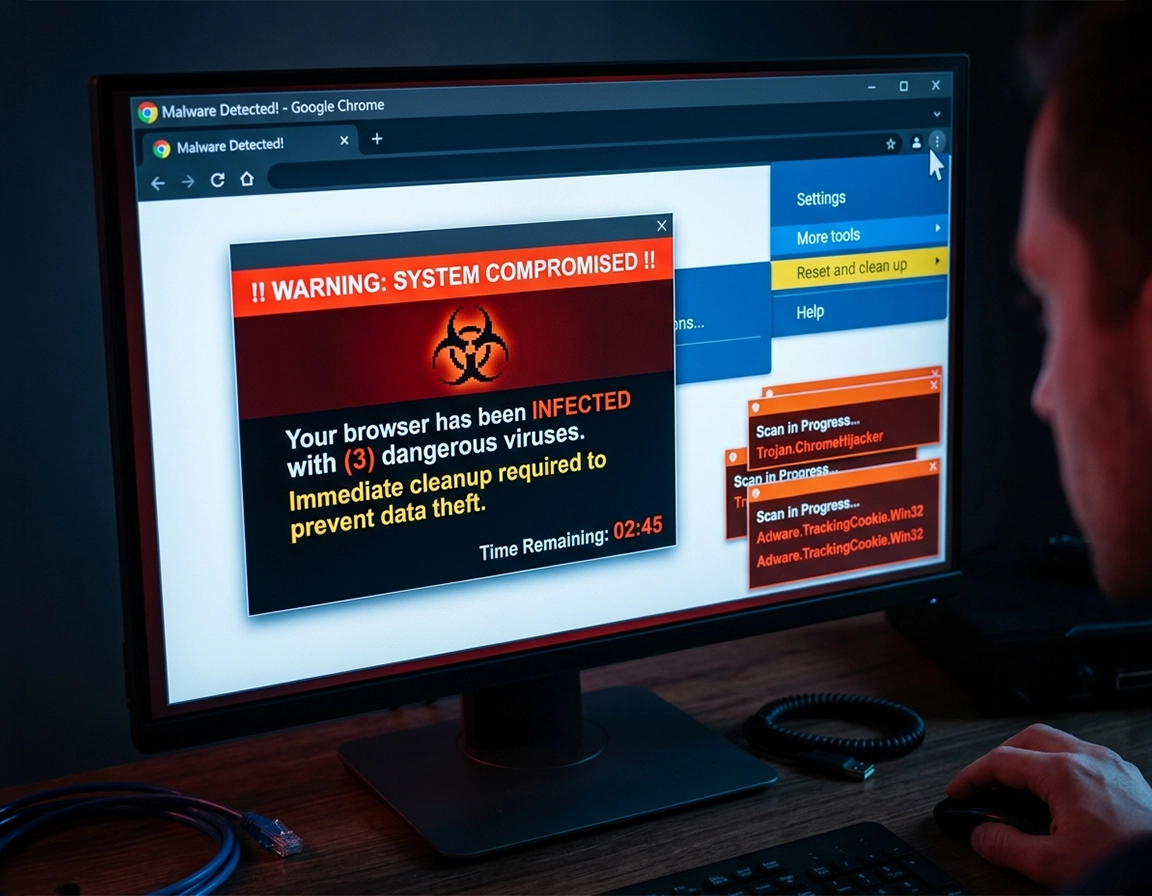
When people say “Chrome has a virus,” the browser is often showing the leftovers of something that landed outside the browser first. A bundled installer changed the search provider. A fake video codec dropped a scheduled task. A coupon extension quietly rewired every search request. A notification permission from a junk site now throws full-screen warnings that look like antivirus alerts. By the time you open Settings, Chrome itself may only be carrying the visible symptoms.
That is why a reset is useful but narrow. Google’s own reset flow restores core profile settings such as the default search engine, homepage, startup pages, new-tab page behavior, pinned tabs, content settings, cookies and site data, extensions, and themes. Your bookmarks and saved passwords are not deleted, and Google explicitly notes that reset is not a full wipe because some settings, such as fonts and accessibility options, remain untouched. In other words, reset puts the browser profile back on stable rails; it does not disinfect the operating system, reverse every programmatic policy, or prove that the original infection source is gone.
In a real cleanup, that distinction matters. Suppose your search results suddenly route through a look-alike engine, then bounce back to Google. Reset can remove the browser-side hook, but if the machine still has a program relaunching the hijacker or a policy key forcing an extension, the change comes back on the next restart. The same pattern shows up with “Yahoo keeps taking over,” fake McAfee alerts, shopping pop-ups, browser redirects, and surprise toolbars that return after you remove them once.
The practical question is not whether reset is good or bad. The practical question is whether the mess lives inside the Chrome profile, outside it, or in both places at once. When you separate profile contamination from extension abuse, policy abuse, shortcut tampering, and still-active system malware, the reset feature becomes much more powerful because you are finally aiming it at the right layer.
That distinction explains why two users can both say “Chrome was hacked” while needing different fixes. One machine only has a toxic extension and a wrecked profile. Another has a browser shortcut that launches a scam page, a startup app that rewrites search settings, and sync quietly carrying the same bad preferences to a second device. Pressing reset on both machines produces very different outcomes because only one of those problems actually lives inside the profile reset can reach.
Related: If the infection path started with an extension, read Chrome Remove Malicious Extensions and Chrome Extension Permission Abuse Detection.
Key terms that matter in this exact scenario .
- Browser reset: restores major Chrome profile settings to default values without deleting bookmarks or saved passwords.
- Profile contamination: a state where Chrome’s own settings, site permissions, extensions, themes, cookies, or startup configuration were altered and now keep reproducing bad behavior.
- Policy abuse: when a program sets enterprise-style policies so Chrome shows “managed by your organization” and resists normal removal of an extension or setting.
- Dirty reinstall: uninstalling and reinstalling Chrome while leaving behind the same user profile, sync state, or operating-system malware source that caused the problem.
Checks that stop you from doing a dirty reset .
A clean browser reset begins with restraint. Users often rush into clearing everything, then lose useful state while the actual persistence mechanism survives. Spend five minutes confirming what changed. That short pause tells you whether reset is enough, whether you need a fresh Chrome profile, or whether the infection is sitting in Windows, macOS, or Android outside the browser.
- Check whether the problem is browser-wide or site-specific: If only one sketchy site throws fake alerts, that may be a notification or site-permission issue. If every search, new tab, or startup window is wrong, the profile is dirtier than a single site exception.
- Check extensions first: open
chrome://extensionsand look for recent installs, off-brand utility names, coupon tools, PDF converters, “search enhancement” helpers, and extensions with broad access such as “Read and change all your data on all websites.” - Check for policy interference: open
chrome://policyon a personal machine. Unknown policies, forced extensions, or strange admin-style controls are a red flag that reset alone may not stick. - Check whether Chrome is signed in and syncing: a polluted profile can resend bad settings across devices. If your desktop and laptop suddenly share the same hijacked homepage, sync may be carrying the contamination.
- Check installed programs or apps: browser hijackers are frequently paired with “helpful” desktop software that got installed during the same session. If Chrome started misbehaving the day a “driver updater” or “video downloader” appeared, start there.
- Check your notification subscriptions: fake virus warnings on the desktop sometimes come from a site permission, not a resident antivirus. Chrome can be perfectly healthy while a trash site abuses notifications you accidentally allowed.
Related: If Chrome feels unusually heavy, delayed, or unstable after the infection, see Chrome Browser Slow After Virus Fix and Fix Slow Chrome Browser Step by Step.
One more detail is easy to miss: Chrome can automatically restore certain safe defaults when it detects suspicious changes. That is useful, but it is not a certificate of health. The browser may correct the visible symptom while the machine still contains the app, scheduled task, login item, or policy entry that caused it. If your search engine, homepage, or startup tabs keep flipping back after Chrome supposedly fixed them, assume persistence, not coincidence.
A fast way to classify the problem is to ask when it comes back. If the unwanted page opens only when you use one shortcut, inspect the shortcut. If the bad search engine returns after a reboot, inspect startup persistence and installed apps. If the same change reappears only after you sign back into Chrome, look hard at sync. That small diagnostic split saves a lot of wasted cleanup.
Step-by-step: the clean reset sequence .
This sequence is written for the common, ugly cases: hijacked search, fake security warnings, persistent ad tabs, malicious extensions, startup redirects, or Chrome settings altered without your permission. Follow the order. Malware cleanup is one of those rare situations where sequence matters more than speed.
Step 1: cut off the source before you touch Chrome reset .
On Windows, open Settings → Apps → Installed apps and remove anything suspicious, especially software installed on the same date the problem started. On Mac, review Applications in Finder and move unknown programs to Trash. If you already know the offender was a download, crack, fake updater, “optimizer,” or bundled browser utility, remove it now. Resetting Chrome while the source remains installed is like repainting a wall with a leak behind it.
If the infection came through Chrome itself, go to chrome://extensions and remove extensions you do not trust. Do not keep a mystery extension because it has good reviews, a polished icon, or a believable Chrome Web Store description. Hijackers often hide behind generic utility labels such as “Search Assistant,” “PDF Converter,” “Coupon Finder,” or “Video Helper.” In this scenario, the right threshold is trust, not aesthetics. If you cannot remove an extension because it says it is managed, skip ahead later to the policy section; that is not a normal consumer-browser state unless you are actually on a managed school or work device.
On Windows, also inspect the shortcut you normally use to launch Chrome. Right-click the shortcut, open Properties, and check the Target field. A common hijacker trick is to append a URL after chrome.exe so every launch opens a scam page, fake search portal, or ad landing page. Users sometimes blame the browser profile when the shortcut itself is what is dirty.
Step 2: update Chrome before the reset .
Open Chrome, go to More → Help → About Google Chrome, let it check for updates, then relaunch if available. Malware cleanup often happens on a machine that has been avoiding updates for weeks because pop-ups, crashes, or forced redirects disrupted normal browsing. Resetting a stale browser profile is better than doing nothing, but resetting on a current build closes off bugs and security issues that older versions may still expose.
Step 3: decide whether to pause sync first .
If the problem exists on more than one device, or if a strange search engine followed you from desktop to laptop, sign out of Chrome or pause sync before the reset. This prevents a contaminated profile state from racing back in. You do not need to panic-delete your whole Google Account data for every malware scare, but you do need to stop live propagation while you clean one device properly.
Step 4: run the actual reset .
- 1 Open Chrome.
- 2 Select More → Settings.
- 3 Open Reset settings.
- 4 Choose Restore settings to their original defaults.
- 5 Confirm with Reset settings.
The reset changes the profile pieces malware often tampers with first: default search engine, homepage, startup pages, new-tab behavior, pinned tabs, content settings, cookies and site data, extensions, and themes. It does not delete bookmarks or saved passwords. That balance is why it is such a good post-infection tool: the user regains browser control without losing everything that made the browser usable.
What success looks like: Chrome opens to a normal window, new tabs are clean, startup pages are no longer hijacked, the default search engine stays where you set it, suspicious extensions remain off or removed, and fake alerts stop appearing unless they were coming from a site notification or an external program.
Related: If your search provider keeps changing, follow this with Chrome Search Engine Hijacked Fix. If the homepage keeps returning, use Chrome Homepage Keeps Changing Fix.
Step 5: review site permissions instead of blindly nuking everything .
After reset, visit Settings → Privacy and security → Site settings. Review notifications, pop-ups and redirects, intrusive ads, camera, microphone, and location permissions. Malware-adjacent sites often leave behind one nasty permission that keeps the problem alive. A desktop alert saying “Your PC is infected” may not be malware still running in Chrome; it may be a permission you gave to a junk site weeks ago when a fake CAPTCHA asked you to click Allow.
Remove permissions for any site you do not actively recognize. Do the same for site data if a particular domain was involved in the infection flow. This is especially valuable when the machine is clean but the browser still behaves like it remembers the scam.
Step 6: clear the right browsing data .
Open Delete browsing data and choose a time range that covers the infection window. In malware cleanup, “All time” is usually justified if the browser has been visibly compromised, but there are exceptions. A user who stores active sessions for banking, work tools, and dev environments may prefer to start with cookies and cached files tied to the period when the bad behavior began, then escalate if needed. The point is to remove hostile residue, not to make account recovery your next problem.
Cookies and site data matter more than many people expect. A hijack may not only alter visible settings; it can lean on persistent site data, session behavior, or deceptive site exceptions. If you clear cookies while signed in, remember that Chrome can refresh the Google cookies keeping you signed in. If you want a harder line, sign out first and then clear the data set more aggressively.
For most post-malware resets, the practical minimum is cookies and other site data plus cached images and files. Add browsing history if the infection involved repeated scam domains, search redirects, or deceptive pages you do not want resurfacing in suggestions. Saved passwords and autofill are a different decision: leave them alone during the browser cleanup phase unless you already know the compromise was severe enough to justify rotating everything.
Step 7: restart the device and retest the exact symptom .
Do not declare victory while the machine is still in the same session. Restart Windows, macOS, or Android, reopen Chrome, and recreate the original symptom path. Search from the address bar. Open a new tab. Launch Chrome cold from a desktop shortcut. Visit a site that used to redirect. This matters because startup agents, scheduled tasks, login items, and forced policies often reassert themselves only after a reboot.
Desktop, Android, and iPhone variations .
- Windows / macOS / Linux: most serious post-malware reset work happens here because extensions, policies, startup pages, and installed programs play a much larger role.
- Android: Chrome can still be abused through notifications, bad site permissions, and device-level malicious apps. Check installed apps and update Chrome through Google Play.
- iPhone / iPad: persistent browser hijacks are less likely to come from traditional extension abuse. The common cleanup path is closing the malicious tab, reviewing permissions and data, then updating or reinstalling the app if behavior remains odd.
Post-reset validation checklist .
- Address bar test: type a query directly into the omnibox and confirm it stays on your chosen search provider.
- Cold-start test: close Chrome completely, reopen it from your usual desktop or taskbar shortcut, and confirm it does not launch a random site.
- New-tab test: open a clean new tab and make sure you are not bounced into a fake search page or sponsored portal.
- Permission test: review notifications and pop-ups so no junk domain still has the right to push desktop warnings.
- Reboot test: restart the computer and repeat the same checks. Persistence tends to reveal itself here.
When reset is not enough and the browser keeps relapsing .
The unpleasant cases are the ones where Chrome resets cleanly, looks normal, then slides back into the same problem. That behavior usually points to persistence. At that point you stop asking, “How do I reset Chrome?” and start asking, “What keeps rewriting Chrome?” The answer is often sitting outside the reset path.
Related: In managed environments or suspicious policy cases, see Remove Malware from Managed Chrome Devices and Chrome Enterprise Threat Removal Guide.
Case 1: the browser says “managed by your organization” on a personal computer .
If this is your own Windows PC and not a work or school device, treat that message seriously. Open chrome://policy and review the listed policies. Forced extension installs, unusual home page policies, or search-related entries can indicate policy abuse. A normal browser reset does not always override those controls because Chrome assumes policy came from a legitimate administrator. In that situation, the browser is not being stubborn; it is obeying instructions from outside the profile.
The fix is to remove the program or configuration source that wrote the policy. That may mean uninstalling a rogue app, cleaning startup items, or removing leftover system-level artifacts. Only after that cleanup does another reset make sense. This is one of the clearest examples of why “reset didn’t work” is often the wrong diagnosis. Reset worked. The policy simply overruled it.
Case 2: the extension keeps returning .
A returning extension usually indicates one of three things: sync reinstalled it from another device, a program on the computer keeps forcing it back, or the extension was not the only component and a helper application is still present. Check your signed-in devices, pause sync, reboot, and see whether the extension returns with sync disabled. If it does, the problem is local to the machine. If it only returns after sign-in, the bad state traveled through the account ecosystem.
Case 3: reset worked, but Chrome still feels contaminated .
Sometimes nothing is visibly wrong after reset, yet the browser feels untrustworthy because the infection was severe: passwords may have been exposed, autofill data may have been harvested, or you are unsure how long the malicious extension had full page access. In that circumstance, a new Chrome profile is cleaner than endless micro-fixes. Create a new profile, move only known-good bookmarks, reinstall only essential extensions, and avoid importing a mountain of stale settings back into the fresh profile. This is a practical recovery move, not an overreaction.
Case 4: reinstall versus fresh profile .
Users often jump straight to reinstalling Chrome, but reinstalling without changing the profile can leave the same poisoned state in place. A fresh profile is usually more surgical because it attacks the profile layer directly. Reinstalling is more useful when Chrome itself is damaged, Settings will not open, or program files appear corrupted. If the browser window behaves normally but the profile is weird, start with a fresh profile. If Settings is broken, crashes are constant, or core files appear missing, reinstall becomes more justified.
Case 5: sync keeps carrying suspicious state between devices .
Sync contamination usually shows up as eerie consistency. You clean one machine, set Google back as the default engine, remove a junk extension, and the same browser state reappears after sign-in on a second device. In that case, clean the worst-affected device first, keep sync paused until the browser remains stable through a reboot, and only then reconnect the account. Otherwise you can spend an evening cleaning two devices that keep re-poisoning each other.
Recovery paths that solve different kinds of contamination .
- Reset Chrome vs create a new profile: reset is faster; a new profile is cleaner when trust in the old profile is low.
- Reset Chrome vs reinstall Chrome: reset repairs browser behavior; reinstall is for broken binaries or settings pages that no longer function properly.
- Built-in cleanup steps vs desktop antivirus scan: you usually need both when the infection originated outside the browser.
- Manual extension cleanup vs policy investigation: manual cleanup works for normal extensions; policy investigation is mandatory when an extension resists removal.
What the infection may have exposed before you hit reset .
Resetting Chrome is about restoring control, but post-malware recovery is also about damage containment. A browser hijack is not only an annoyance problem. It can expose search queries, browsing habits, session tokens, typed URLs, page contents, affiliate routing behavior, form data, and in some cases credentials entered while the malicious extension or injected process was active. The visible redirect is often the least interesting part of the incident.
The exposure level depends on what the malicious component could read or change. A fake search extension that only replaced your provider is bad enough. An extension with permission to read and change data on all websites is a different class of problem because it may have seen inboxes, dashboards, checkout pages, support tickets, internal admin tools, and anything else you loaded while it was active. Resetting the browser does not answer that historical question, so your follow-up actions need to be driven by what the extension or hijacker could access, not only by how annoying it looked.
Impact: May involve hijacked search, persistent site permissions, hostile notifications, forced extensions, data exposure through extension access, and sync propagation to other devices.
Related: If you think stored credentials may have been exposed, go next to Chrome Browser Passwords Stolen: What to Do and Chrome Data Leak Detection.
What to rotate after a serious incident .
- Passwords for high-value accounts: email first, then financial, cloud storage, social, work accounts, and anywhere password reset links can land.
- Browser-stored payment confidence: review saved cards and autofill entries if the malicious extension had broad page access.
- Notification permissions: because scam sites frequently use them to impersonate system warnings.
- Sync trust: verify that your clean device is not reimporting polluted settings from another signed-in Chrome instance.
Baseline hardening after the browser is back under your control .
- Option A (balanced): update Chrome, remove all nonessential extensions, keep Safe Browsing enabled, review notifications monthly, and only restore the extensions you actively use.
- Option B (maximum caution): new Chrome profile, sync paused until the machine is verified clean, passwords rotated for sensitive accounts, and Enhanced Safe Browsing considered for accounts with higher exposure.
- Option C (compatibility-first): keep the existing profile after reset, but audit extensions and site permissions carefully so enterprise or banking workflows are not disrupted by an overaggressive wipe.
How deep the cleanup should go in different situations .
| Situation | Recommended action | Tradeoff | Best for |
|---|---|---|---|
| Single bad extension | Remove extension, reset Chrome, review permissions | May miss a linked desktop component | Most consumer hijacks |
| Search/homepage keeps changing | Uninstall suspicious apps, check policy, then reset | Takes longer than a simple reset | Persistent hijacks |
| High-trust account exposure | Reset, clear data, rotate passwords, consider new profile | More recovery work afterward | Email, banking, work devices |
| Browser still feels unsafe | Create a fresh profile or reinstall if Chrome is broken | Manual rebuild of extensions and preferences | Severe or unclear incidents |
Where to look when the same Chrome problem comes back .
Related: For broader post-infection cleanup, use Chrome Full Malware Cleanup Checklist, Chrome Malware Cleanup Guide, and How to Scan Chrome for Malware.
If the search engine changes back after reset .
This almost always points to persistence outside the visible setting itself. Check installed programs, the desktop shortcut target, suspicious startup items, and chrome://policy. Also pause sync temporarily. If the search provider holds after sync is off, the contamination may be traveling with the signed-in profile rather than being reinstalled locally.
If ads or fake virus alerts still appear .
Differentiate between browser tabs, notification spam, and full operating-system pop-ups. If Chrome is closed and the alerts continue, the issue is not inside Chrome anymore. If they only appear while Chrome is open and mention a specific site, clear that site’s permissions and data. If the alert comes from the desktop’s notification area and impersonates antivirus software, review both browser notifications and installed security-themed junkware.
If an extension cannot be removed .
Do not keep fighting the extension tile itself. The lock is usually upstream. Investigate whether the browser is managed, whether policies are forcing installation, or whether a local program is reinstalling it. A user trying to brute-force removal from the extensions page can waste an hour while the real control plane sits in policy or startup logic.
If Chrome crashes or Settings will not open .
That is one of the few points where reinstalling Chrome becomes more rational than profile surgery. Reset from the Settings screen requires a functional browser core. If the Settings menu itself is broken, uninstall Chrome, download a fresh installer from Google, reinstall, and then re-evaluate whether you also need a clean profile rather than attaching the same old state to a new binary.
If you need to reset safely on Android .
Android cleanup usually means updating Chrome, clearing browsing data, reviewing site permissions, revoking notification abuse, and scanning the device for bad apps rather than using the exact desktop reset flow. If pop-ups appear the moment you open a specific tab, close the tab, clear site data, and check Play Protect. If Chrome updates are failing or a fake Play Store is involved, the device problem is already beyond simple browser cleanup.
If the machine belongs to work or school .
Stop and verify ownership before stripping policies. On a managed browser, some restrictions are legitimate. The right path is to involve the administrator, not to remove governance that was intentionally put there. The phrase “managed by your organization” is suspicious on a personal PC, but entirely normal on a company device.
FAQ .
-
helpDoes resetting Chrome remove malware from my computer?No. Resetting Chrome restores major browser settings, extensions, themes, cookies, and site-data related behavior, but it does not remove every malicious program or persistence mechanism from the operating system. If the source is still installed, the browser can become dirty again.
-
helpWill I lose bookmarks and saved passwords if I reset Chrome?Chrome’s reset flow does not delete your saved bookmarks or passwords. That is one reason it works well as a post-malware repair step. You should still rotate passwords for important accounts if a malicious extension or browser hijacker may have seen them.
-
helpShould I reset Chrome before or after scanning for malware?After you remove the obvious source, but before you resume normal browsing. The ideal order is: remove suspicious software or extensions, update Chrome, reset Chrome, clear relevant site data, restart the device, then perform or confirm a full malware scan if you have not already.
-
helpWhen is a new Chrome profile better than a reset?Use a fresh profile when the infection was severe, the old profile keeps behaving strangely, or you no longer trust what had access to your browsing sessions. A reset repairs settings; a new profile gives you a cleaner trust boundary.
-
helpWhy does Chrome say it is managed after a hijack?Some unwanted programs abuse enterprise-style policies to lock search providers, startup pages, or forced extensions. On a personal device, that message often means the browser is following policy written by software you did not intend to install.
Sources & further reading .
- Google Chrome Help: Reset Chrome settings to default
- Google Chrome Help: Remove unwanted ads, pop-ups & malware
- Google Chrome Help: Check if your Chrome browser is managed
- Google Chrome Help: Delete browsing data in Chrome
- Google Account Help: Manage Enhanced Safe Browsing for your account
- Google Chrome Help: Update Google Chrome
Disclosure: this page focuses on browser behavior, recovery logic, and cleanup order inside and around Chrome. It does not replace operating-system malware removal when the device itself is compromised.