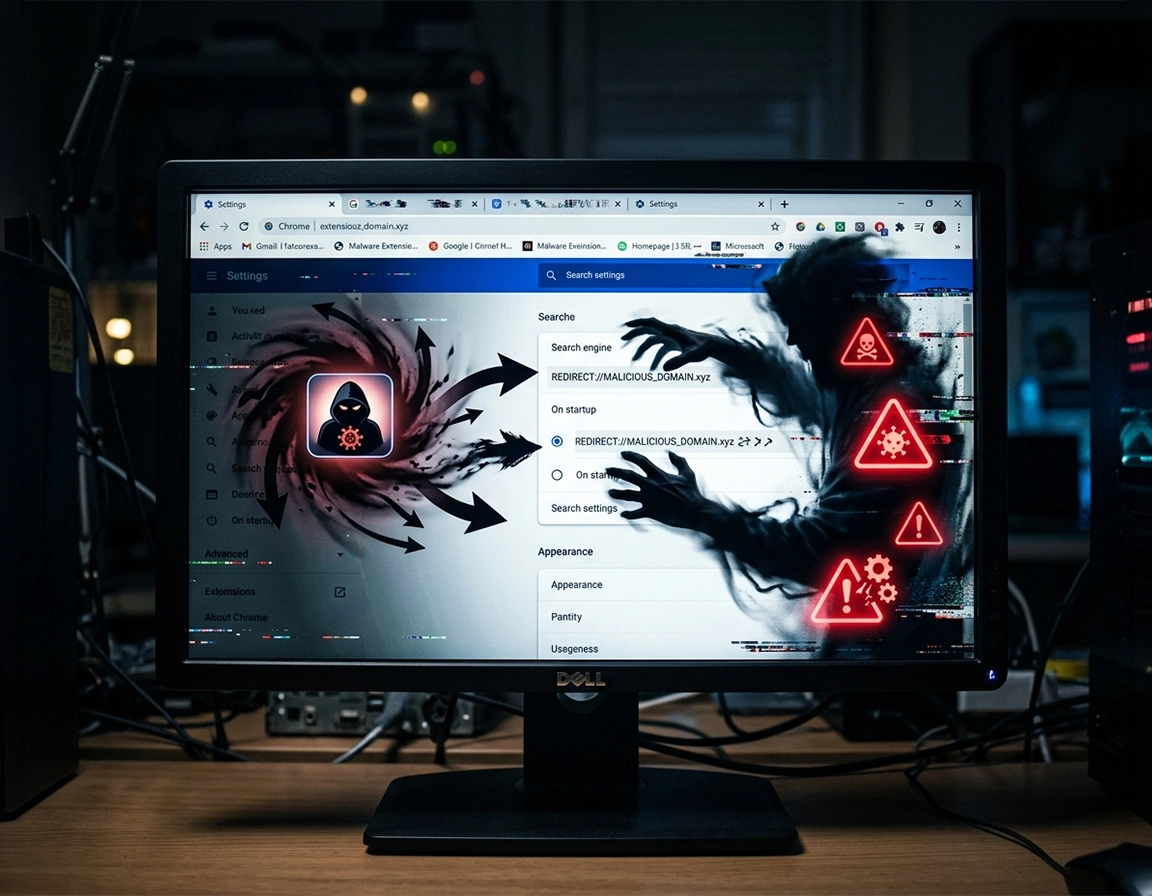
Which browser setting is being overwritten when your homepage changes .
Most “homepage hijack” reports are really one of four different Chrome behaviors being confused with each other.
Users usually describe the symptom in plain terms: “Chrome keeps changing my homepage.” What they are seeing may be the homepage, but just as often it is the startup pages list, the default search engine, a hostile new tab replacement, or a restored session that keeps reopening junk. Those are separate controls. They can look identical from the user’s side because the browser still opens to a page they did not choose.
The difference matters because the wrong repair produces a fake win. Someone changes the Home button URL under Appearance, clicks it once, sees the correct site, and assumes the problem is gone. Then Chrome launches the hijacker page again on the next restart. That does not mean Chrome “ignored” the fix. It means the user repaired the wrong control, while the real change was sitting under On startup or was being rewritten by something outside the browser.
Search hijacks muddy the picture even further. If every address-bar query lands on an unknown search page packed with ads, the browser feels hijacked even when the homepage field itself still points to something normal. A bad extension can touch all of it: startup behavior, home button target, new tab experience, search engine, and sometimes notification permissions as well.
Another giveaway is timing. If the page changes back as soon as you reopen Chrome, suspect an extension or startup setting. If it stays fixed until the next full Windows or macOS login, suspect a desktop component that runs outside the browser. If one profile is affected but a fresh profile is clean, suspect profile data or sync contamination rather than device-wide persistence.
Related: If the change arrived with suspicious add-ons or permission prompts, also read Chrome Unwanted Extensions Removal, Chrome Remove Malicious Extensions, and Chrome Suspicious Extension Detection.
Terms that matter in this exact failure pattern .
- Homepage: the page linked to the Home button. It is not automatically the first page Chrome opens on launch.
- Startup pages: the URL or set of URLs Chrome opens when it starts. This is the most common location for repeated forced-page behavior.
- Search hijack: a change that reroutes address-bar searches to an engine you did not choose, often with affiliate or ad-injection motives.
- Policy override: a managed rule that locks or restores a browser setting. On personal devices, this can be fake management created by malware.
- Sync contamination: a bad extension or startup preference that returns when the same Chrome profile syncs again.
- Profile corruption: damage or contamination confined to one browser profile rather than the whole device.
Checks worth doing before you start deleting things .
A forced homepage is easier to remove when you capture the shape of the problem first. That means identifying whether the bad page appears on launch, on search, on Home-button click, after reboot, or only inside one profile. Those differences tell you where not to waste time.
Related: If the browser is also throwing you onto random tabs or redirect chains, compare your symptoms with Chrome Keeps Opening Random Tabs Fix, Chrome Browser Redirect Removal Guide, and Chrome Search Engine Hijacked Fix.
- Write down the exact URL: do not just remember “some weird search page.” Copy the full domain and path. Hijackers often rotate by theme but reveal themselves by naming pattern.
- Separate launch behavior from search behavior: if the bad page appears only after entering a query in the address bar, you may be dealing with a search hijack rather than a homepage rewrite.
- Open
chrome://extensionsbefore resetting anything: recent installs, vague utility names, PDF tools, shopping helpers, “search assistant” add-ons, and coupon widgets deserve immediate scrutiny. - Open
chrome://policy: on a personal machine, unexpected policy entries are never background decoration. They can be the entire reason your edits never hold. - Check both startup and home-button settings: users often repair one and never inspect the other.
- Note whether Chrome says “managed by your organization” anywhere: on a personal machine, that changes your cleanup path completely.
- Test with a fresh profile if needed: a clean temporary profile is one of the fastest ways to distinguish browser-profile damage from system-level persistence.
Another useful clue is companion behavior. Spam notifications, fake virus pages, toolbar changes, extension reinstall loops, search-engine swaps, and suddenly appearing bookmarks all point away from an innocent settings accident. They point toward a hijack chain.
Remove the source that keeps rewriting your Chrome homepage .
This order is deliberate. Remove the component doing the rewriting first. Only then repair Chrome. Reversing that order produces the classic “I fixed it three times and it still came back” experience.
-
Quit Chrome fully, not just the visible window.
Close every Chrome window. On Windows, check Task Manager for leftover Chrome processes. On macOS, make sure Chrome is actually quit. This matters because a live extension or helper process can rewrite settings while you are trying to clean them. -
Audit extensions before you touch homepage fields.
Openchrome://extensionsand remove anything you do not deliberately use, anything installed shortly before the homepage started changing, and anything with a fuzzy purpose that does not justify broad page access. Extensions posing as PDF utilities, search helpers, shopping assistants, video downloaders, “security” widgets, or coupon tools are repeat offenders in forced-homepage cases. -
Inspect startup pages separately from the Home button target.
Go to Settings → On startup. If Chrome is set to open a specific page or set of pages, review each URL carefully. Then go to Appearance and inspect the Home button setting. If you only repair one of those areas, you may never touch the real fault. -
Check the default search engine while you are there.
A hijacker that controls search can make the browser feel broken even after the homepage looks normal. Confirm that your address-bar searches go to a provider you actually chose. -
Uninstall suspicious desktop software.
On Windows, review installed apps for anything you do not recognize, especially “browser assistant,” “search protect,” “safe web,” adware-like cleanup tools, shopping helpers, or bundled freeware companions. On macOS, inspect Applications and login items for recently added junk. If the problem started after a converter, installer, or download helper went on the machine, that timing is more useful than the app’s marketing name. -
Reset Chrome only after the likely writer is gone.
Use Settings → Reset settings → Restore settings to their original defaults. This clears a lot of hijack residue: homepage target, startup pages, search defaults, extension state, pinned tabs, and several content-related settings. It does not erase bookmarks or saved passwords, which is why it is a practical repair step instead of a scorched-earth rebuild. -
Reboot the device and test only once.
The reboot is not optional in stubborn cases. A clean Chrome restart tests the browser. A full OS restart tests the persistence layer. If the page comes back only after reboot, you have just learned something valuable about where the problem actually lives. -
Add back trusted extensions one by one, not as a batch.
The moment you re-enable everything at once, you lose your ability to identify which extension was poisoning the browser. Reintroduce only what you can justify keeping.
What a real fix looks like: Chrome opens the way you configured it, the Home button goes where you told it to go, searches stay on your selected engine, and the rogue page does not return after a full reboot or after reconnecting sync.
If that sequence does not hold, the problem is no longer “why is Chrome changing my homepage?” The question becomes “what is still writing browser state after I remove it?” That is the right question, and the rest of the guide is built around it.
Symptom pattern → likely source .
| What you see | Most likely source | Best first check |
|---|---|---|
| Bad page appears only when Chrome starts | Startup pages list changed | Settings → On startup |
| Bad page appears only when Home is clicked | Home button target changed | Settings → Appearance |
| Bad page is tied to searches, not launch | Search engine hijack | Settings → Search engine |
| Everything looks fixed until the next reboot | Persistence outside Chrome | Installed apps / startup items / scheduled tasks |
| Settings are locked or repeatedly restored | Policy enforcement | chrome://policy |
| Only one profile is affected | Profile or sync contamination | Fresh profile test |
Related: If the issue is broader than a startup page, continue with Chrome Browser Hacked: How to Fix, How to Reset Chrome After Malware, and Chrome Full Malware Cleanup Checklist.
Platform-specific notes that actually change the diagnosis .
- Windows: recurring homepage rewrites after reboot often come from bundled apps, browser assistants, scheduled tasks, or registry-backed persistence installed alongside freeware.
- macOS: repeated launch-page issues are more likely to involve a browser helper, profile residue, login item, or extension-linked junk than classic Windows-style bundled adware, though both exist.
- Android: many “homepage” complaints are really notification abuse, malicious apps, or a bad session reopening tabs on launch. Safe mode testing is especially useful here.
- Chromebook: if the device is school- or work-managed, a locked startup page may be intentional policy rather than compromise.
Cases where a reset is not enough .
When Chrome has already been reset and the bad page still returns, the problem has moved beyond ordinary browser preferences. At that stage, generic advice becomes noise. The important job is to identify the mechanism that survives the reset.
Related: If policy control or enterprise-style restrictions are involved, compare with Remove Malware from Managed Chrome Devices and Chrome Enterprise Threat Removal Guide.
Chrome says it is managed, but this is your own computer .
That is one of the strongest indicators that your homepage problem is no longer just a browser setting. Open chrome://policy and inspect the entries. If you see homepage, startup, search, or force-installed-extension rules on a personal device, do not keep editing homepage fields and hoping. The browser is likely obeying a higher-priority instruction.
This is where many cleanups stall. The user keeps “fixing” a normal setting while Chrome quietly re-applies a policy-backed value every time it loads. On a work laptop, that may be legitimate IT management. On a home computer, it is a serious lead.
A clean temporary profile opens normally, but your main profile does not .
That result narrows the field fast. The machine is probably not currently forcing the page globally. Instead, your old profile contains the contamination: a bad extension state, poisoned startup settings, or synced data that reintroduces the problem. At that point, profile migration is often smarter than endless repairs.
The trap here is sync. If you sign the new profile into the same account too quickly and allow everything back immediately, you may import the same damage you were trying to escape. Bring back bookmarks first. Restore extensions only if you trust them and understand what they do.
The page comes back only after a full Windows or macOS sign-in .
This behavior points squarely at something running outside Chrome. Think login items, scheduled tasks, browser assistants, updater components, or junk utilities with names bland enough to survive a casual review. If the page waits until you sign back into the operating system, you are dealing with persistence, not stubborn browser memory.
On Windows, this pattern often follows freeware bundles. The visible app may be harmless-looking, while a helper component is the thing restoring the browser values. On macOS, the same effect may come from a login item, browser helper, or profile-linked component that wakes up after authentication.
The “homepage” is really a restored junk tab or notification-driven scam page .
Some users describe any repeated junk page at launch as a homepage hijack, even when Chrome is just reopening the last session or a malicious site is firing notifications into a restored tab. Fake virus warnings, tech support pages, prize claims, and “your browser is infected” alerts often show up this way.
When that is the pattern, check Settings → On startup and look at whether Chrome is set to continue where you left off. Then review site notification permissions and strip access from every domain you do not trust. The fix is similar in spirit, but the underlying mechanism is different.
When a simple setting change really is enough .
- You knowingly installed a homepage or new-tab extension and now want to reverse it.
- You imported settings from another browser and inherited a startup configuration you dislike.
- You changed startup behavior in the past and forgot about it, with no other suspicious symptoms present.
When a simple setting change is almost guaranteed to fail .
- The same domain returns after being removed from startup pages.
- An extension reappears or re-enables itself.
- The browser is suddenly “managed” on a personal machine.
- Homepage, search engine, notifications, and random tabs all changed in the same timeframe.
Fix paths people usually weigh up at this stage .
- Resetting Chrome again vs doing device-level malware cleanup
- Removing one suspicious extension vs rebuilding the profile cleanly
- Trusting Chrome sync to behave vs disconnecting it until the browser is stable
- Using browser-only protection vs running a proper desktop anti-malware scan
Related: For deeper tool and cleanup decisions, read Chrome Malware Scan With Antivirus, Best Malware Removal Tool for Chrome, and Antivirus Extension vs Desktop Antivirus.
Why this is more than a cosmetic browser issue .
A forced homepage is visible. The more serious activity often happens behind it. The component changing the page may also be tracking search terms, attaching affiliate parameters to shopping journeys, intercepting typed URLs, altering search results, injecting ads, or nudging users toward fake update flows and scam pages. The homepage is frequently the billboard, not the whole operation.
Impact: Can affect startup behavior, search routing, site permissions, notification abuse, browsing privacy, download safety, and the trustworthiness of pages presented as “helpful” browser destinations.
Related: If the change began after an extension install or unknown prompt, also review Chrome Extension Permission Abuse Detection, Chrome Data Leak Detection, and How to Check if Chrome Has a Virus.
Baseline hardening after you remove the hijack .
- Balanced setup: keep Safe Browsing enabled, review startup pages occasionally, and avoid extensions that need broad site access without a strong reason.
- Tighter setup: keep the extension list extremely short, deny site notifications by default, and run a reputable desktop scan after any confirmed browser hijack.
- Compatibility-first setup: keep normal browser behavior intact, but audit the browser after installing freeware, converters, download helpers, or anything that markets itself as “browser optimization.”
Recommended response by situation .
| Situation | Best response | Tradeoff | Best for |
|---|---|---|---|
| Single obvious extension caused it | Remove the extension, inspect startup/search settings, then test after reboot | May miss hidden device-level persistence | Clear extension-linked cases |
| Page returns after reset | Investigate policy, installed software, and sync state | Takes longer than a browser-only fix | Persistent or recurring hijacks |
| Only one profile is affected | Move to a clean profile after controlled export | Some convenience and saved state may be lost | Profile-specific contamination |
| Work or school device | Verify whether policy is legitimate before removing anything | Cleanup may require admin help | Managed environments |
There is also an account-security angle that gets missed. If the hijacked page led you to enter credentials on a site you did not independently verify, change those passwords from a known-clean device. Cleaning Chrome does not invalidate information that was already handed over.
Troubleshooting stubborn or unusual cases .
Related: If the same incident also involved fake alerts, suspicious prompts, or account warnings, continue with Chrome Fake Alert Virus Removal, Chrome Tech Support Scam Removal, and Chrome Suspicious Activity Detected Fix.
The homepage looks fixed until the computer restarts .
That strongly suggests a process running at login. Review startup items, installed apps, helper services, and any software that sounds like it “protects,” “accelerates,” “assists,” or “improves” browsing. If the problem waits for OS login to come back, the browser is not the original writer.
You cannot remove the extension because it says it is managed .
On a genuine work or school machine, ask the administrator before changing anything. On a personal computer, treat this as a serious indicator that Chrome is obeying a policy layer rather than normal user preferences. That is one of the few situations where repeated resets are almost guaranteed to disappoint.
The bad page appears only in one Chrome profile .
Stop assuming the device is equally contaminated everywhere. Test a clean profile. If the clean profile behaves normally, you have already narrowed the problem dramatically. Export only what you need from the old profile, and be conservative about what you import back.
Chrome keeps opening a junk page, but the homepage field is already correct .
That usually means the page is not being driven by the homepage field at all. Check whether Chrome is restoring the previous session, reopening a malicious tab, or honoring site notifications from a domain that should never have had permission in the first place.
Resetting Chrome did not solve it .
That result is useful. It tells you the reset cleaned the browser state but failed to remove the source that rebuilds it. In other words, the browser is downstream of the compromise. Move outward to policy, installed software, sync, and profile isolation.
You want the safest reset path without throwing away everything important .
Chrome’s reset feature is a good midpoint because it restores many settings and disables extensions without erasing bookmarks or passwords. If you suspect one profile has been poisoned repeatedly, the safer path is often a fresh profile plus selective restoration rather than trying to rehabilitate a browser state that keeps relapsing.
FAQ .
-
helpWhy does my Chrome homepage keep changing back after I fix it?Because the visible setting is often not the source. A hijacking extension, unwanted app, policy entry, bad sync state, or contaminated profile may be rewriting it after you change it. The durable repair is to remove the writer first, then reset the browser state it altered.
-
helpIs this always malware, or can it be a normal Chrome setting?It is not always malware. Sometimes it is a startup page you forgot you set or a legitimate extension you installed earlier. It becomes suspicious when the page is unfamiliar, returns after removal, arrives with redirects or search changes, or appears together with new extensions, spam notifications, or fake alerts.
-
helpWill resetting Chrome delete my bookmarks and passwords?No. Chrome’s reset feature restores many settings to default and disables extensions, but it does not remove saved bookmarks and passwords. That is why it is useful in browser cleanup without being a full wipe.
-
helpWhat does “managed by your organization” mean on my personal computer?On a personal machine, that can indicate a policy has been set to control Chrome. Sometimes that is legitimate software. Sometimes it is abuse. Either way, unexpected management changes the diagnosis completely because normal homepage edits may be lower priority than the policy forcing them.
-
helpCan a single bad extension change homepage, search, and new-tab behavior at once?Yes. That is one reason browser hijacks feel bigger than a single setting error. One extension can alter startup behavior, search routing, new-tab presentation, permissions, and notification behavior in the same incident window.
-
helpWhen is a new Chrome profile better than trying to fix the old one?When a clean test profile behaves normally while the old one keeps reopening the rogue page. That pattern suggests profile-level contamination, bad sync state, or a poisoned extension configuration. In those cases, controlled migration is often faster and safer than endless repairs.
Sources & further reading .
- Google Chrome Help: set your homepage and startup page
- Google Chrome Help: reset Chrome settings to default
- Google Chrome Help: remove unwanted ads, pop-ups, and malware
- Google Chrome Help: install and manage extensions
- Google Chrome Help: manage Chrome safety and security
- Google Chrome Help: Safe Browsing protection levels
Editorial note: this page is aimed at real recurring homepage rewrites, not harmless preference changes. If a site attached to the incident tells you to call a number, install a “repair” app, or pay immediately to remove threats, treat the page itself as part of the problem.