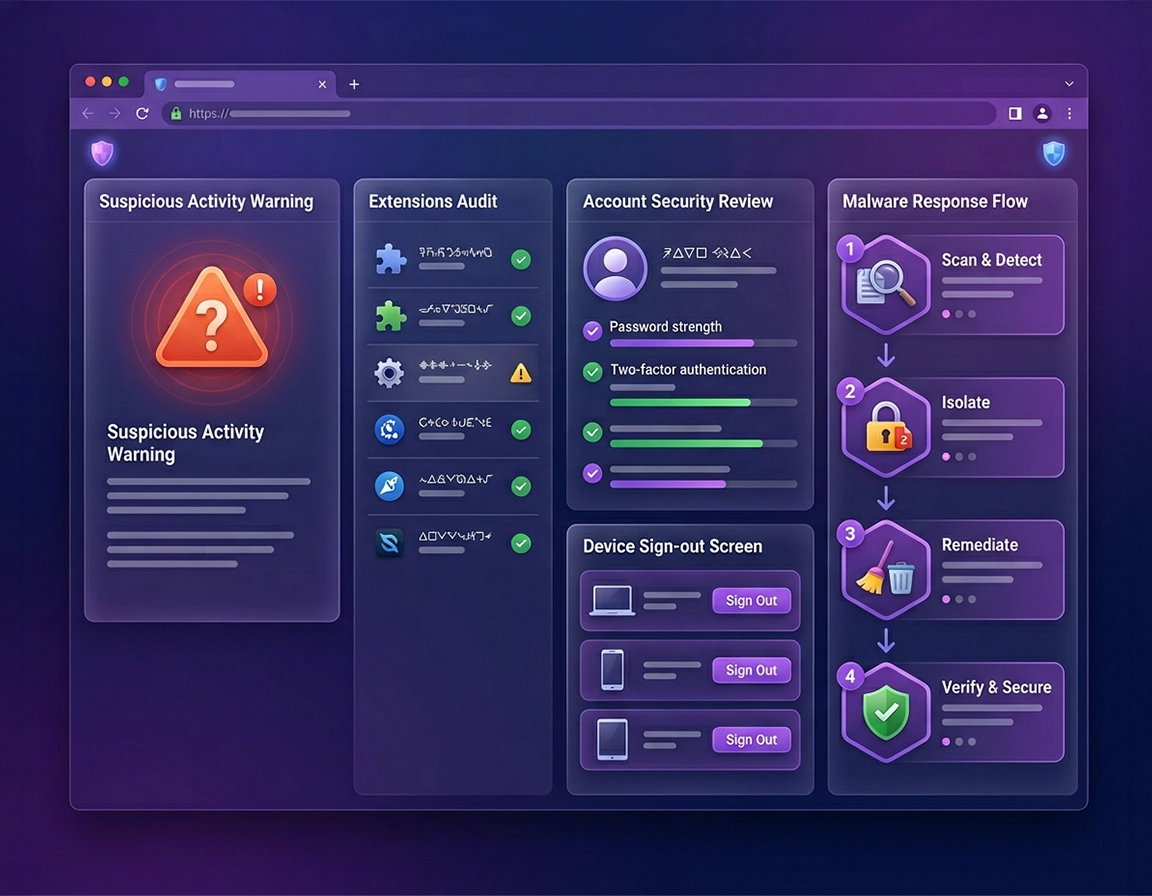
Where the warning is actually coming from .
The phrase “suspicious activity detected” sounds precise, but in practice it can describe several very different situations.
That matters because the right response changes completely depending on the source. A fake scare page should be closed and stripped of permissions. A Google Search unusual-traffic warning points more toward IP reputation, automation, traffic-heavy extensions, or device malware. A Google Account security event means the identity layer needs immediate review. A Chrome profile that suddenly changes search, homepage, notification behavior, or extension inventory is a browser-compromise problem even if the original warning looked account-related.
Users lose time when they flatten all of that into “Chrome is hacked.” Sometimes Chrome is only the surface where the problem becomes visible. The real trigger may be an abusive extension, a script-happy SEO or shopping tool, a public Wi-Fi network with a dirty IP reputation, a free VPN extension, a browser helper installed with another app, or a compromised Google session that still has valid tokens.
There is also a false-positive class worth separating out. One CAPTCHA challenge on a shared office network, hotel Wi-Fi, or oversubscribed VPN exit node is not the same thing as persistent compromise. The problem becomes more serious when the warning repeats under normal browsing, follows you across clean networks, or appears together with redirects, changed settings, spammy notifications, or unfamiliar account logins.
Related: if the browser is already redirecting, opening tabs on its own, or refusing to keep your preferred search engine, continue with Chrome Browser Hacked: How to Fix, Chrome Browser Redirect Removal Guide, and Chrome Search Engine Hijacked Fix.
The four most common underlying scenarios .
- Fake alert page: a site imitates Chrome, Google, Microsoft, or antivirus software to push a download, subscription, or support scam.
- Google Search unusual traffic warning: repeated requests from your browser or network look automated, proxied, or bot-like.
- Google Account security alert: Google has noticed a sign-in pattern, recovery change, or session event that needs verification.
- Browser profile contamination: extensions, notifications, settings, or policies have been altered and Chrome is now behaving outside your baseline.
Small clues that tell you which bucket you are in .
- Big red pop-up inside a webpage: usually fake or manipulative.
- CAPTCHA loops on Google Search: often traffic quality, automation, or network reputation.
- Security email plus unfamiliar device: account investigation comes first.
- Search engine changes, new tabs, odd extensions: browser cleanup is unavoidable.
- Same symptoms across multiple browsers: the device, not just Chrome, may be compromised.
Five-minute triage before you touch settings .
This five-minute pass helps you avoid both underreacting and overreacting.
- Freeze the situation. Stop opening new tabs, downloading fixes, or clicking security prompts you do not understand.
- Identify the source surface. Was the warning inside a webpage, inside Google Search, inside Chrome settings, or in your Google Account?
- Think about timing. Did this begin right after a new extension, coupon tool, PDF converter, AI sidebar, free VPN, or browser utility?
- Think about network variables. Does it happen only on one Wi-Fi network or only when a VPN is on?
- Capture evidence. Take a screenshot and note the exact wording before you clear anything.
If you can already say, “This only happens when I enable a browser VPN,” or “This began the hour after I installed a tab helper,” you have shortened the fix dramatically. That is what good triage does. It converts the problem from vague fear into a shorter list of plausible causes.
Related: if suspicious tabs, fake system alerts, or scam-style pages are part of the symptom chain, also read Chrome Fake Alert Virus Removal, Chrome Tech Support Scam Removal, and Chrome Keeps Opening Random Tabs Fix.
Three fast checks that catch a large share of cases .
- Open Extensions and sort by memory, not emotion: remove what is recent, unknown, or over-permissioned before you start defending tools you barely use.
- Temporarily disable VPN and auto-refresh style tools: they are frequent contributors to unusual traffic warnings.
- Check whether Chrome says “Managed by your organization” on a personal machine: that can signal policy control or software you did not knowingly install.
Exact Chrome areas worth checking first .
- chrome://extensions/ for unexpected extensions and permission-heavy add-ons
- Settings → Privacy and security → Safety Check for compromised passwords, abusive notifications, and extension warnings
- Settings → Privacy and security → Site settings for notifications, pop-ups, redirects, and background permissions
- Google Account → Security for recent security activity, devices, and sign-ins
Exact cleanup workflow for most users .
This order is deliberate. It reduces exposure first, then checks the identity layer, then resets the browser only if the browser has truly been altered.
- Close the offending page without interacting with it. If the warning appeared in a tab, do not click “scan,” “allow,” “repair,” or “call now.” Just close it.
- Open the Extensions page and remove anything you would not personally vouch for. That includes vague utility names, coupon tools, shopping helpers, free downloaders, search enhancers, aggressive VPN extensions, and anything requesting broad access to all sites.
- Run Chrome Safety Check. Review extension warnings, unsafe settings, password alerts, and notification abuse flags.
- Audit site permissions. Strip notification access from sites you do not trust. Review pop-up, redirect, clipboard, camera, microphone, and background-sync permissions.
- Check search engine, startup pages, and homepage behavior. If any of these changed without your deliberate action, you are dealing with more than a one-off alert.
- Review your Google Account security page. Look for unfamiliar devices, odd countries, or security events that do not line up with your own activity.
- Change your Google password if account exposure is plausible. Do it from a clean browser session or a trusted device if the current machine looks questionable.
- Reset Chrome settings if core browser behavior was altered. This is appropriate when redirects, search hijacks, startup changes, or persistent notification abuse remain after extension cleanup.
- Run a full device malware scan. Chrome can be the visible symptom while the real persistence mechanism sits at operating system level.
What a successful cleanup looks like: the warning stops repeating under normal browsing, unknown extensions stay gone, site permissions look sane, your Google Account shows only recognized devices, and Chrome no longer opens redirects, fake tabs, or changed search results.
Related: if extension abuse is part of the case, continue with Chrome Suspicious Extension Detection, Chrome Remove Malicious Extensions, and Chrome Extension Permission Abuse Detection.
What to remove first in the extensions audit .
Not all extensions deserve equal suspicion. Start with anything installed recently, anything whose purpose is fuzzy, and anything that wants broad content access. Coupon tools, “smart search” enhancers, PDF converters, free VPNs, tab organizers from unknown publishers, clipboard helpers, and AI side panels that read page content all deserve a hard look. A visual theme or a simple bookmark helper is usually lower on the priority ladder than a tool that can read and change data on every site you visit.
What to look for in your Google Account security view .
Focus on device familiarity, session geography, and timing consistency. If you see a phone, laptop, or location you cannot explain, do not talk yourself out of it. Also check whether recovery options changed, whether recent password activity is truly yours, and whether the account has app sessions or sign-in attempts that sit outside your routine. A clean browser paired with a dirty account still leaves you exposed.
Platform differences that change the fix path .
- Windows and Mac: browser extensions, downloads, policy hijacks, and profile resets are the main cleanup surfaces.
- Android: app overlays, notification abuse, and account prompts can matter as much as browser settings.
- iPhone: the issue is more often phishing, bad site prompts, or account security rather than classic extension-driven browser compromise.
Deeper recovery when the alert comes back .
If the warning returns after a normal cleanup, stop thinking in terms of “one missed setting.” Repeat incidents usually mean persistence, sync contamination, policy control, or a device-level issue outside Chrome’s normal reset boundary.
A standard reset restores default search, startup, and some content settings, but it does not magically erase everything around the browser. If an installed program is re-dropping an extension, a managed policy is enforcing a value, or synced profile data is reintroducing changes from another device, the warning can come right back and make the reset look ineffective.
Related: for deeper cleanup flows, continue with Chrome Malware Cleanup Guide, How to Reset Chrome After Malware, Chrome Profile Reset Guide, and Chrome Full Malware Cleanup Checklist.
How to tell profile contamination from device compromise .
A contaminated Chrome profile tends to stay browser-specific. You see unwanted extensions, changed search, startup manipulation, pop-up abuse, notification spam, or broken site permissions. Device compromise looks wider: security emails from multiple services, strange outbound traffic, login issues across browsers, performance problems, or signs that passwords and sessions beyond Chrome are involved. If Firefox, Edge, or system-level behavior is also affected, widen the incident immediately.
When a fresh profile is smarter than another reset .
- Your old profile keeps restoring bad settings.
- You cannot isolate which extension or site permission caused the issue.
- You need a clean test environment to separate browser-profile problems from network problems.
- You suspect Chrome sync carried contaminated settings between devices.
CAPTCHA loops and unusual traffic warnings deserve a different mindset .
Repeated unusual traffic warnings often get misread as “my Google Account is hacked,” when the real trigger is request pattern quality. Shared networks, crowded VPN exits, auto-refresh tools, scraping-style extensions, rank-checking tools, shopping watchers, price trackers, or background polling from side-panel assistants can all make traffic look non-human. That does not mean the problem is harmless. It means the most likely first culprit is behavior, not necessarily identity theft.
In those cases, disable all traffic-heavy extensions, disconnect the VPN, restart the browser, and test on another network. If the warning disappears in Incognito with extensions off, the browser environment is implicated. If it persists everywhere, especially with other security symptoms, the scope needs to widen.
When you should treat the case as high severity .
- Google Account alerts plus unrecognized devices
- Warnings recurring across clean networks
- Extensions reappearing after removal
- Search engine or homepage changes you did not authorize
- Password reset emails or recovery changes you did not request
- Evidence that several browsers or apps are affected, not just Chrome
Where users usually make the wrong move .
The classic mistake is changing the account password, then immediately signing the freshly protected account back into the same contaminated browser profile. If the browser or device is the weak layer, you can hand the clean credentials right back into the same unsafe environment. Clean first where necessary, then restore trust.
What this warning can expose if ignored .
A suspicious-activity warning is not important because the wording sounds dramatic. It is important because the browser sits at the intersection of identity, session cookies, extension code, downloads, site permissions, and account recovery flows. When that layer gets noisy, manipulated, or abused, it can become a stepping stone rather than the final target.
The exposure pattern depends on the trigger. A fake alert page is mostly a social-engineering risk. A bad extension can read page contents, alter search results, inject ads, or capture sensitive browsing behavior. A contaminated profile can push you toward malicious pages or keep reviving unsafe permissions. A real Google Account security event can indicate somebody tried to reuse a session, change recovery settings, or sign into the account from a new device.
Impact: Can affect account integrity, browser trust, login sessions, site permissions, search behavior, downloads, and exposure to phishing or data leakage.
Related: if your concern is broader than one warning, continue with How to Check if Chrome Has a Virus, How to Scan Chrome for Malware, Chrome Browser Threat Detection Guide, and Chrome Data Leak Detection.
Recommended baseline after the fix .
- Balanced baseline: keep Chrome updated, leave Safe Browsing on, reduce extension count, and clean notification permissions aggressively.
- Security-forward baseline: use stronger account protection, sign out unknown devices quickly, and avoid utilities with broad site access.
- High-sensitivity baseline: use a cleaner browser profile for banking, admin work, or email tied to account recovery.
Best next move by symptom pattern .
| Primary symptom | Best first move | Likely category | Main mistake to avoid |
|---|---|---|---|
| Scary pop-up in a tab | Close the tab and revoke permissions | Scareware / fake alert | Calling the number or installing the “fix” shown |
| Repeated Google CAPTCHA prompts | Disable VPN and traffic-heavy extensions | Unusual traffic / automation | Assuming it proves full account compromise |
| Security email from Google | Review devices and recent account events | Account assurance | Cleaning the browser but ignoring the account |
| Search or homepage changed | Remove extensions, check policies, reset Chrome | Profile contamination / hijack | Only clearing cookies |
The high-value mistake to avoid .
Do not confuse “the alert disappeared” with “the system is trustworthy again.” Many users solve the visible symptom and never verify account activity, device trust, extension inventory, or policy control. That is how a shallow fix becomes a recurring problem.
Troubleshooting stubborn cases .
Related: for longer-tail cleanup issues, see Chrome Infected With Malware: What to Do, Chrome Malware Symptoms Guide, Chrome Browser Slow After Virus Fix, and Chrome Malware Scan With Antivirus.
If the warning returns after a Chrome reset .
That usually points to one of four causes: synced settings reintroduced from another device, an extension tied to another installed program, policy enforcement, or an operating-system level issue. Test in a fresh Chrome profile before you assume the reset “did not work.” A clean profile is one of the fastest ways to tell whether the old profile itself is contaminated.
If an extension will not uninstall .
Check whether Chrome reports that it is managed. On a company-owned device that may be normal. On a personal device it deserves immediate scrutiny. A stubborn extension can be policy-enforced, reinstalled by another program, or tied to persistence you have not removed yet. That is not a normal consumer-browser state.
If Google Search keeps showing unusual traffic messages .
Turn off the VPN, close auto-refresh or scraping tools, disable extensions, and test in Incognito. If the warning vanishes there, your normal browsing environment is generating the signal. If it persists across networks and clean sessions, move the investigation outward to the device and network level.
If your account looks clean but Chrome still feels unsafe .
That split is common. A browser can be hijacked, ad-injected, permission-abused, or notification-spammed without direct Google Account takeover. In that scenario the priority shifts back to extensions, site permissions, downloads, and local persistence rather than full account recovery mode.
If you need to reset without making recovery worse .
Back up what matters first. Confirm bookmarks and passwords are safely available where you need them. Remove suspicious extensions before the reset. After the reset, do not reinstall everything out of habit. Rebuild a lean profile with only extensions you can identify, justify, and trust.
If you think the entire device may be compromised .
Stop treating the issue as browser-only. Run a full endpoint scan, review recent downloads and installed programs, inspect startup persistence, and rotate sensitive passwords from a trusted device. Chrome may only be the place where the compromise became visible first.
FAQ .
-
helpDoes “suspicious activity detected” always mean I have malware?No. It can also be caused by unusual traffic patterns, a shared or low-reputation IP, aggressive browser automation, a VPN exit node, or a legitimate Google Account security challenge. But it still deserves verification, because the same wording can appear in higher-risk cases too.
-
helpShould I change my Google password immediately?Change it immediately if the warning connects to your Google Account, unknown devices, recovery changes, or sign-in events you do not recognize. If the alert only appeared inside a random tab, close the page first and never type credentials into it.
-
helpCan an extension trigger suspicious activity warnings?Yes. Extensions that poll pages, manipulate search, inject ads, scrape content, auto-refresh results, or request broad access across sites can absolutely contribute to suspicious browsing patterns and browser compromise symptoms.
-
helpWill resetting Chrome remove everything?A normal reset restores many core settings such as startup pages, search defaults, and some content settings, but it is not a full operating-system cleanup. If the issue is being reintroduced by sync, policy, or another installed program, the reset alone may not be enough.
-
helpWhy does the warning only happen on one network?That often points to shared IP reputation, public Wi-Fi noise, or a VPN or proxy issue rather than a direct browser takeover. It is still useful diagnostic evidence because it tells you the network variable matters.
-
helpWhat if the browser looks normal but Google emailed me about suspicious activity?Then treat the account layer as the priority. Review devices, recent security activity, recovery settings, and sign-in history. A clean-looking browser does not automatically mean the account itself is clean.
Sources & further reading .
- Google Chrome Help: Remove unwanted ads, pop-ups and malware
- Google Chrome Help: Manage Chrome safety and security
- Google Chrome Help: Change site settings permissions
- Google Chrome Help: Manage warnings about unsafe sites
- Google Account Help: Investigate suspicious activity on your account
- Google Account Help: Secure a hacked or compromised Google Account
- Chrome Web Store Help: Install and manage extensions
Editorial note: this page is written as an incident-response style support article, not a panic page. The goal is to help users distinguish between fake warnings, traffic anomalies, browser contamination, and genuine account risk so they can respond proportionally.