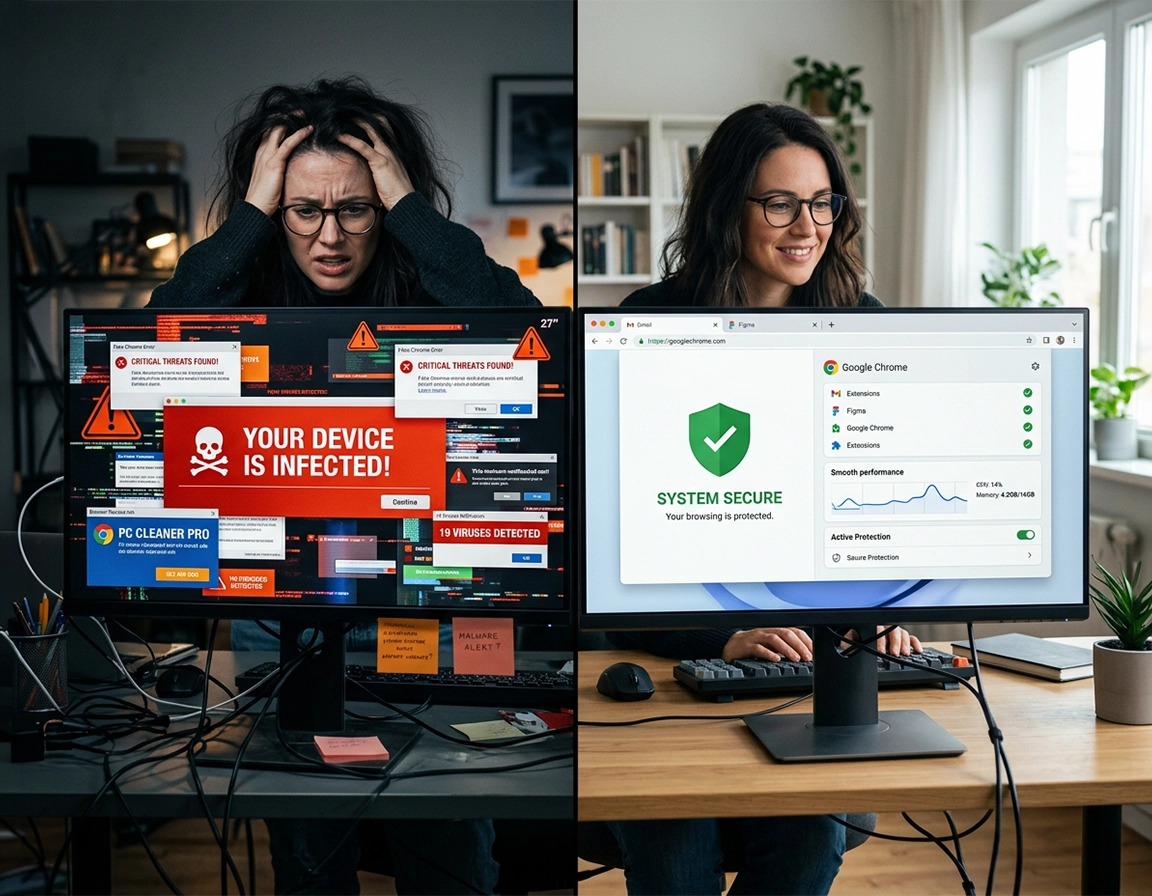
How to tell the difference between a browser nuisance and a real Chrome malware incident .
Users often say “Chrome has malware” when they actually mean one of several different situations: a malicious extension is injecting behavior into the browser, a site permission grant is allowing scam notifications, an unwanted program on the computer is rewriting browser settings, or a compromised Google account is syncing contaminated preferences and extensions back into Chrome. Those are related problems, but they are not the same problem. The cleanup only works when you remove the actual control point.
A true incident usually has one or more persistence signals. The browser may reopen the same suspicious page every launch, the default search engine may change back after you fix it, a removed extension may return after restart, or the browser may keep showing fake antivirus warnings even after you block standard pop-ups. Those patterns point away from ordinary website annoyance and toward hijack logic, permission abuse, bundled software, or account-level contamination.
The biggest trap is assuming that a visible symptom inside Chrome proves the browser is the root cause. In practice, Chrome is often just the first place you notice a compromise. The real cause may be an installer you ran, a browser extension with broad host permissions, a push-notification permission you granted to a scam domain, or a Windows or macOS helper app restoring bad settings every time you reboot.
Another common blind spot is notification abuse. Many users describe it as a virus because the browser keeps pushing fake McAfee renewals, shipping alerts, lottery messages, finance warnings, or “your PC is infected” banners. Technically, that may not be executable malware yet, but it is still dangerous because the browser is being used as a re-entry channel into phishing pages, fake support calls, credential theft flows, and malicious download prompts.
Related diagnostics: start with How to Check If Chrome Has Virus, Chrome Malware Symptoms Guide, and Chrome Browser Threat Detection Guide if you still need to separate symptoms from confirmed compromise.
High-confidence signs that justify immediate incident handling .
- Address-bar search hijacking: typed queries route through an unfamiliar domain before reaching results.
- Extensions that reinstall: you remove them, but they return after restart or sign-in.
- Startup or homepage reversion: Chrome keeps opening a page you did not configure.
- Fake antivirus or support alerts: full-screen warnings claiming you must call a number or download a fixer.
- Unsolicited notification spam: recurring alerts from a suspicious domain even when you are not visiting it.
- Secondary account symptoms: password reset attempts, unfamiliar logins, or outbound messages you did not send.
What to document before you wipe the clues away .
- Name of the suspicious extension
- Exact redirect or search domain being forced
- Startup page URL that keeps opening
- Installer or download filename that preceded the incident
- Notification domain or fake alert message family
- Whether Chrome sync was enabled across multiple devices
The first 10 minutes: containment without making it worse .
The first ten minutes matter because this is where users either contain the problem or accidentally deepen it. The goal is not to “keep testing until the browser behaves.” The goal is to stop the live risk path, avoid giving the attacker more interaction, and preserve just enough evidence to identify the persistence mechanism.
- Stop clicking inside the suspicious page. Do not press “clean now,” “allow,” “update,” “repair,” “close this warning,” or any support number presented as urgent.
- Kill the active browser trap if needed. If the tab is locked in a fake full-screen alert or constant redirect loop, end Chrome through the browser task manager or the operating system task manager instead of continuing to interact with the page.
- Pause all sensitive sign-ins. Do not open banking, payroll, work admin portals, personal email, or password manager sessions until you finish cleanup.
- Identify the likely trigger. Was it an extension install, a recent download, a fake codec prompt, a search hijack, or a push notification permission you granted?
- Do not run the downloaded file again. Keep the filename and path for later scanning and removal.
- Assume sync can spread bad settings. If the browser is signed into a Google account, treat every signed-in Chrome instance as potentially relevant.
At this stage, containment beats certainty. You do not yet need a perfect root-cause diagnosis. You need to stop the easiest control channel first. In consumer cases, that is usually an extension, notification permission, hijacked startup/search setting, or a recently installed unwanted program.
Related symptom pages: if Chrome keeps launching pages on its own, read Chrome Keeps Opening Random Tabs Fix. If your queries are routed through an unknown engine, use Chrome Search Engine Hijacked Fix. If your homepage keeps changing, use Chrome Homepage Keeps Changing Fix.
Fast source identification by symptom pattern .
- Only one domain keeps sending fake alerts: usually notification abuse or permission-based scam delivery.
- Every search is being rerouted: usually search-engine hijack, startup modification, or extension abuse.
- Browser changes return after every reboot: usually external software persistence, enterprise-style policy abuse, or sync contamination.
- The problem began right after installing a free utility: usually bundled adware or a potentially unwanted program outside the browser.
- You see account anomalies as well: treat it as potential credential theft, not just browser nuisance behavior.
Full cleanup workflow for hijacks, malicious extensions, and fake alerts .
This cleanup path is ordered to prevent the most common failure mode: resetting Chrome too early, declaring victory, then watching the same hijack return because the real persistence point was never removed. Treat this as a response chain, not a bag of unrelated tips.
1) Audit extensions like an incident responder, not like a casual user .
Go through every installed extension and assume that anything with broad site access, opaque branding, or weak justification is guilty until proven otherwise. Malicious extensions frequently survive casual cleanup because they sit inside the browser’s trust boundary: they can inspect pages, rewrite searches, inject ads, intercept credentials, modify new-tab behavior, and alter what you see before you realize anything is wrong.
The dangerous category is not limited to obviously fake extensions. Watch for “coupon assistants,” PDF tools, downloader add-ons, shopping helpers, search enhancers, security scan popovers, tab managers from unknown publishers, crypto widgets, and “productivity” tools that quietly requested permission to read and change data on all sites.
A useful review question is not “Did I install this?” but “Would I approve this extension today if I saw its permissions cold?” If the answer is no, remove it now and re-evaluate later from a safer baseline.
Deep-dive pages: Chrome Suspicious Extension Detection, Chrome Remove Malicious Extensions, How to Scan Chrome Extensions for Malware, and Chrome Extension Permission Abuse Detection.
2) Revoke suspicious site permissions, especially notifications and redirects .
Many users believe Chrome is “infected” when the real issue is that they granted a deceptive site permission to push notifications. That permission then becomes a low-friction delivery channel for scams, fake antivirus renewals, fake package alerts, fake banking notices, and malicious download prompts. If you clear cookies but leave the permission in place, the problem appears to vanish and then comes back on schedule.
Review permissions for notifications, pop-ups and redirects, automatic downloads, sound, and any site that feels out of place. One bad permission can create a constant feeling of infection even when there is no browser-level executable compromise.
Related: Chrome Pop-Up Virus Removal, Chrome Fake Alert Virus Removal, and Chrome Tech Support Scam Removal.
3) Inspect search, startup, homepage, and new-tab behavior as a single attack surface .
Search hijacking is rarely random. The attacker wants the browser’s default navigation path because it monetizes every query and creates repeated opportunities to redirect you into affiliate spam, malicious ad inventory, fake updates, or credential traps. That means you should review all entry points together:
- Search engine and site search entries: remove anything you did not deliberately add.
- On startup: strip every unknown URL.
- Homepage targets: remove forced pages you never configured.
- New-tab takeovers: if the new-tab page stays hijacked, go back to extension review because that behavior is frequently extension-driven.
Do not skip this inspection just because you plan to reset Chrome later. These altered settings tell you which behavior family you are dealing with. Search hijacks and startup hijacks tend to point toward extension abuse or bundled software; repeated policy-like lockouts suggest external control or enterprise-style tampering.
4) Run Chrome Safety Check and clear every flagged issue, not just the scary-looking ones .
Safety Check is not a forensic malware scanner, but it is one of the fastest ways to surface browser-side problems in one place: risky extensions, security warnings, compromised passwords, update state, and unsafe site or notification conditions. In incident response terms, it is a quick browser integrity sweep.
Important: if Safety Check surfaces compromised passwords, harmful extensions, or unsafe permissions, treat those as live incident items. Delaying them while you “see if the browser feels normal” is exactly how a contained issue turns into a credential or financial problem.
5) Reset Chrome settings after you remove the obvious bad actors .
Resetting Chrome is useful because it rolls back a large class of hijacked browser preferences in one pass. It is strong medicine for altered startup pages, changed defaults, and certain preference-level tampering. But it is not a total browser wipe, and it is definitely not a system-level malware removal step.
Done too early, a reset can actually slow you down because it erases the clues you needed to identify the source. Done at the correct point, it gives you a clean baseline to test against after you remove suspicious extensions and review settings.
What a successful browser reset looks like: Chrome launches to a normal page, address-bar searches go directly to your chosen provider, suspicious notifications stop, and removed extensions do not reappear after restart.
Reset guides: Chrome Security Reset, How to Reset Chrome After Malware, and Chrome Profile Reset Guide.
6) Scan the operating system, not just the browser profile .
This is where weak cleanup guides usually fail. If the incident began with a downloaded installer, bundled adware package, helper app, fake optimizer, or persistence service, then Chrome is only the victim layer. Reopening the browser before scanning the operating system is how users convince themselves the infection “keeps coming back for no reason.”
On Windows, this is especially important because browser hijackers commonly arrive through bundled installers, cracked utilities, fake media tools, “driver updaters,” and other low-trust software. On macOS, persistence may involve helper apps, login items, profiles, or unwanted agents. On Android, the browser can be reacting to another app, unsafe sideloading, or notification abuse routed through the device rather than a pure browser infection.
Platform-specific guides: Windows, Mac, Android, iPhone and iPad.
7) Inspect recent downloads and newly installed programs with the infection timeline in mind .
Build a quick timeline. What changed in the browser, and what did you install or open immediately beforehand? Timing is one of the strongest indicators in consumer malware cleanup. If your homepage changed right after a “PDF converter,” “video downloader,” “AI browser helper,” “driver update,” or “free codec” install, you almost certainly have the source or at least the delivery vehicle.
Remove anything recently added that you do not explicitly trust. Then rerun the scan. A surprising amount of so-called browser malware is just bundled software that uses Chrome as its monetization surface.
8) Rebuild a clean browser state instead of restoring everything blindly .
Once the visible symptoms stop, resist the urge to restore the exact old state. That is how low-grade contamination gets reintroduced. Add extensions back one at a time. Avoid reopening suspicious sessions. Do not re-import random backups or extension bundles. If the old profile feels unstable, create a fresh profile and migrate only what you trust: bookmarks, a minimal extension set, and verified sign-ins.
A fresh profile is often the fastest route to a genuinely trustworthy browser, especially when the old one still feels “off” after the main symptoms disappear.
9) Verify that the problem is actually gone .
- Restart the browser and the device once.
- Open Chrome without restoring old sessions automatically.
- Run multiple normal address-bar searches.
- Confirm that no removed extension has returned.
- Check that startup, search, and homepage settings stayed clean.
- Wait several minutes to verify that no delayed fake alerts or notification spam reappear.
If the original behavior returns after restart, the problem was not fully browser-local. Go back to external software review, policy inspection, sync review, and account security response.
How to respond to the exact behavior you are seeing .
Different symptom clusters point to different root causes. The fastest cleanup is the one that matches the behavior family instead of treating every incident like a generic “Chrome is slow and weird” problem.
If you are seeing fake antivirus warnings .
Start with notifications, pop-up permissions, and scam domains. Fake renewal and infection warnings frequently come from site permissions rather than from a deeply infected browser. If the page trapped you in fullscreen or a loop, kill the browser process instead of interacting with the warning.
If searches are rerouted through a strange domain .
Review default search engine entries, site search shortcuts, startup pages, and extensions together. Search hijacks often ride along with an extension or recent install. If the change survives reset, investigate external software or policy tampering.
If Chrome keeps opening random tabs .
Think in terms of triggers: extensions, startup pages, scripts from a site permission, or browser restore behavior. Random tabs are usually not random at all. They are an execution path being reopened on every launch or every notification event.
If an extension keeps coming back .
That strongly suggests persistence outside the immediate extension list: sync contamination, policy enforcement, or external software reinstalling the extension context. A simple remove-and-restart loop will waste your time until you identify which of those is active.
If the browser suddenly says it is managed by your organization .
On a real company or school device, that may be legitimate. On a personal device, it deserves immediate suspicion. Review whether you recently installed anything that could apply policies, helper services, or enterprise-style controls. Unexpected management messaging on a home machine is not something to dismiss.
| Observed behavior | Most likely category | Highest-priority next action | Related page |
|---|---|---|---|
| Fake virus or renewal alerts | Notification abuse / scam page | Revoke site permission and block the domain | Fake alert removal |
| Searches reroute through unknown site | Search hijack | Review search engine entries and extensions | Search hijack fix |
| Random pages open on startup | Startup hijack / extension trigger | Inspect startup settings and remove rogue extensions | Random tabs fix |
| Extension returns after removal | Persistence via sync, policy, or software | Check all signed-in browsers and external installs | Remove malicious extensions |
| Browser got slow or unstable after infection | Profile corruption / unresolved malware | Create clean profile and rerun scans | Slow after virus fix |
Why the infection keeps coming back after a reset .
When people say, “I reset Chrome and it came back,” they usually hit one of a small number of repeatable persistence paths. Understanding those paths is what turns endless re-cleaning into a real fix.
1) The bad extension was re-enabled or re-synced .
Chrome does not know which extension you trust in principle. If you restore or re-enable a malicious add-on, you manually restore the attack surface. This is one of the most common reinfection loops on consumer machines.
2) External software is rewriting Chrome settings after reboot .
Bundled adware and hijacker software often monitor the browser and reapply search, homepage, or startup changes. In that scenario, Chrome is only the interface being manipulated. Until the external software is removed, the browser keeps “getting infected again.”
3) Sync pushed contaminated settings back across devices .
If multiple Chrome instances use the same Google account, a contaminated search engine entry, extension set, or preference can spread back and forth. Cleaning only one machine may not hold if another signed-in browser is still dirty.
4) The visible pop-up stopped, but the underlying permission stayed active .
Users often dismiss the visible symptom without revoking the site’s permission. That creates the illusion of reinfection when in fact the original notification route was never closed.
5) The problem was broader credential theft, not just browser annoyance .
If the incident involved stolen passwords, session tokens, or exposed autofill data, the attacker may continue to operate outside Chrome even after the browser is cleaned. That is why recovery must include account review and password strategy, not just browser cosmetics.
| Symptom after cleanup | Most likely cause | What to do next |
|---|---|---|
| Same extension returns | Extension sync, policy, or external software persistence | Remove it across devices, review policies, scan the endpoint |
| Search engine changes back again | Hijacker app, policy, or extension | Inspect installed apps, search entries, and startup behavior together |
| Fake alerts continue after browser cleanup | Notification permission still active | Remove site notification access and block the domain |
| Browser is clean but accounts behave strangely | Credentials exposed or sessions stolen | Rotate passwords from a trusted device and review account security |
| Chrome still crashes or feels corrupted | Profile damage or unresolved malware | Create a new profile and rerun full device scans |
Commercial and tool-selection angle: compare browser-first protection with device-level protection in Antivirus vs Browser Protection for Chrome, Free vs Paid Antivirus for Chrome, and Best Antivirus for Chrome.
Managed devices and enterprise response .
If Chrome is actually managed by your organization and the device belongs to your employer, school, or client, consumer cleanup advice can be incomplete or even inappropriate. In managed environments, browser policies can legitimately enforce extensions, search settings, homepage behavior, certificate handling, and other controls that would look suspicious on a personal machine. Your job is to distinguish legitimate policy from malicious tampering.
On a legitimate enterprise-managed device, do not start stripping required extensions or disabling enforcement controls just because the browser feels unusual. Document the symptoms precisely: the URL, the extension ID if visible, the time it started, whether other users are affected, and whether the behavior appeared after a policy change, extension update, or endpoint install. That information is far more valuable to an admin than a vague report that “Chrome has a virus.”
On a personal device, however, unexpected management-style behavior deserves serious attention. If Chrome suddenly appears policy-controlled without a business reason, you may be looking at external software or unauthorized policy injection.
Enterprise-focused response pages: Remove Malware from Managed Chrome Devices, Chrome Enterprise Threat Removal Guide, Chrome Business Malware Response Plan, Chrome Security Incident Response Guide.
When to escalate instead of self-cleaning .
- The device belongs to a company, school, agency, client, or shared workstation pool
- Policy-enforced extensions or search settings cannot be modified
- Multiple users report the same suspicious behavior at roughly the same time
- Admin, finance, HR, support, or identity systems are involved
- There is any sign of credential theft, data exposure, phishing campaign delivery, or session abuse
What to lock down after cleanup .
Cleanup is only the first half of response. Once the browser is stable again, assume there is at least some chance that the incident involved credential exposure, unsafe downloads, session theft, autofill leakage, or malicious extension access to pages you visited. Recovery is where you reduce the blast radius.
Rotate important passwords from a cleaner environment .
If the browser session had access to email, banking, work dashboards, cloud storage, or saved credentials, change the highest-value passwords from a device or browser session you trust more than the affected one. Start with the primary email account because email controls password resets for everything else.
Review Google Account security and synced browser exposure .
Check signed-in devices, recent security events, recovery methods, two-factor setup, and any warnings about compromised credentials. If Chrome sync was enabled, review the entire signed-in device set, not just the machine where the visible symptom appeared.
Audit saved passwords, payment methods, and autofill data .
Browser convenience features become high-value targets during compromise. Review stored passwords, saved addresses, payment methods, and other autofill data. If the incident involved a malicious extension or suspicious form behavior, treat autofill as exposed until you prove otherwise.
Harden the browser so the same infection path is less likely next time .
- Keep Safe Browsing active, and use a stronger protection level if your risk profile justifies it.
- Run a much smaller extension footprint and remove anything you are not actively using.
- Review notification and download permissions regularly instead of granting them casually.
- Be skeptical of “update required,” “download codec,” and “optimizer” prompts that originate from websites.
- Keep the operating system and browser updated together, not separately.
Recommended next reads: How to Prevent Malware in Chrome, How to Secure Chrome from Viruses, Chrome Safe Browsing Best Practices, Chrome Malware Prevention Checklist, Chrome Browser Security Checkup Guide.
Recommended response intensity by risk level .
| Risk level | Typical indicators | Minimum response | Stronger response |
|---|---|---|---|
| Low | Single bad notification site, no account anomalies | Revoke permission, run Safety Check, review extensions | Review downloads and rotate key passwords |
| Medium | Search hijack, rogue startup page, repeated browser manipulation | Remove extensions, reset Chrome, scan device | Create clean profile and inspect sync exposure |
| High | Unknown installs, reinfection after reset, account warnings, policy abuse | Full scan, account review, password rotation | Professional IT or security response and wider endpoint investigation |
Troubleshooting stubborn cases .
Chrome still redirects after you removed the suspicious extension .
That usually means one of three things: the wrong extension was removed, the search or startup hijack is still configured, or an external program is restoring the bad behavior. Redirects that survive a proper reset are almost never fixed by “clear cache and wait.”
An extension cannot be removed or comes back instantly .
Think policy, sync, or external persistence. On a personal device, that is a red flag. On a managed device, escalation is the right move. Either way, the problem is not solved by repeated remove-and-restart cycles.
The browser looks clean, but the computer still feels compromised .
Stop treating the issue as browser-only. Run deeper scans, inspect recent installs, and review whether the browser simply surfaced a broader endpoint compromise. System slowdowns, outbound network oddities, or app instability suggest the root cause sits above Chrome.
Your passwords may already have been exposed .
Change them from a safer device. Prioritize email, financial services, work platforms, cloud storage, and any password manager credentials. Browser cleanup does not reverse data that was already captured.
Chrome keeps crashing after the malware appears to be gone .
That usually points to profile corruption, extension conflict, or unresolved system-level damage. Create a new profile, re-add only trusted essentials, and compare behavior before wasting hours trying to preserve a damaged state.
Related troubleshooting pages: Chrome Browser Hacked: How to Fix, Chrome Browser Slow After Virus Fix, Chrome Browser Keeps Crashing Virus Fix, Chrome Profile Reset Guide, Chrome Browser Data Breach Response.
FAQ .
-
helpCan Chrome itself get infected, or is it usually something surrounding Chrome?In most real-world cases, the visible problem is surrounding Chrome rather than a literal infection of the browser executable. Common causes include malicious extensions, abusive site permissions, unwanted software on the computer, hijacked startup or search settings, and contaminated sync preferences.
-
helpIs resetting Chrome enough to remove malware?No. Resetting Chrome is useful for undoing altered browser settings, but it is not a complete malware-removal method. If the trigger lives in an extension, downloaded installer, or operating-system level program, the browser can be re-hijacked after the reset.
-
helpDo I need antivirus or anti-malware software if the issue only appears inside Chrome?In a real incident, a device-level scan is the safer move. Chrome may simply be where you noticed the compromise first. Bundled adware, helper apps, or other unwanted software can keep manipulating the browser until they are removed at the system level.
-
helpShould I change my passwords after a Chrome malware incident?If the browser session had access to important accounts, yes. Start with your main email account, then financial services, work apps, cloud storage, and any other high-value logins. Do it from a safer environment after containment and cleanup.
-
helpWhy do fake virus alerts keep appearing even when pop-ups are blocked?Because the site may still have notification permission, which is different from ordinary pop-up behavior. You need to revoke that permission, not just dismiss the visible alert window.
-
helpWhat if the browser says it is managed by your organization?On a company or school device, that may be legitimate policy. On a personal device, unexpected management messaging deserves immediate suspicion. Either way, treat it as a signal to inspect policies and, where appropriate, escalate instead of guessing.
Sources & further reading .
- Google Chrome Help: remove unwanted ads, pop-ups and malware
- Google Chrome Help: Safety Check
- Google Chrome Help: reset Chrome settings to default
- Google Chrome Help: install, manage, and uninstall extensions
- Google Chrome Help: block pop-ups, redirects, and related site behavior
- Google Chrome Help: manage search engine and site search settings
- Google Chrome Help: choose a Safe Browsing protection level
- Google Account Help: remove malware or unsafe software and check account security
- Google Account Help: secure a compromised Google Account
Disclosure: this page is written as practical response guidance. Tools or services mentioned elsewhere on the site should be evaluated against your platform, threat model, support requirements, and tolerance for browser-only versus full endpoint protection.