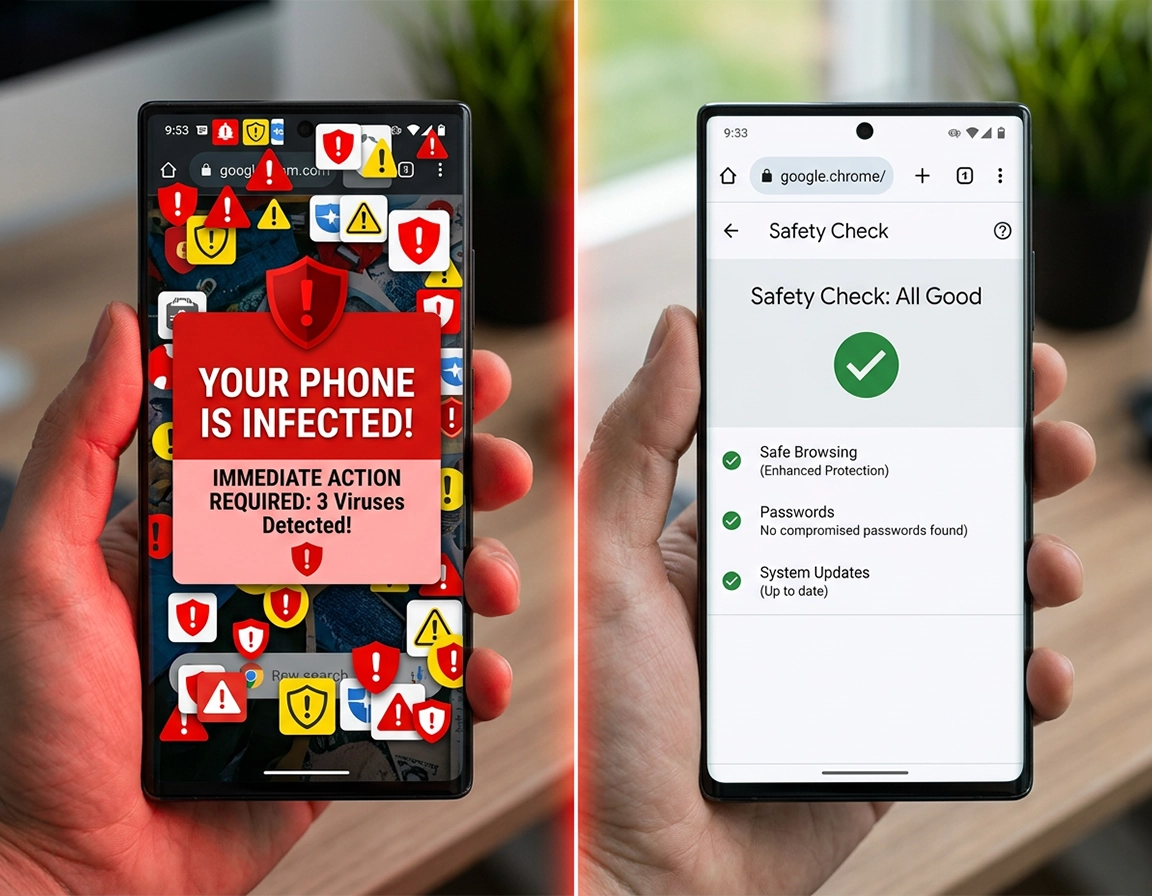
How Chrome-based infections present on Android devices .
On Android, reports of “malware in Chrome” almost always trace back to one of four repeatable behaviors. The first is a trapped tab that refuses to close cleanly—pages simulate a system scan, trigger vibration feedback, and stack full-screen prompts such as remove threat or secure device, while the back button loops instead of exiting. The second is notification abuse: even with Chrome minimized, the notification tray fills with unsolicited alerts—crypto offers, fake delivery updates, adult content, or warnings styled to resemble Android system messages. The third is search hijacking, where a tap on a legitimate result routes through multiple ad or redirect domains before resolving somewhere unrelated. The fourth involves background triggers, where installed apps silently launch Chrome tabs after specific events—unlocking the device, switching networks, or interacting with another app.
Each of these behaviors originates from a different layer. A malicious site can lock a browsing session, request notification access, and cache aggressive scripts, but it cannot operate independently of Chrome. By contrast, a sideloaded or deceptive app can persist outside the browser—requesting overlay access, exploiting Accessibility permissions, creating deceptive shortcuts, or firing browser intents without user interaction. This is why clearing Chrome data alone often fails; the browser reloads the same entry point because the trigger exists elsewhere on the system.
Effective removal depends on identifying where that persistence is anchored. If the issue only appears when revisiting a specific domain, the fix sits within Chrome—site permissions, stored data, and notification access. If activity resumes after a reboot, appears on the lock screen, or interrupts unrelated apps, the browser is only surfacing content initiated by another component. Treating every case as a browser infection leads to repeated resets with no resolution, while the underlying source continues operating.
Related: For broader detection patterns and cross-device indicators, see Chrome malware symptoms guide, how to check if Chrome has virus, and the main Remove Malware from Chrome hub.
Key terms that matter on Android .
- Abusive notifications: site notifications that keep delivering scam or spam messages long after you left the page that requested permission.
- Play Protect: Google Play’s built-in Android app safety scanner that checks installed apps and can flag or remove harmful ones.
- Pop-ups and redirects: Chrome controls that reduce forced page jumps and malicious window behavior inside websites.
- Safe Browsing: Chrome protection against phishing, malicious downloads, unsafe sites, abusive extensions, and deceptive pages.
Before you start: isolate the layer .
Before you remove anything, run one short separation test. Force-close Chrome from the app switcher, lock the phone, wait a few minutes, unlock it, and use the device without opening Chrome. Then watch what appears. That tiny test tells you more than most “virus scan” apps do. If the junk returns while Chrome has not been reopened, you are not dealing with ordinary browser residue.
- Only appears after visiting one site or tapping one bookmark: suspect poisoned site data, abusive site notifications, or a redirect chain anchored to that domain.
- Shows up in the Android notification shade while Chrome is closed: check whether the sender is a website or an app. That single detail usually cuts the problem in half.
- Tabs launch after reboot, unlock, charging, or Wi-Fi reconnect: suspect an installed app that is firing browser intents in the background.
- The warning page looks like a system scanner and counts down to “damage” or “subscription expiry”: treat it as scareware presentation. Real Android security alerts do not ask you to install a cleaner from a blinking webpage.
- Downloads begin from random domains or Chrome keeps offering APK files you never searched for: review recent downloads, sideload history, and “Install unknown apps” permissions before anything else.
Related: If the phone became slower, hotter, or battery-hungry at the same time, read Chrome browser slow after virus fix and speed up Chrome on Android.
It also helps to discard desktop habits that do not map to phones. Chrome for Android does not expose the same extension management surface people use on Windows or macOS, so “go remove the extension” is usually empty advice here. The Android equivalents are the app list, special app access, site notification permission, default-app handoffs, home-screen web shortcuts, sideloaded APKs, and sync artifacts that keep restoring a bad session from another signed-in device.
Android cleanup sequence .
Run the sequence below in order. Each step is positioned to shut down one common persistence route before the next test. The order matters on Android: if you wipe Chrome first but leave the launching app, abusive notification, or unknown-source install in place, the phone simply rebuilds the symptom the next time that trigger fires.
Remove the most likely launcher first: recently installed apps
Sort by recent install date, recent use, or newest update if your phone supports it. Focus on anything added around the same time the problem began.
- Sideloaded APKs
- “Cleaner” utilities and battery savers
- Modded streaming apps
- Unofficial wallpaper packs
- Free downloader bundles
- QR tools from unknown publishers
On Android, a junk app that can open links in the background is a more common cause of repeat Chrome tab launches than a browser fault.
Scan the device with Google Play Protect and leave scanning enabled
Run a scan, then open Play Protect → Settings and confirm Scan apps with Play Protect is turned on.
If you install apps from outside Google Play, keep the harmful-app detection improvement setting enabled as well so Google can evaluate unknown installs more aggressively.
Remove browser notification abuse at the site level
Revoke any domain you do not deliberately trust, especially domains with random characters, fake local-news branding, betting language, coupon bait, or delivery alerts you never signed up for.
These permissions are one of the biggest reasons people think Chrome is “infected” days after they closed the original site.
Keep pop-ups and redirects blocked
Make sure they remain off. This will not uninstall adware, but it does cut off one of the easiest ways scam pages keep chaining you into more fake system warnings.
Clear the browser residue that reopens the same trap
For stubborn cases, choose All time and clear browsing history, cookies, and cached images and files.
If the same warning page reappears every time you revisit a search result, cached session data is often helping replay it.
Raise Chrome’s own security floor after cleanup
Use at least Standard protection. Users who repeatedly land on scam download pages, fake antivirus sites, coupon traps, or phishing mirrors should consider Enhanced protection for stronger warnings on risky sites and downloads.
Reboot and test the phone without restoring the bad pattern
Restart the device, do not tap old scam notifications, do not reopen suspicious tabs, and manually visit only trusted sites.
If the phone stays quiet for normal use and Chrome stops relaunching junk pages, the persistence route you removed was probably the right one.
What success looks like: Chrome opens without pushing you back to the same warning page, no unknown site notifications arrive after an hour or two of normal phone use, no new tabs launch on their own, and Play Protect is not reporting harmful apps. If all four conditions are true, the cleanup usually held.
Related: If the issue feels more like redirect abuse or a fake alert loop than general adware, also read Chrome redirect virus fix, Chrome pop-up virus removal, and Chrome fake alert virus removal.
Why this order works on Android .
Android cleanup goes wrong when the browser is treated as the whole system. If you clear Chrome before removing the app that is launching it, the next unlock recreates the symptom and makes the browser look guilty again. If you scan apps but leave site notifications untouched, the device can still flood the shade with scam messages even though Play Protect reports nothing active. If you wipe cookies before blocking redirects, you may walk straight back into the same exploit funnel during testing. This sequence removes likely launchers first, then strips site-level persistence, then clears replay residue, then raises Chrome’s warning threshold so the same route is harder to trigger again.
Android variations worth knowing .
- Samsung, Xiaomi, Oppo, and other vendor skins: the labels differ, but the investigation remains the same—recent installs, special app access, notification senders, browser defaults, and unknown-app install permissions.
- Older Android builds: Chrome may show Site settings, Permissions, or slightly different submenu names, but notifications, Safe Browsing, browsing-data deletion, and pop-up controls are still present.
- Shared family devices: repeat infections often trace back to game mods, free streaming APKs, unofficial anime/video apps, “VIP unlock” tools, and copycat utility apps installed by another person using the same phone.
Advanced checks when the problem survives the first cleanup pass .
If the full sequence did not hold, the remaining problem is usually not “Chrome being stubborn.” It is usually one of three harder cases: an Android app with stronger permissions than it should have, a resurrected browsing state tied to sync or shortcuts, or a repeat user action that keeps reopening the same malicious infrastructure. That is where you stop doing generic cleanup and start checking precise persistence points.
Check whether the ads are native Android notifications or browser pages .
Pull down the notification shade and inspect the sender. If the notification shows a website name or a strange domain, revoke that site’s notification permission in Chrome. If it shows an app name, tap and hold it, open notification settings, and investigate the app directly. A lot of people keep chasing Chrome because the alert opens into Chrome when tapped, but the sender identity reveals the real culprit in seconds.
Inspect special app access and suspicious permissions .
Some Android adware survives because it lives in permission categories users almost never audit. Overlay access lets it paint over other apps or inject fake controls. Accessibility misuse can automate clicks, dismiss warnings, and read screen content. Notification access can react to alerts and trigger more browser opens. Install-from-unknown-apps permission lets one shady utility become the delivery route for the next shady utility. When a wallpaper app, scanner app, ringtone app, or “RAM booster” has that mix of privileges, treat it as a removal candidate rather than giving it the benefit of the doubt.
Look for poisoned browsing shortcuts and faux apps .
Deceptive mobile sites love the “Add to Home screen” trick because it makes a webpage look like an installed app. Weeks later, the user taps the icon, the scam domain opens full-screen, and it feels like Chrome is infected all over again. Remove suspicious home-screen shortcuts, web-app installs, fake retailer icons, fake video-player icons, and bookmarked pages that keep dropping you into the same campaign.
Review your Google account and synced browsing leftovers .
If Chrome is signed in, check whether bad tabs, bookmarks, or search suggestions are being revived from somewhere else. A junk bookmark saved on a desktop, a suspicious open tab from another phone, or a compromised shared profile can put the same domain back in front of you after you thought the Android issue was finished. This is uncommon, but it is real enough on shared family accounts and lightly managed work profiles that it is worth checking once.
Check whether another app became the default browser handoff point .
Some nuisance apps do not replace Chrome; they simply keep feeding it links. Review Settings → Apps → Default apps and inspect which apps handle browser actions, opening supported links, or suspicious file types. If one odd utility keeps appearing in those flows, or if Chrome opens every junk URL after interacting with a specific app, you have found a strong lead.
When a factory reset is and is not justified .
A factory reset should not be the first answer for ordinary Chrome spam. It becomes reasonable only when the device remains unstable after app removal, Play Protect scans, permission review, and browser cleanup, or when a suspicious app cannot be removed normally. Before that point, a reset is often excessive and erases useful evidence while teaching nothing about the infection route that caused the problem.
Comparisons users often make before buying extra tools .
Privacy and security hardening after cleanup .
Cleaning the loud symptom is not the same as removing the conditions that allowed it. On Android, the most valuable hardening moves are the boring ones that cut off repeat entry: fewer trusted notification senders, fewer sideloaded installs, a stronger Safe Browsing level, and a habit of treating browser-delivered “security tools” as hostile until proven otherwise.
Impact: Affects malicious-download exposure, fake alert recurrence, browser-notification spam, redirect persistence, and whether Chrome can warn early enough to stop the next trap.
Related: For post-cleanup prevention, read how to prevent malware in Chrome, Chrome Safe Browsing best practices, Chrome secure download settings, and Chrome malware prevention checklist.
Recommended baseline after cleanup .
- Play Protect: leave scanning enabled and do not ignore future warnings on sideloaded apps.
- Safe Browsing: use Standard protection at minimum; move to Enhanced protection if you often browse new domains, coupon pages, streaming mirrors, cracked software pages, or ad-heavy download sites.
- Pop-ups and redirects: keep blocked unless a trusted site has a specific reason to need them.
- Notifications: grant only to sites you would trust with repeated interruptions on your lock screen.
- Downloads: avoid APK installs from browser pop-ups, shortened links, “required update” pages, and fake utility recommendations.
Recommended settings by goal .
| Goal | Recommended setting | Tradeoff | Best for |
|---|---|---|---|
| Balanced cleanup baseline | Play Protect on, Safe Browsing on Standard, pop-ups blocked, notifications reviewed monthly | Some nuisance alerts still need manual cleanup | Most Android users |
| Maximum caution | Play Protect on, Enhanced Safe Browsing, no sideloaded apps, no site notifications except a tiny allowlist | More warnings and tighter browsing friction | Users repeatedly hit by scam pages |
| Compatibility-first | Standard Safe Browsing, selective site permissions, occasional cookie clears instead of aggressive resets | Less resistance to fast-changing malicious domains | Users relying on many niche sites |
One Android habit is worth changing immediately: stop treating a full-screen webpage as if it were the operating system speaking. Scam pages borrow Android color cues, imitate antivirus dashboards, fake progress wheels, and even play warning sounds because urgency is what gets them notification permission, payment details, or an app install. A legitimate Google or Android security warning does not ask for card details through a browser tab, does not force a countdown, and does not need a random third-party APK to “clean” the phone.
Troubleshooting stubborn cases .
Related: For cleanup paths tied to specific symptoms, see Chrome browser hacked how to fix, Chrome infected with malware what to do, and how to scan Chrome for malware.
If pop-ups continue after clearing Chrome .
Check whether the next pop-up is a webpage, a notification, or an overlay. If it appears over the home screen or another app, go straight to the Android app list and special-access review. Chrome cannot remove an app that is injecting the traffic. It can only keep showing the result when that app launches a link.
If the same fake site comes back immediately .
Trace the return path instead of assuming reinfection. The domain often comes back through one repeated action: tapping the same shade notification, opening a saved home-screen web app, using the same poisoned bookmark, or revisiting a fake search result that keeps bouncing through the same ad network. The faster you identify that trigger, the faster the case stops feeling mysterious.
If Play Protect finds nothing but the phone still feels wrong .
Do not treat a clean Play Protect scan as a full acquittal. Some apps behave like obnoxious adware without crossing the line into something Play Protect instantly removes. In those cases, behavior is your better signal: sudden battery drain after install, tabs opening from nowhere, sketchy overlay prompts, impossible notification volume, unexplained accessibility access, or an app purpose that does not match the permissions it demanded.
If you need to reset safely without overdoing it .
Start with Chrome browsing data, not the entire phone. Then revoke site permissions, remove app-level suspects, and retest. A full device reset is the last lever, not the first. Before doing anything destructive, back up photos, messages, authenticator access, and account recovery methods so you do not turn a malware nuisance into an account lockout problem.
FAQ .
-
helpCan Chrome on Android get malware by itself?Chrome on Android can expose you to malicious sites, fake downloads, abusive notifications, and phishing pages, but the most persistent phone-wide cases are often driven by installed apps or granted site permissions rather than the browser code itself. That is why the correct fix is often app removal plus permission cleanup, not only clearing browser history.
-
helpWhy do fake virus warnings keep saying my Android is infected?Because fear converts well. Those pages imitate Android warnings, antivirus dashboards, and subscription alerts so you react before you think. They are built to make you install a junk app, allow notifications, call a scam number, or enter payment details—not to diagnose the phone honestly.
-
helpIs clearing Chrome data enough to remove malware from Android?Only when the persistence is inside Chrome itself—cached session data, cookies, or a granted site permission. If the phone opens junk tabs after reboot, during charging, or while Chrome was never reopened, the issue is bigger than browser data and you need to inspect apps, permissions, and Play Protect results.
-
helpShould I install a third-party antivirus app after cleanup?Sometimes, but it should follow the infection pattern, not panic. Start with Play Protect, Chrome Safe Browsing, and removal of the real persistence point. Extra protection becomes more reasonable on phones that regularly sideload APKs, browse high-risk download sites, or are shared with people who repeatedly install junk utilities.
Sources & further reading .
- Google Chrome Help: Remove unwanted ads, pop-ups & malware on Android
- Google Play Help: Use Google Play Protect to keep apps safe
- Google Chrome Help: Choose your Safe Browsing protection level on Android
- Google Chrome Help: Change site settings permissions on Android
- Google Chrome Help: Block or allow pop-ups in Chrome on Android
- Google Chrome Help: Delete browsing data in Chrome on Android
Disclosure: This page focuses on diagnosis and cleanup, not scare-driven software promotion. Recommendations should follow the infection pattern you observed on the device.