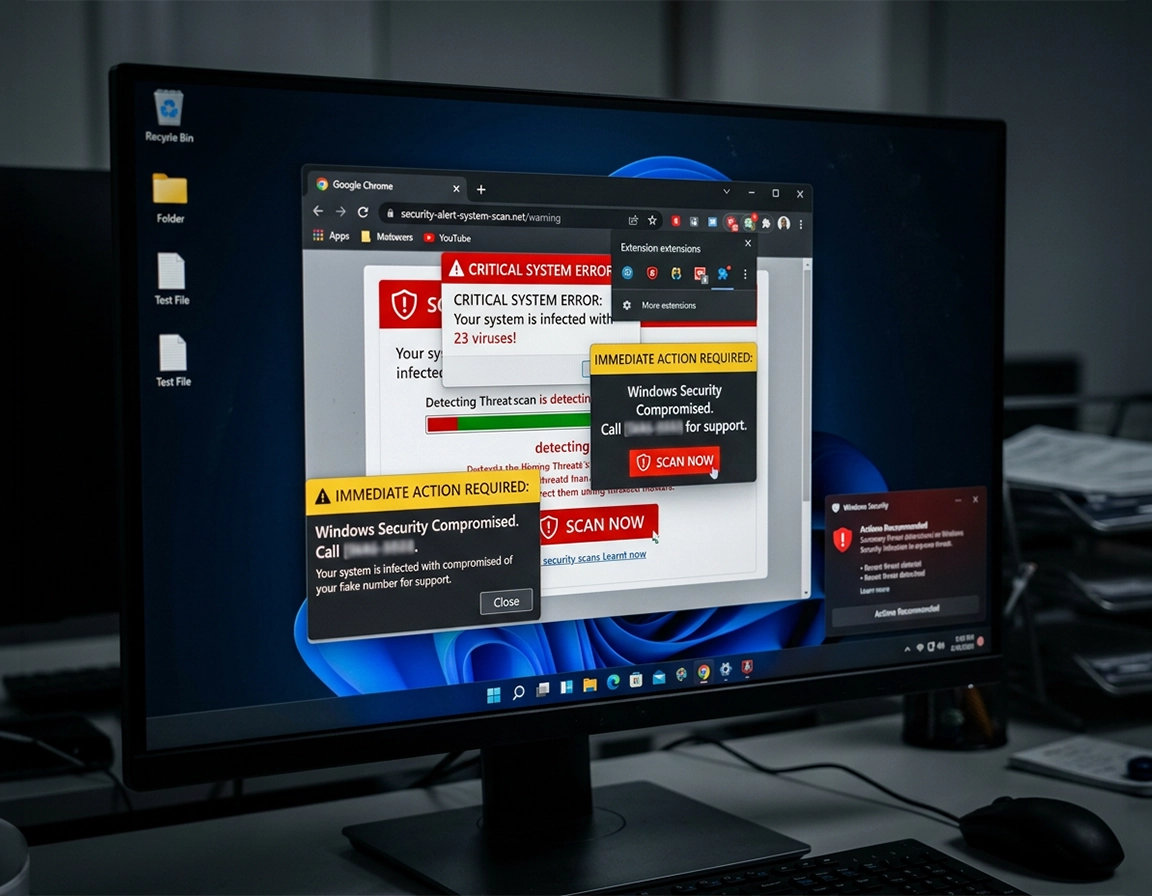
How Chrome infections actually show up on Windows machines .
Most people describe the symptom they can see in Chrome. The actual foothold is often somewhere else: an extension, a site permission, a Windows app bundle, a browser policy, or a startup trigger.
On a Windows machine, Chrome malware rarely behaves like a dramatic movie-style “infection.” It usually looks ordinary at first. Searches stop going directly to Google and start bouncing through an unfamiliar domain before landing on Bing or Yahoo. A new-tab page changes to a generic search box with no branding you recognise. Chrome opens on a fake alert that claims your device is infected, your McAfee or Norton subscription expired, or your banking session is at risk. In the less obvious cases, the only visible clue is a stream of lower-right notifications that look like Windows security warnings but were authorised inside Chrome by clicking Allow on a deceptive website.
That last pattern matters because many users misclassify it. A fake alert inside a browser tab is one category. A Windows toast notification carrying spam from Chrome is a different category. A hijacked startup page that returns every reboot is a third category. They can happen together, but the repair path is not identical. Notification abuse is fixed in Chrome site permissions. Search hijacking often starts with extensions, startup pages, or policy abuse. A page that comes back every morning after a successful cleanup usually means something in Windows is relaunching it.
Windows adds a few failure modes that are easy to miss. Free installers can bundle a “search assistant,” “browser manager,” codec pack, coupon helper, download accelerator, or fake performance tool that quietly rewrites Chrome settings from outside the browser. Shortcut tampering can make every launch reopen a malicious URL even after the browser itself looks clean. Scheduled tasks can relaunch a hijacker after sign-in. A policy key can make Chrome say it is “managed by your organization” on a personal PC and lock search or extension behavior that should not be locked there.
The practical definition of “malware in Chrome” on Windows is therefore wider than one bad extension. It includes malicious extensions, unwanted programs, notification abuse, hijacked defaults, manipulated shortcuts, forced policies, and persistence mechanisms that survive reboot. If you only clear history or reinstall Chrome, you can leave the real trigger behind and end up with a freshly installed browser that gets hijacked again within minutes.
Related: If the behavior points to an extension rather than the full browser, read Chrome extension malware removal, how to remove malicious Chrome extensions, and Chrome suspicious extension detection.
Fast symptom map .
- Search engine keeps reverting: commonly an extension, a policy, or unwanted software rewriting defaults.
- Lower-right “virus detected” messages: usually abusive notification permissions, not a classic pop-up.
- Chrome opens the same scam page at login: check startup pages, shortcuts, Startup apps, and Task Scheduler.
- Problem affects Edge too: move your focus to Windows-level adware, proxy abuse, or system persistence.
- Chrome becomes slow and noisy after infection: suspect injected ads, background scripts, or a leftover bundled program consuming CPU, RAM, and network activity.
Before you start: isolate the problem in five minutes .
Good cleanup starts by narrowing the failure pattern before you touch anything. Ask four questions in order. Does the bad behavior happen only in Chrome, or in Edge and other browsers too? Does the symptom disappear in an Incognito window? Did it begin after you installed a free utility, converter, PDF tool, “AI assistant,” video downloader, or game launcher? Does the same unwanted page or setting return after reboot? Those answers tell you whether you are likely dealing with a rogue extension, a bad permission, or a persistence mechanism living outside Chrome.
Open chrome://extensions and scan for anything you do not clearly remember adding. Look especially hard at extensions that promise coupons, shopping comparisons, video saving, instant PDF conversion, browser acceleration, search enhancement, “safe browsing,” or generic AI writing help. Many malicious or low-trust extensions hide behind bland names and broad permissions. Anything that can read and change data on all websites deserves scrutiny during an incident, even if the name looks harmless.
Next, identify the exact container of the symptom. If the warning appears inside a webpage, that is one cleanup track. If it appears as a Windows desktop notification with a small Chrome icon and keeps firing even after the original tab is closed, go straight to Chrome notification permissions. If Chrome launches directly into the bad page every time you open it, inspect startup pages and shortcuts before you assume the browser is “infected.” One precise observation here can save you from twenty minutes of wrong troubleshooting.
Related: If Chrome feels unusually heavy during cleanup, the slowdown itself may be part of the infection pattern. See Chrome browser slow after virus fix and fix slow Chrome browser step by step.
- Check the profile: if the issue exists only in one Chrome profile, the damage may be profile-bound rather than machine-wide.
- Check the shortcut target: right-click the Chrome desktop icon, choose Properties, and inspect Target. It should end at chrome.exe, not continue with a URL or extra launch argument you did not add.
- Check Installed apps by date: on Windows, sort recent apps and look for helpers, boosters, cleaners, codecs, coupon tools, and browser utilities added near the start of the problem.
- Check for policy abuse: if Chrome says it is managed by your organization on a personal PC, inspect chrome://policy before trusting any locked setting.
- Check sync risk: if you use the same Google account on multiple machines, finish the cleanup before letting bad settings or extensions propagate back through sync.
Step-by-step cleanup sequence .
Work through this in order. The sequence is designed to stop active browser abuse first, then remove the Windows-side trigger, then reset only what still needs resetting. That order is faster than reinstalling Chrome and far less likely to miss persistence.
- 1 Get out of the trap page without interacting with it. If a tab is screaming about viruses, subscriptions, or a number to call, do not click “scan,” “close,” “allow,” or “repair.” Close the tab. If it resists, end Chrome from Task Manager and reopen it without restoring the poisoned session.
- 2 Strip suspect extensions before you change settings. Go to chrome://extensions. Remove anything unfamiliar, anything installed just before symptoms started, and anything asking for broad access across all websites. If you need caution, disable first and test. When the symptom stops, remove the offender permanently.
- 3 Revoke abusive site notifications. In Chrome, open Settings → Privacy and security → Site settings → Notifications. Review the allowed list. Remove or block domains that sent fake warnings, prize spam, adult bait, “update required,” subscription panic, or security scare messages. This is the real fix for most lower-right Windows notification spam.
- 4 Repair startup, search, and new-tab settings. Check On startup, your default search engine, and any custom startup pages. Delete unfamiliar pages and restore your real defaults. Hijackers often leave these behind after the visible extension is gone.
- 5 Run Chrome’s reset after visible abuse is removed. Open Settings → Reset settings → Restore settings to their original defaults. This resets altered browser settings and disables extensions without deleting bookmarks or saved passwords.
- 6 Remove the Windows software that likely delivered or restores the hijack. Go to Settings → Apps → Installed apps on Windows and sort by most recent. Uninstall unknown browser tools, fake security programs, download helpers, adware bundles, and generic “system utility” apps tied to the infection window.
- 7 Scan the system from Windows Security. Start with a full scan. If the issue returns after reboot, follow with Microsoft Defender Offline so the scan runs in the Windows Recovery Environment before ordinary startup processes can interfere.
- 8 Restart Windows and retest from a clean launch. Reboot, open Chrome manually from a verified shortcut, and check whether the redirect, rogue extension, notification spam, or startup page returns. The post-reboot test is where persistence reveals itself.
What “success” looks like: Chrome opens to the page you chose, your search engine stays fixed, fake lower-right alerts stop, no unknown extension remains active, and the same bad state does not reappear after a full Windows restart.
Related: For deeper single-issue walkthroughs, see Chrome search engine hijacked fix, Chrome homepage keeps changing fix, Chrome keeps opening random tabs fix, and Chrome pop-up virus removal.
The stages people skip and then regret .
The two most commonly skipped stages are uninstalling related Windows software and testing after a reboot. That is exactly why some users think Chrome is “impossible” to clean: the browser looks fine for one session, then the same tab, extension, or search engine comes back the next morning. When that happens, the browser reset was not wrong. It was incomplete because the restoring component lived outside Chrome.
What the reset does and does not do .
Chrome reset is valuable because it restores changed defaults, clears altered startup behavior, and disables extensions in one move. It does not substitute for Windows cleanup. It will not remove a bundled desktop program, a scheduled relaunch, or a malicious policy source. It also does not erase bookmarks and saved passwords, which is why it is safer than scare pages often imply.
Windows-specific notes worth knowing .
- Windows 11: unwanted software often hides behind neutral names in Installed apps, so recency is sometimes a stronger clue than branding.
- Windows 10: older adware families still rely on scheduled tasks, services, and shortcut tampering more often than newer extension-only campaigns.
- Shared household PC: another user profile can keep reintroducing the same risk through sync or repeated installs, so clean every active Windows user profile that launches Chrome.
Advanced Windows checks when Chrome keeps re-infecting itself .
If the same redirect, extension, notification stream, or startup page returns after you already cleaned Chrome once, move from “browser troubleshooting” to persistence hunting. At that stage you are looking for the component that relaunches, rewrites, or reauthorizes the bad state.
Related: Managed machines and work laptops behave differently because policies can lock settings intentionally. If this is a company device, review remove malware from managed Chrome devices, Chrome IT admin malware removal, and Chrome business malware response plan.
Check Startup apps and Task Scheduler .
Open Windows Startup settings and temporarily disable anything you do not trust. Then inspect Task Scheduler for entries that launch a browser, PowerShell, cmd.exe, wscript, mshta, or scripts stored in AppData, ProgramData, or a temp folder. A surprising number of browser hijacks survive by launching a URL or helper process at sign-in instead of living inside Chrome at all.
Inspect every Chrome shortcut you use .
Check the desktop icon, any pinned taskbar icon, and Start menu entry. A clean shortcut target ends at chrome.exe. A poisoned one often appends a URL, startup argument, or launcher stub. Users sometimes clean Chrome perfectly and then relaunch the hijack from the same modified shortcut, which makes the infection look immortal when it is really just being reinvoked.
Review Chrome policies on personal Windows PCs .
If Chrome displays “Managed by your organization” on a personal machine, open chrome://policy and inspect what is being applied. Legitimate enterprise control is normal on work devices. On a home computer, unexpected policy entries deserve scrutiny because they can force extensions, lock search behavior, or prevent browser cleanup from sticking. Google’s admin documentation also confirms that policies on Windows come from registry-backed configuration sources, which is why unexpected management on a personal system deserves investigation rather than dismissal. citeturn557307search5turn557307search17
Know when a notification problem is not a pop-up problem .
Google separates pop-ups from notifications in Chrome settings. That distinction matters because many fake-alert campaigns rely on the notifications permission, not the pop-up permission. If you only block pop-ups, the lower-right spam can continue unchanged. Chrome’s own help pages handle notifications and pop-ups as separate settings, and that matches what users see during cleanup. citeturn557307search3turn557307search0
Use a clean profile only after the machine is quiet .
A fresh Chrome profile is useful as a diagnostic control, not as your first cure. If Windows-level persistence is still alive, a new profile can appear clean for a while and then get polluted again. Build a fresh profile only after suspect extensions are gone, Chrome settings are reset, unexpected Windows software is removed, and scans come back clean.
When built-in cleanup should escalate .
- The same extension reinstalls after removal.
- Search settings lock or revert again after reboot.
- Chrome is affected together with Edge or system proxy behavior.
- Unexpected policies remain on a personal PC.
- You suspect credential theft because sessions were hijacked, saved passwords were abused, or accounts show suspicious access.
Useful companion paths inside this cluster .
What each fix changes inside Chrome and Windows .
One reason cleanup guides fail is that they present every action as the same kind of fix. It is not. Some actions stop active browser abuse. Others remove the Windows mechanism that restores the abuse. A few are containment steps that protect accounts even after the visible symptom is gone.
Impact: affects extensions, notification permissions, startup pages, search defaults, sync behavior, and possibly the relationship between Chrome and unexpected Windows software.
Related: After cleanup, harden the browser so the same path does not reopen. See how to prevent malware in Chrome, Chrome Safe Browsing best practices, Chrome malware prevention checklist, and Chrome secure download settings.
Recommended cleanup baseline after infection .
- Option A (balanced): remove unknown extensions, revoke notification permissions, repair startup and search settings, reset Chrome, uninstall suspicious apps, run a full Windows Security scan.
- Option B (maximum confidence): everything in Option A plus Microsoft Defender Offline, password changes from a known-clean device, and a review of synced browsers tied to the same Google account.
- Option C (compatibility-first): disable unknown extensions first, test business-critical sites, then re-enable only trusted add-ons one by one after the system is confirmed clean.
Recommended actions by symptom .
| Symptom | Most likely cause | Best first action | Why it works |
|---|---|---|---|
| Lower-right “virus” notifications | Abusive site permissions | Remove or block the allowed notification source | Chrome stops relaying deceptive site notices through Windows’ notification system |
| Search engine changes back | Hijacker extension, policy, or Windows helper app | Remove the extension, inspect policies, then reset Chrome | Breaks the mechanism rewriting defaults instead of only changing the visible setting once |
| Same scam page opens at startup | Startup page abuse, shortcut tampering, or scheduled relaunch | Check On startup, shortcut targets, Startup apps, and Task Scheduler | Targets the exact launch vector rather than only the page you keep seeing |
| Chrome is fine until reboot | Windows persistence | Uninstall suspicious software and run Defender Offline | Looks for components that revive before or during login |
| More than one browser is affected | System-wide adware, proxy abuse, or broader malware | Prioritise Windows cleanup over browser-only tweaks | Shows the root problem is not limited to Chrome’s profile or settings |
Troubleshooting stubborn reinfection patterns .
Related: If the symptom is narrower than a full infection, these pages may solve it faster: Chrome redirect virus fix, Chrome browser redirect removal guide, Chrome fake alert virus removal, and Chrome tech support scam removal.
If Chrome still opens the same malicious page after reset .
That almost always means the launch instruction lives somewhere outside the obvious browser setting you just changed. Re-check On startup, inspect every shortcut target, disable suspicious Startup apps, and examine Task Scheduler for a task that launches a URL or script when you sign in. Google’s own desktop malware cleanup guidance also tells users to remove unwanted programs on the computer before relying on browser reset alone, which is the right order when the bad state keeps coming back. citeturn557307search0
If the extension comes back after removal .
Look for policy abuse and a matching desktop component. Reappearing extensions are rarely a random glitch. They usually signal that another process, policy source, or unwanted program is putting them back. On a personal Windows PC, unexpected policy entries are especially suspicious.
If lower-right spam keeps appearing even though pop-ups are blocked .
You are probably blocking the wrong permission. Pop-ups and notifications are different features in Chrome. Review the notification permissions list directly and remove every domain you do not trust. This is one of the most common misdiagnoses in Chrome cleanup because the messages look like “pop-ups” even though they are notification abuse. citeturn557307search3turn557307search0
If Chrome feels clean until you sign back into sync .
Pause and audit the other synced browsers on your account. A damaged settings state or a risky extension on a second machine can reintroduce bad defaults after you reconnect sync. Finish the cleanup on the primary machine first, then inspect any other desktop or laptop signed into the same Google account before you let settings flow again.
If passwords may have been exposed .
Do not rush into changing passwords from an untrusted machine. Either finish cleanup first or use a known-clean device. Start with email because it controls resets for everything else. Then move to password manager, banking, major shopping accounts, cloud storage, social accounts, and any account where the same password was reused.
If you need to reset safely without overreacting .
The safest escalation path is progressive, not dramatic. Begin with the smallest high-value fixes: extensions, notification permissions, startup pages, and search settings. Escalate to Chrome reset when settings are clearly compromised. Escalate to Installed apps, Startup, Task Scheduler, and Defender Offline when the symptom survives reboot. That progression keeps the diagnosis clean and helps you identify what fixed the issue instead of wiping everything and learning nothing.
FAQ .
-
helpWill resetting Chrome delete my bookmarks and saved passwords?No. Resetting Chrome settings is designed to restore altered browser settings and disable extensions, but your saved bookmarks and passwords are not removed by that reset action. It still makes sense to review saved passwords afterward if you suspect the infection involved credential theft.
-
helpWhy do I keep getting virus alerts in the bottom-right corner of Windows?Those are often abusive Chrome site notifications, not classic pop-up windows. A deceptive site got permission to notify you, and Chrome is forwarding those alerts through the Windows notification system. Remove the site from Chrome’s notification permissions list rather than relying only on the pop-up blocker.
-
helpIf I uninstall Chrome, will that remove the malware?Not always. If the cause is a Windows app, startup task, policy entry, or shortcut tampering, reinstalling Chrome simply gives the same persistence mechanism a fresh browser to hijack again. Uninstalling suspicious Windows software and scanning the system matters more than a browser reinstall in those cases.
-
helpWhen should I run Microsoft Defender Offline?Use it when the problem survives normal cleanup, returns after reboot, affects multiple browsers, or looks like something is loading before Windows is fully up. An offline scan runs before normal startup processes, which makes it more useful against malware that hides from routine scans.
-
helpCan Chrome malware steal passwords?A malicious extension or fake login page can absolutely expose credentials, especially if it can read page data or modify what you see on websites. If you entered passwords into suspicious pages or your browser showed signs of spyware-like behavior, change important passwords after cleanup and review account activity.
Sources & further reading .
- Google Chrome Help: remove unwanted ads, pop-ups and malware on desktop
- Google Chrome Help: reset Chrome settings to default
- Google Chrome Help: Safety Check on desktop
- Google Chrome Help: block or allow pop-ups and manage notifications
- Microsoft Support: virus and threat protection in Windows Security
- Microsoft Support: protect your PC from unwanted software
Disclosure: This page is editorial guidance intended to help you clean and secure Chrome on Windows. If the system shows signs of broader compromise, treat the issue as a Windows security incident rather than a browser-only annoyance.