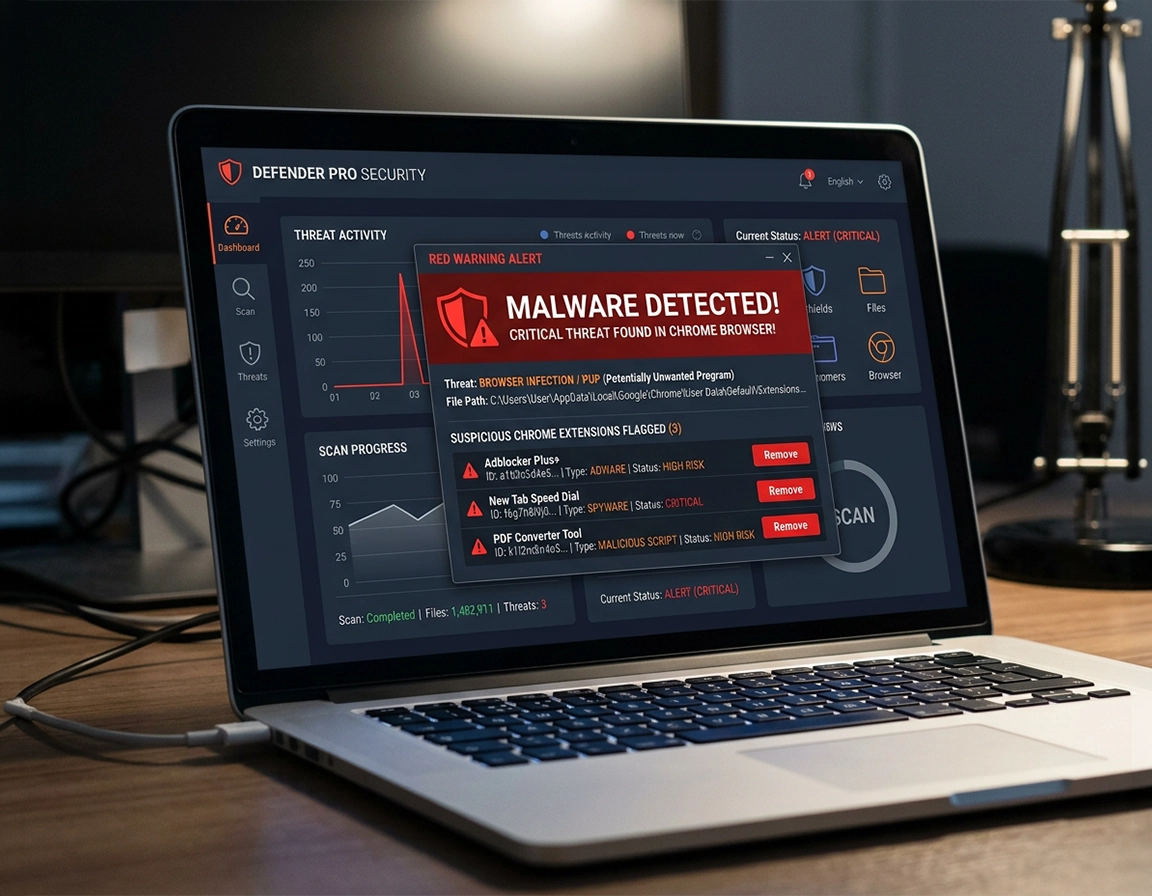
Why Chrome malware scans fail when the order is wrong .
When someone says “Chrome has a virus,” the damage is usually visible in the browser long before the real source is obvious. A fake McAfee or Windows warning starts appearing in the bottom-right corner. Search queries stop landing on Google and begin bouncing through an ad-heavy domain with a random name. New tabs open after startup even though the user closed everything cleanly the night before. None of those symptoms proves that the Chrome program file is infected. More often, Chrome is acting as the delivery surface for one of three things: a malicious extension, abusive site permissions, or malware somewhere else on the device that keeps writing bad settings back into the profile.
That distinction matters because browser-side cleanup and antivirus do different jobs. Chrome’s own security features are good at revealing suspicious state inside the browser. Safety Check can surface extension issues, Safe Browsing status, notification abuse, and password exposure. Extension management can show which add-on was granted broad access to “read and change all your data on websites you visit.” Site settings can reveal a domain that you accidentally allowed to send notifications, camera access, or pop-ups. Antivirus, by contrast, is what looks beyond Chrome: downloads, launch agents, startup entries, scheduled tasks, side-loaded APKs, trojan installers, and the small persistence files that keep resurrecting the hijack after every reboot.
The common failure pattern is to reset Chrome first because the visible mess disappears for an hour. Then the user signs back in, reopens the browser, or restarts the machine, and the search hijack, fake alert, or extension comes back. That is not Chrome being impossible to clean. It is evidence that the browser was only the symptom layer. A proper scan sequence starts by identifying what changed in Chrome so you know what to verify later, then moves to device-level scanning to remove the thing that keeps restoring the damage.
If you already know you need a broader malware response, start with the pillar guide on how to remove malware from Chrome. If your suspicion is more specific — for example a bad add-on rather than a full device compromise — the narrower pages on suspicious extension detection and removing malicious Chrome extensions will help you isolate that branch faster.
Related: Permission-heavy add-ons deserve separate scrutiny. Use Chrome extension permission abuse detection when the browser started misbehaving right after an extension install or update.
Key terms that change how you respond .
- Browser hijack: a forced change to search, startup, new-tab behavior, homepage, or redirects. The browser looks “infected,” but the source may be an extension, a site permission, a policy, or malware outside Chrome.
- Persistence: the mechanism that makes the problem return. On Windows it might be a scheduled task or startup item. On Mac it may be a login item, launch agent, or unwanted app. On Android it is often a bad app outside Chrome.
- Abusive notifications: browser notifications from a site you accidentally allowed. These can imitate antivirus alerts even when no scanner has found malware.
- Offline scan: a scan that runs outside the normal desktop session so malware hiding in a live Windows environment has less room to interfere.
Before you start: evidence to collect in two minutes .
A rushed scan wastes time because it erases the clues you need to prove the infection is gone. Spend two minutes collecting evidence before you start changing settings. The point is not paperwork. The point is being able to verify, after the antivirus run, that the same domains, extensions, and settings did not quietly come back.
- Open
chrome://extensions: look for anything you do not recognize, anything installed “recently,” or anything with a vague utility name like Search Helper, Video Speed Controller Pro, PDF Quick Access, Secure Browse, or a coupon tool you never intended to keep. - Check the default search engine: if searches are being routed through a custom provider with a domain you do not know, copy that domain into your notes. Hijackers often leave recognizable naming patterns here.
- Review startup pages: if Chrome launches two or three promotional tabs every time the browser opens, note the exact URLs before clearing them.
- Inspect notification permissions: visit Settings → Privacy and security → Site settings → Notifications and look for domains with random subdomains, fake media brands, or “update/alert/security” wording.
- Check whether Chrome says “Managed by your organization”: on a personal machine, this can point to an unwanted policy or adware-style configuration. In a real work environment, it may be legitimate, so do not rip out policy-driven settings blindly.
- Watch the timing: if the symptoms began immediately after installing a free converter, cracked software, game mod, or browser utility, that timing matters more than most users think. Many Chrome infections are secondary effects from a download that never looked like a browser tool.
The reason this pre-scan snapshot matters is that antivirus results can be deceptively clean when the initial trigger was a notification scam rather than an installed threat. If the only issue was a site you allowed to send alerts, the scan may report nothing — and that is not failure. On the other hand, if the search engine keeps reverting, a scan that finds nothing is a sign to widen the hunt to persistence points, not a reason to trust the system.
Related: if the browser feels unstable, opens random pages, or crashes while you test fixes, keep Chrome browser hacked: how to fix it and Chrome browser security checkup guide open in separate tabs. They complement this scan sequence well.
Step-by-step: the clean scan sequence .
The order below is deliberate. It stops you from doing the browser reset too early, and it gives the antivirus something concrete to validate afterward. This is the sequence that catches the highest number of “Chrome keeps getting infected again” cases without turning the session into a random clicking exercise.
- 1 Open Chrome Safety Check from Settings → Privacy and security → Safety Check, then review every warning instead of treating the page as a cosmetic status badge. Pay special attention to unsafe browsing status, harmful extensions, suspicious notifications, password compromise alerts, and pending updates.
- 2 Open
chrome://extensionsand disable anything unfamiliar first; do not uninstall immediately if you still need to observe what disappears when the extension is off. If an add-on has broad site access, open Details and narrow or remove that access where possible. - 3 Review search engine, startup pages, and site permissions. If the hijack uses allowed notifications or pop-ups rather than a deeper infection, this is where the “virus alert” pattern usually reveals itself.
- 4 Run a Quick scan in your device antivirus. On Windows, that usually means Windows Security → Virus & threat protection → Quick scan. On Android, check Play Protect. On Mac, confirm the offending app or download path and remove the unwanted software that triggered the browser mess.
- 5 If the symptoms return after a restart, escalate to a Full scan, then an offline or boot-time scan where the platform supports it. This is the handoff point from “browser nuisance” to “possible persistence mechanism.”
- 6 Only after the scan is complete should you use Reset settings in Chrome if the browser still carries leftover changes. Reset is for residual browser state, not for neutralizing the original infection.
What success looks like: Chrome opens to the pages you chose, the default search engine stays where you put it, fake security notifications stop, disabled suspicious extensions stay gone after restart, and antivirus stops finding the same threat or persistence file on repeated scans.
Step 1: use Chrome to map the damage, not to finish the cleanup .
Safety Check is valuable because it gives you a compact view of several compromise-adjacent states at once. If Chrome warns about a harmful extension, a changed Safe Browsing posture, or abusive notification permissions, you have a shortlist immediately. This step is diagnostic. It tells you where the browser was changed. It does not prove the underlying unwanted software is gone.
Step 2: disable suspicious extensions before you scan .
Disabling is better than instant deletion when you are still isolating cause and effect. Suppose Chrome stops redirecting the moment one coupon helper or PDF converter extension is switched off. That does not guarantee the extension was the original payload, but it tells you where the active browser interference lived. If the extension reinstalls itself later, that is a stronger sign of external persistence. If it stays gone and the problem disappears, you were probably dealing with extension-level abuse rather than a full device infection.
If extension permissions show site-wide access to all data on all websites, treat that as a serious escalation cue. A “read and change all your data” permission means the extension can watch page contents, interfere with search results, inject code, and capture data inside the browsing session. The more generic the extension’s branding and the less obvious its legitimate purpose, the less benefit of the doubt it deserves. This is also where the page on Chrome suspicious extension detection becomes useful.
Step 3: clear the browser-side abuse that antivirus will not fix for you .
Antivirus may remove the executable that started the problem, but it will not always undo every permission already granted inside Chrome. If a site is allowed to send notifications, you must revoke that. If a startup page was changed, you must restore it. If a custom search provider was inserted, you must remove it. This is why some users think their antivirus “missed” the infection when in fact the scanner did its job and the browser was still carrying the visible residue.
Look especially at notification entries that do not belong. Users often confuse persistent notification spam with a device-level virus because the messages resemble system warnings. The giveaway is that they come from a specific domain shown in the notification itself or in Chrome’s permission list. Remove those permissions, block pop-ups and redirects for the site, then continue with scanning so you are not ignoring a second issue underneath.
Step 4: run the first antivirus scan .
On Windows, a Quick scan is the right first pass because it checks the active areas where current threats usually live: memory, startup paths, and commonly abused locations. It is fast enough to use while you are still in incident-response mode. On Android, Play Protect checks installed apps and warns about harmful ones; that matters because many “Chrome viruses” on phones are actually bad apps opening browser ads, overlays, or scam pages. On Mac, XProtect and the platform’s app security stack help block known malware, but Mac cleanup often still requires removing the unwanted app, login item, or launch agent responsible for relaunching the browser or feeding it bad pages.
Step 5: decide whether a full or offline scan is justified .
Escalate when the behavior survives a restart, when Chrome settings keep reverting, when the same bad extension reappears, or when the machine shows symptoms outside the browser — for example unexpected CPU spikes, new background processes, antivirus alerts on every boot, or unknown apps relaunching themselves. Those are not “just Chrome” signals. They point to persistence. On Windows, Microsoft Defender Offline is worth the time when the infection behaves differently after reboot or when the browser looks clean for a few minutes and then gets re-poisoned. That pattern suggests something wakes up later in the session and rewrites the damage.
Step 6: reset Chrome only after the system is quiet .
A Chrome reset is excellent at stripping leftover configuration damage: disabled extensions, cleared temporary overrides, restored startup behavior, reset search engine preferences, removed pinned nuisance settings. It is not a disinfection tool in the endpoint-security sense. Use it after scanning, not before, so you can tell whether the browser remains clean when the underlying system has already been checked.
Related: if you reach the reset stage, pair this page with Chrome security reset, Chrome profile reset guide, and how to scan Chrome for malware so you do not remove useful data blindly.
Common platform variations .
- Windows: the strongest scan escalation path is usually Quick scan → Full scan → Microsoft Defender Offline. Scheduled tasks and startup abuse are common persistence points.
- macOS: the browser may be only the victim. Look for unwanted apps, login items, profile changes, and launch agents rather than assuming the Chrome app bundle is compromised.
- Android: if Chrome repeatedly opens ads or fake security pages, the cause is often a bad app or a notification permission, not the Chrome app itself. Check Play Protect and recently installed apps first.
Advanced scan decisions: quick, full, offline, and platform-specific cases .
Not every Chrome problem deserves the heaviest scan available. Overreacting wastes time; underreacting creates the illusion of a cure. The high-value skill is matching the scan depth to the symptom pattern. Users searching for antivirus advice around Chrome are often stuck between two extremes: one camp tells them to factory-reset everything, the other says to just remove cookies and cache. Most real cases sit in the middle.
When a quick scan is usually enough .
- You clicked a suspicious download, Chrome warned you, and you want to confirm nothing active landed on the device.
- You removed one obviously malicious extension and the bad behavior stopped immediately.
- The fake “virus detected” messages were clearly site notifications and there are no settings reverting after reboot.
- There are no symptoms outside the browser: no startup anomalies, no unexplained apps, no repeated detections after restart.
When a full scan is the smarter move .
- The search hijack returns after a restart even though you removed the extension and restored search settings.
- Chrome opens unwanted tabs at login, not just when you visit one bad website.
- You installed software from outside a trustworthy app store or official vendor page shortly before the browser started misbehaving.
- The machine is showing non-browser symptoms such as strange startup entries, recurring antivirus alerts, or elevated resource use with no clear cause.
When you should escalate to an offline or boot-time scan .
- The exact same settings are rewritten after every reboot.
- Antivirus detects something, removes it, then finds a related item again on the next scan.
- Browser cleanup succeeds briefly during the session but fails after sign-in, reboot, or network reconnection.
- You suspect a loader, scheduled task, or resident process is surviving while Windows is running normally.
An offline scan matters because some malware behaves politely while you are watching it. During a live session it may kill its obvious child process, delay execution, or hide inside a running service. Then, after restart, the same search provider, home page, or rogue extension is back. That is a classic reinfection rhythm. Offline scanning removes part of that advantage by checking the system before the normal desktop environment is fully active.
Related: if your main question is product choice rather than technique, compare options on best antivirus for Chrome, free vs paid antivirus for Chrome, and antivirus extension vs desktop antivirus.
What each platform tends to hide .
| Platform | Typical “Chrome infection” source | Best first scan move | Escalation clue |
|---|---|---|---|
| Windows | Adware installer, scheduled task, startup abuse, malicious extension, notification scam residue | Safety Check + Quick scan in Windows Security | Settings return after reboot or defender keeps finding related items |
| macOS | Unwanted app, fake updater, profile/login persistence, extension abuse, manipulated browser settings | Remove suspicious app/login item and inspect extension list | Browser opens itself on login or reverts after removing the app |
| Android | Bad sideloaded app, notification permission abuse, scam tabs triggered by another app | Play Protect + recently installed app review | Ads and scam pages open even when Chrome was not the app you launched |
Common alternatives users compare .
- Chrome Safety Check vs full antivirus scan
- Desktop antivirus vs browser-based security extensions
- Quick scan vs offline scan for reinfecting browser hijacks
- Manual browser reset vs device-level malware removal
Privacy and security notes: what each layer actually sees .
The most expensive mistake in Chrome malware cleanup is expecting one tool to see everything. Chrome Safe Browsing can warn about malicious and deceptive sites, harmful downloads, and abusive extensions. It helps before or during exposure. Chrome permissions tell you which site is allowed to send notifications or open pop-ups. Extension controls show what browser add-ons can read and modify. Antivirus sees a different layer: files, processes, startup entries, resident services, app packages, and known malware signatures or suspicious behavior outside the browser.
Impact: A bad diagnosis can leave behind password theft risk, search manipulation, injected ads, fake support scams, persistent notification abuse, or broader endpoint compromise that recontaminates the browser after cleanup.
There is also a privacy angle in scan choice. Enhanced Safe Browsing gives Chrome faster, more proactive protection, but it sends more security-relevant browsing data to Google than Standard protection. That tradeoff can be worth it during a cleanup period, especially for a user already dealing with malicious downloads or phishing-like redirects, but it is still a tradeoff. Antivirus products have similar differences: some rely more heavily on cloud lookups, reputation systems, telemetry, or real-time behavior analysis than others. Security gains are real, but so is the need to understand what your scanner is collecting.
Related: if the malware scare started with warning banners, password prompts, or a suspicious login flow, also review Chrome data leak detection, Chrome browser passwords stolen: what to do, and Chrome browser data breach response.
Recommended baseline settings during and after cleanup .
- Balanced: keep Safe Browsing on, block suspicious notification permissions, allow only necessary extensions, use real-time antivirus protection, and keep Chrome updated.
- Maximum caution during remediation: temporarily enable Enhanced Safe Browsing, remove or disable non-essential extensions, and run a full antivirus scan before restoring convenience tools.
- Compatibility-first: if a corporate app or older website breaks under stricter settings, keep the endpoint scanner active and narrow exceptions to specific sites instead of weakening the whole browser.
Recommended settings by goal .
| Goal | Recommended setup | Tradeoff | Best for |
|---|---|---|---|
| Fast triage | Safety Check + extension review + antivirus Quick scan | May miss deeper persistence | Single incident with no reinfection |
| Deep cleanup | Safety Check + permission cleanup + Full scan + reset if needed | Takes longer and may disable useful tools temporarily | Repeated redirects, fake alerts, returning settings |
| Persistence hunt | Everything above plus offline/boot-time scan and startup review | Most disruptive, may require restart and admin access | Stubborn browser hijackers and repeated detections |
Troubleshooting stubborn reinfection patterns .
The hard cases are rarely random. They usually repeat in patterns. Once you know the pattern, you know where to look next.
If the antivirus scan is clean but the fake virus alerts continue .
You are probably dealing with site notifications rather than a device-level infection. Open Chrome notification permissions and remove every domain you do not trust. Then block pop-ups and redirects for the same domain if it appears there too. This is one of the most common reasons people think their scanner “missed” malware. Nothing was running on the device; the browser was simply obeying a permission you granted earlier.
If the search engine keeps changing back after you fix it .
This is one of the strongest persistence clues on desktop systems. Recheck extensions, then look for an unwanted program or browser helper installed around the same date the hijack started. On Windows, escalate beyond Quick scan. On Mac, review recent applications and login items. If the search engine returns only after sign-in, also test whether a synced extension or synced browser state is pulling the bad configuration back into the profile.
If Chrome opens random tabs at every startup .
Split the cause into three buckets: startup pages configured inside Chrome, a launch item outside Chrome, or a malicious app using the browser as its advertising surface. If startup pages are clean but tabs still open right after login, look outside Chrome. That timing strongly suggests the browser is being called by another process rather than acting on an internal browser preference.
If the bad extension reappears after you remove it .
That is not normal extension behavior. Either the device is managed by a policy that keeps reinstalling it, or a persistence mechanism is dropping it back in. On a work device, confirm with IT before assuming compromise. On a personal device, treat this as a serious sign and move straight to a deeper scan path. Pages like Chrome enterprise threat removal guide and remove malware from managed Chrome devices are useful if policy and management status are part of the story.
If Android keeps opening scam pages even after you clear Chrome .
Think app-level cause first, browser-level cause second. Review recently installed apps, run Play Protect, and remove anything you sideloaded or installed from a suspicious source. On phones, Chrome is often the surface where the scam page appears, but not the app that triggered it. If ads open when you unlock the device or switch between apps, that is especially strong evidence the problem lives outside Chrome.
If you need to reset safely .
Reset only after you have already disabled suspect extensions and completed the antivirus scan path you chose. That way, when Chrome comes back clean, you know the quiet state is real. If you reset first, you lose evidence and make reinfection harder to recognize. If your case is severe enough that you are considering deleting the whole profile, use the companion pages on profile reset and how to reset Chrome after malware so you do not throw away useful data without a reason.
FAQ .
-
helpCan antivirus scan Chrome itself?Not in the way people usually imagine. Antivirus scans the files, processes, downloads, startup items, scheduled tasks, and apps that interact with Chrome. Chrome handles its own browser-side signals through Safety Check, Safe Browsing, extension controls, notification permissions, and reset options. The reliable method is to use both: Chrome to identify what changed inside the browser, and antivirus to remove the program or payload outside it.
-
helpWhy does the hijack come back after I reset Chrome?Because the browser reset removed the visible symptom, not the persistence layer. A malicious app, scheduled task, profile script, login item, or synchronized extension can write the bad setting back after restart or sign-in. That is why the order matters: inspect, isolate, scan the device, then reset only if the browser state is still contaminated.
-
helpIs a Chrome extension enough protection against malware?No. Browser extensions can block certain pages, scripts, trackers, and known malicious URLs, but they do not replace system-level antivirus. They cannot inspect the whole device the way Windows Security, XProtect, or Play Protect can. If the infection involves a downloaded executable, a launcher, or a trojan outside Chrome, you need device-level scanning.
-
helpWhat is the best first scan when Chrome looks infected on Windows?Start with Chrome Safety Check to identify extension, password, notification, and Safe Browsing issues, then run Microsoft Defender Quick scan. If settings keep returning or Chrome gets re-hijacked after reboot, escalate to Full scan and then Microsoft Defender Offline. Offline scan is the stronger option when malware is hiding inside a running Windows session.
Sources & further reading .
- Google Chrome Help: Manage Chrome safety and security
- Google Chrome Help: Remove unwanted ads, pop-ups & malware
- Google Chrome Help: How Safe Browsing keeps your browsing data private
- Google Chrome Help: Choose your Safe Browsing protection level in Chrome
- Google Chrome Help: Change site settings permissions
- Chrome Web Store Help: Permissions requested by apps and extensions
- Microsoft Support: How to start a scan for viruses or malware in Microsoft Defender
- Microsoft Support: Virus & threat protection in Windows Security
- Apple Platform Security: Protecting against malware in macOS
- Google Play Help: Use Google Play Protect to help keep your apps safe
Disclosure: This page focuses on scan strategy rather than pushing a specific antivirus product. Tool mentions should always be tested against your device, threat model, and management environment.