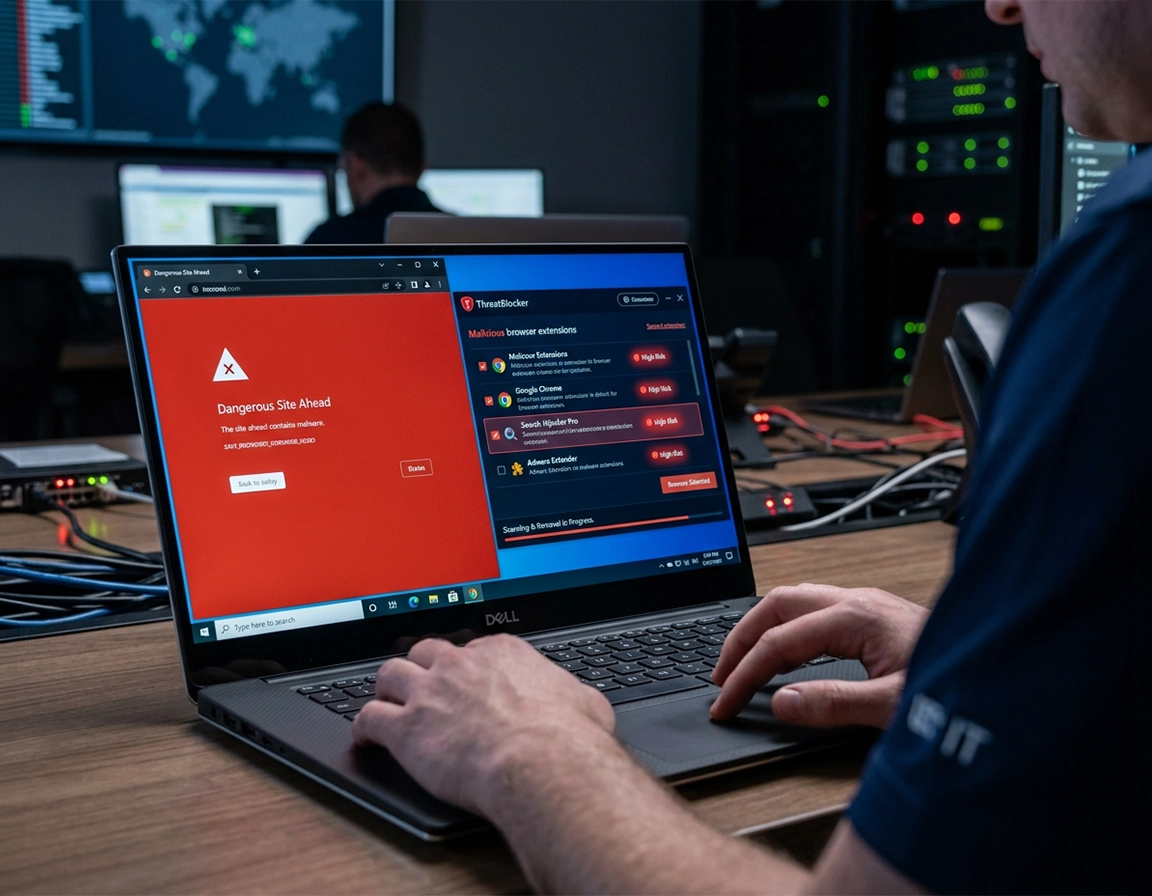
Where Chrome cleanup stops and deeper malware cleanup starts .
Users still search for a single Chrome cleanup scanner. Real cleanup now works best as a layered process.
When most people type Chrome Cleanup Tool into Google, they are not asking a historical question. They want a practical answer to a current mess: Chrome opens strange tabs, the search engine changed to something they never chose, every news site suddenly pushes fake McAfee or Norton warnings, or an extension with a generic name keeps coming back after removal. The problem is that those symptoms can come from four different sources. One is a bad extension. Another is notification abuse from a site permission the user clicked weeks ago. A third is an unwanted program on the computer rewriting browser behavior. A fourth is a managed policy or sync-driven reintroduction that makes the browser look “infected” even after a reset.
That is why a good cleanup guide should not pretend Chrome alone can disinfect everything. Chrome can do a lot at the browser layer: it can surface dangerous extensions through Safety Check, prompt you to review suspicious notifications, restore settings that were changed by unwanted programs, and let you reset the browser when the internal configuration is unreliable. None of that removes a Windows program that keeps reinstalling a hijacker, and none of it cleans a stolen account. A narrow fix solves the browser window you are looking at; a full cleanup solves the thing that keeps corrupting it.
There is another source of confusion. Some people remember older Chrome instructions that referenced Clean up computer on Windows. Others find community posts that still mention it. Meanwhile, current official guidance for unwanted ads, pop-ups, and malware leans harder on manual removal of unwanted programs, browser reset, Safety Check, extension review, and operating-system scanning. That matters because many users waste an hour hunting for one specific menu item, then conclude Chrome offers no cleanup help at all. The better approach is to treat “Chrome cleanup tool” as the whole remediation path: detect, isolate, remove, reset, verify, then harden.
Related: If the infection path looks extension-driven rather than program-driven, follow Chrome Unwanted Extensions Removal, Chrome Remove Malicious Extensions, and Chrome Suspicious Extension Detection.
Symptom language worth decoding correctly .
- Browser hijacker: software or an extension that changes search, startup, new tab behavior, or redirects traffic without meaningful consent.
- Notification abuse: spam or fake virus alerts delivered through a website notification permission you previously allowed.
- Policy abuse: unauthorized Chrome policies that lock settings, install extensions, or make Chrome show “managed by your organization.”
- Reinfection path: the mechanism that restores the bad behavior after removal, such as sync, an OS task, a bundled app, or a still-running extension.
Triage before you touch settings .
A cleanup sequence gets faster when you identify the symptom pattern before you click anything. If the only thing happening is that Chrome shows antivirus-style warnings from random shopping, recipe, or coupon sites, you are often dealing with abusive notifications rather than malware in the classical sense. If your default search flips to a site you never chose, the issue is usually an extension, a startup-page change, or a policy change. If Chrome crashes, new tabs open by themselves, downloads are blocked, and other apps on the computer also act strangely, the incident probably extends beyond the browser.
Another useful distinction is persistent after reset versus gone after reset. If the browser becomes normal after a reset and stays normal until you sign back into the same profile, sync or extension reinstall is a prime suspect. If the browser becomes normal only until the next reboot, look at installed programs, scheduled tasks, login items, or device-management policies. If the browser never becomes normal at all, inspect whether the issue is actually a live site prompt, a malicious extension still active, or a policy restriction that a normal reset cannot override.
| What you see | Most likely source | First move | What people usually misdiagnose |
|---|---|---|---|
| Fake antivirus alerts in the lower-right corner | Website notification permission abuse | Remove the site from Chrome notifications | They assume the whole PC is infected when the permission is the active trigger |
| Search engine changes back after restart | Extension, sync restore, or policy enforcement | Remove extensions, reset, then test while signed out | They keep resetting without checking the thing that writes the value back |
| Unknown tabs open with ads and coupon pages | Adware extension or unwanted program | Delete extensions and inspect installed apps | They close the tab and think the source is gone |
| Chrome says “managed by your organization” on a personal PC | Policy artifact or unwanted management software | Verify whether any legitimate management tool is installed | They treat a locked setting like a normal bug instead of a control channel |
Related: If your browser slows down badly during the incident, open Chrome Browser Slow After Virus Fix and Fix Slow Chrome Browser Step by Step after cleanup so you do not confuse leftover resource abuse with active malware.
- Check whether the problem follows your profile: create a fresh Chrome profile or use Guest mode. If the strange search engine and fake alerts vanish there, the corruption is likely profile-specific rather than universal.
- Check whether the problem survives after all extensions are disabled: a hijacker that disappears when extensions are off gives you a much shorter suspect list.
- Check whether other apps are affected: if your desktop wallpaper changes, system notifications look fake, or the OS opens unknown processes at sign-in, stop treating this as only a Chrome problem.
- Check for policy messages: if settings are greyed out or Chrome says it is managed, determine whether the device really belongs to a school, employer, or endpoint tool before you remove anything.
- Check notification permissions: users often call these “pop-ups,” but they can continue long after the original site was closed because the permission is stored in Chrome.
The cleanup sequence that avoids reinfection .
The order below matters. Users often reset first, reopen Chrome, sign straight back into sync, re-enable every extension, and then decide reset “did nothing.” A better sequence cuts off the common re-entry routes before you hand the browser back to your normal profile habits.
- 1 Run Chrome Safety Check. In Chrome, go to Settings → Privacy and security → Safety Check. Review each item instead of just waiting for a green status. Pay attention to warnings about harmful extensions, abusive notifications, compromised passwords, Safe Browsing settings, and pending browser updates.
- 2 Remove suspicious extensions before doing anything else. Open Extensions → Manage extensions. Delete add-ons you do not recognize, extensions installed around the same time the problem started, and anything requesting broad “read and change all your data” access without a solid reason. Do not merely toggle them off if the browser is actively hijacked; remove them.
- 3 Review notification permissions. Open Settings → Privacy and security → Site settings → Notifications. Remove or block sketchy domains sending fake infections, prize claims, wallet warnings, or “system protection expired” prompts. This step solves a surprising number of “virus pop-up” cases.
- 4 Check search engine, startup pages, and homepage behavior. Look under Search engine, On startup, and any new-tab or homepage controls. If Chrome keeps launching a casino search page, a coupon page, or a fake search portal, this is where the visible symptom often surfaces.
- 5 Reset Chrome settings if the browser state is no longer trustworthy. Go to Settings → Reset settings → Restore settings to their original defaults. This will reset search engine, startup, pinned tabs, content settings, and disabled extensions, but it does not uninstall the underlying malicious program on the device.
- 6 Run an operating-system malware check. On Windows, inspect installed apps and scan the system with trusted security software. On Mac, remove suspicious applications from Applications and check login items and profiles. Do this even if Chrome now looks normal when the browser was previously being rewritten by something outside the browser.
- 7 Reopen Chrome cautiously. Sign in only after you know which extensions deserve to come back. If the problem returns immediately after sync, pause and audit the synced environment rather than repeatedly resetting.
What success looks like: Chrome opens to a page you chose, searches stay on the engine you selected, fake antivirus alerts stop, unknown extensions are gone, and closing/reopening the browser does not restore the previous hijack.
The browser reset stage deserves an extra note because users often misread what it does. Reset is excellent when the visible damage lives inside Chrome: altered search defaults, content setting corruption, suspicious startup pages, broken notification state, and extension-driven clutter. Reset is weak when a desktop program is watching the browser and writing the bad values back at reboot. That is why the OS scan is not optional in recurring cases. A browser can be clean and still sit on top of an infected operating system.
Related: If you want the browser-level reset details in isolation, open How to Reset Chrome After Malware, Chrome Profile Reset Guide, and Chrome Security Reset.
How the same incident looks on different devices .
- Windows: the deepest Chrome incidents on Windows often involve bundled apps, startup entries, scheduled tasks, or registry-backed policy abuse. If the problem returns after reboot, widen your scope immediately.
- macOS: the bad actor is often an application, launch item, profile, or browser extension rather than a traditional Windows-style hijacker. Safari and Chrome symptoms appearing together are a clue that the machine, not only Chrome, needs cleanup.
- Android: many “Chrome virus” complaints are actually notification spam, sketchy web APK prompts, or a malicious app setting itself as default search/open handler. Uninstall the app, clear notifications, and update the device.
- iPhone & iPad: persistent browser hijack behavior is less often a classical infection and more often content permissions, calendar spam, configuration changes, or a bad profile. Resetting Chrome alone may not address device-level causes.
Why the browser keeps getting dirty again .
A cleanup attempt is only half-finished when the obvious symptom is gone but the hidden mechanism is still active. Advanced diagnosis is about finding that mechanism. The strongest clue is timing. If the hijack returns after you restore sync, the browser profile is carrying something unhealthy. If it returns after Windows boots, a local program or policy is more likely. If it appears only on one corporate device and not on your personal laptop, management policy may be legitimate rather than malicious.
Related: In managed environments, compare symptoms with Remove Malware from Managed Chrome Devices, Chrome Enterprise Threat Removal Guide, and Chrome IT Admin Malware Removal.
Cases where Chrome cleanup usually is enough .
- a spammy notification prompt was allowed on a deceptive website and the browser is now surfacing fake device alerts
- a low-quality extension changed search behavior, inserted ads, or replaced new-tab content, but nothing else on the computer looks compromised
- content settings are corrupted after aggressive extension use, and a full reset restores normal behavior permanently
Cases where Chrome cleanup alone usually is not enough .
- extensions reinstall after deletion or a mysterious search engine reappears after every reboot
- Chrome shows as managed on a personal machine and settings remain locked after reset
- multiple browsers are redirecting, system ads appear outside Chrome, or other applications begin to act strangely
- you already cleaned the browser but your account shows unexpected sign-ins, spam mail, or changed passwords
Policy abuse deserves special attention because it is one of the easiest ways to misdiagnose a hijack. A user resets Chrome, but the search engine field remains locked. They try to remove an extension, yet it reappears as soon as Chrome restarts. They assume the browser is magically reinfected, when the real cause is a policy instructing Chrome to enforce those settings. On a work laptop, that may be completely legitimate. On a personal computer, it can be evidence of unwanted software or leftover management artifacts. In that situation, keep the browser closed while you check the operating system for the source of those policies.
Sync-driven reinfection is subtler. Someone resets Chrome on a clean machine, logs into the same profile, and watches the homepage, startup tabs, or extension set revert. The browser did not fail to reset. The profile simply restored the contaminated preferences. A smart workflow disables or scrutinizes sync before repopulating the environment. That single step often saves people from repeating the same cleanup three or four times in one afternoon.
Decision points users usually get wrong .
- Safety Check is not the same as a malware scan: it is excellent for browser risk signals, weak for operating-system persistence.
- A fresh profile can beat another reset: when years of extensions and broken content settings muddy the diagnosis, a clean profile shows whether the infection is profile-bound.
- Extension cleanup is not system cleanup: if another app keeps reinstalling the hijack, perfect browser hygiene still loses.
- Endpoint tools matter most when behavior survives reboot: persistence is a stronger buying signal for real security software than a one-off spam notification incident.
Aftercare: account, data, and browser hardening .
Cleanup is incomplete if you stop when the browser looks normal. A malicious extension with broad page access may have read session data, modified search traffic, observed form input, or redirected downloads. A fake alert campaign may have tricked you into installing remote-access software or typing credentials into a counterfeit page. The browser can be clean while your account security is still damaged.
Impact: search hijack and notification spam are annoying; account compromise and persistent policy abuse are much costlier.
Related: If you suspect data access rather than simple ad spam, review Chrome Data Leak Detection, Chrome Browser Passwords Stolen: What to Do, and Chrome Browser Data Breach Response.
Recommended post-cleanup baseline .
- Balanced: keep Safe Browsing active, review notification permissions, remove nonessential extensions, and leave sync on only after the profile is verified clean.
- Maximum caution: enable stronger browser security settings, keep the extension list minimal, rotate passwords that may have been entered during the incident, and review the account security checkup.
- Compatibility-first: use default Chrome protections but audit permissions regularly if you depend on many browser extensions or specialized enterprise sites.
Recommended next step by incident type .
| Incident type | Best next step | Main risk | Typical example |
|---|---|---|---|
| Notification abuse | Remove site permission and clear site data | Endless fake warnings | “Your PC is infected” alerts from a shopping site you once allowed |
| Extension hijack | Delete extension, reset Chrome, inspect sync | Search/data manipulation | Unknown extension changing default search and injecting ads |
| System-level unwanted software | Uninstall program and run OS malware scan | Reinfection after reset | Browser redirects return after every reboot |
| Credential or support scam exposure | Change passwords and review account security | Account takeover | You entered details into a fake Microsoft or antivirus warning page |
When normal cleanup fails .
Related: For neighboring cleanup paths, also open Chrome Browser Redirect Removal Guide, Chrome Search Engine Hijacked Fix, and Chrome Homepage Keeps Changing Fix.
If fake virus alerts still appear after cleanup .
Check notification permissions again before assuming you missed malware. Users often block pop-ups but forget that notifications are a separate permission. If the messages arrive from the desktop notification area and not from a webpage inside a tab, the permission is the first thing to remove. After that, clear site data for the offending domains and confirm no extension is reintroducing those prompts.
If the search engine keeps changing back .
This is one of the clearest signs of either extension abuse, sync restoration, or policy enforcement. Remove suspect extensions, reset Chrome, and reopen without signing into sync right away. If the browser is stable while signed out but corrupt again once the profile syncs, inspect the synced environment. If the setting is locked and cannot be edited, investigate policy rather than repeating the reset.
If Chrome says it is managed and this is your personal computer .
Do not guess. First confirm whether any legitimate endpoint security, parental control, school software, or browser-hardening tool is installed. If none should be present and settings are forced anyway, treat that as a stronger signal of unwanted software or leftover management artifacts. Keep the browser closed while you remove the root cause from the operating system, otherwise the enforced settings usually return.
If you removed everything but the problem comes back after reboot .
That pattern points away from Chrome and toward the machine. Check installed apps, startup items, scheduled tasks, login items, and security scan results. A browser reset rarely survives a program whose whole job is to rewrite browser settings at startup. This is also when a full operating-system scan becomes more useful than another round of browser-only clicks.
If the browser looks clean but you typed passwords into a fake page .
Treat the incident as active account exposure. Change the affected passwords from a device you trust, review recent sign-ins, revoke suspicious sessions, and inspect saved payment or autofill details. The browser symptom may be gone, but the real loss in that case is not the hijacked homepage; it is the data you already handed over.
If you need a safe fallback reset path .
Create a clean Chrome profile instead of fighting the same damaged profile indefinitely. This is especially useful when the original profile holds years of old extensions, broken permissions, test flags, and imported junk from previous browsers. A fresh profile isolates whether you are dealing with a contaminated profile, a contaminated device, or both. Once the fresh profile behaves normally, reintroduce settings in small batches rather than restoring everything in one move.
FAQ .
-
helpIs there still a single Chrome Cleanup Tool I can run?People still use that phrase, but current cleanup is better understood as a sequence. Chrome offers browser-side help through Safety Check, extension review, notifications review, and reset settings. If the cause lives on the operating system, you still need to remove the underlying program or run a proper OS-level malware scan.
-
helpCan Chrome itself remove malware from my computer?Not comprehensively. Chrome can surface harmful browser behavior and help restore browser settings, but it does not replace trusted operating-system security tools. If the infection survives reset or comes back after reboot, the machine needs deeper cleanup.
-
helpWhy did reset settings work for a while and then fail again?That usually means something outside the browser restored the bad state. Common sources are synced profile data, a scheduled startup program, a malicious or bundled app, or a policy forcing Chrome to use certain settings.
-
helpAre fake antivirus alerts in Chrome always malware?No. Many are just abusive notification permissions granted to a deceptive website. They are still dangerous because they pressure users into downloads, calls, or fake scans, but the fix may be as simple as removing the permission and clearing site data rather than disinfecting the whole browser.
Sources & further reading .
- Google Chrome Help: remove unwanted ads, pop-ups, and malware on desktop
- Google Chrome Help: manage Chrome safety and security on desktop
- Google Account Help: remove malware or unsafe software
Disclosure: This page focuses on the technical cleanup path, not scareware upsells. If you use paid security software, get it from the official vendor site only.