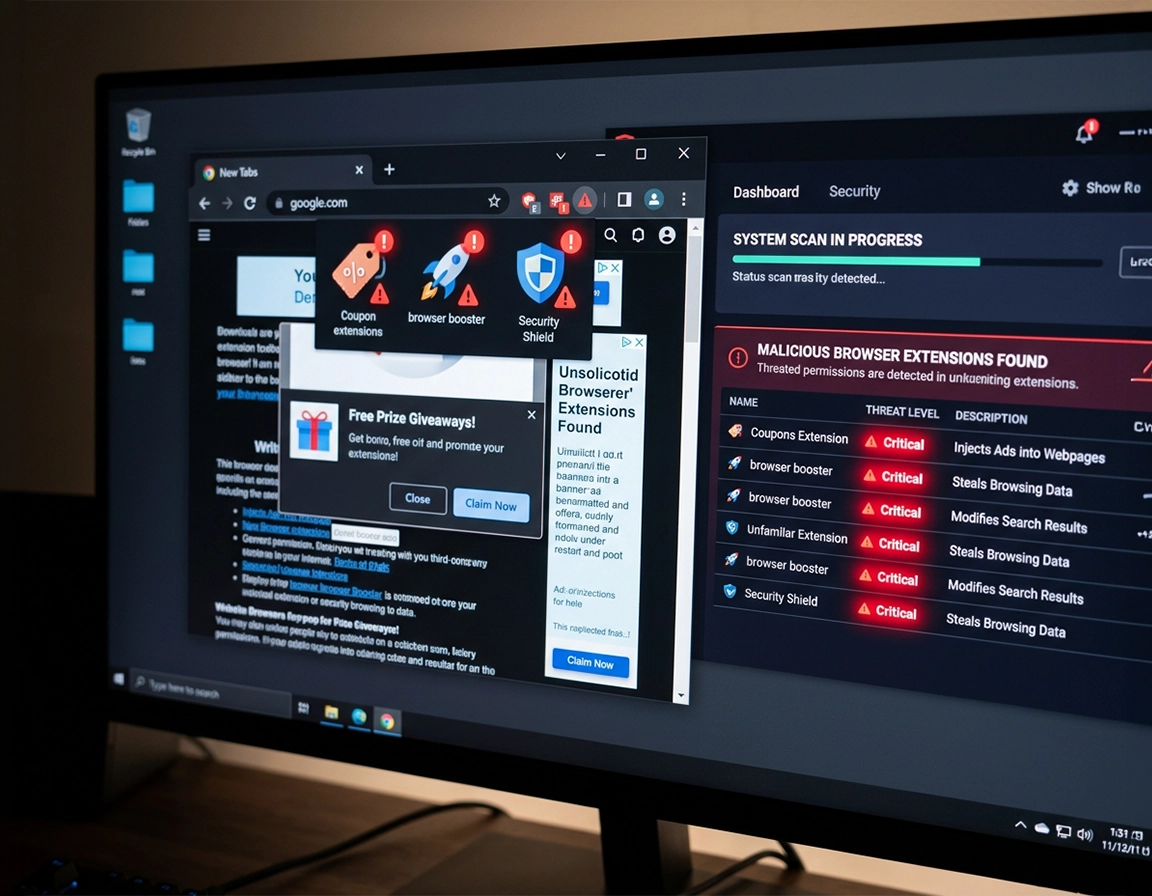
Unwanted extensions are rarely just “extra buttons” in Chrome .
This guide covers the version of the problem people usually mean when they search for Chrome unwanted extensions removal: a browser add-on that you did not knowingly keep, no longer trust, or cannot fully control.
Some extensions are merely obsolete. They stop working after a Chrome update, throw errors in the toolbar, and waste memory. Others cross into a very different category: they rewrite your default search engine, inject coupons into shopping pages, add pop-ups to websites that normally do not show ads, reopen a closed startup page, or monitor every site you visit because they were granted access to “read and change all your data on websites you visit.” That second group is why this topic sits inside a malware-removal cluster rather than a harmless customization guide.
The symptom pattern is usually specific. You search from the address bar and land on Yahoo, Bing, Boyu, Search Marquis, or a domain you have never chosen. New tabs load a strange landing page. Amazon and Takealot suddenly show aggressive comparison widgets that were not there the day before. Google Docs becomes sluggish because an extension is injecting scripts into every tab. Password fields trigger weird autofill behavior. When users say Chrome feels “infected,” an extension is often the first thing worth checking.
What makes unwanted extensions tricky is persistence. Removing the visible icon does not always solve the cause. The extension may have arrived bundled with Windows software, may be reinstalled by another program after reboot, may be protected by browser policy, or may survive inside a compromised Chrome profile. That is why this page focuses on diagnosis, not just the remove button.
There is also a big difference between annoying and dangerous. A coupon helper you forgot about is annoying. An extension with broad host permissions, search overrides, clipboard access, and a fake update page is dangerous. Google’s extension permission guidance specifically warns that the highest-risk permissions can expose almost everything you do in the browser. That is the line this guide helps you judge accurately instead of guessing.
Related: If this issue involves permissions, suspicious store listings, or risk scoring, read Chrome Extension Security Check and Chrome Extension Permission Abuse Detection.
Signals that make an extension worth removing immediately .
- Search hijacking: typing in the address bar sends you to a provider you never selected.
- Injected content: extra ads, coupon overlays, fake download buttons, or rewritten links appear on normal websites.
- Persistent startup changes: a home page, new-tab page, or startup tab reappears after you reset it.
- Remove friction: the extension is greyed out, marked as managed, or returns after every restart.
Three checks that stop you from deleting the wrong thing .
Before you remove anything, identify whether the extension is simply unwanted, actively malicious, or enforced by policy. Those are three different clean-up paths. If you skip that distinction, you can waste twenty minutes deleting extensions while the real source keeps reinstalling them.
Related: If Chrome is opening random tabs or feels slower than usual, see Chrome Keeps Opening Random Tabs and Chrome Slow After Virus Fix.
- Check the extension list by date and purpose: open
chrome://extensions, switch on Developer mode only if you need extra detail, and look for anything recently installed that you do not clearly recognize. Legitimate tools usually match a real need: password manager, grammar tool, PDF handler, screen capture. Random “Search Assistant,” “Document Converter,” or “Browser Protection” names deserve immediate suspicion. - Check for policy control: type
chrome://management. If Chrome says the browser is managed and this is your personal machine, do not assume the extension is safe. That status can be legitimate on work devices, but on personal Windows and Mac systems it often means software or policy entries are controlling the browser. - Check whether Chrome itself was changed: open Settings and review Search engine, On startup, and Appearance. A bad extension rarely limits itself to one icon in the toolbar. It usually leaves a second footprint in these settings.
One more practical check: restart Chrome before you begin removal. If the suspicious behavior appears only after a restart, login, or sync, that tells you something important. You may be dealing with sync-based reappearance, profile corruption, or bundled software that hooks back into Chrome during startup.
The clean removal sequence that works most often .
Do these steps in order. The sequence matters because you want to remove the visible extension, then remove the settings it changed, then verify it is not coming back from sync, policy, or bundled software.
- 1 Open
chrome://extensionsor go to Chrome menu → Extensions → Manage extensions. Remove every extension you do not trust, do not use, or cannot explain. If the extension has a Details page, review its site access and permissions before removal so you understand what it was able to touch. - 2 After removal, go straight to Settings → Search engine and restore your preferred provider. Then open Settings → On startup and remove any strange page that opens automatically. Finally check New tab behavior if an extension had replaced it.
- 3 Run Safety Check in Chrome’s security settings. Google notes that Safety Check reviews weak or compromised passwords, Safe Browsing status, updates, and security issues including risky extensions. If Chrome flags anything, finish those fixes before calling the browser clean.
- 4 Close Chrome completely, reopen it, and test the exact behavior that was wrong before: address-bar search, startup tabs, shopping pages, YouTube, or whatever was affected. A clean result after restart matters more than a clean result two seconds after removal.
What success looks like: the extension is gone from chrome://extensions, your search engine stays on the one you selected, unwanted tabs no longer open after restart, and the browser does not add the extension back after sign-in or reboot.
Related: If the extension changed search results or the home page, continue with Chrome Search Engine Hijacked Fix, Chrome Homepage Keeps Changing Fix, and Chrome Browser Hijacker Removal.
When the remove button is missing, greyed out, or useless .
If you see Installed by enterprise policy or the extension returns immediately, stop treating this as a simple extension uninstall. You are now dealing with policy control, bundled software, or browser management. On a personal PC, look for recently installed Windows or Mac applications that coincided with the problem. Remove those first. Then revisit Chrome. If the browser shows as managed on chrome://management and this is not a work or school device, the problem is bigger than the toolbar icon.
Desktop, Android, and iPhone differences that matter .
- Windows / ChromeOS: the full extension manager is available on desktop. Windows is more likely to involve bundled installers or policy entries that keep restoring a bad add-on.
- macOS: the removal flow is similar, but Mac users should also check recently installed helper apps, login items, and profiles if the extension behaves as managed.
- Android / iPhone: standard Chrome mobile does not use desktop-style extensions. If you have similar symptoms on mobile, focus on site permissions, pop-ups, malicious tabs, and browser reset steps rather than extension removal.
Why some unwanted extensions keep coming back .
A stubborn Chrome extension usually survives through one of five mechanisms: sync, policy, bundled software, a secondary extension, or a contaminated profile. Once you understand which mechanism is in play, the fix becomes much less mysterious.
Related: If you are dealing with repeated reappearance, also read Chrome Remove Malicious Extensions, Chrome Profile Reset Guide, and How to Reset Chrome After Malware.
1) Chrome Sync is restoring the bad state .
If the extension disappears, then comes back as soon as you sign into Chrome on another machine or after sync settles, your profile data may be repopulating settings and extension state. In that case, pause sync temporarily while cleaning, finish the removal on the primary device, confirm the browser is stable, and only then re-enable sync. Cleaning one machine while another logged-in browser still holds the same polluted state is how people trap themselves in a loop.
2) Another program installed the extension .
Google’s Web Store help notes that some Windows and Mac applications install Chrome extensions alongside the main application. That matters. A “video downloader,” “PDF converter,” “driver updater,” or cracked utility can quietly place the extension back after every restart. If the extension was not installed directly from the Chrome Web Store by you, inspect recently added desktop software before you blame Chrome.
3) Browser policy is enforcing it .
On a legitimate work machine, this is normal. Admins can allowlist, blocklist, or force-install extensions. On a private device, it is a warning sign. A policy-enforced extension will often show management text, lack a normal remove path, or survive resets. This is where many “I deleted it three times” stories come from. The browser was obeying policy, not ignoring you.
4) The extension was only one visible part of the hijack .
Search hijackers often pair an extension with modified startup settings, notification abuse, rogue search providers, or scheduled tasks outside the browser. That is why a genuine cleanup includes startup pages, search defaults, site notification settings, download history, and sometimes a full OS malware scan. Deleting the add-on but leaving the search redirector intact is not a cleanup; it is partial cosmetic work.
5) The profile is no longer trustworthy .
When permissions, search engine entries, startup behavior, and odd browser state all look damaged at once, creating a fresh Chrome profile can be faster than chasing leftovers one by one. You lose convenience, but you gain certainty. For users who handle banking, client logins, or admin dashboards in Chrome, certainty is usually worth more than preserving a cluttered old profile.
When deeper action is justified .
- If the extension has access to all sites and you used banking, email, or password resets while it was installed, change critical passwords from a clean device afterwards.
- If the extension was tied to search redirects, fake alerts, or download prompts, run an operating-system malware scan as part of the cleanup, not as an optional extra.
- If the browser is managed and this is a work device, do not fight policy locally. Contact the admin instead of creating an audit problem for yourself.
Alternatives users compare when they are tired of fighting bad extensions .
- Relying on Chrome’s built-in protections versus adding more extensions for security
- Using a dedicated desktop antivirus instead of stacking multiple “protection” extensions
- Creating a clean Chrome profile versus trying to rehabilitate a polluted one
- Managing extension install policies centrally in business environments instead of letting every user install anything
The real risk is not the icon. It is the access behind it .
Users often judge extensions by branding and store reviews. That is not enough. The more reliable test is permission scope plus behavior. Google’s extension permission guidance warns that the highest level of access can expose browsing data across websites you visit. In plain language, a bad extension does not need to look scary to be dangerous. It just needs enough rights and a reason to abuse them.
Impact: Depending on permissions, an unwanted extension can read page contents, change search behavior, inject scripts, modify the new-tab experience, capture shopping or form data, and in some cases interfere with authentication flows.
Related: If you suspect broader infection rather than one bad add-on, continue with Chrome Malware Cleanup Guide, How to Scan Chrome for Malware, and Chrome Browser Threat Detection Guide.
A safer baseline after cleanup .
- Keep fewer extensions: most users accumulate far more than they truly need. Fewer add-ons means fewer places for abuse or breakage.
- Review site access: where possible, switch extensions from all sites to specific sites or on-click access.
- Use Safe Browsing deliberately: Chrome’s Enhanced protection mode provides stronger warnings for dangerous sites, downloads, and risky extensions.
Recommended extension posture by goal .
| Goal | Recommended setting | Tradeoff | Best for |
|---|---|---|---|
| Balanced | Keep only trusted extensions you can name and explain; review permissions quarterly. | You may give up convenience tools you use only once in a while. | Most home users |
| Maximum privacy | Run with the smallest possible extension set and limit site access whenever Chrome allows it. | Some automation and shopping helpers become less useful. | Banking, research, security-sensitive browsing |
| Compatibility | Keep required work extensions but remove abandoned consumer add-ons and watch policy-controlled installs closely. | Enterprise tools may still have broad permissions. | Business and managed environments |
When removal fails, the failure pattern tells you what to do next .
Related: For more specific edge cases, see Chrome Suspicious Extension Detection, Chrome Extension Malware Removal, and Chrome Browser Hacked: How to Fix.
If the extension reappears after every restart .
Look outside Chrome. Check recently installed programs, system startup items, and any “browser protection” or “search” utilities you never intentionally added. Then verify whether Chrome is marked as managed. Reappearing extensions are usually being reinstalled by something with higher authority than the extension manager.
If Chrome says the extension is managed by your organization .
On a work or school device, that may be expected and you should contact IT. On a personal machine, it is suspicious. Open chrome://management to confirm the browser state. If you did not enroll the browser anywhere, do not keep forcing the remove button. Investigate policy or bundled software instead.
If search is still hijacked even after the extension is gone .
Open Search engine settings and delete rogue search providers. Then inspect startup pages and the new-tab experience. Search hijacks often survive as a settings change even after the extension itself has been removed. This is why users think the extension “was not the real issue,” when in reality it already changed the browser and left.
If Chrome keeps opening strange notifications or pop-ups .
That may be site notification abuse rather than an active extension. Review site permissions and revoke notification access for spammy domains. Users often confuse malicious notifications with an extension problem because both create browser-level interruptions.
If you need to reset safely .
Chrome’s reset function restores settings such as the startup page, new-tab page, search engine, and pinned tabs, while disabling extensions and clearing temporary data. It does not erase everything about the browser. That makes it useful when you want a strong cleanup step without wiping the whole machine. Use it after removing the suspicious extension, not instead of removing it.
FAQ .
-
helpHow do I know whether a Chrome extension is malicious or just unnecessary?Unnecessary extensions tend to be idle clutter. Malicious or high-risk ones usually change behavior: search redirects, injected ads, strange startup pages, unusual permissions, or aggressive site access. Start by checking what it can access and whether anything in Chrome changed after it was installed.
-
helpWhy can’t I remove an extension from Chrome?The most common reasons are policy control, a bundled desktop application that keeps reinstalling it, or a work-managed browser. If the extension says it was installed by enterprise policy, treat that as a management issue first, not a simple uninstall failure.
-
helpDoes resetting Chrome remove unwanted extensions?Resetting Chrome disables extensions and restores key browser settings, which is useful after a hijack. It is still better to remove the suspicious extension directly first, then reset if settings were changed or if the browser still behaves strangely.
-
helpCan a Chrome extension steal passwords or personal data?An extension with enough permissions can read page content, interact with forms, and alter browsing behavior. That does not mean every extension does this, but it is exactly why broad site access and unknown developers should be treated seriously, especially if the extension arrived alongside suspicious browser changes.
Sources & further reading .
- Chrome Web Store Help: install and manage extensions
- Google Chrome Help: manage Chrome safety and security
- Google Chrome Help: remove unwanted ads, pop-ups, and malware
- Google Chrome Help: reset Chrome settings to default
- Chrome Web Store Help: permissions requested by apps and extensions
- Google Chrome Help: check if your Chrome browser is managed
Disclosure: This guide focuses on practical cleanup, not fear-based claims. If a bad extension affected logins, payments, or sensitive accounts, treat account security as part of the cleanup, not an afterthought.