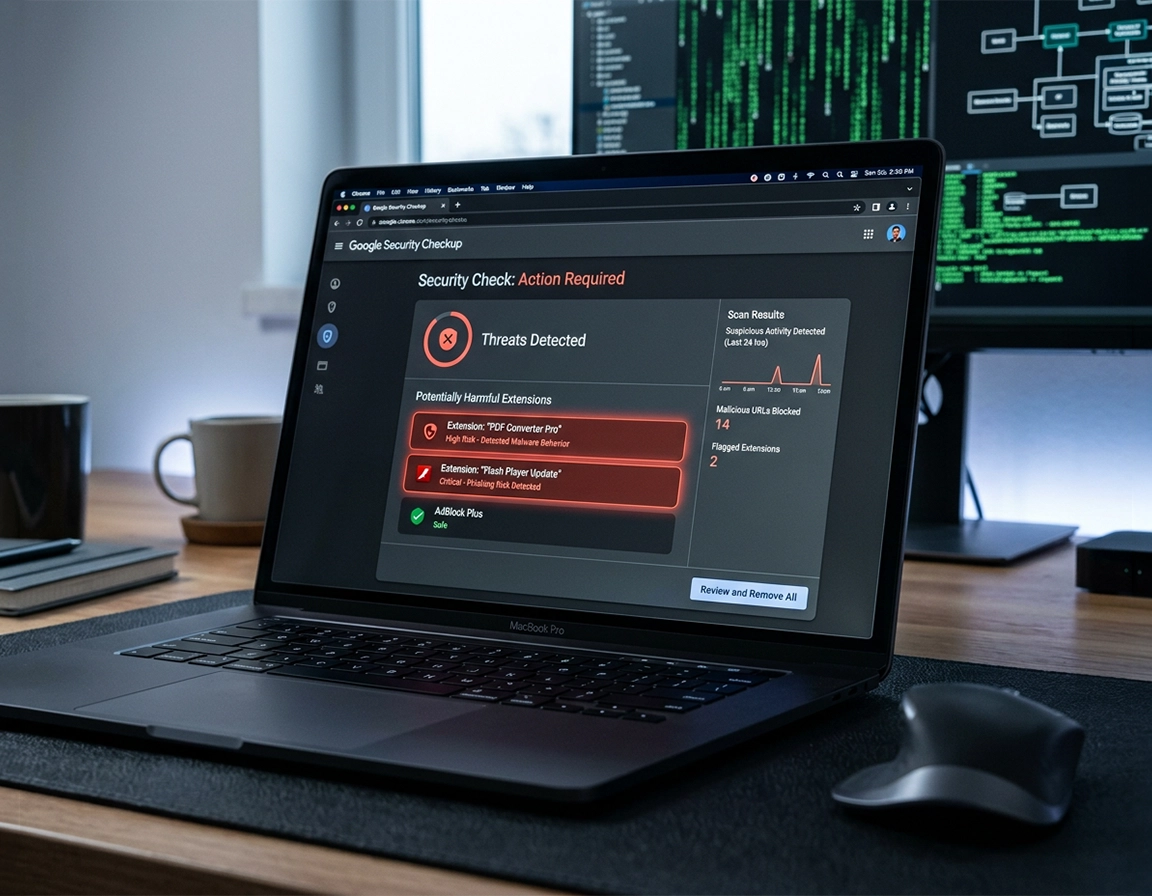
When people say “scan Chrome for malware,” the evidence is usually hiding in extensions, permissions, sync data, or the operating system itself .
Chrome can warn, quarantine, reset, and restrict, but a useful scan starts by deciding which layer is responsible for the behavior you are seeing.
Most users picture a single browser button that inspects Chrome the way desktop antivirus inspects a hard drive. That is not how real Chrome malware cases work. The browser leaves clues in several places: an extension with site-wide read and change access, a notification permission granted to a scammy domain, a search engine entry that was quietly inserted into settings, or a startup page that keeps reappearing because another program rewrites it every time the browser launches. The “scan” is really a controlled review of those places in the right order.
The reason so many Chrome malware cleanups go badly is that people solve the loudest symptom instead of the earliest cause. They close the fake alert tab, but the notification sender remains allowed. They delete the strange homepage, but the shortcut or bundled app puts it back. They remove one extension, but Sync reintroduces the same settings from another device signed into the same profile. Good browser triage is less about clicking faster and more about asking a precise question: what changed without consent, and where could Chrome have stored evidence of that change?
Chrome also sits in a grey zone between browser risk and endpoint risk. An abusive extension is a browser problem. A deceptive download that installs adware, a fake driver updater, or a monitoring tool that keeps forcing browser changes is a device problem using Chrome as its delivery channel. Google’s own help material reflects that distinction: Chrome can flag harmful extensions, warn about risky downloads, and guide you toward resetting unsafe settings, but Google also tells users to remove unwanted programs from the computer itself and to treat persistent pop-ups, search changes, or recurring toolbars as potential unwanted software or malware beyond the browser.
Related: If you still need to decide whether the behavior looks like infection at all, start with how to check if Chrome has a virus and compare the behavior against a symptom-by-symptom malware guide.
The four places a real Chrome malware scan needs to inspect .
- Safety state: Safe Browsing level, update status, password warnings, notification cleanup prompts, and extension warnings exposed by Safety Check.
- Extension surface: every installed extension, its publisher, site access scope, background behavior, and whether its permissions still make sense for what it claims to do.
- Permission surface: notifications, pop-ups, redirects, downloads, and site access grants that can be abused even when no extension is present.
- Outside-the-browser persistence: installers, profiles, startup items, managed policies, scheduled tasks, or device malware that keep putting bad Chrome settings back after you remove them.
Capture the pattern before you clean it up, because the pattern usually tells you where the infection lives .
Before deleting anything, note exactly what happens and when it happens. Does Chrome launch into a spam page only from the desktop shortcut, or does it also happen when you open the browser from Start? Do Google searches briefly pass through a strange domain before landing on results? Do fake virus warnings arrive even while Chrome is closed, or only when one site is open? Does the issue affect one profile, every profile, or other browsers too? Those details sound small, but they are the difference between a ten-minute browser cleanup and a wasted afternoon chasing the wrong layer.
There are three fast tests worth running before you start removing settings. First, open an Incognito window. Since extensions are usually disabled there by default, a symptom that disappears in Incognito often points straight at an extension or normal-profile setting. Second, create a temporary second Chrome profile. If the second profile is clean, your browser binary is probably fine and the contamination is tied to profile data, permissions, or synced settings. Third, test another browser. If Edge or Firefox shows the same redirect or ad spam, you are likely looking at a device-level problem rather than Chrome-specific abuse.
Also check whether Chrome is managed. Type chrome://management in the address bar. On a company or school device that message can be entirely normal. On a personal laptop, an unexpected “managed by your organization” banner is a red flag because a policy can lock in startup pages, search engines, extension installs, or security settings. In stubborn hijack cases, this single check explains why browser changes keep reappearing after every reset.
Related: If the suspicious behavior appears to involve extensions specifically, continue with suspicious extension detection and permission abuse detection before you start reinstalling the browser.
- Record the trigger date: match the first symptom to the day you installed a “free” utility, clicked an update prompt, imported a profile, or enabled notifications on a streaming or download site.
- Check Sync before cleanup: if Chrome Sync is active, a search provider, extension, or bad setting can reappear from another signed-in device.
- Review recent downloads: Google warns that password-protected archives and unusual files can be used to evade detection, so scan anything recent that arrived before the problem started.
- Save evidence if the case is stubborn: extension names, scam domains, blocked download names, or screenshots of startup URLs help you isolate the exact cause if the issue returns.
The scan sequence that catches most real-world Chrome infections without destroying a good profile .
- 1 Open
chrome://settings/safetyCheckand run Safety Check. Write down every alert it shows before you start fixing them. - 2 Review Safe Browsing under
Settings → Privacy and security → Security. If protection is disabled without a deliberate reason, that is itself suspicious. - 3 Open
chrome://extensions. Remove anything you do not recognize, cannot justify, or no longer use. For anything left, inspect Details, site access, and permissions. - 4 Review site permissions, especially notifications, pop-ups and redirects, and automatic downloads. Revoke anything granted to domains you do not trust.
- 5 Inspect
Settings → Search engineandOn startup. Remove inserted search providers, unexpected startup URLs, and suspicious “continue where you left off” behavior. - 6 Review
chrome://downloadsand scan recent files with endpoint security if the browser issue began after a download or installer. - 7 Only after those checks, use
Settings → Reset settings → Restore settings to their original defaultsif the profile still behaves like it was modified.
What success looks like: the symptom stops and stays stopped after restart. No redirect chain reappears, no notification spam returns later in the day, no mystery extension comes back after login, and no search or startup setting silently repopulates itself.
Step one matters because Safety Check does more than tell you Chrome is “secure” or “not secure.” Current Chrome guidance says Safety Check can surface compromised, reused, or weak passwords, Safe Browsing status, available updates, potentially unwanted notifications, unused permissions, and abusive notification grants. That makes it the fastest single view of whether the browser already sees dangerous drift in its security posture.
Step two is your control point for download and site risk. Google states that Safe Browsing warns about malware, risky extensions, phishing, and potentially unsafe sites. It also affects how Chrome treats some downloads. When users say “Chrome let malware through,” the more accurate question is often whether Safe Browsing was reduced, ignored, or turned off, because Chrome explicitly says files downloaded while Safe Browsing is off can appear as unverified and that attackers may try to convince users to ignore warnings.
Step three is where most browser-only infections get exposed. Do not judge extensions by their icon or store category. Inspect the permission footprint. A tab manager that wants to read all site data, change search results, run in the background, and access clipboard content deserves scrutiny even if its listing looks polished. Extension abuse is attractive to attackers because it blends into normal browsing, survives across sessions, and can manipulate shopping pages, search pages, or login flows without obvious pop-up theatrics.
Step four catches a different class of complaint: notification scams and redirect abuse. Google’s own pop-up help says that if you still get pop-ups after disabling them, you may actually be subscribed to notifications or your device may be infected by malware. In other words, the browser itself separates ordinary pop-up control from notification abuse and from deeper compromise. That is exactly why a clean malware scan always includes a notification review instead of treating every “virus popup” as the same thing.
Step five is where search hijackers reveal themselves. A malicious search provider does not always replace your default with something obviously broken. Sometimes it inserts a provider with a bland name, takes over keyword shortcuts, or uses a startup page that looks businesslike until you notice the results detour through an unfamiliar domain. If you delete the provider and it returns later, stop. You now have evidence of sync contamination, policy control, or software outside the browser putting it back.
Step six matters most in bundled-install cases. Chrome’s download warnings are more nuanced than many users realize. Google says Chrome blocks dangerous, suspicious, unverified, or insecure downloads, and it specifically calls out password-protected archives such as ZIP, 7Z, and RAR files as a common way to evade detection. If the infection began after one of those files, scanning only the browser is usually too narrow.
Step seven is containment, not magic. Resetting Chrome is useful because Google says it restores settings to their original defaults and forces you to re-enable extensions manually. That is exactly what you want when several settings were altered at once. It is not a substitute for removing a malicious installer, unwanted program, or rogue policy that sits outside Chrome and repopulates the same bad state later.
Related: If the scan exposes a browser-side problem, move next to malicious extension removal, browser security checkup, and malware scans with antivirus.
How the same symptom behaves on different platforms .
- Windows: the most persistent cases often involve installed software, startup items, shortcut tampering, scheduled tasks, or registry-backed hijacks that reassert control after every reboot.
- macOS: recurring browser changes often trace back to configuration profiles, launch agents, login items, or “helper” apps packaged as video players, update tools, or cleaners.
- Android: notification abuse and risky app installs matter more than classic desktop-style extensions. Safety Check, notification review, Play Protect, and app cleanup do most of the work.
- iPhone & iPad: full browser compromise is rarer, but scam redirects, abusive notifications, and fake security pages still happen. Focus on permissions, tabs, website data, and profile-level cleanliness rather than “antivirus inside Chrome.”
Use symptom-to-source logic when the browser keeps “reinfecting itself” .
The phrase “it came back” is one of the most useful clues in browser malware work. A notification scam that returns does not mean malware survived in memory; it often means the site permission was never revoked. A search hijack that returns after you delete the provider often means Sync, policy, or external software is restoring it. A redirect that returns only after enabling one extension points to an add-on problem, not a hidden rootkit. The symptom matters, but the mechanism that causes it to return matters more.
Related: In managed environments, use Chrome Enterprise threat removal or malware removal for managed Chrome devices because policy-enforced settings can mimic hijack behavior to anyone who is not expecting them.
Signals that the problem is probably still inside Chrome .
- The issue disappears in Incognito but not in the normal profile.
- A second Chrome profile behaves normally.
- The symptom starts immediately after enabling one specific extension.
- Only Chrome shows the behavior; other browsers remain clean on the same device.
- Revoking a site’s notification permission stops the “virus alerts” instantly.
Signals that the problem has probably escaped the browser .
- The same redirects or ad pages appear in multiple browsers.
- Your homepage or search engine returns after every reboot or user login.
- Chrome’s shortcut target launches a URL, or a startup program reopens a known spam page.
- The device becomes slow, noisy, or unusually network-active at the same time the browser issues begin.
- Security tools flag recent installers, browser helpers, adware, or monitoring software on the machine itself.
Extension review deserves more depth than most cleanup guides give it. Look for version-change behavior. An extension that was harmless for years can become unsafe after a sale, a publisher change, or a monetization shift. A permission request to “read and change all your data on all websites” is not always malicious, but it is always powerful. It allows a background script or content script to inspect forms, rewrite DOM elements, inject affiliate markup, modify search pages, or manipulate checkout flows. When users report “search results look slightly different” or “coupon links keep appearing,” this is often the layer to inspect first.
On Windows, one of the most overlooked scan artifacts is the browser shortcut itself. If Chrome always opens on a particular spam or casino page when launched from the taskbar or desktop, inspect the shortcut target. Adware sometimes appends a URL or launch argument there. Another neglected area is recently installed software. Programs named like optimizers, drivers, download assistants, PDF tools, codecs, or “safe search” helpers are frequent sources of recurring browser manipulation. Google’s own malware-removal guidance explicitly says to remove unwanted programs from Windows or Mac before relying on browser reset alone.
On macOS, configuration profiles and login items can make Chrome look haunted. A user deletes the bad homepage, closes the browser, reopens it, and the same change is back. The browser did not “repair” itself badly; a profile or helper is enforcing the state again. That is why advanced browser malware work on Mac always crosses the application boundary. Chrome reveals the symptom, but the operating system often contains the persistence.
How to choose the next tool instead of repeating the same failed fix .
- Safety Check next: use it when you want the fastest sanity check of browser security state, notification issues, updates, and extension problems.
- Manual extension audit next: use it when symptoms are subtle, profile-specific, or tied to one browsing workflow such as shopping, search, or logins.
- Full antivirus next: use it when symptoms cross browser boundaries, follow recent downloads, or survive resets and profile cleanup.
- Chrome reset next: use it when several browser settings were altered at once and you need to return the profile to a trusted baseline before reintroducing tools carefully.
Chrome’s security boundary is strong, but it is still a boundary .
One of the biggest reasons users under-scan malware in Chrome is that the browser feels comprehensive. It blocks pop-ups, warns on dangerous downloads, checks extensions, tracks Safe Browsing state, and can restore default settings. Those are serious defenses. But a browser only sees what falls within browser scope. It does not claim to be a complete substitute for endpoint detection on a machine that has already executed malicious code, installed adware, or accepted a deceptive package that keeps altering browser behavior in the background. Google’s help pages are consistent on this point: Chrome protects against risky sites, downloads, and extensions, but recurring unwanted changes can require removing unwanted programs on the device itself.
Impact: Search hijacking, account exposure, deceptive download installation, permission abuse, checkout manipulation, tracking of browsing behavior, and erosion of trust in high-value sessions such as banking, shopping, or admin logins.
Related: After the cleanup, harden the browser with Chrome malware prevention, Safe Browsing best practices, and secure download settings.
Baselines worth keeping after a malware scan .
- Option A (sane default): Safe Browsing enabled, minimal extensions, notifications blocked except for a few trusted domains, and periodic Safety Check review.
- Option B (higher scrutiny): Enhanced protection, aggressive extension pruning, download skepticism, and endpoint security coverage for the whole device.
- Option C (compatibility-first): Standard protection with tightly controlled exceptions for internal tools, finance portals, or enterprise sites that need special handling.
Pick the scan depth by the behavior you are seeing .
| Observed behavior | Best next scan | What it usually means | Best fit |
|---|---|---|---|
| Fake antivirus alerts and desktop spam | Notification review + Safety Check | Often a deceptive site permission, not a full browser infection | Users hit by “Allow notifications” scams |
| Search provider changed or redirects before results load | Extension audit + search/startup review | Common hijacker pattern or persistent setting manipulation | Search hijack cases |
| Problem returns after reset or affects other browsers | Full device scan + software/profile inspection | Likely persistence outside Chrome | Bundled software or endpoint compromise |
When the cleanup looks successful for ten minutes and then falls apart again .
Related: If the browser still behaves like a hijacked environment after you finish this scan, continue with Chrome browser hacked: how to fix it or the full Chrome malware cleanup checklist.
Safety Check says everything is fine, but the browser still feels off .
That usually means the problem is quieter than Chrome’s built-in checks are designed to summarize. Move to a manual extension audit, inspect notification permissions, check search engine and startup entries, and test a second profile. If the issue crosses into another browser, stop interpreting the result as “Chrome missed malware” and start treating it as a device compromise with browser symptoms.
The bad search engine, homepage, or new-tab behavior returns after restart .
That pattern almost always indicates persistence. Common sources are Sync contamination, a managed policy, a recently installed program, a launch argument in the browser shortcut, or a macOS profile or helper app. The right next step is not another reset. The right next step is identifying what outside force keeps rewriting the browser state.
Only one Chrome profile is affected .
This is one of the better outcomes because it narrows the field. Profile-only contamination points toward extensions, saved permissions, cached site data, or synced browser settings instead of whole-device malware. Export anything important, isolate suspect extensions, revoke permissions aggressively, and reset that profile’s settings rather than reinstalling the entire browser immediately.
You keep seeing “McAfee,” “Norton,” or “Windows Defender” warnings even though you never installed those tools .
That symptom is usually notification fraud, not legitimate antivirus detection. Google explicitly notes that ongoing communications from a site after disabling pop-ups can mean you subscribed to notifications from that site. Go directly into notification permissions, remove the sender, and then inspect whether any deceptive site is also allowed for pop-ups and redirects.
You need to reset Chrome, but you do not want to lose everything .
Resetting Chrome is less destructive than many users assume. Google says it restores the browser’s settings to their original defaults and requires you to turn extensions back on manually. Bookmarks, history, and saved passwords are not the main casualties; extensions and altered configuration are. The safest way to use a reset is to treat it like quarantine: reset, verify the symptom is gone, then reintroduce only the extensions you can justify one by one.
FAQ .
-
helpDoes Chrome have a built-in malware scanner?Chrome has built-in protections such as Safe Browsing and Safety Check that can warn about risky sites, suspicious downloads, harmful extensions, disabled protections, and some abusive permissions. That is useful browser security, not a full machine-wide malware scanner. If the same issue survives browser cleanup, you need endpoint scanning too.
-
helpWhy do fake virus alerts keep appearing even after I close the tab?The most common cause is a site notification permission, not a classic infection inside Chrome itself. Google’s Chrome Help specifically notes that if you still get communications from a site after disabling pop-ups, you may be subscribed to notifications. Remove the sender in site settings and the alerts often stop immediately.
-
helpWill resetting Chrome remove malware?It can remove browser-side effects by restoring settings and disabling extensions, which is often enough for hijackers, injected search tools, and some extension-driven abuse. It will not remove malware that is persisting elsewhere on the device and forcing Chrome back into the same bad state after reboot.
-
helpShould I trust every extension that is still in the Chrome Web Store?No. Store presence is not a permanent trust certificate. Extensions can change publishers, request broader permissions, or behave very differently after an update. During a malware scan, judge the extension by what it can access now, what data it can touch, and whether you still truly need it.
Sources & further reading .
- Google Chrome Help: remove unwanted ads, pop-ups, and malware
- Google Chrome Help: manage Chrome safety and security
- Google Chrome Help: block or allow pop-ups in Chrome
- Google Chrome Help: Google Chrome blocks some downloads
- Google Account Help: remove malware or unsafe software
- Google Safe Browsing overview
Disclosure: This page is written as a browser-first diagnostic guide. It deliberately separates browser cleanup from endpoint cleanup so users do not mistake notification abuse or extension hijacks for proof that the whole machine is infected, or vice versa.