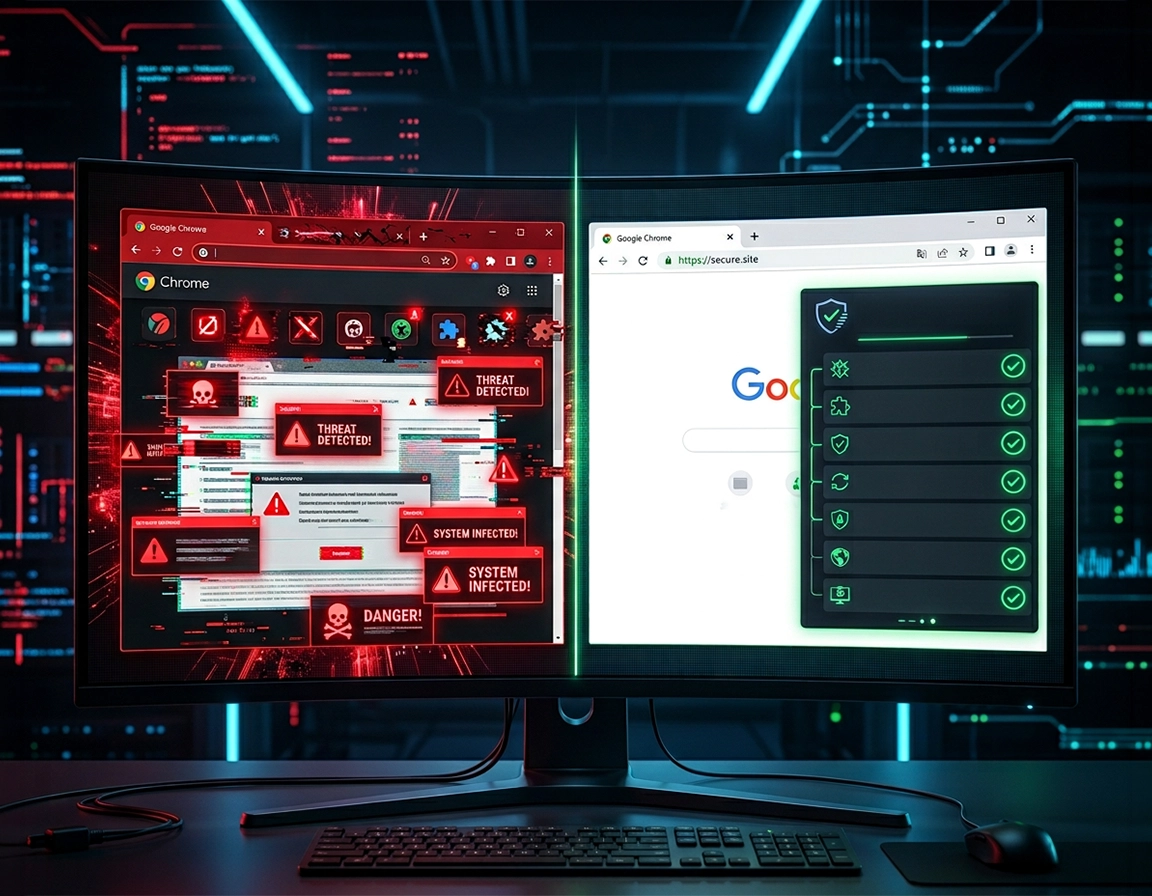
Where Chrome contamination usually hides .
“Chrome has a virus” is usually shorthand for several different failures happening at once.
In the cleanest version of the story, you installed one bad extension, Chrome started redirecting searches, and removing that extension solved it. That does happen. The messier version is far more common: a malicious extension changes your default search engine, injects an affiliate redirect into every typed search, enables site notifications from a junk domain, adds a startup page you never approved, and leaves behind just enough configuration damage that the browser still feels wrong after the obvious extension is gone.
That is why a real cleanup checklist has four layers. First, remove anything actively manipulating the browser. Second, repair the settings that were altered. Third, scan the operating system or mobile device for the program that installed or reinstalled the nuisance. Fourth, harden Chrome so the next fake codec installer, coupon extension, or “Allow notifications to verify you are human” prompt does not get the same foothold again.
Symptoms help you identify which layer failed. Searches that suddenly bounce through unfamiliar domains point toward hijacked search settings or an extension hooking search queries. Tabs that reopen the same scam page after every launch usually mean the startup page list was changed. Endless notification spam from domains you do not recognize is often just a site permission problem, not full device malware. A personal computer that suddenly says “managed by your organization” deserves extra scrutiny, because Chrome’s own help flow tells users to inspect chrome://management and chrome://policy, then remove unwanted programs and extensions if those policies are not expected.
Related: if the infection appears to be extension-driven, read Chrome Unwanted Extensions Removal and Chrome Remove Malicious Extensions.
Four signals that call for the full checklist, not a one-click reset .
- Search results route through a domain you never chose: especially if the address bar briefly shows a random intermediary before landing on a search provider.
- Chrome opens tabs or pages by itself: common with homepage hijacks, notification abuse, or a startup-page list that was modified.
- Fake security warnings keep returning: many are web push notifications or scam pages, but repeated recurrence means the entry point was not removed.
- The browser feels wrong even when nothing obvious is on screen: slower launches, CPU spikes, constant network activity, or login prompts that appear in pages where they never used to.
Three-minute triage before you start deleting things .
Spend three minutes here and you save twenty later. A browser problem that disappears in Incognito mode usually points at an extension, cached site data, or a permission stored in the normal profile. A problem that affects every browser on the machine points lower, toward the operating system, network software, or a resident unwanted program. A password warning or suspicious sign-in event may be account security rather than browser malware, although the two can overlap if a malicious extension harvested credentials.
Only Chrome is affected. Incognito behaves differently. The issue follows one profile but not another. Search engine, homepage, permissions, or extensions look unfamiliar.
Multiple browsers misbehave. Pop-ups appear outside Chrome. CPU and battery drain are abnormal. The same extension or setting returns after removal.
Do these checks before changing anything else:
| Symptom | Most likely layer | First place to look | Why it matters |
|---|---|---|---|
| Searches bounce through a strange domain | Chrome setting or extension | Search engine list, site search entries, extension details | Hijackers often hide in the path between your typed query and the final search provider. |
| The same scam page opens every launch | Startup setting or OS launcher | On startup pages, startup apps, login items | A restart loop usually means the page was saved or launched by software outside the tab you closed. |
| Notification spam keeps arriving | Site permission | Chrome site notification permissions | Users often misread this as a virus when it is really an abused permission that survives tab closure. |
| Problems return after reboot | Device-level persistence | Installed apps, Defender scan, Mac login items, Android apps | Persistence after reboot is a strong sign the browser was only the visible surface. |
- Open an Incognito window and test the same site. If the problem vanishes there, start with extensions and permissions. Google’s own troubleshooting guidance for loading issues points users toward Incognito and disabling extensions because those are common causes of bad browser behaviour.
- Look at another Chrome profile, or create one if needed. If the second profile is clean, your main profile is contaminated or over-modified rather than Chrome itself being broken.
- Check whether only one device is affected. If your desktop is bad but your phone signed into the same Google account is normal, the issue is probably local to the desktop. If suspicious sign-ins or password alerts appear everywhere, treat account security as part of the incident.
- Write down the visible symptoms before you reset anything. That list becomes your proof-of-clean marker later. When the browser is back to normal, you want to verify the redirects, pop-ups, notification spam, or forced startup tabs are all gone.
Related: if Chrome became sluggish after the infection, also review Chrome Browser Slow After Virus Fix and Fix Slow Chrome Browser Step by Step.
The ordered cleanup sequence .
This is the core workflow. Run it in order. Skipping around creates blind spots, because later steps can erase clues you needed earlier or allow the same infection path to restore itself.
- Disconnect the active nuisance. Close the scam tab, but do not click inside it. If the page traps you with endless alerts, force-close the tab or close Chrome completely. On iPhone and iPad, Google specifically suggests turning airplane mode on, closing the tab, then closing Chrome when a pop-up or dialog will not go away.
- Remove extensions you do not trust. In Chrome on desktop, go to
More → Extensions → Manage extensions. Remove anything unfamiliar, recently installed, badly reviewed, oddly named, or asking for more access than its function justifies. Chrome’s current extension help also lets you inspect site access under an extension’s Details panel, so use that to spot extensions set to read and change data on all sites when they do not need that scope. - Inspect search engine settings. Go to
Settings → Search engine → Manage search engines and site search. Delete or demote unknown providers and restore the one you intentionally use. Search hijackers often leave the visible default looking normal while sneaking an extra site search or intermediary redirect into the list. - Repair startup pages and homepage. Under
Settings → On startup, check whether Chrome is set to continue where you left off, open the New Tab page, or open a specific set of pages. If scam tabs keep coming back on launch, the “Open a specific page or set of pages” list is where many infections announce themselves. Then openSettings → Appearanceand verify the Home button destination if you use it. - Kill notification abuse. Open
Settings → Privacy and security → Site settingsand inspect Notifications. If you previously clicked “Allow” on a fake “verify you are not a robot” prompt, that domain can keep sending scareware even after the original site is closed. Remove or block every junk domain in the allowed list. - Check broader site permissions and stored site data. In Site settings, review pop-ups and redirects, ads, automatic downloads, and the list of sites storing data. This is where annoying behavior sometimes survives because the extension is gone but the site permission remains.
- Run Safety Check. On desktop Chrome, go to
Privacy and securityand open Safety Check. Google’s current documentation says it checks for compromised, reused, or weak passwords and reviews Safe Browsing status. On many systems it also surfaces extension and permission issues in a way regular users notice faster than manual menu hunting. - Review Safe Browsing level. Open
Privacy and security → Securityand confirm Safe Browsing is not disabled. If you are cleaning up after a real infection event, Enhanced or at least Standard protection should be on before you resume normal browsing. - Delete relevant browsing data. Clearing everything is not always necessary, but removing cached junk, cookies, and site data from the infection period can stop sticky redirect loops. Use
Delete browsing dataand be deliberate. If you are still signed into sensitive services, make sure you know whether a full cookie purge will sign you out everywhere. - Reset Chrome settings. Use
Settings → Reset settings → Restore settings to their original defaults. Google notes that this is not a full reset of everything; some items such as fonts or accessibility settings are not removed. Chrome’s malware help page also reminds you that after a reset, you should only turn extensions back on if you trust them. In practical terms, that means this step repairs many browser settings, but it does not absolve you from checking the machine below Chrome. - Restart Chrome and then restart the device. This is where recurring problems often expose themselves. If the same rogue search provider or extension returns after reboot, you are probably dealing with a local program, login item, managed policy, or a synced contamination source.
- Run the device scan layer. Do not stop at the browser. Use the Windows, Mac, Android, or iPhone steps in the next section. Microsoft’s current guidance explicitly says to scan if you suspect a device is infected or want to confirm a previous infection is really cleaned.
What success looks like: the browser opens to the page you expect, searches go directly to the provider you selected, unknown extensions are gone, notification spam stops, fake alerts do not reappear after reboot, and the same settings remain stable the next day.
Related: if your main symptom is search hijacking or homepage drift, also use Chrome Search Engine Hijacked Fix, Chrome Homepage Keeps Changing Fix, and Chrome Browser Redirect Removal Guide.
Checklist shortcuts by symptom .
- Fake virus warning pages: focus on notification permissions, startup pages, and extension removal, then reset Chrome.
- Searches opening Yahoo, Bing, or a random engine you never chose: focus on search engine settings, site search entries, extensions, and reset.
- Tabs opening by themselves: focus on startup pages, notification permissions, suspicious extensions, and OS-level adware scan.
- Password theft concern: treat it as a security incident. Clean the device, then change passwords from a device you trust, beginning with your email and password manager.
Device scan layer by platform .
Browser malware is often just the visible part. The underlying installer can be a bundled Windows program, a rogue Mac item that launches at sign-in, or an Android app that pushed you into a browser permission trap.
Windows cleanup layer .
On Windows, start with Microsoft Defender. Microsoft’s current support guidance says that if you suspect infection, or want to confirm a previous infection is actually cleaned, you should run a scan. That matters because Chrome symptoms such as unexpected ads, redirects, sudden slowness, reduced battery life, and background data usage are also signs Microsoft associates with malware activity.
- Run a standard scan first: open Windows Security and run a virus and threat scan.
- If the problem keeps returning after reboot: use Microsoft Defender Offline, which scans in the Windows Recovery Environment before normal startup software can interfere.
- Check installed apps by install date: remove software you do not recognize, especially items added right before the Chrome problem started.
- Inspect browser-related launch points: scheduled tasks, startup apps, and anything that reopens a URL or executable at sign-in are worth scrutiny on badly hijacked systems.
Related: if you need a browser-first diagnostic before the OS scan, use How to Scan Chrome for Malware and Chrome Malware Scan With Antivirus.
Mac cleanup layer .
Mac infections around Chrome are frequently less dramatic than Windows adware, but the pattern is familiar: a fake update prompt installs a helper, the helper drops a configuration change or repeatedly opens malicious pages, and Chrome gets blamed. Apple’s current Mac security guidance still starts with a basic principle that matters here: only allow apps from the App Store or identified developers. If the infection came from a cracked utility, fake Flash-style updater, or a “video helper” downloaded from a junk domain, Chrome was only the delivery vehicle.
- Remove recently added suspicious apps. Focus on anything with generic names such as “Search Utility,” “Helper,” “Manager,” or “Update Tool.”
- Check Login Items and background items. If the browser problem returns immediately after sign-in, that launch path deserves attention.
- Review Profiles if your Mac has one you did not intentionally install. Unexpected management profiles can force browser or network behaviour.
- Update macOS after cleanup. Security fixes are part of the recovery, not an optional extra.
Android cleanup layer .
On Android, Google’s own Chrome malware help flow starts with removing problematic apps and then turning on Play Protect scanning. That sequence is worth following because what looks like “Chrome keeps showing porn pop-ups” or “Chrome keeps redirecting me” is often an app-triggered browser event plus a granted notification permission on the web side.
- Uninstall recently added apps first. If the problem started after installing a cleaner app, wallpaper app, APK, or keyboard, begin there.
- Turn on Play Protect scanning. Google tells users to open the Play Store, enter Play Protect settings, and enable app scanning.
- Revoke site notifications in Chrome. If a junk site was granted permission, open the affected site, then its permissions, and switch notifications off.
- Run Android Safety Check in Chrome. Chrome on Android has a current Safety Check path under Settings that can flag issues requiring attention.
iPhone and iPad cleanup layer .
Chrome on iPhone and iPad is more constrained than desktop Chrome, so a full-blown malicious extension ecosystem is not the usual story. The more common problem is a bad site, an abusive pop-up loop, or a notification-style scare page. Google’s current iPhone instructions are practical: if a pop-up or dialog box will not go away, turn airplane mode on, close the bad tab, and close Chrome before reconnecting.
- Close the trapped tab while offline. This prevents the page from continuing to reload or throw scripts.
- Check content settings for pop-up behaviour. Chrome on iPhone and iPad still exposes pop-up controls in settings.
- Clear the browsing data tied to the event. That can break loops caused by site data or stale state.
- If the issue involves account security rather than pop-ups: move immediately to password changes from a trusted device after the browsing session is closed.
Credential and sync containment after a dirty session .
A browser cleanup can be technically complete while the security incident is still open. The dividing line is simple: if you only saw junk notifications and never typed credentials anywhere suspicious, you are probably dealing with nuisanceware. If you typed a password into a fake Microsoft 365 page, a bogus Google login, a crypto wallet prompt, or a “session expired” form that appeared after a redirect, the cleanup moves beyond Chrome settings and into containment.
Start with the account that controls your recovery chain. For most people that is email. Change that password from a device you trust, review recent sign-ins, then move outward to banking, social accounts, cloud storage, developer logins, shopping accounts, and anything protected by SMS or authenticator codes. Chrome’s current Safety Check can surface compromised or reused passwords, but do not treat that as a substitute for incident response when you know a credential was typed into the wrong page.
Now look at sync. Sync is useful, but after a dirty browser session it can also behave like a contamination courier. If a malicious search provider, extension preference, or autofill artifact was synchronized before the cleanup, another signed-in instance can quietly reintroduce it. That is why recurring hijacks sometimes seem supernatural: the user cleans the desktop, signs back in everywhere, and the rot returns from a second machine they forgot to inspect.
Change exposed passwords from a trusted device, review recovery email and MFA settings, sign out suspicious sessions, and check whether synced Chrome instances on other machines still carry the bad extension or altered search engine.
Do not reuse a password “just for now,” and do not assume that a cleaned browser automatically means your saved passwords, cookies, or sign-in state were never touched.
Related: if the incident involved saved credentials or suspicious sign-in behavior, continue with Chrome Browser Passwords Stolen: What to Do, Chrome Browser Data Breach Response, and Chrome Data Leak Detection.
A clean browser is not enough if these happened .
- You entered a password after a redirect: rotate it from a trusted device.
- You approved a browser extension right before the compromise: check what sites and data it could read, then assume session exposure until proven otherwise.
- You used the same Google account on multiple Chrome installs: inspect each one before treating the incident as closed.
- You synced payment details or stored cards in the browser: review financial accounts and transaction alerts even if Chrome now looks normal.
Post-cleanup hardening that actually sticks .
Cleanup without hardening is just tidying the crime scene. Once the browser is stable, strip away the convenience habits that made the infection cheap to land: too many extensions, permissive notifications, saved startup pages you forgot about, and a search-engine list cluttered with providers you never intentionally added.
Most overlooked gap: re-enabling every old extension out of habit.
Post-cleanup baseline that makes sense for most users .
- Safe Browsing: keep it on, and consider Enhanced protection if you are frequently exposed to downloads, unfamiliar websites, or client-shared files.
- Extensions: reinstall only what you can name, justify, and audit. Fewer is safer.
- Notifications: deny by default. Most users do not need browser notifications from random sites at all.
- Startup pages: use New Tab unless you have a deliberate reason not to.
- Search providers: trim the list so there is no room for junk entries hiding in plain sight.
- Password exposure checks: review Chrome Safety Check results and change any credentials flagged as compromised.
Recommended settings by goal .
| Goal | Recommended setup | Tradeoff | Best for |
|---|---|---|---|
| Balanced cleanup baseline | Standard or Enhanced Safe Browsing, trimmed extension list, notifications blocked unless necessary, startup on New Tab | Some convenience features disappear | Most home users |
| Maximum caution after an actual compromise | Enhanced protection, password changes from a trusted device, extension reinstall from zero, broader data cleanup | More prompts and more setup time | Users who entered credentials on a malicious page |
| Managed environment | Admin-controlled extension policy, controlled browser policies, visibility into installed apps and extensions | Less user freedom | Business and school devices |
Related: for prevention after a successful cleanup, use How to Prevent Malware in Chrome, Chrome Safe Browsing Best Practices, and Chrome Malware Prevention Checklist.
Enterprise and managed-browser note .
On business or school devices, do not improvise around policy. Google’s enterprise documentation makes it clear that admins can manage browser behaviour across Windows, Mac, and Linux devices, enforce machine-level policies, and centrally install or block extensions. If a browser is genuinely managed, a local user may not be able to fix a policy-driven search provider or extension list from the Chrome UI. In that case, escalate through the admin path rather than fighting the browser one setting at a time.
Related: if the device is managed, continue with Chrome Enterprise Threat Removal Guide, Remove Malware from Managed Chrome Devices, and Chrome IT Admin Malware Removal.
When the reset did not fail — it just was not enough .
A Chrome reset is useful, but Google explicitly says it does not wipe absolutely everything. That matters because advanced or persistent cases are usually not living inside the exact settings the reset repairs.
The bad extension is gone, but search still changes back .
This usually means one of three things: the device still has adware, Chrome sync reintroduced the contamination from another signed-in environment, or a policy is enforcing behaviour. Check chrome://policy and chrome://management if the browser looks managed on a personal device. If those pages show policies or management you do not expect, investigate the local software that created them before wasting more time inside ordinary settings menus.
Pop-up scams stopped, then returned from the same domain .
You probably closed the tab but never revoked the site permission. Notification abuse survives beautifully when users remove the tab and ignore the permission list. Open Site settings and clear the domain from notifications, pop-ups, and stored site data. On Android, follow the site permission route Google documents for turning off notifications on the exact offending site.
Chrome opens clean, but the machine still feels infected .
That is your signal to stop treating this as a browser-only problem. Microsoft’s own symptom list includes sudden slowness, battery drain, extra data usage, pop-ups, and redirects as malware clues. If those remain after Chrome appears normal, keep working the OS layer until the machine itself is stable.
You entered a password on a malicious page .
Do not wait for another sign. From a device you trust, change the password for the compromised site first, then the email account tied to password resets, then any reused passwords. Review passkeys, saved payment methods, and MFA settings. Browser cleanup is only half the response once credentials are involved.
Related: if you suspect account theft or credential capture, continue with Chrome Browser Passwords Stolen: What to Do, Chrome Remove Keylogger, and Chrome Remove Spyware.
FAQ .
-
helpDoes resetting Chrome remove malware completely?No. Resetting Chrome repairs many browser settings, but Google’s own reset documentation says it is not a total wipe of everything. More importantly, a reset does not remove the Windows program, Mac launch item, Android app, or policy that may have caused the browser changes in the first place.
-
helpWhy does Chrome keep showing “managed by your organization” on my personal computer?That message can be legitimate on work or school devices, but on a personal machine it deserves inspection. Check
chrome://managementandchrome://policy. If you see policies, extensions, or programs you do not recognize, Google’s own guidance points you toward removing unwanted software, unknown extensions, resetting Chrome, and restarting the device. -
helpShould I clear all browsing data after a Chrome infection?Usually clear at least the data connected to the event, especially if redirects or malicious site state keep returning. A full wipe is sensible when the infection involved fake login pages, repeated redirect loops, or site permissions you no longer trust. Just remember that full cookie deletion signs you out of sites.
-
helpWhat is the biggest mistake people make during Chrome malware cleanup?They stop after the first visible fix. A removed extension feels like success, but if the search provider, startup list, notifications, or device-level installer were left behind, the problem often comes back. A complete cleanup always includes the browser repair layer and the device scan layer.
Sources & further reading .
- Google Chrome Help: Remove unwanted ads, pop-ups & malware (Computer)
- Google Chrome Help: Reset Chrome settings to default
- Google Chrome Help: Manage Chrome safety and security
- Google Chrome Help: Install and manage extensions
- Google Chrome Help: Change site settings permissions
- Google Chrome Help: Set your homepage and startup page
- Google Chrome Help: Set default search engine and site search shortcuts
- Microsoft Support: How to start a scan for viruses or malware in Microsoft Defender
- Apple Support: Change Privacy & Security settings on Mac
- Apple Support: Change Login Items & Extensions settings on Mac
- Apple Support: Use configuration profiles to standardize settings on Mac
- Google Chrome Help: Block or allow pop-ups in Chrome
- Google Chrome Help: Check if your Chrome browser is managed
Editorial note: this page focuses on Chrome cleanup mechanics and browser security hygiene. If credentials were entered on a malicious page, treat the event as an account-security incident, not just a browser glitch.