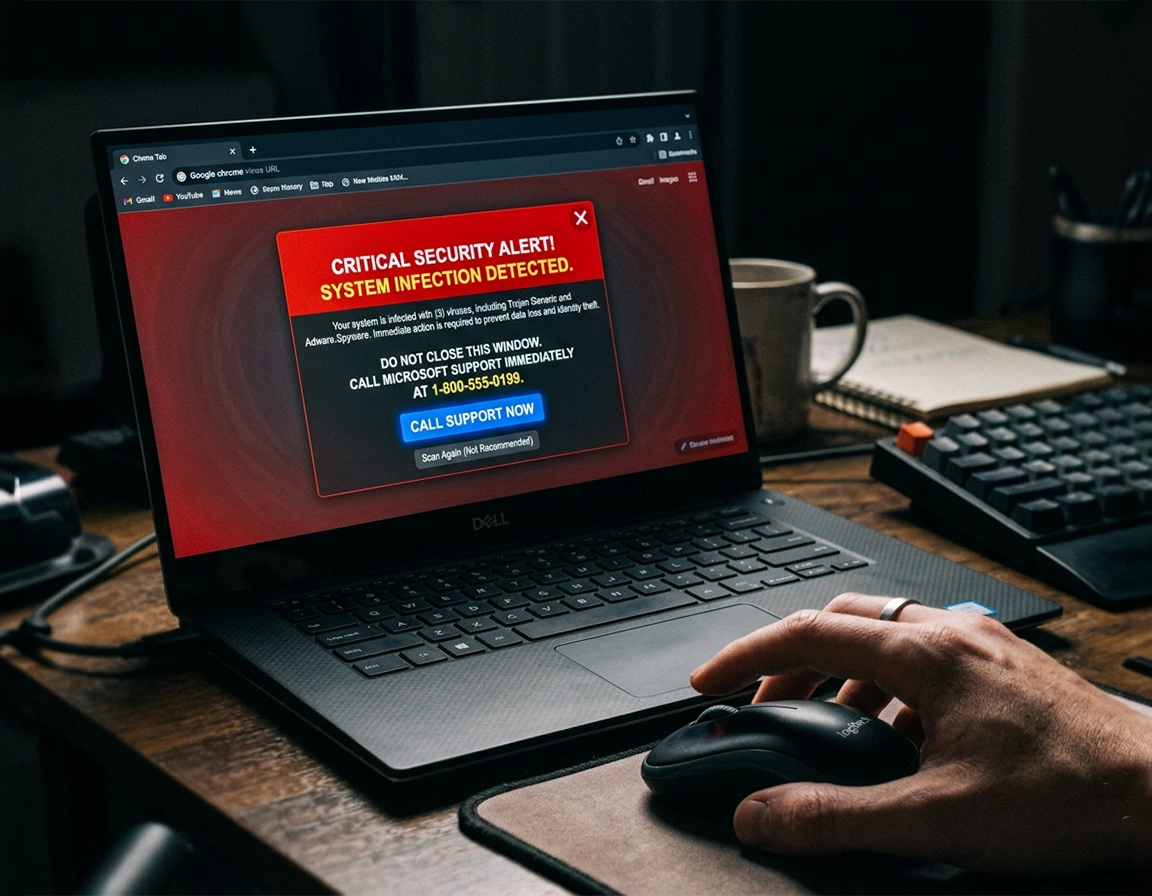
Spot the pattern before you start clicking .
A fake virus alert in Chrome usually announces itself with too much drama and too little evidence. The tab goes fullscreen, the page starts blaring an alarm, a robotic voice warns that files are being stolen, and a banner insists that your Windows license, Apple ID, or bank account is in immediate danger. The page often shows a phone number, a countdown, or a giant button labeled Scan Now, Fix Now, or Contact Support. That combination is not how Chrome presents a real browser warning. It is how a scam page tries to stop you from thinking for ten seconds.
The delivery method matters more than the wording. If the message is trapped inside a browser tab, you are probably dealing with a malicious or deceptive page. If the warning appears as a small desktop banner even when that site is not open, the source is often a notification permission you granted earlier after a fake CAPTCHA, a “click Allow to continue” prompt, or a deceptive streaming/download page. If Chrome starts opening unknown pages on launch, changing your search engine, or restoring the same scare screen after restart, then you should suspect browser persistence from a rogue extension, startup-page change, or unwanted software.
That distinction is why so many cleanup attempts fail. People hear the words virus alert, assume the operating system is infected, and jump straight into emergency-mode scanning without checking the simpler browser layer first. Then the notification prompt they allowed three days earlier keeps firing in the corner of the screen, and it looks as if “the virus came back.” In reality, Chrome is still obeying a permission the user accidentally granted.
Look closely at the content itself. Scam pages mix technical vocabulary with impossible behavior. They claim a website has already scanned system memory, found banking trojans, locked the keyboard, corrupted registry files, and verified your identity risk, all before you have clicked anything. A browser tab does not gain that kind of visibility from loading a page. What it can do is play sound, request fullscreen, throw repeated dialog boxes, open popups, and imitate the visual language of security software. The performance is convincing only if you assume the page is telling the truth about what it can see.
Related: If this fake alert is only one symptom and Chrome is also redirecting searches, changing its homepage, or reopening suspicious tabs, continue with Chrome browser hijacker removal, Chrome homepage keeps changing fix, and Chrome search engine hijacked fix.
The three sources behind most “Chrome virus alert” complaints .
- One hostile tab: a scam page loaded through an ad, redirect chain, typo domain, search result bait page, or compromised website.
- Notification abuse: a site you allowed to send notifications is now using Chrome’s push system to deliver fake infection warnings long after the original visit.
- Persistence inside Chrome: an extension, modified startup page, search hijack, or unwanted software keeps reviving the scam route after restart.
The first five minutes: contain the scare without feeding it .
The first rule is mechanical: stop interacting with the page. Do not click the close-themed buttons inside the warning, do not press the phone number, do not accept browser prompts you did not expect, and do not download the utility it claims will “clean” the system. Fake alert pages are built around forced momentum. They want you moving quickly enough that you no longer separate the browser page from your device.
If the tab can be closed normally, close it. If it throws repeated “Leave site?” prompts, enters fullscreen, or keeps generating popups faster than you can dismiss them, shut down the window instead of trying to out-click it. On Windows, Alt + F4 is often the fastest route. If Chrome refuses to close, open Task Manager with Ctrl + Shift + Esc, select Chrome, and end the process. On Mac, use Command + Option + Esc and force quit Chrome. These are not “advanced malware steps”; they are simply the cleanest way to cut off a manipulative page.
Once Chrome is closed, pause before reopening it. If Chrome is set to restore your previous session, the same page may come straight back and create the illusion that it somehow survived a shutdown. That behavior is useful diagnostic information. It means you need to inspect startup behavior, session restore, or extensions after relaunching rather than treating the page as a one-off annoyance.
It also helps to remember what not to trust. Sirens, spoken voices, fake scan bars, and red flashing shields are page effects. Brand logos are easy to copy. Phone numbers inside browser warnings are a classic scam marker, especially when the page claims to be Microsoft, Windows Security, Apple Security, Norton, or McAfee. If the warning says “Call now to unlock your computer,” you are not looking at a legitimate support workflow.
- Do not believe urgency-by-design: countdown timers and “system will be disabled” language are there to make you stop judging the page.
- Do not believe keyboard lock claims: a trapped page can interfere with normal browsing, but the wording usually exaggerates what actually happened.
- Do not assume louder means worse: some of the noisiest fake alerts are only abusive web pages with audio autoplay and dialog spam.
- Do not restore the same session blindly: if Chrome offers to bring back the hostile page, decline first and investigate second.
Related: If you want to check whether the behavior fits a broader browser compromise, read how to check if Chrome has a virus and Chrome malware symptoms guide.
Desktop cleanup sequence that catches the real source .
Once the page is no longer screaming at you, clean Chrome in an order that isolates the source instead of smashing every setting at once. A lot of “I reset Chrome and it still came back” cases happen because the browser was reset before the actual trigger was identified. Work through the browser in layers: notifications, extensions, startup, search, downloads, then reset only if the browser has clearly been altered in multiple places.
- 1 Relaunch Chrome without restoring the trap. If Chrome asks to reopen the last session, decline if the scam page was part of that session. If the warning appears immediately anyway, note whether it appears as a restored tab, startup page, extension-generated tab, or notification banner.
- 2 Audit notification permissions first. Go to Settings → Privacy and security → Site settings → Notifications. Remove domains you do not fully recognize, especially anything random-looking, heavily hyphenated, oddly spelled, or pretending to be a known brand. If the warning appeared as a corner notification instead of an active tab, this step is often the entire fix.
- 3 Open
chrome://extensionsand disable broadly suspicious add-ons. Pay special attention to recent installs, “utility” extensions you never really used, coupon tools, video downloaders, PDF converters, AI summarizers from unknown publishers, and anything asking to read and change data on all sites without a solid reason. - 4 Check startup pages. Open Settings → On startup. Remove any page you did not intentionally set. Scam-related startup entries often look like a random search portal, a fake support page, or a generic landing page that then redirects somewhere worse.
- 5 Check your default search engine and site-search list. Go to Settings → Search engine and Manage search engines and site search. If Chrome now routes queries through an unfamiliar domain, restore your preferred engine and delete the rogue entry. Fake-alert campaigns and search hijacks frequently ride together.
- 6 Inspect downloads and recently added programs. Delete any “cleaner”, “browser protection”, “support assistant”, or unknown installer you downloaded during the incident. If you ran it, the problem has moved beyond browser cleanup and you should plan a device scan.
- 7 Reset Chrome only when the browser itself was altered. Use Settings → Reset settings → Restore settings to their original defaults if you found multiple browser changes, extensions you no longer trust, or persistent settings drift after manual cleanup.
- 8 Scan the device when the event crossed outside Chrome. A downloaded or executed file, shared credentials, payment exposure, or remote-access session turns this into a system-security incident, not just a browser nuisance.
What success looks like: Chrome opens without reviving the scare page, no unknown domain remains under Notifications or On startup, your search engine stays fixed after restart, and the browser can sit idle without throwing tabs, banners, or sound-based warnings.
Extensions deserve extra suspicion because fake-alert campaigns often arrive in two stages. Stage one is the scare page. Stage two is the “helpful” browser add-on or side-loaded installer that promises to keep you safe. Once installed, that extension can open its own landing pages, replace search behavior, inject affiliate links, or create exactly the kind of looping support-scam behavior people describe as “Chrome keeps telling me I have a virus.” If the timing lines up with a new extension, disable it before you test anything else.
Downloads deserve the same discipline. Plenty of fake virus alerts are harmless until the user downloads the “repair” package. The browser page is manipulation; the downloaded file is the point where the campaign tries to monetize or escalate. If you fetched a ZIP, DMG, EXE, PKG, or installer-style file during the incident, remove it immediately unless you have independently verified what it is and where it came from.
Related: If Chrome is now opening random pages, redirecting unexpectedly, or crawling after the fake alert incident, continue with Chrome keeps opening random tabs fix, Chrome browser redirect removal guide, and Chrome browser slow after virus fix.
Fast symptom-to-cause map .
| What you are seeing | Most likely cause | Best first move |
|---|---|---|
| One screaming tab with fake scanning graphics | Malicious or deceptive page | Force-close the tab or browser and avoid restoring the session |
| Alerts in the desktop corner after Chrome is reopened | Notification permission abuse | Delete unknown sites from Notifications immediately |
| New homepage, new search engine, startup tabs changed | Rogue extension or browser hijack | Disable extensions, fix startup/search, then reset if needed |
| Other browsers or the operating system now feel affected | Downloaded unwanted software or malware | Move to system-level scanning and installed-program review |
If you clicked, downloaded, signed in, or called, the response changes .
Cleanup becomes much more specific once the incident includes an action you took on the page. “I saw the warning” and “I installed what it told me to install” are not the same event. The browser steps still matter, but the real priority shifts toward the thing the scam might have gained from you: notification permission, software execution, credentials, payment data, or remote access.
You clicked Allow and now warnings reappear in the corner of the screen .
This is usually a notification-permission problem, not proof of infection. Remove the site from Chrome notifications, clear its site data if you can identify it, and then observe whether the fake alerts stop. If they do, the page never needed deep system access in the first place; it only needed permission to keep shouting at you.
You downloaded a file but never opened it .
Delete it from Chrome downloads and from the Downloads folder, then empty the recycle bin or trash. Review extensions and startup behavior anyway, because the same session may have introduced browser changes alongside the download lure. If nothing was executed, the browser may still be salvageable without a bigger incident response.
You opened the file or installed a so-called repair tool .
At that point, stop thinking in “browser only” terms. Review installed apps, run a reputable device scan, and assume the browser scare page was just the delivery system. If system startup changed, security tools were disabled, or the same behavior appears in other browsers, you are handling a device-level compromise path rather than a Chrome annoyance.
You entered an account password on the page .
Change that password from a clean device or after you have scanned this one. Then review account activity, recovery options, forwarding rules for email, active sessions, and two-factor settings. Fake support pages often use infection language to funnel users into credential theft. The browser may end up fine while the account is the part that was actually targeted.
You called the phone number or granted remote access .
Treat the situation seriously. Uninstall the remote-access tool they asked you to use, disconnect if you suspect the session is still active, change important passwords from a clean device, review bank and card activity, and scan the computer thoroughly. If they had control long enough to browse files, open email, or log in anywhere, do not assume the damage is limited to the payment they asked for on the call.
Related: Pages that push phone numbers and fake “call support now” language overlap heavily with Chrome tech support scam removal. If the browser later became unstable or hijacked, add Chrome malware cleanup guide and Chrome browser hacked how to fix.
The notification trap: why fake alerts return when the site is no longer open .
This is the version that makes users doubt themselves. The original scam page is gone, but Chrome continues dropping banners that claim your device is infected, your subscription expired, your bank session is compromised, or your storage is corrupted. Because the banner appears outside the tab that caused it, it feels more “system-level” than it really is. In many cases, Chrome is only delivering a site notification from a domain you accidentally approved.
The permission is often obtained through deception rather than force. A page says “Click Allow to verify you are not a robot”, “Allow to watch the video”, “Allow to continue”, or “Allow to start download.” Nothing about that wording mentions notifications, but the browser prompt is still a notification request. Once granted, the site can keep sending fake security warnings that look detached from the original visit.
Notification-abuse domains are rarely memorable. They imitate trust while hiding in plain sight: awkward spelling, random character strings, or generic words like secure, update, check, notify, defender, clean, verify, guard, or protect. If a domain under Notifications does not belong to a service you deliberately use and want updates from, remove it. Do not give the site the benefit of the doubt because the wording sounds security-themed.
After removing the site, clear its site data if you remember how you reached it. That step helps if the same domain was also using cookies or storage to reopen prompts or trigger redirects. Then monitor Chrome while idle. If no more banners appear, you have likely solved the issue at the correct layer. If the warnings continue, revisit extensions. Some ad-heavy or malicious extensions create alerts that look similar to notification abuse even when the site permission is already gone.
Related: If the behavior looks more like endless popups than a fake antivirus warning, compare this page with Chrome pop-up virus removal and remove adware from Chrome.
Notification permissions worth removing on sight .
- Sites you do not remember visiting or approving.
- Domains tied to streaming, file conversion, cracked software, fake CAPTCHA pages, coupon traps, or “free download” funnels.
- Brand lookalikes that are clearly not the real domain.
- Any site whose messages are unrelated to the service it supposedly provides.
Know when a Chrome reset is enough and when you need a real malware scan .
A Chrome reset is appropriate when the contamination stayed inside the browser. That includes altered startup pages, a changed search engine, suspicious extensions, lingering permissions, or a browser that now behaves differently after the scare page episode. Resetting gives you a clean baseline, disables extensions, and strips away a lot of browser-level persistence without deleting core personal data like bookmarks.
A system-level scan is the smarter move when the incident included software execution or anything that reached beyond Chrome. If you installed an app, opened a downloaded executable, saw popups outside the browser, noticed problems in other browsers, or let someone remote into the computer, Chrome is no longer the whole story. In that case, a browser reset is still useful, but it is secondary. The higher-value question becomes: what landed on the device, and what else did it touch?
Low: you saw a scare page, closed it, and did not interact.
Medium: you granted notification permission, installed a suspicious extension, or browser settings changed.
High: you ran software, entered credentials, shared payment details, or allowed remote control.
There is also a common overcorrection worth avoiding: installing multiple “cleaner” extensions after a fake alert. That usually adds more privileged code to the browser at exactly the wrong moment. A careful reset plus a reputable device scan is usually more defensible than adding a stack of security-branded extensions from publishers you have never heard of. If you are evaluating that layer more carefully, compare best antivirus for Chrome, antivirus extension vs desktop antivirus, and best malware removal tool for Chrome.
Recommended response by scenario .
| Scenario | Recommended action | Tradeoff | Best for |
|---|---|---|---|
| Single scam page, no interaction | Close it, avoid restoring the session, inspect notifications once | You could miss a hidden extension if you stop too early | One-off scare pages |
| Repeat warnings or altered browser settings | Check notifications, extensions, startup, search, then reset Chrome | Extensions will need to be re-enabled selectively | Browser-level persistence |
| Downloaded or ran software | Do browser cleanup and run a reputable device scan | Takes longer and may reveal system-level cleanup work | Potential malware delivery |
| Called the number or granted remote access | Treat it as an account and device incident, not just a browser issue | More extensive recovery and monitoring | High-exposure scam outcomes |
Plain-English summary: A fake virus alert page is often just a page. A fake virus alert that keeps coming back means something inside Chrome is helping it. A fake alert followed by software installs, passwords, or remote access is no longer “just Chrome.”
Stubborn cases, weird relapses, and cleanup dead ends .
The warning only returns after I sign in to Chrome .
If the issue follows your profile between machines or reappears when sync turns back on, inspect synced extensions and browser settings tied to the signed-in profile. A bad extension or startup configuration can travel with sync, making the problem look like a fresh infection on every device you log into.
I removed the notification, but random tabs still open later .
That usually points to an extension or startup-page problem rather than notification abuse. Revisit chrome://extensions, especially anything installed recently or anything with broad site access and a vague feature set. Random tabs that appear long after the original scare page are rarely caused by a site you already closed and forgot about.
The fake alert is gone, but searches still route somewhere strange .
That is a search hijack symptom, not a leftover cosmetic issue. Check the default search engine, site-search entries, and extensions. If the browser routes normal queries through an unfamiliar intermediary before landing on real results, you still have persistence to remove.
Only Android is affected .
Mobile cases are often notification permission abuse, a sticky open tab, or an app-level redirect path rather than deep compromise. Clear the hostile tab, review Chrome notifications and site permissions, and look at recently installed apps if the behavior started after adding something new. Mobile fake alerts often feel more serious than they are because the screen is smaller and easier to dominate.
I want to reset Chrome, but I do not want to wreck my setup .
Before resetting, note which extensions you actually trust and use, make sure you can sign back into critical services if cookies are cleared, and verify that bookmarks and saved passwords are where you expect them to be. Then reset once and test in that clean state. Do not immediately reinstall every old extension, or you may reintroduce the exact component that caused the fake alerts.
Related: If the problem now looks bigger than one page, continue with Chrome malware cleanup guide, how to scan Chrome for malware, Chrome profile reset guide, and platform-specific pages like Windows, Mac, and Android.
FAQ .
-
helpDoes a fake virus alert in Chrome mean the browser found real malware?Usually no. In many cases the page is pretending to be a scanner or security service and relying on audio, fullscreen tricks, and urgent wording. The situation becomes more serious when the page leads to a permission grant, software download, login theft, or remote-access session.
-
helpWhy do these warnings often show Microsoft, McAfee, Norton, or Apple branding?Because familiar brand names lower your skepticism. The branding is often copied into the page body even when the domain has nothing to do with the company being impersonated. The mismatch between the scary message and the actual site origin is one of the clearest scam signals.
-
helpWhat is the most common reason the alert keeps returning after restart?Notification permission abuse is one of the biggest reasons. The next most common causes are suspicious extensions and startup pages that were modified. A single scare page usually does not come back on its own unless something in Chrome is helping it.
-
helpShould I trust a phone number inside a browser security warning?No. Browser-based scam warnings frequently use phone numbers as the main conversion step. Legitimate vendors do not normally present emergency support numbers inside a fake-urgent browser overlay and demand you call before closing the page.
Sources & further reading .
- Google Chrome Help: remove unwanted ads, pop-ups and malware
- Google Chrome Help: block or allow pop-ups
- Google Chrome Help: change site settings permissions
- Microsoft: protect yourself from tech support scams
- FTC: how to spot, avoid, and report tech support scams
- FTC: how to protect against, detect, and remove malware
Disclosure: This page focuses on browser-specific scam containment and Chrome cleanup. If software was executed or account access was exposed, use these browser steps alongside your preferred reputable endpoint-security process.