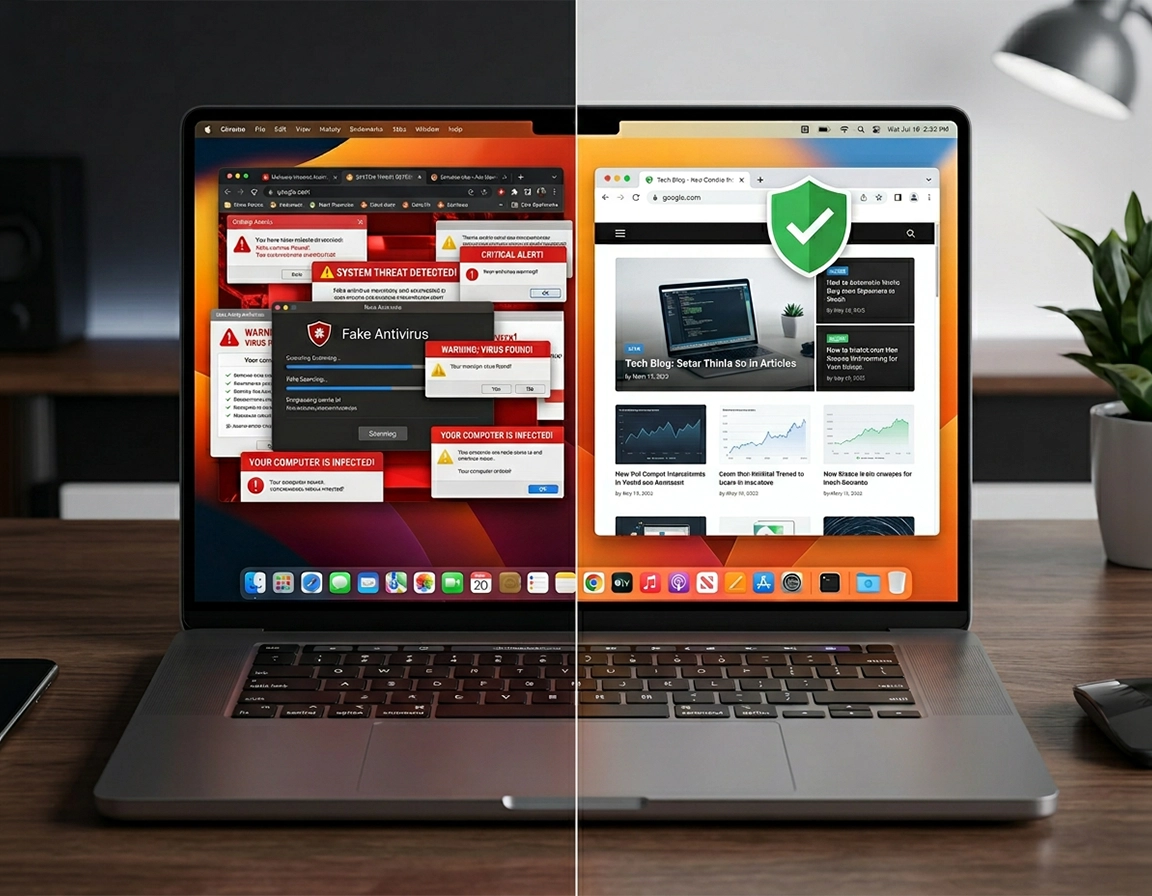
What a compromised Chrome profile looks like on macOS .
This guide reflects current Chrome desktop menus and recent macOS system settings screens, not old Catalina-era instructions.
On a Mac, “Chrome malware” rarely looks like a classic Hollywood virus. More often it behaves like adware, a browser hijacker, a fake search helper, a push-notification abuse campaign, or a packaged “system utility” that quietly installs a profile, drops a background item, and then keeps steering Chrome back to a bad state. Users usually notice it when Google searches stop going to Google, shopping results open through an unfamiliar domain, or Chrome begins throwing fake “Your Mac is infected” tabs that appear the moment the browser launches.
The Mac-specific wrinkle is persistence. You can remove the obvious extension and still watch the problem come back after the next restart because the real trigger lives outside Chrome. A sketchy video converter in Applications, a menu bar cleaner you never meant to keep, an unknown item under System Settings → General → Login Items & Extensions, or a configuration profile under System Settings → General → Device Management can keep reapplying the same hijacked search provider or reinstalling the same extension. That is why a proper Mac cleanup has to move back and forth between Chrome and macOS rather than treating the browser as an isolated app.
Typical cases on macOS follow a pattern. Someone downloads a cracked app, a fake browser update, a PDF helper, a torrent bundle, a “driver updater,” or an extension that promises coupons, AI summaries, or video downloading. Chrome starts showing extra ads. Then notification spam appears in the upper-right corner of the desktop because a site was allowed to send notifications. Soon the default search engine flips to an unfamiliar provider, new tabs open on their own, or Chrome says the browser is managed when the Mac is supposed to be personal. Those symptoms point to different layers of the same problem, and each layer has to be checked separately.
This guide is written for the user who wants the Mac clean, not merely quieter for an hour. It covers the fast browser-side cleanup, the Mac-side persistence checks that people skip, the exact places where unwanted software hides on recent macOS versions, and the signs that tell you the problem is no longer just a browser annoyance but a full device compromise that requires password changes and broader response.
Related: If the infection appears to be tied to an extension, continue with Chrome extension malware removal, Chrome remove malicious extensions, and Chrome suspicious extension detection.
Key terms you will see during cleanup .
- Browser hijacker: software that changes your homepage, startup pages, search engine, or tab behavior without clear consent.
- Push-notification abuse: a site permission issue where Chrome is allowed to send deceptive desktop alerts that look like system warnings.
- Configuration profile: a macOS profile that can enforce settings. On a personal Mac, an unknown profile is a major red flag.
- Background item: a macOS component allowed to run after login and quietly restart unwanted behavior even when Chrome is closed.
- Managed browser state: Chrome applying policies from device or user management. That can be legitimate on a work Mac and suspicious on a home Mac.
Before you start: fast Mac-specific checks .
Before clicking reset, capture evidence. Open Chrome and note the exact behavior: does the problem appear only when you type in the address bar, only when a new tab opens, only after login, or only on one Chrome profile? Those details tell you whether you are dealing with a hijacked search provider, a poisoned startup page, notification spam, or a system-level persistence mechanism. Many Mac users wipe the browser first and lose the clues that would have shown where the infection lived.
Next, check whether the problem is profile-specific. In Chrome, click your profile icon and create a temporary clean profile. If that fresh profile opens to the normal new-tab page, keeps Google as the default search engine, and stops throwing junk notifications, the contamination is probably sitting in extension data, startup-page settings, notification permissions, or synced browser preferences inside your main profile. If the clean profile still opens the same redirect or the same fake warning page, that points away from profile corruption and toward the Mac itself—especially installed apps, background items, profiles, or browser policies.
Also disconnect Chrome Sync for a moment if you suspect the issue may be bouncing across devices. A hijacked search engine, bad startup URL, rogue site-search entry, or extension setting synced from another desktop can reappear minutes after you remove it locally. On cleanup jobs where the browser looks fixed and then snaps back after sign-in, sync is often the reason. The goal is to stop Chrome from restoring contaminated preferences before you finish the Mac-side cleanup.
Related: If Chrome is also running hot, stalling, or reopening unwanted tabs after cleanup, see Chrome running slow on Mac fix and Chrome browser slow after virus fix.
- Fast check 1: Type
chrome://extensionsand look for anything you do not recognize, anything installed “from a file,” or any extension that suddenly has broad access such as Read and change all your data on all websites. - Fast check 2: Open
chrome://settings/searchand verify the search engine and site search entries. Hijackers often leave their name there even after the visible extension is gone. - Fast check 3: Visit
chrome://settings/content/notifications. If a scam domain is allowed, that alone can explain relentless upper-right desktop alerts on macOS. - Fast check 4: In macOS, go to System Settings → General → Login Items & Extensions and look for unknown launch items or background activity you do not associate with trusted software.
- Fast check 5: In macOS, go to System Settings → General → Device Management. A personal Mac usually has nothing there. An unknown profile deserves immediate attention.
Step-by-step removal on Mac .
Disconnect the persistence loop
Quit Chrome with Chrome → Quit Google Chrome or Command-Q. If junk tabs keep reopening from the previous session, relaunch while holding Shift so Chrome does not immediately restore the infected window state.
Audit extensions before changing anything else
Open chrome://extensions and remove anything you did not deliberately install, especially fake utility extensions, coupon injectors, video downloaders, PDF unlockers, and vague “search enhancement” tools. If one looks borderline legitimate, disable it first, restart Chrome, and test before deleting.
Remove abusive notification and pop-up permissions
Check chrome://settings/content/notifications and remove suspicious domains listed under allowed notifications. Then review chrome://settings/content/popups for sites that were granted permission to throw redirects, fake alerts, or deceptive antivirus-style prompts.
Repair search and startup settings
Go to chrome://settings/search and restore your preferred search engine. Then open chrome://settings/onStartup and remove any unfamiliar page configured to reopen whenever Chrome launches. Hijackers commonly alter both areas together.
Reset Chrome’s altered behavior
Open chrome://settings/reset and choose Restore settings to their original defaults. This resets startup pages, new-tab behavior, temporary data, and extension state without deleting bookmarks, history, or saved passwords.
Inspect the Mac-side application source
Open Finder → Applications and sort by Date Added. Look for software installed at the same time the redirects began, such as fake cleaners, “search helpers,” codec packs, torrent bundles, or anonymous menu-bar utilities. Use the built-in uninstaller when one exists.
Review login items and background items
Go to System Settings → General → Login Items & Extensions and remove unknown entries under both login items and background permissions. Persistence components often use bland names such as “Helper,” “Search Service,” or “UpdateAgent.”
Check for unwanted device profiles
Open System Settings → General → Device Management. On a personal Mac, an unfamiliar profile is a major red flag. On a work or school Mac, confirm with IT before removing anything enforced by legitimate management.
Restart the Mac
Rebooting clears lingering launch agents, unloads background helpers that survived manual removal, and allows built-in macOS protections to complete their cleanup cycle.
Update macOS and Chrome
Install pending macOS updates first, then update Chrome from Chrome → About Google Chrome. Outdated builds make reinfection and unwanted download behavior easier to sustain.
Run one reputable second-pass scan
Use a trusted malware scanner after the manual cleanup, not before it. This second pass is useful for catching leftover helpers, background components, or persistence files that keep forcing Chrome back into a bad state.
Verify in a clean Chrome profile
Create or reopen a clean Chrome profile and test search, startup pages, and notifications. Only reconnect sync or rebuild your main profile after the clean profile survives a restart without reintroducing the same symptoms.
What success looks like: Chrome opens to the page you chose, searches stop redirecting, no unknown site can send desktop alerts, the suspicious extension stays gone after reboot, and Chrome no longer reverts to the same bad state when sync reconnects.
Related: Keep this sequence alongside Chrome full malware cleanup checklist, how to reset Chrome after malware, and how to scan Chrome for malware.
Common Mac variations .
- Personal Mac, no company management: Device Management should usually be empty. An unknown profile here is more suspicious than on a corporate device.
- Work Mac or school Mac: “Managed by your organization” may be normal. Focus on unknown extensions, scam notification permissions, and bad startup pages before removing management settings.
- Chrome problem only on one signed-in profile: Disconnect sync until the cleanup is confirmed. Otherwise Chrome can rehydrate the same search hijack from another signed-in device.
- Mac shows desktop alerts even when Chrome is closed: That often points to notification permissions already granted or a Mac-side background item rather than a live tab alone.
Mac persistence: the part most people miss .
A technically clean browser can still feel infected if you miss the persistence layer. On recent macOS builds, the two screens that matter most after a Chrome reset are General → Login Items & Extensions and General → Device Management. Adware authors like these footholds because users instinctively spend all their time inside Chrome settings while the real reinfection engine lives in system settings, an app helper, or a configuration profile.
Look at timing, not just names. If the redirects started on Tuesday and you see a “PDFSearchUtility,” “SearchCenter,” “AssistiveEntry,” or anonymous menu-bar app added on Tuesday, that correlation matters even when the name sounds harmless. Mac adware relies on neutral labels because users are more likely to ignore a background item called “Helper” than one called “Hijacker.” Sorting Applications by Date Added, then comparing that list with Login Items and any odd background activity, is one of the fastest ways to connect the symptom in Chrome with the program that triggered it.
Search hijacks on Mac also have a habit of nesting. You remove the extension, but a startup page remains. You fix the startup page, but a site-search entry is still pointed at a junk domain. You delete the junk domain, but sync restores it. You turn sync off, and Chrome still reports that the browser is managed because a profile or policy remains on the Mac. That is why the cleanup order in this guide is deliberate: extension layer, permission layer, search layer, startup layer, reset, then macOS persistence. Doing those in the wrong order makes the infection look “mysterious” when it is usually just layered.
Related: Enterprise-managed browsers follow different rules. For business-owned Macs, use remove malware from managed Chrome devices and Chrome Enterprise threat removal guide.
When you should go deeper than a browser reset .
- The same extension or search provider returns after a reboot.
- Chrome says the browser is managed on a personal Mac that should not be managed.
- Ads or fake warnings appear in the upper-right corner even when you are not actively browsing.
- Multiple browsers on the Mac begin showing redirects or changed search providers.
- Your login items, background items, or Applications folder contains software you never knowingly installed.
When not to make aggressive removals .
- Do not remove device profiles blindly on a work or school Mac; they may enforce legitimate browser and security settings.
- Do not delete Keychain items, password databases, or random Library folders just because an internet forum told you to. That creates new problems without reliably removing the malware.
- Do not restore Chrome Sync until you are confident the clean state survives a reboot.
Common alternatives Mac users compare .
- Chrome security reset vs full Mac-side cleanup
- removing malicious extensions vs deleting the infected browser profile
- a malware removal tool for Chrome vs manual inspection of login items and profiles
- antivirus extension vs desktop antivirus on macOS
Privacy and security impact .
From a security perspective, Chrome malware on a Mac ranges from noisy to serious. Notification abuse is mostly an attention attack: a site tricks you into allowing alerts, then uses Chrome’s legitimate notification channel to throw fake infection warnings, bogus software-cleanup prompts, and scareware renewals into macOS Notification Center. A browser hijacker is worse because it can steer search traffic, inject affiliate redirects, and alter where typed addresses go. The highest-risk cases involve extensions with broad host permissions, cookie access, or page-reading capability, because those can expose session data, capture form content, interfere with logins, or watch everything loaded in the tab.
Impact: Can affect search integrity, browsing sessions, notification trust, extension access to page data, and in stronger cases the overall trust state of the Mac.
Related: For browser hardening after cleanup, continue with how to prevent malware in Chrome, Chrome Safe Browsing best practices, and Chrome secure download settings.
Recommended post-cleanup baseline on Mac .
- Balanced: Keep Safe Browsing enabled, allow notifications only for services you actively use, keep extension count small, and remove idle add-ons that have full site access.
- Maximum caution: Disable notifications for almost all sites, remove all non-essential extensions, keep Chrome Sync limited until you trust every signed-in device, and review downloads before opening packaged apps or disk images.
- Compatibility: Use the balanced setup, but make exceptions only for known work sites that genuinely need pop-ups, redirects, or persistent sign-in behavior.
Recommended settings by goal .
| Goal | Recommended setting | Tradeoff | Best for |
|---|---|---|---|
| Balanced cleanup | Reset Chrome, remove unknown extensions, clear bad notifications, verify search and startup pages | You still need to inspect macOS if the problem returns | Most personal Mac users |
| Maximum assurance | All browser steps plus app audit, login-item cleanup, profile check, reboot, macOS update, and a reputable scan | Takes longer and may require re-adding trusted software | Repeat infections and “managed” surprises |
| Business-safe | Browser cleanup first, then confirm profiles and policies with IT before removal | Some settings may remain enforced by design | Managed Macs and work accounts |
Troubleshooting .
Related: Keep these nearby if the symptoms split into a more specific issue: Chrome search engine hijacked fix, Chrome homepage keeps changing fix, Chrome keeps opening random tabs fix, and Chrome pop-up virus removal.
If the search engine keeps changing back .
That almost always means you removed the symptom but not the source. Recheck extensions, then inspect Chrome Sync, startup pages, site search entries, and macOS persistence. On a personal Mac, an unknown profile under Device Management or an unfamiliar helper under Login Items is a stronger lead than repeatedly editing the search setting. The search engine should not revert after a reboot once the persistence source is gone.
If Chrome says it is managed on your personal Mac .
First confirm the Mac is not genuinely work-managed. If it is your own device, inspect System Settings → General → Device Management for unknown profiles. Then visit chrome://policy to see whether policies are being applied. Malware has been known to abuse managed-state signals to lock search or extension settings. Do not ignore this symptom just because Chrome otherwise opens normally.
If fake virus warnings still appear in the upper-right corner .
You are likely dealing with notification abuse, not an active on-screen virus detector. Remove the offending sites from Chrome notification permissions, then clear any allowed pop-up or redirect exceptions from the same content-settings area. On macOS, these alerts often mimic antivirus dashboards, software-update prompts, or “Apple Security Center” language to make them look native. If alerts continue while Chrome is closed, inspect the Mac for a resident app or background item creating native notifications instead of browser notifications.
If the same extension comes back after removal .
Disable sync, remove the extension again, reboot, and then inspect the Mac for the app that brought it in. Pay special attention to apps installed from third-party download portals and helper tools that promised media conversion, QR scanning, coupon injection, or “browser protection.” An extension that instantly reappears is rarely acting alone.
If Chrome is still unstable after the malware is gone .
Malware cleanup can leave behind a bloated profile, damaged cache, stale service-worker data, and site permissions that no longer make sense. Clear browsing data for cached files, keep cookies only if you need session continuity, and test again in a fresh Chrome profile. If the fresh profile is stable while the old one remains erratic, migrate bookmarks and the few settings you trust instead of dragging the entire damaged profile back into service.
If you need to reset safely without losing everything .
Chrome’s built-in reset keeps bookmarks, history, and saved passwords, which makes it much safer than manually deleting your profile folder in a panic. Use the built-in reset first. Reserve full profile recreation for cases where the profile itself is clearly contaminated and the Mac-side persistence has already been removed.
FAQ .
-
helpCan Chrome on Mac get malware, or is it usually adware?Yes, Chrome on a Mac can be affected by more than simple ad spam. In practice, most cases are browser hijackers, malicious extensions, notification abuse, or bundled unwanted software rather than a classic self-replicating virus. The cleanup still matters because those threats can redirect traffic, interfere with logins, and expose browsing data.
-
helpWhy does the problem keep coming back after I reset Chrome?Because the reset changed the browser, not the thing on macOS that keeps recontaminating it. A login item, background item, suspicious application, synced browser setting, browser policy, or configuration profile can push the bad behavior back into Chrome after restart. When the symptoms return after reboot or after you sign back in, assume there is still a persistence source outside the tab you cleaned.
-
helpShould I delete my whole Chrome profile on Mac?Not as a first move. Chrome's reset option usually clears the settings malware changes without wiping bookmarks or saved passwords. Delete or recreate the full profile only after you have checked extensions, notifications, search settings, login items, apps, and device profiles.
-
helpDo I need antivirus on my Mac after cleaning Chrome?A one-time scan is smart after manual cleanup because it can catch the helper app or persistence file you missed. The better long-term habit is tighter download hygiene, fewer extensions, cautious notification permissions, regular macOS updates, and periodic review of login items and installed software. On a Mac, most repeat browser infections start with a bundled app or a deceptive installer, not with Chrome randomly becoming unsafe on its own.
Sources and further reading .
- Google Chrome Help: remove unwanted ads, pop-ups and malware
- Google Chrome Help: block or allow pop-ups in Chrome
- Google Account Help: remove malware or unsafe software
- Google Chrome Help: remove unwanted ads, pop-ups and malware
- Google Chrome Help: block or allow pop-ups in Chrome
- Apple Support: Login Items & Extensions settings on Mac
- Apple Support: Device Management settings on Mac
- Apple Support: protect your Mac from malware
- Apple Support: remove login items to resolve startup problems on Mac
- Apple Support: delete or uninstall apps on Mac
- Apple Support: what is malware on Mac
- Apple Support: ways to avoid malware and harmful apps on Mac
- Chrome Releases: current stable desktop release
Disclosure: This page focuses on manual cleanup steps and official platform guidance. Commercial malware scanners may help on the second pass, but they should not replace checking Chrome permissions, login items, profiles, and installed applications.