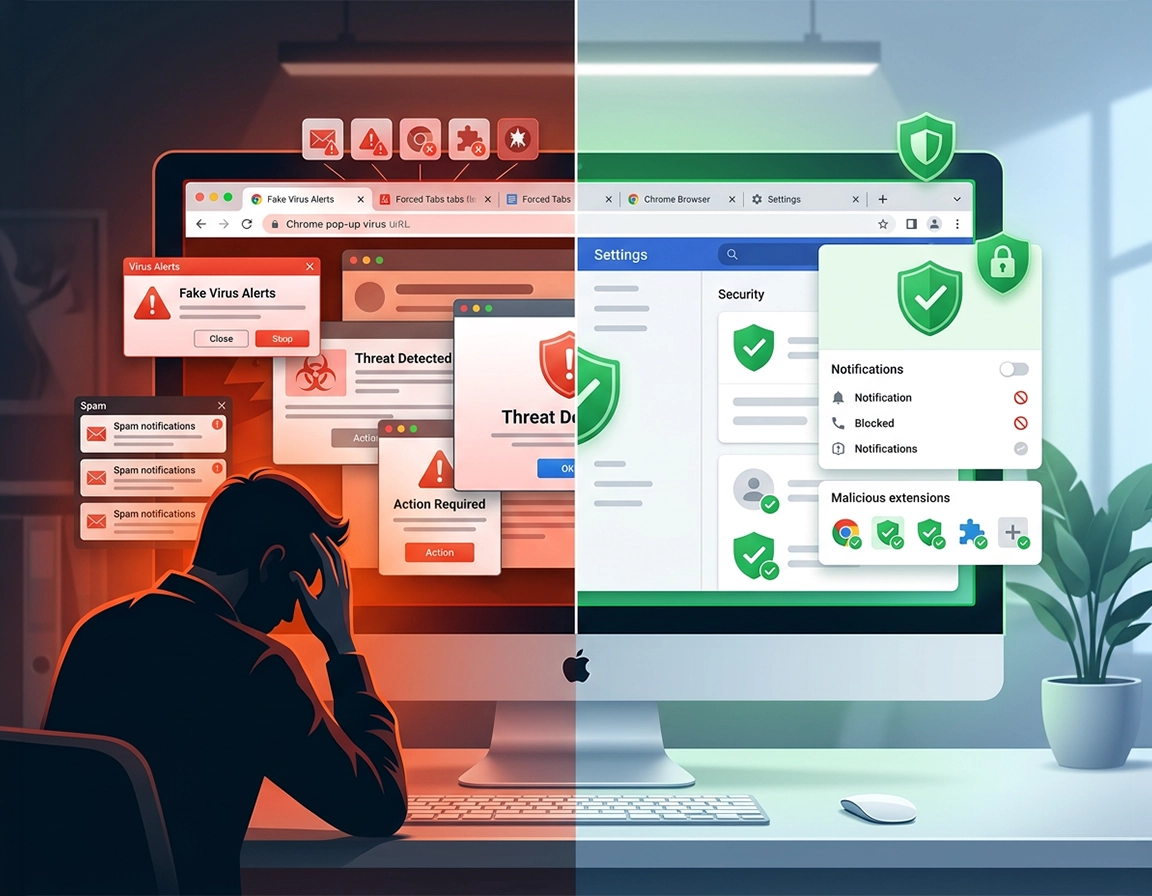
What “Chrome pop-up virus” usually refers to in real cleanup work .
In most cases, the browser is being abused, not “infected” in the old-fashioned sense people imagine when they hear the word virus.
People use the phrase Chrome pop-up virus to describe several different problems that feel similar from the user’s side: fake antivirus alerts, “your PC is infected” pages, prize scams, random adult tabs, repeated redirects, or notification spam that keeps showing up near the system clock. The problem with generic advice is that these symptoms do not all come from the same cause, so they should not all be handled the same way.
The most common root causes are notification permission abuse, rogue extensions, browser hijacker settings, and malicious advertising or redirect chains. In more persistent cases, Chrome is only the visible symptom and the real cause sits outside the browser: bundled adware, a sketchy installer, a leftover enterprise policy, or a contaminated browser profile that keeps restoring bad state.
That distinction matters because a user who only clears history may leave the real trigger untouched. Likewise, a user who resets Chrome immediately may lose time rebuilding settings without ever removing the notification permission or extension that caused the loop. A good cleanup sequence starts by classifying the symptom, not by nuking the browser.
One rule is non-negotiable: never follow instructions inside the scare page itself. If the page tells you to call a number, install a “cleaner,” approve a permission, renew antivirus, or download a fix, assume the page is part of the problem. The page is not diagnosing your machine. It is trying to control the next click.
Related: If the pop-ups came with rogue add-ons or permissions you never knowingly approved, continue with Chrome Extension Malware Removal, Chrome Remove Malicious Extensions, and Chrome Unwanted Extensions Removal.
Terms worth understanding before you clean anything .
- Scare page: a web page designed to frighten you into clicking, calling, downloading, or granting permissions.
- Notification abuse: a site you allowed can now push fake warnings, clickbait, gambling spam, or tech-support bait through Chrome notifications.
- Browser hijacker: software or an extension that modifies search, startup pages, homepage, new-tab behavior, or shortcuts.
- Persistence: the mechanism that causes the bad behavior to return after you close the page, restart Chrome, or even reboot the machine.
If your case sounds broader than pop-ups alone, review Chrome Browser Hijacker Removal, Chrome Redirect Virus Fix, Chrome Keeps Opening Random Tabs Fix, and Chrome Browser Hacked: How to Fix.
Fast triage checks before you start deleting things .
Before you remove extensions, reset Chrome, or install a scanner, do a short triage pass. This helps you identify whether you are dealing with a single bad site, notification spam, startup persistence, or system-level adware.
Related: If Chrome has become unstable, slow, or crash-prone during the incident, also check Chrome Browser Slow After Virus Fix and Fix Slow Chrome Browser Step by Step.
- Where does the warning appear? If it shows inside a tab, the source may be a scare page or redirect. If it appears as a desktop toast or system-style notification, check site notification permissions first.
- Does it happen on one domain or across normal browsing? One domain suggests a site-level trap. Repeated interference across sites points more toward extensions, startup hijacking, or software outside Chrome.
- Does Chrome reopen the same bad page on launch? That usually means startup settings, shortcuts, or a hijacker are involved.
- Did you install anything recently? Pay attention to PDF tools, downloaders, coupon helpers, search utilities, cracked software, or bundled “browser security” tools.
- Do other browsers show similar behavior? If Edge or Firefox also behave strangely, suspect the operating system, not Chrome alone.
- Is Chrome unexpectedly managed? If a personal machine suddenly shows browser management or policy behavior you do not recognize, do not ignore it.
If your Chrome profile may already be part of the problem, keep Chrome Profile Reset Guide nearby. If you want a broader sequence that includes device scanning and follow-up checks, open Chrome Full Malware Cleanup Checklist and Chrome Malware Cleanup Guide in additional tabs.
Exact removal workflow .
This sequence is arranged from highest-value, lowest-disruption actions to heavier cleanup. That order matters. It is common to solve the problem without a reset if you identify the true persistence point early.
-
Terminate the active scare page cleanly.
Close the offending tab. If Chrome is trapped in a loop, use Shift + Esc to open Chrome Task Manager and end the specific tab or extension process generating the behavior. -
Audit site notification permissions.
Go to Settings → Privacy and security → Site settings → Notifications. Review every domain under “Allowed to send notifications.” Remove anything unfamiliar, low-quality, misleading, recently granted, or obviously associated with fake virus alerts, gambling spam, adult content, or giveaway bait. -
Inspect installed extensions one by one.
Open chrome://extensions/. Disable suspicious items first. Remove any extension you did not intentionally install, no longer need, or no longer trust. Be especially suspicious of coupon tools, search helpers, PDF converters, tab managers, and “security” add-ons pushed by pop-up pages. -
Repair startup and search settings.
Check Settings → On startup and Settings → Search engine. Remove unknown startup URLs and restore your normal search provider. If Chrome keeps opening the same unwanted tabs, this step often exposes the mechanism. -
Clear stored data for the offending site.
Under Chrome privacy settings, locate site data or permissions by domain and remove them. This helps break redirect loops and strips previously granted storage, cookies, and permission state from the bad origin. -
Run Chrome Safety Check.
Review harmful extensions, safe browsing status, password warnings, and updates. Safety Check is not a replacement for device scanning, but it is useful for spotting obvious browser-side issues quickly. -
Update Chrome fully.
Open chrome://settings/help and relaunch after the update completes. This removes one common excuse for strange browser behavior and ensures you are not troubleshooting against an outdated build. -
Scan the operating system if anything survives a restart.
If pop-ups, redirects, or startup tabs return after the browser-side cleanup, assume the persistence may live outside Chrome. Run a reputable device-level scan. -
Reset Chrome settings only when lighter actions fail.
Use Settings → Reset settings → Restore settings to their original defaults. This disables extensions and resets search/startup behavior while preserving bookmarks and saved passwords.
Successful cleanup usually looks like this: no notifications from unknown domains, no bad page reopening at startup, no unexpected search engine changes, no forced redirects during normal browsing, and no random tabs appearing after Chrome has been idle.
Related: For a broader incident workflow, use Remove Malware from Chrome, Remove Virus from Chrome, and How to Scan Chrome for Malware.
Why notification cleanup deserves to be first .
Site notifications are responsible for a huge share of recurring “virus alert” complaints because they feel system-level even when they are browser-level. A user clicks Allow on a deceptive page, then later receives alarming messages that appear near the desktop clock or notification tray. Those messages often mimic antivirus branding, software renewal warnings, or operating system alerts. The visual trick works because the browser surface is no longer visible.
If your symptom is notification spam rather than a tab that traps you in-browser, go deeper with Chrome Notification Permissions and Chrome Fake Alert Virus Removal.
How to evaluate an extension like an investigator, not a casual user .
The right question is not “Does this extension name look familiar?” The right questions are: Did I deliberately install it? Does its permission set make sense for its job? Did the trouble begin after it appeared? Does it alter search results, page content, tabs, or startup behavior? Does the problem stop when it is disabled?
For extension-specific analysis, use How to Check if a Chrome Extension Is Safe, Chrome Suspicious Extension Detection, Chrome Extension Permission Abuse Detection, and Chrome Extension Risk Analysis.
What changes slightly across Windows, Mac, Android, and managed devices .
- Windows: browser pop-up symptoms are more likely to intersect with bundled adware, startup shortcuts, registry leftovers, or sketchy installers.
- macOS: watch for persistent profiles, notification abuse, and “lightweight utility” apps that quietly modify browser behavior.
- Android: repeated tab openings can involve a site permission, a bad app, or a default-browser handoff from another app.
- Managed devices: some browser settings may be locked intentionally. Do not interpret every restriction as malicious if the device belongs to work or school.
Platform-specific cleanup pages: Remove Malware from Chrome on Windows, Remove Malware from Chrome on Mac, Remove Malware from Chrome on Android, and Remove Malware from Chrome on iOS.
Persistence, reinfection, and deeper cleanup .
If the same behavior returns after you removed a site permission or deleted an obvious extension, the browser is telling you the real persistence point is still in play. In practice, the repeat trigger usually falls into one of four buckets: sync keeps restoring contaminated state, a hidden or overlooked extension is still present, software outside Chrome is reintroducing the change, or the issue was misclassified as a simple pop-up problem when it is actually a hijacker problem.
Related: In business or repeat-incident environments, continue with Chrome IT Admin Malware Removal, Chrome Enterprise Threat Removal Guide, Chrome Business Malware Response Plan, and Chrome Security Incident Response Guide.
Signals that you should stop treating this as a small browser annoyance .
- The bad pages return after every relaunch even after you corrected startup settings.
- Extensions reappear after removal, or Chrome settings keep changing back.
- Multiple browsers on the same machine show similar redirects or notification abuse.
- You entered credentials into a fake security page or downloaded a file from one.
- The machine is shared, managed, or used for business accounts with meaningful data access.
Hardening steps that actually reduce repeat incidents .
- Trim your extension footprint: fewer extensions mean fewer background processes, fewer update channels, and fewer permission surfaces to audit.
- Review notification permissions periodically: notification abuse works because users never revisit the allow list after the first click.
- Keep Safe Browsing active: it does not replace good judgment, but it raises the floor against obvious malicious destinations and downloads.
- Use a cleaner profile strategy: separate high-risk browsing from the profile tied to your accounts, bookmarks, payment methods, and password manager.
- Treat suspicious credential entry as an account event: cleanup of the browser does not fix a password that was already typed into a scam page.
For prevention and hardening, useful next reads include How to Prevent Malware in Chrome, How to Secure Chrome from Viruses, Chrome Malware Prevention Checklist, Chrome Secure Browser Configuration, and Chrome Hardening Guide.
When a fresh Chrome profile is the smarter move .
Resetting settings is efficient when the damage is limited to search, startup pages, temporary data, and extensions. A fresh Chrome profile is smarter when you suspect long-lived profile contamination: repeated reinstalls of bad extensions, sync restoring unwanted state, or a browser that keeps drifting back into the same bad behavior even after conventional cleanup.
The downside is workload. A clean profile takes time because you have to rebuild it carefully and resist the urge to reinstall everything at once. The upside is precision: you can reintroduce tools, settings, and accounts in a controlled order and identify exactly what re-triggers the problem.
If this sounds like your case, pair this page with Chrome Profile Reset Guide, How to Reset Chrome After Malware, and Chrome Homepage Keeps Changing Fix.
Browser-only cleanup versus device-wide cleanup .
This is one of the biggest judgment calls in malware-adjacent browser support. If the symptom is confined to a scare page or a bad notification permission, browser-only cleanup is often enough. If multiple browsers are affected, the machine opens bad pages without user browsing, or the same settings reappear after removal, the operating system becomes part of scope whether you wanted it to or not.
Readers comparing the boundaries between browser defenses and device defenses should use Antivirus vs Browser Protection for Chrome, Best Malware Removal Tool for Chrome, Best Antivirus for Chrome, and Antivirus Extension vs Desktop Antivirus.
Privacy damage and account risk after a scare-page incident .
Pop-up scams are not only a nuisance problem. Many are built to convert fear into measurable access: a click, a permission grant, a download, a payment, or a credential submission. Even when nothing “infects” Chrome in the traditional sense, the incident can still create a privacy or account-security problem that survives the browser cleanup.
Why the risk is real: the incident can expose notification permissions, browsing patterns, search behavior, credentials, saved payment workflows, and your general tolerance for social-engineering prompts.
Related: If the incident may have crossed into credential or data exposure, continue with Chrome Browser Passwords Stolen: What to Do, Chrome Browser Data Breach Response, Chrome Data Leak Detection, and Chrome Password Checkup.
Baseline recovery steps after you stop the visible pop-ups .
- Remove notification permissions you do not actively trust.
- Reduce extension count and re-check extension permissions.
- Verify Safe Browsing and Chrome updates.
- Change any password you entered on a suspicious page.
- Review saved payment and autofill behavior if the browser looked compromised.
Response priorities by symptom pattern .
| Symptom pattern | Best first move | Main tradeoff | Most likely scenario |
|---|---|---|---|
| Desktop-style warning spam | Remove suspicious notification permissions | Fast fix, but may miss other contamination | Notification abuse |
| Tabs reopen or search changes persist | Audit extensions, startup, and search settings | Takes longer and requires careful review | Hijacker behavior |
| Issue returns after cleanup | Scan device and evaluate fresh profile creation | More time, more rebuild work | Persistence outside simple browser state |
| Password typed into a scare page | Change password immediately and review account security | Urgent follow-up beyond browser cleanup | Credential exposure |
For post-cleanup hardening, continue with Chrome Safe Browsing Best Practices, Chrome Secure Download Settings, Chrome Malicious Site Protection Guide, Chrome Anti-Phishing Settings, and Chrome Security Reset.
Troubleshooting stubborn cases .
Related: If your case is more redirect-heavy than pop-up-heavy, use Chrome Browser Redirect Removal Guide, Chrome Redirect Virus Fix, and Chrome Search Engine Hijacked Fix.
If the fake virus alert only appears on one specific site .
That usually points to a malicious ad placement, a redirect chain, or a scam landing page rather than browser-wide compromise. Close the site, do not interact with any countdowns or fake scanner overlays, and remove stored data and permissions for that domain. If nothing else behaves strangely afterward, a full reset may be unnecessary.
If the warnings appear as notifications even when Chrome looks “closed” .
Check the Chrome notification allow list before you do anything else. Users often describe these as “system pop-ups” because they appear in the desktop notification area, but the source is usually still browser-level permission abuse. Remove every domain you do not deliberately trust, then restart Chrome and test.
If Chrome reopens the same bad pages at every launch .
Treat that as a startup persistence problem. Inspect On startup settings, extension state, Chrome shortcuts, and any software that might be rewriting browser launch targets. A legitimate site does not somehow reinsert itself into startup behavior by magic.
If the extension list looks normal but the browser still behaves like it is hijacked .
Disable all nonessential extensions, restart the browser, and test from a clean baseline. If the behavior stops, re-enable one extension at a time until the trigger returns. If the behavior continues even with extensions disabled, widen scope to the device and the profile itself.
If Chrome says it is managed by your organization and this is your personal machine .
That deserves investigation, not panic. Sometimes the cause is legitimate security software or a leftover policy entry from an old tool. Sometimes it is more suspicious. The key point is that you should not ignore it, but you also should not rip out policies blindly unless you know what introduced them.
If you clicked the pop-up and downloaded something .
At that point the event has moved beyond browser cleanup. Remove the browser-side trigger, but also run a reputable device-level scan, inspect recent downloads, and review installed applications. The browser may have been only the delivery channel.
If reset did not fix it .
When a reset fails, the persistence usually sits in one of three places: the operating system, the Chrome profile, or sync restoring unwanted state. The next escalation path is a device scan plus a fresh browser profile, followed by careful reintroduction of only trusted extensions and known-good settings.
For deeper investigation, use Chrome Malware Scan with Antivirus, Chrome Browser Threat Detection Guide, Chrome Internal Security Scan Explained, and How to Check if Chrome Has Virus.
FAQ .
-
helpIs a Chrome pop-up virus always an actual virus?No. A large share of these cases are scare pages, permission abuse, redirects, or rogue extensions rather than a traditional self-propagating virus. The symptoms feel severe, but the underlying mechanism is often browser abuse.
-
helpWhy do the alerts keep appearing after I closed the tab?The most common reason is that the site was granted notification permission. Another possibility is startup persistence or a bad extension. Closing the visible tab does not remove the mechanism that is allowed to recreate the warning later.
-
helpShould I reset Chrome as the first step?Usually no. You get more value from checking notifications, extensions, startup settings, and site data first. Resetting too early can cost time without removing the real cause.
-
helpWhat should I do if I typed a password into the fake warning page?Treat it as a credential incident. Change the password immediately, review account security, enable stronger sign-in protection, and scan the device if you also downloaded anything from the page.
Sources & further reading .
- Official Chrome Help Center
- Google Chrome help: pop-ups, redirects, and permissions
- Google Safety Center
Editorial note: This page focuses on reliable browser cleanup and incident containment. It avoids one-click miracle fixes because scare-page problems rarely come from a single universal cause.