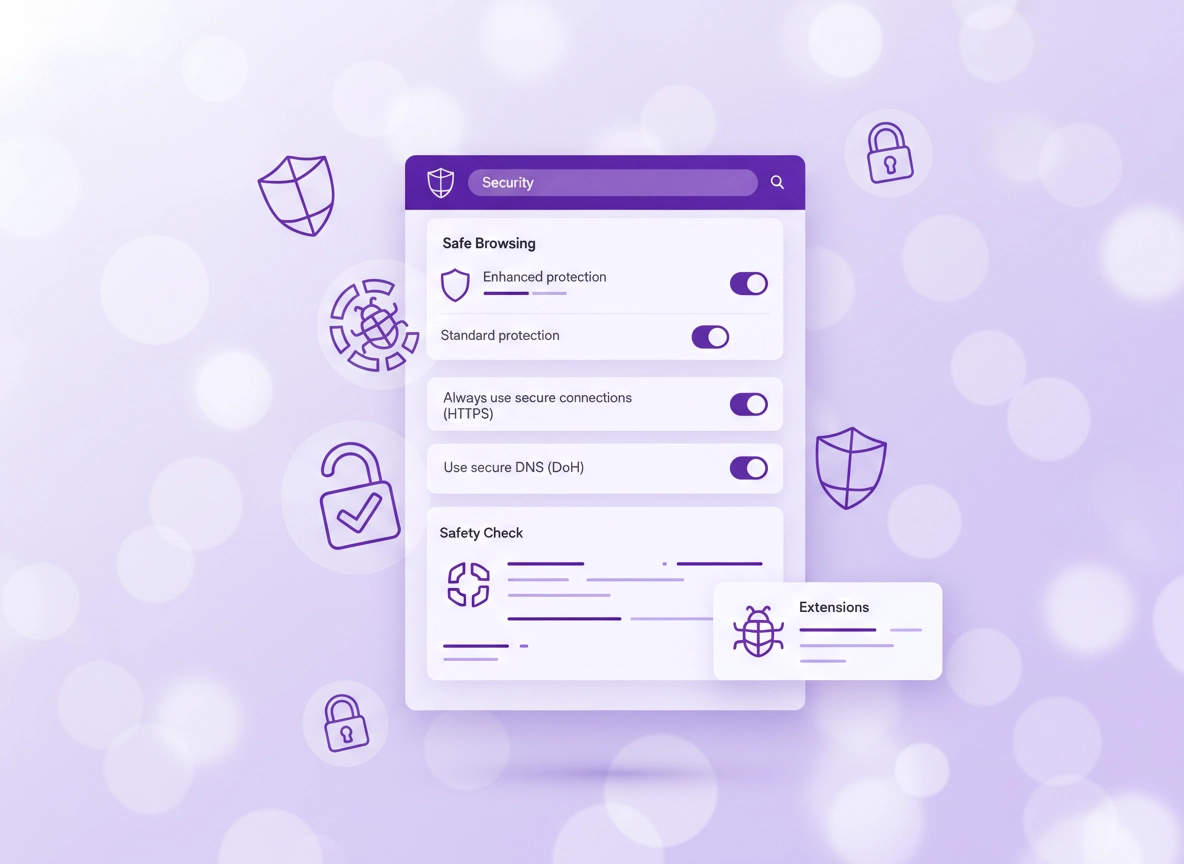
What Chrome malware protection is (and what it isn’t) .
This guide focuses on Chrome’s built-in defenses: Safe Browsing, secure DNS, HTTPS warnings, download checks, and extension safety.
“Chrome malware protection” isn’t a single magic switch. It’s a stack of security features that work together to reduce three common attack paths: (1) phishing (fake logins and impersonation), (2) malicious downloads (drive-by installers, trojans, “codec” scams), and (3) malicious extensions (data theft, hijacks, ad injection, redirects). When these settings are tuned correctly, Chrome becomes far better at warning you early and blocking dangerous behavior before it reaches your device.
Here’s the reality check: Chrome can’t replace full endpoint protection in high-risk environments. If malware is already on the device (a Windows service, a macOS launch agent, a rogue Android app), the browser is only one layer. But Chrome can still stop a huge amount of damage by reducing the chance you ever download the payload, enter credentials on a fake site, or grant permissions to the wrong extension in the first place.
This guide is written for high-intent users who want specific, testable configuration steps: what to enable, what it changes, what it costs (privacy/compatibility), and what “success” looks like. If you suspect an active infection, you’ll also want the removal playbooks in the Remove Malware from Chrome cluster.
Related: If extensions are part of your risk surface, start with Chrome Extension Security Check and Safe Chrome Extensions.
Key terms (quick definitions) .
- Safe Browsing: Chrome’s protection system that warns you about dangerous sites, downloads, and extensions. You can choose Enhanced or Standard.
- Enhanced protection: Stronger, faster detection with extra security signals shared to improve warnings (privacy tradeoff explained later).
- Secure DNS (DoH): Uses encrypted DNS lookups to reduce interception/redirect risk on hostile networks and some ISP-level manipulation.
- Always use secure connections: Makes Chrome warn you before visiting public HTTP pages and pushes your browsing toward HTTPS.
- Extension permissions: What an extension can access (sites, tabs, browsing data). Overbroad permissions increase blast radius.
- Profile isolation: Keeping “work/banking” in a separate Chrome profile from “experimenting/extensions” reduces cross-contamination.
Before you start (fast checks) .
These quick checks prevent wasted time. They also help you tell the difference between a Chrome setting issue, a malicious extension, and a device-level infection.
- Check 1 — Confirm you’re in the right Chrome profile: Malware symptoms often come from one profile’s extensions. Switch profiles and see if the issue disappears.
- Check 2 — Update Chrome first: Many security improvements ship silently in stable releases. Go to Menu → Help → About Google Chrome and let it update.
- Check 3 — Look for obvious extension red flags: New extension you don’t remember installing, sudden permission prompts, or a theme/utility asking for “Read and change all data.”
- Check 4 — Verify if the problem is site-specific: If only one site triggers pop-ups or “virus alerts,” it may be a malicious ad chain, not your browser.
- Check 5 — Run a quick Safety Check: Chrome’s Safety Check flags risky extensions and weak passwords fast.
Related: If Chrome feels slow while troubleshooting, see Performance Optimization and Fix Slow Chrome.
Step-by-step: best Chrome security settings for malware protection .
This is the “recommended baseline” configuration for most users. It’s designed to meaningfully reduce malware risk without breaking common sites. I’ll include what each setting does, what changes you’ll notice, and how to undo it.
Step 1: Turn on Safe Browsing (Enhanced protection) .
What it protects you from: phishing pages, dangerous downloads, malicious extensions, and known malware sites. Enhanced protection generally means faster warnings and more proactive detection.
- 1 Open Chrome → Settings → Privacy and security → Security.
- 2 Find Safe Browsing and choose Enhanced protection.
- 3 Close Settings, then open a new tab to ensure the setting applies across sessions.
- 4 If you see compatibility concerns later, switch to Standard protection (still good).
What “success” looks like: Chrome shows clearer warnings on risky sites/downloads, and it’s more likely to stop “fake installer” prompts before they run.
Deep dive: Chrome Safe Browsing Settings and Enhanced Safe Browsing: what it shares and why.
Step 2: Turn on “Always use secure connections” (HTTPS warnings) .
What it protects you from: many “injection” and snooping risks that happen on old HTTP pages (especially on public networks), plus downgrade-style problems where attackers try to push you onto insecure versions of pages. Chrome increasingly warns users before visiting public HTTP pages, and this setting is part of that move.
- 1 Chrome → Settings → Privacy and security → Security.
- 2 Turn on Always use secure connections.
- 3 If Chrome offers an option like “warn for insecure public sites,” keep that enabled (best balance).
- 4 If you browse private intranet tools that use HTTP, you may need to allowlist them or relax warnings.
Related: Chrome HTTPS-Only Mode (Always use secure connections) and Chrome Secure Connection Settings.
Step 3: Enable Secure DNS (DoH) to reduce tampering & redirects .
What it protects you from: DNS interception/redirect attempts on hostile Wi-Fi, some ISP-level manipulation, and a common ingredient in “search hijack” chains. Secure DNS doesn’t stop all malware, but it removes one of the easiest points of control attackers like to exploit.
- 1 Chrome → Settings → Privacy and security → Security.
- 2 Find Use secure DNS and toggle it on.
- 3 Choose your provider:
- With your current service provider (best compatibility, decent privacy)
- Custom provider (more control; pick a reputable DNS provider you trust)
- 4 If a workplace network breaks, switch back to “current provider” or temporarily disable secure DNS.
Related: DNS over HTTPS Settings, Secure DNS Setup, and Private DNS vs Secure DNS.
Step 4: Run Chrome Safety Check (then act on the results) .
What it protects you from: outdated Chrome builds, risky extensions, unsafe passwords (compromised credentials are a “silent” malware gateway). Safety Check is underrated because it’s not flashy, but it catches the boring stuff that causes real incidents.
- 1 Chrome → Settings.
- 2 Search for Safety check (or go to Privacy and security → Safety check if shown).
- 3 Click Check now.
- 4 Fix what it finds: update Chrome, remove flagged extensions, and address compromised passwords immediately.
Related: Chrome Security Checkup, Chrome Password Checkup, and Password Leak Detection.
Step 5: Lock down extensions (the biggest malware lever) .
If you do only one thing after Safe Browsing, do this. Most browser “malware” incidents are actually extension abuse — ads injected into pages, redirects, tracking scripts, fake “coupon” overlays, or login harvesting. Chrome can warn you, but you still control the final outcome: what stays installed.
- 1 Open chrome://extensions (type it into the address bar).
- 2 Remove anything you don’t recognize, don’t use weekly, or can’t explain.
- 3 For extensions you keep: open Details and review permissions:
- Site access: Prefer “On click” or “On specific sites,” not “On all sites.”
- Allowed in Incognito: Keep off unless truly needed.
- File URLs: Keep off unless the extension needs local file access.
- 4 After changes, restart Chrome and test your problem pages again.
Related: Chrome Extension Permissions Guide, How to check if an extension is safe, and Extension Risk Analysis.
Step 6: Create a “clean” security profile for banking / admin work .
This is the pro move. Most people browse with one profile that collects extensions over years. A dedicated “clean” profile with no experimental extensions is one of the most effective anti-malware strategies that costs nothing.
- 1 Click your profile icon (top right) → Add / Add new profile.
- 2 Name it: “Banking” or “Admin.” Keep it separate from your daily browsing.
- 3 Install zero extensions unless required (password manager is usually enough).
- 4 Use this profile for payments, business dashboards, and sensitive logins only.
Why this works: Profile isolation reduces the chance that a single risky extension can see your sensitive sessions, cookies, or login flows. It’s like having a “clean room” for important tasks.
Common variations (desktop vs mobile) .
- Windows / ChromeOS: Most settings appear under Privacy and security. Extension management is easiest on desktop.
- macOS: Same menus. If you see “managed by your organization” on a personal Mac, verify you didn’t install a profile or enterprise policy by mistake.
- Android: Safe Browsing and Security settings are under Settings → Privacy and security. Safety Check appears as its own item on many versions.
- iPhone/iPad: Some protections differ due to iOS browser rules; focus on Safe Browsing, safe downloads, and account security (password warnings).
Advanced hardening (power users & business) .
If you want higher assurance (or you manage devices for a team), these are the “next layer” controls. They’re also where high-cost security decisions show up: compatibility vs security, privacy vs proactive protection, and policy control vs user freedom.
Related: For managed environments, see Enterprise Secure Configuration Best Practices and Chrome Enterprise Security Settings.
1) Treat “download prompts” as hostile by default .
A huge number of infections start with: “Your browser is out of date. Install this update.” Or “Your video codec is missing. Download now.” Your safest operating mode is: download only from official vendor domains and prefer store apps / trusted package managers where possible. Chrome’s Safe Browsing helps, but your judgment is still the final gate.
- Rule: Never install “drivers/updates/codecs” prompted by a random page.
- Rule: Avoid “free PDF converters” and “free video downloaders” that require local installers.
- Rule: If a site forces a download to view content, leave the site.
2) Harden extension policy: allowlist mentality .
For a home user, “minimize extensions” is enough. For businesses, the safer model is: allowlist only. That means you choose a small set of approved extensions, and everything else is blocked. This reduces your attack surface dramatically because extensions can be updated, sold, or compromised over time.
- Best practice: Keep a short list of “essential” extensions (password manager, blocker, workflow tool) and remove everything else.
- Best practice: Review extension permissions quarterly—especially anything with “On all sites” access.
- Enterprise: Use policy controls for extension allowlist/blocklist when possible.
Related: Extension Installation Policy, Enterprise approval workflow, and Allowlist policy guide.
3) Use a “security-first” baseline (then measure breakage) .
Hardening is easiest when you start secure, then loosen only what you must. A practical baseline for most people: Enhanced Safe Browsing, secure DNS, HTTPS warnings, and minimal extensions. Then you test the sites that matter (banking, work portals, streaming, school tools) and adjust.
4) Consider device-level protection when the threat model is real .
Chrome settings are powerful, but if you’re handling sensitive business data, finance, healthcare, or high-value accounts, it’s worth thinking in layers: browser + OS + account + network. If your device is used by multiple people, if you install a lot of software, or if you’re targeted, browser-only defenses may not be enough.
- Account security: Turn on 2FA/passkeys where available. Start with Chrome Two-Factor Authentication Guide.
- OS security: Keep the OS updated, and avoid running as admin for daily use when possible.
- Network security: Use secure Wi-Fi practices on public networks: Public Wi-Fi Security Tips.
Common alternatives users compare .
- Chrome built-in protection vs third-party anti-malware tools
- Enhanced Safe Browsing vs Standard protection (privacy tradeoffs)
- Secure DNS vs VPN (and why they’re not the same thing)
- Browser-only hardening vs enterprise policy management
Related comparisons: VPN vs Antivirus for Chrome and Antivirus vs Browser Protection.
Privacy & security notes (data sharing tradeoffs) .
The most important “tradeoff” in this guide is Safe Browsing level. Enhanced protection can share more security-related signals to improve detection and warnings. For many users, the protection benefit is worth it—especially if you browse widely, install extensions, or manage accounts where a takeover would be costly.
Impact: Improves detection of risky URLs, downloads, and extensions; may share additional security events to speed warnings.
Related: If you suspect active infection or hijacking, see Remove Malware from Chrome, Chrome Malware Cleanup Guide, and Chrome Security Reset.
Recommended baseline settings .
- Option A (balanced): Safe Browsing = Enhanced, Secure DNS = On (current provider), HTTPS warnings = On, Extensions = Minimal
- Option B (maximum protection): Safe Browsing = Enhanced, Secure DNS = On (trusted custom provider), HTTPS warnings = On, Separate “clean” profile, Allowlist extensions
- Option C (compatibility): Safe Browsing = Standard, Secure DNS = On (current provider), HTTPS warnings = On, Keep only essential extensions
Recommended settings by goal .
| Goal | Recommended setting | Tradeoff | Best for |
|---|---|---|---|
| Balanced | Enhanced Safe Browsing + Secure DNS (current provider) | Shares more security signals | Most users |
| Maximum protection | Enhanced + HTTPS warnings + strict extension allowlist + clean profile | More setup; possible site friction | High-value accounts, business, admins |
| Compatibility | Standard Safe Browsing + Secure DNS (current provider) + minimal extensions | Slightly weaker proactive detection | Legacy sites, strict corporate portals |
Want a “one-page” baseline? Use the Chrome Security & Privacy Checklist and the Browser Hardening Checklist.
Troubleshooting (redirects, pop-ups, fake alerts) .
Related: If you need a full cleanup path, use Chrome Full Malware Cleanup Checklist and How to reset Chrome after malware.
If Chrome keeps redirecting to random sites .
Redirect loops are commonly caused by a malicious extension, a hijacked search engine, or injected scripts from adware. Start with the fastest isolation test: open an Incognito window (most extensions are off by default). If redirects stop in Incognito, your culprit is almost always an extension.
- Fix: Remove recent/untrusted extensions first. Then reset search engine settings.
- Next: Run Safety Check and update Chrome.
- Deep guide: Chrome Redirect Virus Fix and Chrome Search Engine Hijacked Fix.
If you’re seeing fake “virus detected” pop-ups .
Fake alert pop-ups are usually malicious ads or scam pages trying to scare you into downloading something. The important move is: do not click anything inside the pop-up. Close the tab. If it keeps returning, check site notifications permissions and remove any suspicious allowed sites.
- Fix: Review Site Settings → Notifications; remove unknown sites. Then clear site data for the offending domain.
- Deep guides: Chrome Pop-up Virus Removal and Chrome Fake Alert Virus Removal.
If Chrome is “managed by your organization” on a personal device .
This message can be legitimate (work device) or a sign that a policy was installed by software you didn’t intend. If it’s a personal device, check recently installed apps and profiles (especially on macOS) and review extensions. If you’re in a business setting, this may be expected policy control.
- Fix: Confirm whether the device is enrolled in management. If not, remove unknown policies/profiles and do a full extension audit.
- Enterprise: See Chrome Managed Browser Security.
If you need to reset safely (without losing everything) .
A full reset can help when settings are being forcibly changed or the browser behaves unpredictably. But do it safely: export what you need (passwords/bookmarks), disable Sync temporarily if it might reintroduce bad settings, then reset and rebuild with minimal extensions.
- Reset path: Chrome Security Reset and Chrome Profile Reset Guide.
- If the issue returns: It may be device-level malware or an account/sync reinfection—use the full cleanup checklist.
FAQ .
-
helpIs Enhanced Safe Browsing worth it?For most people, yes. Enhanced protection can detect and warn faster by using extra security signals. If you’re privacy-sensitive, Standard protection is still good—just compensate with strict extension controls and safer download habits.
-
helpCan Chrome malware protection remove an existing virus?Chrome can block and warn, but removal depends on where the malware lives. If it’s an extension or browser hijack, Chrome cleanup steps can fix it. If it’s device-level malware, you may need OS-level scanning and a full cleanup workflow.
-
helpWhy do redirects often come from extensions?Extensions can modify pages, inject scripts, and change requests—especially when granted “all sites” access. A single compromised extension can hijack search results, insert ads, and trigger redirects across many domains.
-
helpWill Secure DNS (DoH) stop malware?It won’t stop all malware, but it can reduce DNS tampering and some redirect-based attacks, especially on untrusted networks. Think of it as removing a weak link attackers commonly exploit.
Sources & further reading .
- Google Chrome Help: Choose your Safe Browsing protection level
- Google Account Help: Manage Enhanced Safe Browsing
- Google Safe Browsing: Enhanced protection overview
- Google Security Blog: HTTPS by default (Always use secure connections timeline)
- Google Chrome Help: Manage Chrome safety and security (Safety Check, secure DNS, HTTPS warnings)
Disclosure: Some pages may mention tools or services. Recommendations are editorial and based on practical testing.