What Chrome Password Checkup is (and why it matters) .
This guide reflects how Password Checkup works in modern Chrome and Google Password Manager—not legacy “Passwords” pages from older versions.
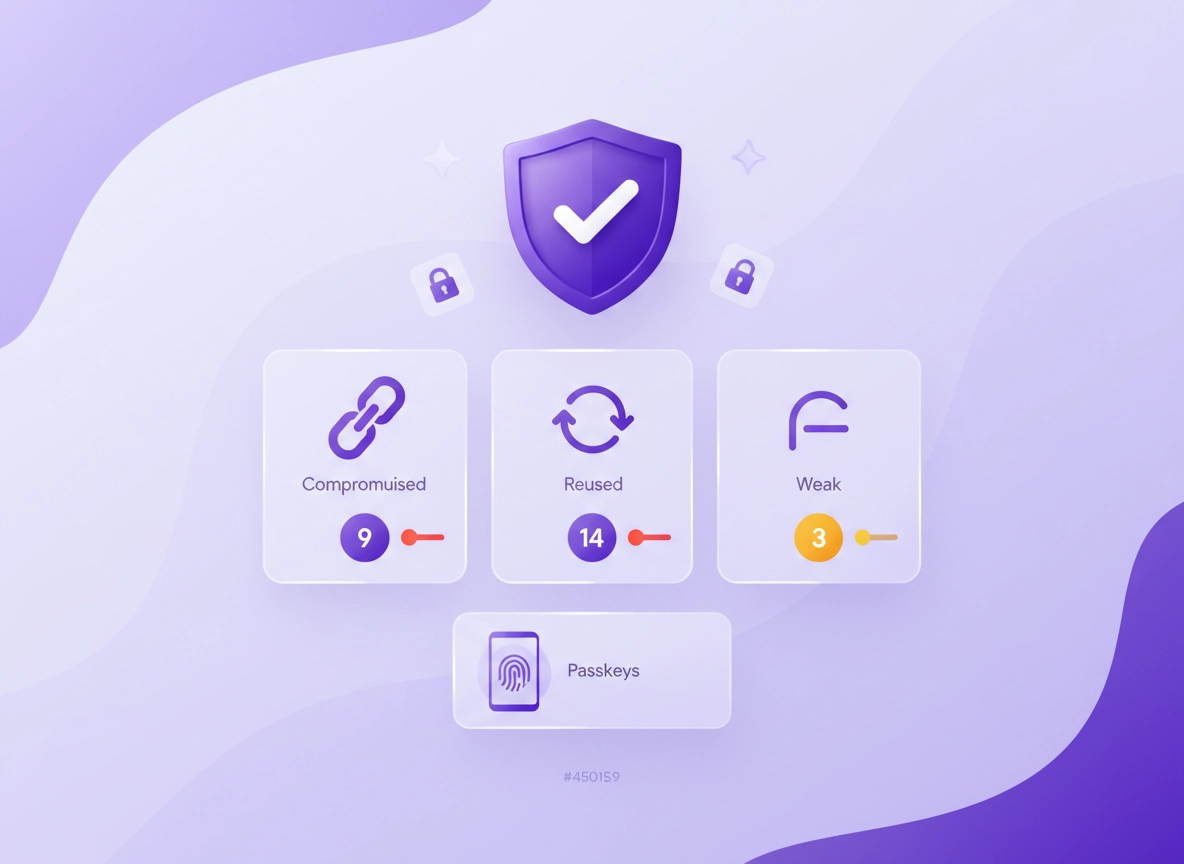
Chrome Password Checkup (now typically surfaced through Google Password Manager) is a built-in security review that scans the passwords you’ve saved and tells you which ones are compromised (seen in known breaches), reused (same password across multiple sites), or weak (too short, too predictable, or easy to guess). It’s not just a “nice-to-have” feature—this checkup directly targets the three biggest real-world causes of account takeover: breached credentials, password reuse, and low-entropy passwords.
The key idea is urgency ranking. If you only have 10 minutes, you should not treat all password problems equally. A compromised password tied to your email inbox is a fire alarm. A weak password on a low-value forum might be a slow leak. Password Checkup helps you separate high-impact fixes from cleanup tasks, and that’s why it’s especially useful for people who’ve accumulated years of saved logins across devices.
There’s also a practical advantage: Password Checkup isn’t asking you to become a security expert. You don’t need to understand hashing algorithms, breach corpuses, or credential stuffing to improve your real-world risk. You just need a workflow that avoids the two most common failure modes: (1) changing passwords in a way that breaks logins, and (2) “fixing” a password but leaving the account vulnerable because 2FA, recovery, or device security is weak. This guide is built around those realities—especially for high-value accounts (email, banking, payments, work SSO, admin dashboards).
Related: Password Checkup works best as part of a broader privacy + security baseline. Start here: Chrome Privacy & Security Settings Overview, then review your Chrome Account Security Settings.
Key terms (quick definitions) .
- Compromised password: A password that appears in known breach data or is detected as risky; attackers may already be testing it at scale.
- Reused password: The same password used on multiple sites. If one site leaks it, other accounts become easy targets.
- Weak password: A password that is too short, too common, or predictable (e.g., patterns, dictionary words, keyboard walks).
- Google Password Manager: The interface Chrome uses to store and manage passwords (and increasingly passkeys) across your Google account.
- Passkey: A passwordless sign-in method that uses device-based cryptography; generally more phishing-resistant than passwords.
- Credential stuffing: Automated attacks where leaked username/password pairs are tried across many sites.
Why “Password Checkup” is a high-leverage security action .
In security, the most valuable improvements are the ones that reduce risk across many accounts at once. Password Checkup is one of those actions because it targets systemic weaknesses. If you reuse passwords, one breach becomes ten breaches. If your passwords are weak, attackers can guess them faster. If a password is compromised, you’re not “maybe at risk”—you’re potentially already in an attacker’s dataset.
That said, Password Checkup is not magic. It doesn’t know whether your laptop is infected, whether you’ve been phished, or whether a malicious extension is watching your session. It’s a credential-health tool, and it works best when paired with practical browser hardening: safer browsing settings, extension audits, and secure account recovery. If you suspect something deeper than “bad passwords,” you may need a wider cleanup workflow (see below).
Related: If you suspect extension interference or unwanted behavior, review Chrome Extension Security Check and Remove Unwanted Chrome Extensions.
Before you start (fast checks that prevent lockouts) .
The biggest risk when doing password cleanup isn’t “hackers instantly win.” It’s you getting locked out of the account you’re trying to protect. Lockouts happen when people change passwords in the wrong order, break SSO, forget where an account is used (apps, devices, smart TVs), or lose access to recovery methods.
These fast checks take 2–5 minutes and will save you hours. Do them once before you start changing anything—especially if you’re fixing multiple compromised passwords.
- Confirm you’re in the right Chrome profile: If you use multiple Chrome profiles (work + personal), open the one that actually stores the passwords you want to check.
- Update Chrome first: Menu names and Password Manager behavior can change. Update Chrome so your UI matches the steps in this guide.
- Make sure you can receive account recovery codes: Check that your primary email and phone number are current on high-value accounts.
- Know your sign-in method: If you log into work apps with SSO (Google Workspace, Microsoft, Okta), password changes can behave differently.
- Identify high-impact accounts: Email, banking, payments, cloud storage, and your password manager (if you use one) should be first in line.
- Do not start in Incognito: You’ll need saved-password prompts and sometimes device verification. Use a normal window.
Related: If you’re working in a managed environment, see Enterprise Chrome Privacy Settings and Chrome Enterprise Security Settings.
Fast “don’t regret this later” checklist .
- Turn on 2-step verification for your email: Password changes help, but 2FA blocks many real-world takeovers.
- Save recovery codes: If a service offers backup codes, store them somewhere safe (not in a plain-text note).
- Check your device security: A strong password doesn’t help if your device is compromised. Run OS updates and security scans.
- Audit Chrome extensions: Remove anything you don’t recognize. Extensions can access browsing data and sessions.
Related: If you think your passwords may already be exposed, read Chrome Password Leak Detection and Chrome Data Breach Protection.
Step-by-step: run Chrome Password Checkup (desktop & mobile) .
Chrome’s password tools are increasingly centralized under Google Password Manager. Depending on your Chrome version and platform, you’ll see slightly different labels, but the workflow is consistent: open Password Manager → run Checkup → address compromised first.
Desktop (Windows / macOS / Linux / ChromeOS) .
- 1 Open Chrome. Click the three-dot menu (top-right) → Passwords and autofill → Google Password Manager.
- 2 In Google Password Manager, select Checkup (sometimes shown as Password Checkup).
- 3 Review the three main categories: Compromised, Reused, Weak. Start with Compromised.
- 4 For each compromised entry, open it and choose Change password (if provided) or visit the website directly.
- 5 After changing the password on the website, return to Chrome and confirm the saved password entry updates correctly.
- 6 Repeat for reused passwords (unique password per site), then weak passwords (upgrade strength).
What “success” looks like: The compromised list shrinks to zero (or only includes accounts you intentionally plan to close), and your highest-value accounts (email, finance, work identity) no longer use reused or weak passwords.
Android (Chrome) .
- 1 Open Chrome → tap ⋮ (top-right) → Settings.
- 2 Tap Google Password Manager.
- 3 Tap Checkup (or Password Checkup).
- 4 Tap the Compromised group and start updating passwords, one account at a time.
- 5 When finished, revisit Reused and Weak categories.
On mobile, your main limitation is context switching: you may be bounced between an app and a website login page, or between a browser tab and system dialogs. Take it slow and confirm each login before moving to the next password.
iPhone / iPad (Chrome) .
Chrome on iOS uses iOS frameworks and has different integration points (Apple Passwords/iCloud Keychain may also be involved). The basic flow is still: open Chrome settings → open Password Manager/Google Password Manager → run Checkup. If you use iCloud Keychain as your primary manager, treat Chrome’s Checkup results as a signal and do your canonical updates in your primary password store.
Common variations (menu names change) .
- “Passwords” vs “Passwords and autofill”: Chrome sometimes renames the parent menu. Look for anything that mentions passwords, autofill, or Google Password Manager.
- Address bar shortcut: Typing passwords.google.com can also take you to the Password Manager interface (sign-in required).
- Managed devices: Some security features are enforced by policy and may not be editable. See the enterprise section below.
How to fix each category the “right” way .
1) Compromised passwords (highest priority) .
A compromised password should be treated as already burned, even if “nothing bad has happened.” Attackers don’t need to target you personally—credential stuffing attacks run continuously, and the moment a leaked password matches your login, it becomes a low-effort win.
- Change it on the website/app first (not inside the password manager UI).
- Use a unique, generated password (long, random, and not reused anywhere).
- Enable MFA / 2-step verification immediately if the service offers it.
- Review account activity (logins, devices, forwarding rules for email, payment methods for commerce accounts).
Related: If you want a more complete “high-risk account” hardening playbook, see Chrome Login Security Best Practices and Chrome Two-Factor Authentication Guide.
2) Reused passwords (most common real-world weakness) .
Reuse is what turns a small breach into a life problem. If you used the same password on ten sites, the weakest site effectively sets the security level for all ten. Password Checkup flags reuse because it’s one of the easiest ways attackers scale.
- Pick a batch size: 5–10 accounts per session is sustainable (and reduces mistakes).
- Start with accounts that hold identity: email, social, messaging, cloud storage.
- Upgrade to unique passwords: use generated passwords; avoid personal patterns.
- Watch for “shared logins”: if multiple people use the same account, fix the sharing model (teams should not share passwords casually).
Related: If you need secure sharing and team controls, consider a dedicated manager: Password Manager for Team Collaboration, How to Share Passwords Securely, and Best Enterprise Password Manager for Chrome.
3) Weak passwords (important, but do them last) .
Weak passwords are still a problem, but they’re often less urgent than compromised credentials. If you have limited time, fix compromised first. When you’re ready for weak-password cleanup, look for any account that: (a) has money attached, (b) can reset other accounts, or (c) can expose private data.
- Length beats complexity: long random strings are best (generated by a manager).
- Avoid patterns: substituting “@” for “a” doesn’t help much against modern guessing.
- Don’t “upgrade” weak to reused: each site should still have a unique password.
Advanced: high-security workflow, passkeys, and enterprise notes .
This section is for people who want more than “click here, change that.” If you’re protecting high-value accounts (business email, admin panels, financial platforms), the difference between “changed passwords” and “actually hardened” is in the details: session security, recovery controls, device trust, and policy enforcement.
Related: For a full baseline hardening sequence, use Chrome Security & Privacy Checklist and the Chrome Security Checkup guide.
The “do not get phished” upgrade path .
Many compromised-password incidents aren’t pure “breach” events—they’re phishing events, reused-password events, or device events. A strong password is good, but it doesn’t stop a convincing phishing page from stealing it. That’s why the best upgrade path looks like this:
- Step 1: Fix compromised passwords in Password Checkup (email first).
- Step 2: Turn on 2-step verification for priority accounts.
- Step 3: Prefer passkeys where supported for phishing-resistant sign-in.
- Step 4: Lock down recovery (backup codes, recovery email, device list).
- Step 5: Reduce browser risk (extensions, safe browsing, site permissions).
Passkeys vs passwords: where Password Checkup still matters .
Passkeys are gradually replacing passwords for some services, but we’re in a transition period where most people still have a large “password surface area.” Password Checkup remains valuable because (1) many of your accounts will still be password-based for years, and (2) even passkey-enabled accounts often keep passwords as fallbacks or for compatibility.
If a service supports passkeys and you have the option to switch, that’s a strong security upgrade—especially for accounts you’d hate to lose. But don’t interpret “I set up one passkey” as “I’m done.” Keep cleaning up compromised and reused passwords until your risk profile is actually low.
Chrome built-in vs dedicated password managers (what’s the real difference?) .
Chrome’s password tools are convenient and improving fast. For many personal users, they’re “good enough” when paired with strong device security. Dedicated password managers earn their keep when you need: stronger sharing controls, cross-ecosystem portability, admin policies, audit reports, secrets management, or advanced authentication workflows.
Common alternatives users compare .
- Password Manager vs Chrome Passwords (which is safer for daily use?)
- Chrome Password Manager Security Risks (what can go wrong?)
- Are Password Managers Safe for Chrome? (practical guidance)
- Best Password Manager for Chrome (2026) (commercial intent)
Enterprise & managed Chrome: what changes .
On managed devices (work/school profiles), you might see Password Checkup results but have limited control over settings or storage behavior. Organizations can enforce password-related policies, restrict sync, or require certain security features. In these environments, your goal is still the same—remove compromised and reused credentials—but the “where and how” may be governed by your IT policies.
- Sync may be restricted: You may not be able to sync passwords across devices.
- Leak detection can be policy-controlled: Enterprises can enforce or disable leak detection behavior depending on compliance needs.
- SSO changes the workflow: Many corporate apps rely on identity providers; local password changes may not apply the way you expect.
Related: If you’re an admin or power user, see Chrome Enterprise Privacy Controls, Chrome Enterprise Policy Hardening, and Secure Chrome Configuration: Enterprise Best Practices.
Advanced “cleanup without chaos” strategy .
If you have dozens (or hundreds) of saved passwords, the goal is not perfection in one sitting. The goal is a measurable reduction in high-impact risk. Use this approach:
- Phase 1 (30 minutes): Zero out compromised passwords for email + finance + your password manager. Enable 2FA.
- Phase 2 (1–2 hours): Eliminate reuse for the top 20 accounts you actually use.
- Phase 3 (ongoing): Clean weak passwords and close old accounts (especially those tied to old email addresses).
Privacy & security notes (what data is checked) .
It’s normal to ask: “What exactly is Password Checkup doing—and what does Google/Chrome see?” At a high level, Password Checkup evaluates saved credentials for known-risk signals (compromise, reuse, weakness). The specific implementation details can evolve, but the security intent is consistent: reduce account takeover risk through safer credential hygiene.
Impact: Improves credential safety and reduces takeover risk; may surface sensitive cleanup tasks (account recovery, SSO, shared logins).
Related: If you want to understand the warning system behind these checks, see Chrome Password Leak Detection and Chrome Data Leak Detection.
Recommended baseline settings (paired with Password Checkup) .
- Option A (balanced): Fix compromised + reused passwords, keep Chrome’s protection warnings enabled, and review extensions quarterly.
- Option B (maximum security): Use unique generated passwords everywhere, enable 2FA, adopt passkeys where possible, and reduce extension footprint to essentials only.
- Option C (compatibility): Keep a conservative set of changes for enterprise/banking sites, but still eliminate compromised passwords immediately.
Recommended settings by goal .
| Goal | Recommended action | Tradeoff | Best for |
|---|---|---|---|
| Balanced | Fix compromised + top reused, enable 2FA for email/finance | Takes 30–60 minutes | Most users |
| Maximum security | Unique generated passwords everywhere + passkeys + minimal extensions | More setup + occasional friction | High-risk users & professionals |
| Compatibility | Prioritize compromised fixes, conservative reuse cleanup on critical sites | Some reuse risk remains short-term | Enterprise / legacy systems |
Related: Password safety is part of a bigger browser security posture. For broader controls, see Chrome Safe Browsing Settings, Enhanced Safe Browsing, and Chrome Site Permissions Settings.
Troubleshooting .
Related: If anything feels “off” (pop-ups, redirects, strange logouts), do a wider check: Remove Malware from Chrome and Chrome Browser Hijacker Removal.
If you can’t find “Password Checkup” in Chrome .
This is usually a menu-name mismatch. Look under Passwords and autofill for Google Password Manager, then open Checkup. If your Chrome is outdated, update it first. If you’re signed out or using a different profile, your saved passwords may not appear.
If Password Checkup shows “compromised” but you already changed the password .
Common causes: (1) Chrome still has an old saved entry, (2) you changed the password on one device but sync didn’t update, or (3) the site has multiple logins with similar usernames and you updated the wrong one. Fix: open the entry in Password Manager, confirm the username, and either update the stored password or delete the old entry and save the new one on next login.
If you changed a password and now you’re locked out .
Use the site’s official password reset flow and your recovery channels. If the account is important, do not keep guessing—guessing can trigger lockouts. After recovery, enable 2FA and confirm recovery email/phone. If this happened on an email account, treat it as urgent.
If Chrome won’t save or autofill passwords anymore .
Check whether password saving is disabled, whether you’re in a managed profile, or whether another password manager is taking over autofill. Also review whether you disabled sync or turned off Chrome’s password manager. Start here: Chrome Account Sync Settings and Disable Chrome Sync (and how to re-enable safely).
If you suspect your Chrome profile is compromised .
Do a controlled cleanup: remove unknown extensions, run malware scans, rotate key passwords (email + finance), and consider a profile reset if symptoms persist. Use these guides: Chrome Profile Security Settings and Chrome Profile Reset Guide.
FAQ .
-
helpWhat does “Compromised” mean in Chrome Password Checkup?“Compromised” means the password is known to be unsafe—often because it appears in breach datasets or has been flagged as risky. Treat it as urgent: change it on the website, use a unique generated password, and enable 2-step verification where possible.
-
helpIs it safe to store passwords in Chrome?For many users, Chrome’s password tools can be safe when paired with strong device security (OS updates, screen lock, malware protection) and good account hygiene (unique passwords + 2FA). If you need advanced sharing, admin policies, or portability across ecosystems, a dedicated password manager may be a better fit.
-
helpWhy does Password Checkup flag reused passwords if none are breached?Because reuse is a multiplier. A non-breached password today can become a breached password tomorrow—on the weakest site you used it on. If that happens, attackers can immediately test the same password on your other accounts.
-
helpShould I change every password at once?Only if you can do it without mistakes. A better approach is phased: fix compromised passwords first (email + finance), then eliminate reuse on your most-used accounts, then upgrade weak passwords over time. This reduces lockout risk while still cutting real-world attack surface quickly.
Sources & further reading .
- Google Account Help: Start Password Checkup
- Chrome Help: Manage passwords in Chrome
- Chrome Help: Safety check & security settings (mobile)
- Google Password Manager: Password Checkup
- Chrome Enterprise policy: Password Leak Detection
Disclosure: Some pages may mention tools or services. Recommendations are editorial and based on testing and practical security outcomes.