What “secure password sharing” actually means .
Secure password sharing is less about “hiding the password” and more about controlling access.
If you’ve ever copied a password from Chrome and pasted it into a chat, you’ve already met the problem: messages get forwarded, devices get compromised, screenshots happen, and “temporary access” turns into “permanent access” because nobody remembers to change the password later.
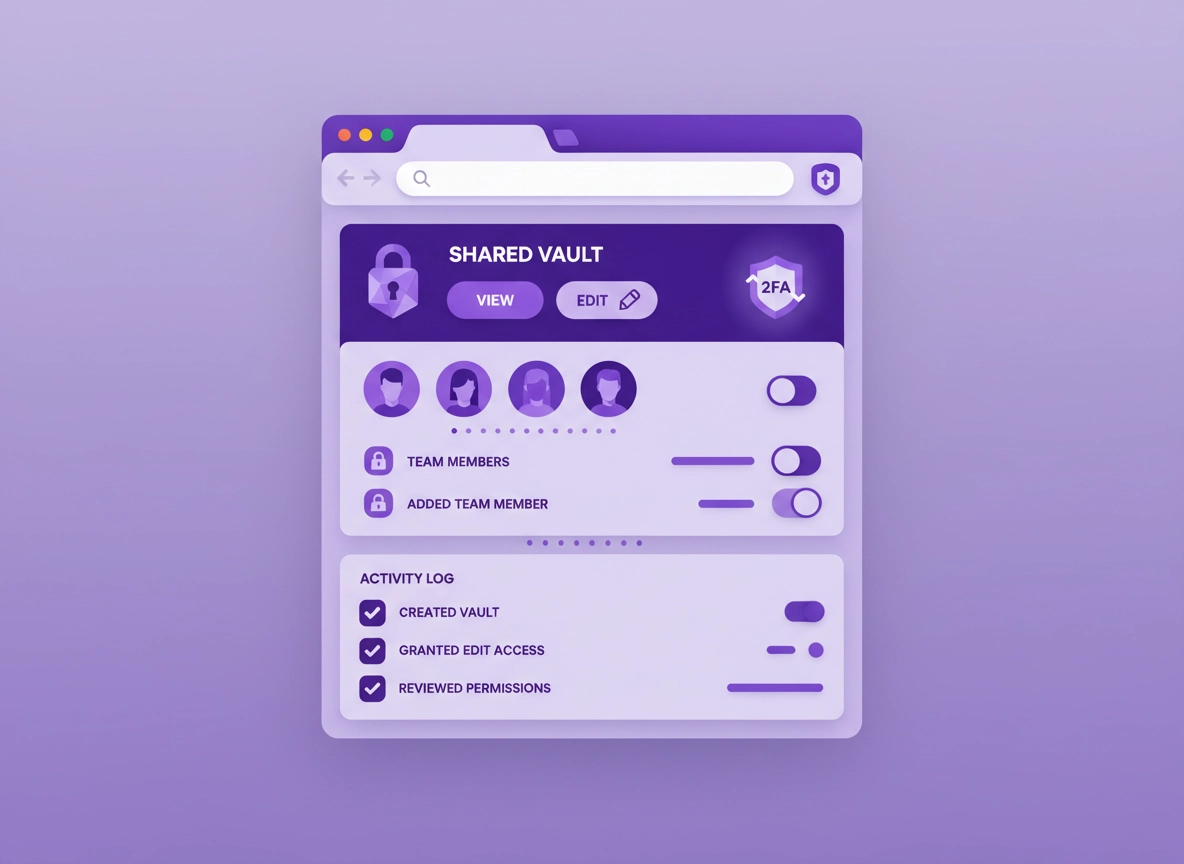
In security terms, the goal isn’t to share a string of characters. The goal is to grant someone the ability to sign in while keeping control: you decide who can use it, on which devices, for how long, and you keep the option to revoke access quickly. That’s why the best solution looks like this: a shared vault / shared collection inside a password manager extension in Chrome.
When you share through a proper password manager, you typically get: encryption at rest and in transit, an invite-based workflow, granular permissions (view-only vs edit), and—on business plans—an audit trail that shows what was shared and when.
Best starting point: If you’re choosing a tool, begin here: Best Password Manager for Chrome. If you’re weighing options, see Chrome password manager comparison.
Key terms (quick definitions) .
- Shared vault / shared collection: A space where multiple users can access selected logins with permissions.
- Least privilege: Give the minimum access required (view-only for most cases; edit only when necessary).
- 2FA / MFA: A second factor (app prompt, authenticator code, security key) required in addition to the password.
- Rotation: Changing a password after sharing, offboarding, suspicion of exposure, or policy requirements.
- Audit trail: Logs of sharing actions (who shared what, to whom, when; sometimes with access events).
- Offboarding: Removing someone from systems (and shared vaults) when they leave a project or company.
Threat model: how passwords leak in the real world .
Most password leaks aren’t Hollywood hacks—they’re everyday “normal” actions that create permanent copies of a password in places you don’t control. If you understand the leak paths, you’ll naturally choose safer methods.
Sending passwords in chat, email, or tickets
Chats sync across devices, get backed up, searchable by admins, forwarded, screenshot, and often retained for years. Email is worse: it becomes a long-lived archive.
- WhatsApp / Telegram / Slack / Teams
- Email threads, helpdesk tickets, shared inboxes
- Project docs or spreadsheets (“temporary”)
Share access, not the password
Use a password manager extension in Chrome with shared vaults/collections. Invite the recipient, require 2FA, and set view-only access where possible.
- Shared vault (invite + permissions)
- Time-limited sharing or quick revoke
- Rotate password after project/offboarding
There are also second-order risks people forget: autofill on the wrong site (phishing), browser profile mixing (work + personal), and extension risk (malicious or over-permissioned extensions reading page data). Secure sharing means you keep these risks in mind while you’re choosing a workflow.
Related: If you’re concerned about extension risk while using password manager add-ons, read Chrome Extension Security Check and Extension permissions guide.
Before you start (fast checks) .
These quick checks prevent 80% of “password sharing” problems—especially in families and small teams. Do them first and you’ll avoid sharing the wrong thing, to the wrong person, with the wrong level of access.
- Confirm what you’re sharing: Is it a personal login, a shared service account, or an admin credential?
- Decide permission level: Most recipients only need view/use access, not edit.
- Enable 2FA on the account itself: Sharing a password without 2FA is like sharing a key with no lock change option.
- Enable 2FA on the password manager account: The vault is now a high-value target—protect it properly.
- Pick the right Chrome profile: Use a dedicated “Work” profile (or separate profile per client) so access doesn’t bleed.
- Update Chrome: Keeping Chrome patched is part of sharing securely (especially on shared devices).
Related: For better separation and less accidental leakage, see Chrome profile security settings and Chrome profile privacy setup.
Step-by-step: the recommended Chrome method .
This method works whether you’re sharing with one person (family) or a whole group (team). The exact labels differ by password manager, but the workflow is basically the same everywhere: install extension → sign in → create shared space → invite → set permissions → share login → verify → revoke/rotate later.
- 1 Choose a password manager that supports sharing in Chrome. If you’re unsure, start with security features comparison and the best password manager for Chrome guide.
- 2 Install the extension from the Chrome Web Store (from the vendor’s official website link, not a random search result). After installing, pin it to the toolbar so you can see when it’s active.
- 3 Sign in and enable 2FA for your vault account. Most managers support authenticator apps or security keys. If security keys are available, use them. (For high-risk accounts, keys are the best “anti-phishing” option.)
- 4 Create a shared vault / shared collection. Name it clearly (e.g., “Family Streaming”, “Client-ABC Admin”, “Team SaaS Tools”). Avoid dumping everything into one “Shared” bucket—separation reduces blast radius.
- 5 Invite the recipient by email (never by a forwarded message). Verify the email address carefully. If this is business-critical access, confirm out-of-band (a quick call) before granting access.
- 6 Set permissions (least privilege). Choose view/use if they only need to sign in. Choose edit only if they must change the password, update recovery options, or manage the account.
- 7 Add the login to the shared vault (or share the specific item). Prefer sharing a single item rather than a whole folder unless the person truly needs all of it.
- 8 Test the login flow safely. Ask the recipient to sign in on their own device. Confirm 2FA on the account works. For admin tools, confirm they have the right role inside the service—not just the password.
- 9 Plan the “end”: revoke and rotate. Put a reminder in your process: when the project ends (or person leaves), remove them from the shared vault. If you suspect the password was ever copied elsewhere, rotate it.
What “success” looks like: The recipient can sign in without you sending a password string in chat/email, you can remove access in one click, and you can prove (to yourself or your team) who currently has access.
Related: For team workflows, read Password manager team collaboration in Chrome and role-based access in password managers.
Common variations (Desktop vs Mobile) .
- Windows / ChromeOS: extensions are usually the easiest. Prefer a dedicated Chrome profile for work/client access.
- macOS: same flow. If you use multiple browsers, ensure sharing and autofill are enabled only where needed.
- Android / iPhone: sharing may happen inside the manager app. Make sure the recipient has autofill enabled and 2FA set up.
Teams & businesses: access control, audit logs, and offboarding .
Secure sharing becomes an actual business risk when the password unlocks money, customer data, or admin actions. For business use, your goal is operational security: access should be easy to grant, easy to revoke, and hard to misuse without being detected.
The business-grade checklist .
- Shared vaults with roles: view-only vs edit vs admin.
- Audit logging: “who shared what, when” and ideally access history.
- SSO / directory integration: tie vault access to company identity (Google Workspace / Microsoft / IdP).
- 2FA enforcement: require it for everyone, not optional.
- Emergency access: controlled recovery for critical accounts (not “ask Bob for the master password”).
- Offboarding workflow: remove a user and rotate high-risk credentials.
Related: Deep dives you’ll want if this is for work: Password manager SSO, directory integration, emergency access, and ROI for business.
Stop sharing “root” passwords (do this instead) .
A surprisingly common pattern in small businesses is a single “admin password” shared to the whole team. It feels fast, until the first time: someone leaves, a laptop is stolen, a contractor is compromised, or a chat history gets exported.
Offboarding: the “don’t forget this” sequence .
- Remove the person from shared vaults/collections (and groups/teams).
- Revoke SSO sessions (if available) or sign out all devices in the vault/account.
- Rotate high-risk shared credentials (finance, admin, production, client portals).
- Check recovery channels (email, phone, backup codes) for accounts they touched.
- Review audit logs for unusual activity around the offboarding window.
If you want a stronger security posture in Chrome itself (especially in remote teams), see Chrome zero-trust browser setup and the broader Chrome hardening guide.
Common alternatives users compare .
- Chrome / Google Password Manager vs dedicated password managers
- Shared vaults vs “one-time secret” links
- Password sharing vs passkeys (and when you can avoid passwords entirely)
- Consumer family plans vs business plans (audit trails, SSO, RBAC)
Alternatives (and when they’re acceptable) .
Sometimes you can’t use a shared vault: maybe the recipient refuses to install anything, you’re helping a family member once, or you’re dealing with a legacy account that can’t be moved yet. Here are alternatives ranked from “least bad” to “please don’t.”
Option A: One-time secret (acceptable for temporary access) .
A one-time secret tool can be okay for short-lived sharing—especially if you combine it with immediate rotation. The idea: you send a link that reveals the password only once, then it expires. This reduces (but does not eliminate) leak paths compared to normal chat.
- Use when: one-off support, temporary contractor access, urgent login handoff.
- Don’t use when: ongoing access, admin credentials, regulated data, shared team accounts.
- Always: rotate the password after they’ve used it the first time, and enable 2FA on the account.
Option B: Temporary access via the service (best if available) .
Many services (Google Workspace, Microsoft 365, GitHub, banking portals, ad platforms, etc.) support granting access without sharing a password at all (invites, delegated admin, role-based permissions). This is often better than any vault because it creates separate identities and clear accountability.
- Use when: the service supports invites/roles.
- Pro tip: choose roles like “billing view” or “content editor” rather than full admin.
Option C: Encrypted file (usually not worth it) .
People sometimes create a password-protected file and send it. The problem is you still have to send the file password, and now you have two secrets floating around. It also creates long-lived copies.
- Use when: you truly must share multiple secrets in a batch and can deliver the decryption key out-of-band.
- Otherwise: shared vaults are cleaner, safer, and easier to revoke.
Option D: Chat/email (do not do this) .
If you remember only one thing from this guide: never paste passwords into chat or email. It’s the most common reason “secure” organizations accidentally leak credentials.
Privacy & security notes (2FA, passkeys, rotation) .
Password sharing touches multiple layers: the browser, the vault, the underlying account, and the human workflow. These notes help you tighten the whole chain so “sharing” doesn’t become “leaking.”
Impact: Account takeover risk if a password is copied, forwarded, phished, or stored in plain text. The blast radius depends on whether you have 2FA, whether the login is reused, and whether you can revoke access quickly.
Related: If you want to understand the security side deeply, read password manager encryption explained and zero-knowledge architecture.
Recommended baseline settings .
- Vault security: enable 2FA; use a long master password; lock vault on sleep; avoid “remember forever” on shared devices.
- Account security: enable 2FA on the account you’re sharing; store backup codes in a secure notes area (not in a doc).
- Browser hygiene: keep Chrome updated; avoid unknown extensions; separate work and personal profiles.
Recommended approach by goal .
| Goal | Recommended method | Tradeoff | Best for |
|---|---|---|---|
| Balanced | Shared vault + view-only access + 2FA | Requires both users to have the manager | Most families and small teams |
| Maximum security | Individual accounts in the service + roles + SSO + vault only for break-glass | More setup; may require paid plans | Businesses, admin tools, regulated data |
| Emergency / temporary | One-time secret + immediate rotation + 2FA | Still involves sharing the password string | Short-term access only |
Passkeys: when you can avoid password sharing entirely .
If the service supports passkeys, you may not need to share a password at all. Passkeys are designed to resist phishing and can be tied to the user’s device. For teams, the better move is usually: invite the person as a user and let them enroll their own passkey. That way, access is unique per person and can be revoked without changing a shared secret.
Passkeys aren’t universal yet, and some “shared service accounts” still exist—but the direction is clear: whenever you can replace shared passwords with user-specific access, do it.
Related: If you’re building a stronger Chrome security baseline, see Chrome login security best practices and Chrome two-factor authentication guide.
Troubleshooting .
Related: If the issue is actually Chrome behavior (profiles, sync, autofill), start with how to use a password manager in Chrome and Chrome password manager limitations.
If the recipient can’t see the shared password .
This is usually one of four things: (1) they’re signed into the wrong vault account, (2) they didn’t accept the invite, (3) you shared the item to the wrong collection, or (4) permissions are set to “no access” (common in group-based sharing).
- Ask them to confirm the email/account they used to sign into the vault.
- Resend the invitation and ensure it was accepted.
- Confirm the item is inside the shared vault/collection (not just in your personal vault).
- Check permission level (view vs edit) and group membership if you shared to a team.
If autofill is not working in Chrome .
Autofill failures often happen because multiple password sources compete: Chrome’s built-in manager, a third-party extension, and sometimes a second extension. Keep it simple.
- Disable Chrome’s built-in password autofill if you’re using a dedicated manager (to avoid conflicts).
- Ensure the extension has permission to run on the login page (some managers require site access).
- Check if you’re in Incognito (extensions may be blocked unless explicitly enabled for Incognito).
- Try in a clean Chrome profile to isolate extension conflicts.
Related: For Chrome’s built-in behavior, see Chrome password storage security and Chrome autofill security settings.
If you suspect the password was exposed .
Don’t debate it—treat it as exposed. Rotate the password, review account sign-in sessions, and remove unnecessary access. If the account supports “log out of all devices,” use it. Then confirm 2FA is enabled and recovery email/phone are correct.
- Rotate the password (and update the shared vault item).
- Remove recipients who no longer need access.
- Check sign-in history (if the service provides it).
- Run a password health check / breach monitoring if available.
Related: If you’re doing breach response, see data breach protection, password health check, and dark web monitoring.
If you need to “reset safely” (without losing everything) .
If Chrome is acting weird during sharing (extensions failing, sync confusion), avoid deleting your vault or doing destructive steps. First, try a clean Chrome profile or disable conflicting extensions. If you must reset Chrome, back up critical data and sign out cleanly.
FAQ .
-
helpIs it safe to share passwords in Chrome?It can be safe if you share through a password manager using shared vaults/collections, with 2FA enabled, and with the ability to revoke access. It’s generally not safe to share by copy/pasting passwords into chat, email, or documents because those create long-lived copies you can’t control.
-
helpWhat’s the single biggest mistake people make?Sending the password string in a message “just this once.” That one paste often gets archived, forwarded, or synced to multiple devices. The safer move is sharing access via a vault invite, then revoking access when it’s no longer needed.
-
helpShould I give “edit” access in a shared vault?Only if the person truly needs to update the credential or manage the account. For most sharing (family logins, team sign-ins), view/use is enough. Least privilege reduces the chance of accidental lockouts or malicious changes.
-
helpDo I need to change the password after sharing?If you used a shared vault (no copying), you may not need to rotate immediately—especially for ongoing access. But you should rotate when access ends (offboarding), when you suspect exposure, or when policy requires it. Rotation is what kills old copies and restores control.
Sources & further reading .
- Google Chrome Help Center
- Google Account security (2FA, recovery, device activity)
- Chrome Enterprise & Education help
- Chrome Releases (security and update notes)
Disclosure: This guide focuses on security best practices. Some pages may mention tools or services. Recommendations are editorial and based on practical usability and security outcomes.