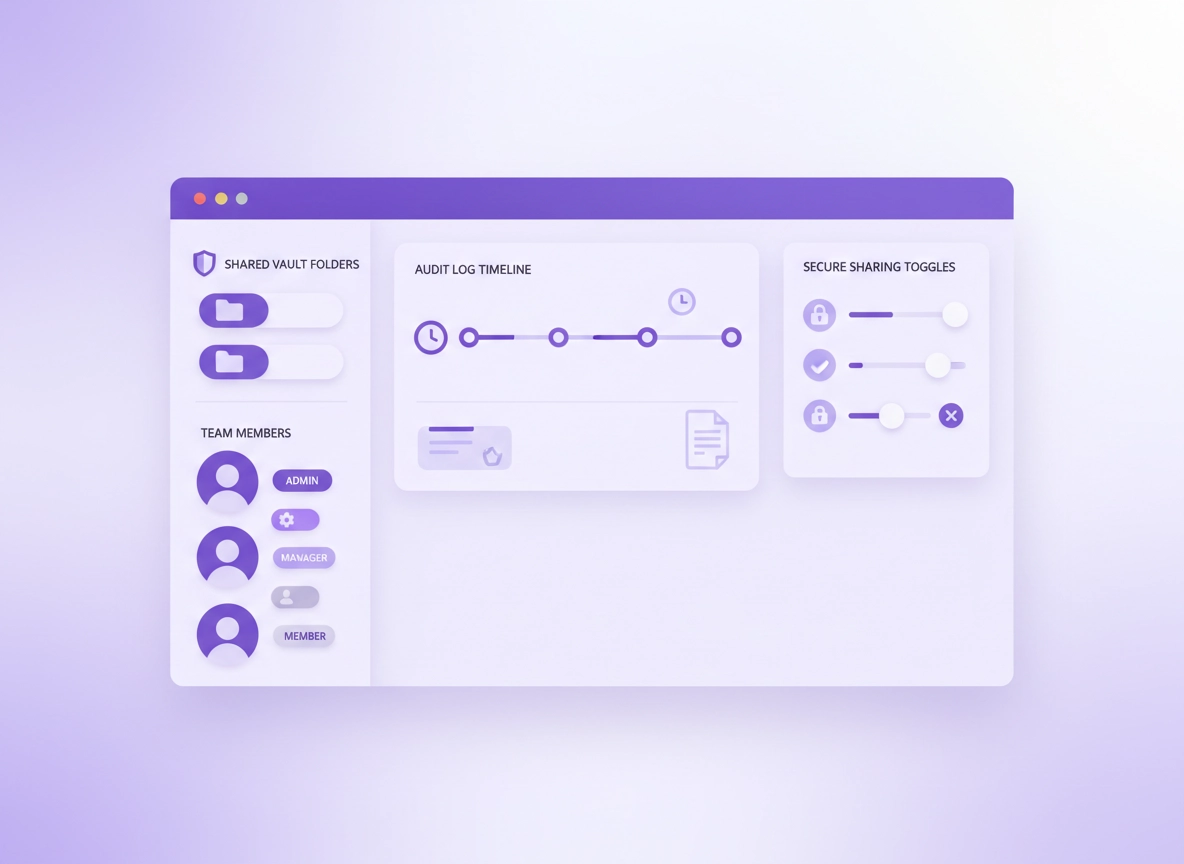
What team collaboration means (and why it fails) .
“Team collaboration” in a password manager is not a chat feature. It’s a security system.
In Chrome, password manager collaboration usually means your team needs to access shared accounts across many websites: Google Workspace admin, billing portals, social media, ad platforms, CRM systems, cloud consoles, internal dashboards, and vendor logins. The problem isn’t “how do we share a password?” The real problem is: how do we share access without losing control of the credential lifecycle.
Most teams start with the same risky pattern: someone creates an account, sends the password in a chat message, stores it in a spreadsheet, or forwards it via email. That works until the day it doesn’t—when a contractor leaves, a laptop gets stolen, a shared password is reused elsewhere, or an ex-employee still has access to your billing portal. Collaboration fails when access becomes untraceable, unrevokable, and undocumented.
A team-ready password manager flips that model. Instead of “sharing the secret,” you share a managed item inside a shared vault or collection. Access is governed by roles and policies, and activities are captured in an audit trail. In other words: collaboration becomes a controlled system where you can grant access, remove access, rotate credentials, and prove what happened if something goes wrong.
Related: If you’re specifically trying to share passwords safely, start here: Password sharing securely in Chrome.
Key terms (quick definitions) .
- Shared vault: A team space where items live and permissions are managed centrally (not copied around).
- Collection / folder: A subset of a vault (for “Marketing”, “Finance”, “IT”, “Vendors”) with scoped access.
- RBAC (role-based access control): Roles like Admin/Manager/Member that determine what a user can do.
- Least privilege: Give the minimum access needed (view-only, no export, no sharing, no admin).
- Audit logs: Recorded activity (item viewed, edited, shared, exported, accessed) for investigations/compliance.
- SSO / directory integration: Login via your identity provider (Google/Microsoft/Okta), often with automated provisioning.
- SCIM provisioning: Automatic user creation/removal based on HR/IdP status (offboarding becomes reliable).
- Secret rotation: Changing shared credentials on a schedule or after events (offboarding, suspected compromise).
Why teams use Chrome password collaboration (use cases) .
Chrome teams share access for different reasons—your setup should reflect the reason, not just the tool:
- Shared services: “We have one billing account.” (High risk: tighten approvals and auditing.)
- Role-based access: “Anyone on the SEO team needs access to analytics.” (Best fit: collections + groups.)
- Temporary access: “A contractor needs access for a week.” (Best fit: time-bounded sharing + rapid rotation.)
- Admin escalation: “Only IT should see root credentials.” (Best fit: break-glass policies + approvals.)
- Compliance: “We need proof of access control.” (Best fit: audit logs + SSO + SCIM.)
If you’re not sure which “collaboration maturity” you need, don’t guess. Use the fast checks below and choose the collaboration model that matches your risk.
Before you start (choose the right collaboration model) .
There are three common collaboration models. The mistake is trying to do enterprise collaboration with consumer sharing, or doing simple family-style sharing for a business where people join/leave frequently.
Model A: Simple sharing (small teams) .
- What it is: Share individual items or a folder to a small set of users.
- Good for: 2–6 people, stable team, low compliance pressure.
- Risk: Sharing tends to sprawl unless you restrict who can re-share/export.
Model B: Shared vaults + collections (growing teams) .
- What it is: A shared vault with collections for each team/department, tied to groups.
- Good for: 6–60 people, contractors, frequent role changes, predictable onboarding/offboarding.
- Risk: Misconfigured roles can turn “member” into accidental admin.
Model C: Enterprise collaboration (security & compliance) .
- What it is: RBAC + SSO + SCIM + approvals + audit logs + policy enforcement across devices.
- Good for: Regulated industries, large teams, high-value accounts, strict offboarding requirements.
- Risk: More setup—worth it when the business cost of one leak is higher than the setup time.
Related: If you’re comparing options, start with the hub: Best password manager for Chrome, and then use the feature checklist here: security features comparison.
Fast checks (5 minutes) before you roll out team sharing .
- Do you need access revocation to be instant? If yes, prioritize shared vaults + group-based access and avoid “copy-to-personal” workflows.
- Do contractors join/leave often? If yes, SCIM provisioning (or at least centralized user management) matters more than fancy UI.
- Do you need proof for audits? If yes, require audit logs and lock down exports and sharing permissions.
- Do shared accounts exist because the service doesn’t support user roles? If yes, enforce rotation and approvals on those items.
- Is Chrome managed by your org? If yes, consider policy-based enforcement for extension installation and browser security baselines.
Related: If you’re building a broader business security baseline, see: Password manager for Chrome business and (for remote teams) password manager for remote teams.
Step-by-step: set up secure team sharing in Chrome .
This section assumes you’re using a dedicated password manager with a Chrome extension (rather than only the built-in Chrome password manager). If you’re currently using Chrome’s built-in manager and you’re hitting team limits (no RBAC, no audit logs, weak offboarding), you’ll want a migration plan. See: migrate from Chrome passwords to a third-party manager.
1) Decide what belongs in the shared vault (and what doesn’t) .
- 1
List shared accounts your team actively uses. Start with the “pain” tools (ads platforms, socials, billing, DNS, hosting, analytics, CRM). These are the most commonly shared in chat.
- 2
Separate “shared business accounts” from “personal accounts”. Business items go into shared vaults. Personal logins stay personal. Don’t mix them—mixing is the #1 reason exports and leaks happen.
- 3
Classify items by sensitivity. Example tiers:
Tier 1(billing/admin/root),Tier 2(team tools),Tier 3(low-risk). Tiering makes approvals and auditing practical. - 4
Plan where non-password secrets live. Modern teams store API keys, recovery codes, SSH keys, Wi-Fi creds, and secure notes. If your tool supports “secure notes” or “secrets,” use it. (Related: secure notes feature.)
What “success” looks like: Every shared login your team needs is stored in exactly one shared place, with clear ownership, and nobody has to ask “does anyone have the password?” in chat.
2) Create a shared vault and collections aligned to teams .
Most teams either overcomplicate this (20 folders nobody understands) or under-scope it (one giant vault everyone can edit). A clean starting structure looks like:
- Shared Vault: “Company Vault” (or “Operations Vault”)
- Collections/Folders: Marketing, Sales, Finance, IT/Admin, Vendors/Contractors
- Special Collection: “Break Glass / Admin” (restricted, approvals required)
- 1
Create the shared vault in your password manager’s admin console. Name it for the org, not the project. Vaults tend to last longer than initiatives.
- 2
Create collections/folders for each team. Keep it boring and obvious. If a new hire can’t guess where a login is, the structure is too clever.
- 3
Create groups that match your real org chart. Example:
Marketing-Team,Finance-Team,IT-Admins,Contractors. Groups become the access control layer. - 4
Bind collection access to groups (not individuals). If access is tied to people, offboarding becomes manual and error-prone.
Related: If you want the “enterprise way” to do this, use RBAC + groups: role-based access control in Chrome.
3) Set roles and permissions (the part that prevents disasters) .
Collaboration becomes risky when “everyone can do everything.” A practical baseline:
- Admins: Can manage vault settings, policies, SSO, and billing. Keep this group tiny.
- Managers: Can create/edit items in their team collection. Ideally cannot export the whole vault.
- Members: Can view/use items (autofill) but not export or re-share.
- Contractors: Access to a specific collection only, time-bounded, view-only if possible.
- 1
Turn off “anyone can share anything” by default. In team environments, sharing should be a capability, not a default.
- 2
Restrict exports for non-admin roles. If someone can export vault contents, your “collaboration” can become an exfiltration method.
- 3
Limit item editing to owners/managers. The more editors, the more accidental overwrites (and “who changed the password?” chaos).
- 4
Decide how you want to handle “view password”. Some orgs allow autofill but restrict reveal. If your tools support it, use “reveal requires re-auth” or approvals for Tier 1 items.
4) Roll out the Chrome extension safely .
The Chrome extension is where collaboration meets reality: people auto-fill, save new logins, and generate passwords. If the extension is misconfigured, users will create duplicates, save personal logins into the company vault, or bypass the manager entirely.
- 1
Standardize on one extension per user for password management. Multiple password extensions cause autofill conflicts and “wrong vault” saves.
- 2
Disable Chrome’s built-in password saving if you’re rolling out a third-party tool. This prevents split storage where half the team is in Chrome and half in the vault. (Related: disable Chrome password manager.)
- 3
Configure “where new items get saved.” Many tools allow default vault/collection settings. Set the default to personal vault for personal accounts, and train team members how to move items.
- 4
Teach the 30-second rule: if you create an account for the company, save it to the shared vault immediately and label it clearly. Ownership and location matter more than perfect naming.
Related: Want the Chrome-specific picture? Password manager extension for Chrome, plus a deeper security angle on browser integration here: browser integration security.
5) Invite users and enforce MFA (minimum viable security) .
Collaboration without MFA is like giving everyone the office keys and leaving the front door unlocked. For teams, you want MFA enforced at the organization policy level, not “optional in settings.”
- 1
Invite users via email or directory sync. If your password manager supports directory integration, it’s worth using for long-term hygiene.
- 2
Enforce MFA for all users. If your org uses security keys for admins, even better. Aim for stronger methods on privileged accounts. (Related: password manager 2FA guide.)
- 3
Require a strong master password policy. In team environments, the master password is the keystone. If the tool supports it, require minimum length and block common passwords. (Related: master password security.)
- 4
Turn on device lock. This forces re-auth if someone walks away from their desk or a device is stolen.
6) Add your first shared items with clean naming and ownership .
Teams don’t fail because a password manager lacks features. Teams fail because items are messy: duplicates, unclear names, random tags, and nobody knows who “owns” the credential lifecycle.
A naming and ownership pattern that works:
- Name:
[Service] – [Account/Workspace] – [Role](e.g., “Google Ads – Main Account – Admin”) - URL: the login URL (helps Chrome match autofill correctly)
- Owner: a team role (IT/SecOps) or named steward (not a random employee)
- Notes: recovery method, billing contact, MFA location, rotation cadence
7) Establish a “share access” workflow (so it doesn’t become chaos) .
In secure collaboration, the default is not “send the password.” The default is: add the user to the right group → they automatically get access to the right collection. That makes onboarding predictable, and it makes offboarding reliable.
- 1
Access request: user requests access to “Marketing collection” (or specific item) through your process.
- 2
Approve and grant via group: add the user to the group—not manually to each item.
- 3
Apply least privilege: view-only unless editing is required. Editing is privilege.
- 4
Document exceptions: if someone needs Tier 1 access, require approval and log the reason.
Related: If your environment needs more control, explore: directory integration, SSO, and SOC 2 compliance setup.
Common variations (by platform) .
- Windows / ChromeOS: Most password managers support biometric unlock via Windows Hello / ChromeOS device protections (varies by tool).
- macOS: Expect Touch ID unlock support in many tools; verify how it behaves when the Mac sleeps/locks.
- Android / iPhone: Collaboration is usually fine, but autofill behavior differs; verify that your shared vault items appear in autofill prompts.
Advanced: RBAC, SSO, approvals, audit logs, and offboarding .
The “advanced” section is where teams stop leaking secrets accidentally and start operating like a system. If your organization handles money, customer data, admin consoles, or regulated workflows, this section matters.
Related: If you’re building security and management around Chrome itself (policies, devices, managed profiles), see: Chrome Enterprise guide.
RBAC: the roles that keep collaboration safe .
RBAC is the difference between “we share passwords” and “we manage access.” Two RBAC mistakes show up constantly: (1) too many admins, and (2) “edit” rights given broadly because it’s convenient.
- Limit organization admins to the smallest possible group. Admins can change policies and access boundaries.
- Use collection-level permissions so teams only see what they need. Don’t let the whole company browse the whole vault.
- Separate ‘can view’ from ‘can edit’. Editing allows credential changes that can lock teams out or hide malicious edits.
- Make sharing permission explicit. Users should not automatically be able to re-share sensitive items.
SSO and directory integration: collaboration that scales .
SSO is not just about convenience. It’s how you bind vault access to your central identity system. When someone leaves the company, you want “disable the account” to instantly remove vault access.
Directory integration (often with SCIM) is what makes that reliable. Instead of manually inviting and deleting users, your password manager automatically provisions users based on your identity provider and removes access when HR offboards them.
- SSO reduces credential sprawl and supports stronger MFA policies through your IdP.
- SCIM automates onboarding/offboarding—critical for contractors and frequent team changes.
- Group sync lets you map real org groups to vault collections.
Related: For deep setup paths and what “good” looks like: Directory integration and SSO for password managers.
Approvals for privileged access (Tier 1 items) .
Some credentials should never be freely shared: cloud root accounts, DNS registrar logins, payroll systems, payment processors, high-privilege SaaS admin panels, and recovery email accounts. For these:
- Require approvals (two-person rule) before access is granted or before a password is revealed.
- Use time-bounded access for emergency or project-based use.
- Rotate after use if the item was accessed for a one-off task or by a contractor.
- Keep recovery factors protected (backup codes, recovery emails) in the same policy tier.
If your tool supports “emergency access” or “break glass,” implement it. The goal is not to prevent access—it's to prevent chaotic access when something goes wrong. (Related: emergency access for Chrome.)
Audit logs: the missing piece in most “sharing” setups .
Audit logs answer questions that become urgent during incidents: Who accessed the billing portal? Who exported vault data? Who changed the password? Who invited a new user? Without logs, investigations become guesswork—and compliance becomes fragile.
A healthy audit log setup includes:
- Item access events: view, reveal, copy, autofill (depending on tool capabilities).
- Admin events: role changes, policy changes, new integrations, group modifications.
- Export events: any data export should be visible and ideally restricted.
- Alerting: notifications for high-risk events (new admin, mass export, suspicious login).
Rotation policy: collaboration stays safe only when passwords change .
Shared credentials are inherently risky because they’re used by multiple people. That means your mitigation is rotation: change the credential on a schedule and after “events.” Even if your password manager is perfect, a shared password can still leak through: screenshots, phishing, clipboard history, compromised endpoints, or a vendor breach.
A practical rotation schedule:
| Credential type | Suggested rotation | Trigger events | Notes |
|---|---|---|---|
| Tier 1 (billing/admin/root) | 30–90 days | Offboarding, suspicious activity, contractor access | Require approvals + MFA; store recovery codes securely |
| Tier 2 (team SaaS tools) | 90–180 days | Team changes, breach alerts, permission changes | Prefer individual user accounts when possible |
| Tier 3 (low risk) | As needed | Incident or access sprawl | Still use unique passwords |
Want a deeper cost/risk view? Check: total cost of ownership and ROI for business. Rotation reduces incident likelihood and incident cost—both matter.
Offboarding: removing access cleanly (the true test of collaboration) .
Offboarding is where weak collaboration setups collapse. If someone leaves and you can’t confidently say they no longer have access, your org is carrying long-term risk.
- 1
Disable the identity account (IdP/SSO). This should remove password manager access immediately in SSO setups.
- 2
Remove user from synced groups (or let SCIM deprovision). Group-based access is easier to reason about than item-based grants.
- 3
Rotate shared credentials the user had access to. Start with Tier 1, then Tier 2. If you don’t rotate, access removal is incomplete (they may have copied it).
- 4
Review audit logs for exports or unusual access before departure. This is where you catch “vault copy” behavior.
- 5
Transfer ownership of any items they created (shared accounts often originate from a single person).
Related: If recovery and continuity matter, add emergency access to your policy stack: Emergency access guide.
Common alternatives users compare .
- Chrome built-in password manager vs dedicated password manager for teams
- Sharing passwords in chat/docs vs shared vaults with RBAC and audit logs
- Free plans vs business plans (when you need SSO, groups, and logs)
- Password managers vs passkeys strategy (and how they can work together)
If you’re actively evaluating plan differences, these are helpful: free vs paid, business vs personal, and enterprise pricing.
Security notes: threat model + what this prevents .
“Team collaboration” increases risk by default, because more people touching a credential means more opportunities for leaks. The goal of a team-ready password manager is not perfection—it’s reducing predictable failure modes: accidental sharing, uncontrolled copies, unclear ownership, and weak offboarding.
Impact: Improves access control, reduces credential sprawl, enables audits and offboarding—when configured correctly.
Related: If you’re worried about the underlying risks—vulnerabilities, breaches, and recovery—these go deeper: vulnerability risks, data breach protection, and recovery options.
What this setup prevents (real-world failure modes) .
- Chat leaks: Passwords pasted into Slack/WhatsApp/email get copied, forwarded, and stored forever.
- Spreadsheet sprawl: Shared docs get duplicated, downloaded, and left in personal drives.
- Offboarding gaps: Removing one person doesn’t fix it if they already copied shared passwords.
- Privilege creep: People collect access over time when access isn’t group-based and reviewed.
- Untraceable incidents: Without audit logs you can’t investigate, contain, or prove compliance.
Recommended baseline settings for teams .
- Option A (balanced): Shared vaults + group-based collections + enforced MFA + restricted exports for non-admins.
- Option B (maximum control): Add SSO/SCIM, approvals for Tier 1 items, alerts, and strict “no re-share” rules.
- Option C (compatibility-first): Keep policies lighter, but enforce MFA and disable Chrome password saving to prevent split storage.
Recommended settings by goal .
| Goal | Recommended setting | Tradeoff | Best for |
|---|---|---|---|
| Balanced | Shared vault + collections via groups, MFA enforced, limited exports | Slight setup effort | Most teams |
| Maximum control | SSO/SCIM, approvals for Tier 1, audit logs + alerts, strict role separation | More admin overhead | High-value accounts, compliance teams |
| Compatibility | Light policies + MFA + disable Chrome password saving | Less governance | Small teams that need speed |
Troubleshooting .
Related: If the browser feels unstable during setup (freezing, slow, extension conflicts), see: Speed up Google Chrome and for extension safety: Chrome extension security check.
Problem: users can’t see shared vault items in Chrome autofill .
This usually happens when the user isn’t actually in the correct group/collection, or the item is stored without the proper login URL. Fix it in this order:
- Check group membership: confirm the user is in the correct group bound to the collection.
- Check item URL: ensure the login URL matches the real sign-in domain.
- Re-auth / unlock: lock/unlock the extension and try again; some tools cache vault state until re-auth.
- Conflicts: disable other password extensions; autofill conflicts are common.
Problem: duplicates everywhere (“we have 3 copies of the same login”) .
Duplicates typically come from mixed storage (Chrome + third-party), incorrect URLs, or multiple people saving the same account separately. The clean-up approach:
- Disable Chrome saving: stop creating new duplicates (see disable Chrome password manager).
- Pick an “authoritative” item: choose one item as the source of truth and delete/merge the rest.
- Set ownership: assign a steward (IT or a team lead) who approves edits.
- Normalize naming: use a consistent naming scheme so the team finds the right item quickly.
Problem: contractors still have access after leaving .
This is an offboarding process issue. Fix it with structure:
- Use group-based access: remove from group = remove access.
- Prefer SCIM deprovisioning: automatic removal reduces human error.
- Rotate shared credentials: if they ever had access, assume they could have copied the secret.
- Review logs: check for exports or access spikes before offboarding.
Problem: “we shared a login but now someone changed it and nobody knows who” .
This happens when too many people can edit shared items. The fix is RBAC: restrict editing to a small group, require approvals for Tier 1 items, and use audit logs to attribute changes. (Related: RBAC guide.)
If you suspect compromise: what to do first .
Don’t panic, but act fast and systematically:
- Rotate the credential for the impacted shared account(s) immediately (start with admin/billing).
- Review audit logs for export events and unusual access patterns.
- Verify MFA on the target service and the password manager itself.
- Check endpoint health (malware/extension risk). If needed, see: remove malware from Chrome.
- Reduce blast radius by removing unnecessary access groups and re-issuing access intentionally.
FAQ .
-
helpIs Chrome’s built-in password manager good enough for team collaboration?For most teams, no. Chrome’s built-in manager can store and autofill passwords, but it typically lacks core collaboration controls like shared vaults with RBAC, approvals, and audit logs. If you need reliable offboarding, controlled sharing, and compliance-friendly visibility, a dedicated team password manager is the safer choice.
-
helpWhat’s the safest way to share a password with a coworker in Chrome?Don’t paste the password into chat. Store the credential in a shared vault/collection and grant the coworker access through a group with least privilege (view/use vs edit). For high-privilege accounts, require approval and rotate the password after temporary access.
-
helpHow do we handle shared accounts that don’t support individual users?Treat those as Tier 1 or Tier 2 shared credentials. Use a shared vault with restricted access, enable MFA on the service, require approvals if possible, keep audit logs, and rotate the password on a schedule and after offboarding or contractor access.
-
helpWhat’s the biggest mistake teams make with password manager collaboration?Mixing personal and company credentials, and relying on person-by-person sharing instead of group-based access. That makes offboarding unreliable and creates password sprawl. The fix is shared vaults + collections tied to groups, enforced MFA, restricted exports, and a rotation policy for shared accounts.
Sources & further reading .
- NIST SP 800-63B: Digital Identity Guidelines (Authentication)
- OWASP: security best practices and threat modeling references
- Google Chrome Help: browser security and account basics
Disclosure: This guide is editorial and focuses on secure patterns. If a tool or service is mentioned, evaluate it against your needs and policies.