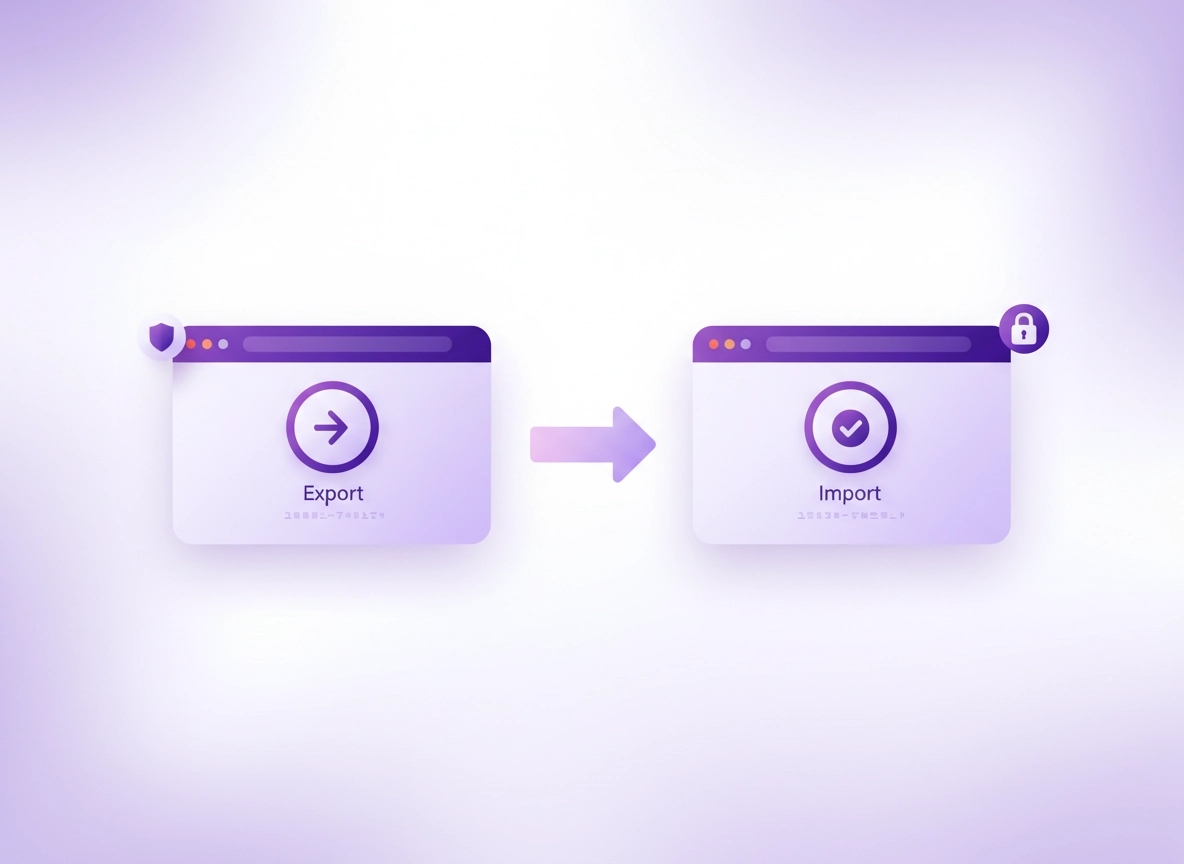
What migrating means (and why it’s not just “export/import”) .
Most migration “guides” skip the part that matters: what happens to your passwords while they’re in transit.
When people say “move from Chrome Password Manager to a third-party password manager,” they usually mean one simple action: export Chrome passwords to a CSV file and import that CSV into a new vault. That’s technically correct — but incomplete. The real migration is a controlled process that protects you from three expensive mistakes: lockouts, leaks, and messy data (duplicates, missing fields, broken URLs, wrong usernames).
Chrome (via Google Password Manager) is convenient because it’s right there in the browser, and it syncs with your Google account. But dedicated password managers are built for deeper needs: encrypted vault architecture, stronger sharing models, emergency access, business controls, detailed audit events, and safer autofill behavior across apps and devices. If you’re comparing your options first, start here: Chrome password manager vs third-party, then see the hub: Best password manager for Chrome.
Migration also matters because the browser is a high-risk environment. Browsers touch untrusted websites all day. The password manager inside your browser isn’t “unsafe,” but the ecosystem around it (extensions, downloads, phishing, device sharing) is where real incidents happen. That’s why the goal is to keep your passwords encrypted end-to-end as much as possible — and keep the time spent in “CSV world” close to zero.
Related: Want a deeper evaluation before you move? Read Chrome built-in password manager review and Chrome password manager limitations.
Key terms (quick definitions) .
- Google Password Manager: The password manager tied to your Google account, used in Chrome and Android (and accessible via passwords.google.com).
- CSV export: A spreadsheet-style file that often contains plaintext URLs, usernames, and passwords. Useful for migration, risky for storage.
- Vault: Your encrypted password database inside a password manager (often with folders, tags, sharing, and access controls).
- Autofill: The feature that detects login fields and fills credentials (a major convenience — and a common attack surface if misconfigured).
- Passkeys: A newer sign-in method (not a “password”). Passkeys may not migrate the same way passwords do.
- Profiles: Chrome’s separate browser identities (work vs personal) with different stored passwords and sync settings.
Before you start (the safety checklist) .
If you skip everything else, don’t skip this. Most “migration disasters” are not caused by the export button — they’re caused by a rushed setup (no MFA), exporting on a shared device, leaving the CSV in Downloads, or importing into the wrong vault/account.
Related: If you want to validate weak/reused passwords before you move, run a password health check and review your risk posture in Chrome password storage security.
Pre-migration checklist (2 minutes) .
- Pick the right device: Use a trusted personal computer (not a shared office PC, not a public laptop).
- Update Chrome: Close and reopen Chrome so you’re on the latest stable build (security fixes land frequently).
- Know which Google account you’re exporting from: Click your profile in Chrome and confirm the correct account/profile.
- Decide your destination account first: Create the third-party vault and log in before exporting anything.
- Turn on MFA for the new vault: Your new password manager account is now a “master key.” Protect it.
- Plan for emergency access: If you’re migrating a family/team, set this up early (before you disable Chrome saving).
- Set a “CSV rule”: The CSV must be deleted immediately after import (including Trash/Recycle Bin).
Optional but smart: clean up your vault before export .
Migration is a great moment to reduce clutter. If you have hundreds of old logins, duplicates, and “I signed up once in 2018” accounts, you’ll migrate that mess unless you prune it first. A practical approach:
- Delete obvious junk: dead forums, one-time tools, duplicates with the wrong URL.
- Fix critical accounts: email, Apple/Google/Microsoft, banking, and work SSO. These are lockout risks.
- Upgrade weak passwords: where it matters. (Your new manager’s generator can help.)
Step-by-step migration (recommended) .
This is the safest general workflow whether you’re moving to a personal vault or a business/enterprise password manager. We’ll keep the CSV “alive” for the shortest time possible, and we’ll verify success before we change any Chrome settings.
Step 1 — Create and secure your new password manager first .
- 1 Sign up (or create your org/team) in the third-party password manager.
- 2 Create a strong master password (unique, long, memorable) and store your recovery kit safely.
- 3 Enable multi-factor authentication (MFA) on the new vault account.
- 4 Install the browser extension/app only after the account is secured (avoid “half-setup” states).
What “success” looks like: You can sign into the new password manager on at least one device, MFA is enabled, and you can access the import tool/section without errors.
Related: If you’re choosing tools, use the hub Best password manager for Chrome and the buyer-focused comparison pages inside Comparisons.
Step 2 — Export passwords from Chrome / Google Password Manager .
Google’s current guidance is to use the Google Password Manager screens inside Chrome (or passwords.google.com), then export to a file. The exact wording in menus can vary slightly by version, but you’re looking for Google Password Manager → Settings → Export.
Desktop (Windows / macOS / Linux / ChromeOS) .
- 1 Open Chrome and ensure you’re in the correct profile (top-right profile icon).
- 2 Open Google Password Manager: click the three dots (⋮) → Passwords and autofill → Google Password Manager.
- 3 In Google Password Manager, open Settings.
- 4 Find Export passwords and choose Download file (you may need OS authentication).
- 5 Save the CSV locally (Downloads is fine if you delete it immediately after import).
If you can’t find the menu path, a direct route often works:
chrome://password-manager/settings
Android / iPhone .
- 1 Open Chrome → Settings → Password Manager.
- 2 Tap Settings (inside the Password Manager screen).
- 3 Tap Export passwords and confirm your identity (biometric/PIN).
- 4 Save the file to a secure local location, then move to import immediately.
Important: On mobile, “saving” the CSV can silently put it into a cloud-synced folder depending on your phone settings. Always check where the file landed before you proceed.
Step 3 — Import the CSV into your third-party password manager .
Most password managers support a “Chrome” or “Google Password Manager” import flow. The safest option is to use the manager’s built-in import tool (not a random converter site). Typical locations include: Settings → Import → Chrome/CSV.
- 1 Open the third-party password manager (web vault/app) and go to Import.
- 2 Choose the import type that matches your export (often “Chrome” or “CSV”).
- 3 Select the CSV file you just exported.
- 4 Confirm the mapping (URL/username/password). If the tool asks about folders/tags, choose a simple default.
- 5 Complete the import and wait for the “import finished” confirmation.
Related: If you want to understand how import/export works securely in general (and what the risks are), read export passwords from Chrome securely.
Step 4 — Verify the migration (don’t skip this) .
Verification prevents the worst-case scenario: you disable Chrome saving/autofill, delete the CSV, and only then discover your most important accounts didn’t import correctly. A good verification is fast and targeted.
Verify these 10 logins first .
- Email: your primary inbox (the account that resets everything else)
- Google / Apple / Microsoft: whichever identity provider you rely on most
- Banking / payments: one critical financial account
- Mobile carrier: SIM swap risk makes this one important
- Work SSO: your main company sign-in portal
- Cloud storage: Drive/Dropbox/OneDrive (contains sensitive docs)
- Social platform: your most-used account (brand + messaging risk)
- Shopping: an account with saved payment methods
- Password manager account itself: confirm MFA works
- One “weird” site: a site with a nonstandard login flow (helps catch URL formatting issues)
What “success” looks like: You can autofill (or copy/paste) credentials from the new vault and sign in successfully on a few key sites without relying on Chrome’s saved passwords.
Step 5 — Delete the CSV (everywhere) and close the migration window .
This step is where you “finish the job.” Google explicitly warns that anyone who can access your CSV can access your passwords — so deletion matters. Deleting means: remove the file, then empty the Trash/Recycle Bin, and check places the file could have copied to.
- Downloads folder: delete the CSV after import is confirmed.
- Recycle Bin / Trash: empty it.
- Cloud sync folders: if it accidentally saved to a synced folder, delete it there too (and check “recent” history).
- Email/Chat: if you shared it (try not to), delete it from Sent items and attachments.
- Backups: if you run automated backups, consider whether the CSV got captured (this is why we keep the file short-lived).
Step 6 — Disable Chrome’s built-in password saving (optional but recommended) .
If you’re committing to the third-party password manager, disable Chrome’s “offer to save” prompts. This prevents conflicts (two autofill systems fighting), reduces confusion, and helps teams standardize.
- 1 In Chrome, open Google Password Manager settings (or use
chrome://password-manager/settings). - 2 Turn off Offer to save passwords and passkeys (wording may vary slightly).
- 3 Optionally turn off “Auto sign-in” if you want explicit control during the transition period.
Related: If you want a clean cutover, follow disable Chrome password manager. For deeper risk analysis, read Chrome password manager security risks.
Common variations .
- Windows / ChromeOS: exporting typically prompts for your device login (Windows Hello/PIN/password).
- macOS: you may be prompted for Touch ID or your macOS password before export.
- Android / iPhone: file save locations differ; double-check where the export file is saved before importing.
Advanced migration (profiles, teams, and enterprise) .
If you’re migrating a household, a remote team, or a managed environment, the “CSV import” is only the middle of the story. The real value of third-party tools shows up when you need sharing, auditability, admin control, and predictable onboarding/offboarding.
Related: If you manage Chrome in an organization, start with Chrome Enterprise guide and explore password-manager business needs in password manager for Chrome business.
Scenario A: You have multiple Chrome profiles .
Many people unknowingly store passwords across multiple Chrome profiles (personal Gmail, work Google Workspace, a “guest” profile, etc.). Exports are usually per-account/profile context. If you export from the wrong profile, you’ll think the migration “lost” passwords.
- Do this first: list your Chrome profiles and identify which one contains the passwords you care about.
- Safer approach: export/import one profile at a time and label the imported items (tags/folders) by profile.
- After migration: decide whether you want one unified vault or separate vaults (personal vs work).
Scenario B: You need shared vaults and role-based access .
Chrome’s password manager is fundamentally personal. Sharing passwords by copy/paste (or spreadsheets) is where teams get hurt. A business password manager typically supports shared vaults, access roles, and event logs. If you’re evaluating this for a team, these pages will help: password sharing securely, team collaboration, and emergency access.
Minimum “team-safe” features to look for .
- Shared vaults: so passwords aren’t copied into chat.
- Role-based access control: so people only see what they need.
- Access revocation: so offboarding isn’t “change everything manually.”
- Audit/event logs: so security teams can answer “who accessed what, when?”
- Admin policy controls: e.g., enforce MFA, restrict export, require strong master passwords.
Scenario C: Enterprise migration with SSO/SCIM and compliance needs .
In enterprise, migrations are rarely “one-time.” You’re building a repeatable process: onboarding, device setup, recovery, policy compliance, and incident response. If your org uses SSO, directory sync, or needs compliance alignment, plan migration as a project.
- Decide auth model: master password only vs SSO + local vault key (depends on vendor).
- Plan onboarding: how new employees get vault access and how you recover accounts.
- Define an offboarding checklist: revoke vault access, rotate shared credentials, review logs.
- Document policy: e.g., no exports, no shared accounts, mandatory MFA, device requirements.
Related: If your organization wants policy-level controls, explore password managers for IT admins, SSO integration, and directory integration.
Common alternatives users compare .
Privacy & security notes (CSV risk + best practices) .
Migrations are a high-intent moment for attackers because the user is distracted, handling sensitive files, and often changing settings. The security goal is simple: keep your credentials encrypted as much as possible, reduce “exposed time,” and prevent two autofill systems from competing during the transition.
Impact: The export file can expose URLs, usernames, and passwords if mishandled. Autofill conflicts can cause lockouts or wrong-account logins.
Related: If you suspect malware, a hijacked extension, or unusual browser behavior, see Remove Malware from Chrome and Chrome extension security check.
Recommended baseline settings during migration .
- Option A (balanced): Keep Chrome saving on until your new vault is verified, then disable Chrome saving and rely on the new manager.
- Option B (maximum safety): Disable Chrome saving right after verification + remove the CSV immediately + enable MFA everywhere critical.
- Option C (compatibility): Keep Chrome saving enabled for a few days, but set the third-party manager as primary autofill and avoid duplicate saves.
Recommended settings by goal .
| Goal | Recommended approach | Tradeoff | Best for |
|---|---|---|---|
| Balanced | Export → Import → Verify → Delete CSV → Disable Chrome saving | Requires a short focused migration session | Most users |
| Maximum privacy | Use a trusted device + keep CSV local + delete immediately + review extension safety | More steps, less convenience | Security-sensitive users, journalists, finance/legal |
| Compatibility | Keep Chrome saving enabled temporarily while the new vault becomes primary | Higher chance of duplicates and confusion | Complex environments, older workflows |
What usually does NOT migrate cleanly .
- Passkeys: These are not “passwords” and often don’t export/import via CSV.
- 2FA tokens inside other apps: If you used a separate authenticator, those codes live elsewhere.
- Rich item types: Secure notes, software licenses, SSH keys, and credit cards may require manual setup.
Related: If you’re adopting richer vault features, see secure notes, multi-device sync, and hardware key support.
Troubleshooting .
Related: If your migration issues look like “Chrome is behaving strangely,” check Chrome security checkup and Chrome password checkup.
If the export button is missing .
This is usually a UI path issue, profile issue, or a managed-device policy restriction. Try:
(1) confirm you’re in the correct Chrome profile, (2) open Google Password Manager directly with
chrome://password-manager/settings, and (3) if it’s a work device, ask your admin whether exports are restricted by policy.
If the CSV imports but logins look “wrong” .
Common causes are URL formatting differences (http vs https, or subdomain variations), duplicate entries, or a mismatch in CSV field mapping. Fix strategy:
- Spot-check a few entries: confirm URL, username, and password appear in the correct fields.
- Look for duplicates: some managers import duplicates rather than merging.
- Fix critical entries manually: email/SSO/banking should be corrected first.
If autofill stops working after migration .
This is usually because Chrome and the new manager are both trying to autofill (or neither is set as the default). Decide which tool is primary and disable the other system’s prompts. If you’re going “all in” on the third-party manager, follow: disable Chrome password manager.
If you get locked out of an account .
Don’t panic. Use your verified recovery path: your email account (and its MFA) is usually the key. If the lockout involves your Google account, ensure you can still sign in to Google Password Manager on another device before changing anything else. This is why we verify critical accounts before deleting the CSV.
If you need to “reset” safely .
If the migration went sideways, pause and stabilize: keep Chrome saving enabled temporarily, keep your new vault installed but don’t delete anything yet, and re-run verification on 3–5 critical accounts. Once you can reliably sign in, continue with cleanup.
FAQ .
-
helpIs exporting passwords from Chrome safe?Exporting is safe if you treat the CSV like a high-risk file: export locally, import immediately, then delete it (including Trash/Recycle Bin). The dangerous part is storing or sharing the CSV, because it can expose your credentials if someone gets access to it.
-
helpWill the migration move my passkeys too?Usually not via CSV. Passkeys aren’t passwords and often don’t export/import the same way. Expect to keep passkeys in your Google/OS ecosystem or re-enroll them inside your new password manager if it supports passkeys.
-
helpCan I keep Chrome Password Manager and a third-party manager at the same time?You can, but it’s easy to create duplicates and confusion (especially with autofill prompts). The best approach is to keep Chrome saving on only until you verify the new vault, then disable Chrome saving so one system is primary.
-
helpWhat should teams do differently when migrating?Teams should plan sharing and access controls first (shared vaults, roles, offboarding, and audit logs). Don’t “share passwords” by sending CSV files or pasting credentials into chat. Use a team-capable vault and enforce MFA and policy controls.
Sources & further reading .
- Google Chrome Help: Import or export passwords with Chrome
- Google Chrome Help: Manage passwords in Chrome
- Google Password Manager overview
- Bitwarden Help: Import from Chrome
- 1Password Support: Turn off the built-in password manager in your browser
- Chrome Releases (Google): Stable channel update notes
Disclosure: Some pages may mention tools or services. Recommendations are editorial and based on practical testing and security best practices.