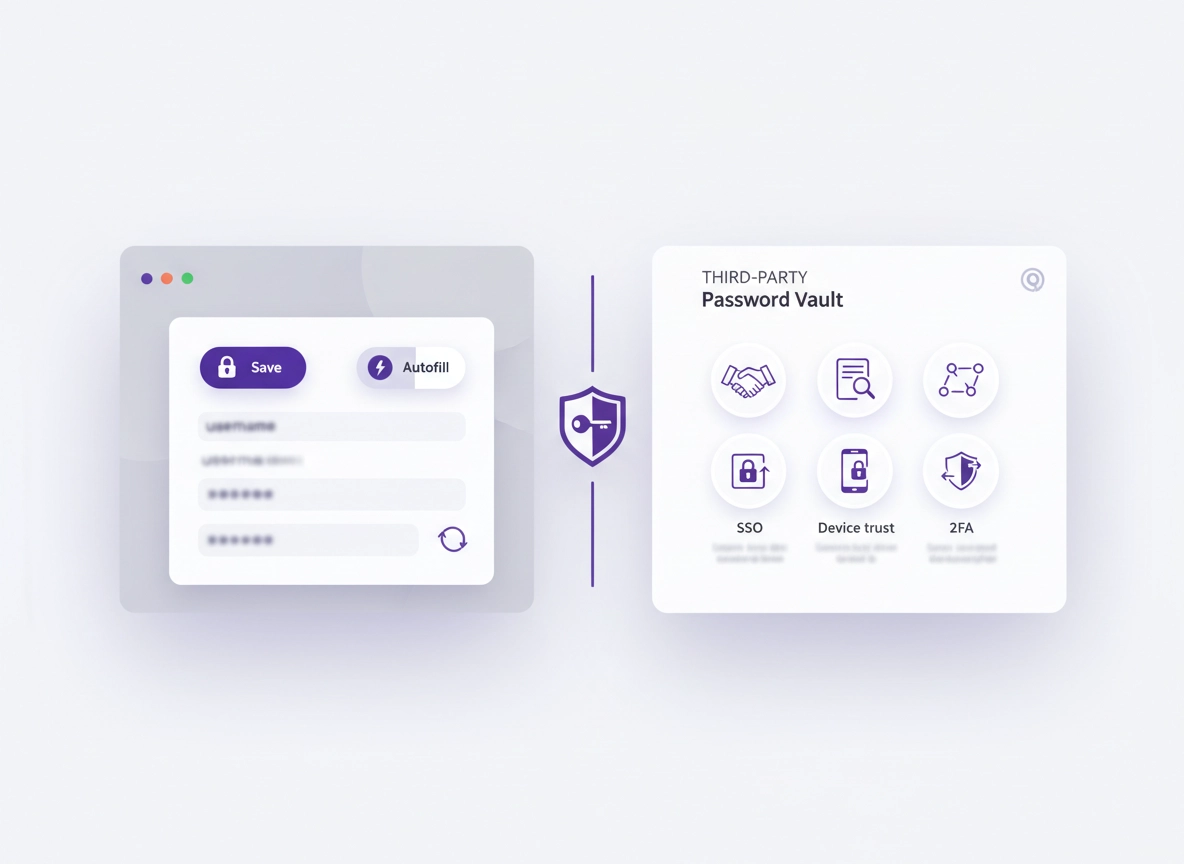
Chrome passwords vs third-party vaults (what’s really different) .
Most “password manager” comparisons fail because they treat all vaults as equal. They’re not.
The built-in Chrome password manager (often called “Google Password Manager”) is a convenience feature tightly integrated into Chrome and your Google account. It’s designed to make saving and autofilling logins effortless across devices—especially if you already live inside Google services. For many users, that convenience removes the biggest real-world security problem: reusing weak passwords.
Third-party password managers (like 1Password, Bitwarden, Dashlane, Keeper, and others) are usually built as dedicated security products first. They focus on stronger vault controls (sharing, auditing, admin policy, recovery workflows), more consistent cross-platform behavior, and extra layers of protection for higher-risk scenarios—teams, business logins, contractors, shared accounts, and regulated environments.
So the question isn’t “Is Chrome’s password manager safe?” The better question is: is it the right security model for your risk level and how you actually work? A solo user with a locked-down Google account has very different needs than a team with offboarding, SSO, and audit requirements.
Related: If you want a deeper look at Chrome’s built-in tool specifically, start here: Chrome built-in password manager review. For a wider roundup, see Best password manager for Chrome.
Key terms (quick definitions) .
- Vault: The encrypted container where your logins (and often secure notes, passkeys, and cards) live.
- Account takeover: When an attacker gets into your primary account (Google account or vault account) and gains access to saved credentials.
- Recovery workflow: The process to regain access if you lose your device, forget your password, or lose your 2FA method.
- Secure sharing: Sharing a credential without copying it into chat/email, and with the ability to revoke access later.
- Audit trail: A record of actions like sharing, exporting, and admin changes—critical for business environments.
Decision framework: which one should you use? .
Here’s the most practical way to decide: pick the tool that matches your threat model and workflow. You’re not buying “encryption.” You’re buying a system that reduces mistakes (reuse, weak passwords, insecure sharing) without creating new ones (recovery failure, shadow copies, untracked exports).
Chrome’s password manager is usually enough if… .
- You’re a solo user (or household) and you don’t need structured sharing for work accounts.
- You mainly use Chrome and Google services, and you’re fine with Google as the central identity provider.
- You can secure your Google account properly: unique password, 2-step verification, and device hygiene.
- Your “must-have” features are: save, autofill, password health, and breach alerts.
A third-party password manager is usually worth it if… .
- You need secure sharing with revoke/expiration, or shared vaults for teams and families.
- You want consistent vault behavior across browsers/devices (Chrome, Edge, Firefox, Safari; Windows/macOS/iOS/Android).
- You care about stronger recovery options (account recovery contacts, emergency access, organization recovery).
- You need admin features: SSO, directory integration, RBAC, policy enforcement, audit logs, and offboarding workflows.
- You’re in a compliance-heavy space (healthcare, finance, law) where documenting access and controls matters.
“I’m not sure” — answer these 7 questions .
- How catastrophic is a single account takeover? (email, banking, cloud consoles, admin dashboards)
- Do you share credentials? If yes, do you need revocation, access levels, and logging?
- How do you recover access? If you lose your phone + 2FA, can you recover without panic?
- Do you use multiple browsers? Or multiple OS devices daily?
- Do you need strong vault organization? (tags, vaults, collections, role-based access)
- Do you need reporting? (password health, reused passwords, risky domains, phishing resistance)
- Do you need admin policy? (block exports, require 2FA, enforce master password rules, SSO)
Security model: where the real risks live .
Let’s get blunt: most modern password managers use strong cryptography. The difference is how they handle the messy parts: identity, recovery, sharing, device trust, and human mistakes.
Chrome’s model: your Google account is the “master key” .
With Chrome, your saved passwords are tied closely to your Google account and Chrome profile sync. That’s great for convenience. But it also means your vault security rises and falls with your Google account security: password strength, 2-step verification, recovery email/phone security, and device compromise resistance.
Related: Want to reduce account takeover risk and browser exposure? Start with Chrome account security settings and Chrome login security best practices.
Third-party model: a dedicated vault identity (often with “zero-knowledge” design) .
Most reputable third-party managers are designed so the provider cannot easily read your vault contents (“zero-knowledge” is the common marketing term, but what matters is how encryption keys are handled). In practice, this means your risk shifts away from “Google identity takeover” and toward “vault account takeover” plus “recovery workflow abuse.” Good managers invest heavily in protecting vault sign-in, making phishing harder, offering secure recovery options, and giving admins controls for teams.
In other words: third-party vaults often add a layer of separation. Even if your Google account has issues, it doesn’t automatically mean your entire credential store is exposed—assuming your vault isn’t using Google SSO and your devices aren’t compromised.
The universal truth: compromised devices beat almost any vault .
If your device is infected, an attacker can steal cookies, intercept autofill, or capture what you type. A password manager doesn’t magically protect you from an active compromise—it mainly reduces password reuse and helps you rotate quickly.
Related: If you suspect malware or hijacking, don’t migrate yet—clean first: Remove malware from Chrome and Chrome security checkup.
What attackers actually do (realistic scenarios) .
- Phishing: Trick you into signing into a fake page, capturing your Google or vault credentials.
- Session theft: Steal authenticated browser sessions (cookies/tokens) from an infected machine.
- SIM swap / recovery abuse: Hijack your phone number or recovery method to reset an account.
- Credential stuffing: Use leaked passwords on your accounts (why unique passwords matter).
- Shared password sprawl: Old employees or contractors keep access because sharing had no revocation.
Feature comparison that matters (sharing, recovery, auditing, admin) .
Feature checklists can be misleading. “Has autofill” isn’t a differentiator. The differentiators are the features that prevent expensive mistakes: accidental exposure, insecure sharing, no offboarding, and no visibility into risk.
1) Secure sharing and revocation .
Chrome’s saved passwords are primarily built for personal use. Sharing is not its superpower. Third-party managers typically offer shared vaults, item-level sharing, access controls, and revocation—meaning you can remove access without changing the password everywhere (though rotating is still best practice).
- Chrome: Great for “I need my passwords on my devices.” Not built for structured team sharing.
- Third-party: Great for “multiple people need access” with a clear ownership model.
Related: If sharing is your main reason to upgrade, read Password sharing securely in Chrome workflows and Password manager team collaboration.
2) Recovery, emergency access, and “bus factor” .
Recovery is where real life hits. Phones get lost. Employees leave. A founder gets locked out. A family needs access in an emergency. Chrome’s recovery is basically Google account recovery. That can be fine—until it isn’t. Dedicated managers often support emergency access, recovery contacts, or organization recovery (for business), designed to avoid “forever locked out” while minimizing abuse.
Related: For deeper guidance: Password manager recovery options and Emergency access.
3) Auditing, reporting, and breach response .
Chrome can warn you about compromised passwords and encourage password changes. That’s valuable. But business-grade reporting goes further: password health across a team, risky sharing, vault access events, admin actions, and sometimes SIEM-friendly exports. If you’re accountable for security, you need visibility.
Related: See Password security audit and Password breach monitoring.
4) Admin controls: policies, provisioning, and offboarding .
If you’ve ever onboarded a teammate, you already know the pain: everyone invents their own system. Passwords end up in notes, spreadsheets, chat, or browser autofill with no control. Third-party business vaults typically solve this with admin policy: enforce 2FA, require strong master passwords, block risky exports, control sharing, set vault ownership, and integrate with identity providers.
Chrome’s built-in manager doesn’t aim to be an enterprise admin platform. In managed environments, Chrome policies help secure the browser, but a dedicated password manager usually becomes the “system of record” for credentials.
Related: If you’re comparing business options, start with Best enterprise password manager for Chrome and Enterprise password manager overview.
5) Multi-device consistency and browser independence .
Chrome is excellent inside Chrome. The moment you add Safari on iOS, a locked-down corporate device, or a second browser for client work, the “one browser vault” story can get messy. Dedicated password managers are designed to be cross-platform first. That consistency matters more than people expect—especially when you’re under pressure and need access fast.
Related: Platform-specific guidance: Windows, macOS, Android, iOS.
Recommended settings by goal .
| Goal | Best choice | Tradeoff | Best for |
|---|---|---|---|
| Balanced | Chrome password manager + hardened Google account + regular checkups | Limited sharing/admin controls | Solo users, simple households |
| Maximum control | Third-party vault with strong 2FA, recovery plan, and secure sharing | Subscription cost + setup time | Power users, multi-device workflows |
| Business/enterprise | Third-party business plan (SSO, RBAC, auditing, directory sync) | Admin overhead (worth it) | Teams, IT/security, compliance needs |
Safe migration (export → import → verify) .
Migrating is where people accidentally create risk: exporting a CSV and leaving it in Downloads, importing duplicates, or switching autofill before verifying the vault is complete. The process below is designed to keep your credentials safe and your workflow stable.
Before you start (fast checks) .
- Use a clean device: Run a quick security check and remove suspicious extensions.
- Update Chrome: Keep the browser current to reduce known exploit risk.
- Plan your “source of truth”: Decide whether Chrome or the new vault will own passwords during migration (pick one).
- Secure your new vault account: Use a unique master password and enable 2FA immediately.
Related: Step-by-step export/import guidance lives here: Export passwords from Chrome securely and Import passwords into Chrome securely. If you’re switching away from Chrome permanently, also see Migrate from Chrome password manager to third-party.
Step-by-step migration checklist (recommended) .
- 1 Prepare your vault: install the password manager app + browser extension, sign in, enable 2FA, and confirm autofill is enabled inside the vault.
- 2 Export from Chrome carefully: export only when ready to import immediately. Save the export file in a location you can find quickly, and treat it like a “master key.”
- 3 Import into the vault: use the vault’s import tool (usually supports CSV). Follow the vault’s prompts for mapping fields.
- 4 Verify completeness: spot-check your most important accounts (email, banking, cloud, work SSO, billing tools). Confirm usernames, URLs, and 2FA notes are intact.
- 5 Resolve duplicates safely: don’t delete aggressively until you confirm which record is correct. Merge or dedupe using the vault’s tooling if available.
- 6 Switch autofill control: once you trust the vault, disable Chrome’s “offer to save” prompts (and optionally Chrome autofill) so you don’t create two competing truth sources.
- 7 Securely delete the export file: delete the CSV/ZIP export after import. Also empty Recycle Bin/Trash and remove any cloud sync copies.
- 8 Do a rotation pass: change passwords for high-impact accounts and enable passkeys or stronger authentication where possible.
What “success” looks like: You can sign into your top 10 accounts from the vault without Chrome offering to save “new” passwords, and your password health dashboard shows no missing or broken entries for critical services.
How to disable Chrome password prompts (after migrating) .
After migration, most people want to stop Chrome from trying to save passwords (to avoid duplicates and confusion). You can do this without deleting your Google account or nuking your profile. If you need a dedicated walkthrough, see Disable Chrome password manager.
- Chrome (desktop): Settings → Autofill and passwords → Password Manager → turn off “Offer to save passwords” (wording may vary).
- Chrome (mobile): Settings → Password Manager → adjust save/autofill prompts and your preferred provider if available.
- Teams: If you manage devices, prefer policy enforcement so users can’t re-enable risky behaviors.
Common migration mistakes (and how to avoid them) .
- Leaving exports behind: The exported file is often plain-text or easily readable. Delete it immediately after import.
- Changing everything at once: Migrate first, verify, then rotate passwords for important accounts in a controlled order.
- Two truth sources: If Chrome continues saving new passwords, you’ll get drift and confusion. Choose one primary manager.
- Forgetting shared accounts: If a password is shared informally, rotate it and move it into a shared vault with ownership and revocation.
- Skipping recovery planning: Set emergency access or recovery contacts before you “need” them.
Business & enterprise requirements (SSO, policies, compliance) .
Business buyers care about three outcomes: reduce breach risk, reduce downtime, and prove control. That means the winning “password manager” is the one that integrates with identity, locks down risky behavior, and gives you visibility. Chrome’s built-in password manager is not designed to be your enterprise access control plane.
What enterprise-grade teams typically require .
- SSO + MFA enforcement: Centralized identity, conditional access, and MFA policies.
- Directory integration: Provision/deprovision users automatically (joiners/movers/leavers).
- Role-based access control: People only see what they should, with vault segmentation for departments/projects.
- Audit logs: Evidence of sharing, exporting, admin actions, and access events.
- Offboarding workflow: Remove access instantly, transfer vault ownership, rotate shared credentials.
- Secure sharing patterns: Shared vaults instead of passwords in email/chat/documents.
- Policy controls: Require strong authentication, block weak passwords, control exports, and enforce device trust where possible.
Related: For a business-focused comparison (pricing + features), see Best business password manager comparison and Password manager pricing comparison.
Where Chrome can still fit in enterprise .
In enterprise, Chrome is usually a managed browser. The goal is to harden the browser, control extensions, enforce updates, and reduce risky behavior. That’s separate from being a credential control plane. Many organizations run a third-party password manager for vaults and use Chrome policies to reduce browser-side risks.
Related: If your environment is managed, these are strong companion reads: Chrome managed browser security, Chrome enterprise threat protection, and Chrome IT admin security settings.
Compliance-friendly framing (GDPR, HIPAA, SOC 2) .
A password manager doesn’t “make you compliant” by itself. But in real audits, you’re often asked about access control, credential management, MFA enforcement, logging, and offboarding. Business-grade vaults help you demonstrate controls: policy enforcement, access segmentation, audit trails, and standardized credential sharing.
Related: If you’re building a compliance narrative, these pages are designed for it: GDPR, HIPAA, and SOC 2.
Privacy & security notes (practical hardening) .
Whether you choose Chrome or a third-party vault, your safety depends on how you operate it. These are the controls that deliver outsized impact, especially for high-value accounts.
Impact: Affects account takeover risk, recovery safety, sharing exposure, and how quickly you can rotate credentials after a breach.
Baseline security checklist (do these regardless of manager) .
- Use unique passwords everywhere: Reuse is the most common failure mode.
- Turn on strong 2FA: Prefer phishing-resistant methods where possible.
- Lock down recovery: Protect recovery email/phone, and avoid weak recovery paths.
- Keep devices clean: Remove shady extensions, update Chrome, and avoid logging in on public/shared PCs.
- Run breach monitoring: Act quickly: rotate passwords and invalidate sessions.
Recommended baseline settings by goal .
- Option A (balanced): Chrome manager + Google 2-step verification + Password Checkup monthly.
- Option B (maximum control): Third-party vault + app + extension + 2FA + emergency access + secure sharing enabled.
- Option C (compatibility): Keep Chrome manager for casual sites, but store high-value accounts (banking, email, admin) in a dedicated vault.
Related: If you want a deeper, Chrome-focused hardening path, start with Secure password storage in Chrome, Chrome password storage security, and Chrome password manager security risks.
Browser integration safety: autofill is powerful—treat it like a privileged feature .
Autofill saves time, but it can also be abused on malicious pages. The safest approach is: keep your browser updated, avoid unknown extensions, and consider requiring user interaction (biometric/unlock) before autofill for high-value items if your manager supports it.
Related: If you rely on autofill heavily, read Password autofill in Chrome and Browser integration security.
Troubleshooting .
If Chrome keeps saving passwords after you switched .
This usually means Chrome’s save prompts are still enabled, or you’re signed into a profile that re-enabled password saving. Disable Chrome password manager prompts and confirm your third-party vault extension/app is the only autofill provider you use. For a dedicated walkthrough, follow Disable Chrome password manager.
If autofill conflicts or fills the wrong login .
This is commonly caused by duplicates, old entries with similar domain URLs, or multiple “saved logins” for the same site. Fix it by deduplicating inside your primary vault and ensuring each login record has the correct website URL. If needed, turn off autofill for a single site and use copy/paste temporarily while you clean it up.
If you imported and now have duplicates everywhere .
Don’t panic-delete. Pick your “source of truth” and use the manager’s merge/dedupe tooling. Then spot-check a handful of critical accounts to ensure you didn’t delete the correct record. This is why the recommended flow is: import → verify → dedupe, not the other way around.
If Password Checkup shows “compromised” passwords .
Treat this as a rotation queue. Start with email, banking, cloud admin, payroll, billing, and work SSO. Change passwords from a clean device, enable 2FA, and sign out of other sessions where the service allows it. If you need a more detailed playbook, use Chrome password checkup and Password manager data breach protection.
If you need to reset safely .
If things are messy (conflicting prompts, strange extensions, unknown settings), reset carefully: remove suspicious extensions first, confirm Chrome sync settings, and only then consider a profile reset. For security-first guidance, start with Chrome security checkup.
FAQ .
-
helpIs Chrome’s built-in password manager safe enough?It can be safe for many users if your Google account is well protected (unique password + 2-step verification) and your devices are clean. The bigger gaps show up when you need secure sharing, advanced recovery, or admin controls. If you manage shared or business credentials, a dedicated password manager is usually safer in practice.
-
helpWhat’s the biggest reason to choose a third-party password manager?Secure sharing + recovery + visibility. Third-party vaults typically make it easier to share access without copying passwords into chat, revoke access later, set up emergency access, and use business controls like SSO, RBAC, and audit logs.
-
helpIs exporting passwords from Chrome risky?Yes—because exports are often stored as a readable file on disk. Export only on a trusted device, import immediately, then delete the export file and remove it from Trash/Recycle Bin. Avoid exporting if you suspect malware.
-
helpShould I disable Chrome’s password manager after switching?Usually, yes. Keeping two managers active creates duplicates and “split truth” problems. After you’ve imported and verified your vault, disable Chrome’s save prompts so your new vault becomes the primary source.
Sources & further reading .
- Google Chrome Help: Manage passwords in Chrome
- Google Account Help: Turn on 2-Step Verification
- NIST SP 800-63B: Digital Identity Guidelines (Authentication & Password Guidance)
- OWASP Top 10 (general security risks that drive account takeover)
Disclosure: Some pages may mention tools or services. Recommendations are editorial and based on practical security criteria.