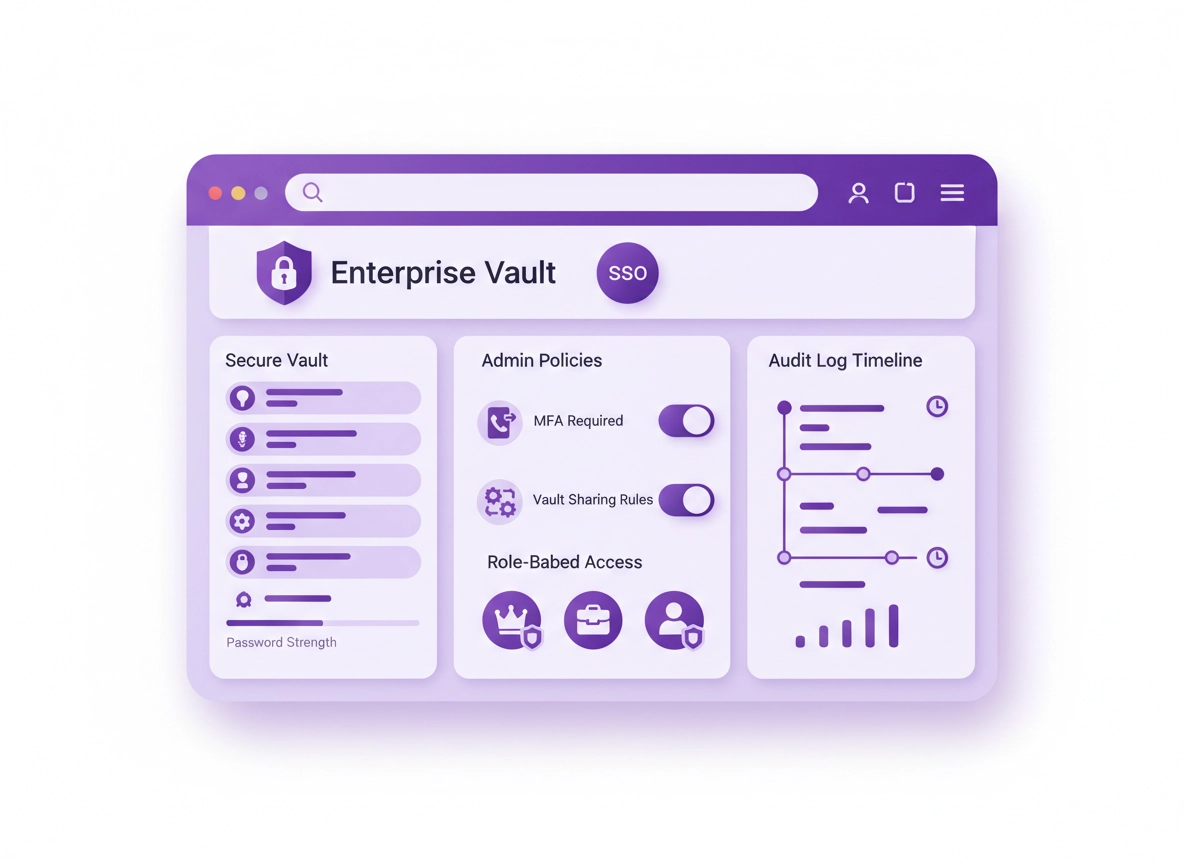
What an enterprise password manager is (and why Chrome changes the game) .
This guide focuses on real enterprise requirements: identity-based access, policy enforcement, and auditability—beyond basic “store passwords” features.
An enterprise password manager is not just a vault for saving logins. It’s a managed security system that combines: identity integration (SSO, SCIM, directory sync), access controls (RBAC, shared vault permissions), policy enforcement (MFA requirements, sharing restrictions, device trust), and auditability (logs, reporting, admin events). In most companies, the password manager becomes the “last-mile” control for credentials that SSO doesn’t cover—like legacy apps, vendor portals, break-glass admin accounts, and automated service credentials.
Chrome matters because it’s where the majority of credential entry happens—especially in SaaS-heavy organizations. An enterprise-grade manager integrates into Chrome through a managed extension (or a native app + browser bridge) that can detect login pages, generate strong passwords, and autofill securely. The enterprise piece is that IT can deploy and control that extension via policy, enforce standards, and prevent risky behaviors like exporting vaults or sharing secrets to personal accounts.
If you’re evaluating enterprise password managers “for Chrome,” you’re really evaluating a chain: Chrome browser + extension + OS security + identity provider + admin console + logging pipeline. Weakness in any link creates incidents: employees bypassing the vault, browsers saving passwords locally, shared credentials leaking, or security teams losing visibility.
Related: If you’re comparing options at a high level first, start here: Best Password Manager for Chrome. For enterprise-only selection criteria, see Best Enterprise Password Manager for Chrome.
Key terms (quick definitions) .
- SSO (Single Sign-On): Users sign into the password manager with their company identity (Google Workspace, Microsoft Entra ID/Azure AD, Okta, etc.) instead of a standalone account/password.
- SCIM (user provisioning): Automatically creates, disables, and groups users based on your directory—critical for joiners/movers/leavers.
- RBAC (role-based access control): Permissions by role/team—who can view, edit, share, export, or administer vaults and records.
- Shared vault / shared collection: A team-owned area for credentials and secrets (e.g., “Finance SaaS”, “IT Vendors”, “Prod Admin”). Access is controlled centrally.
- Audit logs: A record of events: sign-ins, vault access, item creation, sharing changes, admin actions, policy changes.
- Device trust / endpoint posture: Rules that restrict vault access to approved devices, managed browsers, or compliant endpoints.
- Passkeys support: Ability to store/use passkeys (where supported) and manage the transition away from passwords without breaking workflows.
Before you start: pick the right “control plane” .
Enterprises usually fail password manager rollouts for one of three reasons: (1) they treat it like a personal app rollout, (2) they don’t define the identity + policy model first, or (3) they allow multiple password storage systems to coexist (Chrome save prompts, legacy tools, personal vaults), creating confusion and shadow IT.
Before you pick a vendor or write any policy, decide which system is the “source of truth” for: user identity, group membership, vault structure, and security logging. This section is a fast checklist to prevent months of cleanup later.
Related: If your broader enterprise Chrome posture isn’t standardized yet, this guide pairs well with: Chrome Enterprise Guide and Chrome Enterprise Security Settings.
- Fast check #1 (identity): Do you have a primary IdP (Google Workspace / Microsoft Entra ID / Okta)? If yes, require SSO for the password manager from day one.
- Fast check #2 (provisioning): Can you enable SCIM so users and groups follow directory lifecycle automatically? Manual account management does not scale.
- Fast check #3 (Chrome control): Are users on managed Chrome (Chrome Enterprise policies, MDM, or device management)? If yes, you can force-install the extension and standardize settings.
- Fast check #4 (data boundaries): Do you allow personal vaults on work devices? Decide this explicitly. Many enterprises disable “personal vault” features on corporate devices.
- Fast check #5 (logging): Where will audit events go—SIEM, security data lake, or at least export retention? If you can’t answer this, you’ll struggle to meet SOC 2 evidence and incident response needs.
- Fast check #6 (break-glass): How will you store emergency credentials? Decide on “break-glass vault” rules, access approvals, and logging before the first incident happens.
Chrome-specific decision: “Where do passwords live?” .
One of the most important enterprise decisions is whether Chrome’s built-in password manager stays enabled. Many organizations disable Chrome password saving to reduce shadow credential stores and to ensure that credentials and sharing are governed centrally. However, some environments keep Chrome saving enabled for a small subset of low-risk accounts, or as a transition step.
- Best practice (most enterprises): Use the enterprise password manager as the primary store and disable Chrome password saving prompts on managed browsers.
- Transition approach: Keep Chrome saving temporarily, but set a deadline and migration plan; otherwise you’ll permanently run two systems.
- Edge case (compatibility): If you have legacy internal apps that break autofill, you may allow exceptions while fixing those apps.
Related: If you need a deeper comparison, see Chrome password manager vs third-party and Chrome built-in password manager review.
Step-by-step: deploy in Chrome with policies (recommended) .
This is the enterprise rollout “spine” that works across most organizations: identity first, provisioning second, extension deployment third, then policy enforcement and logging. You can do it in different tools (Google Admin Console, Microsoft Intune, Jamf, other MDM), but the structure stays the same.
- 1 Integrate your password manager with your IdP (SSO). Require SSO login and decide whether MFA is enforced at the IdP, the password manager, or both (defense-in-depth).
- 2 Enable SCIM provisioning. Create groups that map to teams (Finance, IT, Sales, Engineering) and ensure users are created/disabled automatically from the directory.
- 3 Define shared vault structure and RBAC. Create shared vaults/collections by function and assign permissions (view-only vs edit vs admin) based on least privilege.
- 4 Deploy the Chrome extension via enterprise policy. Force-install for managed users/devices so adoption doesn’t depend on individual behavior.
- 5 Set baseline policies. Require MFA, disable insecure exports, control sharing, enforce password generator rules, and lock down “personal vault” behavior (if applicable).
- 6 Turn on audit logs and retention. Confirm you can answer: “Who accessed this secret, from which device, and when?”
- 7 Run a pilot, then scale. Pilot with IT + one business team first, refine policies, then roll out org-wide with onboarding guidance and internal documentation.
What “success” looks like: Users sign into the vault with SSO, can access only the shared vaults they need, autofill works reliably in Chrome, and security can review audit events without guessing or chasing screenshots.
Related: If you’re building this for a broader organization rollout, these support pages pair well: Chrome password manager deployment guide, Password policy for Chrome enterprise, and Password manager for IT admins.
Common variations .
- Windows / ChromeOS: Extension deployment is usually the easiest because Chrome Enterprise policies are common and device management can be strict.
- macOS: Ensure your MDM profile supports Chrome extension management and that the password manager’s desktop app permissions (if used) are aligned with corporate security controls.
- Android / iPhone: Mobile autofill depends on OS-level password/autofill frameworks; many enterprises still focus on desktop Chrome first, then standardize mobile access afterward.
What to standardize in your onboarding message .
“Deploying” isn’t enough. Enterprise adoption happens when users know the expected behavior in the browser: where to save credentials, how to request access to shared vaults, and what to do when a login flow changes. A good onboarding message is short and operational:
- Where to save: “Save new work credentials in the corporate vault only.”
- How to share: “Share through vault permissions—never via email/DM.”
- How to request access: “Use the internal request flow for vault access; do not copy credentials into notes.”
- What’s blocked: “Exports and personal vault sharing may be disabled on corporate devices.”
- Support: “If autofill fails on a site, report it; we maintain an allowlist of compatible patterns.”
Advanced settings: SSO/SCIM, RBAC, sharing controls, audit logs, and DLP .
This section is where enterprise value (and enterprise risk reduction) lives. Most password managers advertise “security,” but enterprise readiness means you can control behavior and prove it. Below are the core advanced capabilities IT and security teams should evaluate and configure when deploying a password manager in Chrome.
Related: For a broader security stack view around browsers and managed environments, see Chrome Enterprise Zero Trust and Chrome Enterprise Audit Logging.
1) Identity integration: SSO, MFA strategy, and session control .
In enterprise environments, the password manager should not be a separate identity island. You want a single, enforceable identity plane—so when an employee leaves, access disappears everywhere. This is why SSO matters.
- SSO required: Users sign in with your IdP and follow your organization’s conditional access rules (location, device compliance, risk-based access).
- MFA enforcement: Many enterprises enforce MFA at the IdP. Some add an additional MFA layer at the password manager for privileged actions (export, admin changes).
- Session timeouts: Decide the “vault lock” policy. Shorter lock times reduce risk on shared devices; longer times reduce friction. For high-risk roles, lock faster.
- Re-auth for sensitive actions: Require re-authentication (or step-up MFA) before viewing/ copying high-risk secrets like admin credentials.
2) SCIM provisioning and lifecycle automation .
The fastest way to fail an audit is to rely on manual user management. SCIM helps prove that when HR disables a user (or an IdP group changes), access changes propagate automatically and consistently.
- Joiners: New users appear with correct group membership and default vault access—no “email IT to get started.”
- Movers: When employees change teams, their vault access adjusts via group changes rather than manual edits.
- Leavers: Access disables immediately. You can then transfer ownership of shared credentials to a service account or team vault without scrambling.
- Contractors: Use time-boxed groups. Avoid granting permanent vault access to temporary accounts.
Related: If you manage Chrome policies at scale, this connects directly to: Chrome Enterprise Management and Chrome Enterprise Device Management.
3) RBAC: least privilege for vaults, teams, and admins .
RBAC is how you stop “everyone has access to everything” from becoming your default. In a Chrome-heavy SaaS environment, a lot of business-critical access is just “a password in someone’s head.” RBAC turns that into a governed system.
- Define roles: Typical roles include End User, Team Lead (vault manager), IT Support (help desk), Security Admin, Billing Admin, and Break-glass Custodian.
- Separate duties: Avoid making the same people both “vault access approvers” and “audit log reviewers.” Separation reduces insider risk.
- Limit admin count: Fewer admins means fewer high-risk accounts. Use just enough admins for operational continuity.
- Use view-only where possible: Many teams only need to use credentials, not edit them. View-only (or restricted copy) reduces accidental leaks.
4) Secure sharing and collaboration in Chrome .
Enterprise password managers are used for teams, not just individuals. Secure sharing is where you prevent the classic credential leak patterns: screenshotting logins, pasting secrets into chat, or sending passwords in email. The browser extension should support team workflows without forcing users into unsafe shortcuts.
- Shared vault ownership: Credentials for company apps should live in shared vaults, not in personal vaults.
- Sharing restrictions: Disable sharing to external emails or personal accounts (unless explicitly approved).
- Access requests: Prefer a flow where users request access to a vault/credential rather than asking colleagues to “send the password.”
- Temporary access: For vendors or incident response, use time-limited access rather than permanent vault membership.
- Secure notes + files: Many teams store API keys, certificates, license keys, and recovery codes—ensure these are protected by the same policy model.
Operational insight: If your password manager doesn’t make sharing easy and policy-governed, people will share anyway—just not inside the system you can audit.
5) Audit logs, reporting, and incident response readiness .
In enterprise security, “we think it was fine” is not acceptable. Audit logs turn credential operations into evidence: who accessed what, what changed, and whether policy was enforced. At minimum, you want visibility into: admin changes, vault access events, sharing changes, exports, sign-in locations, and device identifiers.
- Admin event logs: Policy changes, new admins, vault permission changes, SSO configuration changes.
- User event logs: Sign-ins, vault unlocks, item views/copies, password generation, sharing actions.
- High-risk actions: Exports, disabling MFA, emergency access use, mass changes, API token creation.
- Retention: Keep logs long enough to support compliance and investigations (often 6–12 months or more, depending on your needs).
- Export/SIEM: If you can integrate logs into a SIEM, your security team can correlate password access events with endpoint/network anomalies.
Related: If your goal is compliance evidence, these pages may help structure your approach: SOC 2, HIPAA, and GDPR.
6) DLP and “copy/paste reality” in the browser .
Password managers live in the messy world of browser workflows: copy/paste, screenshots, autofill, password resets, and SSO prompts. A “perfect” model that bans all copying often fails in practice. Instead, treat DLP as layered controls: restrict the highest-risk secrets the most, and use auditing + policy enforcement to reduce exposure.
- Restrict exporting: Disable bulk exports for most users; allow only a small set of custodians with step-up authentication.
- Limit clipboard behavior: Some tools can auto-clear clipboard after copy; enforce this for privileged accounts.
- Disable printing/unsafe sharing: Control outputs where supported and reduce “offline leak” pathways.
- Use vault segmentation: Put privileged secrets in separate vaults with stricter policies and approvals.
- Pair with Chrome security controls: For managed browsers, also control extension permissions and prevent unauthorized extensions from reading page content.
Related: If you’re worried about extension risk, use: Chrome Extension Security Check and Chrome Extension Permissions Guide.
Common alternatives users compare .
Security notes: threat model, risks, and baseline policy set .
Enterprise password managers reduce the most common credential risks: reused passwords, shared passwords in chat, and unmanaged credentials living on individual devices. But no tool removes risk completely—especially in browsers. Here’s the realistic threat model for a password manager deployed in Chrome:
- Phishing & credential theft: Users can still be tricked into entering credentials on fake pages. A strong password manager helps by matching domains, but user training and browser protections still matter.
- Malicious or risky extensions: Extensions with broad permissions can read web content and potentially capture secrets. Enterprise extension governance is critical.
- Endpoint compromise: If a device is infected, attackers may capture vault contents via keylogging, session theft, or clipboard monitoring—especially if devices are unmanaged.
- Insider risk: People with excessive access can leak credentials. RBAC, segmentation, approvals, and auditing reduce this.
- Shadow vaults: If Chrome’s built-in saving and multiple managers coexist, you’ll have credentials scattered across systems.
Impact: Affects account security, privilege escalation risk, shared credential exposure, and audit/compliance evidence.
Related: If you suspect malware or hijacking on endpoints, start here: Remove Malware from Chrome. For additional browser protections, see Chrome Safe Browsing settings and Chrome Security Checkup.
Recommended baseline policies (enterprise default) .
- Require SSO + MFA: No standalone password manager accounts for corporate access. Prefer conditional access + step-up MFA for high-risk actions.
- Enable SCIM: Automate user lifecycle. Disable access immediately on termination.
- Force-install extension: Deploy via Chrome enterprise policy to reduce inconsistent adoption.
- Disable personal vault sharing (on corporate devices): Keep corporate credentials in corporate vaults with controlled membership.
- Segment privileged vaults: Separate “Admin / Production / Break-glass” from normal business vaults with stricter rules and fewer members.
- Restrict exports: Disable for most users. Allow only custodians with approvals and step-up auth.
- Turn on audit logs: Ensure admin + user events are captured and retained long enough to support investigations.
- Password generator policy: Minimum length (e.g., 16–20+), unique per site, and discourage manual creation.
Recommended settings by goal .
| Goal | Recommended setting | Tradeoff | Best for |
|---|---|---|---|
| Balanced | SSO + MFA, SCIM, shared vaults, force-installed extension, moderate vault lock timeout | Some user friction during onboarding | Most enterprises |
| Maximum security | Step-up MFA for sensitive actions, strict vault lock, restricted clipboard, segmented privileged vaults, export disabled | Higher friction for power users | Security teams, high-risk orgs |
| Compatibility-first | Longer session timeouts, fewer autofill restrictions, exceptions for legacy apps, gradual Chrome password saving phase-out | More residual risk, slower standardization | Legacy-heavy environments |
Troubleshooting: extension conflicts, SSO loops, and autofill failures .
Related: For a security-first extension approach, see Chrome Extension Security for Enterprise and Chrome Extension Management (Enterprise).
If users get stuck in an SSO sign-in loop .
SSO loops usually come from one of these: blocked third-party cookies, conflicting session policies, multiple profiles, or an IdP conditional access rule that treats the extension flow differently from the browser flow. Fix path (safe + practical):
- Check profile consistency: Ensure the user is signing into Chrome with the correct work profile (or at least using the correct browser profile for SSO).
- Allow required cookies for IdP: If your org blocks third-party cookies aggressively, create an exception for your IdP domains and the password manager auth domains (enterprise-approved only).
- Verify conditional access: Confirm that extension-based auth is allowed under the same conditions as browser auth (device compliance, location rules, MFA prompts).
- Clear only relevant site data: Clear cookies for IdP + password manager domains rather than wiping all browsing data.
- Test in a clean profile: A clean Chrome profile quickly reveals whether the issue is policy/IdP or user-specific extension conflicts.
If autofill doesn’t show up on certain sites .
Autofill failures are commonly caused by unusual login forms, iframes, non-standard input fields, or websites that intentionally prevent programmatic form filling. Enterprise guidance:
- Try “fill” from the extension UI: Some sites block inline prompts but allow fill via extension action.
- Confirm the URL match: Many managers match by domain/subdomain; ensure the saved entry matches the actual login domain.
- Check multiple extensions: If Chrome’s built-in password prompts or another manager is active, the site can behave unpredictably.
- Use a supported workaround: For critical apps, configure the entry with the correct login URL and username field type; document exceptions in your internal knowledge base.
- Escalate with evidence: Capture the exact URL, login flow steps, and whether it’s embedded/iframe. This helps vendor support fix or provide a recommended configuration.
Related: If the issue is “Chrome keeps saving passwords” or conflicting prompts, see Disable Chrome password manager and Chrome password manager limitations.
If users can’t access shared vaults (permissions mismatch) .
This is typically a group mapping or provisioning issue, not a user issue. In enterprise rollouts, “vault access” should be driven by directory group membership (SCIM), not manual edits.
- Verify SCIM sync status: Ensure provisioning is active and the user’s group membership is current.
- Check RBAC role: Confirm the user’s role allows them to view shared vaults and doesn’t restrict them accidentally.
- Confirm vault assignment rules: If you use nested groups or dynamic groups, confirm the password manager supports the same structure.
- Fix the root mapping: Avoid “just manually add the user”—you’ll repeat that forever. Fix the group mapping and let automation do the work.
If you need to reset safely (without destroying evidence) .
In enterprise environments, “reset everything” is rarely the right move—because it breaks sessions, removes useful signals, and can slow incident investigations. Safer reset order:
- First: Disable conflicting extensions and test in the same profile.
- Second: Clear cookies/site data only for the IdP + password manager auth domains.
- Third: Sign out/in of the password manager (SSO) and re-check device compliance posture.
- Last resort: Create a clean Chrome profile for troubleshooting; keep the original profile intact for audit trails if needed.
FAQ .
-
helpIs Chrome’s built-in password manager “good enough” for enterprise?For many enterprises, Chrome’s built-in manager lacks the governance layer: SSO/SCIM lifecycle automation, robust RBAC for shared vaults, consistent admin policy enforcement, and audit logs that satisfy compliance and investigations. It can be fine for individuals, but enterprise security teams usually need centralized controls and evidence.
-
helpWhat are the non-negotiable enterprise features to look for?Prioritize SSO, SCIM provisioning, RBAC, shared vault permissions, strong audit logs, export/sharing controls, and an admin console that supports policy enforcement at scale. If you can’t automate lifecycle and can’t prove access through logs, it will create operational and compliance pain.
-
helpShould we disable Chrome password saving when deploying an enterprise manager?In most organizations: yes, on managed browsers—because multiple credential stores cause shadow IT and confusion. If you need a transition period, define it as temporary with a migration plan and a cutoff date, then standardize on the enterprise vault.
-
helpHow do we handle break-glass / emergency access accounts?Use a dedicated “break-glass” vault with very limited membership, step-up authentication, strict session policies, and logging. Document who can access it, under what conditions, how approvals work, and how credentials rotate after use.
Sources & further reading .
- Official Chrome Help Center
- Chrome Enterprise and education help
- Google: manage passwords in Chrome (general reference)
- Google Workspace Admin: security & identity topics (reference)
- NIST Privacy Framework (independent reference)
Disclosure: Some pages may mention tools or services. Recommendations are editorial and based on practical deployment criteria.