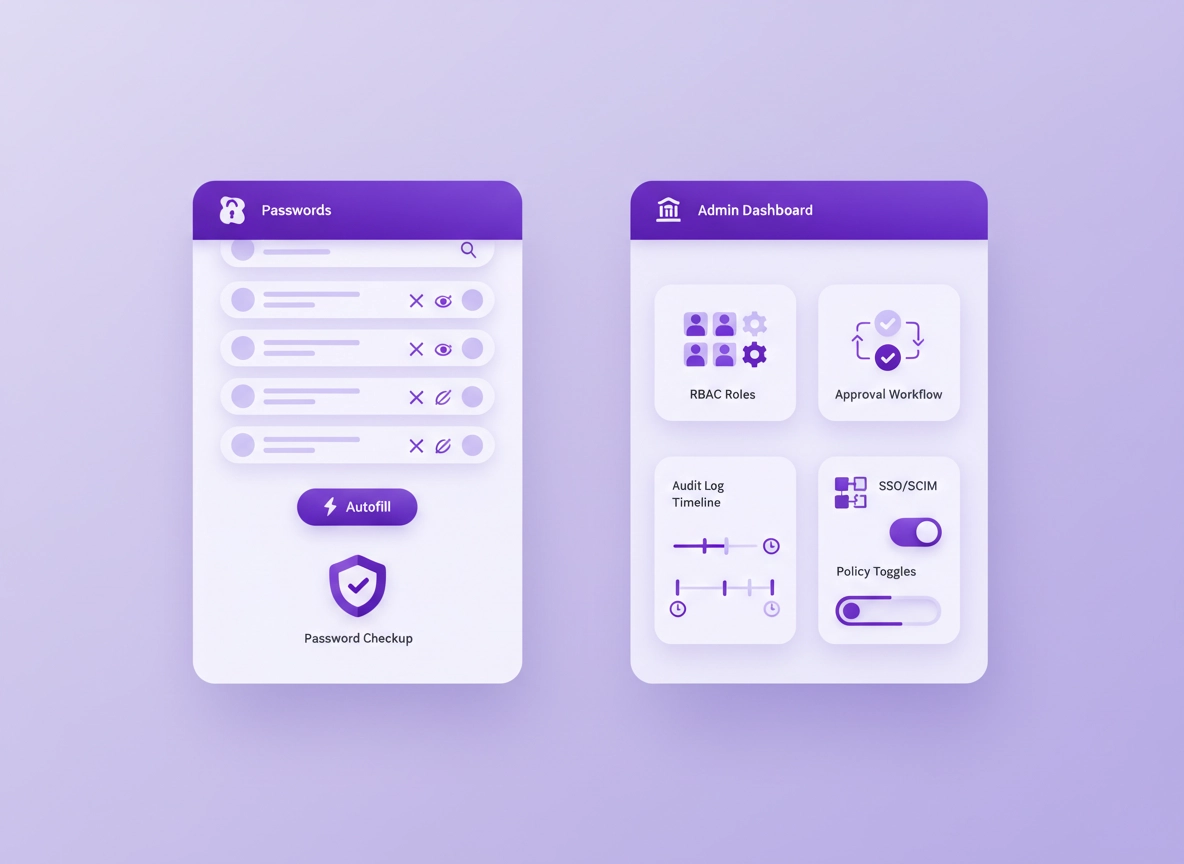
What counts as “Chrome password manager” vs an “enterprise solution” .
Most “wrong decisions” happen because teams compare the wrong thing. Chrome’s built-in Password Manager is designed primarily for individuals and families: it stores credentials, autofills them, can generate passwords, and syncs across devices using your Google account via Google Password Manager.
An enterprise password solution (often called an “enterprise password manager” or “enterprise vault”) is designed for organizations where credentials are shared, staff changes are frequent, and someone must prove control to auditors, insurers, or customers. It adds features like role-based access control (RBAC), shared vaults, approval workflows, SSO + SCIM provisioning, access reviews, session logs, and incident response tooling.
Start here if you need the basics: Chrome built-in password manager review and best password manager for Chrome.
Key terms (quick definitions) .
- Google Password Manager: Google’s password storage and autofill system used by Chrome (and other Google apps) to save and sync credentials.
- Enterprise password vault: A managed vault with shared folders, admin oversight, policies, and audit logging suitable for organizations.
- RBAC (Role-Based Access Control): Access is granted by role/group (e.g., Finance, Support, Engineering) instead of individuals.
- SSO + SCIM: Single Sign-On for authentication and automated provisioning/deprovisioning to keep access aligned to employment status.
- Access review: Periodic check that the right people still have access to the right credentials (often required in audits).
- Break-glass: Emergency access procedures for critical accounts when normal workflows fail.
To keep this practical, this guide focuses on the security and operational questions that actually matter: What happens when someone leaves? Can we prove who accessed a credential? Can we enforce policy? Can we recover fast after a phishing incident?
Baseline: when Chrome is actually good enough .
Chrome Password Manager is a reasonable choice when the “organization problem” doesn’t exist yet—or exists only in a very limited way. If any of the bullets below feel like your reality, you can often run Chrome safely with guardrails.
- You don’t share logins (or you share extremely rarely, and the shared accounts can be rotated quickly).
- No formal compliance requirements (no SOC 2, ISO 27001, HIPAA, PCI DSS, or customer security questionnaires demanding audit evidence).
- Offboarding is simple (few systems, very few admin accounts, and you can reset passwords immediately when someone leaves).
- Google Account security is strong: MFA enabled, recovery methods hardened, suspicious sign-in alerts monitored.
- You accept ecosystem lock-in (Google-centric workflow across Chrome + Android + Workspace).
- Turn on strong account protection: MFA, secure recovery, device management where possible.
- Use Password Checkup and monitor compromised credentials.
- Reduce browser risk: keep extensions clean and permissions tight (see Chrome extension security check).
- Document a “shared-account plan” anyway—because teams always end up sharing something.
The real question isn’t “Is Chrome secure?” It’s: Can Chrome support your business controls when the business gets messy? Audits, layoffs, contractors, a stolen laptop, a phishing click, and a customer asking for evidence—those events are why enterprise solutions exist.
Feature-by-feature comparison (the practical truth) .
Here’s a comparison that reflects how teams work in real life. “Chrome” means the built-in Chrome / Google Password Manager workflow. “Enterprise solution” means a dedicated business-grade password vault built for governance (shared vaults, RBAC, SSO/SCIM, auditing).
| Capability | Chrome Password Manager | Enterprise password solution | Why it matters |
|---|---|---|---|
| Personal autofill + sync | Strong | Strong | Both handle daily logins well; friction is not the differentiator. |
| Password generation | Yes | Yes | Generation reduces reuse and weak passwords. |
| Shared vaults for teams | Limited | Designed for it | Most breaches in small businesses involve shared credentials and messy ownership. |
| RBAC (groups/roles) | No | Yes | RBAC prevents “everyone has everything” and simplifies offboarding. |
| SSO + SCIM provisioning | No | Yes | Automated deprovisioning is a major risk reducer. |
| Audit logs (who accessed what) | Limited / indirect | Core feature | Auditors and incident response require traceability. |
| Approval workflows | No | Often yes | Approvals prevent casual access to high-risk admin accounts. |
| Emergency access / break-glass | Ad-hoc | Defined | When something goes wrong, “who can unlock what” must be predictable. |
| Policy enforcement (org-wide) | Through Chrome policies | Granular | Businesses need consistent behavior, not per-user preferences. |
| Secrets beyond passwords (API keys, SSH) | Not ideal | Common | Modern teams store more than “site passwords”. |
The table hides an important truth: the “enterprise gap” isn’t a single feature. It’s a cluster: sharing, offboarding, auditability, and policy enforcement. If you need two of those four, you usually need the enterprise approach.
Related comparisons: password manager vs Chrome passwords · Chrome vs third-party · best business password manager comparison
Security model differences (where risk really lives) .
Most buyers over-focus on “encryption” and under-focus on account takeover and operational control. In business breaches, attackers don’t usually crack encryption—they steal sessions, phish users, hijack endpoints, or exploit weak recovery. Your password manager choice changes how hard that is to do, and how fast you can recover.
Chrome Password Manager: strong for convenience, weak for shared-account governance .
Chrome’s password manager is tightly integrated with your Google account. That’s a big usability advantage: fewer prompts, seamless autofill, and quick adoption. But the flip side is your Google identity becomes the central blast radius. If a user’s Google account is compromised (or their device session is hijacked), the attacker may gain access to saved credentials.
Also, “enterprise security” often means features Chrome isn’t aiming to provide: shared credential lifecycle, access review, granular access boundaries, and audit logs for credential access. Those are governance controls, not just cryptography.
Enterprise solutions: built to reduce blast radius and prove control .
Enterprise password solutions exist because organizations need to: (1) keep secrets separated by role/team, (2) remove access instantly when employment status changes, (3) enforce consistent policy, and (4) produce evidence (audit trails) for compliance or investigations.
- Blast radius reduction: A compromised user should not automatically expose the entire company vault.
- Controlled sharing: Shared vaults prevent “password in Slack” behavior.
- Central visibility: Admins can see policy posture and investigate suspicious events faster.
- Recovery workflows: Emergency access and ownership transfer are defined, not improvised.
Deep dive: If you want the architecture angle, see zero-knowledge architecture and encryption explained.
Passwords vs passkeys: why enterprise buyers still care about vaults .
Passkeys are reducing password reliance, but they don’t erase the enterprise need for vault governance. Businesses still manage: legacy web apps, vendor portals, router/firewall logins, service accounts, API keys, recovery codes, and “break-glass” credentials. The enterprise question becomes: Where do we store all secrets, how do we control access, and how do we prove it?
Admin control, audit logs & compliance evidence .
This is where the decision usually becomes obvious. If you need to answer any of these questions with confidence, you’re in enterprise territory:
- Who accessed the payroll portal password last Friday?
- Can we prove a contractor no longer has access?
- Do we have evidence for SOC 2 / ISO 27001 controls?
- Can we enforce that passwords are not saved in the browser?
Chrome Enterprise policy controls (important nuance) .
In managed environments, Chrome can be governed with policies. For example, organizations can control password saving behavior via enterprise policy. Chrome’s PasswordManagerEnabled policy exists to control whether users can save passwords in the built-in manager (useful when your policy is “save only in the company vault”).
Audit logs: the “I can prove it” feature .
Audit logging isn’t about spying—it’s about accountability and incident response. When a credential is used to do something damaging, your security team needs to reconstruct: who accessed it, when, from where, and what changed afterwards. Enterprise vaults typically treat audit trails as a core product capability.
In the Google ecosystem, “Password Vault” audit concepts exist in admin reporting contexts for vaulted apps, showing how organizations approach the same problem: security teams want a record of access, not just storage. (If you’ve ever answered a customer security questionnaire, you know this section.)
What “enterprise-grade” typically includes .
- Policy enforcement: password strength rules, MFA requirements, session timeout, device trust.
- Identity integration: SSO for sign-in, SCIM for automated onboarding/offboarding.
- Access boundaries: shared vaults + RBAC, access reviews, least privilege.
- Evidence: audit logs for access, changes, admin actions, exports, and sharing events.
- Incident tools: bulk rotation, compromised credential reporting, quick lock-down.
Next step: If you’re mapping this to enterprise readiness, read Chrome Enterprise guide and enterprise security settings.
Decision framework: pick the right option in 10 minutes .
If you only read one section, make it this one. Answer the questions honestly. You’re not choosing a “tool”—you’re choosing a risk posture and an operating model.
Step 1: score your organization risk .
- We share credentials for admin accounts (hosting, domains, ads, finance, CRM).
- We have contractors or frequent joiners/leavers.
- We need audit logs or are pursuing SOC 2 / ISO 27001.
- We need SSO and automated deprovisioning (SCIM).
- We’ve had a credential incident (phishing, reused password, leaked password).
- We manage customer data or are asked security questionnaires.
- We store more than passwords (API keys, tokens, recovery codes).
- We need approval workflows for high-risk credentials.
Step 2: choose your “right now” strategy .
Most organizations end up in one of these 3 paths:
| Strategy | Best for | What you do | Main risk |
|---|---|---|---|
| Chrome-first | Individuals, tiny teams, very low compliance | Use Chrome Password Manager + strong Google account security | Shadow sharing + weak offboarding |
| Hybrid | Growing teams | Chrome for personal logins, enterprise vault for shared/admin/secrets | Confusion if policy isn’t clear |
| Enterprise-first | Regulated or serious security posture | Disable browser password saving for corporate profiles; vault is source of truth | Adoption friction if rollout is rushed |
Step 3: if you go enterprise, set the non-negotiables .
- Identity integration: SSO + MFA. (If users can bypass MFA, you’re paying for theatre.)
- Automated lifecycle: SCIM provisioning so joiners/leavers are handled systematically.
- Auditability: access logs, admin actions, and export activity tracked.
- Sharing model: shared vaults with RBAC and ownership.
- Emergency plan: defined break-glass access and recovery process.
Related: SSO · directory integration · RBAC · password policy
Cost, ROI & total cost of ownership .
Enterprise password solutions cost money, but the cost argument is often misunderstood. The true “price” of weak credential governance is paid in: reset time, lost productivity, incident response, breached accounts, and delayed sales due to failing security questionnaires.
Where ROI usually comes from .
- Faster onboarding: new hires get the right access via role/groups, not manual sharing.
- Cleaner offboarding: access revokes instantly and passwords rotate without chasing copies.
- Reduced helpdesk churn: fewer “I forgot” and fewer shadow spreadsheets.
- Incident containment: audit logs + quick lock-down reduce damage and downtime.
- Sales acceleration: compliance evidence helps close enterprise deals faster.
Related cost guides: ROI for business · total cost of ownership · pricing comparison · enterprise pricing
Hidden costs to plan for (so rollout doesn’t fail) .
- Adoption time: training, policy messages, and “why we’re doing this” communication.
- Vault design: groups, shared folders, ownership assignments.
- Rotation backlog: shared accounts that were never properly owned.
- Legacy cleanup: spreadsheets, docs, and chat threads containing passwords.
If you’re a small business, don’t over-engineer it. A simple folder structure with clear ownership usually beats a complex system nobody follows.
Migration + rollout plan (without chaos) .
Most migrations fail for one reason: teams migrate data but not behavior. The goal is not to “copy passwords”— it’s to establish a new source of truth and a governance model that sticks.
Phase 1: inventory (1–2 days) .
- List your high-risk systems: domains, DNS, hosting, billing, payroll, CRM, ads, analytics, email admin.
- Identify shared accounts and “single points of failure” (only one person knows it).
- Decide what belongs in the enterprise vault: shared/admin accounts, vendor portals, API keys, recovery codes.
Phase 2: design the vault (half-day) .
- Create groups by function (not by person): IT, Finance, Operations, Support, Engineering.
- Define access tiers: view-only vs edit vs admin.
- Assign an owner for every shared credential.
Phase 3: migrate and rotate (1–4 weeks, depending on mess) .
- 1 Move shared/admin credentials first (highest risk and highest ROI).
- 2 Rotate the password after moving it (so old copies become useless).
- 3 Lock down sharing behavior (no passwords in chat/docs).
- 4 Add SSO + SCIM so lifecycle is automated.
What “success” looks like: Shared accounts live only in the vault, access is role-based, offboarding is fast, and you can answer “who had access?” without guessing.
Phase 4: prevent “shadow vaults” .
Once your vault is the system of record, prevent drift: disable browser password saving for corporate profiles, align policies, and make the right workflow the easiest one.
Related: migration guide · export securely · import securely
Troubleshooting & common failure modes .
These are the problems that usually appear within the first 30 days of making a decision. Fixing them early prevents “tool fatigue” and rollback.
If people keep saving passwords in Chrome anyway .
This is almost always a policy/design issue, not a user issue. If the browser makes saving easy, people will do it. Solve it with clear rules and technical enforcement for corporate profiles. In managed environments, use Chrome Enterprise policies to control the built-in password manager behavior.
Related: Chrome enterprise management and policy hardening.
If sharing is still happening in Slack / email .
Your vault structure might be wrong. If users can’t find the right shared credential in 5 seconds, they’ll revert to messaging. Create a simple shared folder layout, name items consistently, assign owners, and teach one universal rule: “If it’s shared, it lives in the vault.”
If the enterprise tool feels “too heavy” .
Don’t deploy every security feature on day one. Start with: shared vaults, RBAC, MFA/SSO, and audit logs. Add approvals and advanced workflows only for high-risk credentials (domain registrar, billing, payroll). Most teams succeed with “light governance + strong consistency”.
If you suspect account compromise .
Assume the attacker will try password reuse and session hijack first. Immediate actions: secure the identity provider, rotate high-risk shared credentials, review recent access and exports, and check for malicious extensions in Chrome profiles.
Related: password leak detection · extension risk analysis · passwords stolen: what to do
FAQ .
-
helpIs Chrome Password Manager safe for a business?It can be safe for very small, low-risk teams if you don’t share credentials and you enforce strong Google account security (MFA, secure recovery, clean devices). The moment you need shared vaults, role-based access, audit logs, or compliance evidence, an enterprise password solution becomes the safer choice.
-
helpWhat’s the #1 reason businesses move away from the browser password manager?Sharing and offboarding. Businesses need a controlled way to share admin credentials, revoke access instantly when someone leaves, and rotate passwords without hunting down copies. Enterprise solutions are designed around those workflows.
-
helpShould we disable saving passwords in Chrome when using an enterprise vault?In most corporate environments, yes—at least for corporate profiles. Otherwise you get “shadow vaults” where some logins are saved in the browser and others in the enterprise tool. A single standard reduces risk and makes offboarding and auditing far simpler.
-
helpWhat’s the easiest rollout plan that actually works?Start with shared and high-risk accounts first (domains, billing, payroll, admin portals), rotate passwords after migration, then add SSO/SCIM lifecycle automation. Keep the vault structure simple (by team/role), assign owners, and enforce “shared credentials only live in the vault.”
Sources & further reading .
- Google Password Manager: product overview
- Chrome Enterprise policy: PasswordManagerEnabled
- Google Admin: Password Vault audit log (concept of credential access auditing)
- NIST SP 800-63B: Digital identity / memorized secrets guidance
- EFF: How to pick a password manager (practical selection principles)
Disclosure: Some pages may mention tools or services. Recommendations are editorial and based on practical evaluation criteria for security and operations.