What “deployment” really means (and why rollouts fail) .
In enterprises, a password manager rollout isn’t “install an extension.” It’s identity + policy + user experience.
A Chrome password manager deployment is the process of making a password manager available, trusted, and enforceable across all the places your users authenticate: web apps, internal tools, SaaS services, admin consoles, and developer systems. The “Chrome” part matters because your rollout lives inside a browser runtime that’s constantly updating, running extensions, and handling sensitive credentials at the point of use.
Most rollouts fail for one of three reasons: (1) identity misalignment (users end up with multiple vault accounts or weak sign-in), (2) inconsistent enforcement (some users can bypass the manager or install risky extensions), or (3) friction (users can’t reliably autofill or share passwords, so they revert to insecure habits). This guide is designed to keep you out of those failure modes.
If you’re still deciding whether you need a dedicated password manager versus browser-saved passwords, start here: Chrome password manager vs third-party and the main pillar: best password manager for Chrome.
Related: If extension risk is part of your threat model, read Chrome Extension Security and the practical extension audit checklist.
Key terms (quick definitions) .
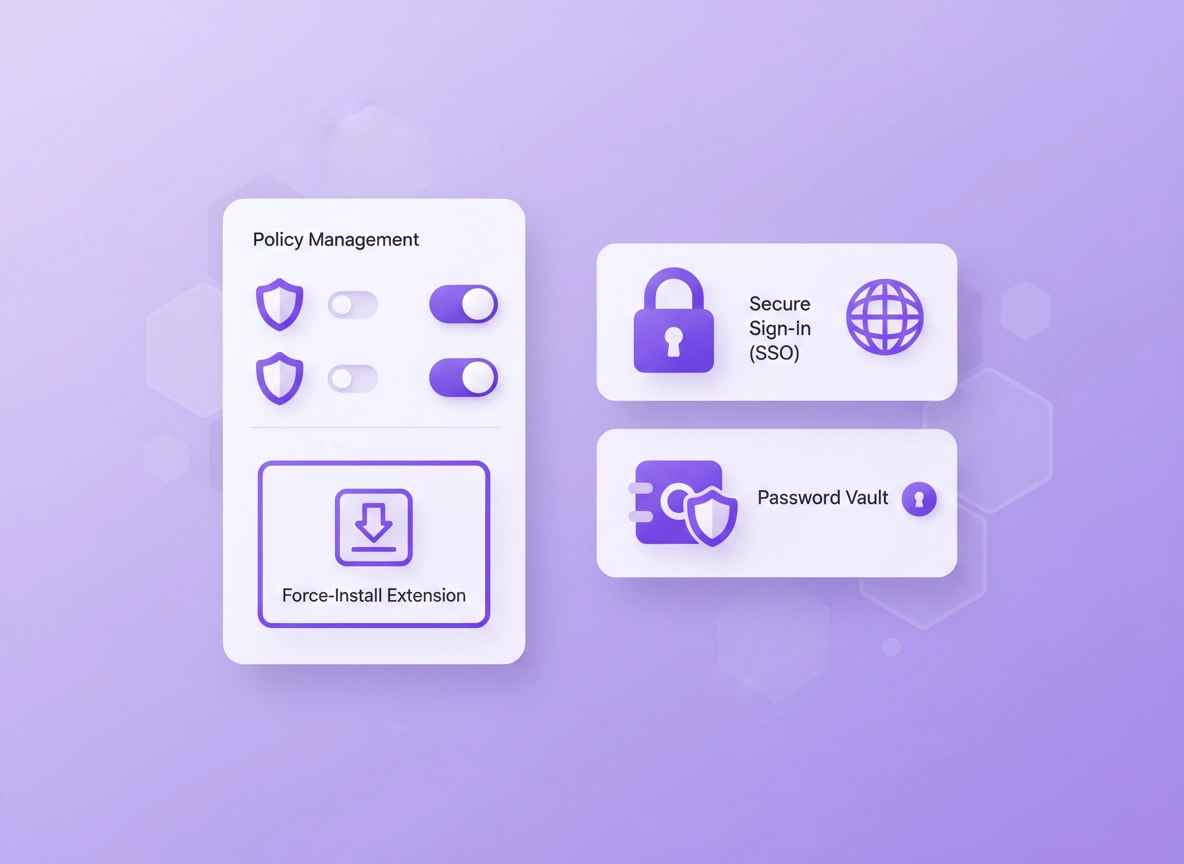
- Force-install (extension): The extension is installed silently and users can’t remove it (policy-driven).
- Allowlist / blocklist: A controlled set of extensions users may install vs extensions that are denied.
- SSO: Users authenticate to the password manager with your identity provider (IdP), usually with MFA.
- SCIM / directory sync: Automated user provisioning/deprovisioning from your directory (joiners/movers/leavers).
- RBAC: Role-based permissions for vaults, collections, teams, admins, and sharing rules.
- Break-glass access: A controlled emergency recovery path for critical systems (not “everyone knows the master password”).
Before you start (fast checks + decisions) .
This section prevents wasted effort. A password manager deployment can be quick, but only if you make a few upfront choices and verify your management surfaces (Chrome policies, directory, device types).
Related: If your broader environment is managed Chrome, start here: Chrome Enterprise guide and Chrome Enterprise management.
Fast checks (10 minutes) .
- Do you manage Chrome policies today? (Google Admin console, Chrome Browser Cloud Management, GPO/MDM). If “no,” decide now—otherwise enforcement becomes “best effort.”
- What devices are in scope? Windows/macOS/Linux desktops, Chromebooks, mobile (Android/iOS), VDI, shared kiosks. Deployment steps differ.
- Do you have an IdP with MFA? If you don’t enforce MFA at the IdP, you’re placing too much trust in a single factor for the vault.
- Do you have provisioning? SCIM or directory integration prevents “ghost accounts” and improves offboarding integrity.
- Do you need reporting/audit logs? If you’re in SOC 2 / HIPAA / regulated environments, make sure your plan includes logs, retention, and admin alerts.
Decisions that change the rollout .
- Personal vs business vault separation: Will you allow personal vaults on corporate Chrome profiles, or require a managed profile and business vault only?
- Sharing model: Individual-to-individual sharing is usually messy. Prefer team collections with RBAC and approval workflows.
- Browser extension strategy: Allowlist-only for most organizations is safer (especially if you’ve had extension incidents).
- Chrome built-in password manager: Decide whether you will keep it for compatibility, or disable it to reduce shadow credential stores.
Recommended minimum feature checklist (enterprise) .
If your environment is more than “a few people sharing Netflix passwords,” these are the features that usually matter. (You can compare options here: Chrome password manager comparison and best business password manager comparison.)
- SSO + MFA support: Enforce strong authentication for vault access.
- Directory integration / SCIM: Automate joiners/movers/leavers. See: directory integration.
- RBAC and team collections: Separate admin functions from credential access. See: role-based access.
- Secure sharing + controls: Prevent copy/paste leakage, require approvals where needed. See: password sharing securely.
- Audit logs + alerts: Track admin changes, sharing, export events, suspicious sign-ins.
- Recovery model you can explain: Admin recovery, emergency access, or escrow—without “everyone knows the master password.” See: recovery options.
- Security architecture clarity: Encryption model, zero-knowledge claims, and what metadata is visible. See: zero-knowledge architecture.
Step-by-step rollout plan (recommended) .
This rollout plan works for most organizations because it reduces blast radius early and builds enforcement gradually. You’ll notice a theme: make the secure path the easy path, then lock down the risky paths once usage is stable.
- 1 Define scope and success metrics. Choose what “done” looks like: % adoption, % apps covered, reduction in password reuse, offboarding time, and whether Chrome-saved passwords are eliminated.
- 2 Select the password manager tier that matches your controls. If you need SSO/SCIM/audit logs, pick a business/enterprise plan (not consumer). Use: pricing comparison and business vs personal plans.
- 3 Integrate identity first (SSO + MFA), before enforcing installs. SSO reduces password sprawl and keeps access aligned with your existing MFA policies. Guide: password manager single sign-on.
- 4 Set up provisioning (SCIM / directory integration). Provisioning is your offboarding safety net. No manual user cleanup, fewer orphan vaults. Guide: directory integration.
- 5 Design your sharing model and RBAC now. Decide which teams get access to which vault collections, and who can create, share, export, or recover. Guides: RBAC, team collaboration.
- 6 Run a pilot with real workflows (7–14 days). Include: new device setup, MFA enrollment, password generator usage, shared vault items, a fake offboarding test, and a recovery drill.
- 7 Deploy the browser extension via policy (force-install or controlled allowlist). This is the “Chrome part.” Enforce installation, restrict risky extensions, and pin the manager if your environment supports it.
- 8 Decide what to do with Chrome’s built-in password manager. If you keep it, document when it is allowed. If you disable it, make sure your manager is fully functional first. Read: built-in review and disable Chrome password manager.
- 9 Move credentials safely (import / hygiene / remediation). For Chrome-saved passwords, ensure exports are handled like sensitive data. Guides: export securely, import securely, password health.
- 10 Enforce gradually: alerts → guardrails → hard blocks. Start with education and nudges, then enforce extension allowlists, sharing restrictions, and export controls once adoption is stable.
What “success” looks like: Users sign into the vault with SSO + MFA, the extension is installed and functioning across managed devices, shared credentials live in team collections with RBAC, offboarding disables vault access automatically, and you can produce audit evidence (policies, logs, and admin change history) on demand.
Related: If you’re standardizing across departments, this helps: password manager for IT admins and the broader enterprise password manager guide.
Chrome deployment: the practical policy approach .
There are two common ways to deploy a password manager extension in Chrome: (A) force-install (best for strict environments) or (B) allowlist + user install (best for lighter governance). If your organization has had extension incidents, force-install + allowlist-only is the cleanest story to tell.
Implementation checklist (copy into your rollout ticket) .
- Extension ID identified: Capture the Chrome Web Store extension ID and vendor URL for change control.
- Install method documented: Force-install vs allowlist-only.
- Update strategy: Ensure updates are allowed but monitored (vendor trust + change control).
- Permissions reviewed: Compare required permissions to your risk tolerance. Use: permissions guide.
- Profiles & sign-in clarified: Managed Chrome profile requirements, personal vs business separation.
- Fallback path: What happens if the extension breaks or a site doesn’t autofill (support workflow).
Common variations .
- Windows / ChromeOS: Typically easiest for enforcement (GPO + Admin console). Chromebooks are especially clean if you use managed accounts.
- macOS: Works well with MDM; watch for users who run unmanaged Chrome builds outside your control.
- Android / iPhone: Password managers often integrate at the OS level; Chrome extension strategy is less central. Treat mobile as a parallel rollout track.
Advanced settings (SSO, SCIM, RBAC, zero trust) .
This is where your deployment becomes “enterprise-grade.” These settings aren’t just fancy features—they’re the controls that eliminate shadow IT patterns (spreadsheet password lists, personal vaults, browser-saved passwords, ad-hoc sharing).
Related: If your rollout is part of a broader managed-browser program, see policy templates and enterprise security settings.
SSO: the “vault sign-in” design that survives audits .
For business rollouts, SSO is less about convenience and more about control: it centralizes account lifecycle, enforces MFA, and makes access reviews easier. Your password manager becomes another app behind your identity provider, not a separate island of credentials.
- Require MFA at the IdP: Ideally phishing-resistant methods where available.
- Set session policy: Decide how often users must re-authenticate (balance security and productivity).
- Control device trust: If you use device compliance rules, apply them to vault access where possible.
- Document exceptions: Some service accounts or break-glass accounts will not fit your normal SSO pattern—handle them deliberately.
Deep dive: Password manager single sign-on
SCIM / directory integration: joiners, movers, leavers .
Directory integration is where deployments stop being “manual admin work” and become reliable operations. The most common real-world failure you’ll see without SCIM is a user who leaves the organization but still retains vault access through an unmanaged account, an unrevoked session, or an overlooked invite.
- Provisioning: New users get vault access through group membership, not manual invites.
- Deprovisioning: Disabled directory account → vault access removed (and sharing paths removed) automatically.
- Role mapping: Groups drive RBAC roles: admin, helpdesk, department manager, contractor, etc.
- Audit evidence: Directory logs + password manager logs together provide a clean offboarding story.
Deep dive: Password manager directory integration
RBAC and shared vault structure (how to avoid chaos) .
The fastest way to destroy user trust is to force a tool that makes collaboration harder. The second-fastest way is to allow uncontrolled sharing that security can’t audit. RBAC solves both—when you structure it properly.
Create team collections (Finance, HR, Support, Engineering, Marketing), then attach RBAC roles to each collection. Avoid one-off person-to-person shares unless you can monitor and time-limit them.
Recommended vault layout .
- Org-wide shared: Non-sensitive shared logins (approved, least privilege).
- Department collections: Finance/HR/IT/Support/etc with explicit membership and approvals.
- Privileged vault: Admin credentials, production systems, secrets for critical infrastructure (tightest rules).
- Contractor vault: Time-bound access with auto-expiration and export restrictions.
Deep dive: Password manager role-based access
Disable Chrome’s built-in password manager? A realistic decision framework .
Disabling Chrome’s built-in password manager can reduce shadow credential storage, but do it only when: (1) your chosen manager is stable across your key apps, (2) users have completed migration, and (3) your helpdesk can support autofill edge cases.
| Decision | Why you’d do it | Tradeoff | Best for |
|---|---|---|---|
| Keep Chrome passwords (temporarily) | Reduces friction during migration | Shadow stores exist; harder audits | Pilots, early rollout |
| Disable Chrome password manager | One system of record for credentials | More tickets if autofill fails | Mature rollouts, compliance-focused orgs |
| Hybrid with strict rules | Compatibility for edge apps | Policy complexity | Large enterprises with legacy apps |
Helpful reads: Chrome password manager limitations, Chrome password manager security risks, disable Chrome password manager.
Zero-trust angle (when the browser is the control plane) .
Modern deployments increasingly treat the browser as a policy enforcement point: where identity, device posture, session controls, and extension governance intersect. If your password manager is part of a broader zero-trust strategy, focus on: least privilege, continuous verification, and auditability.
- Conditional access to the vault: allow only compliant devices or managed browser instances where possible.
- Limit risky browser behavior: extension allowlists, download controls, and safer browsing policies.
- Privileged credential separation: admin credentials are not stored or accessed the same way as low-risk apps.
Related: Password manager zero trust and Chrome zero trust browser setup.
Security, privacy, and compliance notes .
Password managers are high-value targets. Your deployment should assume two realities: (1) user behavior is imperfect under pressure, and (2) browsers and extensions are large attack surfaces. The point of a controlled rollout is to reduce “human failure” opportunities and create enforceable guardrails.
Impact: Affects credential storage, authentication flows, extension permissions, account recovery, and audit scope.
Related: If you suspect malicious extensions, hijacking, or pop-ups during the rollout, see Remove Malware from Chrome and the faster response-style incident response guide.
Baseline controls you should enforce .
- Strong authentication to the vault: SSO + MFA; avoid standalone vault passwords where possible.
- Least privilege sharing: team collections + RBAC, no “everyone can share everything.”
- Export restrictions: control who can export vault data; alert on exports.
- Offboarding integrity: directory-driven deprovisioning and session invalidation where supported.
- Extension governance: allowlist-only (recommended) and explicit review for changes in permissions.
- Audit logging: admin actions, sharing events, authentication events, policy changes.
Recommended settings by goal .
| Goal | Recommended deployment stance | Tradeoff | Best for |
|---|---|---|---|
| Balanced | Pilot → allowlist extension → SSO + MFA → team collections | Some bypass risk remains early | Most companies |
| Maximum security | Force-install extension + allowlist-only, disable Chrome passwords, strict RBAC, export controls | Higher support load initially | Regulated, high-risk orgs |
| Compatibility-first | Hybrid: keep Chrome passwords temporarily, reduce enforcement, focus on adoption | Harder audit story | Legacy apps / large migrations |
Password policy alignment (so users don’t fight the system) .
Your password manager rollout will change how users create and store passwords. This is a good time to update your policy: focus on length (passphrases), MFA, and breach monitoring rather than brittle complexity rules. If your organization needs a browser-focused policy doc, see: Password policy for Chrome enterprise.
Also useful: password manager 2FA guide, breach monitoring, password security audit.
Troubleshooting .
Related: Extension permission issues often look like “autofill is broken.” Start with extension permissions and host permissions explained.
If the extension installs but users can’t sign in .
This is almost always identity setup or session policy. Check: (1) SSO configuration and IdP app assignment, (2) MFA requirements, (3) whether the user is provisioned in the password manager, and (4) whether a device/browser policy blocks third-party cookies or popups needed for the auth flow. If cookies are the issue, review: third-party cookies and block third-party cookies.
If autofill works on some sites but not others .
Common causes include: iframe-based login forms, SSO pages that don’t use traditional username/password fields, or sites that block autofill. First, confirm the credential is stored under the correct domain and that the extension has permission for that site. If you’re in allowlist-only mode for host permissions, verify the site is included. (Also check whether your environment is using strict tracking protections that break login flows.)
If users keep saving passwords in Chrome anyway .
This is a behavior + enforcement issue. Fix it in layers: start with training and “why” (data loss risk), then remove confusion by turning off Chrome’s prompts, and finally enforce policy once adoption is stable. Use: disable Chrome password manager and migration guide.
If the extension is removed by policy (or “blocked by admin”) .
This usually means your extension governance policies are conflicting: a blocklist is overriding install, or your default ExtensionSettings configuration denies installs except allowlisted IDs. Confirm the extension ID is correct, confirm allowlist/force-install policies are applied to the correct OU/group, and confirm there isn’t a second management layer (MDM + Admin console) applying different rules.
If you need to reset safely .
Avoid “nuke the profile” unless you’re dealing with compromise. Start with: (1) re-auth the extension, (2) clear site data for the affected login domains, (3) verify extension permissions, and (4) test in a clean managed Chrome profile. If you suspect malware or hijacking, use: malware cleanup guide.
FAQ .
-
helpShould we disable Chrome’s built-in password manager during rollout?Usually not on day one. Keep it during the pilot so you don’t break workflows, then disable it once your password manager is stable, users have migrated, and your helpdesk can handle autofill edge cases. If audits are driving the change, move to a staged plan: educate → reduce prompts → enforce.
-
helpWhat’s the minimum “enterprise” setup we should require?SSO + MFA for vault access, automated provisioning (SCIM/directory integration), RBAC with team collections, and audit logs for admin changes and sharing. If you can only pick one, pick SSO + MFA first—then add provisioning.
-
helpHow do we handle shared credentials without chaos?Avoid “person-to-person” shares as your default. Use team collections with explicit membership and roles, put privileged credentials in a separate restricted vault, and require approvals for high-risk sharing. This reduces both security risk and “where is the password?” confusion.
-
helpWhat’s the safest way to migrate from Chrome-saved passwords?Treat exports like sensitive data: do it on a trusted machine, store exported files only briefly, and delete securely after import. After migration, run a password health pass (reuse/weak passwords), then reduce or disable Chrome’s save prompts to prevent re-growth of shadow stores.
Sources & further reading .
- Google Chrome Enterprise: Automatically install apps and extensions
- Google Chrome Enterprise: Allow or block apps and extensions
- Google Chrome Enterprise: Configure ExtensionSettings policy
- Chrome Enterprise policy list
- Chrome for Developers: Extension update lifecycle (enterprise policy notes)
- NIST SP 800-63B (Digital Identity Guidelines)
Disclosure: Some pages may mention tools or services. Recommendations are editorial and based on testing and deployment practicality.