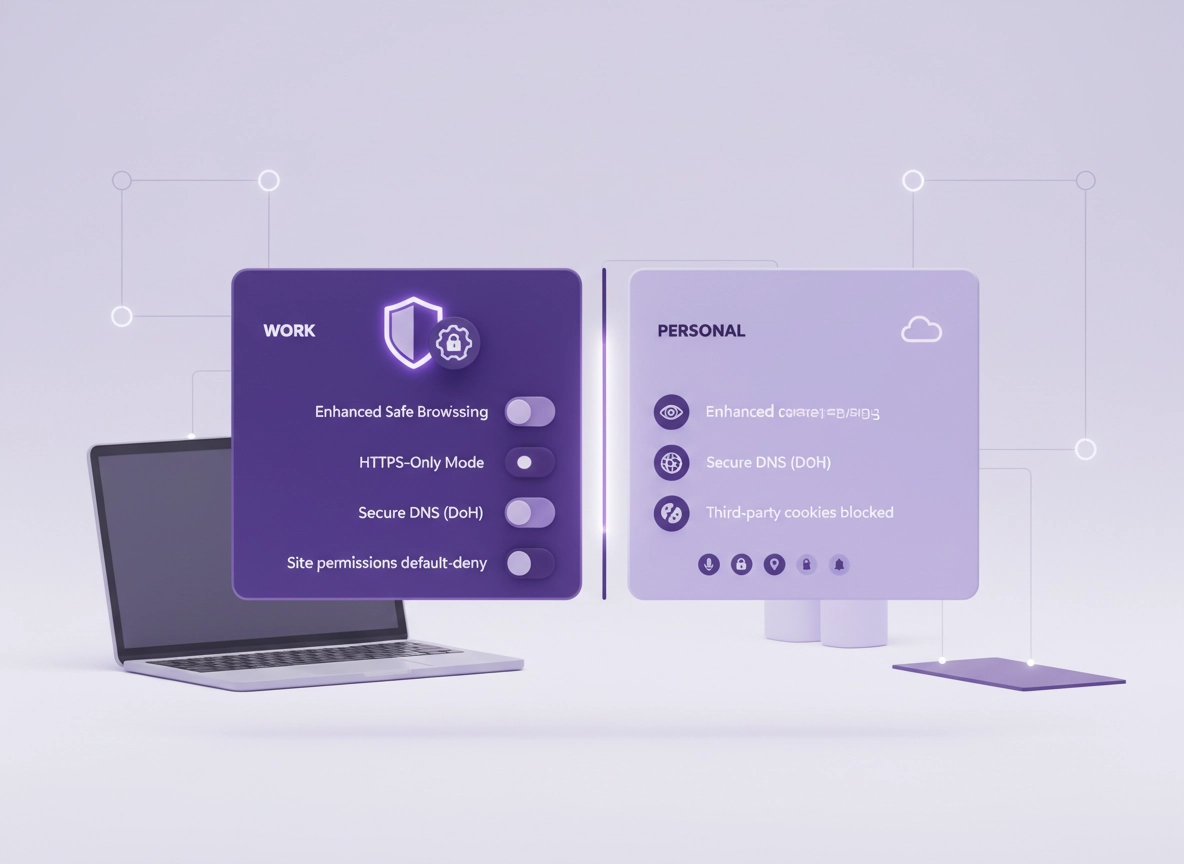
What Zero Trust means for a browser .
Zero Trust is a security model, not a single setting. In plain language: your browser should behave as if every website, network, extension, and login session might be hostile until it proves otherwise.
In older “trust-based” setups, a browser implicitly trusts the network you’re on (“it’s the office Wi-Fi”), the device you’re using (“it’s my laptop”), and whatever gets installed (“it’s a popular extension”). Zero Trust flips that around. You assume compromise is possible, you minimize what can be accessed, and you make identity + device posture checks part of normal access.
For Chrome specifically, a real-world Zero Trust browser setup typically includes: (1) strict separation of contexts (work vs personal), (2) least-privilege permissions (sites and extensions), (3) hardened transport (HTTPS-only and secure DNS), (4) strong phishing/malware protection, (5) enforceable controls (policies) in business environments, and (6) monitoring/logging for visibility in incidents.
Where Zero Trust fits on ChromeThemer: If you want the “big picture” version first, start with Chrome Hardening Guide and then come back here for the Zero Trust baseline.
Key terms (quick definitions) .
- Zero Trust: “Never trust, always verify.” Access depends on identity, device posture, and policy—not location.
- Browser isolation: Risky web content is opened in a more isolated environment (local or remote) to limit impact.
- Least privilege: Sites/extensions get only the permissions they truly need (and ideally, only when needed).
- Device posture: Signals like OS patch level, disk encryption, screen lock, and EDR/AV presence.
- Conditional access: Identity provider rules that require MFA, compliant device, or certain network conditions.
- Managed browser: Chrome is controlled by enterprise policy (Admin console, Group Policy, or MDM).
Related: If you’re building this for a company environment, also read Chrome Secure Configuration: Enterprise Best Practices and Chrome Enterprise Guide.
Before you start (fast checks) .
These checks prevent 80% of “I hardened Chrome and now everything is broken” situations. Do them once, then you can apply the setup with confidence.
- Update Chrome first: Go to Settings → About Chrome and restart after updating. Zero Trust assumes you’re patched.
- Know if you’re managed: Visit chrome://policy. If policies are present, your organization already controls parts of Chrome.
- List critical work sites: SSO portal, email, HR/payroll, banking, ticketing, CRM, Git, cloud consoles, etc. You’ll approve permissions for these.
- Audit extensions: Remove anything you wouldn’t install on a work laptop. (Extensions are a top browser risk surface.)
- Decide your identity model: Work profile signed into a managed Google account? Or local profile with SSO into Microsoft/Okta/etc? This changes “Sync” decisions.
- Prepare rollback: Make sure you know how to revert settings (this guide includes undo steps).
Related: For a broader privacy baseline first, start with Chrome Privacy Settings and Chrome Security & Privacy Checklist.
Step-by-step Zero Trust setup (recommended) .
This is the practical “do this in order” baseline. It’s written for individuals and small teams first, then we’ll cover enforceable enterprise policy in the next section.
- 1 Create a dedicated Work profile (isolation by default)
- 2 Lock down identity & sync (reduce account blast radius)
- 3 Turn on Enhanced Safe Browsing + safety checks
- 4 Harden transport: HTTPS-Only + Secure DNS
- 5 Default-deny site permissions and approve per work site
- 6 Apply extension governance (least privilege + allowlist mindset)
- 7 Add data hygiene: cookie rules, session controls, and cleanup
- 8 Validate with a quick “Zero Trust check” and document your baseline
What “success” looks like: Your Work profile has fewer extensions, tighter permissions, safer networking defaults, and (ideally) enforced controls if managed. You can still do your job, but random browsing and “install anything” behavior is contained.
1) Create a dedicated Work profile .
Zero Trust starts with isolation. If you do one thing, do this. A Work profile separates cookies, sessions, history, extensions, and saved data from personal browsing. That means a compromise in “fun browsing” is far less likely to impact your corporate login session.
- Desktop: Click your profile icon (top right) → Add → create a new profile named Work.
- Choose a different theme color: This sounds cosmetic, but it prevents mistakes (“oops I logged into payroll in the wrong profile”).
- Pin the Work profile: Keep it on the taskbar/dock so you use it consistently.
Related: For a deeper guide on profile hardening, see Chrome Profile Security Settings and Chrome Profile Privacy Setup.
2) Lock down identity & sync (reduce blast radius) .
Identity is the “new perimeter” in Zero Trust. Your browser is often the tool that holds your most powerful session cookies (email, cloud consoles, admin portals). The goal is to make compromise harder and reduce what leaks if it happens.
Decide your Work profile sign-in model .
- Managed Google account (common in Google Workspace): Sign into Chrome in the Work profile, but keep Sync controlled by policy if possible.
- Non-Google IdP (Microsoft/Okta/etc): You can use a local Work profile with minimal Chrome account dependency, then sign into your work apps normally.
Practical Zero Trust guidance for Sync .
Sync is convenient, but it increases the “blast radius” of a stolen credential because browser data can roam. In business environments, many teams either disable Sync entirely or allow limited sync with strong MFA, device compliance, and monitoring. If your organization already has a position on this, follow it.
- If you are a business user: prefer organizational guidance (policies) over personal preference.
- If you are solo/freelance: consider disabling Sync in Work profile unless you truly need it.
- Never reuse passwords: treat Work profile as a secure environment for passkeys/MFA and password manager use.
Related: If you want the “what to turn off” steps, see Disable Chrome Sync and Chrome Account Sync Settings.
3) Turn on Enhanced Safe Browsing + Safety Check .
In a Zero Trust setup, you assume phishing and drive-by attacks are constant. Safe Browsing is one of Chrome’s strongest “high leverage” protections because it reduces the chance you ever execute the risky flow. Enhanced protection can provide stronger detection for dangerous sites and downloads.
- Go to Settings → Privacy and security → Security.
- Enable Enhanced protection (if available) or choose the highest protection level your environment allows.
- Run Safety Check (Chrome’s built-in scan) and fix anything it flags (updates, passwords, extensions).
Related: Chrome Safe Browsing Settings, Enhanced Safe Browsing, and Chrome Security Checkup.
4) Harden transport: HTTPS-Only + Secure DNS .
A surprising amount of browser compromise starts with network manipulation: downgrade attempts, rogue Wi-Fi, DNS poisoning, and traffic observation. Zero Trust assumes the network is not trustworthy—so you harden the browser’s transport defaults.
Enable HTTPS-Only mode .
- Go to Settings → Privacy and security → Security.
- Turn on Always use secure connections (HTTPS-Only).
HTTPS-Only reduces the chance you load an insecure HTTP version of a site (or get forced onto one by a bad network). Some legacy internal sites may break—if they do, add a targeted exception instead of disabling the feature globally.
Enable Secure DNS (DNS over HTTPS) .
- Go to Settings → Privacy and security → Security.
- Turn on Use Secure DNS.
- Choose a provider your organization approves, or keep “With your current service provider” if you trust your network DNS.
Related: Chrome HTTPS-Only Mode, DNS over HTTPS Settings, Chrome Secure DNS Setup, and Private DNS vs Secure DNS.
5) Default-deny site permissions (approve per work site) .
Permissions are where browsers silently leak value: microphone, camera, location, notifications, clipboard, background sync, downloads, USB devices, and more. Zero Trust means you don’t grant these broadly. You approve them only when needed and ideally only on specific trusted origins.
Go to Settings → Privacy and security → Site settings. Then harden these defaults in the Work profile:
- Camera & Microphone: set to “Don’t allow” by default. Approve only for trusted meeting sites.
- Location: block by default. Approve only if business apps require it.
- Notifications: block by default. Many phishing flows begin with notification spam.
- Pop-ups and redirects: block by default.
- Automatic downloads: restrict if possible; allow only on known work domains.
- Clipboard / file editing permissions: keep minimal—approve when a trusted web app truly needs it.
Why this matters: A compromised site with broad permissions can behave more like an app. In Zero Trust, web apps only get “app-like” powers when you intentionally grant them.
Related: Chrome Site Permissions, Camera Permissions, Microphone Permissions, Location Permissions, and Notification Permissions.
6) Apply extension governance (least privilege) .
In practice, extensions are one of the biggest “Zero Trust gaps” on user endpoints. Extensions can read and change data on sites, see content, inject scripts, and sometimes exfiltrate data. A Zero Trust Work profile should have few extensions, each with minimal permissions.
Extension rules that work in real teams .
- Prefer none: If you can do it without an extension, do it without an extension.
- Only install “work-justified” extensions: password manager, approved security tooling, essential workflow tools.
- Reduce site access: set extension site access to “On specific sites” or “On click” where possible.
- Review permission changes: if an extension updates and requests broader access, treat it like a change request.
- Remove legacy: uninstall anything you haven’t used in 30–60 days.
Related: Use these as your extension security backbone: Chrome Extension Security Check, Extension Permissions Guide, and Extension Audit Checklist.
7) Add data hygiene: cookies, sessions, and cleanup .
Zero Trust is also about reducing what persists. The longer a session cookie and browser data stick around, the more valuable they are to an attacker (especially on shared or travel devices).
- Block third-party cookies: Go to Settings → Privacy and security → Third-party cookies and block them (Work profile).
- Review “Ad privacy” settings: minimize ad profiling (especially on a work profile used for sensitive activity).
- Clear data intentionally: clear browsing data if you’re doing incident response or you suspect compromise.
- Consider auto-delete behavior: For some users, deleting cookies on exit (or at least on a schedule) reduces risk.
Related: Third-Party Cookies Settings, Block Third-Party Cookies, Chrome Ad Privacy Settings, Clear Browsing Data, and Auto-Delete Cookies.
8) Validate your baseline (a 2-minute Zero Trust check) .
After configuration, do this short test in the Work profile:
- Check protections: Confirm Enhanced Safe Browsing (or strongest available) is enabled.
- Check transport: Confirm HTTPS-Only and Secure DNS are enabled.
- Check permissions: Confirm notifications are blocked by default.
- Check extensions: Work profile has only approved, minimal extensions.
- Check policies (if managed): visit chrome://policy and confirm the expected protections are enforced.
Now document your baseline. Even as a solo user, a quick note helps you stay consistent: “Work profile: no random extensions, Safe Browsing enhanced, secure DNS on, https-only on, permissions default-deny.” In teams, this becomes the start of your browser standard.
Common variations .
- Windows / ChromeOS: Best for policy enforcement (Group Policy / Admin console). Consider device encryption + screen lock as posture signals.
- macOS: Works well with MDM-based posture checks. Pay extra attention to password manager and update cadence.
- Android / iPhone: Focus on Safe Browsing level, HTTPS/secure DNS where available, and strict app-level permissions. Prefer managed device policies if possible.
Related: For a deeper compliance-ready flow, see Chrome Privacy Compliance Setup and Chrome Privacy Risk Assessment.
Enterprise policy + advanced Zero Trust controls .
A true Zero Trust setup for business is not just “settings.” It’s settings + enforcement + visibility. If users can disable protections, you don’t have a baseline—you have a suggestion.
Related: Start with these enterprise pages: Chrome Enterprise Security Settings, Chrome Enterprise Policy Templates, and Chrome Enterprise Zero Trust.
Zero Trust goals for managed Chrome .
- Identity: enforce sign-in rules, MFA/SSO, and restrict account mixing in Work profile.
- Policy enforcement: keep security features on (Safe Browsing, updates, blocking risky features).
- Extension governance: allowlist and restrict permissions where possible.
- Data protection: protect against exfiltration (DLP/CASB where applicable), reduce risky downloads, and isolate high-risk web content.
- Visibility: logs/telemetry for incident response and auditing.
Recommended enterprise policy baseline (what to enforce) .
Policy names vary by environment and Chrome version, but the categories below map to the most important controls. This is written as a “what to aim for” baseline; apply it via your preferred management method (Admin console, GPO, or MDM).
A) Keep protection features on .
- Safe Browsing enforced: prevent users from disabling protection. Many orgs enforce Standard or Enhanced depending on privacy posture.
- Update management: require timely restarts/updates. A “perfect” policy means nothing if endpoints don’t patch.
- HTTPS-Only encouraged/enforced: use exceptions for legacy internal sites instead of turning it off.
B) Control identity + account mixing .
- Work account separation: restrict which accounts can sign into the managed profile.
- Sync governance: disable Sync, or allow only specific data types based on policy and risk.
- Require strong auth: enforce MFA at the identity provider for high-risk apps and admin portals.
C) Extension allowlist + least privilege .
- Allowlist only: block all extensions by default except approved IDs.
- Block risky permissions: avoid “Read and change data on all sites” unless truly required.
- Review workflow: treat extension requests like software requests: owner, justification, review date.
D) Site isolation + containment (high value) .
Site isolation reduces cross-site data exposure by separating sites into more isolated processes. In Zero Trust terms: compromise of one origin should have less chance to impact another origin. This is especially valuable for mixed-trust browsing (users opening external sites while logged into internal apps).
- Enable/strengthen site isolation where appropriate: especially for users accessing sensitive internal apps and external browsing on the same device.
- Consider isolating specific high-risk origins: for example, cloud consoles, admin portals, financial systems (implementation depends on platform and policy support).
E) Network controls (proxy / secure web gateway / ZTNA) .
- Secure Web Gateway (SWG): inspect and filter outbound web traffic to reduce phishing/malware and data exfiltration.
- ZTNA: require identity + device posture for internal apps; don’t rely on “inside the network.”
- Certificate / TLS hygiene: ensure trusted roots and correct certificate policies for corporate inspection where lawful and disclosed.
Common alternatives users compare .
- Chrome hardened settings vs managed browser platforms
- Secure DNS / HTTPS-Only vs VPN or ZTNA for remote access
- Extension-based protection vs secure web gateway filtering
- Local browsing vs browser isolation (remote or containerized)
- Chrome built-in controls vs enterprise DLP/CASB workflows
Related: If you want buyer-intent comparisons, see Best Zero Trust Browser Setup, Best Enterprise Browser Solutions, and VPN vs Zero Trust Browser Comparison.
Privacy & security notes (what each control protects) .
This section explains the “why,” in practical security terms. Zero Trust settings should not be mysticism— you should know what each change blocks, and what it can break.
Impact: Affects account sessions, cookies, extension behavior, DNS routing, and how websites request permissions.
Related: If you suspect compromise, start here: Chrome Security Audit Guide and Chrome Privacy Audit Template.
Recommended baseline settings .
- Option A (balanced): Work profile + Enhanced/Standard Safe Browsing + HTTPS-Only + Secure DNS + notifications blocked + minimal extensions.
- Option B (maximum security): Add strict permissions, aggressive cookie controls, allowlisted extensions only, and enforce policies (managed).
- Option C (compatibility): Keep the core protections, but add targeted exceptions for legacy SSO/internal apps with documentation.
Recommended settings by goal .
| Goal | Recommended setting | Tradeoff | Best for |
|---|---|---|---|
| Balanced | Work profile + Safe Browsing + HTTPS-Only + Secure DNS | Small compatibility issues on legacy sites | Most users |
| Maximum security | Enforced policy + extension allowlist + strict permissions | More IT/admin overhead, approvals needed | Teams with sensitive data |
| Compatibility | Core protections + targeted exceptions | Exceptions must be tracked to avoid drift | Legacy enterprise apps |
What breaks most often (and why) .
- SSO / embedded login loops: often caused by cookie restrictions or third-party cookie blocking on older flows.
- Meetings can’t access mic/cam: permission default-deny (expected). Fix by granting per site.
- Internal app loads over HTTP: HTTPS-Only blocks it. Fix by upgrading the app or adding a specific exception.
- DNS-based app routing fails: Secure DNS conflicts with corporate DNS. Fix by using “current provider” or approved enterprise resolver.
- Extensions break workflows: allowlist changes or reduced site access. Fix with controlled approvals.
Troubleshooting (common breakages) .
Related: If you’re troubleshooting permissions, start here: Chrome Site Permissions.
If a work site won’t log in (SSO loops) .
This is usually cookies. Many legacy SSO flows rely on cross-site cookies or embedded identity frames. In a Zero Trust setup, you keep the global baseline strong and add targeted exceptions:
- Identify the exact domains used in the login flow (IdP domain + app domain).
- Try allowing cookies for those domains only (avoid broad exceptions).
- Confirm the issue is isolated to the Work profile (that’s the point—containment).
If mic/camera doesn’t work in meetings .
This is expected with default-deny permissions. Fix it safely: go to Site settings for the meeting domain and grant mic/camera only for that site. Avoid “Allow everywhere.”
If Secure DNS breaks internal apps .
Some companies route internal domains via corporate DNS or split-horizon DNS. If Secure DNS forces external resolvers, internal hostnames can fail. Use an enterprise-approved resolver, or “with your current provider” if that provider is corporate DNS. If you’re managed, request an IT-approved configuration rather than improvising.
If downloads are blocked or flagged .
Treat this as a security signal, not an annoyance. If you trust the source, verify it: check the vendor domain, validate signatures where possible, and prefer official distribution channels. If you’re in a business environment, use an approved software request flow.
If you suspect a browser compromise .
Zero Trust helps you respond calmly. Move to the Work profile baseline checks: remove unknown extensions, run Safety Check, reset permissions, rotate passwords, and review sign-in history on key accounts. If it’s a managed device, report it—incident response is faster with centralized visibility.
Related: If you think it’s malware or hijacking, start with Remove Malware from Chrome and Chrome Suspicious Activity Detected Fix.
FAQ .
-
helpIs “Zero Trust browser” a real Chrome feature?Not as a single toggle. Zero Trust is a model. In Chrome, you implement it by separating profiles, limiting permissions, hardening transport (HTTPS-Only + Secure DNS), keeping Safe Browsing strong, and enforcing controls with policies in managed environments.
-
helpShould I disable Chrome Sync for Zero Trust?It depends. Sync is convenient but increases blast radius if credentials are stolen. Many organizations disable Sync or limit it with policy. If you’re a solo user, disabling Sync in your Work profile is often a safer default unless you truly need it.
-
helpWhat’s the biggest Zero Trust win in Chrome?A dedicated Work profile with minimal extensions and default-deny permissions. It’s simple, high-impact, and reduces cross-contamination between risky browsing and sensitive work sessions.
-
helpWill blocking third-party cookies break work sites?Sometimes—especially older SSO flows. The Zero Trust approach is targeted exceptions: allow only the specific identity/app domains needed, then document it. Avoid turning off protections globally.
Sources & further reading .
- Chrome Releases: stable update notes
- Chrome Enterprise: Policy list
- Google Admin Help: Site isolation for managed Chrome
- Google Chrome Help: Safe Browsing protection levels
- Chrome Browser Enterprise Security Configuration Guide (PDF)
Disclosure: Some pages may mention tools or services. Recommendations are editorial and based on testing.