What a Chrome privacy risk assessment is (and why it matters) .
Privacy isn’t one switch. It’s a set of exposure paths—and the “right” settings depend on your threat model.
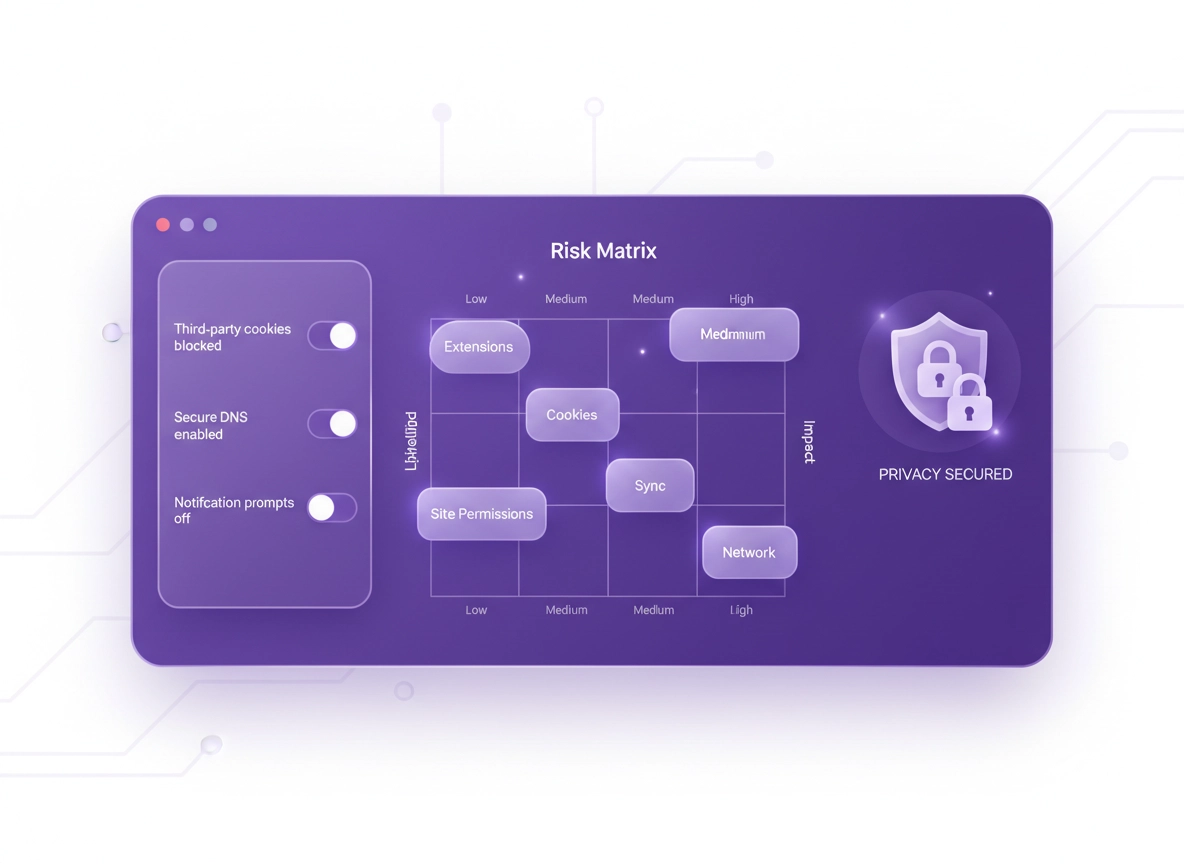
A Chrome privacy risk assessment is a structured way to answer one deceptively simple question: “What information about me can leak through my browser—and how do I reduce that exposure without breaking my daily browsing?” Instead of random toggling, you map your biggest privacy risks, assign each a score (likelihood × impact), and then fix the top items first. This approach is how security teams prioritize work—because time is limited, and not all privacy risks are equal.
In Chrome, most real-world privacy risk is concentrated in five areas: (1) third-party tracking and cookies, (2) extensions and their permissions, (3) account linkage + sync, (4) site permissions (location, camera, mic, notifications), and (5) network-level metadata (DNS, IP, Wi-Fi exposure). If you tighten these five, you typically reduce the majority of everyday tracking and accidental data exposure.
A good risk assessment also helps you avoid “privacy theater.” For example: clearing browsing history can be helpful, but it does not fix a risky extension that can read every page you visit. Disabling one ad setting might reduce personalization, but it won’t stop third-party cookie tracking if cookies are still wide open. The goal is to remove entire classes of tracking and leakage—starting with the controls that give you the biggest return.
Related: Want the bigger picture first? Start here: Chrome Privacy Settings (practical guide). If you already know the basics, this risk assessment page is your “do it properly” method.
Key terms (quick definitions) .
- Threat model: The set of threats you care about most (advertisers tracking you, malicious extensions, account takeover, workplace monitoring, etc.).
- Likelihood: How likely a privacy issue is to happen to you in normal browsing (based on your habits and environment).
- Impact: What happens if it does occur (minor personalization vs. credential theft or sensitive work data exposure).
- Third-party cookies: Cookies set by domains other than the site you’re visiting—commonly used for cross-site tracking.
- Site permissions: Controls that allow sites to use sensors or features (location, camera, mic, notifications, clipboard, etc.).
- Sync/account linkage: When browsing data/settings tie directly to your Google account across devices.
- Extension “host access”: Permission that lets an extension read and change your data on sites you visit—sometimes on all sites.
Before you start (fast checks that prevent wasted time) .
A risk assessment goes faster when you begin with two quick truths: (1) you can’t score what you haven’t inventoried, and (2) many “privacy problems” are really “extension problems.” Spend 5 minutes here and your scoring will be accurate.
- Decide your scope: Are you assessing one device (this laptop) or your whole account (everything that syncs across devices)?
- List your profiles: Do you use multiple Chrome profiles? Work profile vs personal profile? Guest? Each is a different risk surface.
- Note your environment: Public Wi-Fi, shared family PC, school device, managed enterprise laptop—these change the priorities.
- Capture “must-work” sites: Banking, payroll, SSO, school portals, medical portals. These guide compatibility exceptions later.
- Get your baseline: Run Chrome’s built-in checks first (they catch low-hanging fruit like risky extensions and compromised passwords).
Related: If you want a privacy-first baseline before scoring, use: Chrome privacy settings checklist and then come back to score what’s still high risk.
Where are these checks in Chrome? On desktop, open ⋮ → Settings → Privacy and security and look for Safety Check. This area also contains cookie controls and many privacy/security families that you’ll score later.
Pick your risk scoring scale (simple and effective) .
Use a simple 1–5 scale. You’re not doing academic statistics; you’re choosing what to fix first. Here’s a practical scale that works for individuals and teams:
- Likelihood 1: Rare edge case (you almost never do the risky behavior).
- Likelihood 3: Occasional exposure (happens weekly/monthly).
- Likelihood 5: Constant exposure (happens daily, or always on).
- Impact 1: Minor inconvenience (ads/personalization only).
- Impact 3: Personal data exposure (tracking across sites, sensitive interests inferred, location/identity leakage).
- Impact 5: High harm scenario (credential theft, work data leakage, financial fraud, or long-term account compromise).
1–6: Low priority (monitor) · 7–14: Medium (fix soon) · 15–25: High (fix first)
Step-by-step: score your Chrome privacy risk in 30–45 minutes .
This method is designed to be repeatable. You’ll do five mini-assessments (extensions, cookies, permissions, sync, network), score each one, and then apply targeted mitigations. If you manage more than one device, repeat the same steps for each profile and device class.
- 1 Inventory your data exposure (profiles, extensions, permissions, sync, and network basics).
- 2 Score each category (likelihood × impact) using the 1–5 scale.
- 3 Apply the top 3–5 mitigations that remove the most risk with the least compatibility cost.
- 4 Validate: confirm what “success” looks like and create a small exception list (instead of turning everything off).
- 5 Document the new baseline (so you can repeat it after updates or device changes).
What “success” looks like: you can browse normally, your must-work sites still work (or have controlled exceptions), and your biggest exposure paths (risky extensions, broad host permissions, third-party cookies, and unnecessary permissions) are removed or constrained.
Related: If you want an audit document to copy, use Chrome privacy audit template and pair it with this scoring method.
Category 1: Extensions (usually the #1 privacy risk) .
Extensions can be amazing—and they can also be the most direct path to data exposure. Why? Because an extension with broad access can read page content, form fields, URLs, and sometimes authentication tokens on sites you use. Many privacy incidents start as: “It was just a handy extension.”
Inventory: Go to chrome://extensions. For each extension, capture:
- What it does: Can you explain its purpose in one sentence? If not, it’s a candidate for removal.
- Host access: “On all sites” is a big red flag. Prefer “on specific sites” or “on click.”
- Sensitive scope: Does it interact with email, banking, admin consoles, or SSO?
- Update behavior: Has it recently asked for new permissions? Permission creep is common.
Score it: Use the highest-risk extension to score the category.
- Likelihood: Higher if you use many extensions daily, or allow “all sites” access.
- Impact: Higher if you do banking, work admin tasks, or login to sensitive services in the same profile.
- Remove what you don’t truly need.
- Reduce host access (specific sites / on click).
- Separate profiles (keep “work admin” browsing in a profile with minimal extensions).
- Monitor permission changes after updates.
Deep dive: Privacy extensions guide and extension security check. If you want a dedicated scoring method for extensions, also see Chrome extension risk analysis.
Category 2: Third-party cookies + site data (tracking surface) .
Third-party cookies are one of the most common tools for cross-site tracking. Blocking them doesn’t make you invisible, but it removes a high-volume tracking mechanism and forces tracking to become more limited and fragmented. In current Chrome builds, cookie controls live under Settings → Privacy and security and are usually labeled under third-party cookie controls.
Inventory:
- Are third-party cookies allowed? If yes, tracking likelihood is higher.
- Do you use many “login with …” flows? Some federated logins rely on cross-site behavior (you can usually allow per-site exceptions).
- Do you auto-delete cookies? Shorter cookie lifetime reduces long-term tracking but can increase login friction.
- Do you use Incognito for sensitive sessions? Useful for separation, but not a complete tracking solution.
Score it:
- Likelihood: Higher if you browse a lot of ad-funded sites, shopping sites, or click ads.
- Impact: Higher if you care about sensitive interest inference (health, finance, legal) or workplace privacy.
- Block third-party cookies (best baseline for most users).
- Use per-site exceptions for must-work services instead of turning cookies back on globally.
- Regularly clear site data for high-risk categories (ad networks, unknown domains, suspicious sites).
- Use auto-delete if you accept extra sign-ins for stronger privacy.
Related: Third-party cookies settings, how to block third-party cookies, and auto-delete cookies in Chrome.
Category 3: Site permissions (silent data collection) .
Permissions are “quiet” privacy risk because they don’t feel like tracking—until a site can access location, mic, camera, notifications, clipboard, or run background behaviors you didn’t expect. The most important concept is: default deny, and allow only when needed.
Inventory: Go to Settings → Privacy and security → Site settings, then review:
- Location: Allow only for maps, delivery, ride apps, and only when needed. Prefer “Ask.”
- Camera / Microphone: Allow only for meeting tools and known domains; remove old permissions.
- Notifications: This is commonly abused. Turn off notification prompts or keep a strict allowlist.
- Pop-ups and redirects: Generally block; allow exceptions for known, legit flows.
- Background sync: Consider limiting for privacy and performance, especially on laptops.
- Clipboard access, USB, Bluetooth: Keep tight. These are high-impact when misused.
Score it:
- Likelihood: Higher if you click “Allow” quickly or install many web apps.
- Impact: Higher if you do calls/meetings, handle sensitive files, or use your laptop in shared spaces.
- Reset stale permissions: remove old “Allow” entries you no longer need.
- Default to “Ask” for sensors. Avoid global “Allow.”
- Lock down notifications (one of the highest annoyance + abuse vectors).
- Use per-profile separation: meeting tools in one profile, general browsing in another.
Related: site permissions, camera, microphone, location, notifications.
Category 4: Account linkage + sync (the “privacy multiplier”) .
Sync can be great: it keeps bookmarks, passwords, history, settings, and extensions consistent. But from a privacy risk perspective, sync can also be a multiplier: a misconfiguration or risky extension becomes consistent across devices, and browsing behavior may be more tightly linked to your identity across contexts (work/personal). The practical goal is not “never sync,” but sync intentionally.
Inventory:
- Are you signed into Chrome? (Different from being signed into a Google website.)
- What is synced? History, open tabs, passwords, addresses, extensions, settings?
- Do you share the device? If yes, sync + shared OS accounts is a high-risk combo.
- Do you use a work-managed account? Policies can change what is logged/controlled.
Score it:
- Likelihood: Higher if you have multiple devices, use Chrome everywhere, and sync broadly.
- Impact: Higher if your account is a “single point of failure” (email, password manager, bank access, admin consoles).
- Separate profiles: work vs personal (different accounts, different extensions, different cookies).
- Minimize synced categories: if privacy is your priority, consider limiting history/open tabs sync.
- Protect the account: use 2FA/passkeys and consider security keys for high-value accounts.
- Review sign-in behavior: avoid “blending” work and personal identities in the same profile.
Related: Chrome sync settings, disable Chrome sync, sync security risks.
Category 5: Network and DNS privacy (what the network can see) .
Even with perfect browser settings, your network path can leak information: DNS requests, IP-based location, and metadata about the services you contact. On public Wi-Fi, the risk is higher—not only for privacy, but for account compromise if you ignore certificate warnings.
Inventory:
- Do you use public Wi-Fi? Cafés, airports, hotels. If yes, raise likelihood.
- Is Secure DNS enabled? This reduces classic DNS visibility to the local network/ISP.
- Do you use HTTPS-only mode? Helps block silent downgrade to HTTP on risky networks.
- Do you use a VPN? Changes what the local network sees (but introduces a trust relationship with the VPN provider).
Score it:
- Likelihood: Higher if you travel, use shared networks, or work remotely often.
- Impact: Higher if you do banking/admin tasks on untrusted networks.
- Enable Secure DNS and choose a reputable provider or OS/enterprise-managed resolver.
- Consider HTTPS-Only Mode if available in your build, especially on public networks.
- Use a VPN when on untrusted networks, but treat it as a trust tradeoff (provider can see traffic metadata).
- Never bypass certificate warnings on public Wi-Fi for sensitive logins.
Related: DNS over HTTPS settings, Secure DNS setup, network privacy settings, public Wi-Fi security tips.
Put it together: your top 5 risks (and your 3–5 highest-impact fixes) .
After scoring the five categories, sort by score and fix the top items first. Most people find their top two are: extensions and sync/account linkage (especially if work and personal are mixed), followed by cookies and permissions.
| Category | Likelihood (1–5) | Impact (1–5) | Score | Top mitigation | Compatibility cost |
|---|---|---|---|---|---|
| Extensions | __ | __ | __ | Remove + reduce host access | Low–Medium |
| Cookies | __ | __ | __ | Block third-party cookies + exceptions | Low–Medium |
| Permissions | __ | __ | __ | Reset stale allows + strict notifications | Low |
| Sync / account linkage | __ | __ | __ | Separate profiles + minimize synced data | Low–High (depends) |
| Network / DNS | __ | __ | __ | Secure DNS + HTTPS-Only + VPN on public Wi-Fi | Low |
Rule of thumb: Prefer mitigations that remove an entire risk class. Example: blocking third-party cookies removes a major cross-site tracking mechanism; auditing extensions can remove direct page-access risk. These are higher leverage than cosmetic “privacy” switches.
Common variations .
- Windows / ChromeOS: Often the broadest enterprise policy support; check for managed device indicators and enforced policies.
- macOS: Pay extra attention to profile separation (work/personal) and permission prompts; don’t grant system-level access casually.
- Android / iPhone: Cookie/permission menus differ slightly, but the same risk categories apply (permissions, cookies, account linkage, network). Use Privacy & security sections in Chrome settings.
Advanced: profiles, privacy boundaries, and enterprise-grade baselines .
If you want a setup that stays strong over time, your biggest “advanced” move is not a hidden flag—it’s privacy boundaries. Boundaries are what prevent data from one context (work) bleeding into another (personal), and they reduce the blast radius of mistakes. Think of boundaries like compartments.
Related: For business/managed environments: enterprise Chrome privacy settings and privacy controls for managed devices.
Boundary #1: Separate profiles (work vs personal) .
A separate Chrome profile is one of the cleanest privacy controls you can use: it separates cookies, site data, extensions, history, and (optionally) accounts. If you do any of the following, separation is worth it: admin console work, HR/finance portals, client portals, or anything with sensitive documents.
- Work profile: minimal extensions, strict permissions, limited cookie exceptions, ideally a work account only.
- Personal profile: personal logins, shopping, social, and any “fun” extensions that you don’t want near work sessions.
- High-risk / testing profile: optional “sandbox” profile for trying new extensions or suspicious links.
Boundary #2: Sync intentionally (and document what you sync) .
Sync is convenient—so the safe version is “sync with intent.” Decide what categories are worth syncing (bookmarks often are; history/open tabs sometimes are not). The key is consistency: once you choose, document it as your baseline so updates or new devices don’t drift.
Related: account security settings, 2FA guide, identity protection.
Enterprise baseline: policy-first thinking .
In enterprise environments, privacy risk isn’t only “tracking”—it’s also: data loss, session leakage, unmanaged extensions, and inconsistent configuration across a fleet. Policy-level controls allow you to enforce your risk decisions at scale. If you manage devices, focus on: extension allowlists, safe browsing/security posture, certificate/secure DNS policy, and account separation.
- Extension governance: allowlist critical extensions; block everything else by default for high-risk teams.
- Security posture: encourage Safety Check habits and enforce safe browsing baselines where appropriate.
- Network controls: secure DNS policy + HTTPS protections + remote access posture.
- Logging awareness: on managed devices, understand what is logged by policy (privacy expectations differ).
Common alternatives users compare (high-intent) .
- Chrome built-in privacy controls vs privacy extensions
- Chrome password manager vs dedicated password managers
- VPN extensions vs full VPN services
- Manual hardening vs enterprise policy enforcement
Related comparisons: VPN vs proxy, password manager vs Chrome, VPN vs antivirus.
Privacy & security notes: what each control actually changes .
This section is here so you can make informed tradeoffs. Privacy settings always have a cost (compatibility, convenience, or a new trust dependency). The goal is to choose costs you’re comfortable paying—and avoid “fixes” that don’t reduce meaningful risk.
Impact areas: cookies and cross-site tracking, extension access, account-linked identity data, site permissions, and network metadata.
Recommended baseline settings .
- Option A (balanced): Block third-party cookies, strict notification prompts, review extensions quarterly, keep sync but limit sensitive categories.
- Option B (maximum privacy): Separate profiles, minimize sync, aggressive permission deny, Secure DNS, stricter cookie controls + periodic site data cleanup.
- Option C (compatibility): Block third-party cookies but allow targeted exceptions, keep permissions on “Ask,” keep extensions minimal, use Safety Check routinely.
Recommended settings by goal .
| Goal | Recommended setting | Tradeoff | Best for |
|---|---|---|---|
| Balanced | Block third-party cookies + strict notifications + extension audit | Some logins/embedded content may need exceptions | Most users |
| Maximum privacy | Separate profiles + minimize sync + tight permissions + Secure DNS | More setup + occasional friction | Tracking-sensitive users |
| Compatibility | Cookies blocked globally with per-site allowlist + “Ask” permissions | Some tracking can persist via other methods | Banking / enterprise sites |
Don’t forget the “human factor”: The biggest privacy improvements are behavior + configuration together. Example: “don’t install unknown extensions” beats almost any single setting.
Troubleshooting (when sites break after you harden privacy) .
Related: If you’re debugging a permissions problem, start with site permissions settings. If you suspect infection or hijacking, see remove malware from Chrome.
If logins or embedded content stop working after blocking third-party cookies .
This is common for: embedded chat widgets, some SSO flows, and cross-site embedded services. The best fix is not “turn cookies back on globally.” Instead, add an exception for the exact service you need, or use a dedicated profile for that workflow. Also consider whether the site truly needs the embedded third-party component—or if it’s optional.
If you want a clean approach: keep third-party cookies blocked, then allow exceptions only for sites you trust and truly need. Over time, your exception list becomes your privacy policy in practice.
If a meeting app can’t access your mic or camera .
Check the site-level permission first (camera/microphone) and remove stale deny rules. If you use multiple profiles, confirm you’re changing permissions in the same profile where you run meetings. Also confirm the OS-level permissions (system privacy controls) aren’t blocking the browser.
If Chrome feels slower after “privacy hardening” .
Privacy changes don’t usually slow Chrome down. But removing certain “performance helper” extensions might feel different, and some privacy extensions can add overhead. A common cause is simply too many extensions running. Start by disabling extensions temporarily and re-enable only essential ones. Then use a performance-focused cleanup guide if needed.
Related: speed up Chrome, extension performance impact, background process control.
If you need to “reset safely” without losing everything .
Don’t rush to a full reset. First, isolate the cause: (1) try a new Chrome profile, (2) disable extensions, (3) clear site data for the broken site only. If you do reset, document your chosen privacy baseline first (cookies, permissions, sync decisions), so you can restore the hardening quickly afterward.
FAQ .
-
helpIs Incognito mode enough for privacy?Incognito mainly prevents local history/cookies from persisting after you close the window. It doesn’t make you anonymous to websites, networks, or your ISP, and it doesn’t automatically protect you from risky extensions in your main profile. Use Incognito for session separation, but rely on cookie controls, permissions, and extension audits for real risk reduction.
-
helpWhat’s the single highest-impact privacy fix in Chrome?For many people it’s an extension audit: remove what you don’t need and reduce “read and change data on all sites” access. After that, block third-party cookies and lock down notifications + site permissions. These changes eliminate the most common tracking and leakage paths without requiring extreme browsing habits.
-
helpShould I disable Chrome sync for privacy?Not always. Sync is a convenience tradeoff. If you mix work and personal activity in one profile, or if your Google account is a high-value target, minimizing synced categories (or separating profiles/accounts) can meaningfully reduce impact. The best approach is “sync intentionally” and protect the account with strong authentication.
-
helpDo I need a VPN for privacy in Chrome?A VPN can improve privacy on untrusted networks by reducing what the local network can observe, but it creates a new trust dependency: the VPN provider. For many users, enabling Secure DNS, blocking third-party cookies, and limiting extensions provide a larger day-to-day privacy benefit than a VPN alone. If you regularly use public Wi-Fi, a reputable VPN becomes more valuable.
Sources & further reading .
- Google Chrome Help: Manage safety & security (Desktop)
- Google Chrome Help: Delete/allow/manage cookies (Desktop)
- Google Chrome Help: Manage safety & security (Android)
- Google Safety: Chrome privacy & security overview
- Chrome Safety page: protections & controls
- Privacy Sandbox: Topics API overview
- Privacy Sandbox: Protected Audience API overview
- Privacy International: Chrome privacy settings guide
Disclosure: Some pages on ChromeThemer may mention tools or services. Recommendations are editorial and based on testing and common security practice.