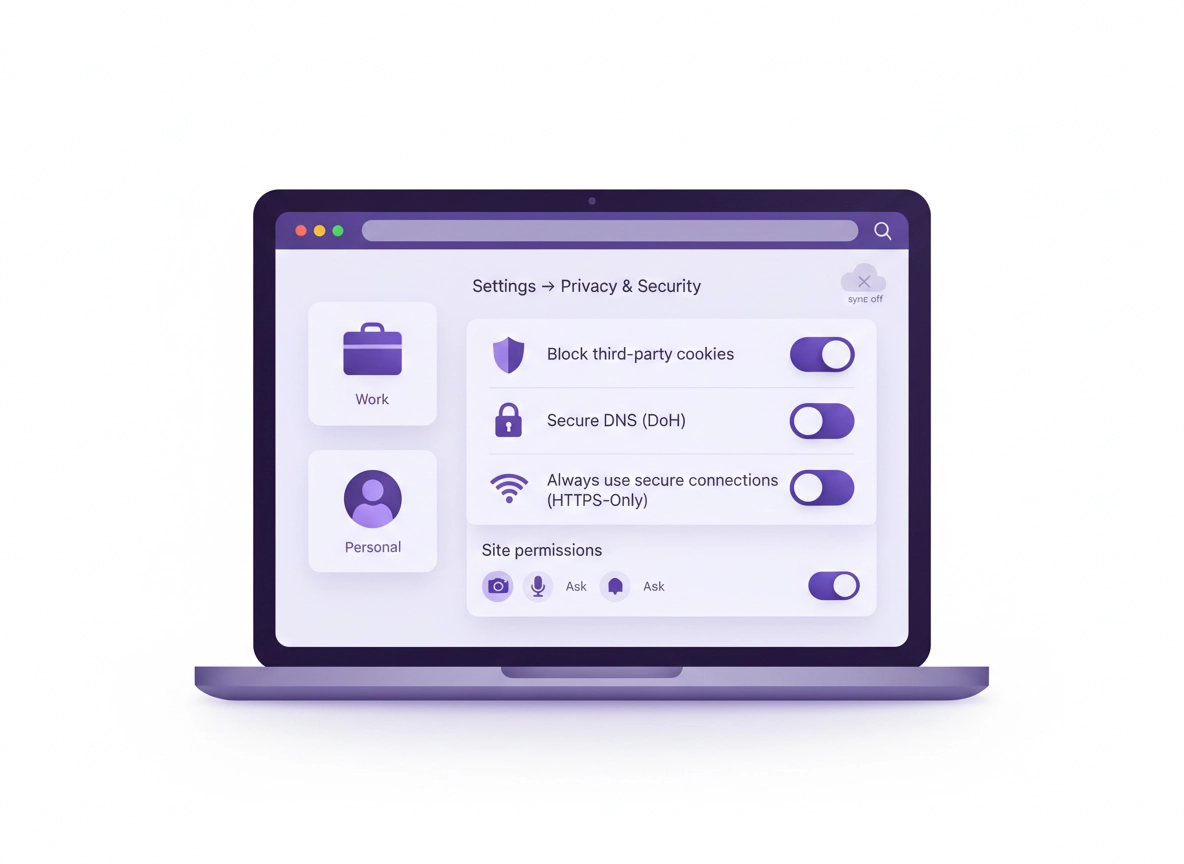
What “Chrome privacy for remote work” really means .
Remote work doesn’t just change where you sit—it changes what can leak.
“Chrome privacy” is often treated like a single switch (“Incognito”, “Block cookies”, “Do Not Track”), but remote work privacy is more like risk budgeting. Every day you juggle multiple identities: a work account, personal accounts, client portals, internal tools, shared documents, and meeting links. The privacy problem isn’t only ads and trackers—it's cross-account mixing, permission creep, extension access, and network visibility.
This guide is designed around one principle: reduce the number of places your work identity can accidentally appear. That means: (1) isolate work browsing into a dedicated profile, (2) tighten permissions so sites can’t “sip” data without asking, (3) reduce tracking that can correlate your work activity across sites, and (4) turn on network defaults that prevent easy interception on public or shared networks.
If you want the broad overview first, start at the hub: Chrome Privacy Settings. This page is the remote-work version—focused on business tools, client portals, and “real life” workflows.
Remote-work privacy isn’t paranoia: It’s about preventing small mistakes from becoming big incidents (phishing, account takeover, data exposure). Google’s Chrome safety and privacy tools are designed to reduce those risks—but they work best when you set them up intentionally.
Key terms (quick definitions) .
- Chrome profile: A separate browser space with its own bookmarks, extensions, cookies, and sign-ins (best remote-work isolation tool).
- Third-party cookies: Cookies set by “other domains” (often trackers) that can follow you across websites.
- Site permissions: Access a website can request (camera, mic, location, notifications, downloads, clipboard, etc.).
- Secure DNS (DoH): Encrypts DNS lookups so networks can’t easily see which domains you query (and can reduce tampering).
- HTTPS-Only / Always use secure connections: Prefer encrypted web connections and warn before loading insecure HTTP sites.
- Sync: Copies browser data (history, bookmarks, passwords) across devices—useful, but sometimes risky in mixed work/personal setups.
The remote-work threat model (practical) .
You don’t need a spy movie threat model. You need the “remote work reality” model—things that happen every day:
- Phishing and malicious links: A fake login page (Google/Microsoft/Okta) steals your password and session.
- Extension overreach: An extension with “read and change data on all sites” can see sensitive pages (email, payroll, admin portals).
- Account mixing: Personal Google account signs into work Drive; work cookies get reused on personal sites; client logins overlap.
- Permission creep: You allow mic/camera/notifications once, then forget; a compromised site reuses those permissions.
- Shared or public networks: Wi-Fi operators can observe DNS and attempt interception; insecure sites leak data.
- Device sharing: Family members or roommates open the wrong profile and see work tabs, autofill, or saved documents.
1) Profile isolation & account hygiene → 2) Site permissions → 3) Tracking/cookies → 4) Network defaults (DNS/HTTPS) → 5) Extension auditing.
Related: If you manage or advise teams, see Chrome Privacy for Business and Enterprise Chrome Privacy Settings.
Before you start (fast checks) .
These quick checks prevent wasted time and help you avoid “I changed everything and now my work apps are broken.” For remote work, you want privacy improvements that are predictable and reversible.
- Know if your Chrome is managed: If you’re on a company device, policies may lock some settings. (You might see “Managed by your organization.”)
- Pick your “Work identity” first: Decide which Google/Microsoft/SSO account is your main work account before you sign in anywhere.
- List your must-work tools: Add 5–10 sites you cannot break (e.g., Gmail/Outlook, Slack/Teams, Zoom/Meet, Jira, payroll, VPN portal).
- Plan for 2FA: If you tighten privacy, you may be signed out more often—have your authenticator ready.
- Update Chrome: Security features and menus shift over time; staying current avoids “missing setting” confusion.
securityRun Chrome Security Checkup passwordReview Password Checkup dnsSet DNS over HTTPS cookieEnable Auto-delete cookies
Note: Chrome’s menus typically group these items under Settings → Privacy and security (and sometimes Security underneath that). :contentReference[oaicite:2]{index=2}
Step-by-step: baseline secure setup .
This baseline is the “90% solution” for most remote workers: separate work identity, reduce tracking, lock down permissions, and improve network privacy. You can do it in about 10–15 minutes.
Part A: create a dedicated Work profile .
- 1 In Chrome, click your profile icon (top-right) → choose Add (or Manage profiles → Add).
- 2 Name it Work (or the company/client name). Pick a distinct color. This color cue prevents “wrong profile” mistakes.
- 3 Sign in with your work account only (Google Workspace / SSO-linked Google account, if applicable). Avoid signing personal accounts into the Work profile.
- 4 Pin the Work Chrome window to your taskbar/dock. Use it like a separate app: Work windows = work profile only.
What “success” looks like: Your work email/Drive/SSO sessions live only in the Work profile. If you open personal browsing in another profile, you should not see work autofill suggestions or work history.
Part B: reduce tracking and cross-site correlation .
Remote work privacy is less about hiding and more about limiting correlation. Trackers can connect your work browsing patterns (tools you use, times you log in, services you pay for) across sites. The most reliable privacy win here is third-party cookie control + privacy sandbox/ads controls.
- 1 Go to Chrome Settings → Privacy and security → Third-party cookies.
- 2 Set it to Block third-party cookies (recommended for work profiles).
- 3 If a critical work app breaks, use a site exception instead of turning cookies back on globally.
- 4 Optional: enable “Send a ‘Do Not Track’ request” (it’s a request, not enforcement—but it’s low effort). :contentReference[oaicite:3]{index=3}
Shortcut guides: Third-party cookies settings, Block third-party cookies, Chrome Ad Privacy settings, Privacy Sandbox explained.
Part C: lock down site permissions (camera, mic, screen share, notifications) .
In remote work, permissions matter more than cookies. A single “Allow camera/mic” mistake can be reused later. The goal is: Ask every time by default, then allow only for trusted meeting and collaboration domains.
- 1 Go to Settings → Privacy and security → Site settings.
- 2 Open Camera and set default to Don’t allow or Ask. For remote work, “Ask” is usually the sweet spot.
- 3 Repeat for Microphone, Notifications, Pop-ups and redirects, and Automatic downloads.
- 4 Review Clipboard (copy/paste access) and Background sync—limit these for unknown sites.
- 5 Add allow-rules only for trusted domains (e.g., your company’s Meet/Teams/Zoom domains). Keep the list short.
Chrome’s Site settings path is typically Settings → Privacy and security → Site settings, and individual permissions (like Location) live underneath it. :contentReference[oaicite:4]{index=4}
Deep dives: Site permissions settings, Camera permissions, Microphone permissions, Notification permissions, Background sync.
Part D: secure your network defaults (Secure DNS + HTTPS-Only) .
Remote work often happens on networks you don’t fully control: home routers, coworking Wi-Fi, cafés, hotels. Two settings reduce “easy visibility” into your browsing: Secure DNS and Always use secure connections.
- 1 Go to Settings → Privacy and security → Security.
- 2 Enable Use secure DNS, then choose a provider (or set a custom provider if your org requires it).
- 3 Turn on Always use secure connections (HTTPS-Only). Chrome will upgrade to HTTPS and warn before insecure sites. :contentReference[oaicite:5]{index=5}
- 4 If a private intranet site breaks, adjust the HTTPS warnings scope (where available) rather than disabling HTTPS protection globally.
Deep dives: Chrome DNS over HTTPS, Secure DNS setup, HTTPS-Only mode, Secure connection settings.
Part E: safe browsing & account protection (remote-work defaults) .
Most remote-work incidents begin with a link: fake invoice, fake file share, fake HR form. Chrome’s Safe Browsing features are built for this exact reality (malicious sites, risky downloads, phishing warnings). Choose protection level based on your environment and sensitivity.
- 1 Go to Settings → Privacy and security → Security.
- 2 Under Safe Browsing, pick Enhanced protection if you handle sensitive data or face frequent phishing attempts; otherwise choose Standard.
- 3 Confirm downloads warnings are enabled and you can see “dangerous file” prompts when appropriate.
- 4 Run Security Checkup and review extensions and compromised passwords.
Deep dives: Safe Browsing settings, Enhanced Safe Browsing, Password leak detection.
Common variations .
- Windows / ChromeOS: Profiles and policies are common in business setups; you may see “Managed” labels. If settings are locked, use exceptions rather than global toggles.
- macOS: Profile separation works the same; keychain integration can affect password storage decisions—consider a dedicated password manager for work if needed.
- Android / iPhone: Menus are similar but simplified. The “Always use secure connections” setting is under Privacy and security → Security on Android. :contentReference[oaicite:7]{index=7}
Recommended setups by role (freelancer, employee, admin) .
Remote work privacy gets easier when your setup matches your role. Below are three proven “profiles” (not Chrome profiles—work styles) you can copy.
1) Freelancer / contractor (multiple clients) .
If you work with multiple clients, your biggest risk is client-to-client contamination: wrong account in the wrong portal, accidentally uploading the wrong file, or leaving a client session open in a shared environment. The simplest fix: one Chrome profile per client.
- Create: A separate Chrome profile for each client (Client A, Client B) plus one Personal profile.
- Cookies: Block third-party cookies in every client profile. Add exceptions only for that client’s required domains.
- Extensions: Keep a tiny allowlist per client profile. Avoid “all sites” access unless it’s a trusted business tool.
- Permissions: Camera/mic allowed only for meeting domains you actually use with that client.
- Cleanup: If a client ends, export bookmarks if needed, then delete the profile.
2) Employee / remote team member (one employer) .
If you’re a remote employee, the biggest risk is work data landing in personal spaces: personal history, personal password vault, personal extensions, personal cloud sync. Your objective is “work stays in work.”
- Work profile: Work Google/SSO account only. No personal Gmail sign-in inside the work profile.
- Sync: If allowed, sync only what you need. If you use personal devices, consider limiting sync or using a separate passphrase policy (if applicable).
- Downloads: Watch the default download location. Avoid mixing work and personal downloads in the same folder.
- Meetings: Lock down camera/mic permissions so only your meeting platforms get “Allow.”
- Password discipline: Avoid saving work passwords into a personal browser vault. Prefer an approved password manager if your org provides one.
Related: If you’re choosing between Chrome built-in passwords and a dedicated manager, start at Best Password Manager for Chrome or read Password manager vs Chrome passwords.
3) IT admin / security lead (teams and policies) .
If you manage remote teams, you need controls that scale. The priority becomes enforceable defaults: extension policy, DNS/HTTPS defaults, safe browsing posture, and audit-ready behavior.
- Profiles & identity: Encourage work-only profiles and managed sign-in when possible.
- Extension allowlist: Audit permissions and limit “all sites” access; use business-approved extensions only.
- HTTPS and secure DNS: Enable safe defaults; allow exceptions for internal legacy systems only.
- Safe browsing posture: Consider Enhanced protection for high-risk groups (finance, HR, exec assistants).
- Compliance posture: If you need GDPR/SOC2/HIPAA alignment, document policy choices and the “why.”
Advanced settings (power users) .
This is where you earn high-value privacy gains: sharper boundaries, fewer leaks, and better security posture in real remote-work conditions. Use these when your baseline is done and stable.
Related: In managed environments, see Enterprise & Business.
1) Sync strategy: convenience vs containment .
Sync is useful—until it’s not. Remote work often means multiple devices: laptop, desktop, phone. Sync can copy history, passwords, and open tabs across those devices. That’s convenient, but it expands the blast radius of mistakes: one compromised device can expose synced data; one misconfigured profile can spread work cookies and autofill suggestions.
- If you need maximum containment: turn Sync off in the Work profile and keep work logins local. Use your org’s approved password manager instead.
- If you need productivity: keep Sync on but restrict what syncs. Avoid syncing passwords into a mixed environment if you can.
- If you share a device: keep Sync off and use separate profiles for each human. Consider profile locking options on your OS.
Guides: Chrome account & Sync · Disable Sync
2) Data minimization: clear & auto-delete (work profile) .
Remote work produces a lot of sensitive residue: session cookies, cached documents, history, and autofill. If your risk profile is higher (client data, financial data, regulated info), consider data minimization—keeping less on disk by default.
- Auto-delete on exit: Strongest for contractors and shared-device environments.
- Targeted clearing: Clear cookies for a specific domain when troubleshooting or changing roles.
- Scheduled hygiene: Weekly clearing for a work profile can reduce “session longevity” risk without constant logouts.
Guides: Clear browsing data · Auto-delete cookies
3) Extension risk control (remote work edition) .
Extensions are powerful—and that’s exactly the problem. Many can read page content, see form fields, and access tokens indirectly. For remote work, you want an allowlist mindset.
- Audit permissions: Remove anything that asks for “Read and change data on all sites” unless it’s essential and trusted.
- Separate toolsets: Keep personal extensions out of the Work profile. Memes, coupons, shopping tools, random AI sidebars—don’t belong in work.
- Update hygiene: Extensions can change permissions after updates. Periodically re-check what’s installed.
Extension security hub: Chrome Extension Security Check · Permissions guide · How to check if an extension is safe
4) Remote-work network best practices (beyond Chrome) .
Chrome settings help, but remote-work privacy also depends on the network layer. If you work on public Wi-Fi or travel, a reputable VPN can reduce network exposure. If you’re deciding between approaches, keep this mental model:
- Secure DNS: Helps hide DNS queries and reduce tampering, but doesn’t encrypt the whole connection.
- HTTPS-Only: Ensures web traffic is encrypted where sites support it, warns otherwise.
- VPN: Encrypts more of your network traffic to a VPN provider—useful on hostile Wi-Fi and for location-independent access patterns.
VPN hub: Best VPN for Chrome · VPN for remote workers · VPN vs Private DNS
Common alternatives users compare .
- Chrome built-in privacy controls vs privacy-focused extensions
- Chrome password manager vs dedicated password managers
- Secure DNS vs VPN on public Wi-Fi
- Manual setup vs enterprise policy enforcement
Privacy & security notes (tradeoffs) .
Better privacy always has a tradeoff. The key is to pay the tradeoff once and then enjoy stable, predictable browsing. Below are the main tradeoffs remote workers encounter and how to handle them without rolling everything back.
Impact: Affects cookies (logins), tracking/correlation, extension access, and permission prompts.
Plain-English summary: Use a Work profile to keep work identity separate. Then block third-party cookies and tighten site permissions. Add Secure DNS + HTTPS-Only to reduce network visibility and insecure web exposure. If something breaks, use exceptions instead of disabling protections globally.
Recommended baseline settings .
- Option A (balanced): Work profile + block 3rd-party cookies + Ask for permissions + Standard Safe Browsing + Secure DNS on.
- Option B (maximum privacy): Above + auto-delete cookies on exit + strict extension allowlist + Enhanced Safe Browsing (where appropriate) + HTTPS-Only on.
- Option C (compatibility): Work profile + block 3rd-party cookies + permission allowlist for specific domains + Standard Safe Browsing + HTTPS-Only on.
Recommended settings by goal .
| Goal | Recommended setting | Tradeoff | Best for |
|---|---|---|---|
| Balanced | Work profile + block 3rd-party cookies + Ask permissions | Some sites may ask more often | Most remote workers |
| Maximum privacy | Auto-delete cookies + strict extensions + HTTPS-Only + Secure DNS | More logins + occasional compatibility exceptions | Contractors, sensitive data roles |
| Compatibility | Block 3rd-party cookies with per-site exceptions | More admin work to maintain exception list | Legacy enterprise / intranet tools |
Chrome’s “Always use secure connections” (HTTPS-Only) and related security options are part of Chrome’s safety/security controls and are being expanded over time across releases. :contentReference[oaicite:8]{index=8}
Troubleshooting .
Related: For permission-related issues, see Chrome Site Permissions Settings.
If your work app logs you out constantly .
This usually happens after blocking third-party cookies or enabling auto-delete. Don’t disable privacy globally—do this instead:
- Add a site exception for the specific work domain(s) that require cross-site authentication.
- Check if the app uses multiple domains for auth (common with SSO). Add exceptions only for those known domains.
- Keep exceptions scoped to the Work profile only.
Tip: If the login flow “bounces” between pages, that’s a sign the identity provider is being blocked. Fix with exceptions, not a global rollback.
If camera/mic won’t work in meetings .
Remote work requires camera/mic permissions, but you still want to avoid leaving them open for the entire internet. Fix it cleanly:
- Open the meeting site → click the lock icon in the address bar → ensure Camera and Microphone are set to Allow for that domain.
- In Settings → Site settings, verify your defaults are “Ask” and your meeting domain is explicitly allowed.
- If it’s still failing, confirm OS permissions (Windows/macOS) allow Chrome to use the camera/mic.
Guides: Camera permissions · Microphone permissions
If internal company sites break after enabling HTTPS-Only .
Some intranet tools still use HTTP. HTTPS-Only can warn or block depending on configuration. Options:
- If Chrome offers a “public sites only” warning mode, use that. It reduces friction for private intranets while still protecting you on the open web.
- Add a narrow exception only for the intranet domain if your org approves it.
- Consider pushing for HTTPS on internal sites long-term (it’s safer and increasingly expected by modern browsers). :contentReference[oaicite:9]{index=9}
If Secure DNS causes connectivity or policy issues .
Some companies use DNS-based filtering or split-horizon DNS (internal domains only resolvable via company DNS). Secure DNS can conflict if set to a public provider.
- Try “With your current service provider” mode first (if available) instead of forcing a third-party provider.
- If your org provides a secure DNS endpoint, use the custom provider option.
- If internal domains won’t resolve, coordinate with IT—don’t guess. A “fix” that breaks internal name resolution creates a bigger incident.
If you need to reset safely .
Safe reset is about undoing changes without wiping your life.
- Start by removing recent extensions you installed “just to try” (common culprit).
- Revert settings one category at a time: cookies → permissions → security → sync.
- If you suspect malware, use the malware cluster and follow a structured cleanup rather than random toggling.
Malware hub: Remove Malware from Chrome
FAQ .
-
helpIs Incognito mode enough for remote work privacy?Incognito mainly prevents local history/cookies from being saved for that session—it doesn’t stop trackers, your employer, your ISP, or a compromised extension from seeing activity. For remote work, profile isolation + permissions + network security defaults (DNS/HTTPS) are more reliable.
-
helpWill blocking third-party cookies break work apps?Most modern tools work fine, but some SSO flows rely on cross-site cookies. The best approach is to keep blocking on, then add narrow exceptions only for the required domains. Don’t switch cookies back on globally unless you have no alternative.
-
helpShould I keep Chrome Sync on for my Work profile?If your work device is managed and your org supports it, Sync can improve productivity. If you use personal devices or share devices, Sync can increase accidental exposure. When in doubt, keep a Work-only profile and limit what gets synced—or disable Sync and use a dedicated password manager.
-
helpWhat’s the best “minimum extensions” rule for remote work?Keep your Work profile extensions to a small allowlist: password manager (if approved), meeting helper (only if needed), and one productivity tool you trust. Avoid coupon/shopping, random AI sidebars, and anything that requests “all sites” access without a strong reason.
Sources & further reading .
- Google Chrome Help: Manage safety and security (Desktop)
- Google Chrome Help: Manage safety and security (Android)
- Google Chrome Help: “Do Not Track” setting
- Google Chrome Help: Manage location permissions
- Google Security Blog: HTTPS by default
Disclosure: Some pages may mention tools or services. Recommendations are editorial and based on testing.