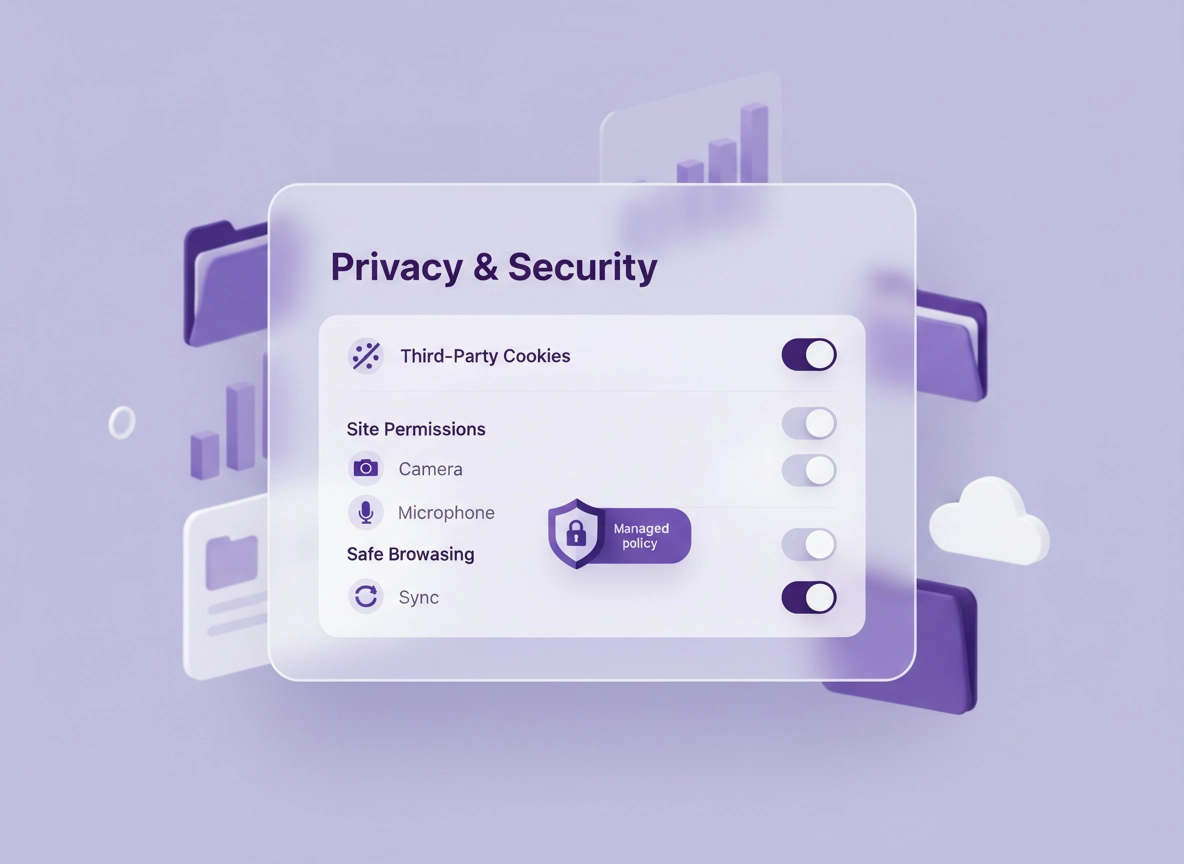
What “Chrome privacy for business” really means .
This guide focuses on real-world business privacy—reducing data exposure without breaking the web apps your team needs.
“Chrome privacy for business” isn’t one setting—it’s a control strategy. In a business context, privacy means limiting unnecessary tracking, reducing the amount of data that can leak through the browser, and ensuring that risky behaviors (like granting microphone access to random sites, or allowing unlimited third-party cookies) don’t become the default across a team.
For individuals, privacy usually means “stop tracking me.” For businesses, privacy expands into: data governance (who can access what), identity (what accounts can sign in), security posture (malware protection, phishing resistance), and compliance (proving you’ve made reasonable technical controls). A browser is a frontline tool—especially if you use cloud apps, handle customer data, or rely on contractors.
The most important mindset shift: privacy controls should be repeatable. If you can’t apply the same baseline across new laptops, remote teams, and shared devices, your organization ends up with inconsistent “shadow defaults.” That’s why this guide includes both user-facing settings (for small teams) and policy enforcement patterns (for managed environments).
Start here: If you want the “master overview” and a clean order of operations, see Chrome privacy & security settings overview and the hub page: Chrome Privacy Settings.
Key terms (quick definitions) .
- Third-party cookies: Cookies set by domains other than the site you’re visiting. Often used for cross-site tracking and ad attribution. Blocking them reduces tracking but can break some SSO flows and embedded tools.
- Site permissions: Per-site access rules for camera, microphone, location, notifications, clipboard, downloads, popups, USB devices, and more. In business, these should be “ask” or “block by default” for high-risk categories.
- Safe Browsing: Chrome’s built-in protection against malicious sites, downloads, and phishing. It’s a business baseline control (do not disable it lightly).
- Browser profile: A separate Chrome environment with its own cookies, extensions, logins, and history. Profiles are a simple, high-impact “privacy boundary” for separating work/personal/contractor contexts.
- Managed policies: Admin-enforced settings (via Google Admin Console, Group Policy, MDM, or cloud management) that lock or default Chrome behaviors across many devices.
Related: If extensions are part of your risk, read Chrome Privacy Extensions Guide and the hub: Chrome Extension Security.
Before you start (fast checks) .
These checks prevent the two most common business mistakes: applying strict privacy settings to the wrong profile, and tightening controls without documenting “known-good exceptions” for business-critical systems.
- Confirm what environment you’re in: Is this a personally installed Chrome, a company-managed device, or a BYOD contractor machine?
- Identify “must-not-break” apps: SSO (Okta/Azure AD/Google), payroll, banking, CRM, helpdesk, and internal dashboards.
- Decide your identity stance: Will employees sign into Chrome with a managed account? If yes, decide how you treat Chrome Sync (on/off/limited).
- Plan profile separation: At minimum, have a Work profile. For contractors, consider a separate Contractor profile with stricter defaults.
- Capture a rollback plan: Write down current settings and what “undo” looks like for breakage.
Open ⋮ → Settings → search cookies, permissions, sync. If you can’t find options or everything looks locked, you’re probably on a managed browser. In that case, skip ahead to Advanced for policy-based controls.
Related: If you want a practical “do this in order” baseline, use the Chrome Privacy Settings Checklist. For formal documentation, use the Chrome Privacy Audit Template.
Step-by-step: the recommended business baseline .
This baseline is designed for “normal” businesses: you use Google Workspace or Microsoft 365, run web apps all day, and you want a defensible privacy posture without turning Chrome into a fragile science project. Think of it as: reduce tracking + reduce permissions + keep phishing/malware protections on.
-
1
Create (or confirm) a dedicated Work profile.
In Chrome, click your profile icon (top-right) → Add → name it Work.
Why: a profile is a clean privacy boundary. Work cookies, extensions, and accounts stay inside Work.
-
2
Block third-party cookies (baseline).
Go to ⋮ → Settings → Privacy and security → Third-party cookies → choose Block third-party cookies.Why: this reduces cross-site tracking and limits “ad-tech style” data leakage between business apps. -
3
Review cookie exceptions intentionally.
Still under cookies, add exceptions only for specific apps that break (SSO portals, embedded helpdesks, or legacy apps).
Use the smallest possible exception scope (one domain, not “allow everything”).
Why: exceptions become “silent data tunnels” if you add them casually.
-
4
Tighten high-risk site permissions (camera, mic, location).
Go to Privacy and security → Site settings → set Camera and Microphone to Don’t allow (or “Ask” if you rely on Google Meet/Teams daily), set Location to Don’t allow, and set Notifications to Don’t allow.Why: permissions are where businesses leak the most. “Allow forever” is rarely justified. -
5
Keep Safe Browsing enabled.
Go to Privacy and security → Security → choose the protection level that matches your environment (most businesses should keep Safe Browsing on).Why: phishing and malicious downloads are still the fastest way to lose credentials and data. -
6
Decide how you handle Chrome Sync (business decision).
If you’re using managed accounts, Sync can improve continuity—but it also replicates browser state across devices. For shared devices, kiosks, or contractor endpoints, treat Sync as a risk and disable it.Practical rule: Sync is okay when identity is controlled and devices are managed; otherwise keep it off. -
7
Reduce background data behavior.
In System settings, consider turning off “continue running background apps” if your environment doesn’t require it. (This varies by Chrome version and environment.)Why: reduces persistent background activity and makes “what’s running” easier to reason about. -
8
Harden extensions: fewer, safer, reviewed.
Remove anything not essential. Keep “productivity helpers” on a short leash—especially those that can read page content across many sites. If you need a process, adopt an allowlist approach.Why: the browser is your data plane. Extensions sit inside it.
What “success” looks like: third-party cookies are blocked by default, camera/mic/location are not silently granted to random sites, notifications don’t spam users, and your team can still use core tools (mail, docs, CRM, banking) with minimal exceptions.
Related: Need exact “where is that setting?” pages? Third-party cookies settings, Site permissions settings, Safe Browsing settings, and Sync settings.
Common variations .
- Windows / ChromeOS: If your company uses Group Policy or Google Admin Console, settings may be locked by policy (that’s good—see Advanced).
- macOS: Many orgs enforce policies via MDM. Expect to see “Managed by your organization” in Chrome.
- Android / iPhone: Business privacy is often handled through managed profiles (Work Profile / MDM). Still apply cookie + permission discipline.
Advanced: managed policies, hardening, and compliance .
If you manage Chrome (or you want to), the goal is simple: move from “we told people what to do” to “the browser enforces what we decided.” That’s where privacy becomes scalable. Policies let you set defaults, lock settings, and apply exceptions intentionally—especially useful when you have remote workers, contractors, or regulated data.
Related: If you’re specifically building an org-wide setup, use Enterprise Chrome Privacy Settings and the hardening spine: Chrome Hardening Guide.
1) Cookie policy control: block by default, allow by exception .
Many businesses are moving toward “third-party cookies blocked” as a default posture. In managed environments, you don’t want users enabling cookies casually to fix a broken embed; you want an IT-approved exception list that’s documented.
Block third-party cookies globally, then allow exceptions for known business apps that require them (SSO portals, legacy embedded widgets) using the smallest scope possible.
- Why it matters: Tracking reduction + smaller cross-site “session surface area.”
- What it can break: Embedded identity flows, older analytics widgets, certain payment/3DS flows, some cross-domain SSO patterns.
- How to handle breakage: Add targeted exceptions and document the business reason.
If you want to go deeper (and do it the right way), see: Block third-party cookies in Chrome and Chrome Privacy Sandbox explained.
2) Permission governance: deny risky classes by default .
For business privacy, permissions are where you get the most impact with the least friction. The most defensible stance is: block or ask by default, then allow specific “work tools” that genuinely need access.
| Permission | Recommended default (business) | Allowlist examples | Why it matters |
|---|---|---|---|
| Notifications | Block | Ticketing/incident tools only | Stops spam + reduces social engineering |
| Location | Block or Ask | Maps/logistics apps | Prevents unnecessary geo exposure |
| Camera | Ask (or Block if not needed) | Meet/Teams/Zoom web | Prevents silent capture on random sites |
| Microphone | Ask (or Block if not needed) | Meet/Teams/Zoom web | Most abused permission in phishing campaigns |
| Clipboard / file access | Ask | Doc tools only | Reduces accidental data transfer |
Deep dives: Camera, Microphone, Location, Notifications.
3) Identity posture: sign-in, Sync, and “who is allowed” .
Business privacy is heavily influenced by identity. If anyone can sign into Chrome with any account, you can end up with personal accounts syncing work browsing data (history, saved passwords, extensions) to unmanaged devices. A safer stance is: restrict allowed accounts and treat Sync as a governance decision.
Managed employees: allow sign-in only with company accounts; decide whether Sync is enabled.
Contractors/BYOD: prefer a separate profile or a managed browser configuration; limit sign-in and prevent long-lived data.
For hands-on “what to do inside Chrome,” see: Disable Chrome Sync, Chrome Sync security risks, and Chrome account security settings.
4) Secure networking: DNS privacy, HTTPS-only, and risky Wi-Fi .
Many “privacy issues” in business are actually networking problems: insecure Wi-Fi, DNS leakage, and inconsistent TLS behavior. If your team travels, you want a browser posture that assumes hostile networks and minimizes metadata exposure.
- Secure DNS / DoH: ensures DNS queries can be encrypted depending on configuration and provider.
- HTTPS-only mode: reduces accidental HTTP usage and downgrade exposure.
- Proxy policies / ZTNA: in some orgs, privacy means routing traffic through an inspected secure gateway.
Related: DNS over HTTPS settings, Secure DNS setup, HTTPS-only mode, and Public Wi-Fi security tips.
5) Hardening approach: “balanced” vs “locked-down” business profiles .
Not every role needs the same privacy posture. Finance and HR typically handle the most sensitive data. Sales and support rely on lots of third-party tools and embedded systems. A good business strategy is to have two baselines and assign them by function.
- Balanced baseline (most employees): block third-party cookies, strict permission defaults, Safe Browsing enabled, vetted extension list.
- Locked-down baseline (sensitive roles): minimal extensions, stricter cookie exceptions, stronger sign-in restrictions, reduced data retention, and tighter download controls.
Related: If you want a structured hardening plan, use Chrome Browser Hardening Checklist and Chrome Security & Privacy Checklist.
Common alternatives businesses compare .
- Chrome built-in settings vs third-party privacy extensions (extensions guide)
- Chrome privacy posture vs Edge or Firefox in business (Chrome vs Edge, Chrome vs Firefox)
- Manual configuration vs enterprise policy management (enterprise best practices)
- Privacy-only changes vs a full “security stack” (VPN / password manager / endpoint tools) (security tools hub)
Privacy & security notes (data, risk, tradeoffs) .
Business privacy is a tradeoff problem. Stronger privacy usually means reducing “ambient” data collection and limiting cross-site behaviors, but that can introduce compatibility issues in ecosystems that were built around third-party cookies and embedded identity flows. The goal isn’t perfection—it’s intentionality: you should be able to explain what you blocked, why you allowed exceptions, and how you prevent silent drift over time.
Impact: Affects cookies, tracking behavior, embedded SSO flows, extension access, and long-lived site permissions.
Related: If you’re building a compliance-friendly configuration, start with Chrome Privacy Compliance Setup and keep the policy spine ready: Chrome Security Policy Setup.
Recommended baseline settings .
- Option A (balanced): Block third-party cookies · Site permissions “Ask” for mic/camera, “Block” notifications/location · Safe Browsing on · Sync allowed for managed accounts only
- Option B (maximum privacy): Block third-party cookies + minimize exceptions · Block mic/camera/location by default · minimal extensions · separate profiles for sensitive roles
- Option C (compatibility): Block third-party cookies but allow targeted exceptions for core apps · keep mic/camera on “Ask” · document exceptions and review quarterly
Recommended settings by goal .
| Goal | Recommended setting | Tradeoff | Best for |
|---|---|---|---|
| Balanced | Block third-party cookies + minimal exceptions; Ask for mic/cam | Some embeds/SSO may need allowlist entries | Most teams |
| Maximum privacy | Stricter permissions + fewer extensions + stricter identity controls | More friction for meetings, integrations, and BYOD | Finance/HR/regulated workflows |
| Compatibility | Keep cookie block but allow required exceptions; permission defaults still strict | Slightly more tracking surface via exceptions | Legacy tools and complex SSO environments |
Data retention tip: If you need a “clean state” approach for shared machines or sensitive workflows, treat browsing data as disposable. Use: Clear browsing data and consider automatic cookie cleanup: Auto delete cookies in Chrome.
Troubleshooting (SSO, breakage, extensions) .
Most “privacy broke my business app” issues fall into a few categories: third-party cookies, cross-site identity, strict permission defaults, or extension interference. Use the patterns below to fix the issue without destroying your baseline.
Related: If you’re not sure which setting is responsible, start with the overview: Google Chrome privacy controls. If permissions are the issue, see: site permissions settings.
If SSO login loops or embedded login pages fail .
This is the #1 business breakage after blocking third-party cookies. Identity flows sometimes rely on cookies set by a domain different from the “top-level” app domain, especially during redirects, embedded login frames, or federated SSO chains.
- Fix (recommended): keep third-party cookies blocked, but add a targeted exception for the specific business domain(s) involved.
- Fix (diagnostic): temporarily allow third-party cookies, confirm the issue is resolved, then revert and create a narrow exception.
- Sanity checks: test in a clean profile; disable extensions for the login domain; confirm system clock/timezone is correct.
If you need a structured “what to try first” sequence, see: private browsing alternatives (for clean testing), and Privacy Sandbox explained (for why some sites behave differently).
If Google Meet / Teams web can’t use mic or camera .
In a business baseline, mic and camera should not be silently allowed everywhere. That means you must explicitly allow them for meeting platforms you trust.
- Go to Site settings → Camera/Microphone and confirm it’s set to Ask (or allow only your trusted domains).
- On the meeting site, click the lock icon in the address bar and confirm the permission is allowed for that site.
- Verify OS-level permissions (Windows/macOS) aren’t blocking Chrome device access.
Guides: Camera permission settings and Microphone permissions.
If users keep getting spammy notification popups .
This is usually either: notifications allowed on a shady site, or a malicious/low-quality extension prompting users. Business policy should be “notifications blocked by default.”
- Set Notifications to “Don’t allow” and remove any existing allowed sites you don’t recognize.
- Audit extensions for anything with broad permissions (especially “Read and change all your data on all websites”).
- If spam persists, run a malware/cleanup flow and reset the profile carefully.
Related: Notification permissions, Extension malware removal, and the hub: Remove malware from Chrome.
If privacy changes make Chrome “feel broken” or slow .
Privacy changes themselves rarely slow Chrome. Performance issues typically come from heavy extensions, too many tabs, corrupted profiles, or enterprise security software interacting with the browser.
- Disable extensions temporarily and retest.
- Use Chrome Task Manager (Shift+Esc) to identify tabs/extensions consuming resources.
- Create a fresh Work profile and migrate only essential bookmarks/settings.
Related: Start here: Speed up Google Chrome and the business checklist: Performance optimization checklist (business).
If you need to reset safely (without losing everything) .
For businesses, “reset” should be controlled. Don’t nuke everything unless you’ve confirmed the problem isn’t policy-driven. Start with the least destructive option: disable suspicious extensions, clear only site data for the affected app, then move outward.
- Least destructive: clear cookies for the one broken site, restart Chrome, retest.
- Next step: new profile with clean defaults; add back only required extensions.
- Last resort: full reset/cleanup for hijacking/malware symptoms.
Related: Chrome security reset, reset Chrome after malware, and Chrome profile reset guide.
FAQ .
-
helpShould a business block third-party cookies in Chrome?For most businesses, yes—blocking third-party cookies is a strong baseline that reduces cross-site tracking and limits “ambient” session leakage. The key is handling breakage correctly: keep the block in place, then add targeted exceptions only for the business apps that truly require it (often SSO or legacy embeds), and document why the exception exists.
-
helpIs Chrome Sync safe for business?Sync can be safe when identity is controlled (managed accounts) and devices are managed—but it’s not a free win. Sync replicates browser state across devices, which can be risky for shared machines and contractor endpoints. A practical rule: enable Sync for verified employees on managed devices; disable it for shared profiles, kiosks, and BYOD contractors.
-
helpWhat are the most important Chrome privacy settings for companies?The highest-impact controls are: third-party cookie blocking (with documented exceptions), strict site permission defaults (especially mic/camera/location/notifications), Safe Browsing enabled, and a curated extension posture (fewer extensions, reviewed permissions, allowlist where possible). Profiles are also a powerful “boundary” for separating work/personal contexts.
-
helpHow do we keep users from changing privacy settings?Use managed Chrome policies (Google Admin Console, MDM, or Group Policy) to set defaults and lock settings. This turns privacy into a repeatable baseline and prevents accidental “fixes” like enabling risky permissions or allowing all cookies. If you’re not ready for full management, at minimum standardize profiles and document exceptions in a simple internal checklist.
Sources & further reading .
- Google Chrome Help: Change site settings permissions
- Google Chrome Help: Manage cookies in Chrome
- Chrome Enterprise: Allow or restrict third-party cookies (policy guidance)
- Chrome Enterprise: Policy list
- Privacy Sandbox: Cookie blocking user settings overview
Disclosure: Some pages may mention tools or services. Recommendations are editorial and based on testing, with business practicality as the priority.