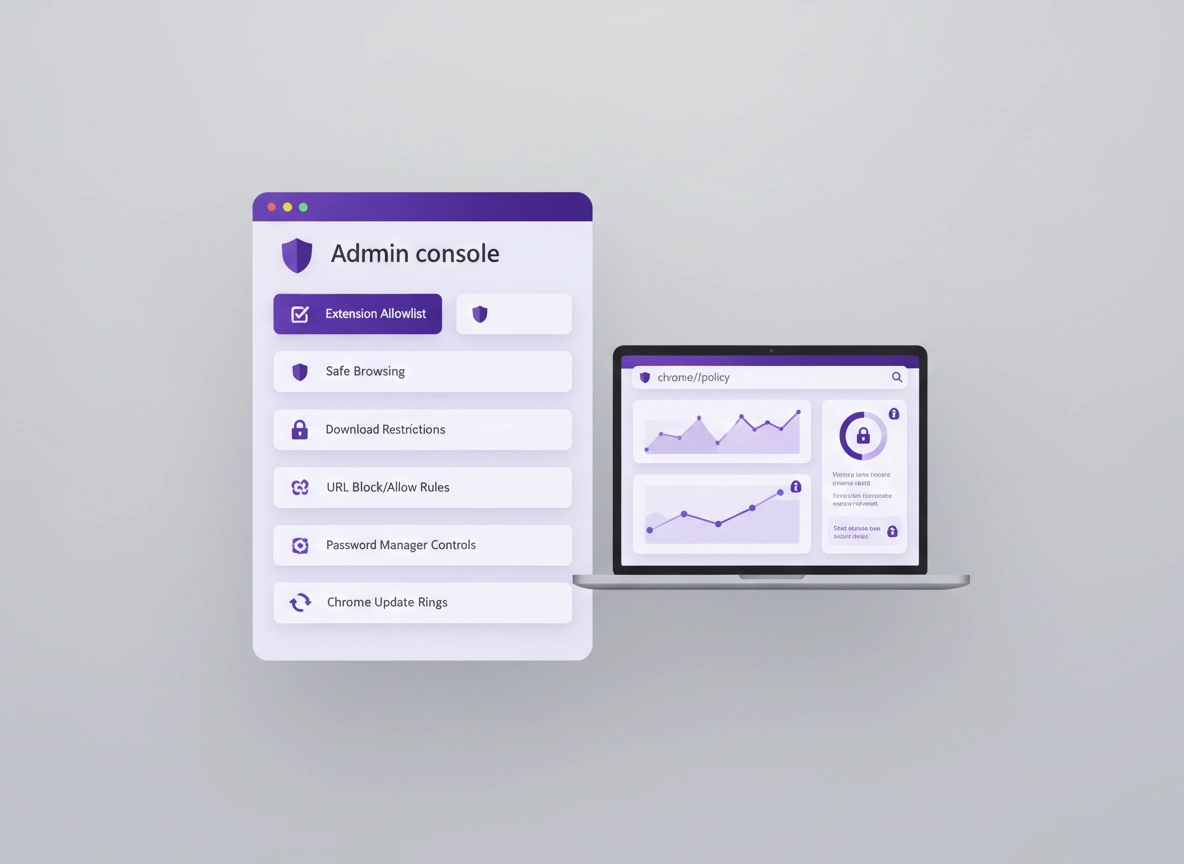
What Chrome security policy setup really means .
“Security policy setup” isn’t just flipping a few switches in Settings. It’s the difference between preferences users can undo and policies users cannot change.
A Chrome security policy is an administrator-enforced rule that controls Chrome behavior: which extensions can run, whether Safe Browsing is enabled, whether users can sign in and sync data, which sites are blocked or allowed, how downloads behave, and whether sensitive actions (like saving passwords) are permitted. Policies can apply to users, devices, or browsers—and that scope matters a lot in real environments.
The goal is not “maximum lockdown.” The goal is a repeatable baseline that reduces common browser risks (phishing, malicious extensions, credential theft, data exfiltration, risky downloads) while still letting your organization do its work. Chrome is one of the most targeted enterprise surfaces because it sits between your users and everything valuable: identity providers, SaaS apps, finance portals, HR systems, CRMs, internal admin consoles, and your customer data.
The most common failure mode I see is “we set policies in a console, but endpoints didn’t receive them” (or policies were overridden by another management layer). That’s why this guide is built around a simple rule: if you can’t prove it on the device in chrome://policy, you don’t actually have policy enforcement.
Related: If your biggest risk is untrusted add-ons, start here: Chrome Extension Security Check and Chrome Extension Security Policy.
Key terms (quick definitions) .
- Policy vs preference: Policies are enforced by admin; preferences can be changed by the user.
- Browser-level management: The device/browser is enrolled and gets policies even if the user never signs in.
- Profile/user policies: Policies apply when a user signs into Chrome with a managed identity and sync is allowed.
- OU / Group targeting: Organizational Units or groups let you apply different policies to different teams (pilot vs standard vs high-risk roles).
- Extension allowlist: Allow only approved extension IDs, block everything else (the single biggest risk reducer for most orgs).
- Verification: chrome://policy shows what is applied; chrome://management shows whether the browser is managed and by whom.
Before you start (fast checks that prevent breakage) .
These quick checks save you hours and prevent the most painful “we rolled out a policy and broke the business” outcomes. Do them once, document the results, then use them as your standard change checklist.
- Know how Chrome is installed: Per-user installs behave differently than system installs. In enterprise, prefer managed deployment (MSI/PKG) and consistent update channels.
- Identify who must be protected most: Finance, HR, admins, and anyone with privileged access should get stricter policy sets (separate OU / group).
- Inventory extensions in use: Before you allowlist, export the current extension set (and who uses what). Otherwise your allowlist rollout will feel like “random breakage.”
- Map your “must work” web apps: Identity provider, email, HR, finance, customer support tools, internal admin portals. Test these first in a pilot ring.
- Decide your policy authority: If a device is managed by both GPO and an MDM, you must define which layer “wins” for Chrome policies to avoid conflicts and confusion.
- Plan rollback: For every hardening policy, define the undo (temporary allowlist exception, OU move, policy revert, or a “break glass” browser profile).
Related: If you’re building an audit-friendly baseline, you’ll also want: Chrome Security Audit Guide and Chrome Browser Hardening Checklist.
Choose your management model (cloud vs GPO vs MDM) .
There are three common ways organizations enforce Chrome security policies. The best one depends on how your endpoints are managed today and how quickly you need policies to apply across devices.
Model A: Chrome Browser Cloud Management (Admin console) .
This is the fastest way to manage Chrome across Windows, macOS, and Linux from one place. You enroll browsers, then apply policies by OU or group. This approach is excellent when your workforce is mixed (multiple operating systems) and you want consistent browser controls without relying solely on on-prem AD. Enrollment typically uses tokens and can work even when users don’t sign into Chrome.
Model B: Windows Group Policy (GPO) / ADMX templates .
If your environment is Active Directory-centric, GPO is still a workhorse. You import Chrome policy templates (ADMX/ADM), create GPOs, link them to OUs, and enforce policies at the machine or user layer. This is often preferred when you already have a mature GPO strategy and need local, predictable controls.
Model C: MDM (Intune/Jamf/other) .
Modern endpoint management platforms can deliver Chrome policies as configuration profiles. This is common on macOS (profiles/plists) and increasingly common on Windows via MDM policy catalogs or custom ADMX ingestion. If your organization is “cloud-first,” MDM may be the best source of truth.
- Mostly Windows + AD: GPO is simplest and very predictable.
- Mixed OS + remote workforce: Cloud management is usually fastest to standardize.
- Already standardized on Intune/Jamf: Use MDM as the policy authority and avoid split-brain management.
The baseline policy set (recommended defaults) .
This baseline is designed to reduce real-world browser incidents without turning your organization into a helpdesk nightmare. Think of it as your “standard workstation browser posture.” You can then layer stricter controls for high-risk roles (finance/admins) and lighter controls for special cases (developers/testers) by OU or group.
Baseline: identity & account control .
- Control sign-in: Decide whether users can sign in with any Google account, only managed accounts, or not at all.
- Control sync: Allow sync only if it aligns with your data policy. If you allow it, restrict what can sync (passwords, history, extensions).
- Separate work and personal: In business, the safest default is “work profile only” (avoid personal accounts mixing with corporate data).
Baseline: extension governance (highest ROI) .
- Block by default: Allow only approved extensions (allowlist). This stops most “silent risk creep” over time.
- Force-install only what you own: Password manager, DLP/SEC tooling, critical productivity tools—keep this list short.
- Control updates: Ensure extensions update from official sources and monitor permission changes.
Baseline: Safe Browsing & phishing protection .
- Enable Safe Browsing: Consider stronger protections for high-risk roles, but test for privacy/compliance alignment.
- Warn on risky downloads: Treat executable downloads as a governed event, not a casual action.
- Block known malicious sites: Add URLBlocklist/Allowlist rules for obvious categories (phishing kits, newly observed threat domains, scam patterns).
Baseline: updates & patch velocity .
- Define update rings: Pilot (fast), standard (normal), and critical (high-risk teams update first or get rapid patches).
- Avoid long delays: Browsers are high-frequency attack surfaces; your update posture is security posture.
- Prepare rollback: When a bad build breaks a core SaaS app, you need a controlled rollback plan (not “everyone Google it”).
Recommended settings by goal .
| Goal | Recommended policy approach | Tradeoff | Best for |
|---|---|---|---|
| Balanced baseline | Safe Browsing on + extension allowlist + download protection + managed sign-in rules | Some extension requests + some download friction | Most organizations |
| Maximum security | Strict allowlist + block risky install types + tighter download types + stricter sign-in/sync | More compatibility work + more approvals | Finance/admin/high-risk roles |
| Compatibility-first | Allowlist with broader approvals + less aggressive download restrictions | Higher risk surface | Legacy web apps, transitional rollouts |
Step-by-step setup (cloud + Windows + macOS) .
This section gives you a clean “do this, then this” implementation plan. You do not need to implement every policy in one day. In fact, you shouldn’t. Start with a pilot OU or pilot device group, verify enforcement, test your “must work” apps, then expand in rings.
Step 1: Decide your targeting strategy (pilot → standard → strict) .
- 1 Create a Pilot OU/group (IT + a few power users) for early policy testing.
- 2 Create a Standard OU/group for most employees (balanced baseline).
- 3 Create a Strict OU/group for high-risk roles (finance, admins, exec assistants, privileged users).
- 4 Define a temporary Exception process (time-boxed allowlist entries, documented approvals).
What “success” looks like: You can move a device or user between rings and immediately see the correct policy set appear in chrome://policy.
Step 2A: Cloud management (Admin console) — the fastest standardization path .
If you manage Chrome browsers from the Admin console, your workflow is typically: enroll browsers → target OU/group → apply policies → verify on endpoint. The important part is enrollment and endpoint verification, not just “I toggled a policy in a console.”
- 1 In the Admin console, enable Chrome browser management and create enrollment tokens for your rings (Pilot first).
- 2 Enroll a small set of devices/browsers using the token (Pilot group only).
- 3 Apply the baseline policies (Safe Browsing + extension allowlist + download protection + sign-in/sync controls).
- 4 On a pilot endpoint, open chrome://management then chrome://policy and confirm policies are present and sourced correctly.
- 5 Expand to Standard ring, then Strict ring.
Step 2B: Windows GPO setup (ADMX) — predictable, enterprise-class control .
On Windows, Chrome policies are commonly delivered via GPO using Chrome ADMX templates. The big idea: import templates, create a Chrome policy GPO, link it to the correct OU, then verify the client actually received it.
- 1 Download Chrome policy templates (ADMX/ADM) and add them to your central store.
- 2 Create a new GPO: Chrome – Security Baseline (Pilot).
- 3 Configure baseline policies (extensions, Safe Browsing, downloads, sign-in/sync, updates).
- 4 Link the GPO to your Pilot OU only. Force update / refresh policy on a pilot client.
- 5 Verify in chrome://policy that the policy is present and enforced. Then roll forward to Standard and Strict OUs.
Related: If you’re going deeper on policy templates and enterprise operations, see: Chrome Enterprise Policy Templates and Chrome Enterprise Group Policy Setup.
Step 2C: macOS / MDM setup — profiles that enforce Chrome behavior .
On macOS, Chrome policies are commonly deployed via MDM configuration profiles (or managed preferences). The principle is the same: your profile delivers the policy payload, Chrome consumes it, and chrome://policy shows you whether it worked.
- 1 Decide whether you’re applying policies at the device or user level (MDM makes both possible).
- 2 Build a Chrome baseline profile: extension control + Safe Browsing + download protections + sign-in behavior.
- 3 Deploy to a pilot group first, verify in chrome://policy, then expand in rings.
- 4 For exceptions, create a separate profile (don’t “hot-edit” your baseline without change control).
Common variations (that confuse teams) .
- Windows / ChromeOS: Policies might be delivered via GPO, cloud management, or Windows MDM—be explicit about the authority to avoid conflicts.
- macOS: If you mix local scripts, profiles, and cloud management, you can end up with “policy drift” that’s hard to diagnose.
- Android / iPhone: Chrome is more constrained by OS-level management. For mobile browsers, focus on account control, safe browsing, and managed app configurations where available.
Extension security: allowlist, force-install, and update control .
If you only implement one hardening control, make it this: block by default and allowlist extensions. Many browser incidents are “just an extension” — credential theft overlays, session cookie abuse, unauthorized data access, shady background scripts, or extensions that change permissions over time.
The enterprise pattern that works .
- Default: Block extension installs for everyone.
- Allowlist: Permit only approved extension IDs (from the Chrome Web Store or your internal store).
- Force-install: Only for critical tools you trust and manage (keep this short).
- Pin critical extensions: If your tooling relies on a visible UI element, enforce pinning where possible.
- Update governance: Establish a process for reviewing permission changes and vendor updates.
Related: Deep dive guides: Chrome Extension Permissions Guide, Chrome Extension Allowlist Policy, and Chrome Extension Blocklist Policy.
Common alternatives users compare .
- Chrome built-in settings vs dedicated managed browser solutions
- Manual extension approvals vs allowlist-by-default
- Endpoint security controls vs browser-layer controls
- Cloud management vs on-prem GPO policy enforcement
Data protection policies (downloads, clipboard, and exfiltration risk) .
A secure browser baseline is not complete if it ignores data movement. Most organizations don’t lose data because “Chrome got hacked.” They lose data because normal workflows allow sensitive content to leave controlled spaces: copied into personal accounts, downloaded to unmanaged folders, uploaded to unknown SaaS tools, or captured by unapproved extensions.
Download controls that reduce real incidents .
- Warn or block risky file types: Especially executables and scripts (the exact set depends on your environment and threat model).
- Use URL blocking for known-risk categories: Phishing kits, newly registered scam domains, known malware delivery paths.
- Control download locations: Where possible, keep downloads in managed locations that are monitored and protected.
- Harden “drive-by” behavior: Reduce auto-download abuse and limit prompts that can be socially engineered.
Clipboard and copy/paste (often ignored) .
Clipboard is a quiet exfiltration channel. Many organizations implement strong controls around file shares but forget that users can copy secrets out of a web app in two seconds. If you handle regulated data, consider browser-layer controls in combination with identity and access policies. The best setups combine: managed browser verification, session controls, and context-aware access.
Related: If you’re aligning privacy and compliance controls across managed devices, see: Chrome Enterprise Privacy Controls and Chrome Enterprise Privacy Compliance.
Impact: Data movement controls can affect user experience and “normal” workflows. Always pilot with your most common business apps first.
How to verify policies are enforced (the truth test) .
Verification is where good teams separate from “we think we’re secure” teams. You need two checks: is the browser managed, and are the policies applied.
Verification checklist .
- chrome://management — confirms the browser is managed and often shows the managing organization.
- chrome://policy — shows the policies that are applied, their values, and whether they’re mandatory.
- Policy reload — use the “Reload policies” button in chrome://policy after a change.
- Expected behavior test — confirm the effect (e.g., blocked extension install, blocked URL, forced Safe Browsing mode).
Related: If you’re building a broader “secure browser program,” this pairs well with: Chrome Enterprise Threat Protection and Chrome Zero Trust Security Guide.
Troubleshooting .
Related: If you suspect malicious behavior or hijacking while debugging policies, see: Remove Malware from Chrome and Chrome Malware Protection Guide.
If policies don’t appear in chrome://policy .
This usually means one of three things: (1) the endpoint is not enrolled/targeted correctly, (2) the policy is being delivered by a different authority than you expect (conflict), or (3) the policy scope is wrong (user policy applied to a user that never signs into Chrome, for example). Fix by confirming enrollment/targeting, checking chrome://management, then simplifying: apply one visible test policy to the pilot ring and verify it appears.
If an extension allowlist breaks user workflows .
This is expected if you roll allowlists without inventory. The correct response is not “disable the allowlist.” The correct response is: approve the required extension (after review), add it to the allowlist, and create a simple request/approval process. Keep exceptions time-boxed so the list stays clean.
If Safe Browsing settings cause privacy/compliance concerns .
Align the Safe Browsing mode with your data policy and jurisdictional requirements. Some organizations choose a balanced setting for most users and a stricter mode for high-risk roles. If you’re not sure, pilot it with a small group and document the behavior and impact.
If you need to reset safely .
Avoid “nuke-and-pave” unless you suspect compromise. In policy environments, the safest reset is operational: move the user/device back to a known-good OU, reload policies, and validate. If the issue is profile corruption, create a fresh managed profile and migrate only what you trust.
FAQ .
-
helpWhat’s the difference between Chrome settings and Chrome policies?Settings are user preferences and can usually be changed by the user. Policies are administrator-enforced rules delivered by a management system (cloud, GPO, or MDM). If you need reliable security controls, use policies and verify them in chrome://policy.
-
helpWhat is the single most effective Chrome security policy?For most organizations, it’s an extension allowlist (block by default, allow only approved extensions). Extensions are a common path to credential theft, data access abuse, and “silent” security drift over time.
-
helpHow do I prove Chrome is actually managed?Open chrome://management to confirm the browser is managed, then open chrome://policy to confirm policies are applied. If your expected policies aren’t visible there, your enforcement pipeline isn’t working (or a conflict exists).
-
helpShould we manage Chrome in the Admin console or via GPO/MDM?Use the management layer your organization already trusts and operationalizes. Cloud management is often fastest for mixed OS fleets. GPO is very predictable for AD-centric Windows environments. MDM is great when you’re already standardized on Intune/Jamf and want one authority for endpoint + browser.
Sources & further reading .
- Chrome Enterprise Policy List (official)
- Set Chrome browser policies on managed PCs (official help)
- Set Chrome policies for users or browsers (official help)
- Enroll cloud-managed Chrome browsers (official help)
- Chromium policy templates (ADMX/ADM)
- URLBlocklist / URLAllowlist policies (official help)
Disclosure: Some pages may mention tools or services. Recommendations are editorial and based on practical admin and security realities.