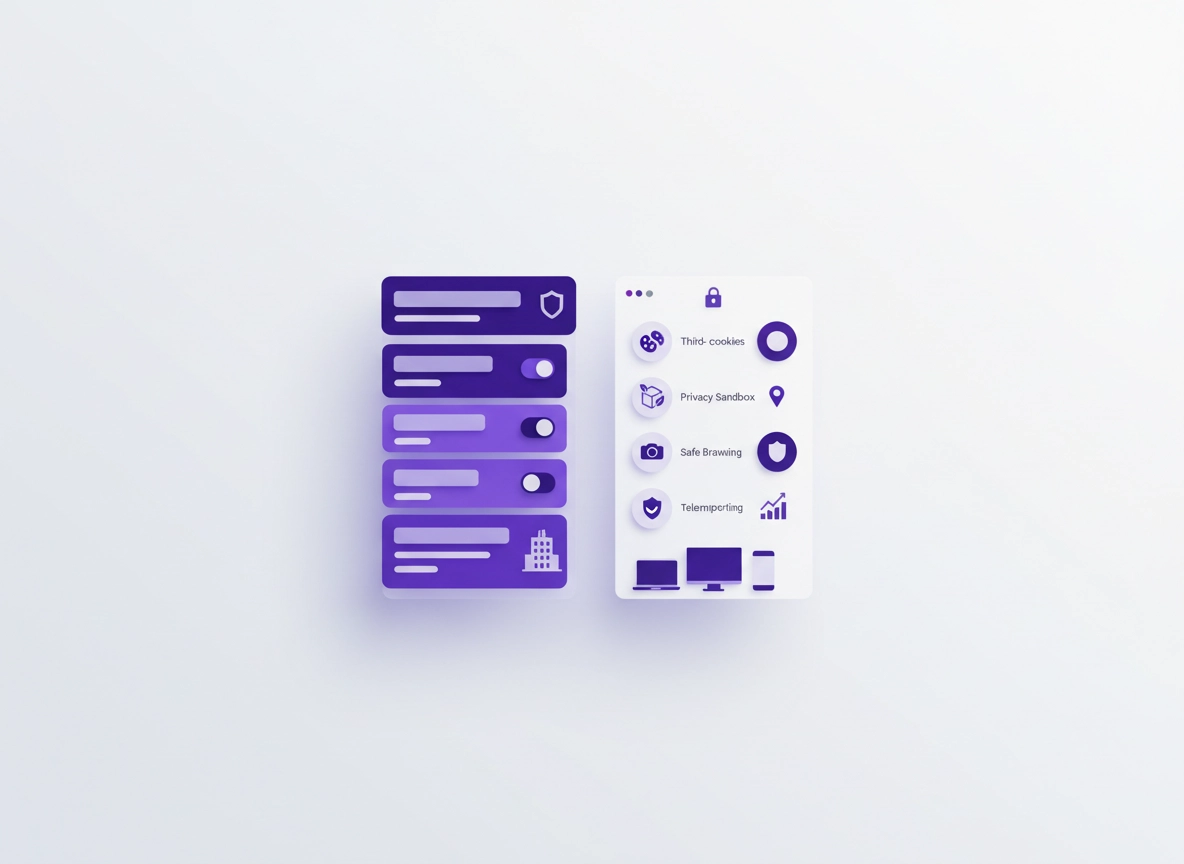
What “enterprise privacy controls” means .
In consumer Chrome, privacy is mostly “settings.” In enterprise Chrome, privacy is mostly “policy.” That difference matters.
Chrome Enterprise privacy controls are the set of administrative policies and management features that determine what Chrome can collect, store, share, and allow—at scale—across your organization. These controls are not just about “tracking.” They include identity (sign-in and sync), cookies, permissions, Safe Browsing behavior, extensions, network behavior (DNS), reporting/audit logs, and how policies are enforced (user vs browser vs device).
The practical goal in most organizations isn’t “maximum privacy at any cost.” It’s predictable privacy: users can do their jobs, security can reduce data leakage risk, compliance can prove controls exist, and IT can troubleshoot quickly when something breaks. That means building a baseline and then layering exceptions carefully.
Think of enterprise privacy as a control plane with three parts: (1) policy intent (what you want to enforce), (2) policy scope (which users/browsers it applies to), and (3) policy verification (how you prove it’s active). If you skip any of these, you’ll end up with “we set a policy, but it didn’t work on half the fleet.”
Start here: If you’re building a full enterprise program (not just one control), use Chrome Enterprise Guide as your hub, then return to this page to implement the privacy layer.
Key terms (quick definitions) .
- Policy: An admin-enforced rule that can lock or set a Chrome behavior (cloud or platform managed).
- User policy: Applies when a user signs in with a managed account (follows the user across devices).
- Browser/device policy: Applies to enrolled/managed browsers or devices (works even without sign-in).
- Baseline: Your default “safe enough” privacy configuration applied to most of the org.
- Exception: A controlled deviation for specific apps, sites, teams, or workflows (ideally time-bound).
- Verification: Checking chrome://policy, logs, and admin reporting to confirm enforcement.
Related (privacy foundations): Chrome Privacy Settings · Chrome Privacy for Business · Chrome Workplace Privacy Settings
Before you start (scope + quick checks) .
Before you touch policies, decide how you’re managing Chrome and where you want controls to apply. This prevents the most common enterprise mistake: setting a user policy but expecting it to apply to unmanaged browsers, kiosks, or shared devices.
Step 0: choose your enforcement scope .
- User-based enforcement: Privacy policies apply when users sign in to Chrome with a managed account. Great for BYOD and mixed devices.
- Browser/device enforcement: Privacy policies apply to enrolled browsers/devices even without sign-in. Great for corporate-owned endpoints.
- Hybrid: Use device policies for “non-negotiables” (extensions, reporting, sign-in) and user policies for preference-style controls.
Rule of thumb: If your requirement is “this must be enforced on every corporate machine,” use browser/device policies. If your requirement is “this must follow the employee,” use user policies.
Fast checks that save hours later .
- Inventory: Can you list which endpoints are managed vs unmanaged, and which users are in which OU/group?
- Profiles: Do users have multiple Chrome profiles? Policies can apply to one profile but not another.
- Policy channel: Are you using Admin Console / cloud management / Group Policy / MDM? Know the source.
- Verification access: Can support staff use chrome://policy and collect a policy export screenshot?
- Critical apps list: Identify the “can’t break” apps (SSO, payroll, banking, CRM, helpdesk) before cookie changes.
Related (enterprise setup): Chrome Enterprise Management · Chrome Enterprise Cloud Management · Chrome Enterprise Group Policy Setup
What you should document (lightweight, but real) .
If you want this to survive audits and staff turnover, keep a short “privacy controls record” for Chrome: baseline policies, who approved them, when they were rolled out, and the exception process. This doesn’t need to be heavy governance— just enough to answer “what changed?” when a site breaks or an auditor asks for evidence.
- Baseline version: e.g., “Chrome privacy baseline v1.3 (Feb 2026)”
- Rollout plan: pilot OU → staged rollout → org-wide
- Exceptions: which sites/teams and why; include owner + review date
- Verification checklist: what support checks when someone reports a problem
Step-by-step: baseline enterprise privacy setup .
This section gives you a recommended baseline that fits most organizations. You can tighten or loosen it later, but it will immediately reduce privacy risk in a measurable way.
Baseline goals (what this configuration achieves) .
- Reduce cross-site tracking risk (cookie strategy + tracking controls)
- Stop uncontrolled data sharing via sync and unmanaged profiles
- Harden Safe Browsing behavior without silently increasing data exposure beyond what you intend
- Limit privacy-risky permissions and extension behavior
- Create a repeatable verification method (support can prove “policy applied” in minutes)
1) Create a “pilot” scope (OU/group) first .
- 1 Create a Pilot OU (or group) for IT + a small cross-section of business users (20–50 seats is plenty).
- 2 Apply your baseline policies to the Pilot scope only.
- 3 Collect “critical apps” feedback for 3–7 days before expanding.
- 4 Only after the pilot is stable, roll out to larger OUs in stages.
Why this matters: Cookie changes and extension restrictions can break authentication flows in ways that look like “random” user problems. A pilot scope lets you find those quickly without organization-wide downtime.
2) Lock down sign-in and sync behavior (identity privacy) .
In enterprise environments, sync is privacy. Sync determines whether browsing data, passwords, history, and settings travel with the user. It also determines how easily users can mix personal and work identities in the same browser profile (a major compliance headache).
- Decide if work Chrome should allow personal accounts: many orgs block consumer sign-in on corporate machines.
- Decide whether to allow Sync: some orgs disable sync entirely; others allow limited sync for productivity, but restrict categories.
- Enforce profile separation: at minimum, require employees to use a managed profile for work apps.
Deep dives: Chrome Account & Sync Settings · Disable Chrome Sync · Chrome Sign-In Security Settings
Success looks like: users can still access work apps with managed SSO, but the browser clearly enforces your intended boundary (no surprise sync of work history to personal devices, no “shadow profiles” that bypass controls).
3) Set your cookie strategy (tracking + compatibility) .
Cookies are where “privacy policy” meets “the web might break.” Your cookie strategy should be explicit: block third-party cookies by default (recommended), then allow exceptions for business-critical services that still depend on them.
- Baseline: Block third-party cookies for managed Chrome where possible.
- Exceptions: Allow third-party cookies only for specific URLs that require them (targeted allow-list).
- Support posture: When something breaks, your team should know whether to grant an exception or push the vendor to modernize.
Expert tip: Treat cookie exceptions as “temporary compatibility bridges,” not permanent policy. Put review dates on exceptions.
Related (site-level control): Third-Party Cookies Settings · Block Third-Party Cookies · Privacy Sandbox Explained
Success looks like: the majority of the org runs with third-party cookies blocked, while only a small, documented set of domains has exceptions—and those exceptions are approved and reviewed.
4) Standardize site permissions (camera/mic/location/notifications) .
Site permissions are a privacy control that users feel immediately. They’re also one of the biggest sources of “quiet” data exposure: a single overly-permissive setting can allow background access to camera/mic/location on an untrusted origin.
- Baseline: Ask each permission by default (or block high-risk permissions by default).
- Allow-list: Only allow camera/mic for known, approved meeting platforms and internal apps.
- Notifications: Most orgs should block notification prompts org-wide (this also cuts phishing and spam vectors).
Permission guides: Site Permissions · Camera · Microphone · Location · Notifications
5) Choose your Safe Browsing posture (security vs data sharing) .
Safe Browsing is primarily a security feature, but it has a privacy dimension: higher protection levels can share more security telemetry with Google to improve threat detection. In enterprise, the decision is usually: do you want maximum detection for risky browsing environments, or minimal data sharing for strict privacy/compliance?
- Baseline (typical): Standard protection with strong download and phishing defenses.
- Higher risk environments: Consider enhanced protection—but document the privacy tradeoff.
- User bypass: Many enterprises disable “proceed anyway” on dangerous warnings to prevent risky behavior.
Safe Browsing: Safe Browsing Settings · Enhanced Safe Browsing · Chrome Security Checkup
6) Control extensions (the #1 hidden privacy risk) .
If you only harden one thing in enterprise Chrome, harden extensions. Extensions can read and change data on sites, access cookies, inject scripts, and introduce “shadow analytics” your org never approved.
- Baseline: block unknown extensions by default; allow only approved extensions.
- Host permissions: avoid “all sites” permissions unless absolutely necessary.
- Change control: monitor permission changes on updates; treat sudden permission expansion as a security review trigger.
Extension security hub: Chrome Extension Security Check (plus: Permissions Guide and How to check if an extension is safe).
7) Verify enforcement on endpoints (the “prove it” step) .
Verification is where enterprise privacy programs win or fail. You need a method that works for frontline support: “Open this page, click this button, read this value.”
- 1 On the affected device, open chrome://policy.
- 2 Click Reload policies.
- 3 Search for the policy name (example: BlockThirdPartyCookies).
- 4 Confirm Value and Source (Cloud / Platform / Default). Screenshot for tickets.
What “success” looks like: the policy shows a defined value (not “Not set”), and the Source matches your intended management method. If it shows the wrong Source, you likely have a conflict (user vs machine) or the device isn’t enrolled as expected.
Common variations (by platform) .
- Windows: policy can come from Cloud or Group Policy. If both exist, conflicts can be confusing—check the Source carefully.
- macOS: policy can come from Cloud or configuration profiles. If a profile is stale, it may “win” unexpectedly.
- Linux: often cloud-managed; local policy files can also apply depending on distro and enterprise tooling.
- Android / iPhone: device management varies; not every desktop policy applies to mobile the same way—test separately.
Advanced: exception handling, layered enforcement, and audits .
Once a baseline is stable, advanced work is about precision: reducing privacy risk further without breaking workflows. This section is where enterprise teams usually recover the most value—because sloppy “maximum lockdown” policies create helpdesk storms, while sloppy “let users decide” creates audit gaps.
Related (enterprise hardening): Secure Configuration Best Practices · Chrome Hardening Guide · Chrome Security Policy Setup
Policy layering: what should be “non-negotiable” .
“Non-negotiables” are policies you enforce at browser/device scope because the risk of user override is too high. Typical examples: extension allow-listing, blocking malicious download bypass behavior, restricting sign-in patterns, enforcing Safe Browsing posture, and limiting risky permissions.
- Non-negotiable: extension installation control and permission hygiene
- Non-negotiable: identity boundary (work vs personal profiles, sync posture)
- Non-negotiable: cookie baseline (block third-party by default, exceptions controlled)
- Negotiable with guardrails: ad/privacy preference toggles that don’t materially change compliance posture
Exception design: how to allow what’s needed (and nothing else) .
Exceptions should be narrow (specific domains, not broad categories), owned (a team responsible), and reviewed (expire or re-approve). The most common exception category is third-party cookies for legacy SSO and embedded services.
- Cookie exceptions: allow third-party cookies for specific URLs rather than disabling the whole policy.
- Permission exceptions: allow camera/mic only for meeting domains; block for everything else.
- Extension exceptions: if an extension is approved, restrict host permissions to only the sites it actually needs.
- Time-bound: add a review date (30/60/90 days) so exceptions don’t become permanent “holes.”
Related (privacy audit workflow): Chrome Privacy Audit Template · Chrome Security Audit Guide
Telemetry & reporting: privacy impact you should acknowledge .
Enterprise teams often focus on tracking and cookies, but forget that reporting is also privacy. When you enable browser reporting, security investigation tools, or audit logs, you may be collecting browsing-related data that has retention and access-control implications.
The right approach is not “turn off all reporting.” It’s: collect what you need, protect it like sensitive data, and set retention/access policies. This is where privacy and security leadership should align with compliance.
- Minimize: collect only what supports a defined security or compliance purpose.
- Restrict access: logs should be limited to trained roles (security/IT), not broadly accessible.
- Document retention: know how long data is kept and why.
Related: Chrome Enterprise Audit Logging · Activity Logs · Usage Analytics
DNS & network privacy: don’t ignore the “outside Chrome” layer .
A privacy-hardened browser can still leak browsing intent if DNS and network routing aren’t aligned. Many enterprises standardize DNS resolution, enforce secure DNS, and restrict risky network behaviors through policy and endpoint controls.
- Secure DNS posture: align Chrome’s Secure DNS with your enterprise resolver strategy.
- Proxy/VPN posture: ensure your browser privacy design matches your remote-access strategy.
- Leak prevention: where required, validate that DNS and WebRTC behaviors align with corporate policy.
Network privacy guides: DNS over HTTPS · Secure DNS Setup · Private DNS vs Secure DNS · Proxy Settings
Common alternatives users compare .
- Chrome built-in enterprise controls vs third-party privacy extensions
- Chrome Enterprise controls vs “secure browser” products / managed browser platforms
- Blocking third-party cookies vs allowing exceptions vs relying on vendor changes
- Enhanced Safe Browsing vs standard protection (security gain vs privacy tradeoff)
Related comparisons: Best Enterprise Browser Solutions · Chrome Enterprise vs Managed Browser · Chrome Enterprise vs Secure Browser · Chrome Enterprise vs Zero Trust Browser
Privacy & security notes (data impact) .
Enterprise privacy controls are only “real” if you understand what data they touch. Below is a plain-English view of impact areas that typically matter for compliance, security reviews, and executive sign-off.
Impact: Affects cookies/tracking, sign-in & sync behavior, extension data access, permissions, and potentially reporting/telemetry.
Related: If you’re combining privacy controls with security hardening, use Managed Browser Security and Business Security Configuration as companion guides.
Recommended baseline settings .
- Option A (balanced): Block third-party cookies by default, allow limited exceptions, keep Safe Browsing standard, restrict extensions, enforce permission hygiene.
- Option B (maximum privacy): Block third-party cookies with minimal exceptions, tighter sign-in/sync boundaries, minimal reporting, stricter permissions. (Higher chance of breakage.)
- Option C (compatibility): Looser cookie controls with strong monitoring, stronger extension restrictions, stronger user education and incident response. (Higher privacy risk.)
Recommended settings by goal .
| Goal | Recommended setting | Tradeoff | Best for |
|---|---|---|---|
| Balanced | 3P cookies blocked + exceptions, extension allow-list, standard Safe Browsing | Some SSO/embedded apps need exceptions | Most organizations |
| Maximum privacy | Minimal exceptions, stricter permissions, tighter identity boundary, reduced reporting | Higher helpdesk volume, more app breakage risk | Highly regulated teams |
| Compatibility | Looser cookie posture with stricter monitoring and extension limits | More tracking surface area | Legacy-heavy orgs |
Troubleshooting .
First rule: Don’t guess. Verify policy state with chrome://policy and capture the Source. Most “Chrome is ignoring our privacy controls” incidents are actually scope or conflict issues.
If policies aren’t applying at all .
This is usually one of four causes: the browser isn’t actually managed, the user isn’t in the correct scope, the device is using a different profile than expected, or policies are coming from a different source than you think.
- Confirm whether the browser is enrolled/managed (cloud management or platform policy).
- Confirm user OU/group membership (scope mistakes are extremely common during rollouts).
- Confirm the user is in the managed Chrome profile, not a personal profile.
- In chrome://policy, check Source (Cloud vs Platform) to find conflicts.
If cookies changes break sign-in or embedded apps .
Third-party cookie restrictions can disrupt legacy SSO, embedded widgets, and cross-domain flows. The correct enterprise response is usually: keep the baseline (block 3P cookies) and grant a narrowly scoped exception for the affected domains—then request a vendor roadmap for modern auth patterns.
Related: Third-Party Cookies Settings and Privacy Sandbox Explained.
If users “work around” privacy policies .
Workarounds usually mean the controls are applied at the wrong layer. Examples: users install alternate browsers, create unmanaged profiles, add personal accounts, or use unauthorized extensions. Fixes are typically policy scope changes and extension/browser management, not user training alone.
- Enforce browser enrollment on corporate devices where possible.
- Restrict extension installs and require allow-listing.
- Prevent unmanaged profiles for work access if that’s a compliance requirement.
If Safe Browsing settings cause privacy concerns .
Security teams may want maximum protection; privacy/compliance may want minimal data sharing. Align on a documented posture: which protection level you enforce, why, and what data is shared. If you operate in high-risk browsing environments (phishing, drive-by downloads), stronger protection can be justified—but it should be explicit.
If you need to reset safely (without losing evidence) .
Avoid “wipe everything” resets as a first response. For enterprise incidents, preserve the evidence you need: export policy state screenshots, list installed extensions, capture the affected URL(s), and note the user profile used. Only then move into resets (and do them in a controlled order: extension disable → new profile test → cache/cookies → full reset).
Related: If you suspect malware or browser hijacking rather than policy issues, use Remove Malware from Chrome and Chrome Security Reset.
FAQ .
-
helpWhat’s the difference between user policies and browser/device policies?User policies apply when someone signs into Chrome with a managed account (so they can follow the user across devices). Browser/device policies apply to enrolled browsers or managed devices even without sign-in. In enterprise, “must always apply” controls usually belong at the browser/device level.
-
helpHow do I prove a privacy policy is active on a specific device?Use chrome://policy, click Reload policies, then search the policy name. Confirm the policy has a value and check the Source (Cloud/Platform/Default). Capture a screenshot for audit trails and support tickets.
-
helpWill blocking third-party cookies break enterprise apps?Sometimes. Many modern apps work fine, but legacy SSO and embedded cross-domain components can break. The best practice is to block third-party cookies by default, then grant targeted exceptions only for specific required domains and review them regularly.
-
helpWhat’s the biggest “hidden” privacy risk in enterprise Chrome?Extensions. An overly-permissive extension can read data on websites, access session info, and introduce tracking or data leakage pathways. If you want the fastest privacy win, implement an extension allow-list and restrict host permissions wherever possible.
Sources & further reading .
- Google Admin Help: Set Chrome policies for users or browsers
- Google Admin Help: Security and privacy policies (Chrome Enterprise)
- Google Admin Help: View a device’s current Chrome policies (chrome://policy)
- Chrome Enterprise Policy List (official)
- Policy reference: Block third-party cookies (BlockThirdPartyCookies)
- Google Admin Help: Allow third-party cookies from specific URLs (exceptions)
Disclosure: Some pages may mention tools or services. Recommendations are editorial and based on practical testing and admin patterns.