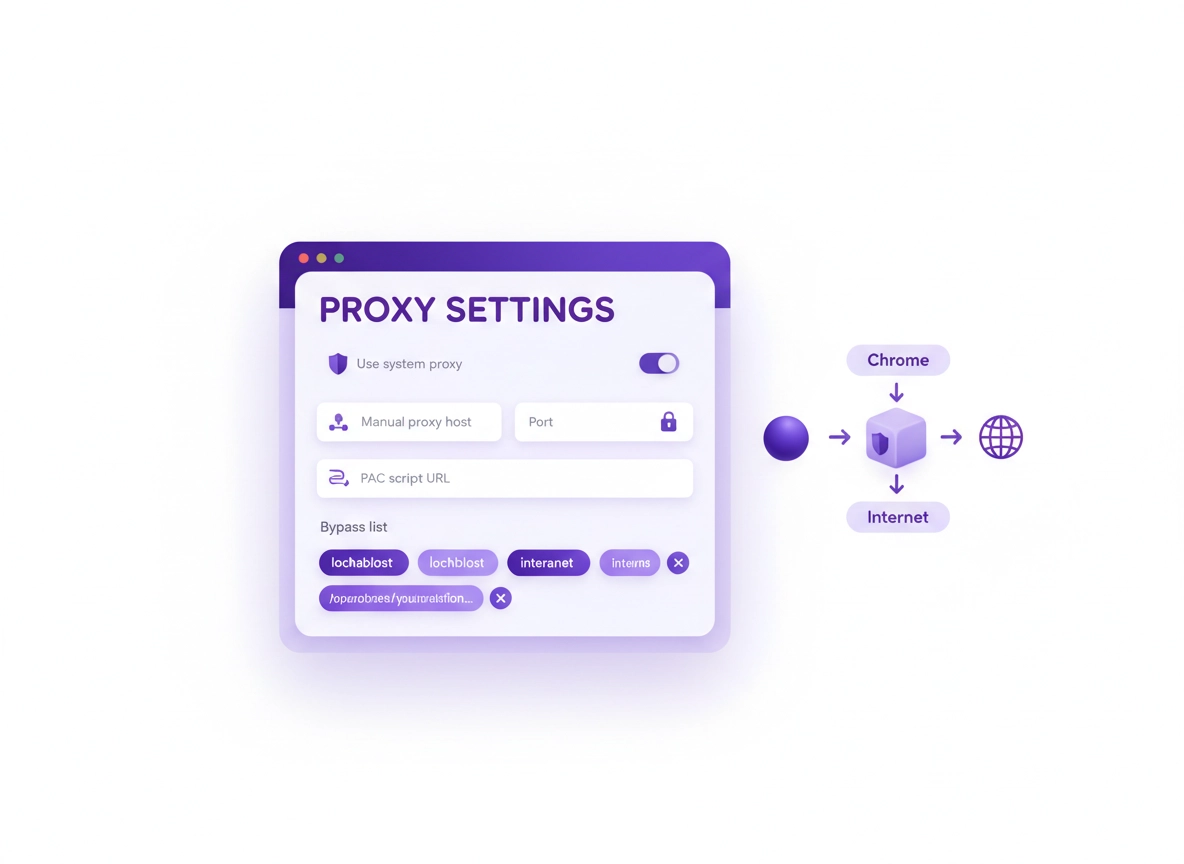
What Chrome proxy settings are (and why they matter) .
Important: Chrome usually inherits proxy settings from your operating system or network. That’s why “Chrome proxy settings” often means “your system proxy settings used by Chrome.”
A proxy server is an intermediary between your browser and the internet. Instead of Chrome connecting directly to a website, Chrome connects to the proxy, and the proxy connects to the destination on your behalf. This can be used for security filtering (malware blocking, URL category rules), content control (school/work policies), network routing (regional access, internal resources), privacy (hiding your device IP from the destination), and logging/compliance (auditing traffic in enterprise environments).
But proxies also cause some of the most confusing browser problems: sign-in loops, repeated authentication prompts, blocked secure sites, Chrome “no internet” errors, and certificate warnings—especially when a network uses SSL inspection (a TLS interception proxy). If you’re reading this because something is broken, don’t worry: most proxy issues are either a mismatch between the proxy type and the network, a missing bypass rule, or an authentication/certificate trust issue.
In this guide you’ll learn: how Chrome uses proxy settings on each platform, how to choose the right proxy mode, how to verify your proxy is active (without guessing), and how to troubleshoot the top failure modes. If you’re comparing privacy tools, also see VPN vs proxy: what’s the difference? and Best VPN vs proxy for Chrome.
Related: Proxies are often part of a bigger “secure connection” stack. See Chrome Secure Connection Settings and Chrome Network Privacy Settings.
Key terms (quick definitions) .
- System proxy: OS-level proxy settings used by Chrome and many other apps.
- Manual proxy: A fixed proxy host/port (e.g.,
proxy.company.com:8080) for HTTP/HTTPS. - PAC script: A Proxy Auto-Config file (JavaScript) that decides which proxy to use per URL.
- WPAD: Web Proxy Auto-Discovery; networks can advertise PAC configuration automatically.
- Bypass list: Domains/IPs that should not use the proxy (e.g.,
localhost, internal sites). - Transparent proxy: A proxy the network forces without you configuring it (common in managed networks).
- SSL inspection: TLS interception by a proxy (requires a trusted enterprise root certificate).
Before you start: pick the right type + avoid common traps .
The “right” Chrome proxy setup depends on your goal. If you pick the wrong mode, you’ll get confusing symptoms (some sites work, others don’t; sign-ins break; downloads fail). Use this section to choose the cleanest path before you start clicking.
1) Decide what you’re trying to do .
- Access an internal company/school site: you likely need a system proxy or a PAC script given by IT.
- Filter browsing for safety: a proxy can block known bad domains; also enable Chrome Safe Browsing.
- Privacy from websites: a proxy hides your device IP from the destination, but not from the proxy operator. For stronger privacy from networks/ISPs, a VPN is usually a better fit.
- Public Wi-Fi safety: prioritize HTTPS + secure DNS + safe browsing; see Public Wi-Fi security tips and Secure Wi-Fi browsing.
- Enterprise compliance logging: proxy + policies + auditing; see Chrome Enterprise Guide.
2) Know how Chrome actually uses proxy settings .
Chrome on desktop (Windows/macOS/ChromeOS) almost always uses the OS proxy configuration. Chrome provides a shortcut to the OS proxy screen, but the actual proxy lives in the OS. On mobile, proxy configuration is typically per-network: you set it on the Wi-Fi connection (Android/iOS), not inside Chrome.
Why this matters: If you set a proxy in Windows, it can affect other apps too (system services, update tools, other browsers). If you only want a “browser-only” proxy, you usually need either (a) a separate browser profile in a controlled environment, (b) an extension-based proxy switcher (not recommended for enterprise), or (c) a dedicated “proxy-aware” app setup.
3) Quick checks that prevent wasted time .
- Have the right proxy details: host, port, username/password (if required), and whether it’s HTTP, HTTPS, or SOCKS5.
- Confirm the proxy supports HTTPS: many “HTTP proxies” still carry HTTPS via CONNECT, but some networks misconfigure this.
- Ask for the PAC URL if available: PAC is often safer than manual rules because it handles internal bypass and special cases.
- Know your “bypass” rules: at minimum you usually want
localhost,127.0.0.1, and your internal domains bypassed. - Consider Secure DNS interactions: DoH can bypass some proxy DNS expectations. If browsing breaks after enabling DoH, see DNS over HTTPS settings and Secure DNS setup.
Related: If Chrome feels slow while testing, performance bottlenecks can look like proxy failures. See Speed up Google Chrome.
Step-by-step: set a proxy for Chrome (recommended) .
Below are the cleanest “current” paths. If a menu label differs slightly on your device, use the search box inside Settings and type proxy. Chrome usually surfaces the right OS shortcut instantly.
Windows 10/11: set system proxy used by Chrome .
- 1 Open Chrome → Settings → in the search bar type proxy.
- 2 Click Open your computer’s proxy settings. Windows Settings opens.
- 3 Choose one:
- Automatic setup: enable Use setup script and paste the PAC URL (best for managed networks).
- Manual setup: enable Use a proxy server, enter Address + Port, then set a bypass list if needed.
- 4 Close and reopen Chrome. Then validate: open an IP check site, and verify your public IP matches the proxy exit.
Undo (fast): In Windows proxy settings, toggle off Use a proxy server and Use setup script. Then restart Chrome.
macOS: set system proxy used by Chrome .
- 1 Open Chrome → Settings → search proxy → click Open your computer’s proxy settings.
- 2 macOS opens Network settings for your active connection (Wi-Fi or Ethernet).
- 3 Open Details (or Advanced) → go to Proxies.
- 4 Choose a mode:
- Automatic Proxy Configuration: paste a PAC URL (recommended for work networks).
- Web Proxy (HTTP) / Secure Web Proxy (HTTPS) / SOCKS Proxy: enter server + port. Add exceptions/bypass domains.
- 5 Click OK → Apply. Restart Chrome and validate.
ChromeOS: proxy settings for Chromebook .
- 1 Click the time (bottom-right) → Settings.
- 2 Go to Network → select your active network (Wi-Fi or Ethernet).
- 3 Find Proxy. Choose:
- Direct internet connection (no proxy)
- Automatic proxy configuration (PAC URL)
- Manual proxy configuration (HTTP/HTTPS/SOCKS)
- 4 Save, reconnect to Wi-Fi, then test in Chrome.
Chromebook note: In schools/businesses, proxy configuration is often enforced by admin policy. If the proxy field is locked or keeps resetting, see Chrome Enterprise Management and Chrome Security Policy Setup.
Android: set proxy for a Wi-Fi network (Chrome uses it) .
- 1 Open Settings → Network & internet → Wi-Fi.
- 2 Tap your connected Wi-Fi network → Edit (pencil icon).
- 3 Expand Advanced options → set Proxy to Manual or PAC (if available).
- 4 Enter proxy host + port (and bypass list if provided) → Save.
- 5 Reconnect Wi-Fi, open Chrome, and validate with an IP check.
Mobile data note: Wi-Fi proxy settings do not apply to mobile data. If you need proxy-like control on mobile data, you typically need a VPN or an enterprise-managed solution.
iPhone/iPad (iOS): set proxy per Wi-Fi network .
- 1 Go to Settings → Wi-Fi.
- 2 Tap the ⓘ next to your connected network.
- 3 Scroll to HTTP Proxy. Choose Off, Manual, or Auto (PAC URL).
- 4 Enter server + port (and authentication if required) → go back to save automatically.
- 5 Open Chrome and test. If sign-ins loop, jump to Troubleshooting.
What “success” looks like: Your public IP changes (or matches the proxy exit), internal sites load that previously failed, and you can browse HTTPS sites without repeated prompts or certificate errors.
Related: If you’re doing this for privacy, start with the full baseline: Chrome Privacy Settings and Chrome Privacy Best Practices.
Common variations (what you might see) .
- Windows / ChromeOS: “Automatic proxy setup” (PAC/WPAD) vs “Manual proxy” toggles, plus bypass fields.
- macOS: Separate checkboxes for HTTP, HTTPS, SOCKS, and “Automatic Proxy Configuration.”
- Android / iPhone: Proxy is usually per Wi-Fi network; VPN is separate.
Advanced proxy configuration (power users + enterprise) .
This section is where proxy setups become “high stakes”: you’re balancing privacy, performance, compatibility, and security controls. If you manage devices at scale or need consistent behavior across many networks, PAC + policy enforcement is usually the most stable option.
Related: In managed environments, see Secure configuration (enterprise best practices) and IT admin security settings.
Proxy types: HTTP vs HTTPS vs SOCKS5 (what changes in practice) .
- HTTP/HTTPS proxy: Common in businesses. For HTTPS websites, the browser typically uses
CONNECTto tunnel TLS through the proxy. If a network performs SSL inspection, it may terminate and re-encrypt TLS. - SOCKS5 proxy: More general-purpose routing at the socket level. Often used by developers, security tools, or specific networks. Some apps behave differently through SOCKS than HTTP proxies.
- Transparent proxy: Your network forces proxying without your configuration. This can cause “everything works except some sites” when it’s misconfigured.
PAC scripts: why they’re the most reliable setup .
A PAC script is a small JavaScript file that returns instructions like “DIRECT” or “PROXY host:port” based on the URL you’re visiting. This matters because real networks have exceptions: internal domains should often bypass the proxy, certain destinations require a special proxy, and some services break if proxied. PAC lets you encode those rules cleanly—without telling users to maintain long manual bypass lists.
PAC also helps with “split routing” patterns. Example: send external web traffic through a security proxy, but send internal domains direct (or through a separate internal proxy). This can speed up browsing and reduce broken logins.
// Example (illustrative): bypass local + internal, proxy everything else
function FindProxyForURL(url, host) {
  // Localhost and simple hostnames (no dots) go direct
  if (isPlainHostName(host) || shExpMatch(host, "localhost") || isInNet(host, "127.0.0.0", "255.0.0.0")) {
    return "DIRECT";
  }

  // Internal domains bypass
  if (dnsDomainIs(host, ".corp.local") || dnsDomainIs(host, ".internal.example")) {
    return "DIRECT";
  }

  // Default: go via proxy, fallback to direct if proxy fails
  return "PROXY proxy.example.com:8080; DIRECT";
}
Safety note: PAC is code. Only use PAC URLs from sources you trust (your IT team, your own infrastructure). A malicious PAC can silently route sensitive domains through an attacker-controlled proxy.
Bypass lists: what to include (and what not to) .
A bypass list tells the system “do not use the proxy for these destinations.” Bypass rules are essential for compatibility, but if you make them too broad, they become a security hole (traffic escapes proxy inspection/logging and can bypass web filtering).
- Include:
localhost,127.0.0.1, and your known internal domains (as provided by IT). - Consider: local printer/admin IP ranges or device management IPs—only if your network requires it.
- Avoid: wildcards like
*or huge “bypass everything important” lists. It defeats the point of the proxy. - Be careful with:
<local>(Windows) — convenient, but it can bypass more than you expect in some environments.
Authentication: why Chrome keeps asking for a username/password .
Many proxies require authentication (Basic, Digest, NTLM/Kerberos, or modern identity-backed gateways). If you see repeated prompts, one of these is usually true:
- The proxy credentials are wrong or expired.
- Chrome is using a different proxy than you think (PAC points elsewhere, or WPAD overrides manual).
- The proxy blocks specific destinations and the browser retries via a different path.
- System time is wrong (can break auth and TLS). Check your device clock.
- In enterprise SSO environments, integrated auth (NTLM/Kerberos) is failing due to device/domain state.
Enterprise hint: If your organization expects SSO proxy auth, ensure device identity and sign-in policies are aligned. See Chrome sign-in security settings.
SSL inspection (TLS interception): the #1 cause of scary warnings .
Some corporate proxies perform SSL inspection to scan encrypted traffic. That means the proxy decrypts HTTPS, inspects it, then re-encrypts it. For this to be “clean,” your device must trust the organization’s root certificate—otherwise you get certificate errors and broken secure sites.
If you’re seeing warnings like “Your connection is not private,” don’t ignore them. First, confirm whether the network uses SSL inspection. If yes, the proper fix is to install the correct enterprise root certificate (managed by IT) and ensure policy and certificate distribution are correct. If no, treat it as a potential attack (especially on public Wi-Fi) and switch networks. You can strengthen baseline protections with HTTPS-Only Mode and review Chrome TLS settings.
Enterprise proxy policies (what admins usually enforce) .
In managed Chrome environments (Windows domain, macOS MDM, ChromeOS admin console), proxies are usually enforced with policies so users can’t accidentally bypass them. While policy names vary by platform and tooling, the strategy tends to be consistent:
- Lock proxy mode: direct vs fixed proxy vs PAC URL
- Define proxy endpoints: host/port or PAC URL
- Define bypass list: internal domains + local traffic rules
- Enforce certificate trust: for SSL inspection, distribute and trust enterprise roots
- Log + monitor: audit access patterns and proxy failures
Related: For policy hardening and rollout strategy, see Enterprise policy hardening and Enterprise network restrictions.
Common alternatives users compare .
- Proxy vs VPN for privacy and remote work security (see differences)
- Proxy filtering vs Chrome Safe Browsing / malware protection (malware protection guide)
- Manual proxy configuration vs PAC automation
- Device-level proxy vs enterprise-managed browser security stacks (best security tools)
Privacy & security notes: what a proxy can (and can’t) protect .
Proxies are often described as “privacy tools,” but it’s more accurate to say: a proxy changes who you’re trusting and where your traffic flows. Depending on your goal, that can be great—or it can create a false sense of privacy.
Impact: Can affect site compatibility, login flows, certificate trust, DNS behavior, and who can observe your traffic.
Related: If you suspect infection or browser hijacking (which can mimic proxy problems), see Remove Malware from Chrome and Browser hijacker removal.
Recommended baseline settings (when you use a proxy) .
- Option A (balanced): Use PAC if available, include a minimal bypass list (local + internal), keep Chrome Safe Browsing on.
- Option B (maximum privacy from websites): Use a trusted proxy provider, avoid broad bypass lists, pair with secure DNS settings (DNS privacy guide).
- Option C (compatibility): Use PAC + allow direct access for known problem domains (banking, certain enterprise SSO endpoints) per IT guidance.
Recommended settings by goal .
| Goal | Recommended setting | Tradeoff | Best for |
|---|---|---|---|
| Balanced | PAC script + minimal bypass + Safe Browsing | Requires correct PAC hosting/availability | Most work/school users |
| Maximum control | Fixed proxy + strict bypass + enforced policies | More breakage if exceptions aren’t tuned | IT-managed environments |
| Compatibility | PAC + targeted bypass for known problem flows | Some traffic bypasses filtering | SSO-heavy orgs, banking sites |
Proxy + Secure DNS (DoH): the “silent conflict” .
Secure DNS (DNS over HTTPS) is great for privacy, but in some enterprise networks the proxy expects DNS to be resolved in a certain way (for internal split DNS, policy routing, or content filtering). If you enable DoH and suddenly internal sites stop resolving or proxy routing fails, test with DoH off and compare. Then decide whether you need:
- DoH on with an approved resolver, or
- DoH off while on corporate networks, or
- Enterprise-managed DNS policies aligned with proxy requirements.
Continue here: DNS over HTTPS settings · Secure DNS setup · Private DNS vs Secure DNS
Troubleshooting .
Proxy issues are often “pattern problems.” Use the symptom headings below, do the quick checks, and you’ll usually pinpoint the cause in minutes. If you’re doing this on public Wi-Fi, also read public Wi-Fi security tips.
Related: If this overlaps with privacy controls and tracking, see Privacy & security settings overview.
If you see “Proxy server is refusing connections” .
This usually means Chrome can reach the proxy host, but the proxy is rejecting the connection (wrong port, wrong protocol, authentication required, or the proxy is down). Fix checklist:
- Confirm host + port (common ports:
8080,3128,8000,443for some gateways). - Confirm proxy type (HTTP/HTTPS vs SOCKS). A SOCKS proxy configured as HTTP will fail in confusing ways.
- If using PAC, open the PAC URL in a browser (it should download or display content). If it’s unreachable, the system may fall back unpredictably.
- Try switching from manual to PAC if your IT provides it (or vice versa) to isolate whether the issue is rule logic.
If Chrome keeps asking for a proxy password (looping) .
Repeated prompts are usually credential mismatch, an SSO/NTLM failure, or the proxy is challenging in a way Chrome can’t complete. Try these in order:
- Verify credentials with IT (and check if your account is locked).
- Restart Chrome fully (close all windows; ensure background mode isn’t keeping sessions alive).
- Try a different network profile (guest Wi-Fi vs corporate Wi-Fi) to see if the proxy requirement changes.
- On managed devices, confirm device sign-in state and policy enforcement (policy templates).
If only some sites fail (banking, SSO, or Google sign-in) .
Partial failures usually mean either (a) a bypass list is missing required exceptions, (b) SSL inspection is breaking certificate pinning / trust, or (c) a proxy category filter is blocking a dependency domain (auth endpoints, CDNs, CAPTCHA). Do this:
- Test in a clean Chrome profile (or guest mode) to rule out extensions interfering (extension security check).
- Temporarily disable DoH and retry (DNS/proxy mismatch can look like “random” failures).
- Check for certificate warnings. If present, don’t brute-force it—resolve trust correctly (enterprise root cert) or change networks.
- Ask IT for the official bypass list (especially for internal SSO and identity providers).
If Chrome says “No internet” but other apps work .
This often happens when Chrome is the only app honoring the system proxy (or vice versa), or when a proxy is configured for HTTP/HTTPS but DNS/resolution fails. Try:
- Disable proxy temporarily → confirm browsing returns → re-enable.
- Check whether your proxy is set only for HTTP but not HTTPS (or only one scheme). Many modern sites default to HTTPS.
- On Windows, ensure you didn’t set a proxy for “manual” while also enabling an automatic script that overrides it.
- On mobile, confirm you set the proxy on the correct Wi-Fi network (and that you’re actually connected to that network).
If you’re stuck on a captive portal (hotel/airport Wi-Fi) .
Captive portals often don’t play nicely with proxies. If you can’t reach the login page:
- Set proxy to Off temporarily, complete the Wi-Fi login, then restore your proxy.
- If your proxy is enforced by policy, switch to a network that doesn’t require captive portal auth.
- For travel browsing security, read public Wi-Fi security tips.
If you need to reset safely (without losing everything) .
Don’t “factory reset” Chrome just to fix a proxy. Start with the least destructive steps:
- Remove the proxy (system/network) → restart Chrome → validate browsing.
- Disable suspicious extensions temporarily (safe extensions guide).
- If malware is suspected, follow a clean removal process: malware cleanup guide.
FAQ .
-
helpDoes Chrome have its own proxy settings?On desktop, Chrome typically uses your operating system’s proxy settings (Windows/macOS/ChromeOS). Chrome provides a shortcut to open the OS proxy screen, but the actual configuration is system-level. On mobile, proxy is usually set per Wi-Fi network in Android/iOS settings.
-
helpWhat’s better for privacy: a proxy or a VPN?A proxy can hide your device IP from websites and can add filtering, but it doesn’t automatically protect all apps, and you’re trusting the proxy operator. A VPN encrypts traffic from your device to the VPN provider and typically covers all apps, which is often better for privacy on untrusted networks. For a deeper comparison, see VPN vs proxy differences on ChromeThemer.
-
helpWhy do I get certificate warnings after enabling a proxy?Many corporate/security proxies use SSL inspection (TLS interception). If your device doesn’t trust the organization’s root certificate, Chrome will show “not private” warnings. The correct fix is certificate trust configuration (usually via IT/MDM), not ignoring the warning.
-
helpHow do I test if my proxy is actually working?Validate in three ways: (1) check your public IP address (it should match the proxy exit), (2) test DNS behavior (ensure it matches your expected resolver), and (3) confirm a site that was previously blocked/required proxy now works. If results are inconsistent, a PAC script or bypass list may be routing some traffic direct.
Sources & further reading .
- Google Chrome Help Center
- Microsoft Support: Windows proxy settings
- Apple Support: Network proxy settings on macOS/iOS
- Chromium project documentation (networking/proxy concepts)
Disclosure: Some pages may mention tools or services. Recommendations are editorial and based on testing.