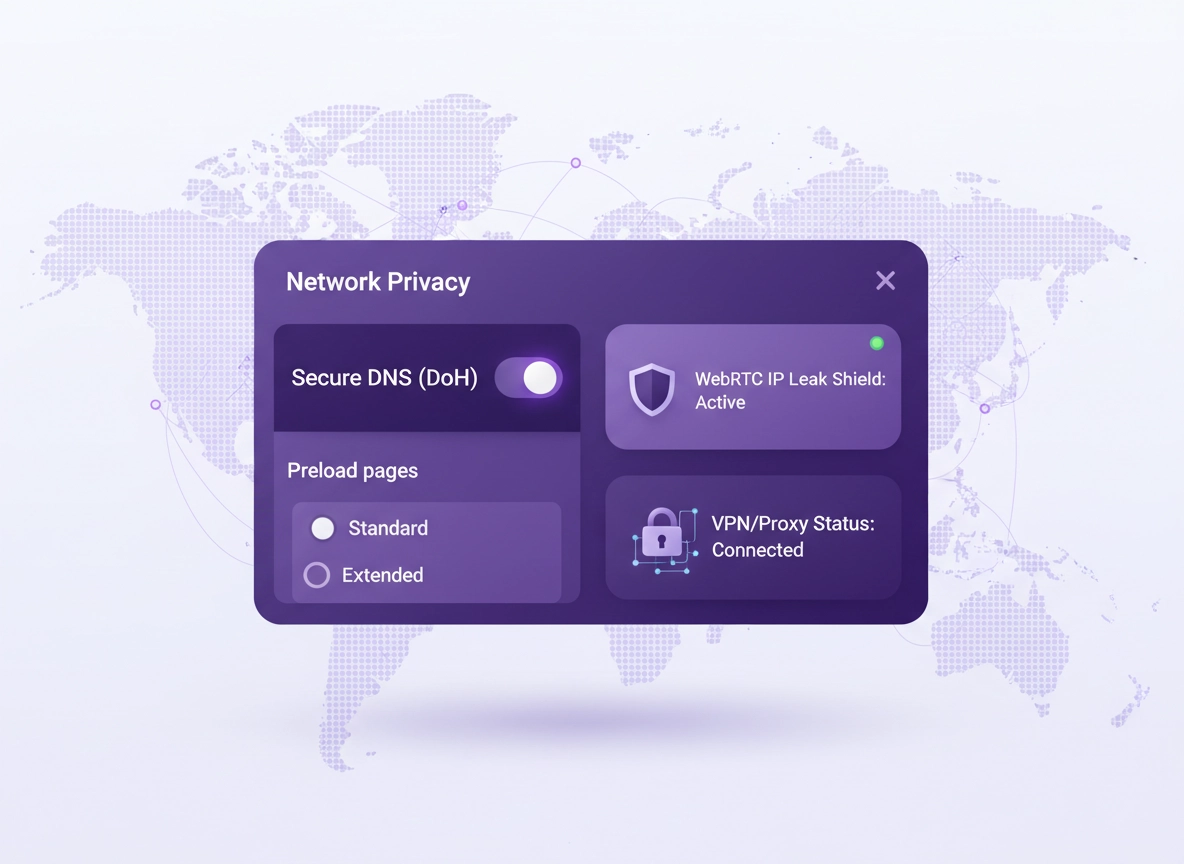
What “network privacy” means in Chrome .
Network privacy is about what your browser reveals before a page even loads.
When people think “privacy,” they usually think cookies, history, or incognito mode. Network privacy is different: it’s the part of privacy that lives at the connection layer. It includes how Chrome resolves site names (DNS), whether it preloads pages on your behalf, what your IP address can reveal, and how “real-time” features like WebRTC can bypass a VPN tunnel if you don’t configure things carefully.
In practical terms: a website you visit can’t see your home address, but it can often see your public IP, approximate city, ISP, and sometimes corporate network details. Your network provider (ISP, school, workplace, hotel Wi-Fi) can also see patterns in where you go—especially if DNS lookups are unencrypted. Chrome’s network privacy settings let you reduce that exposure without turning your browser into a fragile science project.
This page focuses on the settings that matter for high-intent users: Secure DNS (DNS over HTTPS / DoH), Preload pages, WebRTC leak reduction, and the boundaries of what Chrome can and can’t protect. If you want the broader privacy baseline first, start with the hub: Chrome Privacy Settings.
Related: If you’re combining network privacy with overall hardening, use Chrome Hardening Guide and the Security & Privacy Checklist.
Key terms (quick definitions) .
- DNS: The “phonebook” lookup that turns example.com into an IP address.
- Secure DNS (DoH): Encrypts DNS lookups so networks can’t easily read or tamper with them.
- Preloading / prefetch: Chrome fetching pages or resources you might visit to feel faster.
- WebRTC: Real-time browser technology for voice/video and peer connections; can expose IP details in some setups.
- Proxy: A network relay that forwards traffic; can hide origin IP from websites but doesn’t automatically encrypt everything.
- VPN: An encrypted tunnel from your device to a VPN server; changes what websites see as your IP (but needs leak hygiene).
Before you start (fast checks) .
These fast checks prevent the most common “I changed a setting and nothing happened” scenarios. Network privacy controls often interact with the OS (Windows/macOS), corporate policies, your router, and extensions.
- Confirm you’re updating the right profile: If you use multiple Chrome profiles, settings can differ. Switch to the profile you actually browse in.
- Check for managed device policies: On work/school devices, some settings are locked. Look for “Managed by your organization” in Settings.
- Temporarily disable “helper” extensions: VPN, proxy, ad blockers, and security extensions can override behavior. Test with them off, then turn them back on.
- Be aware of browser updates: Chrome changes menus over time. If your menu labels don’t match exactly, use the built-in search box in Settings.
- Test one change at a time: Change DNS, test. Change preloading, test. This makes troubleshooting straightforward.
Related: If your changes cause slowness, see Chrome Network Optimization Settings and Speed Up Google Chrome.
Step-by-step hardening (recommended) .
This is the “balanced” sequence that gives you real network privacy improvements with minimal breakage risk. We’ll start with DNS (most impact), then preloading (quiet metadata reduction), then WebRTC (VPN hygiene), then proxy/VPN considerations.
- 1 Enable Secure DNS (DoH) and choose a provider you trust.
- 2 Set Preload pages to Standard (or Off if you want maximum reduction).
- 3 If you use a VPN, check WebRTC leak behavior and apply the fix that matches your needs.
- 4 Review your proxy/VPN approach so DNS and IP expectations match reality.
- 5 Validate results: test login flows, banking, video calls, and any corporate apps you rely on.
What “success” looks like: DNS lookups are encrypted (or at least not easily readable by the local network), Chrome is not aggressively prefetching pages you didn’t click, and VPN browsing doesn’t unexpectedly reveal local IP info via WebRTC.
Related: If you’re chasing privacy at a higher level, pair this with DNS over HTTPS Settings, Tracking Protection, and Third-Party Cookies.
Common variations .
- Windows / ChromeOS: Proxy settings may be controlled by the OS or ChromeOS. Some DNS settings integrate with system DNS.
- macOS: VPN/proxy settings often live in System Settings. Chrome inherits parts of network routing from macOS.
- Android / iPhone: Secure DNS exists in Chrome, but OS-level “Private DNS” (Android) can also affect behavior. iOS uses system-level DNS behavior more heavily.
Secure DNS (DoH): the #1 network privacy upgrade .
DNS is often the leakiest part of everyday browsing. Without encrypted DNS, the network you’re on can frequently see what hostnames you request (even when the pages themselves are HTTPS). Secure DNS (DNS over HTTPS, often shortened to “DoH”) encrypts those DNS lookups so passive observers can’t easily read or alter them.
Where the setting lives (desktop) .
In modern Chrome, the most consistent path is: Settings → Privacy and security → Security → Use secure DNS. You can also open it directly by typing chrome://settings/security in the address bar.
Recommended Secure DNS configuration .
- Balanced: Turn Secure DNS on and use your current provider (Chrome will try to “upgrade” if supported).
- More control: Choose a specific provider you trust, especially if you want consistent behavior across networks.
- Enterprise reality: In managed environments, DNS may be policy-enforced for security monitoring or internal domains.
If you want a dedicated deep dive, see: Chrome Secure DNS Setup and Chrome DNS Privacy Guide. If you’re comparing approaches, read Private DNS vs Secure DNS.
What can break when you enable Secure DNS? .
Most users won’t notice anything, but these are the realistic failure modes:
- Captive portals (hotel/airport Wi-Fi): Some networks require a login page before full access. Secure DNS can complicate the “first connect” step. Quick fix: temporarily turn Secure DNS off, sign in, then turn it back on.
- Internal corporate domains: If your company uses internal hostnames, custom DNS rules, or split-horizon DNS, Secure DNS may not resolve them correctly unless the provider supports your environment.
- Security tools and filtering: Some families and businesses rely on DNS filtering. Turning on Secure DNS can bypass some DNS-based filtering if not configured correctly. In managed contexts, follow policy.
Preloading & prefetch: speed vs privacy .
Chrome can “help” performance by fetching pages (or parts of pages) you haven’t clicked yet. This can feel faster, but it creates extra network requests—requests that can reveal interests, patterns, and timing to websites and networks. Preloading is not automatically “bad,” but privacy-focused users should understand what it does and choose a setting intentionally.
Where the setting lives (desktop) .
In newer Chrome builds, preloading is usually here: Settings → Performance → Preload pages. You’ll typically see choices like Standard preloading and Extended preloading.
What you should choose .
- Standard (recommended): Best balance. It limits aggressive prediction while still improving common navigations.
- Off (privacy-max): Most predictable network behavior. Slightly slower perceived browsing in some cases.
- Extended (speed-max): More prefetching. Not recommended if your goal is privacy, metered data control, or minimal network noise.
Related: If you’re tuning performance without sacrificing security, see Performance vs Security Balance and Chrome Prefetch Settings Explained.
Why preloading affects privacy .
Preloading can trigger DNS lookups, TCP/TLS connections, and content requests before you click. That creates additional “signals” about what you might do next. On corporate networks, it can add noise to logs. On public networks, it can increase the surface area for passive observation. On mobile data, it can waste bandwidth.
If you want a clean testing environment, turn preloading Off while troubleshooting, then decide whether you prefer Off or Standard after you’re done. For broader privacy wins, combine this with Tracking Protection and Ad Privacy Settings.
WebRTC IP leaks (especially if you use a VPN) .
WebRTC enables real-time communication (video calls, voice, screen sharing, peer connections). It’s extremely useful—so the right goal is usually leak reduction, not “turn everything off forever.” The risk: in some configurations, WebRTC can reveal network interface details (or route traffic in a way that exposes IP information) that you didn’t expect—particularly when using certain VPN setups.
When you should care most .
- You use a VPN extension (browser-only) instead of a system VPN app.
- You rely on VPN for location privacy, travel, or public Wi-Fi safety.
- You use WebRTC-heavy sites (video meetings, real-time collaboration, browser calling).
Practical mitigation options .
Choose the lightest fix that works for your situation:
- Option A (recommended): Use a reputable VPN app (system-level) instead of a browser-only VPN extension whenever possible. This reduces routing edge cases.
- Option B: Use a WebRTC leak protection approach that limits non-proxied UDP routing (useful when you must rely on a browser extension VPN).
- Option C (strict): Disable WebRTC via an extension or browser controls, understanding that video calling and some web apps may break.
Related: If you’re building a secure browsing baseline, combine this with Secure Wi-Fi Browsing and Public Wi-Fi Security Tips.
If you want to go deeper into privacy tools that users compare (and buy), see: Best VPN for Chrome and VPN DNS Leak Test Guide.
Proxy & VPN considerations (what they do and don’t do) .
“Network privacy” gets messy fast because people mix tools. Here’s the clean mental model: Secure DNS protects hostname lookups; HTTPS protects content in transit; VPNs change what IP websites see; and proxies vary widely—some are secure, many are not.
Proxy vs VPN (quick comparison) .
| Tool | What it changes | What it hides | Main risk |
|---|---|---|---|
| Secure DNS (DoH) | DNS lookups | Hostnames from local network observers | Provider trust + potential captive portal issues |
| Proxy | Route for certain traffic | Origin IP from some destinations | Many proxies log, inject, or weaken privacy; not always encrypted end-to-end |
| VPN | Network tunnel | Origin IP from websites; reduces local snooping | VPN trust + leaks if misconfigured (DNS/WebRTC) + performance overhead |
If you’re configuring proxy behavior specifically, see: Chrome Proxy Settings Guide. If you’re comparing solutions (high-intent buyers), see: Best VPN vs Proxy for Chrome.
Advanced settings (power users & enterprise) .
This section is for users who want more control than “flip the switch.” You’ll get the most value if you have a clear goal: reduce leakage on public Wi-Fi, standardize settings across a team, align with compliance, or reduce attack surface.
Related: In managed environments, start here: Chrome Enterprise Guide and Enterprise Security Settings.
When you should change advanced network privacy settings .
- Remote work / travel: You frequently use hotel, airport, or coworking Wi-Fi.
- Sensitive browsing: You want fewer “ambient” network signals like predictive prefetch.
- Threat model: You’re reducing exposure to passive monitoring, spoofed hotspots, or DNS tampering.
- Team standardization: You’re writing a baseline policy for multiple users or devices.
When you should NOT .
- Mission-critical compatibility: If you must keep legacy enterprise portals working and you don’t control DNS/proxy policy.
- Unclear ownership: On a managed device, changing settings may violate IT policy or create support problems.
- “Everything off” mindset: Disabling features without testing often causes breakage that looks like “Chrome is broken.”
Enterprise notes (what IT teams usually care about) .
Enterprise environments balance privacy with visibility and security controls. DNS is a common battleground: security teams use DNS logs and filtering for threat prevention, while privacy goals push toward encryption and provider trust. The right answer is policy-based: define acceptable DNS providers, ensure internal domains resolve, and document exceptions.
If you’re building a compliance-friendly configuration, pair this page with: Privacy Compliance Setup, Enterprise Privacy Controls, and IT Admin Security Settings.
Common alternatives users compare .
- Secure DNS (DoH) vs OS-level “Private DNS” vs VPN-provided DNS
- Chrome preloading “Standard” vs “Extended” vs Off
- VPN extension vs full VPN app (leak risk vs convenience)
- Manual user settings vs enterprise policy enforcement
Privacy & security notes (tradeoffs that matter) .
Network privacy changes the “shape” of your traffic. The main benefit is reducing passive visibility and unwanted metadata. The main cost is occasional compatibility issues and the need to trust the services you route through (DNS/VPN providers).
Impact: Changes DNS behavior, increases encrypted connections, reduces predictive network requests, and can affect VPN/WebRTC expectations.
Related: For broader privacy risks and decision-making, see Chrome Privacy Risks and Privacy Risk Assessment.
Recommended baseline settings .
- Option A (balanced): Secure DNS On + Preload pages Standard + keep HTTPS-only where possible.
- Option B (maximum privacy): Secure DNS On (chosen provider) + Preload Off + strict cookie rules + VPN app + WebRTC leak mitigation.
- Option C (compatibility): Secure DNS On (if it doesn’t break internal sites) + Preload Standard + avoid “stacking” multiple network tools.
Recommended settings by goal .
| Goal | Recommended setting | Tradeoff | Best for |
|---|---|---|---|
| Balanced | Secure DNS On + Standard preloading | Minor compatibility edge cases | Most users |
| Maximum privacy | Secure DNS On (choose provider) + Preload Off + VPN app | Potential speed hit; may need troubleshooting on captive portals | Tracking-sensitive users, travelers |
| Compatibility | Secure DNS On only if internal sites work + Standard preloading | More metadata exposure than “max privacy” | Banking / enterprise sites |
Troubleshooting .
Troubleshooting network privacy should feel mechanical: identify which category broke (DNS, preloading, VPN/WebRTC, proxy), revert that one change, then re-apply with a safer variation.
Related: If this becomes a broader hardening exercise, use Secure Browser Setup Guide.
If sites won’t load after enabling Secure DNS .
This is usually a DNS resolution mismatch. First, toggle Secure DNS off, reload the site, and confirm it works. If it does, turn Secure DNS back on but switch from a custom provider to the “current provider” option (or vice versa). For workplaces, internal domains and filtering policies are common causes.
- Fast fix: Disable Secure DNS temporarily, connect/sign in, then re-enable.
- Safer fix: Choose a provider that works well in your region and doesn’t block needed domains.
- Enterprise fix: Ask IT which DNS mode is supported and whether DoH is allowed.
If hotel/airport Wi-Fi login pages don’t appear .
Captive portals can be sensitive to how DNS and HTTPS behave before you’re fully connected. Temporarily turning off Secure DNS (and sometimes HTTPS-only) can help you reach the login page. Once connected, re-enable your preferred settings.
Related: If you often browse on public Wi-Fi, read Public Wi-Fi Security Tips.
If your VPN is “on” but something still shows your location .
This may be WebRTC, browser geolocation permission, or DNS behavior. Check:
- WebRTC: Apply the mitigation from the WebRTC section that fits your setup.
- Location permission: Review Chrome Location Permissions.
- DNS leaks: Use the workflow from VPN DNS Leak Test Guide.
If video calls stop working (Meet/Zoom/WebRTC apps) .
If you disabled or heavily constrained WebRTC, some real-time features may fail. The best approach is usually not “off,” but “controlled.” Re-enable WebRTC where needed, or choose a mitigation that prevents non-proxied routing rather than disabling the technology completely.
If you need to reset safely .
Avoid a full “nuke” reset unless you suspect a compromised profile. Instead: revert the last change, test, and only escalate if necessary. If you suspect hijacking or malware, use Remove Malware from Chrome and Chrome Security Checkup.
FAQ .
-
helpDoes Secure DNS hide my IP address?No. Secure DNS encrypts DNS lookups (the “which site is this?” step). Websites can still see your public IP address when you connect. To change what websites see as your IP, you typically need a VPN or a proxy—then you also need to manage DNS/WebRTC leaks.
-
helpShould I turn Preload pages off for privacy?If privacy is your priority and you want predictable network behavior, yes—turning it off reduces extra requests you didn’t explicitly trigger. If you want a practical balance, use Standard preloading. Avoid Extended preloading if your goal is to minimize network metadata.
-
helpWhat’s a WebRTC leak and do I need to worry?WebRTC can expose network routing details used to establish real-time connections. If you don’t use a VPN, it’s usually not a big concern. If you do use a VPN (especially a browser-only extension VPN), it’s worth checking and applying a mitigation that fits your needs.
-
helpCan my workplace block these settings?Yes. On managed devices, IT can enforce policies that lock or override DNS, proxy, and privacy settings. If you see “Managed by your organization,” follow your policy or ask IT which configuration is supported.
Sources & further reading .
- Google Chrome Help: Manage safety & security (desktop)
- Google Chrome Help: Manage safety & security (Android)
- Google Chrome Help: Performance & Preload pages
- Google Chrome Enterprise Help: Policies reference (admin)
- Chrome for Developers: privacy API reference (extensions)
Disclosure: Some pages may mention tools or services. Recommendations are editorial and based on testing.