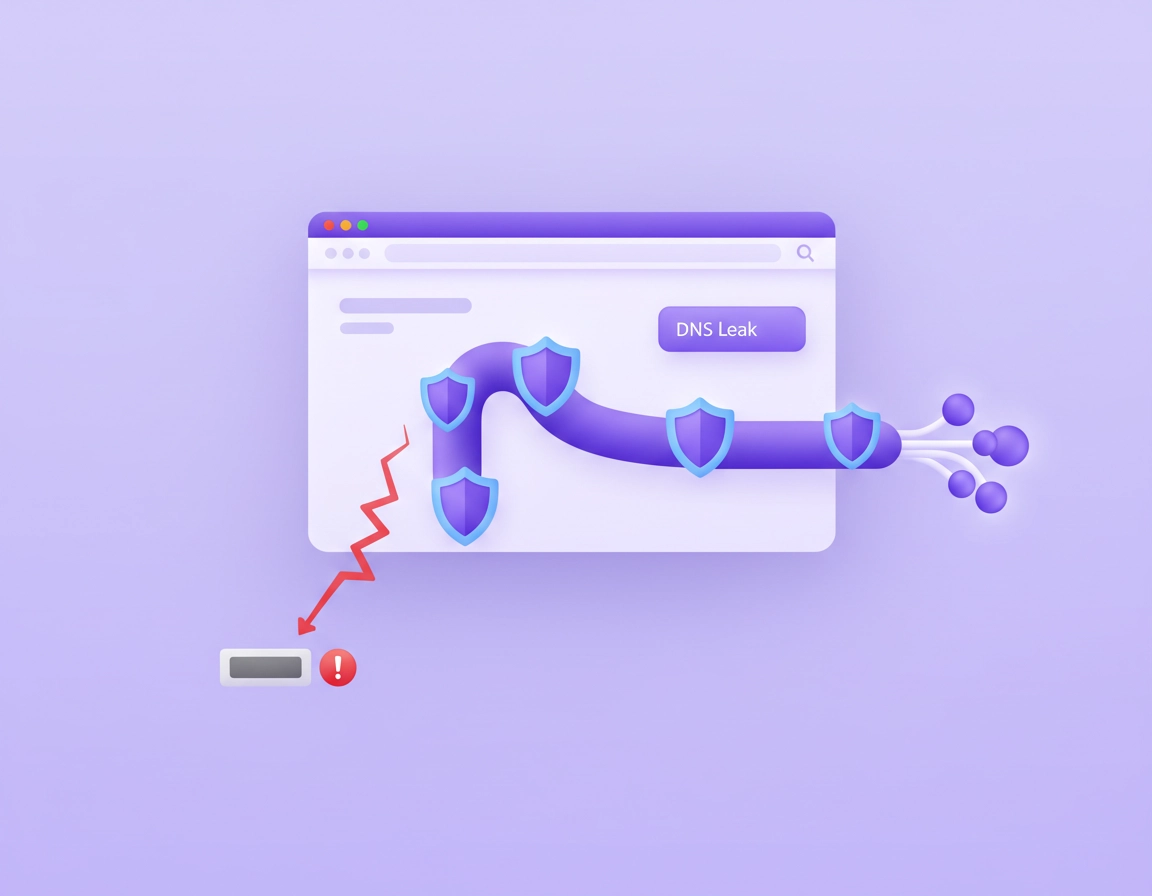
What a DNS leak is in Chrome and why it matters .
A DNS leak is not the same thing as an IP leak, and it is not the same thing as a WebRTC leak. That distinction matters because many Chrome users run one test, see one “safe” result, and assume every layer is protected. In practice, your visible public IP might be hidden while your DNS requests still go to a resolver that can reveal which domains you are trying to access.
DNS stands for Domain Name System. Every time Chrome visits a domain, the browser or operating system needs a resolver to translate that human-readable domain into an IP address. A VPN is supposed to keep that lookup path inside the protected route or through a trusted resolver chosen by the VPN provider. When that does not happen, your browsing destinations can still be exposed to your ISP, workplace network, school network, hotspot operator, or another party sitting outside the VPN tunnel.
For Chrome users, leaks are especially misunderstood because there are several different VPN deployment models. A full desktop VPN normally routes the device’s traffic at the system level, which means Chrome inherits that protection. A browser extension VPN is often narrower. Some extensions protect only browser traffic, some proxy traffic rather than create a full-device tunnel, and some rely on Chrome’s own network stack in ways that can create edge cases around DNS resolution, WebRTC, or split traffic. That is why a clean-looking toolbar icon is never enough proof.
A clean DNS leak test matters for privacy, but it also matters for security and compliance. If you use Chrome for remote work, client portals, finance tools, healthcare systems, admin panels, or internal dashboards, leaking DNS can reveal sensitive destinations even when page content itself is encrypted. That is one reason browser security buyers increasingly compare VPN controls with broader browser hardening, managed policy, and zero-trust workflows rather than treating “I connected the extension” as the end of the job.
Related: If you want the broader context first, start with How VPN Works in Chrome and then compare browser-only protection with VPN Chrome vs Desktop VPN.
Key terms you should know before testing .
- DNS leak: Chrome or your device sends DNS queries outside the intended VPN path.
- Public IP leak: websites can still see your real internet-facing IP instead of the VPN-assigned one.
- WebRTC exposure: a website can discover local or network-related address information through real-time communication behavior, depending on configuration and browser handling.
- Secure DNS / DNS over HTTPS: Chrome can encrypt DNS lookups, but that does not automatically mean they use the VPN provider’s resolver.
- Split tunneling: some traffic uses the VPN while other traffic bypasses it; that can be intentional or accidental.
- Managed browser policy: Chrome settings enforced by an organization can override what users try to configure locally.
Before you start: fast checks that prevent false results .
The quality of your result depends on how you test. Many “leaks” are really stale sessions, cached assumptions, mismatched resolver expectations, or testing while the browser extension and system VPN are fighting each other. Do these checks first so you do not waste time debugging the wrong thing.
Related: If your VPN in Chrome is unstable before you even test, work through VPN for Chrome Troubleshooting Guide and VPN for Chrome Connection Issues Fix.
- Know what type of VPN you are using: browser extension, desktop app, enterprise agent, or full-device VPN. This changes what “expected behavior” looks like.
- Disconnect every other privacy tool temporarily: ad blockers with DNS features, secure DNS clients, antivirus web shields, parental controls, or enterprise filters can alter the DNS path.
- Check for multiple active profiles or browsers: a VPN extension running in one Chrome profile does not necessarily control traffic in another profile, guest session, or Chromium-based browser window.
- Test in a fresh tab or incognito window: this reduces extension conflicts and avoids misleading session state from long-running tabs.
- Confirm your baseline first: before connecting the VPN, visit an IP test site and a DNS leak test site so you know what your “normal” ISP or local-network result looks like.
- Reconnect cleanly: disconnect the VPN, wait a few seconds, reconnect to the target region or server, then refresh the test page rather than trusting the first old result already on-screen.
- If you are on corporate or school hardware: look for “managed by your organization” indicators in Chrome. Policies can lock Secure DNS or other network behavior.
One more thing: DNS leak tests are best interpreted as a pattern, not a single datapoint. Run the standard test first, then run the extended test. If you see the same external resolver family consistently, your result is probably stable. If the resolver changes between tests, or you see a mix of VPN and non-VPN DNS infrastructure, you may be looking at load balancing, partial split tunneling, or a genuine leak path.
Step-by-step: how to run a Chrome DNS leak test properly .
This is the cleanest workflow I recommend for Chrome users. It gives you a usable baseline, a VPN-on comparison, and enough signal to tell the difference between “working,” “probably leaking,” and “needs deeper investigation.”
- 1 Check your normal state first. With the VPN off, open Chrome and visit a public IP test page and a DNS leak test tool. Note your public IP region and the DNS resolver names or network family shown in the results.
- 2 Connect your VPN. Use the exact server or region you plan to browse with. If your provider offers both a browser extension and a desktop app, test the mode you actually use every day.
- 3 Refresh the IP test. Your public IP should now reflect the VPN location, not your home, office, or local ISP. If your public IP has not changed, stop there and fix the connection before worrying about DNS.
- 4 Run a standard DNS leak test. Open the DNS leak test page in Chrome and run the first-level check. You are looking for the resolver identity and location.
- 5 Run the extended test. This forces more lookups and catches cases where the standard result appears clean but additional queries expose a mixed path.
- 6 Interpret the result. If the DNS servers belong to the VPN provider or to a resolver the VPN documentation says it uses, that is usually a good sign. If the results show your ISP, local router, employer, school, or a resolver that only appears when the VPN is disconnected, treat that as a likely leak.
- 7 Repeat in an incognito window. This helps isolate extension conflicts and profile contamination.
- 8 Repeat after switching VPN modes. If the extension leaks but the desktop app does not, you have identified the practical fix already.
What success looks like: your public IP changes to the VPN location, and your DNS test shows resolvers that align with the VPN provider or documented secure route rather than your ISP, router, workplace, school, or hotspot network.
Related: DNS protection is only one layer. Also check VPN Chrome IP Leak Protection and VPN Chrome WebRTC Leak Fix so you do not stop at a partial result.
How to read confusing results .
If you see multiple resolvers, do not panic immediately. Large VPN providers often run distributed DNS infrastructure, partner networks, or regionally varied backends. That can still be normal. The danger sign is not “more than one DNS server.” The danger sign is seeing resolver ownership or geography that clearly maps back to your original network or to a resolver path you did not intend to use.
For example, if you connect to a VPN server in London and the test shows resolver infrastructure associated with your VPN provider, a nearby cloud network, or the VPN’s documented DNS partner, that can still be fine. But if the test shows your home ISP in Johannesburg, your office’s internal DNS, or your campus network while the VPN is supposed to be fully protecting browser traffic, the browser is not giving you the privacy story the extension badge suggests.
Common variations by device and setup .
- Windows / macOS with desktop VPN: this is usually the cleanest path because DNS can be controlled at the system level.
- Chrome extension only: most likely to produce edge cases, especially if the provider is using proxy-style protection rather than a full tunnel.
- Managed work device: Chrome Secure DNS settings or system DNS may be locked by policy, making your personal VPN extension less authoritative than you think.
- Android / iPhone: browser behavior depends more heavily on OS networking, app-level VPN behavior, and secure DNS settings outside Chrome itself.
Advanced causes: Secure DNS, WebRTC, extensions, split tunneling, and policies .
This is where high-value troubleshooting starts. A DNS leak test is useful, but the real win is understanding why the result looks wrong. Chrome can appear private while several different systems compete to handle your DNS requests: the VPN app, the browser, the operating system, enterprise policy, security software, and sometimes the extension itself.
Related: For broader VPN hardening, see VPN for Chrome Best Settings Guide, VPN Extension Permissions in Chrome, and VPN vs Private DNS for Chrome.
1) Chrome Secure DNS can help privacy, but it can also complicate VPN expectations .
Chrome includes a Secure DNS setting under Settings → Privacy and security → Security → Use secure DNS. This is valuable because it encrypts DNS lookups, but it does not automatically guarantee that the DNS path matches your VPN provider. If Chrome is using a custom DNS-over-HTTPS provider while your VPN expects to handle DNS itself, your queries may be encrypted yet still routed outside the VPN provider’s resolver infrastructure.
That is a key point many users miss: encrypted DNS is not the same as VPN-controlled DNS. Secure DNS reduces passive interception and tampering risk, but from a strict VPN privacy perspective, it can create a mismatch between what your VPN promises and what Chrome actually does. On some setups, leaving Secure DNS on is fine. On others, turning it off while the VPN is active produces cleaner, more predictable results. Test both states and compare.
If you are specifically researching Chrome DNS settings, you may also want to read Chrome DNS over HTTPS Settings and Chrome Secure DNS Setup.
2) WebRTC can create exposure that users mislabel as a DNS leak .
WebRTC is related to real-time communication in the browser. Depending on the browser’s privacy handling, extensions, and network path, it can reveal local or network-related information that makes users think DNS is leaking when the real issue is different. This is why I always recommend running both a DNS leak test and a WebRTC leak check. If the DNS result is clean but a site still learns information you expected to hide, WebRTC is one of the first places to look.
That is also why Chrome security discussions often mention “IP handling policy” for WebRTC. It is not the same subsystem as DNS resolution, but it changes the privacy story a site can observe from inside the browser. Treat these as two separate test tracks and fix them separately.
3) Browser extension VPNs often have a narrower trust boundary than users expect .
A browser extension can be useful for quick location switching or browser-only privacy, but many users overestimate what it controls. Some Chrome VPN extensions are closer to secure proxy tools than full network-tunnel implementations. That does not mean they are useless. It means your DNS, WebRTC, and non-browser traffic may not all be governed the same way.
When a DNS leak test fails in Chrome but passes in another browser or in the provider’s desktop app, the extension model itself is often the answer. In those cases, moving to the full desktop VPN app is usually the most reliable fix.
4) Split tunneling can be intentional, but it can still surprise you .
Some VPN products let you exclude certain apps, domains, or traffic types from the tunnel. That can improve speed or compatibility, but it also makes leak testing harder to interpret. If Chrome is partly included, partly excluded, or the extension is protecting only tab traffic while DNS still resolves elsewhere, you can end up with mixed results that look random. Review split tunneling settings inside the VPN app before assuming something is broken.
5) Enterprise or school policies may override your local choices .
If the browser says it is managed, local settings may not be authoritative. Chrome Enterprise environments can enforce security and privacy policies, including network-related behavior and Secure DNS configuration. On a managed device, your extension, custom DNS, or personal browsing workflow may be subordinate to policy. That is especially relevant if you work in healthcare, finance, education, or a compliance-heavy environment where logging, filtering, or DNS control is deliberate.
In other words: if a leak test result looks strange on a company laptop but normal on your personal laptop, the difference may be policy, not the VPN provider. That is worth knowing before you start deleting extensions or blaming Chrome.
When you should change your setup immediately .
- You see your ISP’s DNS resolvers while connected to a VPN that claims full protection.
- You are using Chrome on public Wi-Fi, hotel, airport, or coworking networks and DNS does not align with the VPN path.
- You handle client, legal, finance, healthcare, or internal business traffic in Chrome.
- Your VPN extension passes public-IP tests but fails DNS or WebRTC tests repeatedly.
When you might leave things alone .
- You intentionally use a trusted custom Secure DNS provider and understand it is outside the VPN provider’s resolver path.
- You are on a managed enterprise device where DNS behavior is intentionally controlled by policy.
- You are using the VPN mainly for location switching rather than strict resolver privacy, and the tradeoff is acceptable for your use case.
Common alternatives users compare .
- Browser VPN extension vs full desktop VPN application
- VPN-controlled DNS vs Chrome Secure DNS
- VPN protection vs private DNS for browser-only privacy
- VPN extension vs broader secure browser or zero-trust browsing controls
Privacy and security notes .
DNS leaks are often described as a “privacy issue,” which is true, but that undersells their operational importance. DNS queries can reveal the services you use, the countries you connect through, the SaaS platforms you log into, the portals you access, and in some workflows even the internal naming patterns of business systems. A leak may not expose page content, but it can still expose behavior, intent, and infrastructure.
Impact: Exposes destination lookups to your ISP, local network, school, employer, or other resolver outside the intended VPN path. Can weaken privacy assumptions and complicate remote-work, compliance, or public-Wi-Fi use.
Related: If you are tightening browser privacy more broadly, also see Chrome Network Privacy Settings, Chrome DNS Privacy Guide, and Chrome Secure Connection Settings.
Recommended baseline setups by goal .
- Balanced setup: use the provider’s desktop VPN app, keep Chrome updated, and test both DNS and WebRTC after connection changes.
- Maximum privacy: prefer a full-device VPN, avoid overlapping Secure DNS unless you specifically want it, review WebRTC exposure, and retest in a clean browser profile.
- Compatibility-first: if you depend on enterprise tools or internal sites, coordinate with your organization’s DNS and policy model rather than stacking random privacy tools.
Recommended setup by scenario .
| Goal | Recommended setup | Main tradeoff | Best for |
|---|---|---|---|
| Balanced privacy | Desktop VPN app + Chrome default settings + regular DNS/WebRTC retests | Slightly more setup than extension-only use | Most Chrome users |
| Maximum privacy | Full-device VPN + minimal extension overlap + Secure DNS reviewed case by case | More tuning, occasional site compatibility issues | Remote workers, privacy-sensitive users |
| Fastest convenience | Browser VPN extension only | Higher chance of DNS or WebRTC edge cases | Light browsing, casual geo-switching |
| Managed enterprise use | Follow organization policy and validate with IT-approved VPN and DNS settings | Less personal control over Chrome network behavior | Schools, corporate devices, compliance-heavy teams |
What actually fixes most Chrome DNS leak complaints .
In my experience, the highest-percentage fix is not some obscure flag. It is simplifying the stack. Remove the overlap, test with a full desktop VPN, compare with Secure DNS on and off, then add features back one at a time. Users who keep the VPN extension, a custom DoH provider, antivirus web filtering, a privacy extension, and a managed browser policy all active at the same time often end up debugging a system no single tool truly controls.
Troubleshooting .
Related: If your issue extends beyond DNS, also read VPN for Chrome Performance Impact, VPN for Chrome Speed Optimization Tips, and VPN Chrome Performance Test.
If the public IP changes but DNS still shows your ISP .
This is the classic DNS leak pattern. Your traffic appears tunneled at the IP layer, but DNS resolution is escaping the intended path. First, switch from a browser extension to the full VPN app if available. Then test Chrome Secure DNS both on and off. If the result changes, Chrome’s DoH path was part of the mismatch. Also check antivirus web protection or parental control products that may be intercepting DNS independently of the VPN.
If the test shows a resolver you do not recognize .
Do not assume “unknown” means unsafe. Some providers use third-party infrastructure, cloud networks, or white-labeled resolver systems. Compare against your VPN provider’s documentation or support material. The red flag is not unfamiliarity alone. The red flag is seeing a resolver that clearly belongs to your local network or to a service that only appears when the VPN is off.
If the extension looks connected but nothing changes .
That usually means the extension is not fully controlling the traffic path you assume it is. Disable all other privacy or proxy extensions, reconnect, and test again in incognito. If the result is still unchanged, move to the provider’s desktop client or a provider with stronger Chrome support.
If only some tests fail .
You may have mixed behavior caused by split tunneling, multiple profiles, cached tabs, or a resolver fallback mechanism. Close Chrome completely, reconnect the VPN, reopen only one profile, and rerun the standard and extended tests. Mixed results often become clearer after a clean restart.
If Chrome says settings are managed by your organization .
At that point you are not debugging a consumer-only browser anymore. Secure DNS or related privacy settings may be enforced by policy. If this is a work or school device, involve IT. Your personal VPN extension may not be the top authority on that machine, and trying to bypass those controls can create more confusion than clarity.
If WebRTC tests fail but DNS tests pass .
You likely do not have a DNS leak. You have a WebRTC exposure issue. Treat it separately using a browser-specific WebRTC privacy fix rather than changing DNS settings blindly. Users often chase the wrong subsystem here.
If you need to reset safely .
Start with the least disruptive reset. Turn off extra extensions, sign out of secondary Chrome profiles, close the browser, reconnect the VPN, and test again. Only after that should you change Secure DNS, reinstall the VPN extension, or reset Chrome network-related settings. On managed devices, do not perform aggressive resets without checking policy ownership first.
FAQ .
-
helpWhat is the difference between a DNS leak and an IP leak in Chrome?An IP leak means websites can still see your real public IP address. A DNS leak means your domain lookups are being resolved outside the VPN path, even if your public IP appears hidden. You can have one without the other, which is why a full Chrome privacy check should test both.
-
helpCan Chrome Secure DNS cause confusing VPN test results?Yes. Secure DNS can encrypt your lookups, but it does not automatically mean the lookups are using the VPN provider’s resolver path. That can create a situation where DNS is encrypted yet still outside the privacy model you expected from the VPN.
-
helpAre browser VPN extensions more likely to leak than full desktop VPN apps?In general, yes. Browser-only VPN extensions often operate with a narrower scope than full-device VPN apps, which makes DNS, WebRTC, and split-traffic edge cases more common. A full desktop client is usually easier to validate and trust for consistent DNS protection.
-
helpWhy does my work laptop show different DNS leak results from my personal laptop?Managed devices often use enterprise policies, DNS controls, endpoint protection, or secure web gateways that change how Chrome resolves traffic. On a company or school device, your personal VPN extension may not fully control the browser’s network path.
-
helpIf a DNS leak test shows a public DNS resolver instead of my ISP, am I safe?Not necessarily. The result still needs to make sense for your chosen VPN setup. A resolver that is merely “not your ISP” can still be outside the VPN provider’s path and may still weaken your privacy assumptions.
Sources & further reading .
- Google Chrome Help: Manage Chrome safety and security (desktop)
- Google Chrome Help: Manage Chrome safety and security (Android)
- Chrome Enterprise and Education: Security and privacy policies
- Chrome Enterprise Policy List
- Chrome for Developers: privacy API and WebRTC IP handling policy reference
- Proton VPN: how to check whether a VPN is working
- NordVPN: DNS leak test tool and explanation
- dnsleaktest.com
- BrowserLeaks
Disclosure: This guide is editorially written for practical troubleshooting and browser privacy education. Always validate DNS behavior against the exact VPN product and device model you use.