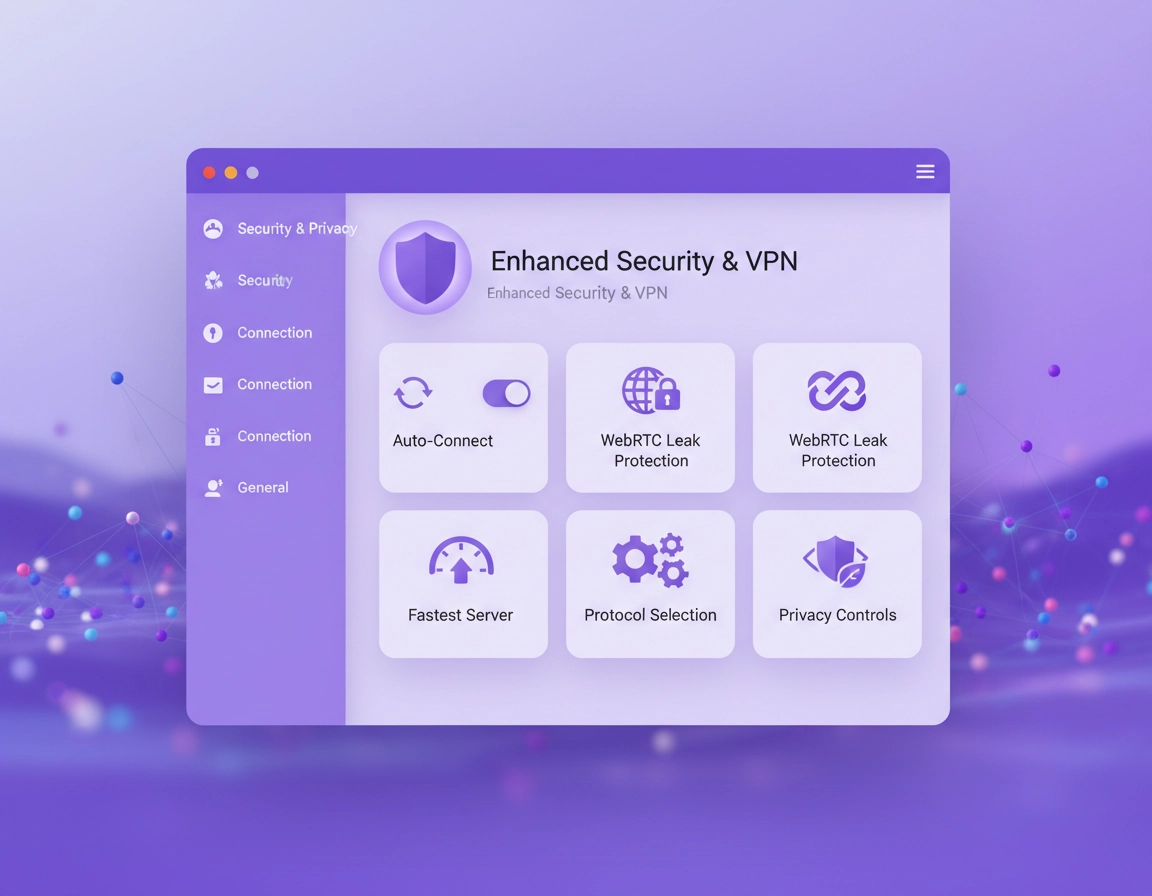
What “best settings” really means in Chrome .
A lot of VPN advice sounds authoritative because it is written in absolutes. In reality, there is no single best VPN setting for Chrome in the abstract. There is only the best settings profile for the way you use Chrome. Someone opening Gmail, Google Docs, Slack, banking tabs, and client dashboards all day does not need the same setup as someone who mostly wants a bit more privacy on coffee shop Wi-Fi, and neither of them needs the same tuning as someone trying to troubleshoot location-based site behavior.
The first distinction that matters is browser extension versus full VPN app. A Chrome VPN extension can be convenient, but it is often browser-scoped. That matters. If the browser is protected but your whole device is not, you can get a false sense of security. For sensitive work, public hotspots, and anything involving corporate accounts, a full VPN app should usually be your foundation. The extension is then a control surface, not the entire security model.
The second distinction is privacy versus compatibility. Tighter settings may reduce tracking surface, but they can also cause more login friction, more captchas, more embedded content failures, and more “why does this site suddenly hate me?” moments. That does not mean the stricter choice is wrong. It means you should know what you are trading away.
The third distinction is network protection versus browser hygiene. A VPN can change the path your traffic takes and hide your IP from the site you visit, but it does not automatically fix a sloppy Chrome profile loaded with stale permissions, shared cookies, aggressive extension conflicts, or an ad privacy footprint you forgot existed.
Related: This page works best as part of your wider cluster. Start with Best VPN for Chrome, then compare it with VPN for Chrome Speed Optimization Tips, VPN Chrome WebRTC Leak Fix, and VPN Chrome DNS Leak Test Guide.
What matters most for Chrome users .
- Connection layer: server location, auto-connect behavior, protocol choice, and whether you are using a browser extension only or a full VPN client.
- DNS layer: whether the VPN or Chrome’s Secure DNS setting is handling lookups in the cleanest way for your setup.
- Browser permissions layer: location, camera, microphone, notifications, and on some setups local network access.
- Cookie and site-data layer: especially third-party cookies, temporary exceptions, and saved site data for domains that misbehave.
- Leak and extension layer: WebRTC behavior, extension permissions, and avoiding multiple overlapping VPN or proxy tools.
Chrome settings to check in 60 seconds before you touch the VPN app .
Most “best VPN settings” guides spend all their time inside the VPN software and barely mention Chrome’s own controls. That is backwards. Chrome has several settings that directly affect whether a VPN feels stable, private, or frustrating.
- Check Safe Browsing level
- Review Always use secure connections
- Review Use secure DNS
- Review Third-party cookies
- Review Site settings
- Clear bad site data selectively, not globally
Start here:
- Settings → Privacy and security → Security for Safe Browsing, Always use secure connections, and Use secure DNS.
- Settings → Privacy and security → Third-party cookies for cookie policy, exceptions, and temporary site allowances.
- Settings → Privacy and security → Site settings for location, notifications, camera, microphone, pop-ups, and other per-site behavior.
If a single site is the problem, do not nuke all your browsing data out of habit. Click the site info icon next to the address, open that site’s settings, and reset or adjust only that domain. This is faster, cleaner, and less destructive than flattening your whole Chrome profile because one banking portal had a bad day.
Related: Pair this page with Chrome Secure DNS Setup, Chrome Third-Party Cookies Settings, Chrome Site Permissions Settings, and Chrome Safe Browsing Settings.
The browser-side settings that move the needle most .
- Safe Browsing: good for people who install extensions often, download files, or move around unknown sites. Stronger protection is useful, but it is still a tradeoff setting, not a free lunch.
- Secure DNS: useful, but not something to “optimize” blindly. If the VPN provider already handles DNS well, forcing a custom DNS choice inside Chrome can add needless complexity.
- Third-party cookies: blocking them reduces passive tracking, but some sites will absolutely complain. Use exceptions surgically.
- Site settings: too many granted permissions create a noisier, more identifiable, and sometimes less stable browser profile.
- Incognito expectations: Incognito is helpful for testing because third-party cookies are blocked there by default and extensions may not run unless you explicitly allow them. That makes it a good diagnostic environment, not a magical invisibility cloak.
Recommended settings profiles by goal .
The fastest way to choose the right settings is to stop asking for “the best” in general and instead choose a profile that matches the job. That gives you a sane baseline before you start tuning edge cases.
| Use case | VPN settings | Chrome settings | Main tradeoff |
|---|---|---|---|
| Balanced everyday browsing | Nearest stable server, recommended protocol, auto-connect on unsafe Wi-Fi, DNS leak protection on | Standard or Enhanced Safe Browsing, third-party cookies blocked with exceptions as needed, tidy Site settings | Good balance, but not maximum anonymity |
| Public Wi-Fi and travel | Full VPN app, auto-connect always or on untrusted networks, kill switch in the app if available, nearby region | Always use secure connections on, Safe Browsing on, strict site permissions, avoid extension clutter | More login prompts and occasional site suspicion |
| Work logins and banking | Stable local-region endpoint, no country hopping, full app first, conservative protocol choice | Minimal experiments, selective cookie exceptions, stable profile, no unnecessary extensions | Less aggressive privacy posture than a “maximum lockdown” build |
| Performance first | Closest server, recommended fast protocol, lighter extra filtering, no multi-hop gimmicks | Keep Chrome lean, reduce conflicting extensions, do not over-tune DNS | Lower privacy ceiling than a stricter setup |
| Privacy first | Full app plus extension, auto-connect, leak protection on, careful server choice | Stricter permissions, reduced exceptions, cleaner profile, stronger Safe Browsing if you accept the data-sharing tradeoff | More captchas, more breakage, more active maintenance |
Related: Continue the comparison path with VPN Chrome vs Desktop VPN, VPN vs Proxy for Chrome Differences, VPN vs Private DNS for Chrome, and VPN vs Built-In Chrome Security.
My default recommendation for most Chrome users .
If you want the profile that works for the widest range of people, use this:
- Use the full VPN app if your provider offers one.
- Auto-connect on public or untrusted Wi-Fi.
- Choose the nearest reliable server for ordinary browsing.
- Leave the protocol on the provider’s recommended option unless a restrictive network forces a fallback.
- Keep DNS leak protection on.
- Review Use secure DNS in Chrome, but do not over-engineer it unless you see breakage.
- Block third-party cookies by default and allow exceptions only for sites you trust and actually use.
- Keep location, camera, microphone, and notifications on a short leash.
- Do not run multiple VPN or proxy extensions together.
Step-by-step setup walkthrough .
Here is the cleanest way to set this up without creating a troubleshooting mess for yourself later.
- 1 Update Chrome first. Do not troubleshoot on an outdated build if you can avoid it.
- 2 Decide whether this is a browser-only job or a whole-device job. If it is work, banking, or public Wi-Fi, start with the full VPN app.
- 3 Pick one VPN layer. Use one provider, one extension, one connection path. Do not stack proxy tools and competing VPN extensions.
- 4 Choose the nearest stable server. This should be your default until you have a real reason to move countries.
- 5 Turn on auto-connect. Prefer public or untrusted network triggers if your provider supports them.
- 6 Leave the VPN protocol on recommended. Only change it after a problem appears, not because a forum thread told you to.
- 7 Review Chrome Security. Check Safe Browsing, Always use secure connections, and Use secure DNS.
- 8 Review Chrome Third-party cookies. Block by default, then allow only the sites that genuinely need an exception.
- 9 Review Site settings. Reset or tighten location, microphone, camera, notifications, and any odd one-off permissions you forgot you granted.
- 10 Test one normal site, one login-heavy site, and one real-time site. That usually exposes whether you have a routing issue, a cookie issue, or a permissions issue.
Where Chrome settings are worth being conservative .
Some settings invite over-tuning. Resist that impulse.
- Secure DNS: test it; do not obsess over it.
- Third-party cookie exceptions: keep them narrow and intentional.
- Permissions: default to Ask or Block unless the site truly needs the access.
- Ad privacy settings: worth reviewing, but not the first thing to touch when a VPN site problem appears.
- Extensions in Incognito: enable only the ones you actively trust and genuinely need for diagnostic or workflow reasons.
Related: If your main goal is speed, battery life, or leaner everyday use, keep moving with VPN for Chrome Performance Impact, VPN for Chrome Battery Usage, and VPN for Chrome Data Usage Impact.
Advanced tradeoffs that actually matter .
This is the part most generic guides flatten into slogans. The real question is not “what is the most private setting?” It is “which failure mode do I prefer?” That is a much more useful question because every serious configuration has a cost.
Secure DNS versus VPN-managed DNS .
Chrome’s Secure DNS feature is useful, but it is not automatically smarter than your VPN provider’s DNS handling. If your VPN already routes DNS safely and consistently, forcing a custom DNS provider inside Chrome can make troubleshooting harder, not easier. On the other hand, if you are seeing site resolution problems, region mismatches, or odd failures that happen only in Chrome, Secure DNS is one of the first browser-side settings worth testing.
The right mindset is simple: treat Secure DNS as a compatibility and privacy control, not a status symbol. Use the combination that behaves cleanly on the sites you actually care about.
Third-party cookies: great for privacy, annoying for certain workflows .
Third-party cookies are one of the easiest passive tracking channels to reduce, which is why blocking them is usually a good default. But they are also one of the easiest ways to break federated logins, embedded documents, payment widgets, customer support panels, and some enterprise SSO flows. That does not mean you should leave them wide open. It means you should use exceptions, not surrender.
If a site is important, trusted, and repeatedly breaks, allow only that site or related domain pattern. Do not drop your whole cookie policy to solve one edge case.
Enhanced Safe Browsing: stronger protection, more data sent for security analysis .
Some users want “the most secure” setting without admitting that all security settings involve information flow. Chrome’s Enhanced Safe Browsing gives stronger protection, but it is a more active security posture than Standard protection. For users who frequently install extensions, download files, or move through unfamiliar sites, it is a reasonable choice. For users trying to minimize every possible data exchange, Standard protection may fit better.
WebRTC leak prevention: worth enabling, but know the context .
If your provider offers WebRTC leak controls in its extension or app, enable them. This is especially valuable for people who rely on a browser extension. At the same time, understand that real-time services like video meetings and browser-based calling can be more sensitive to routing oddities and permission misconfigurations. When calls behave strangely, look at server distance, WebRTC handling, and site permissions together, not in isolation.
Managed browsers change the game .
If Chrome is managed by work or school, some settings may be locked, redirected, or silently overridden. In that case, you are not dealing with a pure personal-browser tuning problem anymore. You are dealing with policy. That affects Secure DNS, extension install permissions, Incognito availability, default security levels, and sometimes certificate or network behavior. If a setting is locked, stop treating it like a user-choice issue.
Related: For the enterprise and policy side of this topic, these are strong follow-up reads: Chrome Privacy Controls for Managed Devices, Chrome Enterprise Secure Remote Access, and Chrome Enterprise Security Best Practices.
When to keep your hands off advanced settings .
- If your setup is already stable and your only motivation is curiosity.
- If you are working on a machine with managed Chrome policies.
- If you cannot reproduce a problem consistently enough to know whether your “fix” did anything.
- If a guide tells you to change five privacy settings at once without teaching you what each one costs.
How to fix slow pages, broken logins, and weird location issues .
The fastest way to waste an afternoon is to start troubleshooting with panic rather than sequence. Use a simple order. It keeps the problem small.
If Chrome gets slower the moment you enable the VPN .
Start with server distance, not ideology. Switch to the nearest reliable server and test again. Then strip back optional extras such as ad-blocking, malware filtering, tracker filtering, or other bundled “security features” inside the VPN. Those features can be worthwhile, but layered on top of Chrome’s own protection systems and several other extensions, they can add noticeable drag.
If the slowdown persists, test a different protocol in the VPN app. If that immediately improves page load behavior, your problem was a transport or network-path issue, not “Chrome being bad with VPNs.”
If a site keeps logging you out or refusing to sign in .
This is usually one of three things: cookie restrictions, IP reputation, or location inconsistency. Start by staying on one stable local-region server instead of bouncing between countries. Then review whether the site needs a third-party cookie exception. If that does not help, clear the site’s stored data only for that domain and try again.
Login-heavy services hate chaos. Banking portals, government logins, enterprise SSO, and payment processors behave much better when your IP region stays consistent and your browser profile is not constantly being half-reset.
If the site says your location is wrong .
A site does not rely only on your current IP. It can infer location from saved account settings, browser language, prior sessions, permission history, and site data. Your VPN may be working perfectly while the site is reading stale context. Reset that site’s data, re-open the session, and check whether Chrome still has location permission enabled for it.
If video calls, voice tools, or live dashboards feel unstable .
Do not treat this like a generic privacy issue. Real-time tools are sensitive to latency, permission state, and browser networking behavior. Check the site’s microphone and camera permissions, move to a closer server, and confirm that no second privacy extension is interfering with scripts, media devices, or networking.
If it works in Incognito but not in your normal Chrome window .
That is good news, because it narrows the cause. When this happens, the problem is usually:
- an extension conflict,
- bad site data or cookies,
- a site permission issue, or
- a browser-profile-specific setting you forgot about.
Start by disabling non-essential extensions, then clear site data only for the problem domain, then retry in a clean normal window.
If nothing makes sense anymore .
Use this reset sequence before you do something drastic:
- Disconnect and reconnect the VPN.
- Switch to a nearby server in the same country.
- Reduce optional VPN filtering features.
- Test another protocol.
- Check Chrome Security and Third-party cookies.
- Reset only the broken site’s data and permissions.
- Test in Incognito.
- Disable other extensions one by one.
Related: If you need deeper recovery steps, go straight to VPN for Chrome Troubleshooting Guide, VPN for Chrome Connection Issues Fix, VPN Chrome IP Leak Protection, and VPN Extension Permissions in Chrome.
FAQ .
-
helpWhat is the best single VPN setting for Chrome users?If you force me to pick one, it is auto-connect on untrusted or public Wi-Fi. That is the setting most likely to protect you during the moment people usually forget the VPN entirely. After that, the nearest stable server is the biggest quality-of-life win.
-
helpShould I leave Chrome Secure DNS on when using a VPN?Usually yes, but not blindly. If your provider handles DNS cleanly, Chrome’s default or automatic behavior may already be fine. If site resolution errors, region oddities, or compatibility issues appear, Secure DNS becomes one of the first browser-side settings worth testing.
-
helpAre Chrome VPN extensions enough on their own?For casual browser-only use, sometimes. For work, public Wi-Fi, travel, and anything sensitive, the full VPN app is the safer baseline because it protects more than the browser tab layer.
-
helpWhy do some sites break when third-party cookies are blocked?Because some services still rely on cross-site cookie behavior for sign-in flows, embedded tools, payments, or federated identity. The fix is not to give up on blocking. The fix is to add narrow exceptions for trusted sites that actually need them.
-
helpWhy am I seeing more captchas with my VPN on?Usually because the site dislikes the reputation of the shared VPN exit IP or sees location changes as suspicious. A stable nearby server often produces a much calmer experience than constantly switching endpoints.
-
helpWhat is the cleanest setup for banking or work portals?Use the full VPN app, stick to a stable local-region server, avoid country hopping, keep Chrome’s profile predictable, and use targeted cookie exceptions only when a specific trusted site genuinely needs them.
Sources & further reading .
- Google Chrome Help: Manage Chrome safety and security
- Google Chrome Help: Delete, allow, and manage cookies in Chrome
- Google Chrome Help: Change site settings permissions
- Google Chrome Help: Choose your Safe Browsing protection level in Chrome
- Google Chrome Help: Browse in Incognito mode
- Google Chrome Privacy Whitepaper
Editorial note: Provider interfaces differ, but the decision framework does not. The right settings are the ones that protect the traffic you care about without pushing you into disabling your VPN every time a site gets difficult.