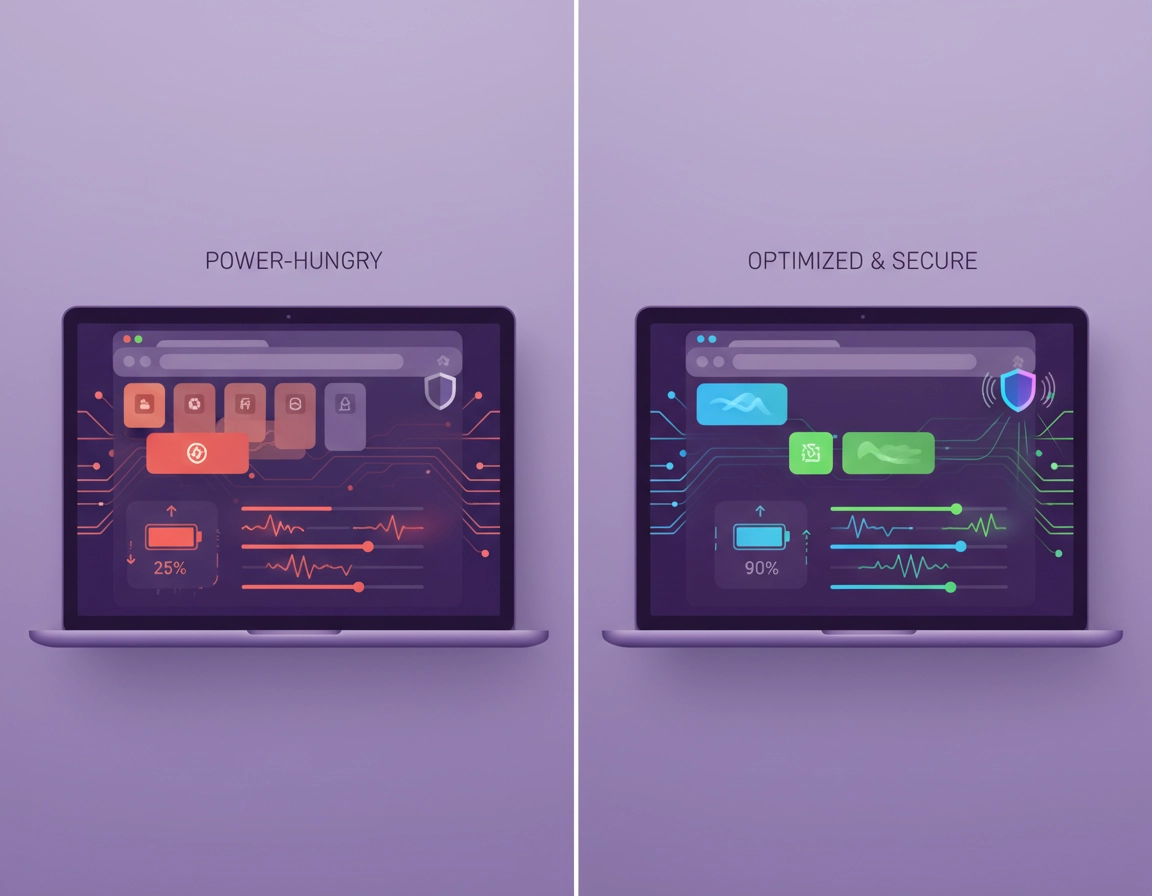
What “VPN battery usage in Chrome” actually means .
People usually search for VPN for Chrome battery usage after one of four moments. They installed a VPN extension and their laptop seems to lose charge faster. They switched from home Wi-Fi to public Wi-Fi and suddenly Chrome feels hotter and shorter-lived. They moved from a local VPN server to a distant country and browsing became sluggish. Or they are comparing VPN providers and want to know whether privacy always costs a lot of battery.
The answer is not just “VPNs drain battery.” In Chrome, battery use comes from a chain of work: the browser renders pages, extensions inspect or modify requests, the network stack moves data, the CPU encrypts traffic, and the Wi-Fi radio stays active while the connection is maintained. If one link in that chain gets heavier, the total battery picture gets worse. That is why a VPN can be part of the story without being the whole story.
The other reason the topic gets misunderstood is that users lump together two different products: a VPN browser extension and a full desktop VPN application. A Chrome extension typically protects browser traffic. A desktop app protects the whole device. Either one can feel lighter depending on how you work. If most of your day happens inside Chrome, the extension may be enough. If you are also syncing files, joining desktop calls, and moving traffic outside the browser, the full app may be the cleaner setup.
Real-world battery impact also depends heavily on what Chrome is doing while the VPN is on. Ten idle documentation tabs are not the same as ten tabs containing webmail, Figma, Google Docs collaboration, YouTube music, Slack in the browser, and a live analytics dashboard refreshing every few seconds. In the second case, the VPN becomes part of a much larger workload.
Related: Start with Best VPN for Chrome for broader buying guidance, then see VPN for Chrome Performance Impact if speed and responsiveness matter as much as battery life.
Where the battery really goes .
Battery drain during VPN use usually comes from five places working together.
1) Encryption and tunnel maintenance .
A VPN adds computational overhead because traffic must be encrypted, authenticated, routed, and kept alive. On a modern laptop doing normal browsing, that cost is often moderate. It becomes more noticeable when the browser is already busy or the connection quality is poor.
2) Weak or unstable Wi-Fi .
This is one of the most commonly missed causes. Poor signal quality forces retries, longer radio activity, and more time spent waiting for pages and assets to finish loading. On a hotel or airport network, the same VPN that feels light at home can feel expensive because the network itself is bad.
3) Chrome tabs that never really go idle .
Messaging tools, streaming music, video calls, collaborative apps, AI chat tools, social feeds, and dashboards keep doing work even when they look “quiet.” When those tabs are open behind a VPN, the tunnel stays busy and the laptop keeps paying for both the page activity and the encrypted network traffic.
4) Extension stacking .
Battery problems blamed on a VPN are often really the result of too many extensions touching every page. Content blockers, coupon finders, shopping assistants, grammar tools, AI helpers, tab managers, privacy tools, and a VPN extension can all add browser-side overhead. One extension by itself may be fine. Seven extensions together can turn every page load into extra work.
5) Expensive browsing patterns .
The worst combination for battery is a laptop on Wi-Fi, unplugged, using a distant VPN server, with multiple live tabs, preloading, media playback, and background sync all active at once. In that setup, even a good VPN gets blamed for a session that was already power-hungry.
Related: For wider Chrome efficiency issues, see Chrome Draining Battery Fix, Speed Up Google Chrome, and Chrome Extension Performance Impact.
A clean way to test whether the VPN is the problem .
Most people troubleshoot this the wrong way. They browse a chaotic mix of sites all day, notice their battery is worse than usual, then blame the newest tool they installed. A better approach is to create a repeatable baseline.
- 1 Plug in your laptop and restart Chrome so you begin from a calm, fresh session.
- 2 Open the exact tabs you normally keep open when the battery problem appears.
- 3 Run that session for 20 to 30 minutes with the VPN off.
- 4 Repeat the same session using a nearby VPN server.
- 5 Repeat again using a distant server only if that is how you normally browse.
- 6 Repeat one more time with all nonessential extensions disabled.
That single comparison usually tells you more than a dozen generic battery tips. If the battery worsens only when the VPN is active, the tunnel is a meaningful contributor. If the battery stays bad even with the VPN off, your issue is broader Chrome or system load. If things improve sharply after disabling other extensions, the VPN is being blamed for an overloaded extension stack.
The most useful mindset here is to compare like with like. Test the same sites, the same number of tabs, the same network, and the same time window. Otherwise you are comparing a quiet morning to a heavy afternoon and calling it diagnosis.
Step-by-step fixes that make the biggest difference .
This is the sequence that tends to produce the best result for most Chrome users on laptops.
- 1 Update Chrome and update the VPN client or extension. Battery issues sometimes come from inefficient background behaviour that has already been fixed upstream.
- 2 Use a nearby VPN server unless you specifically need another region. A London endpoint from South Africa, for example, should not be your default for ordinary browsing.
- 3 Close high-churn tabs first: live dashboards, conferencing tabs, music streams, infinite-scroll social feeds, and collaborative docs you have not touched for hours.
- 4 Cut your extension list down to the ones you actively use. The best battery optimization in Chrome is often subtractive rather than additive.
- 5 Open Settings → Performance in Chrome and configure Energy Saver, Memory Saver, and any exclusions with intent rather than leaving the browser to guess.
- 6 Compare the provider’s Chrome extension with the provider’s desktop VPN app. Use the one that gives you better stability during your normal workflow.
- 7 Re-test under the same conditions, not during a completely different browsing day.
Why these steps work .
Updates matter because Chrome’s performance behaviour changes over time, and extension authors also rework service workers, background listeners, and request handling. A stale extension can absolutely feel heavier than a current one.
Server choice matters because a nearer endpoint usually produces more stable latency, faster page completion, and less time with the radio active. Users often overestimate how often they really need a distant country for everyday browsing.
Tab reduction matters because hidden tabs still generate work. Chrome can help reduce that work, but it cannot fully save you from a stack of live apps that keep waking themselves up.
Extension pruning matters because every extension that injects scripts, watches requests, analyses pages, or syncs state competes inside the same browser environment. The VPN extension is only one actor in that system.
Related: If you need setup help before optimizing, read How to Install VPN Extension in Chrome and How to Use VPN with Chrome Browser.
Chrome settings that matter on battery .
This is the part missing from most VPN battery guides. Chrome now has built-in performance controls that directly affect how expensive a VPN-enabled browsing session feels on a laptop.
Energy Saver .
Energy Saver is the most obvious battery-related Chrome control. On laptops, it reduces certain background work when the device is unplugged or when the battery is low. If you are troubleshooting a VPN battery complaint and you have not checked this setting, you have skipped one of the first things Chrome itself wants you to use.
Energy Saver is not magic. It will not make a heavy browsing session light. What it does do is limit some waste in the background, which matters more when you already have a VPN tunnel, multiple tabs, and unstable Wi-Fi all competing for power.
Memory Saver .
Memory Saver matters because inactive tabs often become part of the battery problem indirectly. Less active memory pressure usually means the browser is calmer overall, especially during larger sessions. Chrome also lets you choose how aggressively tabs become inactive, which matters if you keep many tabs open while moving between them.
There is an important nuance here: some tabs are not treated like ordinary background tabs. Audio and video playback, video calls, screen sharing, active downloads, forms you are busy filling, pinned tabs, and some connected-device scenarios can resist normal tab deactivation behaviour. That is one reason users sometimes turn on Performance features and still feel disappointed. Their real workload is being intentionally preserved by Chrome because those tabs are still considered active or important.
Always-keep-active exclusions .
Chrome lets you keep specific sites active. Used well, this is excellent. Used badly, it becomes a silent battery leak. If you exempt webmail, chat, docs, analytics, streaming, and half your work stack from deactivation, you have basically told Chrome not to help you very much.
Preload Pages .
Preloading can make browsing feel faster, but it also means Chrome may do network work in advance. On an always-plugged desktop, that may be a fine trade. On a battery-limited laptop behind a VPN, it is worth testing whether aggressive preloading helps enough to justify the extra activity.
Tab memory visibility .
Chrome can show tab memory usage on hover. That does not directly reduce battery drain, but it is useful for spotting tabs that are far heavier than they look. When users say “it is just Chrome and a VPN,” there is often one tab doing the damage.
| Chrome control | Why it matters | When to use it | Common mistake |
|---|---|---|---|
| Energy Saver | Reduces some background battery waste | When unplugged or preserving charge matters | Assuming it can fix a tab overload problem by itself |
| Memory Saver | Helps with large sessions and inactive tabs | When many tabs stay open all day | Excluding too many sites from deactivation |
| Preload Pages | Can improve perceived speed but adds network activity | When speed matters more than battery | Leaving it aggressive on battery without testing |
| Tab memory usage | Helps identify heavy tabs | When Chrome feels vague and you need clues | Looking only at extensions and ignoring page weight |
Related: Pair this page with Chrome Laptop Performance Settings and Chrome Background Processes Explained if you want a wider browser tuning guide.
Chrome extension vs desktop VPN app .
Users often want a simple winner here. There is not one.
A Chrome VPN extension can be the lighter option when your use case is almost entirely web-based and you value quick region switching inside the browser. It can also be easier to keep separate from the rest of the system, which some people prefer when they only need browser protection.
A desktop VPN app can be the better battery choice when the extension feels chatty, unstable, or awkward inside a large extension stack. It can also be cleaner in workplaces where traffic outside Chrome matters just as much as traffic inside it. In those cases the browser is freed to behave like a browser while the operating system handles the tunnel.
The right question is not “Which is theoretically lighter?” but “Which one is lighter during my real workload?” If your day is Gmail, Docs, research, messaging, and dashboards all inside Chrome, the extension may win. If you are also using sync tools, native meetings, file transfers, and background desktop apps, the full VPN may be more coherent.
- Choose the extension first when your VPN need is mostly browser traffic and you want quick control.
- Choose the desktop app first when you need system-wide protection or the browser extension feels noisy.
- Test both if battery life is a real purchasing or workflow issue.
Related: Read VPN Chrome vs Desktop VPN, VPN for Chrome Best Settings Guide, and VPN for Chrome Speed Optimization Tips.
Battery savings vs privacy risk .
The temptation when battery looks bad is to disable the VPN permanently and call it solved. That is often the wrong conclusion. A small amount of extra power use is a reasonable price for better protection on untrusted networks, during travel, and in workplaces where location privacy or data handling matters.
What matters is whether the battery cost is proportionate. If you lose a small amount of runtime in exchange for safer browsing, that can be sensible. If your laptop suddenly becomes hot, noisy, and short-lived, that points to a tuning problem rather than an unavoidable privacy tax.
Recommended setups by priority .
- Balanced everyday setup: nearby server, minimal extension stack, Energy Saver on battery, no unnecessary site exclusions.
- Privacy-first setup: always-on VPN, careful extension hygiene, no risky public browsing without the tunnel.
- Battery-first travel setup: lighter tab profile, one essential blocker, one essential VPN, nearby endpoint, no streaming tabs left running in the background.
- Business stability setup: tested desktop VPN client plus managed Chrome profile and a deliberately small extension set.
What tends to cause the biggest real-world drain .
- Video meetings and screen sharing in Chrome
- Streaming media on multiple tabs
- Weak Wi-Fi plus a distant VPN server
- Many extensions inspecting every page
- Cloud tools that never go properly idle
- Too many sites excluded from Chrome’s inactivity controls
Related: For broader privacy decisions, also see Chrome Network Privacy Settings, Chrome Secure Wi-Fi Browsing, and Chrome Public Wi-Fi Security Tips.
Troubleshooting strange battery drain .
If the problem started right after installing a VPN extension .
Disable every nonessential extension and test again. If the problem mostly disappears, the VPN was not acting alone. Re-enable tools one by one. This is especially common when users have stacked privacy helpers, shopping tools, grammar tools, AI assistants, and tab utilities on top of a VPN extension.
If battery is fine at home but terrible on the road .
Suspect the network before you suspect the provider. Public Wi-Fi often has poor signal, congestion, captive portals, and inconsistent routing. All of that makes the VPN session feel heavier than it does on a stable home or office network.
If Chrome gets hot only during meetings .
The meeting workload is driving the session. Video, microphone access, camera use, screen sharing, tab rendering, and constant encrypted traffic all add up. Keep the VPN if you need it, but treat conferencing as the primary cost centre rather than the VPN alone.
If battery is still bad with the VPN off .
You have crossed out the VPN as the main cause. At that point, inspect tabs, extensions, downloads, browser profile bloat, background apps, and the actual health of the laptop battery. A VPN is often blamed simply because it was the last visible privacy tool installed.
If you want one clean diagnostic checklist .
- Test with a nearby VPN server
- Test with a distant server only if you really use one
- Compare extension mode with desktop app mode
- Reduce tabs to the exact set you need
- Temporarily disable nonessential extensions
- Review Chrome Performance settings and exclusions
- Compare home Wi-Fi with public Wi-Fi or hotspot use
Related: For connection-specific fixes, see VPN for Chrome Troubleshooting Guide and VPN for Chrome Connection Issues Fix.
FAQ .
-
helpDoes a VPN extension in Chrome always use more battery than a desktop VPN app?No. The lighter option depends on your workflow. If most of your day happens in Chrome, the extension can be efficient enough. If Chrome is already busy and crowded with extensions, the desktop VPN app may feel cleaner and more stable.
-
helpWhy does a VPN seem to drain much more battery on public Wi-Fi?Because unstable or crowded Wi-Fi keeps the radio active longer, causes retries, and stretches out page completion time. The VPN is still there, but the poor network is making the whole session more expensive.
-
helpShould I turn off my VPN to improve laptop battery life?Sometimes on a trusted home network during light browsing, maybe. On travel networks, hotel Wi-Fi, coffee shops, airports, shared offices, or any session where privacy matters, keeping the VPN on is usually the better call and optimizing Chrome around it is the smarter fix.
-
helpWhat is the quickest way to reduce VPN-related battery drain in Chrome?Use a nearby server, close live tabs, remove unneeded extensions, turn on Chrome’s battery-conscious performance settings, and compare the extension with the provider’s desktop app under the same browsing conditions.
-
helpCan Chrome’s own settings make a bigger difference than switching VPN providers?Yes, very often. On many laptops, Energy Saver, Memory Saver, fewer exclusions, less preloading, and fewer background-heavy tabs produce a bigger improvement than swapping one reputable VPN for another.
Sources & further reading .
- Google Chrome Help: Performance settings, Memory Saver, Energy Saver, and page preloading
- Chrome Enterprise Help: Chrome battery saver and performance-related policy controls
- Chrome for Developers: Extension service worker lifecycle
- Chrome for Developers: Extension background model changes
- Google Chrome Help: General Chrome speed and responsiveness guidance
Editorial note: Battery behaviour varies by laptop, browser profile, Wi-Fi quality, VPN protocol, and the specific sites you keep open. This guide is written for real browsing sessions, which is why it emphasizes diagnosis and repeatable comparisons rather than one-size-fits-all promises.