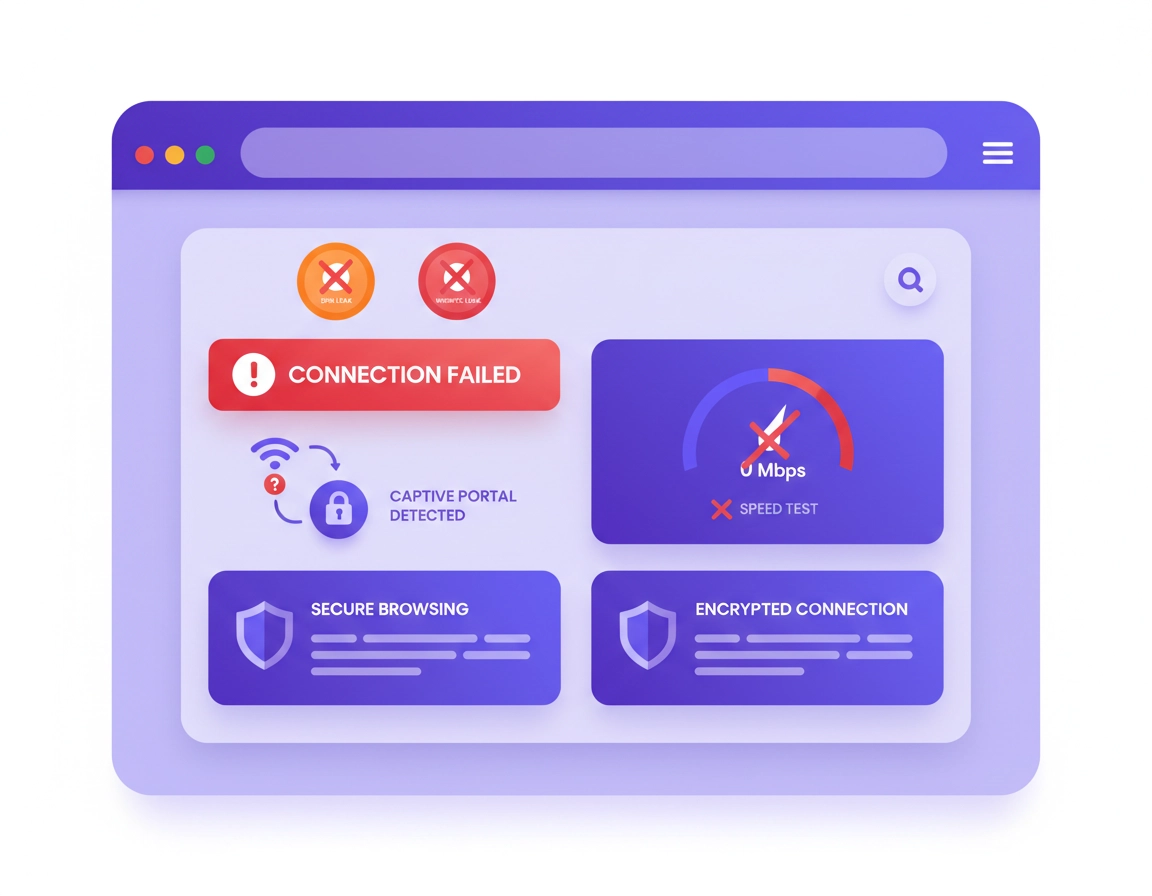
Where Chrome VPN failures actually happen .
The most important troubleshooting question is not “Is the VPN on?” It is “Which layer is failing?”
A VPN extension inside Chrome lives in a much messier environment than a standalone desktop VPN app. It depends on browser permissions, extension state, cookies, service workers, cached sessions, DNS behavior, and the way individual sites react to IP changes. That is why Chrome VPN problems often feel inconsistent. The extension may connect normally, but a banking site still throws a security challenge. Your IP may change, but DNS still resolves through your ISP. Or Chrome may work in Incognito while your normal profile keeps breaking because another extension is intercepting network requests.
In practice, Chrome VPN failures usually happen in one of six places. First, the extension session itself can break: expired login, stale token, corrupted state, or a failed background process. Second, the selected server can be overloaded, blocked, or simply a poor match for the site you are visiting. Third, Chrome’s own environment can get in the way through a damaged profile, persistent site data, or a conflicting extension. Fourth, the underlying network can interfere, especially on public Wi-Fi, hotels, schools, and locked-down workplaces. Fifth, the site you are trying to use may object to the VPN rather than the other way around. Sixth, your connection can be partially working while still leaking DNS or WebRTC data, which gives you a misleading sense of privacy.
Once you understand those layers, troubleshooting becomes much cleaner. You stop guessing. You stop reinstalling Chrome too early. And you stop treating every failure as a provider outage when the real issue might be a captive portal, a cookie created before the location change, or an aggressive security extension running in the same browser profile.
Related reading: Start with Best VPN for Chrome, then clarify the scope difference in VPN Chrome vs Desktop VPN and How VPN Works in Chrome.
Key terms worth understanding before you troubleshoot .
- Browser-only VPN: A VPN or proxy-style extension that mainly protects traffic generated in Chrome rather than the whole device.
- Endpoint reputation: How likely a website is to trust or challenge traffic coming from a particular VPN server range.
- DNS leak: When DNS lookups still go to your ISP or local resolver even though your visible browser IP changed.
- WebRTC leak: When real-time communication features expose local or public network details outside the privacy result you expected.
- Captive portal: A Wi-Fi login page used by airports, hotels, campuses, cafés, and co-working spaces before normal internet access is granted.
- Managed browser: A Chrome installation controlled by school or company policies that can restrict extensions, permissions, or network behavior.
The 8-minute diagnostic pass .
This is the fastest reliable sequence I would use before touching deeper settings. It catches most everyday failures without blowing away your browser profile or forcing you to sign back into everything.
- 1 Check the extension state. Open the VPN extension and make sure it is actually signed in, connected, and showing an assigned location rather than just a stale UI badge.
- 2 Switch servers once. Move from your current server to a nearby city or country. If that fails, try one more server in a different region. One bad endpoint can look like a total product failure.
- 3 Open a clean Incognito window. Allow the VPN extension in Incognito if needed, then test the affected site there with other extensions disabled.
- 4 Separate “all sites” from “one site.” Test one simple site and one problem site. If only the target site fails, you are likely looking at cookies, fraud detection, geolocation mismatch, or endpoint reputation.
- 5 Restart Chrome completely. Close every window, then reopen the browser. This clears a lot of extension-level bad state without wiping your profile.
- 6 Verify privacy, not just connectivity. Check visible IP, then confirm DNS and WebRTC behavior. “Connected” is not the same thing as “private.”
Related: If speed is part of the problem, compare VPN for Chrome Speed Optimization Tips, VPN Chrome Performance Test, and VPN Chrome Speed Comparison.
What a successful result looks like .
- Your browser IP reflects the server you selected
- Normal websites load without stalls, endless reloads, or broken TLS warnings
- The site you care about no longer loops, challenges you repeatedly, or serves the wrong region unexpectedly
- DNS test behavior is consistent with the VPN path, not your ISP path
- WebRTC does not expose an obvious local-network result that defeats your intent
Exact Chrome checks before you blame the VPN .
A lot of weak troubleshooting content says “clear cache and try again.” That is not wrong, but it is incomplete. Chrome gives you several high-value checks that tell you whether the browser itself is the source of the breakage.
1) Open the extension manager and verify the basics .
Go to chrome://extensions/. Confirm the VPN extension is enabled. Check whether you recently pinned or unpinned it, whether it was automatically disabled after an update, and whether Chrome is showing any warning or permission issue for that extension. If the extension offers “Allow in Incognito,” turn that on temporarily for testing. That single step makes clean-session diagnostics much easier.
2) Check site access, not just install status .
Some Chrome extensions are set to run only “on click” or on selected sites. If a VPN or privacy extension is restricted that way, the user interface can look healthy while the site you are testing is never actually routed through the expected behavior. Review the extension’s site access and permissions, especially if Chrome or a policy update changed them recently.
Related: Permission scope matters more than most users realize. See VPN Extension Permissions in Chrome, Chrome Extension Permissions Guide, and Chrome Extension Host Permissions Explained.
3) Test with your normal profile, then with a fresh one .
If the VPN fails in your normal Chrome profile but works in a newly created profile, that is a strong signal that the provider is not the real issue. A damaged profile, sync residue, long-lived cookies, broken extension storage, or stacked privacy tools are much more likely. This is one of the cleanest diagnostic splits you can get.
4) Clear data for the specific site, not your whole browser .
If only one website is failing, clear cookies and site data for that one domain first. That is much smarter than erasing everything. Many VPN-related breakages come from a site seeing old cookies from one geography and new traffic from another. Targeted cleanup preserves the rest of your browser while fixing the highest-probability issue.
5) Check whether Chrome is managed .
On work or school devices, go to chrome://policy/ or check whether Chrome indicates it is managed by your organization. Extension installation rules, network controls, safe browsing enforcement, certificate inspection, or security middleware can all change how a VPN behaves. If the VPN works on a personal device but fails on a managed device, that is rarely random.
6) Compare extension-only behavior with a full VPN app if you have one .
If the site works when the full desktop VPN app is active but fails when only the Chrome extension is active, the issue may be scope, routing mode, or extension limitations rather than the provider itself. That comparison is extremely useful when you need to decide whether Chrome-only protection is enough for your workflow.
Symptom-by-symptom fixes .
The most useful troubleshooting pages match fixes to symptoms. Below are the failure patterns that actually show up in the real world.
The extension will not connect at all .
Start with the boring checks because they are often the right ones: confirm your internet works without the VPN, make sure the extension is still signed in, and close every Chrome window before reopening the browser. Then switch to a different network if possible. School, hotel, and office networks sometimes block authentication endpoints or dislike VPN traffic before the extension has a chance to complete setup. If the extension cannot connect on one network but works on mobile hotspot or home internet, that tells you a lot.
If the product recently updated, sign out of the extension and sign in again. A stale session can survive a browser restart and still fail silently in the background. If none of that works, remove and reinstall just the VPN extension before you touch the rest of Chrome.
The VPN says connected, but sites do not load or stall forever .
This usually means one of three things: the server is unhealthy, DNS is misbehaving, or another extension is fighting for request control. Switch to a nearby server first. Then disable anything that changes browsing behavior: ad blockers, anti-trackers, cookie cleaners, script blockers, “security” extensions, corporate browser agents, or alternate proxy tools. If that clears the problem, your VPN provider was not the real issue. Your browser stack was.
Also test a simple site and the problem site separately. If the simple site works and the target site does not, you are probably dealing with site policy or cookie state rather than a dead connection.
Only one website breaks, loops, or keeps throwing CAPTCHAs .
This is where many users overreact and assume the VPN is unusable. In reality, many websites challenge VPN traffic more aggressively than normal residential traffic. A login loop after switching countries is especially common with email, finance, admin dashboards, ticketing sites, and anything with fraud prevention. Clear cookies for that site only, reconnect to a geographically closer server, then sign in again from a clean state. If you normally access the service from South Africa, jumping to a far-off country in the middle of the same session is asking for friction.
For work portals and banking, consistency usually beats novelty. Pick one endpoint and stay there for that account. Do not rotate countries casually on services that care about identity risk.
Your visible IP changed, but your real network still seems exposed .
That is the classic “connected but not private enough” scenario. The extension may be changing browser IP appearance while DNS resolution or WebRTC behavior still leaks useful information. Run a DNS leak check and a WebRTC check after the VPN is connected. If DNS still points to your ISP or local network, the privacy result is incomplete. If WebRTC exposes unexpected local or public details, your browser-level protection is not aligned with your intent.
Go deeper: VPN Chrome DNS Leak Test Guide, VPN Chrome WebRTC Leak Fix, and VPN Chrome IP Leak Protection.
Chrome becomes slow, laggy, or jittery as soon as the VPN is enabled .
Not every slowdown is a provider problem. Browser overhead matters. If you are running a VPN extension, an ad blocker, a privacy hardener, a grammar extension, a tab manager, and a work security plugin all at once, Chrome may feel awful even if the VPN server is fine. Move to the closest server with acceptable privacy characteristics, close heavy tabs, and disable nonessential extensions during testing. Also compare results with and without battery-saving modes or low-power conditions if you are on a laptop.
The right benchmark is not “Is it slower than no VPN?” because it almost always will be. The useful question is whether the slowdown is proportionate or wildly out of line with the distance, workload, and number of extension layers you are running.
Related performance reads: VPN for Chrome Performance Impact, Chrome Network Latency Fix, Chrome Extension Performance Impact, and VPN for Chrome Battery Usage.
Public Wi-Fi login pages stop appearing .
This is one of the most common travel problems and one of the least explained. The hotel, airport, school, or café network often needs you to complete its captive portal before normal traffic is allowed. If the VPN starts first, the login page may never render properly. Temporarily turn off the VPN, complete the network sign-in, make sure general internet access works, then reconnect the VPN. That sequence solves a huge number of “VPN broke the Wi-Fi” complaints.
The VPN works at home but fails at work or school .
Managed networks and managed browsers change the rules. Extension installation may be restricted, certificate inspection may interfere, specific ports or services may be filtered, and company policy may prefer a full device VPN over a browser extension. If the problem appears only on a work laptop or school Chromebook, look for browser management notices, blocked permissions, or policy-enforced extension behavior before you assume the VPN provider is at fault.
Related business and admin content: Business VPN for Chrome Setup, VPN Chrome Enterprise, VPN for Chrome IT Admin Guide, and VPN for Chrome Policy Enforcement.
Streaming works, but work apps fail — or the reverse .
That usually points to endpoint suitability, not a universal fault. Streaming sites often care about location and server reputation. Enterprise apps often care about login consistency, IP risk scoring, and region sanity. The server that works for one category can be terrible for another. A nearby low-friction endpoint is usually better for work apps, while streaming may push you toward a specific geography that creates more scrutiny elsewhere.
The extension worked yesterday and broke today .
Ask what changed. Chrome update. Extension update. Password change. New security software. New school or office network. A second privacy extension you added last night. This is where comparing your regular profile, Incognito, and a fresh profile becomes powerful. It quickly shows whether you are dealing with local browser state, site behavior, or a broader provider issue.
Advanced diagnosis when the obvious fixes fail .
If you are still stuck after the clean checks, stop thinking like a casual user and start thinking like a traffic investigator. You are trying to answer a precise question: does the failure follow the browser profile, the extension, the endpoint, the network, or the destination site?
Use a profile split to isolate Chrome-state problems .
Create a fresh Chrome profile and install only the VPN extension. Do not sign into Chrome Sync yet. Do not add your normal tool stack. Now test the same site and the same server. If everything works here, your normal profile is contaminated by stale data, conflicting extensions, or sync baggage. That is not glamorous advice, but it is among the most decisive tests you can run.
Use a server split to isolate endpoint problems .
Test the same browser profile against three server types: nearest city, same-country alternative, and a different country. If only one category breaks, you are likely dealing with server quality or site-specific detection rather than a browser failure. This is particularly helpful when the site gives odd results like endless CAPTCHA prompts, region mismatch, or unstable logins.
Use a network split to isolate local restrictions .
Compare home Wi-Fi, mobile hotspot, and the problem network. If the VPN fails only on one network, the issue may be filtering, captive portal behavior, DNS interception, or employer/school restrictions. That distinction saves a lot of wasted time because no amount of Chrome cleanup fixes a network that simply does not want your VPN traffic to succeed.
Decide whether the extension model is the wrong tool .
Some workflows are simply better served by a full VPN app. If you need consistent protection across multiple browsers, desktop apps, video calls, research tools, uploaders, or remote admin utilities, a browser-only model can feel fragile because it was never meant to cover the whole environment. If you keep discovering edge cases where Chrome behaves but the rest of your machine does not, step back and question the model, not just the settings.
| Diagnostic split | If it works | If it fails | Likely conclusion |
|---|---|---|---|
| Fresh Chrome profile | Normal browsing restored | Still broken | Profile corruption or extension conflict if it works; provider, endpoint, or network problem if it fails |
| Different VPN server | Site loads normally | All servers fail | Endpoint quality or site-specific blocking if one works; deeper browser/network issue if none do |
| Different network | VPN connects fine | Fails everywhere | Local filtering if only one network breaks; broader provider or browser issue if every network fails |
| Full VPN app instead of extension | Workflow stabilizes | Still unstable | Browser-extension model was the weak point if app works; destination or network issue if both fail |
Related deep-dive pages: VPN Protocols for Chrome Compared, VPN Encryption Explained for Chrome, VPN vs Private DNS for Chrome, and VPN vs Built-in Chrome Security.
The safest reset path .
When people get annoyed, they jump straight to “reset everything.” That is usually the wrong move. A safer reset path preserves evidence, reduces disruption, and gives you a better chance of identifying the real cause.
- Reset the VPN session first. Sign out of the extension, close Chrome completely, reopen, then sign back in.
- Reinstall the extension only. Remove the VPN extension and install it fresh before touching the rest of your browser.
- Test in a new Chrome profile. If the VPN works there, keep your old profile intact while you migrate only what you need.
- Clear site data only for affected domains. Do not wipe every site unless the problem is genuinely broad.
- Use a full browser reset only as a last resort. Reserve it for cases where multiple extensions misbehave, Chrome policies are inconsistent, or profile corruption is obvious and widespread.
This sequence is slower emotionally but faster technically. You keep signal instead of destroying it. And when you are dealing with revenue-sensitive work, school portals, or long-lived business sessions, preserving your browser context matters.
FAQ .
-
helpWhy does my Chrome VPN say connected when websites still fail?Because the extension badge only reflects its own connection state, not the full browsing outcome. A server can be unhealthy, DNS can be leaking, another extension can be intercepting requests, or the destination site can be rejecting the VPN endpoint. That is why a clean Incognito test and a leak check matter more than the green status indicator.
-
helpIs a VPN extension for Chrome enough for serious privacy?It can be enough for some browser-only use cases, but it is not the same as a full-device VPN. If you need system-wide coverage, protection outside Chrome, or a more uniform network posture across apps, a desktop VPN app is usually the stronger tool.
-
helpWhat is the single best test for separating Chrome problems from provider problems?Create a fresh Chrome profile, install only the VPN extension, and retry the exact same site and server. If the problem disappears, your original profile or extension stack is the main suspect.
-
helpWhy do work portals and banking sites fail more often than normal sites?Those sites use stricter risk systems. They notice sudden country changes, unusual IP reputation, odd cookie history, and repeated authentication attempts. The fix is often consistency, not brute force: use one stable nearby endpoint and sign in from a clean site session.
-
helpShould I run multiple privacy extensions with my Chrome VPN?Only if you have tested the combination and understand what each tool is doing. In practice, too many overlapping request-control tools create more breakage than benefit. A smaller, well-understood browser stack is often both faster and safer.
Sources & further reading .
Editorial note: This guide focuses on troubleshooting logic, privacy tradeoffs, and browser-specific failure patterns rather than promoting a single provider. The goal is to help readers identify whether the fault lives in the extension, Chrome profile, selected endpoint, local network, or destination site.