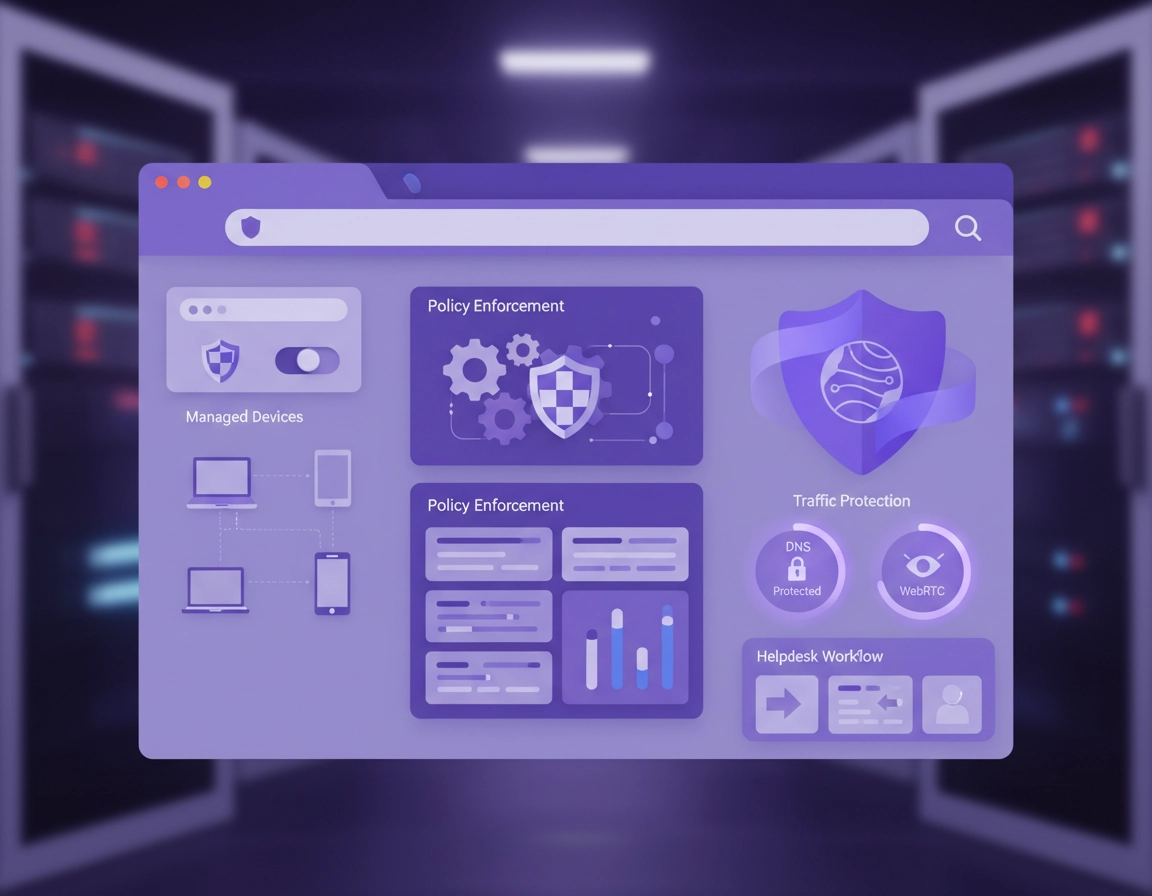
What a Chrome VPN admin guide should actually solve .
A VPN for Chrome is not automatically the same thing as a full endpoint VPN, and that difference matters a lot in managed environments.
When an employee says they “need a VPN in Chrome,” they usually mean one of three different things. They may need encrypted browser traffic while working on public Wi-Fi. They may need location shifting or region access for a browser-based workflow. Or they may simply want privacy from local networks and ISPs while using Chrome for normal web activity. For an IT admin, those are not identical requirements. The first is a security posture question, the second is often an access and policy question, and the third may overlap with privacy, compliance, and support boundaries.
That is why a proper VPN for Chrome IT admin guide should not begin with “install this extension.” It should begin with scoping. Are you protecting browser traffic only, or all device traffic? Are users allowed to self-install browser extensions, or does your team manage them centrally? Are you operating in a regulated environment where logging, access control, and configuration consistency matter more than convenience? Do you need browser-level controls for contractors and bring-your-own-device users, or a deeper zero-trust model for managed endpoints? Those questions decide whether a Chrome VPN extension is a helpful layer, a temporary workaround, or the wrong tool.
Chrome adds another layer of complexity because the browser itself is a managed platform. Extension permissions, install sources, pinned extension behavior, site permissions, safe browsing settings, profile sync, and browser reporting all influence the real-world risk of VPN use in Chrome. A sloppy deployment can create the illusion of security while leaving WebRTC exposure, DNS behavior, unmanaged profiles, or sensitive SaaS access untouched. A well-run deployment, by contrast, gives users a consistent browser experience while giving admins repeatable controls and lower support noise.
In practice, the best admin outcome is rarely “maximum privacy at all times.” The best outcome is usually a controlled baseline: known extension, known permissions, known login method, known support path, clear documentation, and a defined escalation route when browser-only tunneling is not enough. That is the mindset this page follows.
Related: If you need a broader buyer-oriented overview before deployment planning, start with Best VPN for Chrome, then compare this guide with VPN Chrome vs Desktop VPN and VPN vs Zero Trust Browser Security Explained.
Key terms IT admins should align on .
- Browser VPN extension: a Chrome add-on that typically routes browser traffic, not always all device traffic.
- Full-device VPN: an OS-level client that protects traffic from Chrome and other applications on the endpoint.
- Extension permissions: the browser access an extension requests, such as reading site data, changing settings, or connecting to remote services.
- Managed browser: Chrome deployed with centralized policies for installs, extensions, reporting, and user settings.
- WebRTC leak: a browser behavior that can expose network details unless mitigated by the VPN design or browser settings.
- DNS leak: a condition where domain lookups bypass the expected tunnel path.
- Split tunneling: routing only selected traffic through the VPN, which can help performance but complicates security review.
- Support boundary: a clear statement of what the IT team supports, what the vendor supports, and when users must escalate.
Remote browser-based workflows, contractor access, limited-risk location needs, secure browsing on untrusted networks, and lightweight deployment where a browser-first security model is acceptable.
Strict compliance environments, non-browser applications carrying sensitive data, corporate traffic routing requirements, or cases where you need device-wide protection and consistent network telemetry.
Before you start: scoping and fast checks .
Before you deploy anything, decide whether this is a security control, a user convenience feature, or a business-access requirement. Those three drivers lead to very different admin choices. A security control demands policy consistency, reporting, permissions review, and documented exceptions. A convenience feature may tolerate more flexibility. A business-access requirement may require region pinning, support for specific SaaS platforms, and a verified workaround for cookie-heavy or IP-sensitive sites.
Most rollout failures come from skipping this stage. Teams often approve a VPN extension because it is easy to install, only to discover later that finance tools reject the new IP range, customer support dashboards trigger suspicious login alerts, or conferencing tools behave strangely because traffic is only partly protected. Do the small planning work first and you will avoid the expensive cleanup later.
Related: if your rollout also includes Chrome governance, read Chrome Enterprise Guide, Chrome Enterprise Management, and Chrome Enterprise Extension Management.
Fast checks before rollout .
- Confirm your traffic scope: is protecting Chrome traffic enough, or do you need device-wide protection for email clients, sync tools, desktop apps, and background services?
- Document the user groups: employees, contractors, support agents, finance staff, developers, or executives may need different policies and different bypass rules.
- Review extension permissions: understand what the VPN extension requests at install and after updates. Permission creep is a real governance issue.
- Define the identity path: decide whether users sign in with SSO, business email, or vendor credentials. Poor identity design creates ticket volume immediately.
- Test business-critical apps: check SSO portals, banking tools, CRM, support desks, video platforms, and internal dashboards through the VPN path you plan to support.
- Decide your pinning policy: if the VPN is business-required, pin it in Chrome so users do not lose it among other extensions.
- Choose a fail-safe: define what users should do when the VPN breaks. “Try turning it off” is not a support strategy.
- Classify the risk level: do not give the same VPN guidance to marketing research staff and HR systems administrators without reviewing exposure differences.
Questions to settle with security and operations .
- Will the approved VPN extension be force-installed or merely recommended?
- Will users be allowed to install other VPN or proxy extensions?
- Do you need region control for certain business tools?
- Do you want all users on one default gateway or segmented by role or geography?
- How will you handle Chrome profiles that are not signed into the managed business account?
- What is the approved response when users report slower browsing, broken captchas, or blocked SaaS sign-ins?
Related: you may also want VPN Extension Permissions in Chrome, VPN for Chrome Policy Enforcement, and VPN for Chrome Device Management.
Step-by-step admin rollout framework .
The cleanest way to deploy VPN for Chrome in a business setting is to treat it as a governed browser service. That means you choose one approved extension or browser-compatible VPN workflow, assign a deployment method, test it against real business traffic, and document the exact support experience users should expect.
- 1 Select the correct architecture. Decide whether users will receive a Chrome VPN extension, a full-device VPN client, or a layered approach. Browser-only VPN is often enough for lower-risk web workflows, but not for full endpoint protection.
- 2 Approve one supported option. Publish a single approved VPN choice for Chrome. This avoids split support paths, inconsistent permissions, and shadow IT.
- 3 Review permissions and update behavior. Check what the extension can read, change, or connect to. Review what happens on extension updates and whether new permissions trigger user prompts.
- 4 Deploy centrally. Use your managed Chrome setup to install or recommend the extension, define whether users can remove it, and pin it if it is required for daily workflow.
- 5 Define login and identity flow. Decide whether sign-in happens through SSO, vendor auth, or a business account invite. Test expired sessions, password resets, MFA prompts, and first-run experience.
- 6 Test real business scenarios. Validate region-sensitive apps, Google Workspace, CRM, support consoles, collaboration tools, finance portals, and conferencing workflows while the VPN is active.
- 7 Write user instructions. Include when to turn the VPN on, when not to use it, what the icon states mean, how to confirm connection, and where to escalate performance or login problems.
- 8 Monitor and refine. Track helpdesk tickets, app breakage patterns, extension conflicts, and user complaints about speed. Tighten policy after you see real behavior, not before.
What success looks like: users can launch Chrome, see the approved VPN control, sign in without confusion, reach their required sites consistently, and follow one documented path when something fails.
Related: for adjacent rollout topics, see How to Install VPN Extension in Chrome, How to Use VPN with Chrome Browser, VPN for Chrome Corporate Security Setup, and VPN for Chrome Remote Work Security.
Recommended rollout phases .
Phase 1: Pilot with high-feedback users
Start with a controlled pilot. Choose users who work heavily in the browser and who can describe problems clearly. This gives you usable feedback on login friction, pinned extension visibility, session persistence, DNS behavior, and site compatibility. Avoid running a first pilot with executives or your most support-intensive teams.
Phase 2: Policy hardening
After the pilot, decide what to lock down. You may need to block other VPN or proxy extensions, limit unapproved extension installs, or enforce browser sign-in before the VPN becomes available. This is also the point where you decide whether the extension can be user-removable or must remain installed.
Phase 3: Production rollout
Roll out by role, geography, or business unit. Publish short internal documentation and one support escalation tree. The more steps users have to remember, the more tickets you create. Keep production guidance simple: when to connect, how to confirm, what not to do, and who to contact.
Phase 4: Ongoing governance
Monitor extension updates, permission changes, support tickets, suspicious app behavior, and speed complaints. Browser security is not a one-time deploy. VPN extensions evolve, Chrome changes, and business apps sometimes react differently to new IP ranges or tunneling logic.
Common variations by environment .
- Windows fleets: often fit best with tighter device management and a documented fallback to full-device VPN for sensitive teams.
- Mac-heavy teams: test login prompts, permissions prompts, and certificate interactions carefully for browser-dependent enterprise apps.
- BYOD contractors: browser-layer VPN can be attractive when you cannot fully govern the endpoint, but support boundaries must be very explicit.
- Schools and labs: browser management and extension allowlists matter more than feature richness.
- Remote-first businesses: treat public Wi-Fi guidance, browser sign-in discipline, and phishing-resistant identity flows as part of the deployment.
Advanced policy, security, and architecture decisions .
This is where high-value admin work happens. Installing a VPN extension in Chrome is easy. Deciding whether it meaningfully improves security, reduces user risk, and fits your support model is the hard part. Advanced browser security governance is mostly about understanding boundaries: what the tool covers, what it does not, and where users can accidentally step outside the safe path.
Related: for broader security architecture context, compare VPN for Chrome Zero Trust Security, VPN vs Built-in Chrome Security, VPN vs Browser Extension Security Tools, and Chrome Enterprise Zero Trust.
1) Browser-only protection versus endpoint protection .
A Chrome VPN extension usually protects traffic originating inside the browser session. That can be enough for research workflows, secure web browsing on public networks, and contractor access to web applications. It is not enough if your security model assumes that traffic from desktop sync clients, messaging apps, local services, or background processes also needs protection. Admins should resist pretending these are equivalent. They are not.
A useful rule is this: if your data sensitivity is driven by the browser itself, a Chrome VPN can be viable. If your risk model is broader than the browser, a full-device VPN or a more mature zero-trust architecture will often make more sense.
2) Extension permissions and trust model .
VPN extensions are still extensions. They live inside Chrome’s extension model and deserve the same review you would give any browser add-on. Ask what they can read, what they can modify, whether they inject scripts, whether they request broad site access, and what telemetry they collect. A privacy-friendly marketing page is not a substitute for admin diligence.
For IT teams, the key point is not only whether the extension is malicious. It is whether the permissions are acceptable for your environment and whether the vendor’s update cadence could create new prompts or surprise behavior. A permission set that is acceptable in a small startup may be inappropriate in a regulated or high-assurance environment.
3) WebRTC, DNS, and browser leak considerations .
One of the most common admin misunderstandings is assuming the “connected” badge means every privacy concern is solved. In reality, browser behavior matters. WebRTC can expose network information in some scenarios, DNS routing may not behave the way less experienced users assume, and split tunneling can create confusing results when only some traffic uses the secure path. Admin documentation should explicitly mention this. Otherwise, users form false confidence and escalate only when a site or service breaks.
That is why leak testing and validation matter. Even if you do not run a deep lab process, you should at least validate browser behavior against your supported business workflows and publish a plain-English statement of what the VPN protects.
4) Policy enforcement and extension sprawl .
If users can install multiple VPN or proxy extensions, your environment becomes hard to reason about. One user may stack a privacy proxy, ad blocker, and VPN extension. Another may use only the approved VPN. Another may disable the VPN when it slows their workflow. Suddenly, support tickets become impossible to triage because every user path is different. This is why extension sprawl is not a minor admin annoyance; it is an operational risk.
Enforce a narrow, documented browser extension policy. Allow what the business needs, block or discourage redundant network-layer extensions, and keep the user experience consistent enough that helpdesk staff can diagnose issues without guesswork.
5) Performance and user experience tradeoffs .
Users will notice latency before they appreciate security architecture. That is simply reality. So part of your admin guide should define what “normal” feels like. Are captchas more common? Will certain SaaS tools ask for re-authentication? Are some geographies faster than others? Should support agents stay on a regional node close to their CRM platform? Performance complaints are not just noise. They are one of the most reliable early warning signs that a rollout has poor defaults.
The most effective admin teams choose defaults that match the business workload, not the vendor marketing page. A slightly less private but locally consistent node may be far better for user success than an aggressively locked-down configuration that breaks browser tasks all day.
When you should change settings aggressively .
- When users are accessing sensitive business web apps on untrusted networks
- When contractor or BYOD access requires browser-first containment and clear support rules
- When extension governance is already mature and you can actually enforce a standard browser stack
- When the organization needs a controlled privacy layer for browser traffic without a full endpoint overhaul
When you should not rely on browser VPN alone .
- When compliance or audit expectations require stronger evidence of endpoint-wide protection
- When line-of-business apps live outside the browser
- When you need richer network telemetry, consistent egress control, or broader security policy enforcement
- When your user base is likely to bypass or misconfigure browser-only tools without strong management
Common alternatives IT admins compare .
- Browser VPN extension vs full desktop VPN client
- Managed Chrome VPN deployment vs user self-install
- VPN for Chrome vs private DNS or secure DNS configuration
- VPN for Chrome vs zero-trust browser or enterprise browser stack
- VPN extension convenience vs stronger endpoint security governance
Related: compare VPN vs Private DNS for Chrome, VPN vs Proxy for Chrome Differences, VPN vs ISP Protection for Chrome, and Firewall Settings for Chrome Users.
Privacy and security notes for managed environments .
Browser VPN governance is partly about privacy and partly about honesty. A business browser can be more private on hostile networks while still being a managed environment with reporting, extension controls, account policies, and security oversight. Those ideas are not contradictory. But they do need to be explained clearly to users.
Primary impact: browsing path, extension trust, web app compatibility, user support workload, and perceived privacy guarantees.
Biggest admin mistake: overstating what a Chrome VPN extension protects.
Related: for adjacent browser security controls, see Chrome Secure Connection Settings, Chrome Secure DNS Setup, Chrome Network Privacy Settings, and Chrome Zero Trust Browser Setup.
Recommended baseline settings by admin goal .
- Balanced business baseline: one approved VPN extension, centrally deployed, pinned for visibility, extension allowlist enforced, documented user login flow, and leak-awareness guidance.
- Higher assurance baseline: same as above plus stricter extension controls, defined no-bypass workflows for sensitive users, tighter browser management, and fallback to full-device VPN where needed.
- Compatibility-first baseline: limited deployment to specific teams or tasks, default local or regional nodes, narrower support promises, and fast exception handling for critical SaaS breakage.
Recommended settings by goal .
| Goal | Recommended admin approach | Tradeoff | Best for |
|---|---|---|---|
| Balanced | Managed VPN extension, extension allowlist, pinned icon, documented sign-in, limited user choice | Some flexibility lost | Most businesses using web-first workflows |
| Maximum control | Strict browser governance, no competing VPN/proxy extensions, stronger escalation to endpoint VPN or zero-trust tools | Higher setup effort and more change management | Security-conscious or regulated teams |
| Compatibility | Selective deployment, region-aware defaults, support for app exceptions, clear fallback steps | Less standardized security posture | Teams with fragile SaaS or finance workflows |
Security notes admins should state explicitly .
- A browser VPN extension does not guarantee protection for non-browser apps.
- Users should not install overlapping privacy, proxy, or VPN extensions unless explicitly approved.
- Critical business apps may behave differently when traffic exits from a different region or shared VPN IP.
- Support teams need a standard way to confirm whether the VPN is connected, whether Chrome is managed, and whether the user is in the correct browser profile.
- Permissions review is ongoing, not one-time. Extension updates deserve governance attention.
Troubleshooting and support playbook .
Related: for deeper issue-specific articles, see VPN for Chrome Troubleshooting Guide, VPN for Chrome Connection Issues Fix, VPN for Chrome Speed Optimization Tips, VPN Chrome DNS Leak Test Guide, and VPN Chrome WebRTC Leak Fix.
If users say “the VPN is on but the site still knows my real location” .
Do not jump straight to blaming the vendor. First identify what the user actually means by “location.” They may be seeing IP-based location, browser permission-based location, or account-based geo signals from a website they are logged into. Chrome location permissions, account history, browser cache, and app-side signals can all produce confusing results. Verify the browser profile, site permission state, and whether the issue is IP-related or application-related before escalating.
If business apps break or keep asking for MFA .
This usually points to changed egress IP, unusual session patterns, geo mismatch, or stricter app fraud controls. Your helpdesk script should include node change testing, temporary bypass guidance if allowed, and confirmation of whether the app supports the VPN path you selected. Finance, payroll, banking, and admin consoles often react more aggressively than general SaaS tools.
If browsing becomes noticeably slower .
Check whether the user is on an overloaded or distant location, stacking multiple privacy tools, or running on weak home connectivity. Browser VPN performance complaints are often caused by compounding factors: extension conflicts, security filtering, poor local Wi-Fi, or high-latency exit locations. Build a standard checklist so support staff can separate real VPN issues from general connectivity issues.
If the extension icon disappears or users stop using it .
This is usually a visibility and policy problem, not a technical one. Pin the extension when appropriate, keep the approved browser stack simple, and explain what “connected” looks like. If the VPN is business-required, a hidden icon and optional behavior are operationally weak defaults.
If you suspect extension conflicts or browser hijacking .
Review the installed extension set first. Multiple networking, ad-blocking, privacy, or script-modifying extensions can interfere with each other and produce unreliable results. In rare cases, a suspicious extension or compromised browser profile can imitate a VPN problem. That is why VPN support and extension security governance should never live in separate silos.
Related: if the problem looks malicious rather than operational, check Chrome Extension Security Check, Chrome Remove Malicious Extensions, Chrome Browser Hijacker Removal, and Chrome Security Incident Response Guide.
If you need to reset safely .
Do not instruct users to blindly wipe everything. First confirm whether the issue is tied to the managed profile, extension state, cached sessions, or the vendor account. Then reset the smallest thing that can solve the problem: sign out and back in, reload the extension, switch node, test a clean managed profile, or temporarily disable only the conflicting extension. Full browser reset should be a controlled escalation, not a first-line recommendation.
Minimal helpdesk triage checklist .
- Is Chrome running in the correct managed profile?
- Is the approved VPN extension installed, visible, and signed in?
- Is the user on the expected region or node?
- Are other proxy, ad-blocking, or privacy extensions installed?
- Does the issue affect one site, many sites, or all browsing?
- Does the issue disappear when the VPN is off, and is turning it off allowed?
- Does the problem require escalation to endpoint VPN or security engineering?
FAQ .
-
helpShould IT admins use a Chrome VPN extension or a full desktop VPN?It depends on the scope of protection you need. A Chrome VPN extension can work well for browser-centric workflows and lighter deployment models, especially when users mainly work inside web apps. A full desktop VPN is usually the better fit when your security requirements extend beyond Chrome or when you need more consistent endpoint-wide control.
-
helpCan users install their own VPN extensions in a managed environment?They can in loosely governed environments, but that is usually a bad idea for enterprise support and security consistency. User-selected VPN and proxy extensions create unpredictable permissions, conflicting behavior, and harder troubleshooting. Most IT teams get better results by approving one supported option and controlling the extension stack.
-
helpDoes a VPN for Chrome protect everything on the device?Usually not. A Chrome VPN extension generally focuses on browser traffic, not every application or service running on the endpoint. That is why admins should explain the protection boundary clearly and avoid describing browser-only VPN as full-device coverage.
-
helpWhat causes most support tickets after rollout?The biggest causes are poor scoping, unmanaged extension sprawl, confusing sign-in flow, broken SaaS caused by changed IP location, and unrealistic user expectations about what the VPN actually does. Clean documentation, one supported extension, and a defined fallback path reduce most of that noise.
-
helpIs a Chrome VPN enough for zero-trust security?No, not by itself. A browser VPN can be one useful layer, but zero-trust security typically also involves identity controls, device posture, access rules, logging, segmentation, and stronger policy enforcement. Treat the VPN as one control inside a broader access strategy, not the whole strategy.
Sources & further reading .
- Google Admin Help: Start managing Chrome browser
- Google Admin Help: Set up Chrome Enterprise Core
- Google Admin Help: Set Chrome policies for users or browsers
- Google Admin Help: Set Chrome app and extension policies (Windows)
- Google Admin Help: Chrome app and extension permissions
- Chrome Web Store Help: Permissions requested by apps and extensions
- Chrome Help: Change site settings permissions on computer
- Chrome Enterprise: Secure enterprise browsing overview
Editorial note: this guide focuses on deployment logic, browser governance, and operational tradeoffs. Vendor-specific feature sets, pricing, and performance may change, so admins should validate current product behavior before standardizing on a service.