What this is (and why it matters) .
If you’ve ever asked “Do I need a VPN app if I already have a Chrome VPN extension?”, this page is the answer.
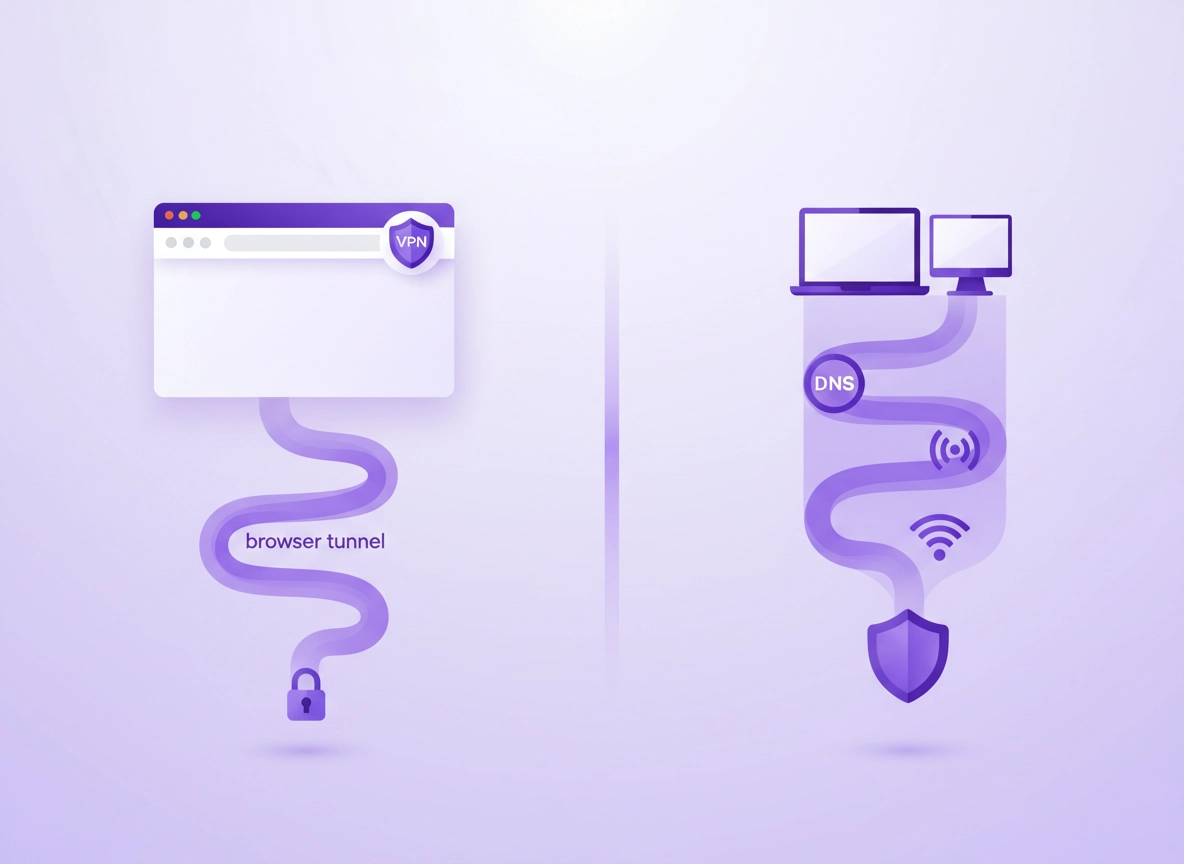
“VPN in Chrome” can mean two very different things: (1) a Chrome VPN extension that runs inside your browser, and (2) a desktop VPN application that runs at the operating-system level. They both aim to hide your IP address and encrypt traffic over untrusted networks, but they don’t protect the same traffic, they don’t fail the same way, and they don’t offer the same controls.
The big practical difference is scope: a typical Chrome VPN extension protects only the traffic the extension can proxy, while a desktop VPN can route most device traffic through a secure tunnel—including background services, other browsers, and many non-browser apps. That scope matters when you’re doing high-risk work: logging into banking, handling customer data, using workplace SaaS tools, traveling, or working from public Wi-Fi.
The second difference is how failures look. VPN safety isn’t just about encryption when it works; it’s about what happens when the tunnel drops. Desktop VPNs can enforce “fail closed” behavior with a kill switch and system-level DNS controls. Browser extensions can be safe, but they’re often easier to bypass accidentally (another app leaks, a system DNS query leaks, WebRTC leaks, or a “split-tunnel” behavior happens without you noticing).
Related: If you’re new to this cluster, start here: Best VPN for Chrome. If you’re comparing VPN to other tools, see VPN vs Proxy for Chrome.
Key terms (quick definitions) .
- VPN extension: A Chrome add-on that usually proxies browser requests through VPN provider servers; coverage depends on the extension’s design and permissions.
- Desktop VPN: An OS-level VPN client that routes traffic at the network interface level (often protecting all apps), typically with stronger fail-safe controls.
- DNS leak: When your device still asks your ISP (or network) for DNS even though your web traffic is tunneled—revealing the domains you visit.
- WebRTC leak: When real IP details can be exposed via WebRTC networking in browsers unless mitigated (more common when using browser-only solutions).
- Kill switch: A control that blocks internet access if the VPN disconnects so you don’t silently fall back to your real connection.
- Split tunneling: A setup where only some traffic goes through the VPN and other traffic goes out normally (useful, but it can surprise you).
Before you start (fast checks) .
Before you pick “extension vs desktop,” do these quick checks. They prevent 80% of the “my VPN is on but something still feels off” situations. Keep this section bookmarked—these are the sanity checks you repeat whenever you change VPN settings, switch networks, or add new extensions.
Related: If you’re dealing with speed and stability questions while testing, see VPN Chrome speed comparison and VPN for Chrome performance impact.
- Check 1 (scope): Are you trying to protect only Chrome, or everything (Zoom/Teams, email client, cloud sync, background apps)? If it’s “everything,” a desktop VPN is usually the right base layer.
- Check 2 (network risk): Are you on public Wi-Fi, hotel Wi-Fi, airport Wi-Fi, or a shared router you don’t control? Prefer desktop VPN + kill switch.
- Check 3 (work constraints): Is your device managed by IT (MDM, policies, corporate VPN requirements)? You may need enterprise configuration: VPN Chrome enterprise.
- Check 4 (leak risk): If you use a browser extension, plan for leak mitigation: WebRTC leak fix and DNS leak testing.
- Check 5 (threat model): If your main goal is “stop tracking,” a VPN helps, but it’s not the whole story. Combine with browser privacy settings: Chrome privacy settings.
Step-by-step: choose the right option .
Use this as a decision flow. You’ll end with a recommendation (extension, desktop app, or both), plus the “minimum safe settings” to avoid common leaks. If you want a broader roundup after this, see Chrome VPN extension comparison.
- 1 Decide your scope: If you need to protect more than Chrome (mail apps, background sync, other browsers, dev tools, torrent clients, update services), choose a desktop VPN as your baseline.
- 2 Decide your failure tolerance: If “VPN dropping for 20 seconds” would be a problem (banking, client work, sensitive logins), choose a desktop VPN with a kill switch: VPN with kill switch (what to look for).
- 3 Decide your convenience needs: If you want quick “per-tab / per-site” switching (work vs personal tabs, testing geo locations, temporary privacy), add a Chrome VPN extension—but do it as a layer, not a replacement, when risk is high.
- 4 Confirm leak protection: Run a DNS leak check and WebRTC leak check. If you’re using extension-only, this step is mandatory: DNS leak test guide · WebRTC leak fix.
- 5 Lock in your “default safe mode”: For desktop VPN: turn on kill switch + “use VPN DNS” + auto-connect on untrusted networks. For Chrome extension: restrict permissions, avoid “read and change all data” unless needed, and review what sites it can access.
- 6 Decide if you need split tunneling: If you must keep some traffic local (printers, LAN dev tools, corporate resources), use split tunneling carefully: Split tunneling (how to use it safely).
What “success” looks like: Your public IP changes to the VPN location, DNS queries resolve via the VPN provider (or a trusted encrypted DNS path), and when the VPN disconnects, your device does not silently fall back to your real connection (kill switch works).
Related: For “browser-only privacy,” also review Chrome DNS over HTTPS settings and Chrome tracking protection.
Common variations .
- Windows: Desktop VPNs often integrate deeper (driver/filter layer). Use kill switch + DNS leak protection; watch for antivirus “web shield” conflicts.
- macOS: Some VPNs use system network extensions; check per-app rules if you rely on split tunneling or corporate VPN coexistence.
- ChromeOS: Many users rely on Android VPN apps or built-in VPN settings. Extensions can help, but device-level coverage may differ by device policy.
- Android/iPhone: “VPN extension” usually isn’t the same concept on mobile—use the VPN app (OS-level) when you need real device coverage.
Extension vs Desktop VPN: real-world scenarios .
A good rule: if your risk is “mild” (basic privacy while browsing) an extension can be enough. If your risk is “high” (public Wi-Fi + logins + money + work accounts) a desktop VPN is the safer base layer. Here’s how that plays out in common situations.
| Scenario | Best default | Why | What to watch |
|---|---|---|---|
| Public Wi-Fi (airport, café) | Desktop VPN | Protects all apps + DNS; kill switch can prevent silent fallback | Captive portal sign-in; switch VPN on after portal approval |
| Quick “browse privately” session | VPN extension | Fast on/off without changing system routing | WebRTC + DNS leaks; extension permissions |
| Streaming / geo tests | Depends | Sometimes browser-only is enough; sometimes apps require device routing | Service blocks, IPv6 handling, DNS location mismatch |
| Online banking | Desktop VPN + verified leaks | Reduces risk of background leaks and enforces fail closed | Some banks flag unusual geos; choose consistent locations |
| Remote work + SaaS tools | Desktop VPN (or enterprise VPN/Zero Trust) | Protects more than Chrome; better compliance and device posture patterns | Corporate policies; use IT-approved tools |
Advanced settings (power users) .
This section is where most “serious” VPN benefits live: protocol choice, DNS routing, kill switch behavior, split tunneling, and policy controls. If you’re comparing performance and protocols specifically, see: VPN protocols compared and VPN encryption explained.
Related (business/IT): If you manage devices, start here: VPN for Chrome IT admin guide and VPN for Chrome device management.
1) Coverage: what actually goes through the tunnel? .
The most common misunderstanding is assuming “VPN = everything is protected.” In reality, an extension can be implemented as a browser-level proxy. That can mean: only HTTP/HTTPS requests Chrome makes (and only for that profile), while other network traffic still uses the system’s normal interface. A desktop VPN generally hooks into the OS networking layer, so it can route most traffic through the tunnel.
Practical implication: if you use an extension-only VPN, it’s possible for: your email client, cloud sync, messaging apps, operating system updates, telemetry, or another browser to communicate outside the tunnel. If your goal is “reduce exposure on a hostile network,” this is why desktop VPNs win.
2) Kill switch behavior (the “don’t betray me” setting) .
A kill switch isn’t a luxury feature; it’s what prevents silent fallback to your real IP when the tunnel drops. Desktop VPNs can block traffic at the system firewall/filter layer. Extension VPNs can sometimes “stop proxying,” but they don’t always prevent other system traffic from going out normally.
- When you should enable it: Public Wi-Fi, travel, sensitive accounts, remote work, any time you’d be unhappy about a brief real-IP exposure.
- When you might disable it temporarily: Captive portals, debugging connection issues, or when you must access a local printer/LAN resource.
Related: If kill switches and “always on” behavior matter, use: VPN kill switch guide.
3) DNS handling (where privacy often fails) .
DNS is “which sites are you asking for?” Even if your web traffic is encrypted, DNS can reveal the domains you visit. A strong VPN setup routes DNS through the tunnel (or uses encrypted DNS with consistent resolver behavior). Extension VPNs vary: some route DNS properly, others rely on the system resolver, and some produce mixed results depending on the platform.
If you care about privacy, treat DNS as a first-class setting: run a leak test, then decide whether to use VPN DNS, encrypted DNS, or both. In Chrome, you can also tune Secure DNS: Chrome secure DNS setup.
Do this next: Use the checklist in VPN Chrome DNS leak test guide.
4) WebRTC leaks (Chrome-specific “gotcha”) .
WebRTC is used for real-time communication (video calls, voice, browser-based collaboration). In some configurations, WebRTC can reveal IP-related details. That doesn’t automatically mean you’re “exposed,” but it’s common enough that it’s worth addressing—especially if you rely on extension-only VPN.
Mitigation usually involves a combination of VPN settings, Chrome settings, and (sometimes) an additional privacy extension. Start here: VPN Chrome WebRTC leak fix.
5) Split tunneling (useful, but be intentional) .
Split tunneling is perfect when you need a VPN for browsing but must keep certain services local (LAN printer, dev environment, corporate intranet). The risk is accidental “partial protection”: you assume you’re protected, but a key site/app is actually excluded. When you enable split tunneling, document your rules and test them.
Related: Split tunneling guide: VPN for Chrome with split tunneling.
Common alternatives users compare .
- VPN vs proxy for Chrome (scope and trust are not the same)
- VPN vs private DNS (DNS privacy vs full tunnel)
- VPN vs Tor (different threat models)
- VPN vs ISP protection (what your ISP can still see)
Privacy & security notes (leaks, logging, and trust) .
A VPN changes who you trust. Without a VPN, your ISP and local network can see a lot of metadata about where you connect. With a VPN, you reduce what the local network/ISP can see—but you increase how much your VPN provider can observe. That’s why the most important “security feature” isn’t a buzzword; it’s trust + transparency + predictable behavior.
Impact: Affects IP exposure, DNS metadata, network routing, and “who can observe traffic patterns.” The wrong VPN (or misconfigured setup) can create a false sense of security.
Related: Want a privacy baseline beyond VPNs? Start with Chrome privacy settings and how to stop Chrome tracking.
What a VPN does and does not protect .
- Protects: Data in transit between your device and the VPN server (against local network snooping), and typically hides your IP from visited sites.
- Does not automatically protect: Tracking cookies, browser fingerprinting, malicious extensions, phishing, or logging into compromised accounts.
- Does not guarantee anonymity: Your accounts, browser fingerprint, and behavior patterns can still identify you unless you harden the browser.
If “tracking” is your primary concern, pair your VPN choice with stronger browser controls and safer extensions. Start with Chrome privacy & security overview and Chrome privacy extensions guide.
Recommended baseline settings .
- Option A (balanced): Desktop VPN on trusted provider + auto-connect on untrusted Wi-Fi + VPN DNS; Chrome Secure DNS enabled.
- Option B (maximum privacy): Desktop VPN + kill switch + verified DNS/WebRTC leak mitigation + strict extension permissions + tracking protection.
- Option C (compatibility): Desktop VPN without aggressive ad/malware filtering + stable server region; disable split tunneling unless required.
Recommended settings by goal .
| Goal | Recommended setup | Tradeoff | Best for |
|---|---|---|---|
| Balanced | Desktop VPN + VPN DNS + auto-connect on public Wi-Fi | Small speed hit; occasional site friction | Most users |
| Maximum privacy | Desktop VPN + kill switch + leak-tested Chrome + strict extension permissions | More setup time; some services may flag unusual locations | Tracking-sensitive users, travelers |
| Compatibility | Desktop VPN with stable region + minimal filtering; use extension only when needed | Less blocking/protection features | Banking, enterprise sites, legacy apps |
“No logs” and provider trust (a realistic view) .
“No logs” is often marketing shorthand, so treat it carefully. The practical questions are: what data is collected, for how long, under what circumstances, and how transparent the provider is about it. For Chrome-focused choices, also look at extension behavior and permissions: VPN Chrome no-logs policy (what it should mean).
If you’re choosing a VPN for business or compliance, you’ll care about admin controls, audit logs, device management, and policy enforcement: VPN for Chrome policy enforcement · VPN corporate compliance.
Troubleshooting .
Related: If Chrome behavior gets weird after adding network extensions/tools, check your extension safety: Chrome extension security check.
If your IP changes but DNS still leaks .
This usually means your VPN tunnel is working for web traffic, but DNS is still being handled by the system resolver or the local network. Fix it by enabling “use VPN DNS” in your VPN app, disabling conflicting “secure DNS” modes temporarily to compare behavior, and retesting using the steps here: VPN Chrome DNS leak test guide.
If WebRTC reveals your real network details .
This is more common with extension-only setups or when browser networking features prefer direct paths. Apply the mitigations in: VPN Chrome WebRTC leak fix. If you rely on video calls, test after changes—some aggressive settings can break WebRTC-based apps.
If the VPN works on one network but not another .
Some networks block VPN protocols or require captive portal sign-in. Fix pattern: (1) connect without VPN, (2) complete captive portal, (3) turn VPN on. If your VPN offers protocol switching, test an alternative protocol and compare stability using VPN connection issues fix.
If sites (especially banking) keep flagging you .
Banking and payment systems often treat sudden region changes and shared VPN IP ranges as higher risk. Practical mitigations: use a consistent region, avoid hopping locations mid-session, and consider a dedicated IP if your VPN offers it: VPN for Chrome with dedicated IP. Also keep Chrome hardened: third-party cookies and tracking protection can reduce risk of odd session behavior.
If you need to reset safely .
If things are chaotic (random disconnects, sites half-loading), simplify: disable the VPN extension temporarily, run the desktop VPN only, and retest. Then re-add the extension if you truly need browser-only switching. If Chrome performance becomes an issue during testing, see speed up Google Chrome.
FAQ .
-
helpIs a Chrome VPN extension as safe as a desktop VPN?Not usually. A desktop VPN typically protects more traffic (entire device) and can enforce a kill switch to prevent silent fallback. A Chrome extension can be safe for browser-only use, but you must assume other apps may still leak outside the tunnel unless you use a desktop VPN.
-
helpWill a VPN stop websites from tracking me?A VPN reduces IP-based tracking and protects data on untrusted networks, but it doesn’t automatically block cookies, fingerprinting, or tracking scripts. For tracking reduction, combine VPN with Chrome privacy controls and safer extension choices.
-
helpWhy do I still see “leaks” even when my VPN is connected?Leaks usually come from DNS handling, WebRTC behavior, split tunneling rules, or another app using the normal network route. Fix it by testing DNS and WebRTC specifically, then enabling VPN DNS, leak protection, and a kill switch where available.
-
helpCan I use both a desktop VPN and a Chrome VPN extension?Yes, but be intentional. The safest pattern is desktop VPN as your baseline, and the extension only when you need quick browser-only switching. Running both can cause routing conflicts in some setups, so test stability and keep split tunneling rules simple.
Sources & further reading .
- RFC 4301: IPsec Architecture (context for VPN design)
- RFC 8446: TLS 1.3 (modern transport encryption background)
- RFC 9000: QUIC (web transport behavior notes)
- ChromeThemer: VPN Chrome DNS leak test guide
- ChromeThemer: VPN Chrome WebRTC leak fix
- ChromeThemer: VPN protocols for Chrome compared
Disclosure: Some pages may mention tools or services. Recommendations are editorial and based on testing-style evaluation criteria (scope, leak resistance, fail-safe behavior, and admin controls).