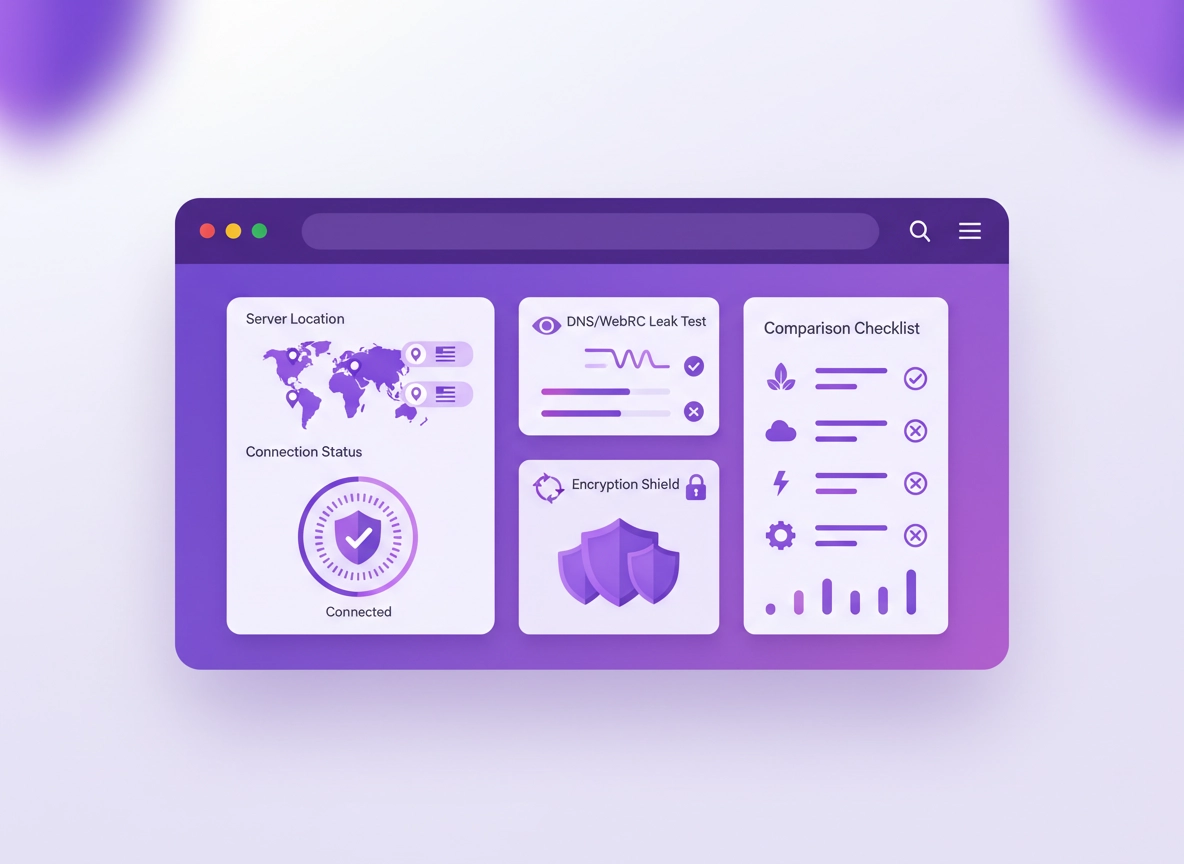
What a “Chrome VPN extension” really is .
Not all Chrome “VPN extensions” are actually VPNs in the way most people expect.
When you search the Chrome Web Store for “VPN,” you’ll see hundreds of extensions claiming privacy, encryption, and “hide your IP.” The problem is that the label “VPN extension” is used for three different products that behave very differently in practice. Some are simply browser proxies. Some are “remote controls” for a real VPN app. Some are hybrid tools that can do both. If you compare them like they’re the same, you can end up buying the wrong thing for your use case.
Here’s the simplest mental model: a VPN is a protected tunnel between you and a server. A VPN app usually creates that tunnel at the operating system level (so it can cover multiple apps). A VPN browser extension creates or controls a tunnel at the browser level. That distinction matters for security, compliance, and everyday reality—especially on public Wi-Fi, when using banking sites, when working remotely, or when you need predictable policies.
That’s why this page is a comparison guide, not a “top 10 list.” If you learn how to tell which extension category you’re looking at, and you use a consistent scorecard (coverage, encryption, logging policy, audits, leak protection, permissions), you can evaluate any option—even new ones.
Related: If you want the “big picture” hub for the whole VPN cluster, start here: Best VPN for Chrome. If you’re comparing VPNs to other tools, see VPN vs Proxy for Chrome.
Key terms (quick definitions) .
- Browser-only tunnel: Only Chrome traffic is routed through the service; other apps use your normal network path.
- Device-wide VPN: A VPN app routes traffic for multiple apps (and can enforce “always-on” rules, kill switches, and system-level DNS settings).
- DNS leak: Your browsing requests go through the VPN, but DNS lookups still go to your ISP or local network resolver.
- WebRTC leak: Some real-time communication features can reveal local/public IP details unless handled correctly.
- Extension permissions: The access an extension requests to read/modify data on sites, manage network requests, store data, etc.
The 3 extension types (proxy, app-controlled, hybrid) .
Before you compare features like “servers,” “speed,” or “no logs,” identify what category the extension belongs to. This one step eliminates most buyer confusion.
| Type | What it does | What it protects | What it doesn’t protect | Best for |
|---|---|---|---|---|
| Proxy-style “VPN” extension Browser-only |
Routes your Chrome traffic through a service endpoint. Often marketed as a VPN. Sometimes uses encryption, sometimes not—depends on the product. | Chrome tab traffic (HTTP/HTTPS), basic IP masking inside the browser. | Other apps, background processes, system DNS, and non-Chrome traffic. | Low-risk browsing, quick location switching, lightweight privacy for casual use. |
| App-controlled extension “Remote control” |
The extension mainly controls a full VPN app installed on your device. It may also add browser-only privacy features. | Potentially device-wide traffic when the VPN app is connected (depends on your app settings and OS). | If the app is off, you may have no real protection (even if the extension UI looks “connected”). | People who want true VPN protection plus browser convenience (quick connect, location switch, privacy tools). |
| Hybrid extension Browser-only or full VPN |
Can run as a lightweight browser proxy or control/activate the full VPN app from the same interface. | Flexible: browser-only when you need speed, device-wide when you need security. | Still requires correct settings and leak testing; “hybrid” is not automatically “secure.” | Power users, frequent travelers, remote workers switching between risk levels. |
Reality check: If you need protection for Zoom/Teams, email clients, cloud sync tools, or background apps, a browser-only extension won’t cover that. See VPN Chrome vs Desktop VPN.
Now that the categories are clear, we can compare the things that matter: security model, privacy claims, leak protection, and operational fit.
Before you compare: fast checks that prevent mistakes .
A good comparison starts with fast “disqualifiers.” These checks take 2–5 minutes and save you from spending hours analyzing products that don’t match your requirements.
- Decide your coverage requirement: Browser-only privacy vs device-wide VPN (public Wi-Fi, banking, work).
- Decide your trust requirement: Personal use vs sensitive work data vs compliance obligations.
- Decide your compatibility requirement: Do you need to access corporate apps/sites, SSO, banking, and region-locked services?
- Decide your threat model: Ads/tracking vs local Wi-Fi snooping vs ISP logging vs targeted threats.
Simple rule: The higher the risk, the more you should prefer a reputable VPN with a full app, clear policies, transparent ownership, and a record of security audits.
Related: If your goal is privacy hardening (not just IP masking), start with Chrome Privacy Settings and Chrome DNS over HTTPS settings. VPNs are powerful, but they’re not the only privacy lever.
Red flags (quick disqualifiers) .
- “Free unlimited VPN” with vague company details, unclear monetization, or no privacy policy you can understand.
- Permission overload without a clear explanation (for example, requiring broad site access for a basic “connect” button).
- Opaque logging claims (“no logs” with no definitions: connection logs vs usage logs vs diagnostic logs).
- No clear app model (is it a proxy extension, a true VPN, or just a UI toggle?)
- No leak-protection story (no mention of DNS handling, WebRTC leaks, or IP leak testing).
Comparison criteria that actually matter .
Most “VPN extension comparisons” focus on surface-level specs (server count, countries, or “fastest” claims). Those can be useful, but they’re not the foundation. Use the criteria below to compare products in a way that matches real-world security and privacy outcomes.
1) Coverage: browser-only vs device-wide .
Ask: “What traffic is actually protected?” A browser-only extension might protect Chrome tabs, but not background services, other browsers, chat apps, cloud sync, or system updates. For high-risk scenarios (public Wi-Fi, finance, remote work), device-wide coverage matters.
Related: If you’re specifically choosing for performance, read VPN Chrome Speed Comparison and VPN for Chrome performance impact.
2) Encryption & protocol model .
VPN security depends on protocols and cryptography—but at the extension level, what you need is clarity: does the extension create an encrypted tunnel itself, or does it rely on the desktop/mobile app? If you’re comparing providers deeply, protocols matter. If you’re comparing extensions quickly, the key is: Is this a real VPN tunnel, or a proxy-like routing layer?
Related: For protocol-level comparisons, see VPN protocols for Chrome compared and VPN encryption explained for Chrome.
3) Logging policy, audits, and trust .
“No logs” is not a magic phrase. A credible VPN provider defines what they log, why, and how long it’s retained (and how you can delete/limit it). The best providers typically combine policy clarity with third-party audits and transparent documentation. For business use, you also care about ownership, jurisdiction, and incident history.
For a Chrome extension comparison, ask: Is the privacy policy clear? Does the provider have security audits? Is the company identifiable? Is pricing realistic?
4) Leak protection: DNS, WebRTC, IPv6 .
A “connected” badge means nothing if your DNS requests go to your ISP, or WebRTC reveals IP details, or IPv6 routes outside the tunnel. Good products either prevent common leaks or clearly explain how to test and mitigate them.
Related: Run leak tests and learn fixes with: DNS leak test guide, WebRTC leak fix, and IP leak protection.
5) Permissions: what the extension can see and do .
This is where many users get nervous—and correctly so. Some extension capabilities require broad permissions (for example, to route traffic, detect malicious sites, or inject content). But your job as the buyer is to understand whether the permissions match the promise.
A practical method: compare the extension’s permissions to its feature set. If an extension claims “connect to VPN” but wants to “read and change all data on all websites,” ask why. Sometimes the reason is legitimate (content scripts, anti-tracking, blocker features). Sometimes it’s overreach.
Related: Use the security lens from Chrome Extension Security Check and Chrome extension permissions guide.
6) Operational fit: real life and enterprise reality .
Even if a VPN extension is “secure,” it still has to work: single sign-on, banking, SaaS dashboards, video calls, and corporate policies. For business use, you may need centralized control, policy enforcement, and support. For home use, you may need simplicity and low friction.
Related: If you’re choosing for a company environment, see VPN Chrome enterprise and VPN for Chrome IT admin guide.
The scorecard: how to rank VPN extensions in 10 minutes .
Use this scorecard to compare any VPN extension quickly. You don’t need to memorize it—bookmark this section, then score products consistently.
| Category | What “good” looks like | Score |
|---|---|---|
| Coverage clarity | Clearly states browser-only vs device-wide, and how the extension relates to the VPN app. | 0–2 |
| Transparent company & policy | Clear ownership, readable privacy policy, and definitions for logs/retention. | 0–2 |
| Security credibility | Evidence of security reviews/audits, documented architecture, and responsible disclosure. | 0–2 |
| Leak protection story | DNS handling explained, WebRTC/IP leak mitigation documented, or guidance for testing provided. | 0–2 |
| Permissions match features | Permissions are minimal for the job, and the provider explains why they’re needed. | 0–2 |
| Performance consistency | Reasonable speeds for your region/use case, predictable server selection, stable connections. | 0–2 |
| Usability and controls | Fast connect, location control, auto-connect options, clear status indicators. | 0–2 |
| Compatibility | Works with common sites (banking, work SSO) without constant CAPTCHA or breakage. | 0–2 |
| Support & documentation | Clear setup docs, troubleshooting guides, responsive support paths. | 0–2 |
| Value realism | Pricing makes sense; “free” is explained (limits/ads/trial) rather than vague “unlimited.” | 0–2 |
Pro move: Use the same scorecard for both extensions and the provider’s full VPN app. A great extension paired with a weak app is still a weak setup.
Step-by-step: how to evaluate any VPN extension safely .
This is the practical workflow you can repeat for any provider—without needing to trust marketing pages. The goal is to confirm what the extension really does, validate basic privacy claims, and reduce risk.
- 1 Identify the extension type. Is it proxy-style, app-controlled, or hybrid? If unclear, assume browser-only.
- 2 Read the permissions before installing. Check if the permissions match the features. Avoid “all sites” access unless it’s justified by a real feature.
- 3 Install and connect—then validate coverage. Open another browser/app (or a network-heavy app) and confirm whether it’s routed through the VPN or not.
- 4 Run leak tests. Check IP, DNS, and WebRTC. A “connected” badge is not proof.
- 5 Test real websites you care about. Banking, work SSO, streaming, or SaaS dashboards. Watch for constant CAPTCHA or broken sessions.
- 6 Check the “off switch.” Disconnect and confirm your traffic returns to normal. If you rely on it for security, confirm the app has “always-on/kill switch” (usually app-level, not extension-only).
- 7 Score it with the scorecard. Don’t overthink it—compare multiple options consistently.
What “success” looks like: You can clearly answer: What is protected? What isn’t? You can run leak tests without surprises, and your important sites still work without constant breakage.
Related: If you’re installing for the first time, see How to install a VPN extension in Chrome and How to use a VPN with Chrome.
Common variations .
- Windows / ChromeOS: Device-wide VPN behavior depends on the provider’s app and OS settings (especially DNS and “always-on”).
- macOS: Some VPN apps use system extensions; you may need to approve permissions and restart network services.
- Android / iPhone: Many “Chrome extensions” don’t apply; you typically use the provider’s mobile VPN app instead.
Advanced: leaks, DNS, permissions, and enterprise reality .
This section is where your comparison becomes “expert-level.” It’s also where most listicles fail. VPN extension safety isn’t just “encryption” and “no logs.” It’s the interaction between Chrome, extensions, network layers, and what the product can realistically control.
Related: If your comparison is specifically for privacy posture, read VPN Chrome privacy review. For a security lens, see Secure VPN for Chrome.
Leak protection: what to check (and why it fails) .
Leaks are usually not “bugs.” They happen because browsers and operating systems have multiple ways to route traffic (DNS resolvers, IPv6 stacks, WebRTC, captive portals, split tunneling rules, enterprise proxies, and more). A VPN extension has limited control compared to a full VPN app.
- DNS leaks: Browser can load pages through a VPN route, while DNS still uses your ISP/network resolver.
- WebRTC leaks: Real-time communication features can expose IP info unless mitigated. Some VPNs block it; others require manual settings or extra tools.
- IPv6 leaks: If the VPN doesn’t handle IPv6 well, some traffic may bypass the tunnel.
Practical advice: If your threat model includes public Wi-Fi or sensitive work, treat leak testing as mandatory—not optional.
DNS over HTTPS vs VPN DNS: how to think about it .
Chrome’s Secure DNS (DNS over HTTPS) encrypts DNS queries between your browser and a DNS provider. A VPN encrypts traffic between you and the VPN server. These can complement each other, but they’re not interchangeable. If your VPN handles DNS inside the tunnel, you often want DNS to follow the VPN’s intended path (to avoid DNS leaks). If you use Secure DNS without a VPN, you still have a public IP, but DNS is harder to observe on the local network.
Related: Learn and configure Secure DNS: DNS over HTTPS settings and Chrome Secure DNS setup. Then compare with VPN vs private DNS for Chrome.
Permissions: what “read and change data on websites” means in practice .
Some VPN extensions include anti-tracking, blocker features, phishing protection, or site-level controls. Those features can require broad site access. But broad access also means the extension could technically see what you do on pages you visit. That doesn’t automatically mean the provider is malicious—yet it’s a permission you should treat seriously.
A secure comparison approach:
- Match permissions to features: If a feature needs access (e.g., blocker functionality), the permission can be reasonable.
- Prefer least-privilege: If you only need a VPN connection toggle, avoid extensions that require unnecessary site access.
- Check update behavior: If an extension suddenly asks for much broader permissions after an update, stop and investigate why.
Related: For deeper analysis, see Chrome extension data access guide and Chrome extension privacy risks.
Enterprise reality: policies, compliance, and managed browsers .
In business environments, VPN extensions aren’t just personal tools. They interact with: corporate proxies, SSO/IdP flows, DLP rules, endpoint security, device management, and browser policies. Many companies restrict or allowlist extensions. Some require specific VPN configurations or SASE/ZTNA alternatives.
If you’re comparing for work, include these questions: Can we centrally manage it? Is it allowlist-friendly? Does it break SSO? Do we have logs we need? Do we violate policy by tunneling traffic?
Related: For broader business security setup, see Chrome Enterprise guide and Chrome zero trust browser setup. If you’re evaluating alternatives, see VPN vs zero trust browser.
Common alternatives users compare .
- VPN extensions vs desktop VPN apps
- VPN vs proxy vs Tor
- VPN vs private DNS vs Secure DNS
- VPN vs antivirus and browser threat protection stacks
Privacy & security notes (plain-English) .
A VPN extension can be a helpful layer, but it’s not a privacy “force field.” The right question isn’t “Is a VPN extension safe?” It’s: Safe for what purpose, at what risk level, with what provider, and with what settings?
Impact: Can change your visible IP in Chrome, reduce local Wi-Fi snooping risk for browser traffic, and improve privacy—but may not protect other apps.
Related: If you suspect a malicious extension, adware, or browser hijack, start here: Remove malware from Chrome and Chrome extension malware risks.
Recommended baseline settings .
- Option A (balanced): Reputable VPN app + extension, auto-connect on untrusted Wi-Fi, run DNS/IP/WebRTC leak tests once.
- Option B (maximum privacy): Device-wide VPN with strict DNS handling, leak mitigations, and conservative extension permissions.
- Option C (compatibility): Use VPN only when needed; choose stable endpoints and avoid constant location switching on sensitive sites.
Recommended settings by goal .
| Goal | Recommended setup | Tradeoff | Best for |
|---|---|---|---|
| Balanced | VPN app + extension, connect on public Wi-Fi, test leaks monthly | Small speed cost | Most users |
| Maximum privacy | Device-wide VPN, strict DNS, minimize extension permissions, avoid sketchy “free unlimited” tools | More friction, more CAPTCHAs | Tracking-sensitive users |
| Compatibility | Connect only for risky networks, keep a stable region endpoint, whitelist important sites if needed | Less “always-on” privacy | Banking / work SSO / enterprise sites |
Troubleshooting .
Related: If this involves extension trust, start with How to check if a Chrome extension is safe. If it’s performance, see VPN troubleshooting guide.
If sites keep showing CAPTCHA or blocking you .
Some sites treat VPN endpoints as higher-risk. Try a different server, use a stable location, and avoid switching constantly. If the provider offers “residential” or “dedicated IP” options, those can reduce friction (but cost more). For banking and corporate SSO, sometimes the best answer is: connect only when needed, then disconnect.
If your IP changes but DNS still shows your ISP .
That’s a classic DNS leak symptom. Confirm whether the extension is browser-only or app-controlled. Then follow the DNS leak test guide and adjust DNS settings (either via the VPN app or Chrome Secure DNS).
If WebRTC reveals IP information .
Use the WebRTC leak fix guide. Some VPN extensions include WebRTC blocking; others require changes in Chrome settings or an additional privacy control. Validate after changes.
If the extension “connects” but nothing changes .
This often happens with “remote control” extensions when the VPN app isn’t installed or isn’t running. Install the provider’s app, sign in, and connect from the app first. Then verify the extension controls the same session.
If you need to reset safely .
Remove the extension, restart Chrome, and re-check your proxy settings. If you think an extension was malicious, run a full browser cleanup and review installed extensions carefully. Keep the number of extensions small and intentional.
FAQ .
-
helpDo Chrome VPN extensions protect my whole device?Many don’t. A large portion of “VPN extensions” are browser-only tools that only route Chrome traffic. If you need device-wide protection (other apps, background traffic), use a VPN with a full app and verify coverage. The extension may be a convenience layer, not the actual VPN engine.
-
helpAre free VPN extensions safe?Some can be fine, but “free unlimited” often comes with tradeoffs: ads, limited locations, restricted speeds, or unclear monetization. Treat unknown “free unlimited VPN” extensions as high risk until you verify the company, policies, and leak behavior. For sensitive use, paid reputable providers are safer.
-
helpWhy does a VPN extension ask to “read and change data on websites”?Some features (blockers, anti-tracking, phishing protection, or page injections for privacy controls) require broad site access. That permission is powerful, so only accept it if you trust the provider and the feature set clearly needs it. If you only want a connect button, prefer extensions with more limited permissions.
-
helpHow do I know if my VPN extension is leaking DNS or WebRTC?Run an IP leak test, a DNS leak test, and a WebRTC leak test after connecting. Repeat after updates. If you detect leaks, adjust the VPN/app DNS settings, review Chrome Secure DNS, and follow a WebRTC mitigation guide.
Sources & further reading .
- Google Chrome Web Store: Permissions requested by apps and extensions
- Google Chrome Help: Change site settings permissions
- Chrome Extensions documentation: Declare permissions
- Cloudflare: Configure DoH in Chrome
Disclosure: Some pages may mention tools or services. Recommendations are editorial and based on a safety-first comparison framework.