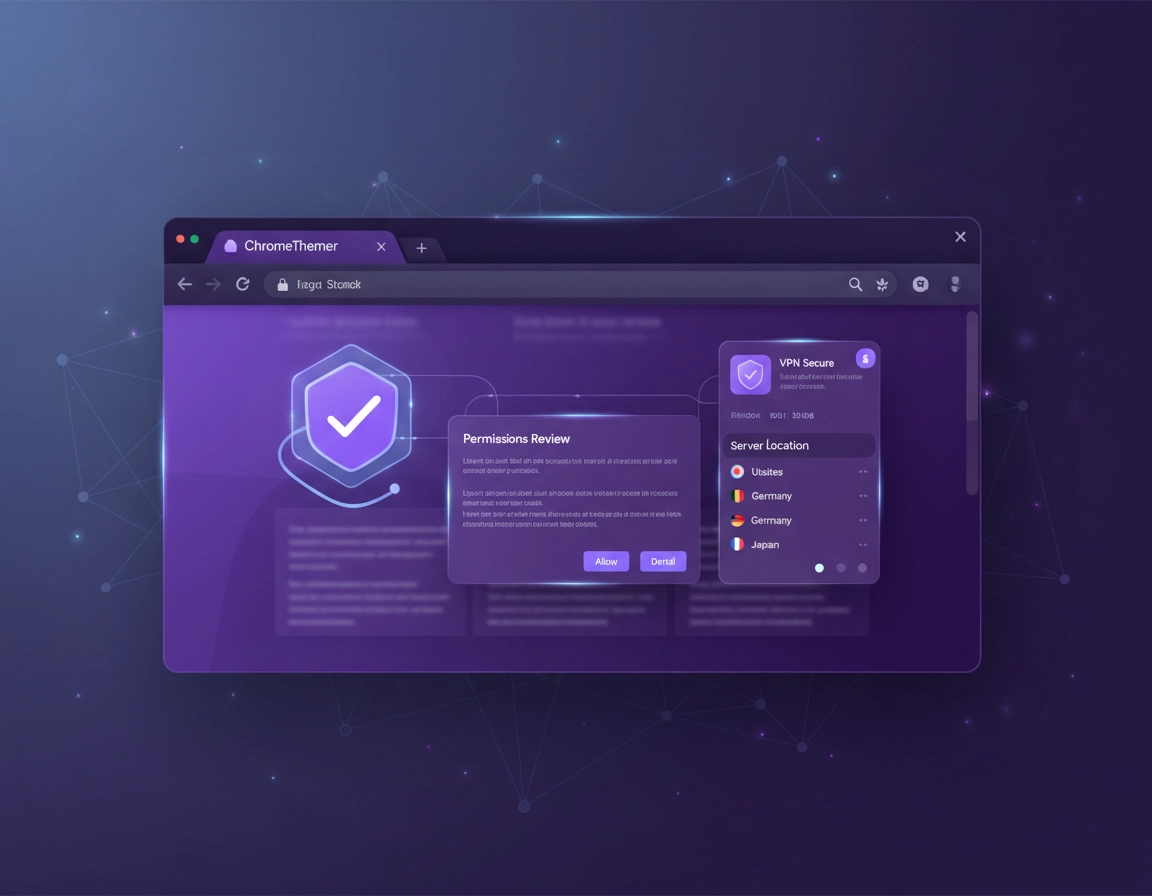
What installing a VPN extension in Chrome really means .
The install process is simple. The trust decision is not.
When people search for “how to install a VPN extension in Chrome,” they are usually looking for one of two things. Some want the literal click path: open the Chrome Web Store, find the extension, click Add to Chrome, and connect. Others are really asking a bigger question: what am I giving this extension access to, and is it enough for the kind of protection I want? The second question matters more.
A VPN extension for Chrome is a browser add-on that gives you a VPN control point inside the browser. Depending on how the provider designed it, the extension may route browser traffic through the provider’s network, act as a browser-focused proxy layer, or function as a companion to the provider’s full VPN service. Those are not identical products, even if all of them use the word “VPN” in the Chrome Web Store title.
That is why good installation advice starts before the install button. A Chrome extension can request permission to read and change site data, access tabs, show notifications, or interact with browser settings. Chrome also lets you review details after installation and limit an extension’s site access to specific sites or on-click behavior in some cases. If you skip that review and treat every VPN extension as a generic privacy tool, you can end up trusting something that is far broader or weaker than you expected.
In practical terms, installing a VPN extension safely means doing six things well: choosing a real provider, confirming the listing is official, understanding the permissions, signing in through the legitimate flow, checking whether the extension is browser-only or part of a full VPN service, and verifying that the connection changes your browser’s network path after setup.
Related: If you are still picking a provider, start with Best VPN for Chrome. If you already know you need broader coverage, compare the browser route with a device-level client in VPN Chrome Extension vs Desktop VPN.
Key terms that matter during setup .
- Chrome Web Store listing: The official extension page where Chrome users install supported extensions.
- Permissions prompt: The warning and permission review shown when you click Add to Chrome.
- Site access: The level of access the extension has to the websites you visit.
- Pinned extension: An extension icon fixed to the toolbar so you can see and use it quickly.
- Managed browser: A work or school Chrome environment where admin policy can block installs or limit how extensions behave.
- Browser-only tunnel: A setup where Chrome traffic is affected, but other apps on the device may not be.
What to check before you click Add to Chrome .
Most bad VPN extension installs are avoidable. Users get into trouble because they rush through search results, trust the first “free VPN” they see, or assume that anything inside the Chrome Web Store is equally safe. Chrome Web Store publication is not a substitute for doing basic trust checks of your own.
Check the listing like you are auditing it, not shopping it .
- Provider identity: The publisher should clearly match the actual VPN company.
- Support links: The website and support links should point to the provider’s real domain.
- Description quality: Legitimate providers usually explain what the extension does, not just promise “unlimited privacy” in vague language.
- Review pattern: Look for believable reviews and not just repetitive praise that reads manufactured.
- Pricing reality: If it claims “free forever unlimited VPN” with no clear business model, be cautious.
It also helps to know what you expect before installation. Some VPN extensions require a paid account from the start. Some let you install first and sign in later. Some are basically lightweight browser companions to a full VPN subscription. Some offer a limited free plan. If you install without understanding that model, you can mistake a payment wall, sign-in requirement, or companion workflow for a broken extension.
Update Chrome before you install .
Extension problems are harder to diagnose when Chrome itself is outdated. If the browser is behind, you can run into odd permission prompts, extension UI glitches, or conflicts with newer extension behavior. Installing after a normal Chrome update reduces the chance that you will waste time troubleshooting the wrong thing.
Know when the device is the real blocker .
If the browser says it is managed by your organization, or if the install button is unavailable or blocked by policy, the issue may not be the VPN extension at all. On work and school devices, administrators can allow, block, or force-install extensions through policy. In that environment, more clicking does not fix the problem. You need admin approval or a device that is not policy-restricted.
Related: For a broader setup overview, read How VPN Works in Chrome and Secure VPN for Chrome.
How to install a VPN extension in Chrome step by step .
This is the clean installation workflow most users should follow on desktop Chrome.
- 1 Open Chrome on your computer and go to the Chrome Web Store. Search for the VPN provider by its exact name, not by a broad phrase like “best free VPN.”
- 2 Open the extension listing and verify that the publisher, description, support links, and branding line up with the provider’s real website.
- 3 Click Add to Chrome. Chrome will show a permissions prompt. Read it before you approve it.
- 4 Click Add extension only if the listing and permissions make sense for the product you meant to install.
- 5 After installation, click the Extensions icon near the address bar. Find the VPN extension and click the pin so it stays visible on the toolbar.
- 6 Open the extension from the toolbar. Sign in with your VPN account or follow the provider’s account creation flow.
- 7 Choose a server location. For normal browsing, a nearby or “fastest” location is usually the best starting point.
- 8 Click Connect and wait for the extension to show a clear connected state.
- 9 Open a new tab and verify that your browser session now appears to originate from the VPN region you selected.
- 10 Open the extension’s details page in Chrome and review permissions, site access, and whether you want it enabled in incognito.
What a normal successful install looks like: the extension appears in the Chrome toolbar, the sign-in flow completes without loops, the server list loads correctly, the connection state changes visibly, and websites see the VPN endpoint instead of your normal public IP.
The exact Chrome controls that matter after install .
The install itself is only part of the workflow. Afterward, Chrome gives you useful controls on the extension details page. That is where you can check whether it is enabled, review its permissions, adjust site access on supported extensions, decide whether it can run in incognito, and remove it cleanly if something looks wrong. Advanced users spend time here because this page tells you more than the green “connected” badge ever will.
Related: Once the extension is installed, the next step is using it properly. Continue with How to Use a VPN with Chrome Browser and VPN Extension Permissions in Chrome.
How to read the permissions prompt without guessing .
This is the moment where Chrome tells you what the extension wants to do. Most users click through it because the extension looks legitimate and they want to get to the server selector. That is exactly when sloppy installs happen.
A VPN extension may request broad access because it needs to modify how browser traffic is handled, interact with the active tab, or coordinate authentication and session state. But “may need” does not mean “should never be questioned.” You want the permission request to feel proportionate to the product. If the extension description is vague while the permissions are broad, slow down.
Common permission language and what it means in practice .
- Read and change your data on websites you visit: broad browser visibility. For a network-affecting extension this may be understandable, but it is still a serious permission.
- Tabs: often used to understand or interact with the current browsing session.
- Notifications: generally lower risk, but sometimes used for upgrade prompts or connection alerts.
- Site access: Chrome may let you restrict whether the extension runs on all sites, on specific sites, or only when clicked.
- Incognito: optional in many cases. Enable it only if you intentionally want the extension working in private windows too.
Watch for settings changes, not just traffic changes .
Some extensions can also affect browser settings such as search behavior, startup behavior, or new tab behavior. That matters because a bad or overly aggressive extension is not only a privacy issue. It can become a browser-hijack issue. If your search engine, new tab page, or homepage starts changing unexpectedly after installation, treat that as a warning sign and review or remove the extension immediately.
How to verify the extension after installation .
A VPN extension is not “done” when it appears in the toolbar. It is done when you have evidence that it is connected, stable, and behaving the way the provider says it should behave.
Verification checklist .
- Toolbar visibility: the icon stays pinned and shows a clear connected or disconnected state.
- Account state: you are signed in once and not being bounced through repeated login loops.
- Region change: websites see the VPN-selected region or IP instead of your normal one.
- Stable browsing: normal sites load without constant timeouts, endless CAPTCHAs, or broken page rendering.
- Expected scope: you understand whether the extension protects Chrome only or whether you also need the provider’s desktop app.
I recommend doing a simple three-part check right after installation. First, connect to a nearby server and confirm the extension status changes clearly. Second, open a new tab and check whether your browser-facing location or IP has changed. Third, open the extension’s Chrome details page and review site access and other permissions one more time. That extra minute catches more bad installs than most users realize.
What a suspicious install looks like .
- The extension installs, but the interface is mostly ads or upgrade banners.
- The connection indicator turns on, but nothing about your browser session appears to change.
- You keep getting signed out or redirected through confusing login pages.
- The extension pushes you toward downloading unrelated software.
- Chrome starts showing strange search, new tab, or homepage behavior after installation.
Related: If your main concern is leak prevention after install, read VPN Chrome WebRTC Leak Fix and VPN Chrome IP Leak Protection.
Browser-only protection vs full-device VPN protection .
This is the question that separates a beginner install from an informed one. A Chrome VPN extension can be useful, but it is not always a complete privacy or security answer for the whole computer.
If your work happens mainly in Chrome, a browser extension can be a good fit. It is fast to access, easy to pin, easy to disconnect for a problem site, and convenient when you want browser-level protection on shared Wi-Fi. But if you also use desktop email clients, cloud sync apps, messaging tools, remote desktop software, or other non-browser services, those may sit outside the extension’s protection path.
That is why serious remote workers, business users, legal users, healthcare teams, finance teams, and anyone with compliance-sensitive workflows often end up with a layered setup: the Chrome extension for convenience inside the browser, and the provider’s full desktop app when they need system-wide coverage.
| Setup | What it usually protects | Main advantage | Main limitation |
|---|---|---|---|
| Chrome VPN extension | Chrome browsing sessions | Fast, simple, easy to control from toolbar | Often not full-device protection |
| Desktop VPN app | System-wide device traffic | Broader coverage | Heavier workflow and always-on impact |
| Extension + desktop app | Browser convenience plus wider device protection | Most complete practical setup | More to manage |
Related: This distinction is covered in more detail in VPN Chrome Extension vs Desktop VPN, VPN vs Proxy for Chrome, and VPN vs Built-in Chrome Security.
Security risks and red flags to watch for .
A VPN extension is still a browser extension. That matters. Chrome extensions live in a trust-heavy part of your browsing environment, so the risk discussion should be direct, not fluffy.
What can go wrong .
The main risk is not that every VPN extension is malicious. The real risk is that users install the wrong one, misunderstand what it protects, or ignore what it is allowed to access. A misleading extension can over-collect browsing data, inject ads, interfere with browser settings, or simply create a false sense of security while leaving important traffic exposed.
Red flags before installation .
- Generic “free anonymous VPN” naming with no clear provider identity
- Support links that do not match the brand domain
- Poorly written listing copy that explains benefits but not architecture or permissions
- Huge promises with no explanation of limits, pricing, or account model
- A review section that looks repetitive or artificial
Red flags after installation .
- Your search engine or new tab behavior changes unexpectedly
- The extension shows as connected but your visible location never changes
- You get popups, redirects, or aggressive upgrade spam in the browser
- Chrome becomes unstable only after the extension is installed
- The extension repeatedly requests wider permissions than the product really needs
Related: If the extension starts behaving like a hijacker or suspicious add-on, move to Chrome Extension Security Check and Remove Malware from Chrome.
Troubleshooting install and connection problems .
Chrome will not let you install the extension .
Start by checking whether you are on a managed work or school browser. If Chrome is policy-managed, extension installs may be blocked entirely. If the browser is not managed, update Chrome, remove conflicting proxy or security extensions temporarily, and make sure you are installing from the Chrome Web Store rather than a sideloaded file.
The extension installed, but the sign-in flow keeps looping .
This usually points to cookies or session storage being blocked, an account mismatch, or another privacy extension interfering with authentication. Test again in a cleaner Chrome profile, disable overlapping privacy tools briefly, and make sure you are using the provider’s real login flow rather than a lookalike page from a copied listing.
The extension shows connected, but sites still see your normal location .
That is a verification problem, not just a connection problem. The extension may not be routing traffic correctly, you may be misreading what the product protects, or browser-level leaks may still reveal information you were not expecting to expose. Reconnect, switch servers, test in a fresh Chrome profile, and check whether the provider recommends the desktop app for fuller coverage.
Websites break or challenge you constantly after connecting .
Some sites dislike VPN exit nodes, especially banks, ticketing sites, fraud-scored checkouts, and enterprise sign-in portals. The fastest fix is usually switching to a nearby server, disconnecting for that one site, or using a separate browser profile for banking and critical logins.
The extension keeps signing out .
Review Chrome’s cookie and privacy controls, especially if you automatically clear cookies or use aggressive privacy tools. Some VPN extensions rely on normal browser storage to keep you authenticated. If that storage is wiped constantly, the extension can look broken when the real issue is session persistence.
You want to remove it and start clean .
Disconnect first, sign out if possible, remove the extension from Chrome, restart the browser, then reinstall only from the provider’s official Chrome Web Store listing. That gives you a clean second pass instead of piling new variables on top of a bad first install.
Related: For deeper setup failures, use VPN for Chrome Troubleshooting Guide and VPN for Chrome Connection Issues Fix.
FAQ .
-
helpIs a Chrome VPN extension the same as installing a full VPN?Usually no. A Chrome VPN extension often affects browser traffic inside Chrome, while a full VPN app is typically designed to protect traffic across the device. That difference matters if you use apps outside the browser or need broader protection on public or work networks.
-
helpWhere should I install a VPN extension from?From the Chrome Web Store. That is the normal supported installation path for Chrome extensions on desktop Chrome. Avoid downloading random CRX files or using unofficial install pages unless you are in a tightly managed enterprise setup and know exactly why you are doing it.
-
helpWhy does Chrome warn me about permissions when I add the extension?Because Chrome wants you to review what the extension can access before you approve it. A VPN extension may need meaningful access to browser behavior, but you should still judge whether the permission scope feels reasonable for the product you are installing.
-
helpCan I limit what the extension can access after installation?Often yes. Chrome’s extension details page can let you review permissions, adjust site access for supported extensions, choose whether the extension runs in incognito, and remove it if you are not comfortable with its behavior.
-
helpCan I install a VPN extension on mobile Chrome?Desktop Chrome extensions are not the normal path on mobile Chrome. On Android and iPhone, you usually need the provider’s dedicated mobile VPN app instead of a desktop-style Chrome extension workflow.
Sources & further reading .
- Google Chrome Help: install and manage extensions
- Chrome Web Store Help: install and manage extensions
- Chrome Web Store Help: manage extensions that change your settings
- Chrome Enterprise: managing extensions in your enterprise
Editorial note: This guide focuses on Chrome install behavior, extension trust decisions, and browser-level verification. It is not a substitute for reviewing the VPN provider’s privacy policy, account model, and technical documentation before you rely on the extension for sensitive browsing.