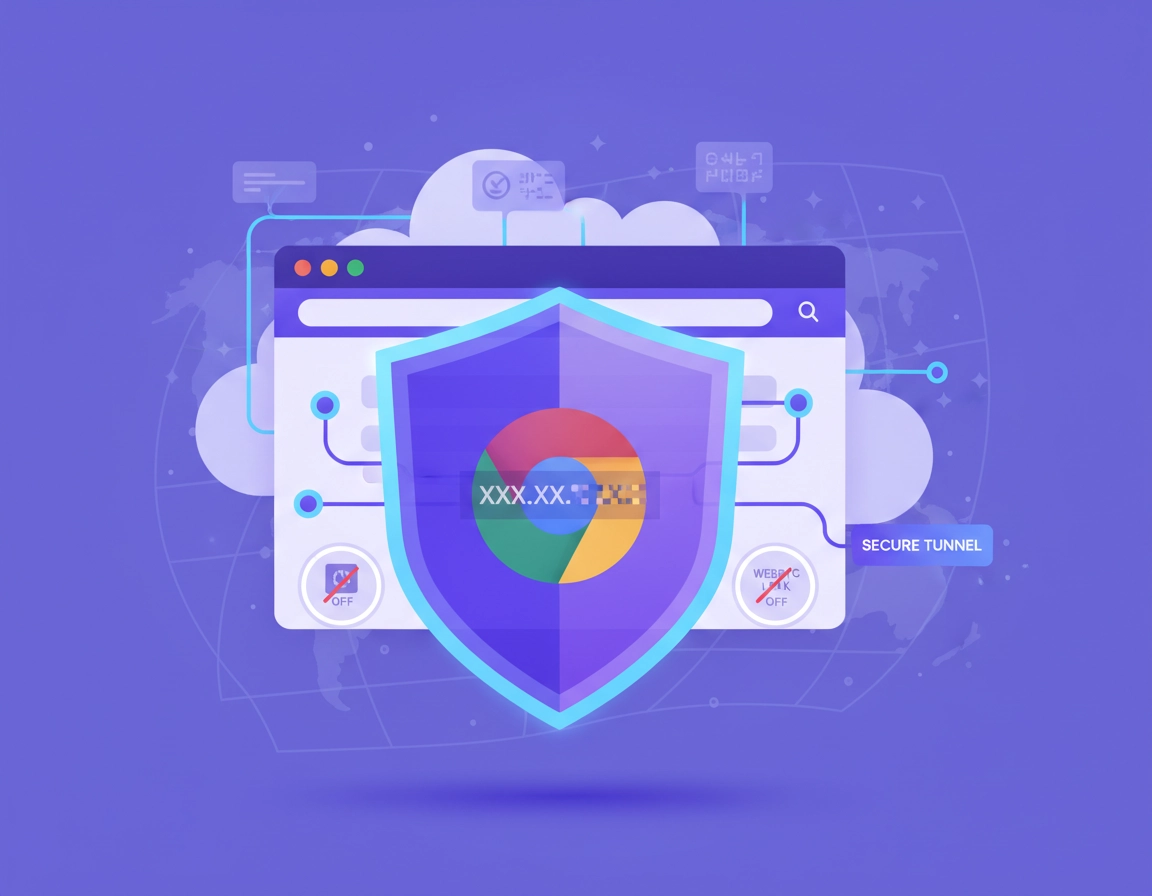
What VPN Chrome IP leak protection actually means .
Many users think an IP leak means only one thing: “a website can see my real public IP.” In practice, the situation is broader than that.
VPN Chrome IP leak protection is the process of reducing or preventing network identifiers from escaping outside the encrypted VPN path while you use Chrome. The most obvious identifier is your public IP address, but that is not the only one that matters. Depending on your setup, websites, apps, conferencing tools, extensions, and network services may also expose DNS requests, local interface information, or connectivity patterns that tell a more revealing story than many users expect.
That is why “my VPN is on” is not the same as “my browser is fully protected.” A VPN extension inside Chrome often protects browser traffic routed through that extension’s tunnel, but it may not protect the rest of the device, background processes, other applications, or even all browser-related requests in every scenario. Full-device VPN apps usually provide stronger IP leak protection because they sit closer to the operating system’s network stack and can govern a wider range of connections. Browser-only coverage is narrower by design.
Chrome introduces its own layer of complexity because the browser handles secure connections, DNS behavior, extensions, permissions, and real-time communication features like WebRTC. A user may run a VPN, see a masked public IP on one test page, and still reveal other useful network signals elsewhere. This creates confusion, especially when one test says “protected” and another says “possible leak.”
For most users, the goal is not perfect invisibility. The goal is practical privacy: ensure that the IP and network data available to ordinary websites, trackers, ad systems, and unsafe network environments is reduced as far as possible without breaking the tools you rely on every day. That is a realistic standard, and it is the one this guide follows.
Related: Start with the broader foundation in Best VPN for Chrome, then compare browser-only coverage in VPN Chrome vs Desktop VPN.
Key terms you should know .
- Public IP: the internet-facing address websites usually see when your traffic exits to the web.
- Local IP: the address used inside your local network, such as a home router or office LAN.
- DNS leak: when DNS lookups are resolved outside the VPN path, often through your ISP or a network you do not intend to trust.
- WebRTC leak: when real-time communication features expose network path details that reveal local or alternate IP information.
- IPv6 leak: when IPv6 traffic bypasses protection that only covers IPv4 well.
- Split tunneling: a VPN mode where only selected apps, sites, or traffic types use the VPN tunnel.
- Kill switch: a feature that blocks internet traffic if the VPN tunnel drops unexpectedly.
Before you start: identify the type of leak .
Before changing settings, decide what you are actually trying to stop. Different leaks come from different layers, and they are fixed in different places. If you try to solve a DNS leak by changing only a Chrome extension setting, or a WebRTC issue by switching DNS providers, you waste time and usually end up with a setup that feels safer without being measurably safer.
Start by answering four simple questions. First, are you using a full desktop VPN app or only a Chrome extension? Second, does your system have IPv6 enabled? Third, are you using split tunneling, site exclusions, or “bypass VPN for local network” rules? Fourth, when you run tests, do you see only your VPN provider’s public IP, or do you see DNS servers or real-time connection data tied to your ISP or local network?
Related: If you have not set up the browser side cleanly yet, read How to Use VPN with Chrome Browser and How to Install VPN Extension in Chrome.
- Check 1: verify whether your VPN is device-wide or browser-only. This matters more than most marketing pages admit.
- Check 2: note whether Chrome has multiple profiles, multiple VPN-related extensions, or privacy extensions that also alter requests.
- Check 3: identify whether the leak appears only on voice/video sites, only on some networks, or all the time.
- Check 4: see whether your VPN has explicit leak protection, DNS control, WebRTC handling, IPv6 support, and a kill switch.
This classification step is valuable because Chrome leak issues often look similar from the outside. A “real IP leak” may really be an IPv6 path. A “VPN failure” may actually be a conferencing site using WebRTC candidate gathering in a way your extension does not fully govern. A “DNS leak” may be Chrome using secure DNS behavior that does not match what the user expects from their VPN. Precision matters.
Leak types at a glance .
- Public IP leak: websites still see your ISP-assigned public IP instead of the VPN exit IP.
- DNS leak: websites or test tools show DNS resolvers from your ISP, office, school, or local network rather than VPN-associated resolvers.
- WebRTC exposure: browser-based calls or tests reveal local network identifiers, alternate routing data, or unexpected addresses.
- IPv6 leak: your IPv4 path may be tunneled while IPv6 remains exposed or inconsistently handled.
Step-by-step: the safest Chrome + VPN setup .
The strongest practical setup for Chrome IP leak protection starts outside Chrome. The browser matters, but the operating system and VPN transport layer matter first. Treat Chrome as the final privacy surface, not the first line of defense.
- 1 Install and sign in to your VPN provider’s full desktop app on Windows or macOS, not only the Chrome extension.
- 2 Enable the provider’s kill switch, leak protection, and private DNS or DNS-through-VPN features if available.
- 3 Connect to a stable VPN server, then close and reopen Chrome so the browser starts fresh on the protected path.
- 4 Remove duplicate privacy or proxy extensions that may conflict with your VPN routing logic.
- 5 Run a basic public IP test, then a DNS leak test, then a WebRTC-oriented test. Record the results before changing more settings.
- 6 If you must use a Chrome extension, pair it with a provider that clearly explains how browser traffic, WebRTC, and DNS are handled, then avoid split tunneling unless you fully understand the consequences.
- 7 Recheck after changing networks, especially when moving between home Wi-Fi, office Wi-Fi, tethering, and public hotspots.
What success looks like: your visible public IP matches the VPN server location, your DNS requests resolve through VPN-controlled or intentionally chosen resolvers, and your WebRTC-related tests do not expose an address you were trying to conceal.
Related: For protocol choices and tunnel behavior, see VPN Protocols for Chrome Compared and VPN Encryption Explained for Chrome.
Why a desktop VPN app is usually safer than a Chrome extension .
Chrome extensions are useful, but they operate inside a narrower boundary than a system-level VPN client. A browser extension can route browser traffic, manipulate proxy behavior, or apply provider features within Chrome. It cannot automatically guarantee equal protection for all background services, local resolvers, third-party applications, or network paths outside its own sandbox.
This matters because many “Chrome leaks” are not purely Chrome leaks. They are mismatches between what the browser is routing, what the operating system is routing, and what the network stack is resolving. A full VPN client is better positioned to handle this cleanly, especially on laptops used for business travel, remote work, shared office networks, and hotel Wi-Fi.
Chrome-specific cleanup that helps .
- Keep extensions lean: every extra privacy, proxy, DNS, or security extension increases the chance of overlap and confusion.
- Use one Chrome profile for testing: avoid testing in a profile full of old extensions, custom proxies, and sync residue.
- Retest after browser restart: connection state, extension state, and DNS caching can create misleading first-pass results.
- Watch enterprise or school policies: managed browsers may enforce proxy, DNS, certificate, or extension settings you cannot override locally.
Common variations .
- Windows / ChromeOS: corporate security software, endpoint agents, or network policies can alter routing outcomes even when the VPN is connected.
- macOS: privacy prompts, network filters, and system extensions can affect how VPN clients integrate with traffic routing.
- Android / iPhone: browser-level control is more limited, and full-device VPN behavior matters even more than on desktop.
Advanced leak protection for power users and IT teams .
Once the basic setup is clean, the real quality of your leak protection comes down to policy choices and edge cases. This is where high-intent users and business buyers separate weak “checkbox VPN” deployments from setups that hold up under real use.
Related: For remote work and managed environments, continue with VPN for Chrome Remote Work Security, VPN for Chrome Policy Enforcement, and VPN for Chrome IT Admin Guide.
1) Understand the WebRTC issue clearly .
WebRTC is designed for real-time communication such as browser-based calls, chat, streaming, and collaboration tools. To build peer connections efficiently, it may gather candidate network paths. That can include information that is useful for establishing direct connectivity and, in some scenarios, useful for fingerprinting or identifying network topology.
This is why users searching for “IP leak protection in Chrome” often land on WebRTC discussions. But the practical question is not “does WebRTC exist?” The practical question is whether your specific VPN setup, browser behavior, and test results expose network information you intended to hide. Modern browser behavior has reduced some kinds of local IP exposure, but it has not eliminated the need for proper VPN design and testing.
In plain English: if video calling, voice apps, or collaboration platforms matter to you, WebRTC is the area where browser-only VPN assumptions most often fail. That is one reason many security-conscious users prefer a desktop VPN client and then evaluate browser behavior on top of that.
2) Do not ignore DNS behavior .
DNS leaks are less dramatic than public IP leaks but often more revealing than users realize. A site may not see your ISP-assigned public IP directly, but DNS patterns can still tell a lot about geography, provider usage, network ownership, or whether your requests are leaving through a path you did not intend. In business contexts, unmanaged DNS behavior can also weaken auditing assumptions and compliance narratives.
Chrome itself has secure DNS behavior that can improve privacy in some situations, but “more private DNS” is not automatically “more VPN-consistent DNS.” The key is alignment. You want DNS resolution to work with your VPN privacy model, not beside it or around it. If your provider routes DNS through the VPN tunnel, that is usually the cleanest baseline. If you intentionally use a separate secure DNS resolver, document the tradeoff and verify the result.
3) Check IPv6 handling .
IPv6 is still one of the easiest places for users to think they are protected while remaining partially exposed. Some VPN services handle IPv6 cleanly. Others suppress it, tunnel it selectively, or leave it to system behavior that varies by platform. If a user only checks IPv4, they may miss the actual problem.
This is especially relevant on modern residential internet, mobile hotspots, and business networks where IPv6 is active by default. If you cannot clearly verify how your VPN handles IPv6, treat that as an unresolved risk rather than assuming the provider covers it automatically.
4) Split tunneling weakens assumptions fast .
Split tunneling is convenient. It is also one of the fastest ways to create confusing leak results. If Chrome is inside the tunnel but another helper service, resolver, or collaboration tool is outside it, the user experience may look “mostly protected” while critical identity clues still escape. Likewise, if only selected sites bypass the VPN, browser tests can appear inconsistent from page to page.
For ordinary privacy use, keep split tunneling off unless you have a strong reason to enable it. For business use, document exceptions carefully and test them individually. “Mostly tunneled” is not a security model.
5) Extension permissions and conflicts matter .
Many Chrome users install a VPN extension and then add ad blockers, anti-tracking tools, cookie managers, script blockers, productivity extensions, or alternate proxy tools on top of it. Individually, these can be legitimate. Together, they create a layered environment where request handling becomes hard to reason about.
This is not an argument against privacy extensions. It is an argument for a deliberate stack. Fewer high-trust extensions are usually safer than a crowded profile where several tools all claim to “protect privacy.” The tighter your browser stack, the easier it is to identify whether an IP leak is real and where it is coming from.
Common alternatives users compare .
- VPN Chrome extension vs desktop VPN app
- VPN vs proxy for Chrome
- VPN vs private DNS for Chrome
- VPN vs built-in Chrome security
- VPN Chrome WebRTC Leak Fix
- VPN Chrome DNS Leak Test Guide
When you should change your setup immediately .
- Your public IP is visible while the VPN claims to be connected.
- Your DNS requests consistently resolve through your ISP or local network when you expected VPN-routed DNS.
- Video or collaboration sites reveal network details you were trying to mask.
- You are using Chrome on public Wi-Fi with only a browser extension and no system-level protection.
- You work in a regulated environment and cannot clearly explain what traffic is and is not covered.
When you should not over-tune .
- Do not disable random things blindly after one vague “possible leak” result from a generic test page.
- Do not break conferencing, banking, or enterprise apps unless you have verified that the privacy gain is real and not imaginary.
- Do not assume all IP visibility is equally sensitive; prioritize public IP, DNS consistency, and high-confidence WebRTC exposure first.
Privacy and security tradeoffs you should understand .
Stronger IP leak protection is almost always a tradeoff exercise. The safest setup may reduce convenience, limit direct peer-to-peer behavior, complicate collaboration tools, or require a full VPN client rather than a lightweight extension. The right answer depends on your threat model. Someone hiding travel browsing from a coffee-shop network has a different risk profile than a contractor accessing client dashboards from unmanaged Wi-Fi, and both differ from an enterprise security team rolling out browser protections at scale.
Impact: affects browsing privacy, DNS visibility, VoIP and conferencing behavior, extension trust, and how reliably Chrome traffic follows your intended security path.
Related: If the browser behaves strangely or you suspect extension abuse, also review Chrome Extension Security Check and Remove Malware from Chrome.
Recommended baseline settings .
- Option A (balanced): full-device VPN app, kill switch on, provider DNS through tunnel, minimal Chrome extensions, normal Chrome use.
- Option B (maximum privacy): full-device VPN app, no split tunneling, strict extension hygiene, careful WebRTC testing, and avoidance of unnecessary real-time browser tools.
- Option C (compatibility): full-device VPN app with selective exclusions only where necessary for conferencing, banking, or managed enterprise services.
Recommended settings by goal .
| Goal | Recommended setting | Tradeoff | Best for |
|---|---|---|---|
| Balanced | Desktop VPN app + kill switch + provider DNS + one trusted Chrome profile | Slight complexity compared to extension-only use | Most users |
| Maximum privacy | No split tunneling, no conflicting extensions, full retesting after every major change | Can reduce convenience and affect some real-time tools | Privacy-sensitive users |
| Compatibility | Keep VPN on but allow tightly documented exceptions where business tools require them | Every exception becomes a possible leak path | Banking, enterprise, and remote work sites |
Business and compliance angle .
High-CPC buyers often care less about a consumer-style “is my IP hidden?” question and more about control, policy consistency, and auditability. In business environments, browser-only VPN protection may not satisfy expectations around managed access, corporate DNS policy, remote worker security, or documented browser routing behavior. If you are evaluating VPN for Chrome in a team setting, you should treat leak protection as part of a wider secure browsing architecture rather than a single toggle.
That means documenting whether Chrome traffic is tunneled at the browser layer, device layer, or both; whether DNS stays inside the expected path; how conferencing tools behave; and what users can install or bypass locally. Without that clarity, “protected by VPN” becomes a vague claim instead of an operational fact.
Troubleshooting failed leak tests .
Related: For adjacent issues, see VPN for Chrome Troubleshooting Guide, VPN for Chrome Connection Issues Fix, and VPN for Chrome Best Settings Guide.
If your real public IP still appears .
This usually means the tunnel is not actually active for the traffic you are testing, or the extension is acting more like a proxy than a full VPN route. Disconnect and reconnect the VPN, switch servers, close Chrome, relaunch it, and test again. If the issue persists, move from browser extension to desktop app. A genuine public IP leak is the clearest sign that the current setup is not doing the job.
If the public IP looks correct but DNS still points elsewhere .
This is a classic DNS consistency problem. Check whether the VPN routes DNS through its own resolvers, whether Chrome secure DNS settings are introducing a different resolver path, and whether your operating system or endpoint software is enforcing DNS behavior. In business environments, DNS filtering tools and security agents can also be part of the explanation.
If only video or calling sites show a problem .
Focus on WebRTC behavior. Browser-based calling tools gather connectivity data differently from ordinary websites. If everything looks fine except collaboration or conferencing tools, your problem is likely not a normal public IP leak but a real-time communication exposure or routing mismatch. In that case, test with the desktop VPN app, reduce extension conflicts, and confirm whether the issue remains only on WebRTC-heavy sites.
If the problem appears only on some networks .
The local network may be changing routing, DNS resolution, or IPv6 behavior. Public Wi-Fi, hotel portals, schools, corporate guest networks, and tethered connections frequently behave differently. A VPN setup that looks perfect at home can behave differently on a travel network with captive portals, filtering layers, or aggressive IPv6 deployment.
If Chrome extensions seem to break the setup .
Disable everything except the VPN tool and retest. Then re-enable tools one by one. This is tedious, but it is the fastest way to identify a conflict. Proxy managers, content filters, “privacy cleaners,” and request-modifying extensions are the usual suspects.
If you need to reset safely .
Sign out of the VPN extension, remove it, close Chrome, reconnect using the full desktop VPN app, and test in a clean Chrome profile. This isolates the browser from old extension state and gives you a cleaner signal. For enterprise devices, check whether the browser is managed and whether a policy is forcing extensions, proxies, or DNS behavior that overrides your local choices.
FAQ .
-
helpCan a Chrome VPN extension fully stop IP leaks?Sometimes it can reduce visible public IP exposure for browser traffic, but it is usually not as complete as a full-device VPN app. Extensions operate inside a narrower scope and may not control all DNS, IPv6, WebRTC, or non-browser traffic paths. For the strongest protection, use the provider’s desktop client and treat the extension as a convenience layer rather than your only defense.
-
helpIs a DNS leak as serious as a public IP leak?It can be. A DNS leak does not always expose your exact public IP to a website, but it can reveal which resolver path your requests are using and may expose ISP, organization, or geographic clues you expected the VPN to hide. In privacy-sensitive or business contexts, DNS consistency matters a lot.
-
helpDoes Chrome itself cause IP leaks?Chrome is not “leaking” in a simplistic sense. The browser supports network and real-time communication features that interact with your VPN setup, extensions, DNS choices, and operating system routing. In practice, the issue is usually a mismatch between browser behavior and network protection design, not a single broken Chrome toggle.
-
helpWhat is the easiest reliable setup for Chrome IP leak protection?Use a trusted VPN provider’s desktop application, enable the kill switch, avoid unnecessary split tunneling, keep Chrome extensions minimal, and test public IP, DNS, and WebRTC behavior separately. That setup is more reliable than trying to solve everything inside Chrome alone.
Sources & further reading .
- Google Chrome Enterprise policies reference
- MDN: Secure contexts
- Chromium WebRTC discussion: masking private IP addresses with mDNS
Disclosure: This guide is editorial and practical. Browser privacy behavior changes over time, so retesting matters more than assuming one old setting solves every leak scenario forever.