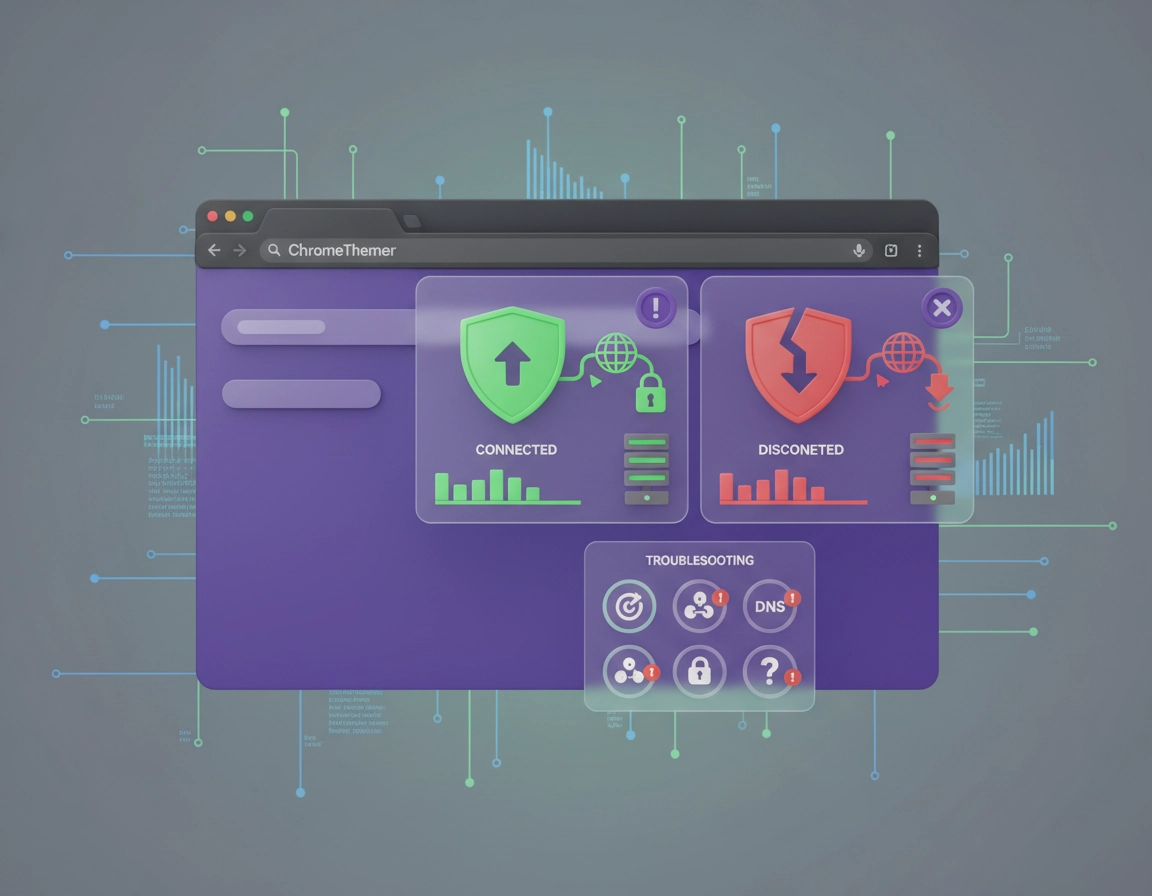
What Chrome VPN connection issues usually mean .
A Chrome VPN extension can fail even while your wider internet connection is perfectly normal. The mistake most users make is treating every VPN problem as if it lives in the same layer. It does not.
When someone says their VPN for Chrome is not working, they may be describing several different failures. The extension might never connect. It might show a connected status while pages still route badly. It might work on general websites but fail on banking, dashboards, identity providers, or high-friction login screens. Chrome might throw errors like ERR_PROXY_CONNECTION_FAILED, ERR_TIMED_OUT, or endless redirect loops the moment the extension is enabled.
Those are not interchangeable symptoms. They point to different layers: extension authentication, Chrome profile state, proxy or DNS mismatch, network policy, or the website actively distrusting VPN traffic. If you do not separate those layers first, you end up clearing everything, reinstalling too much, and still not knowing what actually caused the failure.
Another reason these problems confuse people is that many so-called Chrome VPNs are really browser-scoped proxy or tunnel tools, not full-device VPN clients. That means Chrome traffic may be treated one way while other apps, system DNS behavior, security software, or OS-level proxy leftovers behave another way. A user sees a connected badge and assumes all traffic is protected and stable. In reality, the browser can be sitting in a mixed state.
Good diagnosis starts with four questions. Is Chrome itself healthy? Is the extension truly authenticated? Is another extension, cookie state, or profile issue breaking the flow? Is the site or network refusing VPN-style traffic? Once you answer those in order, the fix becomes much narrower and much less destructive.
Related: Start with Best VPN for Chrome, then compare this page with VPN for Chrome Troubleshooting Guide, How to Install VPN Extension in Chrome, and How to Use VPN With Chrome Browser.
Terms worth understanding before you troubleshoot .
- Browser-scoped VPN: A Chrome extension that routes traffic inside the browser, not necessarily across your whole device.
- Proxy conflict: Two or more tools trying to control routing at once. Common examples include old VPN software, workplace proxy rules, and proxy-switching extensions.
- DNS mismatch: Website lookup happens one way while the page request travels another way, causing odd delays, blocks, or location inconsistency.
- Captive portal: Public Wi-Fi sign-in pages that must be completed before VPN traffic behaves normally.
- Site state: Cookies, local storage, cache, and session tokens that may keep a site tied to an older location or suspicious login history.
- WebRTC leak: Browser behavior that can expose network details outside normal proxy expectations unless the setup handles it properly.
Five checks to run before you reset anything .
Before clearing cookies, reinstalling the extension, or assuming the VPN provider is having an outage, run these checks. They tell you whether the problem is broad, narrow, temporary, or local to your browser profile.
Related: If your browser already feels overloaded, also read VPN for Chrome Performance Impact, VPN for Chrome Battery Usage, and VPN for Chrome Speed Optimization Tips.
- 1. Test one ordinary site and one failing site. If only one site breaks, do not treat it like a provider-wide outage. That usually points to site cookies, location mismatch, IP reputation, or anti-bot rules.
- 2. Disable the VPN and load the same site again. If it opens instantly without the VPN, the next question is whether the issue is the chosen server, the site rejecting the exit node, or a routing problem inside Chrome.
- 3. Switch to one nearby location only once. One controlled server change is useful. Ten random server hops are not diagnosis.
- 4. Fully restart Chrome. Not just the tab. Close every Chrome window, wait a few seconds, then reopen it. Extension state gets stuck more often than users think.
- 5. Check the network you are on. Office Wi-Fi, school networks, hotel Wi-Fi, and airport captive portals are common reasons browser VPN traffic behaves badly.
What not to do yet .
- Do not clear all browsing data as your first move.
- Do not reset Chrome settings before testing extension conflicts.
- Do not reinstall Chrome because a browser VPN extension is misbehaving.
- Do not assume the word connected in the extension popup proves your traffic is flowing the way you think it is.
| Symptom | Most likely cause | Best first move |
|---|---|---|
| Extension spins forever | Stale sign-in token, blocked network, bad extension state, provider-side handshake issue | Sign out, restart Chrome, reconnect, then test on another network |
| Chrome stops loading pages when VPN is on | Proxy conflict, DNS mismatch, filtered Wi-Fi, broken route | Disable overlapping extensions and test on hotspot |
| Only one site fails | Cookie state, anti-bot rules, location inconsistency, flagged exit IP | Clear site data for that site and try a closer server |
| Banking or SaaS login loops | Risk scoring, old session data, region mismatch, crowded VPN exit node | Try Incognito, clear that site's data, switch to a stable nearby region |
| Location still seems exposed | Account history, cookies, WebRTC, device signals, fingerprinting | Check leak controls and test with a clean browser session |
Best fix order inside Chrome .
This is the cleanest order for fixing Chrome VPN connection issues without turning a local problem into a full browser rebuild. The point is to remove variables one by one, not all at once.
- 1 Decide whether the issue is broad or site-specific. Open one normal site and one failing site. If only one breaks, keep your fixes targeted.
- 2 Disconnect and reconnect the extension properly. Let it fully drop the old state before reconnecting. Fast repeated clicking often preserves the same broken session.
- 3 Pick one nearby VPN location. For Chrome logins, admin panels, and normal browsing, a nearby region is often more stable than a distant location chosen only for novelty.
- 4 Close Chrome completely and reopen it. This clears a surprising number of extension-state problems.
- 5 Use Incognito as a diagnostic environment. Go to
chrome://extensions/, open the VPN extension details, allow it in Incognito, and test there with other extensions absent. - 6 Disable request-modifying extensions temporarily. Focus on ad blockers, privacy blockers, script blockers, proxy tools, DNS helpers, and security agents first.
- 7 Clear only the affected site’s data. For login loops and weird geolocation behavior, targeted cleanup is usually enough. In Chrome, you can review stored site data from
chrome://settings/content/all. - 8 Check whether the VPN extension needs a fresh sign-in. Password changes, subscription changes, and extension updates often break background session tokens.
- 9 Test another network. A mobile hotspot is ideal. If the VPN works there, your original Wi-Fi or managed network is the likely blocker.
- 10 Reinstall the extension only after the earlier checks fail. Remove it, restart Chrome, reinstall cleanly, sign in again, and retest before reintroducing your full extension stack.
What a real fix looks like: The extension connects reliably, pages stop hanging, the affected sites stop looping or throwing proxy-style errors, and Chrome stays stable when you open new tabs or move between authenticated pages.
Related: For setup strategy, compare VPN for Chrome Best Settings Guide, VPN Extension Permissions in Chrome, and VPN Chrome vs Desktop VPN.
Step details that save the most time .
Incognito is not just privacy mode. It is a clean-room test. If the VPN works there, the evidence points toward profile clutter, cookie pollution, or extension collision in your normal session. That is far more useful than guessing about Chrome itself.
Targeted cleanup beats browser-wide amnesia. Most VPN-related website failures are tied to one site remembering an older region, session, or fraud signal. Clearing every cookie in Chrome is excessive unless the problem is happening everywhere.
Watch for hidden overlap. The VPN extension may not be the tool actually breaking the page. Another extension might be modifying request headers, blocking scripts required for sign-in, rewriting HTTPS behavior, or interfering with the extension’s own auth flow.
Platform differences worth noting .
- Windows: More likely to carry leftover OS proxy settings, endpoint security filters, or previous VPN software interference.
- macOS: Browser-side behavior is similar, but network filters and security apps can still collide with browser VPN logic.
- ChromeOS: School or managed-device policy can restrict extension behavior or force routing decisions outside your control.
- Mobile Chrome: Desktop-style extension troubleshooting does not map cleanly to Chrome on Android or iPhone.
Advanced diagnosis for stubborn failures .
If the basic sequence did not solve it, stop doing more random fixes. Start testing boundaries. At this point the useful layers are: session, extension, profile, network, and site policy.
Related: You may also want VPN Chrome DNS Leak Test Guide, VPN Chrome IP Leak Protection, VPN Chrome WebRTC Leak Fix, and VPN vs Private DNS for Chrome.
1) Session and authentication breakage .
A VPN extension can look signed in while its actual connection token is no longer valid. This happens after password changes, subscription changes, extension updates, profile restores, or simply leaving Chrome open too long. The correct move is not to clear every cookie in the browser. It is to sign out of the VPN extension, close Chrome, reopen it, and sign in fresh.
2) Chrome profile-specific failure .
If the VPN works in a different Chrome profile or a clean temporary profile, the provider is not your first suspect anymore. Your current profile is. The underlying cause might be broken extension storage, years of cookie buildup, unusual local storage state, or a messy interaction between too many installed add-ons. Fresh-profile testing is one of the highest-value checks you can run because it tells you whether the problem is portable or local.
3) Proxy and DNS mismatch .
Many users describe a VPN failure when what they really have is a routing split. DNS resolves one way, page requests travel another way, and Chrome ends up in a half-working state. That often produces symptoms like some sites loading, some freezing, and some redirecting strangely. If you used another VPN, smart DNS service, corporate security agent, or proxy tool on the same machine, leftover routing logic may still be interfering.
4) Captive portals and filtered Wi-Fi .
Hotel, airport, café, and guest-office Wi-Fi often require a web-based sign-in before anything behaves normally. If the VPN works over mobile hotspot but fails over public Wi-Fi, that is a huge clue. Authenticate on the local network first with the VPN off, confirm ordinary browsing works, then reconnect the VPN.
5) Site-side anti-bot and anti-fraud enforcement .
Some sites do not fail because your VPN is broken. They fail because they dislike the exit node you are using. Banks, government sites, SaaS admin panels, ticketing systems, and some ecommerce checkouts are especially likely to react badly to shared VPN IPs. The pattern often looks like repeated CAPTCHA, login refresh loops, unusual activity warnings, or endless verification requests. In those cases, the better fix is usually a cleaner session, a closer server, or direct access for that task.
When advanced settings changes are justified .
- You see the same failure across multiple sites and multiple networks.
- You suspect DNS inconsistency, WebRTC leakage, or partial routing.
- You are working on a managed business device with browser policy, proxy rules, and security tooling layered together.
- You need stable behavior for travel, remote work, or privacy-sensitive browsing rather than casual one-off use.
When they are not .
- Do not edit system proxy settings just because a browser extension is acting up.
- Do not stack more privacy extensions on top of a failing VPN to “fix” it.
- Do not assume every site should behave identically behind every VPN exit location.
What serious buyers and teams should compare before deployment .
Privacy and security implications .
A broken browser VPN is not just an inconvenience. It can quietly drop you back onto your normal connection, leave you in a mixed routing state, or make you believe your browser session is protected when it is not. That false confidence is the real problem.
Why it matters: Connection failure can affect IP exposure, DNS behavior, login trust scoring, WebRTC privacy, and whether your browsing path matches the security posture you think you are using.
Related: If the issue may involve unsafe extension behavior rather than plain connectivity, read VPN Extension Permissions in Chrome, Chrome Extension Security Check, and Remove Malware from Chrome.
Plain-English reality: “Connected” is not the same as “private enough for this task.” A VPN extension must authenticate properly, route traffic predictably, avoid extension conflicts, and behave consistently on the exact sites you care about. Half-working privacy tools create overconfidence, and overconfidence is where users make expensive mistakes.
Baseline setups that make sense .
- Balanced everyday setup: reputable paid VPN extension, nearby server, minimal extension overlap, targeted cookie clearing when a site misbehaves.
- Privacy-focused setup: reputable provider, leak testing, tighter extension hygiene, and separate browser profiles for sensitive workflows.
- Compatibility-first setup: VPN for general browsing, but a direct or alternate profile path for banking, identity providers, and fragile SaaS admin work.
Recommended setup by use case .
| Goal | Recommended setup | Main tradeoff | Best fit |
|---|---|---|---|
| Balanced | Nearby server, lean extension stack, targeted site cleanup | Less anonymity theatre, more reliability | Most Chrome users |
| Maximum privacy | Trusted provider, leak checks, clean profiles, disciplined extension use | More maintenance and more site friction | Privacy-sensitive users |
| Compatibility | Selective VPN usage and a direct path for fragile sites | Not every session stays tunneled | Banking, business SaaS, admin portals |
| Business control | Managed deployment, approved extensions, documented exception rules | Less user freedom | Teams and IT-administered environments |
Where people misjudge the risk .
The most common mistake is assuming a Chrome VPN extension behaves like a full desktop VPN client. It usually does not. That is why you should compare browser-only VPN use against desktop VPN use and against Chrome’s own built-in protections. The useful question is not just whether the extension connects. It is whether the extension gives you the right protection for the exact work you are doing.
Troubleshooting by symptom .
Related: Also see VPN for Chrome Troubleshooting Guide, VPN for Chrome Speed Optimization Tips, VPN for Chrome Data Usage Impact, and VPN Chrome Secure Public WiFi.
If the extension says “connected” but sites still fail .
Treat this as a routing or browser-state issue before you blame the provider. Switch to one nearby location, open a clean Incognito session, test one simple site, and disable other request-modifying extensions. If the VPN starts behaving in that cleaner environment, your problem is likely local to Chrome rather than a total provider outage.
If Chrome shows ERR_PROXY_CONNECTION_FAILED .
Think proxy conflict first. This often happens after switching between VPN tools, using privacy extensions that manipulate proxy behavior, or browsing on a managed device with enforced network policy. Disable overlapping tools, test on a different network, and pay attention to whether the error disappears on hotspot. If it does, the original network is part of the story.
If only one website breaks when the VPN is on .
Clear data for that specific site, not the entire browser, then reopen it in a clean window. Many sites bind sessions to location history, cookies, and fraud scoring. A VPN location shift plus stale cookies is enough to trigger loops, denial pages, and repeated verification.
If login pages keep looping or asking for verification .
That pattern usually signals distrust, not raw connectivity failure. Identity providers, banks, and admin dashboards dislike abrupt region changes, crowded VPN exits, and noisy extension stacks. Use a stable nearby server, reduce extension clutter, and retest with a clean session. For some sensitive services, a direct connection or full-device VPN is simply more reliable than a browser extension.
If the extension will not connect at all .
Use this order: verify ordinary browsing works without the VPN, sign out and back in to the extension, restart Chrome, test on another network, and only then reinstall the extension. A browser VPN that refuses to connect is often dealing with session or network interference, not a broken Chrome installation.
If Chrome becomes slow, unstable, or freezes with the VPN enabled .
You may be looking at a performance problem masquerading as a connection problem. Heavy tab load, older hardware, aggressive blockers, and too many browser extensions can make a VPN look broken when the real issue is latency plus browser overhead. Reduce tab pressure, trim extensions, and test a lighter region or server.
If public Wi-Fi breaks the VPN .
Assume captive portal or network policy first. Disconnect the VPN, complete the Wi-Fi login flow, confirm ordinary browsing works, then reconnect the VPN. Trying to force the VPN through a network that has not fully authenticated you often leaves Chrome in a useless half-connected state.
If you suspect risky extension behavior, not just a technical failure .
Stop treating the problem as a normal connectivity issue. Review the extension’s permissions, change history, vendor reputation, and whether the behavior changed after an update. A VPN extension sits close to some of your most sensitive browsing activity. It deserves stricter scrutiny than a casual utility add-on.
If you need to reset safely .
Reset in layers. First reinstall the VPN extension. Second test in a fresh Chrome profile. Third, only if Chrome behaves badly across multiple profiles and without the VPN, consider broader browser cleanup. That order keeps more of your working environment intact while still giving you clean diagnostic checkpoints.
FAQ .
-
helpWhy does my Chrome VPN connect but websites still know my real region?Changing your IP is only one part of what sites look at. Cookies, account history, WebRTC behavior, time zone signals, device clues, and browser fingerprinting can still expose useful location hints. Browser extensions are also more limited than full-device VPN apps, so a connected badge does not guarantee that every layer behaves the way you expect.
-
helpShould I fix the extension or switch to a desktop VPN?If you only need browser-level privacy for ordinary browsing, fixing the extension may be enough. If you need more consistent behavior across websites, apps, DNS, and network trust, a desktop VPN usually gives you cleaner and more predictable coverage.
-
helpShould I clear all cookies to fix Chrome VPN issues?Usually no. Start with the affected site only. Full cookie clearing is a blunt move that signs you out everywhere and often fails to solve the real issue if the problem is limited to one website or one extension interaction.
-
helpWhy does my VPN work on hotspot but not on office or hotel Wi-Fi?That strongly suggests the network is interfering. Public Wi-Fi may need captive-portal sign-in first, while office or school networks may block proxy-like traffic or enforce routing rules that clash with browser VPN behavior.
-
helpCan other Chrome extensions really break a VPN connection?Yes. Ad blockers, script blockers, privacy tools, proxy switchers, and other request-modifying extensions can interfere with login flows, page requests, routing decisions, or site behavior. An Incognito test with only the VPN enabled is one of the fastest ways to prove it.
Sources & further reading .
- Google Chrome Help: Fix connection and loading errors in Chrome
- Chrome Web Store Help: Fix problems with apps, extensions, or themes
- Google Chrome Help: Install and manage extensions
- Google Help: Clear cache and cookies
- Google Chrome Help: Delete, allow, and manage cookies in Chrome
- Google Chrome Help: Fix Chrome if it crashes or won't open
Editorial note: Browser VPN tools vary widely in routing design, privacy model, extension permissions, and site compatibility. The right test is never “does the badge say connected?” It is “does this exact provider behave reliably in my exact Chrome workflow?”