What a “business VPN for Chrome” really means .
Most people search “best business VPN for Chrome” when they’re trying to solve one of three problems: protect remote browsing, control business access, or meet compliance requirements.
In a business context, a VPN isn’t just about changing your location or unlocking a site. It’s about reducing risk when employees access company resources from everywhere: home Wi-Fi, coffee shops, client networks, airports, hotels, and coworking spaces. Chrome is often the primary work app, so the VPN has to be reliable in the browser and predictable in a managed environment.
Here’s the key nuance: a “VPN for Chrome” can mean two very different products. A Chrome VPN extension usually protects traffic inside the browser (and sometimes only specific traffic), while a full device VPN client routes traffic at the operating system level. For business security, the distinction matters because your risk doesn’t live only inside Chrome.
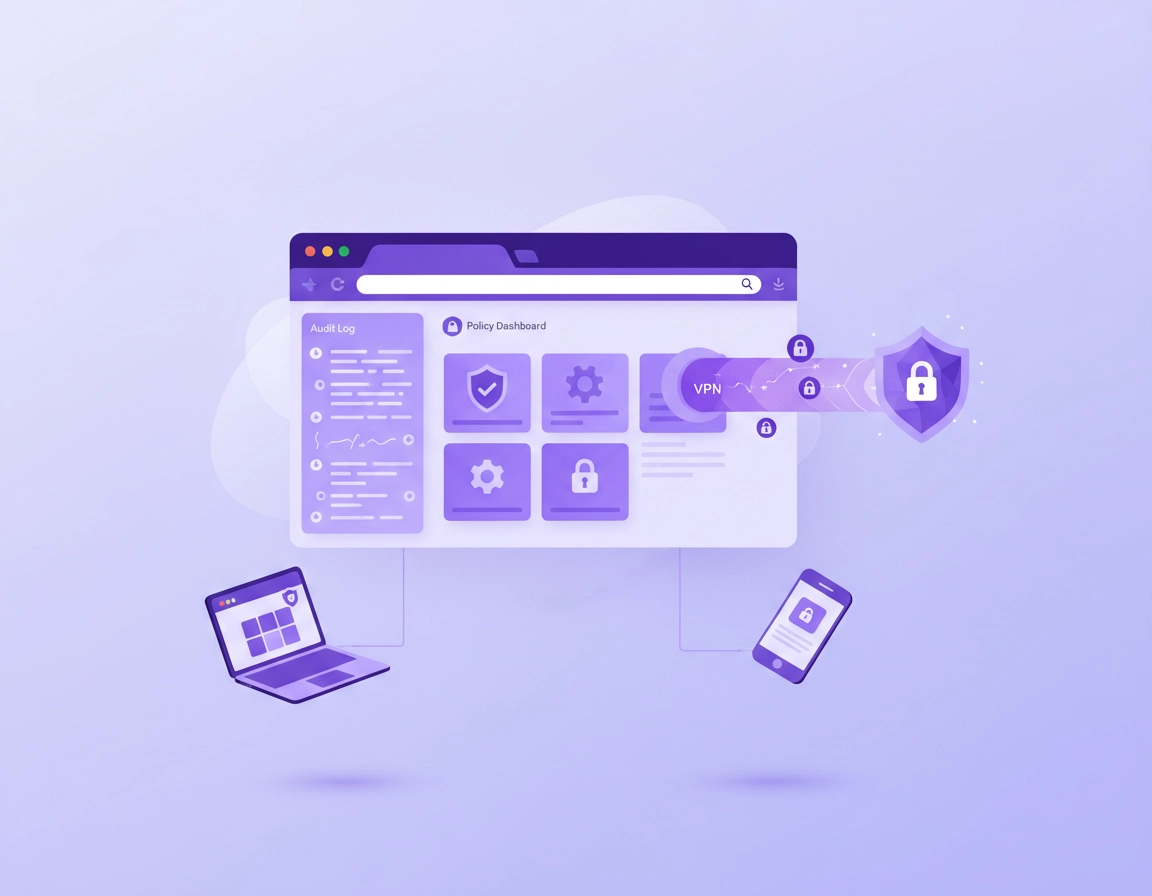
A business-grade VPN also includes things consumer VPNs often skip: identity integration (SSO/MFA), central administration, audit logs, policy enforcement, and support that looks like an SLA—not a web form.
Start here (hub): If you want the broad overview first, read Best VPN for Chrome. This page is specifically about business requirements, IT controls, and compliance needs.
Key terms (quick definitions) .
- VPN extension (browser): A Chrome add-on that typically proxies or tunnels browser traffic; may not cover non-browser apps and may not enforce device-wide protections.
- Full VPN client (device): A desktop/mobile VPN that routes traffic at the OS/network layer and can support kill switch + always-on behavior.
- Kill switch: A safety feature that blocks traffic if the VPN disconnects, preventing accidental “plain internet” exposure. (In business, you usually want device-level control.)
- Dedicated IP: A stable IP address your company uses for allowlists, admin portals, or vendor access; useful for B2B SaaS admin logins and banking workflows.
- Split tunneling: Sending some traffic through the VPN while leaving other traffic local; helpful for performance but risky if misconfigured.
- DNS leak protection: Ensuring DNS requests go through the VPN (or an approved resolver), not the local network.
- WebRTC leak protection: Preventing real IP exposure through WebRTC behavior in the browser.
- SSO/MFA: Single sign-on and multi-factor authentication; essential for team management and access control.
- Audit logs: Evidence of sign-ins, device posture, policy changes, and connection events—critical for SOC 2 and incident response.
Before you start (decide what you’re protecting) .
Buying a “business VPN” goes smoothly when you make one decision up front: Are you protecting Chrome, or are you protecting the device? The right answer depends on your threat model, team size, and compliance requirements.
Fast checks that prevent expensive mistakes .
- Identify your critical workflows: Admin logins, payroll, banking, password manager access, support desk tools, internal dashboards, developer portals, and client data systems. These are the paths you must protect first.
- Decide where the trust boundary is: If employees use unmanaged laptops or personal devices, you’ll need stronger controls (always-on, posture checks, and revocation).
- List your compliance needs: GDPR, HIPAA, SOC 2, or customer security requirements. If you need evidence, you need logs, admin roles, and policy history.
- Document where access comes from: Do you need “only from our country,” “only from our corporate IP,” or “only from approved devices”? Each implies different VPN features.
- Decide whether you need dedicated IP: Many SaaS providers allow IP allowlisting for admin panels. If this is part of your security controls, you’ll want a stable IP option.
- Know your environment: Windows/macOS endpoints, Android/iOS, Chromebooks, VDI, and any MDM platform you use. Deployment must match your fleet.
Related (managed environments): If you’re rolling this out via IT, also read Chrome Enterprise Guide and the VPN enterprise hub at VPN Chrome Enterprise.
One more practical reality: many teams try to solve “browser security” with a VPN alone. That works for some threats (especially untrusted networks), but it doesn’t automatically solve malicious extensions, phishing, credential theft, or unsafe permissions. A business-grade approach is a stack: VPN + browser hardening + extension control + password hygiene.
Related (extension risk): If you allow VPN extensions in Chrome, you should also review Chrome Extension Security Check and Chrome Extension Permissions Guide.
Decision: extension vs full VPN client .
Use this rule-of-thumb for business:
- Use a Chrome VPN extension when you need fast coverage for browser-only browsing, lightweight onboarding, or a temporary layer for contractors where you cannot manage the whole device.
- Use a full device VPN client when you need reliable kill switch behavior, always-on connectivity, DNS control, or you must protect non-browser apps (Slack/Teams clients, email clients, dev tools, sync agents, backups).
- Use both if you have mixed risk: full VPN for employees on managed devices, and an approved extension for specific browser workflows (for example, a dedicated-browser profile for vendor portals), with strict permissions and logging.
Step-by-step: choose, test, and roll out (IT checklist) .
This is the practical deployment path I recommend for small businesses, startups, and IT teams. You’ll avoid the most common failure mode: buying a VPN, installing it on two laptops, and then discovering later that it breaks key sites, can’t be audited, or can’t be enforced.
- 1 Write the goal in one sentence: “We need secure Chrome browsing for remote staff with SSO, logging, and stable access to admin portals.” This becomes your selection filter.
- 2 Choose your security baseline: Decide if the baseline is device VPN (always-on + kill switch) or browser-only extension. If compliance is involved, prefer device-level controls.
- 3 Define your policies: Required MFA, approved regions/servers, split tunneling rules, DNS behavior, and whether dedicated IP is required for allowlisting.
- 4 Run a 1-week pilot: Include the people who touch money (finance), data (ops), and risk (admin/compliance). Test real workflows: payroll, banking, password manager, support tooling, admin consoles.
- 5 Verify leak protection: Confirm DNS behavior, check WebRTC behavior in Chrome, and verify kill switch behavior by force disconnecting the VPN.
- 6 Decide deployment method: MDM for devices, Chrome Enterprise policies for Chrome, and an allowlist approach for extensions. Document rollback steps.
- 7 Roll out in waves: Start with IT/admin → power users → the full team. Require MFA from day one. Monitor support tickets and connection logs.
- 8 Lock down permissions: If using a VPN extension, review extension permissions, restrict site access where possible, and prevent “all sites” access if it’s not required.
- 9 Document evidence: Store policy screenshots/exports, admin role settings, and audit log retention settings for compliance and incident response.
- 10 Re-test quarterly: Browsers update, VPNs update, corporate networks change. Re-test the critical workflows on a schedule.
What “success” looks like: Users stay connected without thinking about it, MFA is enforced automatically, critical web apps don’t break, support tickets drop after the first week, and you can answer “who connected, from what device, and when” using logs.
Related (setup pages): If you need a more “how-to” rollout guide, see Business VPN for Chrome Setup and for policy controls check VPN Policy Enforcement.
Pilot test checklist (copy/paste) .
- Identity: SSO works; MFA required; deprovisioning removes access immediately.
- Admin: Role-based access for IT; separation of duties for billing vs policy control.
- Logging: Connection events, sign-in events, admin changes, and device info are visible and exportable.
- Kill switch: Confirm behavior on real endpoints (Wi-Fi toggle, sleep/wake, roaming networks).
- DNS: DNS goes through approved resolvers; no local network DNS for business browsing.
- Chrome compatibility: Meets your needs for WebRTC, conferencing tools, SSO flows, and admin panels.
- Performance: Teams can still work: file uploads, meetings, and dashboards are usable.
- Support: How fast is support response? Is there a business channel? Do they provide incident notes?
- Pricing: Seats, minimums, add-ons (dedicated IP), and contract terms are clear.
Common variations .
- Windows / ChromeOS: If you use managed devices, prioritize always-on + kill switch support and a clean deployment path through your management tools.
- macOS: Watch for split tunneling behavior and VPN stability across sleep/wake; always test conferencing tools and SSO flows.
- Android / iPhone: Test roaming (Wi-Fi ↔ mobile) and confirm always-on settings; mobile VPN behavior differs by platform policies.
Advanced selection framework (features that matter) .
When people say “best business VPN,” they often mean “fast.” Speed matters, but business VPN selection is mostly about control and risk reduction. Below is the framework I use to evaluate whether a VPN is a fit for business Chrome usage.
Related (deep dives): For protocol detail, see VPN protocols for Chrome compared, and for speed tradeoffs see VPN Chrome speed comparison.
1) Identity and access control (non-negotiable for business) .
In business, “who” matters more than “where.” Look for VPNs that support:
- SSO integration: SAML/OIDC sign-in with your identity provider.
- MFA enforcement: Not optional; required for all privileged users and ideally for everyone.
- Role-based access control: Admin roles split between billing, policy, and auditing.
- User lifecycle: Deprovisioning is immediate, not “eventually.” Lost laptop? You can revoke access now.
- Device awareness: At least basic device identity and client version visibility for troubleshooting and audit.
2) Policy enforcement (what you can actually control) .
Policies are where business VPNs become “business.” You’re not only buying encryption; you’re buying predictable behavior across a team. Look for:
- Always-on options: Especially for high-risk roles (finance, admins, support staff).
- Kill switch / network lock: Device-level blocking when the tunnel drops.
- Server/region restrictions: Block risky regions or enforce business regions for compliance/latency.
- Split tunneling rules: If allowed, it must be centrally configured—not user-controlled.
- DNS policies: Enforce VPN DNS or approved resolvers; don’t let local network DNS leak.
- Dedicated IP options: If you use IP allowlisting for admin consoles and banking portals.
Related: Dedicated IP and kill switch are common business features. See: VPN for Chrome with dedicated IP and VPN for Chrome with kill switch.
3) Logging and auditability (compliance + incident response) .
“No logs” is a consumer marketing phrase. Businesses usually want a more nuanced answer: no unnecessary browsing logs, but enough security logs to prove control and investigate incidents. What you need depends on your compliance requirements and customer expectations.
- Admin activity logs: Policy changes, admin sign-ins, role changes, billing changes.
- Connection logs: Connection/disconnection events, device identity, client version, IP assignment (especially if using dedicated IP).
- Export/retention: Can you export logs to your SIEM? Can you set retention that matches your compliance posture?
- Data minimization: Prefer vendors that can explain exactly what they log and why.
4) Chrome extension considerations (permissions + trust) .
If your plan includes a VPN extension for Chrome, treat it like privileged software. A VPN extension can be powerful because it sits inside the browser, and browsers touch the most sensitive data your team uses: authentication cookies, web apps, admin consoles, and passwords.
Here’s how to evaluate an extension safely:
- Permission scope: Prefer extensions that let you restrict site access or limit the scope of “read and change data” permissions. If an extension requires access to all sites, understand why and whether it’s acceptable.
- Update control: Know how updates are shipped and how quickly vulnerabilities are patched.
- Transparency: Clear privacy policy, company identity, and support channel. Avoid “mystery vendor” extensions with vague language.
- Managed deployment: If you’re using Chrome Enterprise, deploy via policy and maintain an allowlist.
Related: If you’re managing Chrome extensions for a team, see Chrome Enterprise extension management, plus the extension auditing pages: Extension audit checklist and How to check if a Chrome extension is safe.
5) Performance and reliability (Chrome work must stay smooth) .
Business VPN performance isn’t about a speed-test screenshot; it’s about whether work tools remain usable all day. The biggest “VPN pain points” I see in Chrome teams:
- Video meetings: Latency spikes and packet loss show up as dropped audio/video.
- Large uploads: Design files, backups, and media uploads fail when MTU or routing is unstable.
- SSO loops: Identity flows sometimes break when IP changes too often or when strict cookie settings collide with VPN behavior.
- Geo-blocked admin portals: Some services block “VPN-like” traffic. Dedicated IP can help.
6) Procurement and business readiness .
Businesses don’t just buy features; they buy predictable operations. Look for:
- Clear pricing: Seat pricing, minimums, add-ons (dedicated IP), and what happens if you reduce seats.
- Billing controls: Proper invoices, admin/billing separation, and renewal clarity.
- Support expectations: Defined support channels, response expectations, and an incident process.
- Security documentation: A vendor that can answer basic security questions is a safer long-term partner.
Recommended settings by goal .
| Goal | Recommended approach | Tradeoff | Best for |
|---|---|---|---|
| Balanced security | Full device VPN + MFA + DNS protection; allow VPN extension only if needed | Slight learning curve; needs policy planning | Most small businesses |
| Maximum control | Always-on device VPN + kill switch + restricted regions + dedicated IP for admin allowlists | More admin work; may impact some services | Finance/admin-heavy teams |
| Fast onboarding | Approved Chrome VPN extension for browser-only traffic + strict extension allowlist | Doesn’t protect non-browser apps; weaker kill switch behavior | Contractors / lightweight workflows |
| Compliance evidence | Business VPN with admin console, audit logs, SSO/MFA enforcement, and exportable policy history | Usually more expensive than consumer VPNs | SOC 2 / regulated teams |
Note: If a vendor can’t explain how logging, roles, and access revocation work, treat that as a risk. For pricing comparisons, see VPN for Chrome pricing comparison.
Common alternatives users compare .
- VPN extension vs full desktop VPN client (VPN Chrome vs desktop VPN)
- VPN vs proxy (VPN vs proxy differences)
- VPN vs zero trust browser strategy (VPN vs zero trust browser security)
- VPN vs antivirus for browser security (VPN vs antivirus for Chrome)
- Business VPN vs consumer VPN (business VPN vs consumer VPN)
Security notes: leaks, logs, and threat model .
A VPN can meaningfully reduce risk, but it doesn’t magically “secure Chrome.” To deploy a business VPN well, you should know where leaks happen, what “no logs” really means in a business context, and which threats a VPN does not solve.
Impact: Affects web traffic routing, DNS behavior, perceived login risk, and how users access admin portals and business apps.
What a VPN protects (and what it doesn’t) .
- Protects against: local network snooping on untrusted Wi-Fi, some ISP-level visibility, and IP exposure to websites (depending on configuration).
- Does not automatically protect against: phishing, compromised passwords, malicious extensions, unsafe downloads, or poor browser hygiene.
Related: If your concern is “Chrome might be infected,” start with Remove Malware from Chrome. If your concern is “extensions might be risky,” start with Chrome Extension Security Check.
Leak protection that matters in Chrome .
In practice, the two most common “VPN failures” I see in Chrome-focused teams are DNS behavior and WebRTC behavior. Both can expose information you expected to be private—especially when employees move between networks.
- DNS leaks: You want DNS queries to go through the VPN or through an approved resolver—not the coffee shop router. DNS leaks can reveal what domains are being accessed even if the content is encrypted.
- WebRTC leaks: Chrome uses WebRTC for real-time communication. Without proper controls, it can expose IP information. This matters for privacy and for location-sensitive admin portals.
Guides: Use VPN DNS leak test guide and VPN WebRTC leak fix for practical testing steps. For general IP leakage prevention, see VPN Chrome IP leak protection.
Logs vs privacy: what businesses should aim for .
A business VPN doesn’t need to record every website an employee visits to be useful. But it usually does need security-relevant logs: sign-in events, device identity, policy changes, and connection events. This allows you to enforce access control and investigate suspicious behavior.
If you must meet compliance requirements, you also want: retention controls, export, and proof of enforcement. For example, “MFA required” isn’t a statement—it’s a configuration you should be able to demonstrate.
Compliance pathways: If your VPN choice is linked to a compliance requirement, review: GDPR, HIPAA, and SOC 2.
Recommended baseline settings (practical) .
- Option A (balanced): Device VPN with kill switch enabled + MFA + VPN DNS enabled; allow split tunneling only if IT controls it and you can explain the risk.
- Option B (maximum control): Always-on device VPN + kill switch + restricted regions + dedicated IP for admin allowlists + strong logging and RBAC.
- Option C (compatibility): Device VPN with careful server selection (closest region), split tunneling for known “breakers,” and an approved extension only for specific browser workflows.
Troubleshooting: common Chrome + VPN issues .
Quick tip: When troubleshooting, isolate the problem: (1) Does it fail only in Chrome? (2) Only on one network? (3) Only on one server/region? (4) Only for one identity flow? That tells you whether the issue is the VPN, the browser, or the network policy.
If Chrome keeps logging you out or SSO loops .
This usually happens when IP changes too frequently, cookie/session policies are strict, or you’re switching servers often. In business workflows, admin portals may treat IP changes as suspicious behavior.
- Fix: Use a stable region/server for business work. If available, use a dedicated IP for admin portals.
- Fix: Stop switching servers mid-session. Complete sign-ins first, then lock the connection.
- Fix: Check Chrome cookie and privacy settings if sessions break frequently. (Some “block everything” settings can disrupt SSO.)
Related: For Chrome privacy/cookie controls, see Third-party cookies settings and Chrome account sync settings.
If video calls (Meet/Zoom/Teams web) get choppy .
Real-time calls are sensitive to jitter and packet loss. VPN routing can worsen this if the server is far away or congested.
- Fix: Choose the closest region and test a different server within the same region.
- Fix: If IT policy allows, split tunnel the conferencing domain/app while keeping business portals inside the VPN.
- Fix: Check whether the VPN protocol choice affects stability (some environments behave better with one protocol than another).
Related: For deeper performance troubleshooting, see VPN for Chrome performance impact and VPN Chrome performance test.
If websites block you or show “unusual traffic” .
Some services block known VPN IP ranges or flag shared IPs as suspicious. This is common with banking, payroll, and certain admin portals.
- Fix: Use a dedicated IP (if your VPN supports it) and add it to allowlists where possible.
- Fix: Use region-appropriate servers close to your business location.
- Fix: If the workflow is critical, consider routing only that workflow through a stable path (or use a managed browser profile approach).
If you suspect DNS or WebRTC leaks .
Leaks often happen during network transitions (sleep/wake, roaming, Wi-Fi switching) or when DNS settings are not enforced.
- Fix: Enable VPN DNS protection and disable “use local DNS” behaviors if present.
- Fix: Apply WebRTC leak mitigation steps for Chrome workflows where IP exposure matters.
- Fix: Test again after updates—browser updates can change behavior.
Guides: DNS leak test, WebRTC leak fix, IP leak protection.
If you need to “reset” safely .
If everything is a mess—multiple VPNs installed, conflicting settings, unreliable extensions—reset in this order:
- Step 1: Uninstall extra VPN extensions and remove duplicate VPN clients.
- Step 2: Reboot, then install only the chosen VPN method (client and/or approved extension).
- Step 3: Re-apply policies (MFA, server restrictions, DNS rules) before onboarding the next wave of users.
- Step 4: Re-test critical business workflows and document the working configuration.
Related: If Chrome itself is behaving strangely, consider a safe Chrome cleanup path: Chrome security checkup and clear browsing data.
FAQ .
-
helpIs a Chrome VPN extension enough for a business?Sometimes, but only for browser-only workflows. For business security, you usually want device-level controls (always-on + kill switch + DNS control), plus admin enforcement and logging. Extensions can be useful for lightweight onboarding or contractor access, but they don’t reliably protect non-browser apps.
-
helpWhat features matter most for a business VPN?Prioritize SSO/MFA, role-based admin controls, audit logs (connections + admin activity), enforceable policies (server restrictions, DNS behavior, kill switch), and a deployment method that matches your fleet (MDM/managed rollout). Speed matters, but reliability and control matter more.
-
helpShould we use dedicated IP for Chrome business workflows?Dedicated IP is worth it when you rely on IP allowlisting for admin portals, banking, payroll, or vendor systems. Shared VPN IPs can get flagged by some services; dedicated IP reduces that friction and creates a stable control for security policies.
-
helpHow do we avoid VPN leaks in Chrome?Focus on DNS and WebRTC. Enforce VPN DNS (or approved resolvers), test for DNS leaks, and apply WebRTC leak mitigation where it matters. Also test kill switch behavior on real endpoints by force-disconnecting the VPN and switching networks.
-
helpWill a business VPN improve security compliance (GDPR/HIPAA/SOC 2)?It can, but only if it provides enforceable controls and audit evidence. Compliance isn’t “having a VPN” — it’s being able to show access controls, MFA enforcement, least privilege, logging, and incident response readiness. Choose a VPN that supports those operational requirements.
Sources & further reading .
- Google Chrome Web Store: understanding extension permissions
- NIST SP 800-77r1: Guide to IPsec VPNs (PDF)
- NIST SP 800-113: Guide to SSL VPNs (PDF)
- WireGuard paper: Next Generation Kernel Network Tunnel (PDF)
- WireGuard protocol overview
- NSA/CISA: Selecting and Hardening Remote Access VPN Solutions (PDF)
Disclosure: This guide is educational. If specific services are mentioned elsewhere on the site, recommendations are editorial and based on testing and practical deployment considerations.